
Table of Contents
User Groups allow users to be grouped together, allowing Custom Employee Data Tabs to be accessible more easily to multiple users. #
You must have Administrative permissions to access the Setup page coming in the next slide.
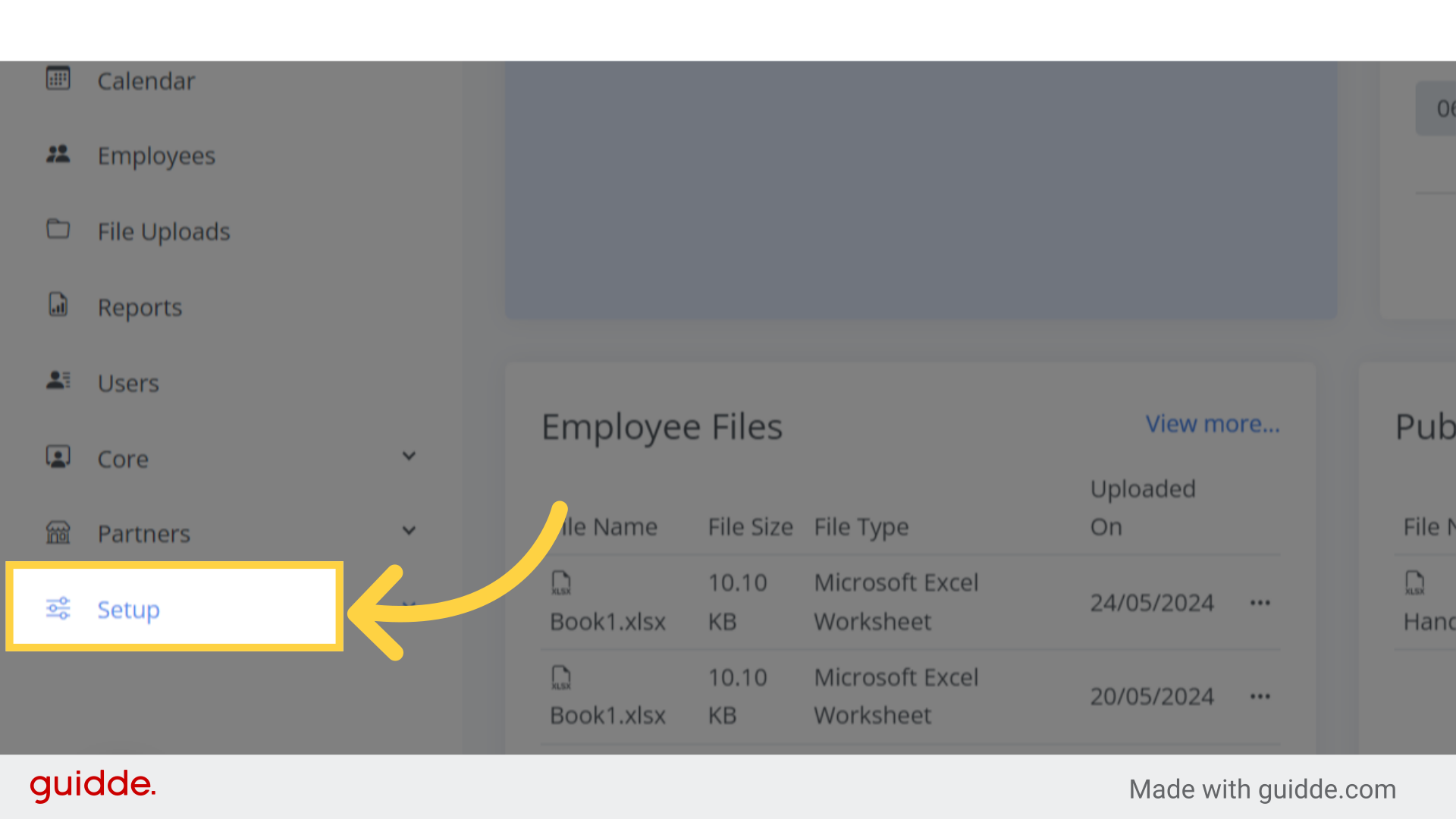
Step 1. Click “Setup” #
Start by clicking setup from left hand side.
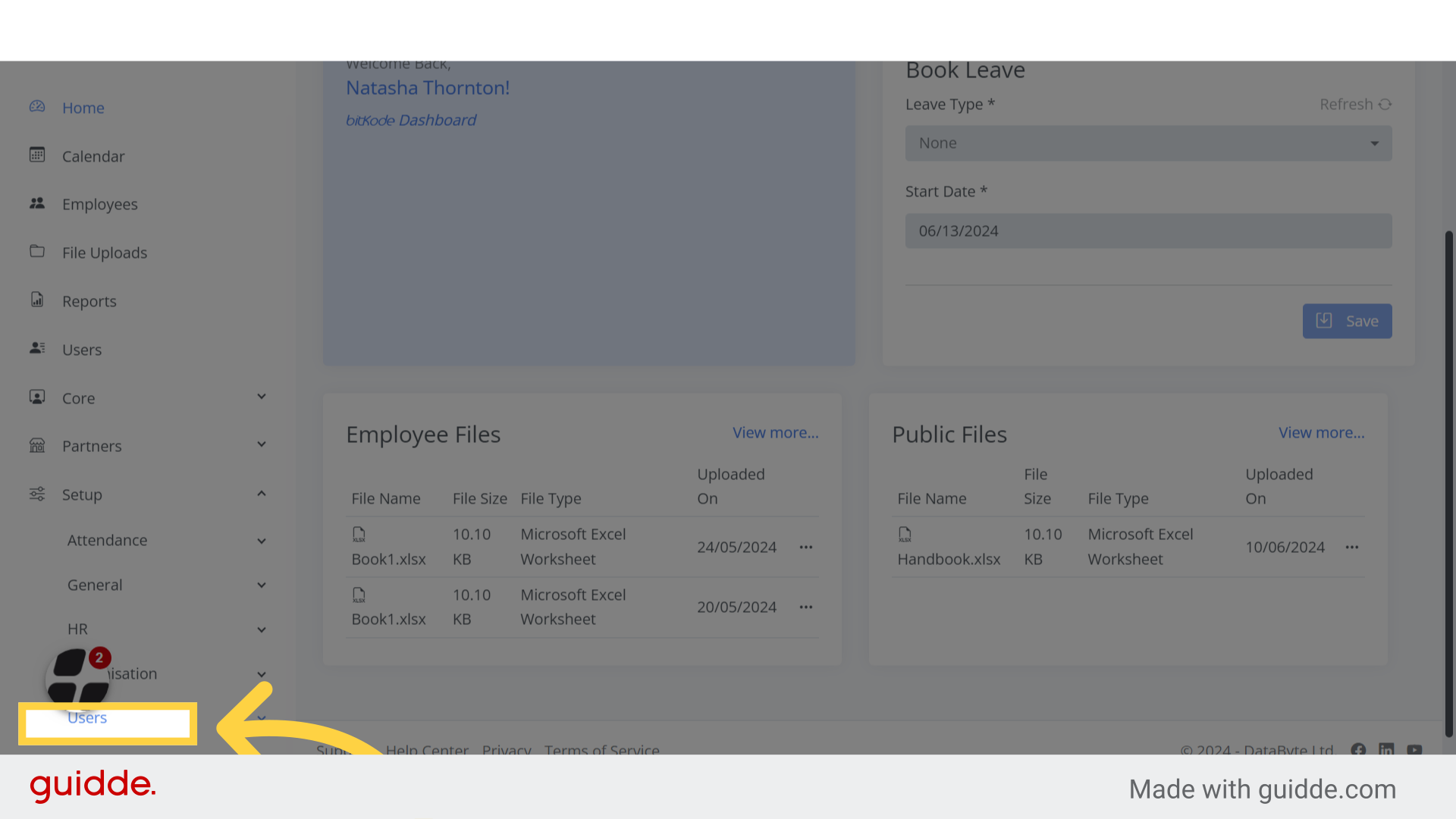
Step 2. Click “Users” #
After clicking on Setup, you’ll encounter a list.
Proceed by selecting Users.
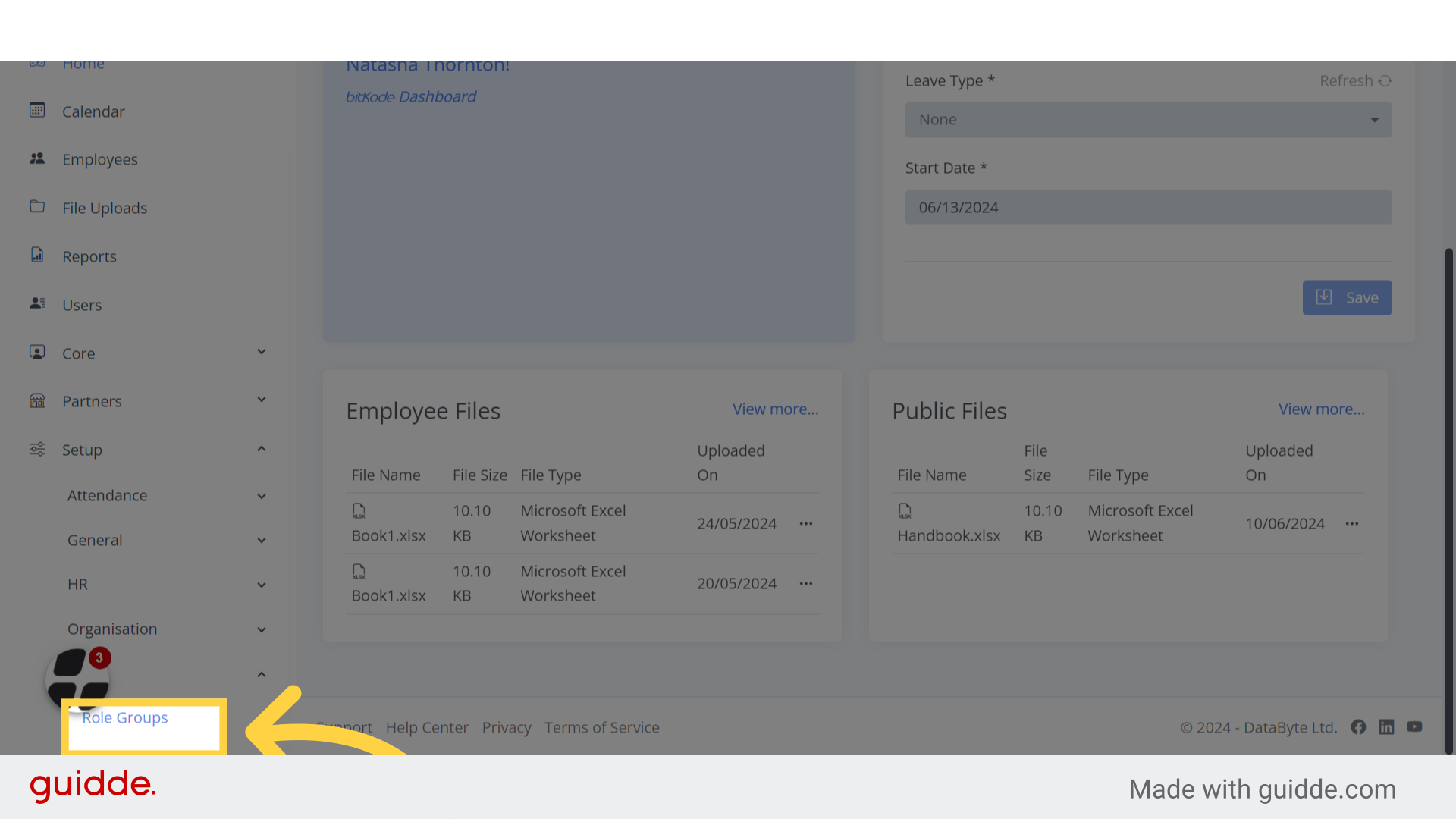
Step 3. Click “Role Groups” #
After selecting the Users option, proceed by clicking on Role Groups.
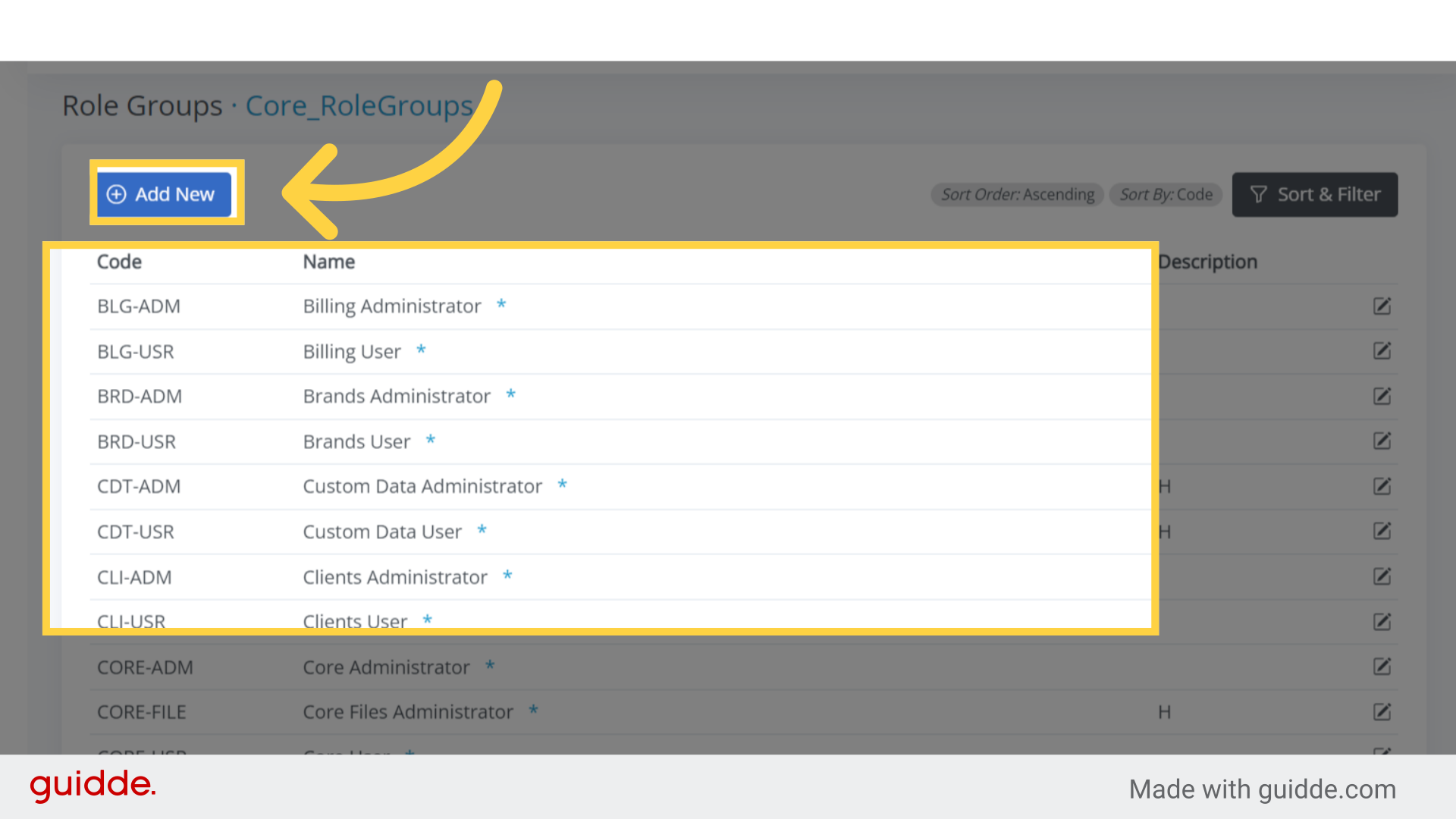
Step 4. Click “Add New” #
When you access the form for Role Groups, you’ll also see a list of existing User Groups within the system.
To add a new group, just click on the “Add New” option.
Step 5. Create Role Groups #
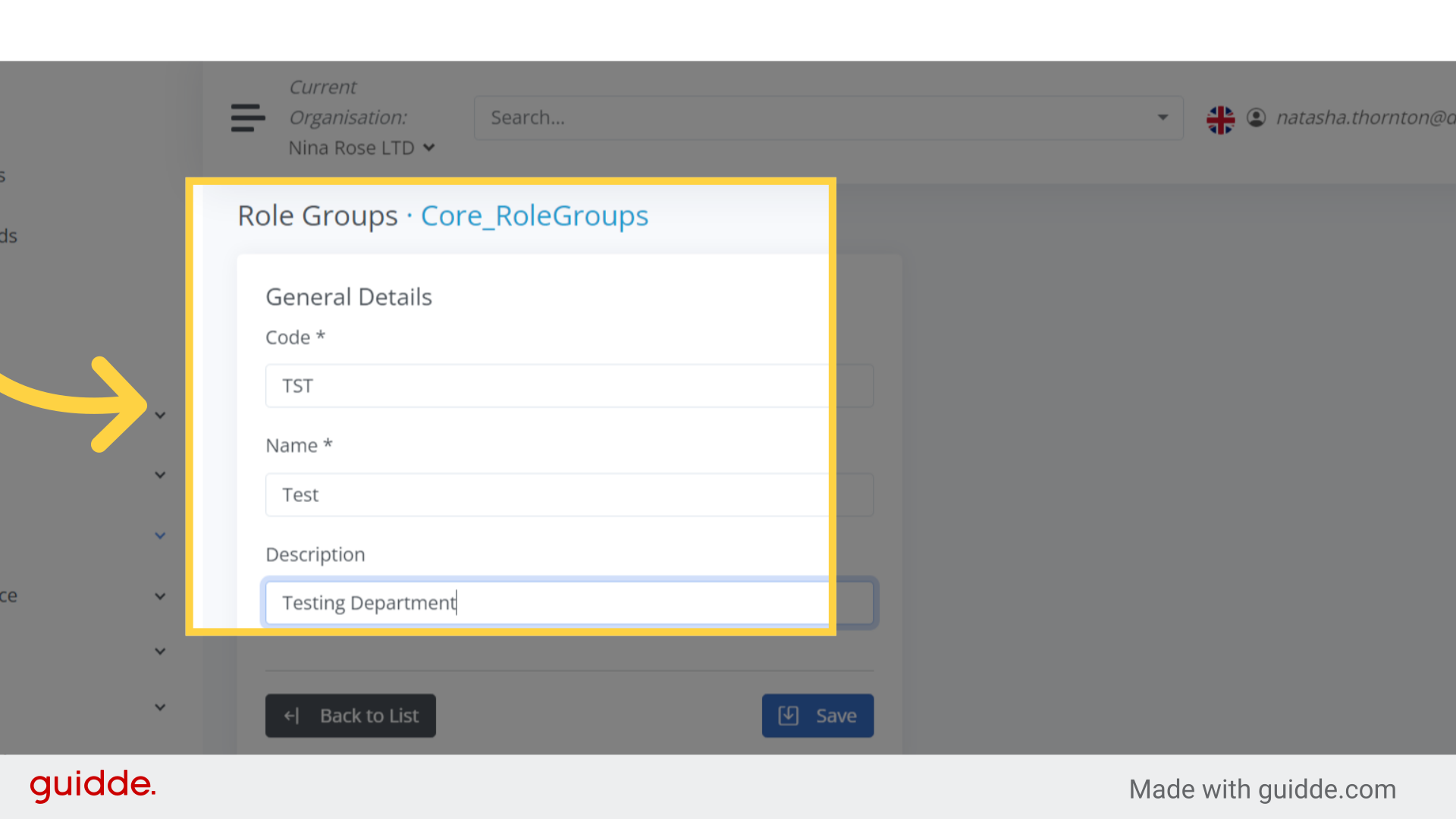
Enter the User Group Code, Name, followed by a description.
Step 6. Click “Save” #
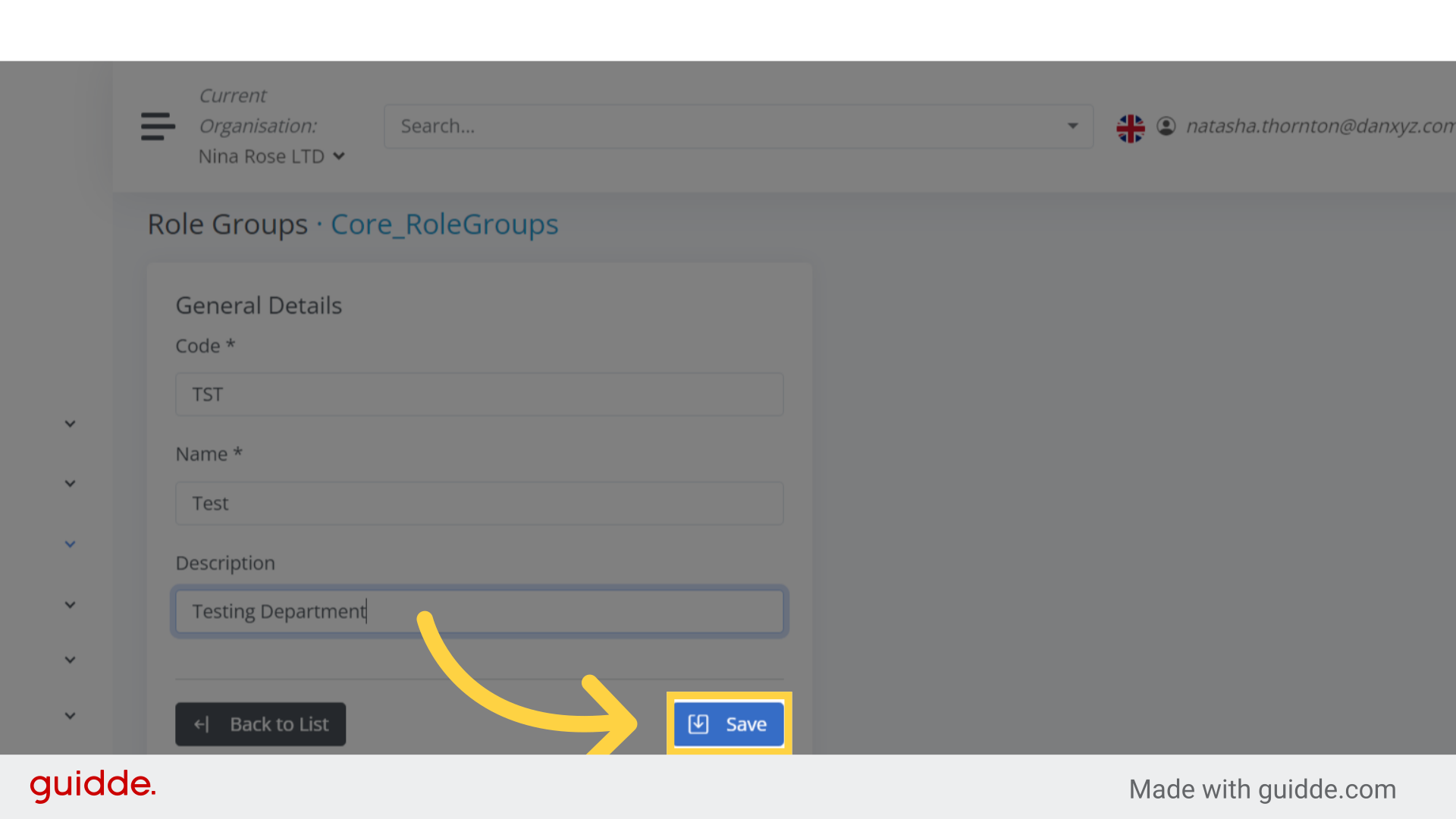
Proceed by saving the details
The guide covers creating User Role Groups in Bitkode, including setting up codes, names, descriptions, permissions, and product access.


