Table of Contents
- This guide provides step-by-step instructions for registering as a user in bitKode.
- Step 1. Invite received
- Step 2. Click "Register Now"
- Step 3. Click "Enter your password"
- Step 4. Click Confirm Password
- Step 5. Click "Proceed to Login"
- Step 6. Fill "Enter your password"
- Step 7. Click "Sign In"
- Step 8. Home page
This guide provides step-by-step instructions for registering as a user in bitKode. #
From creating your password to accessing different sections within bitKode after receiving permissions from another administrator, follow these precise steps for a seamless registration experience.
Step 1. Invite received #
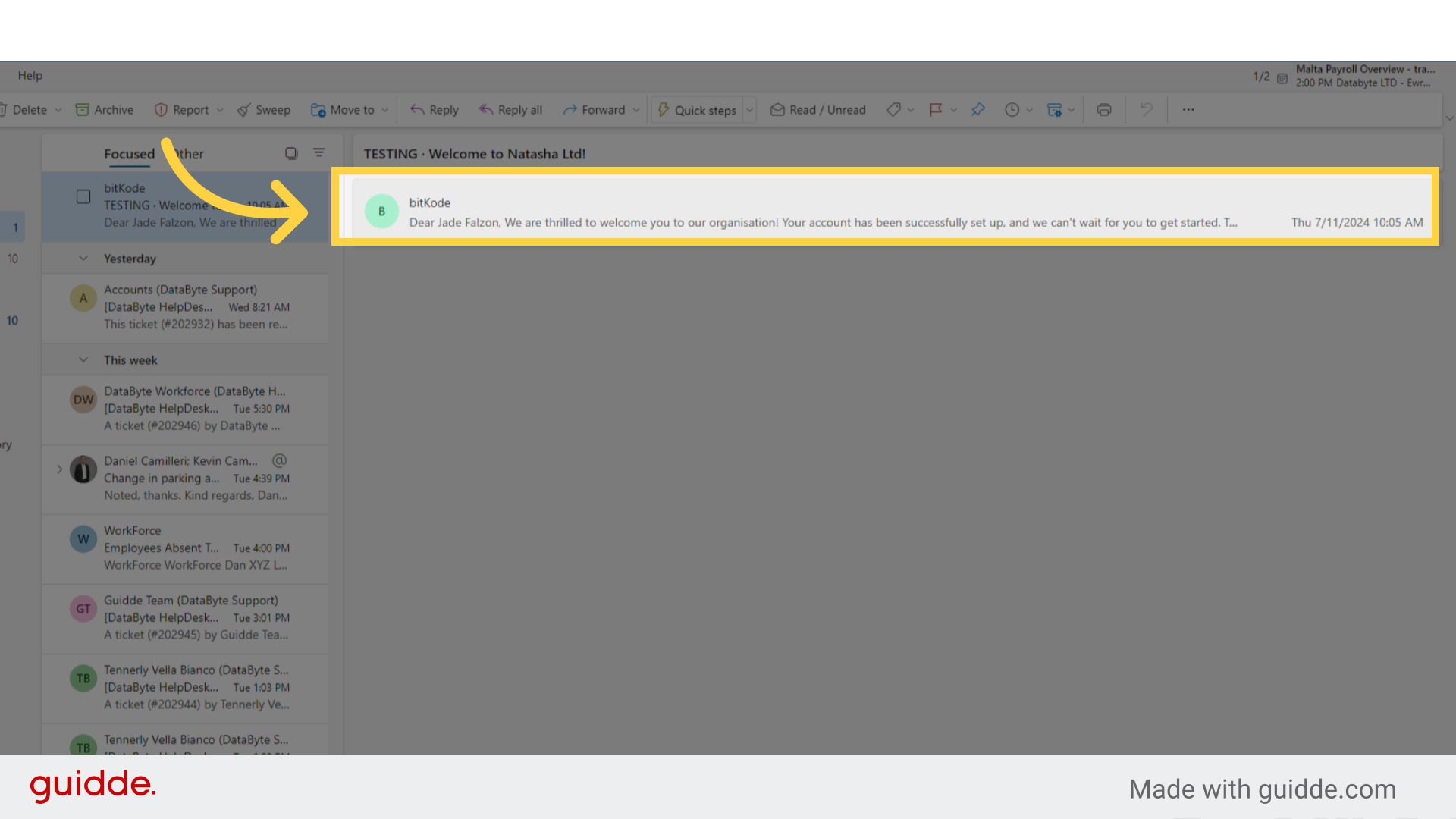
Once another user with administrative permissions adds you to bitKode, you’ll receive an email invitation, as shown in the provided image.
Step 2. Click “Register Now” #
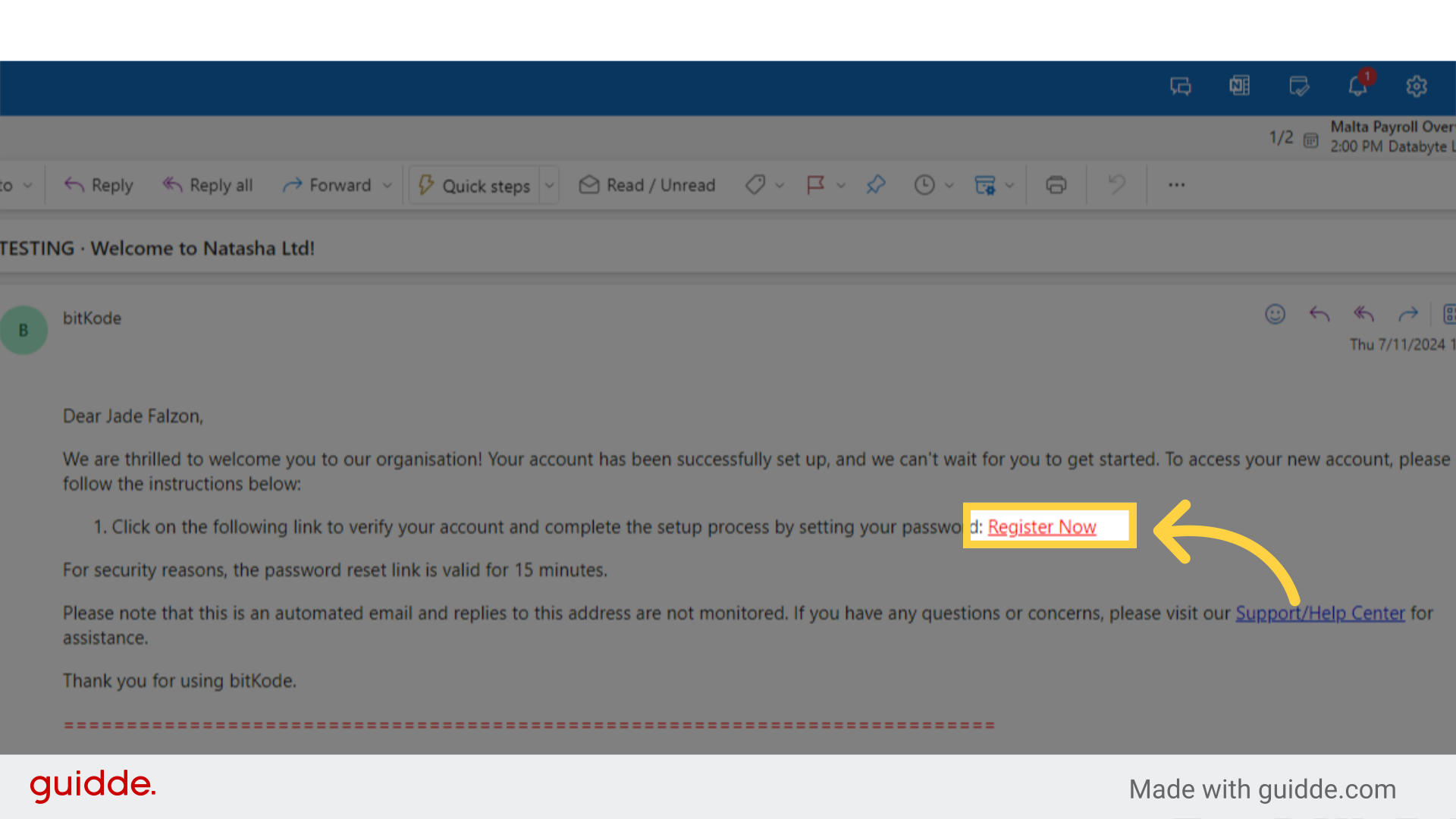
To begin, simply click on Register Now.
Step 3. Click “Enter your password” #
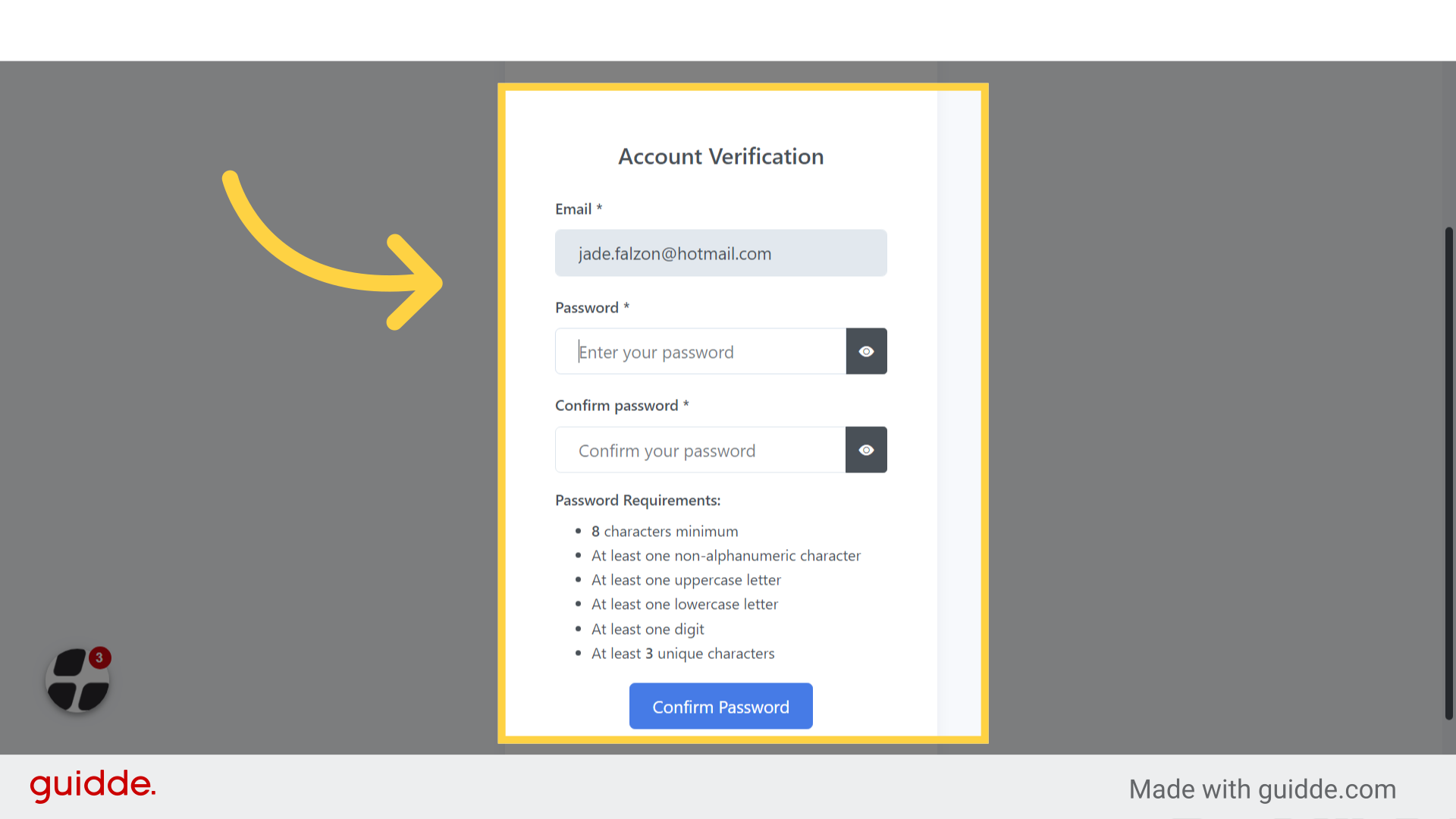
After clicking the Register Now option, you’ll see the account verification page.
In this step, enter the same email address used by the administrator who sent you the invite.
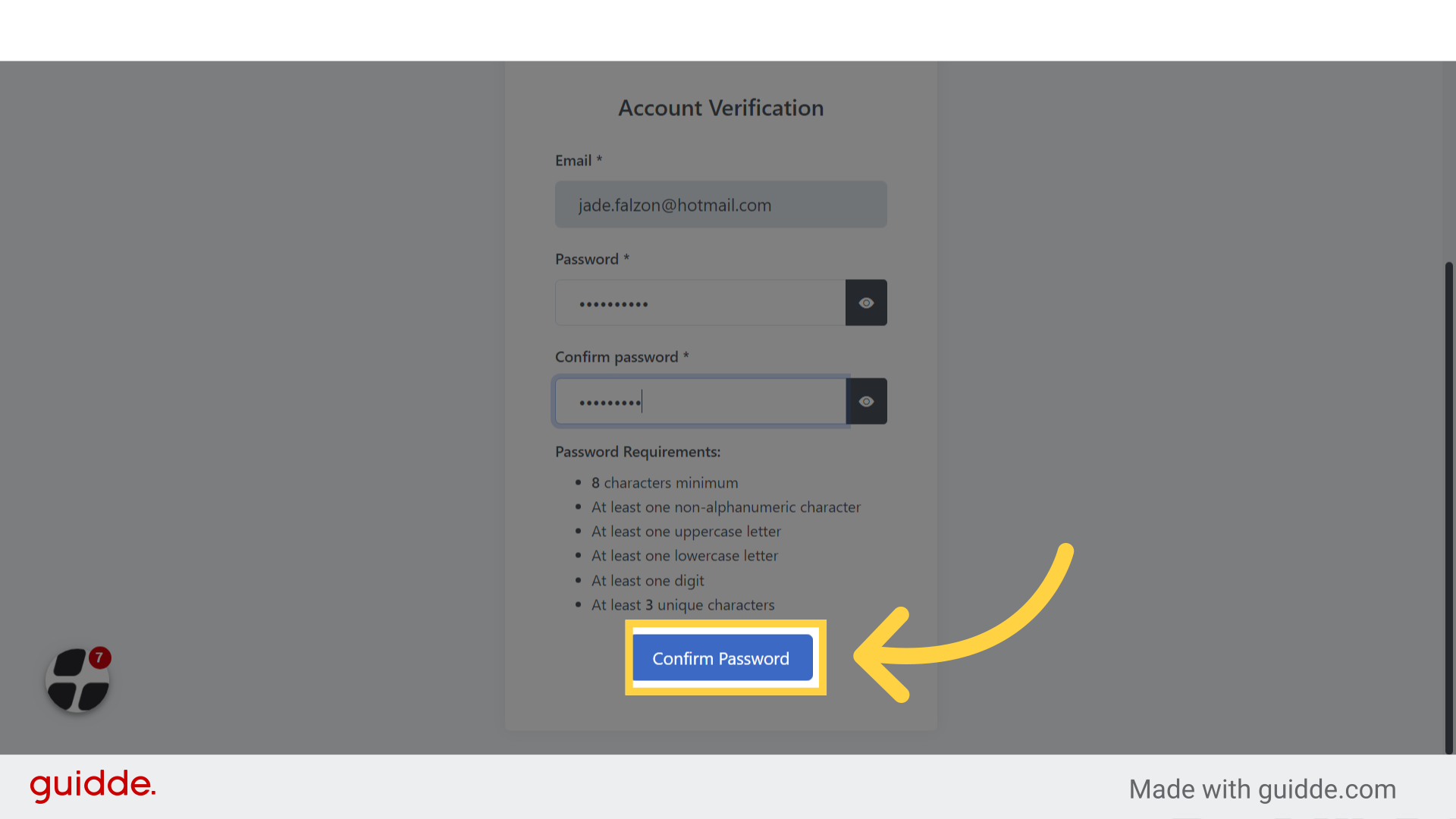
Configure a new password, ensuring you follow the password requirements.
Step 4. Click Confirm Password #
After configuring your new password, click on Confirm Password.
Step 5. Click “Proceed to Login” #
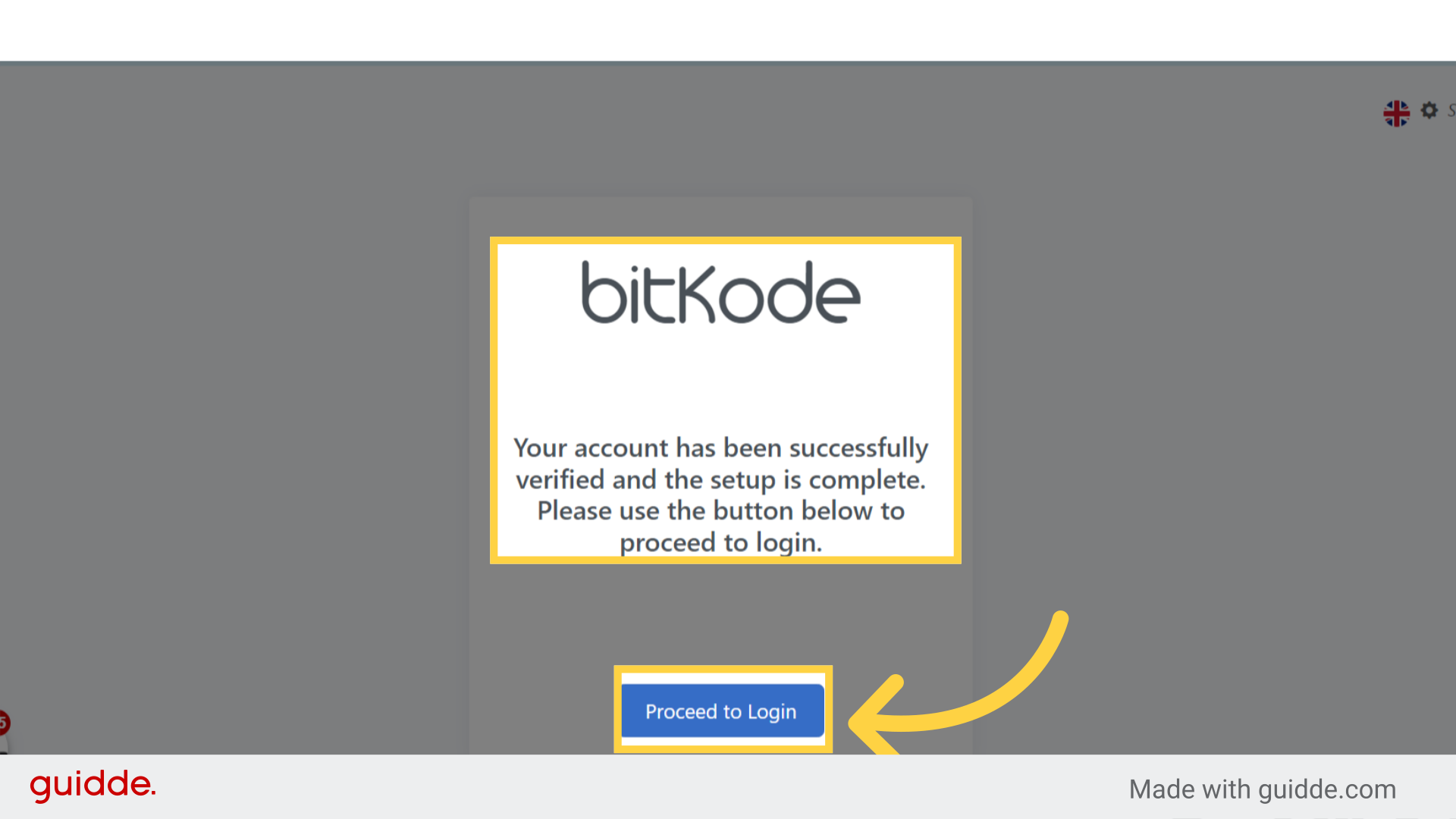
After setting your password, you’ll see an image confirming that your account has been verified.
To complete the process, click on the Proceed to Login.
Step 6. Fill “Enter your password” #
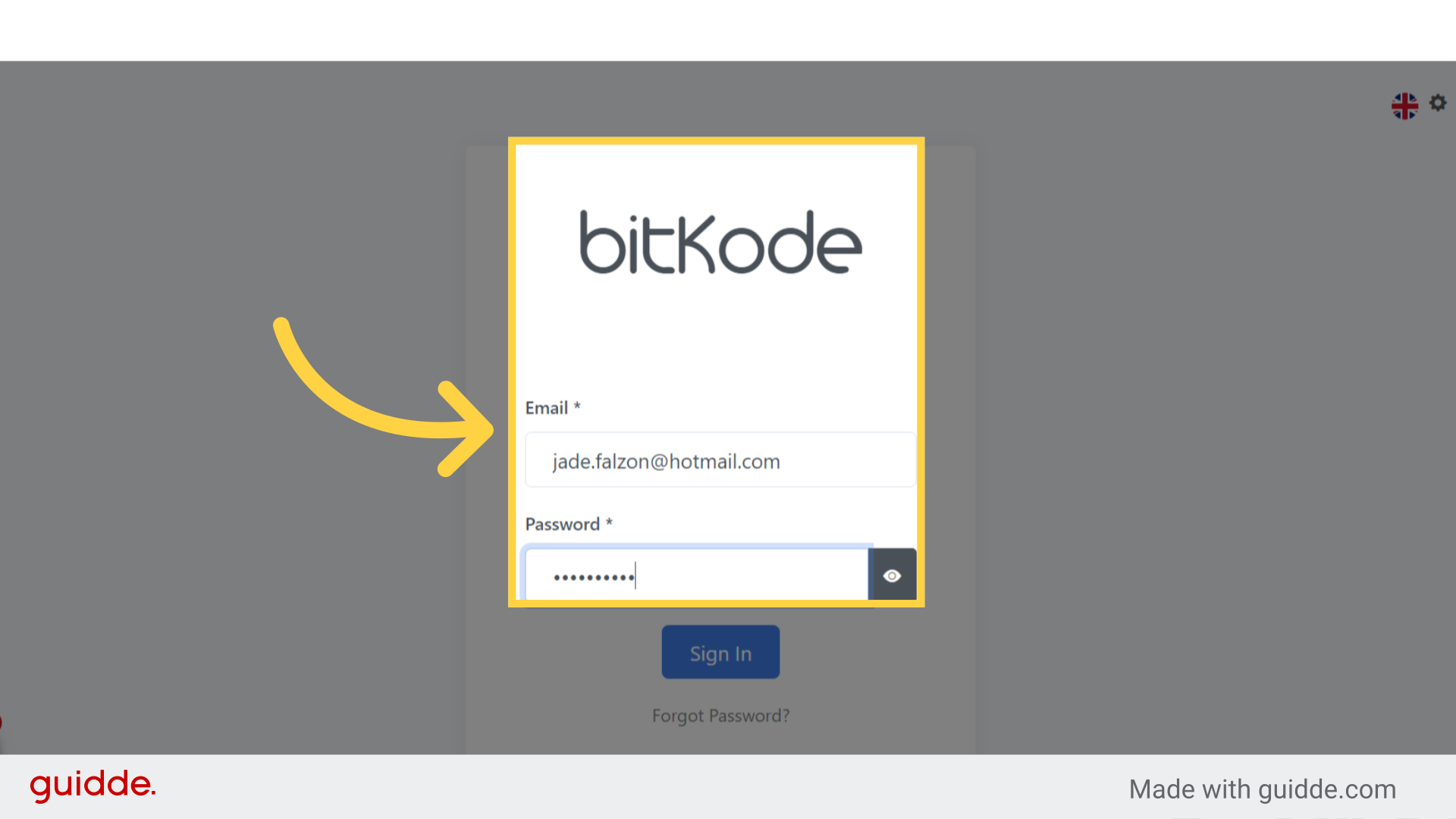
After clicking on the Proceed feature, you’ll be prompted with the sign-in page.
There, you’ll need to enter the email address and password you’ve just created to log in.
Step 7. Click “Sign In” #
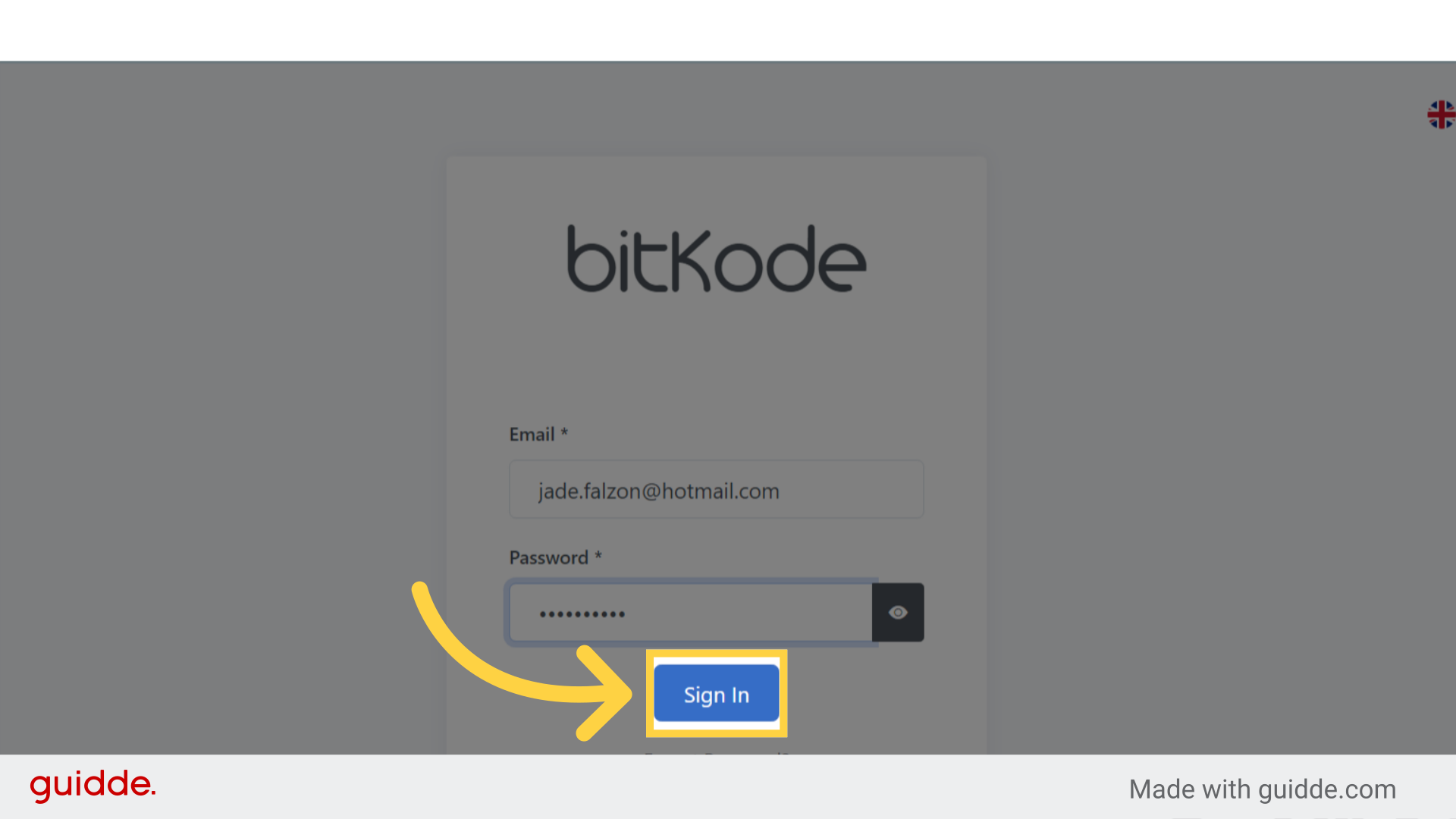
To access the bitKode home page, click on Sign In.
Step 8. Home page #
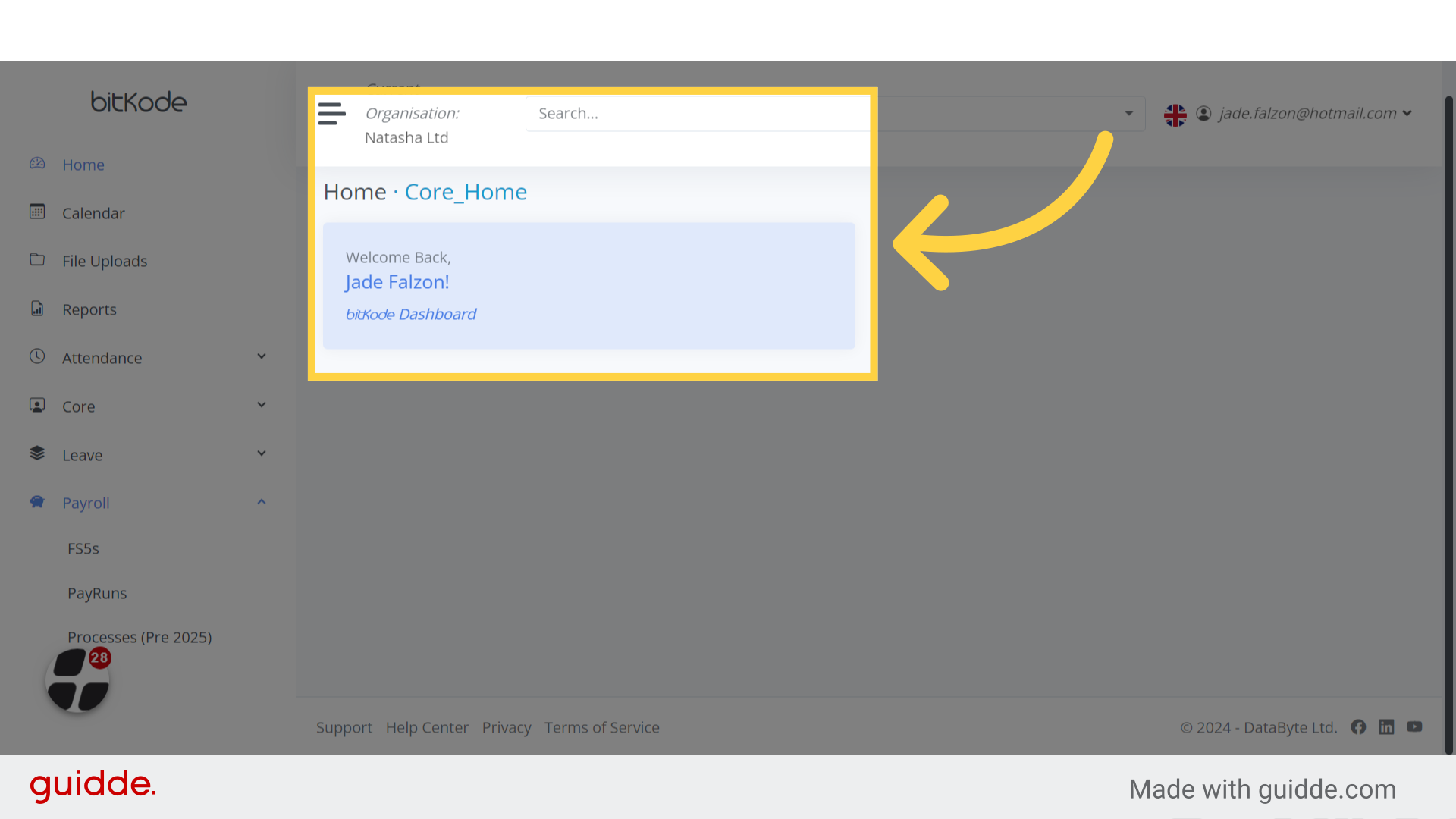
After signing in, you’ll be directed to your homepage.
At this stage, you’ll have user-level access.
To utilize specific functions, the administrator must grant you the necessary permissions.
If you’re an administrator, refer to the coming video for instructions on providing permissions to users.