
Table of Contents
Mastering user management and permissions is crucial. #
This guide will walk you through the process of inviting users with specific permissions in the bitkode application.
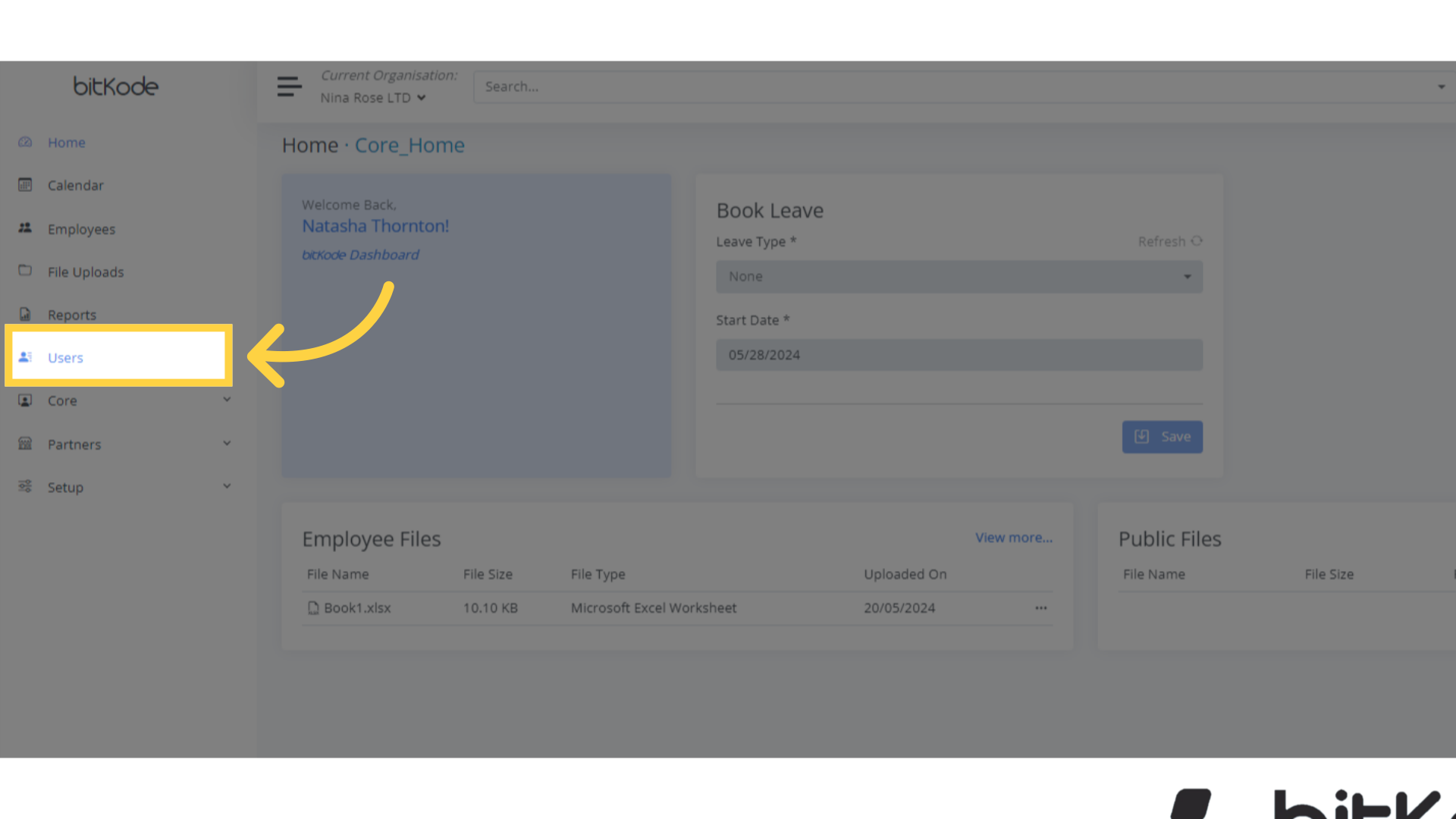
Step 1. Click “Users” #
To begin, go to the user management area and select ‘User’.
It’s important to note the distinction between a user and an employee:
A user is someone who has access to the system through a unique username and password.
The company may create multiple user accounts without needing additional licenses.Conversely, an employee is someone whose data is being collected and processed within the system.
Employees must be licensed in order to manage their specific data, such as payroll, time and attendance, and leave records.
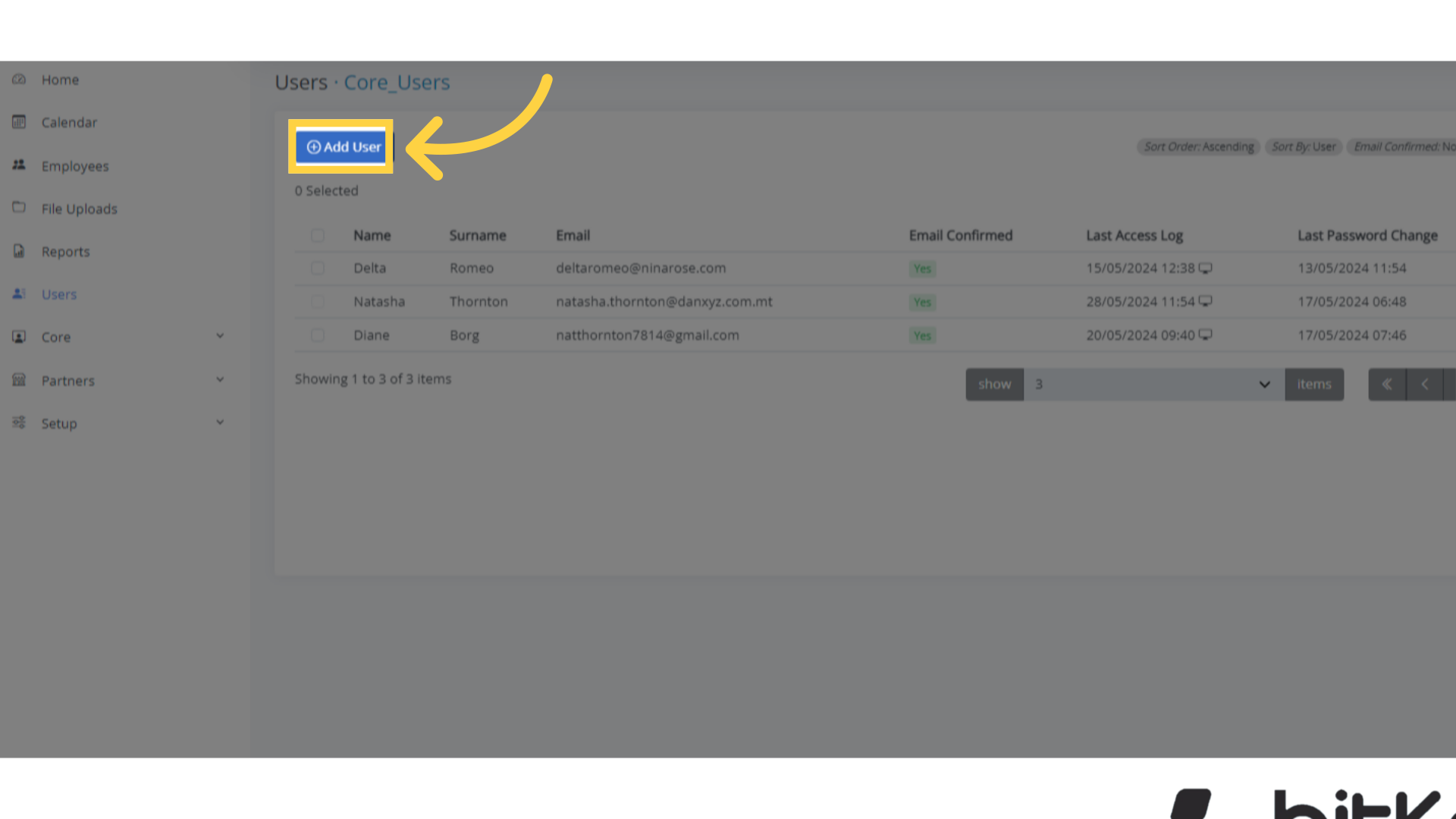
Step 2. Click “Add User” #
Start by Initiating the user creation process.
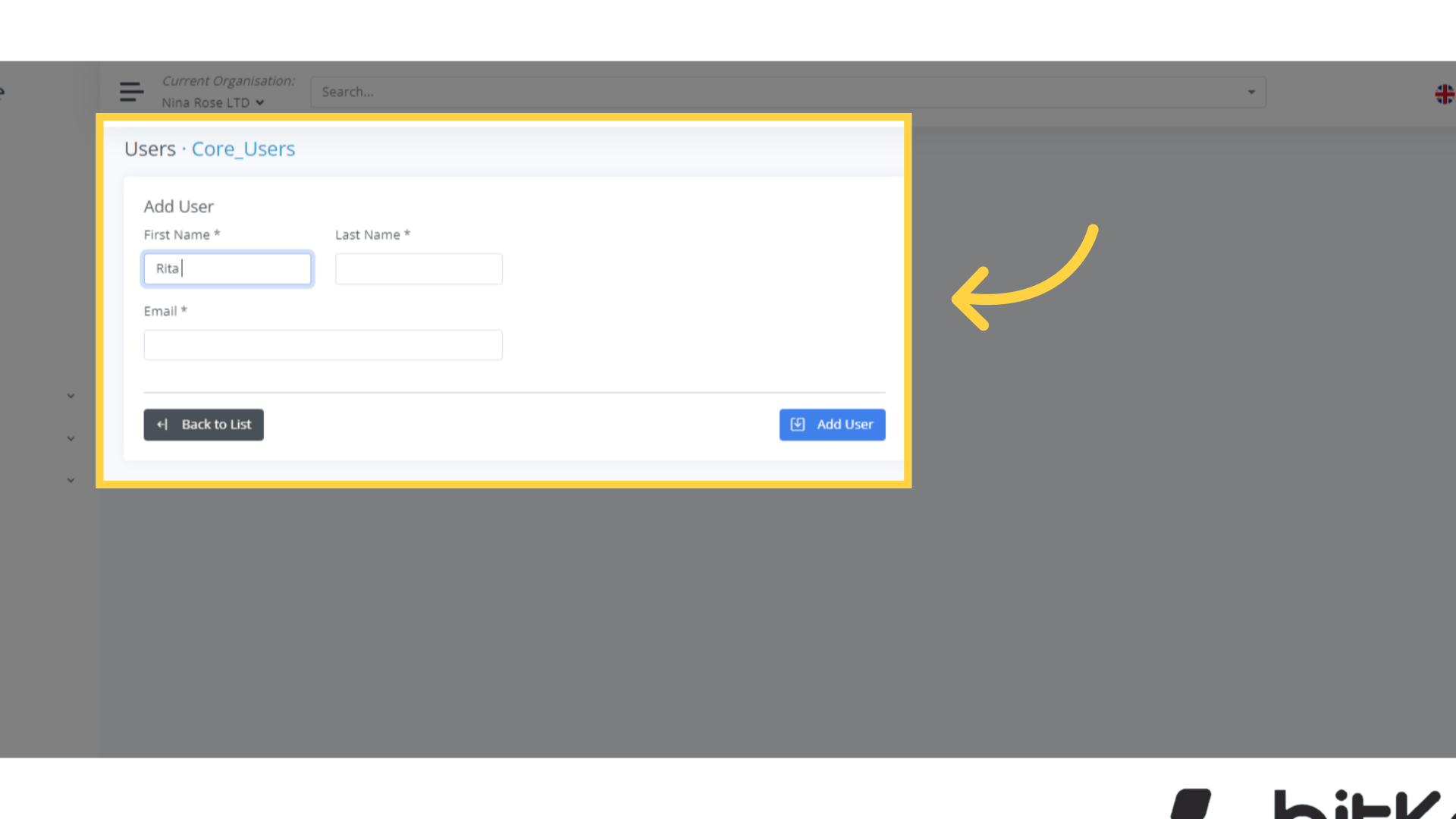
Step 3. Fill in details #
Upon starting the process to add a new user, a screen will appear prompting you to enter the user’s details, including their first name, last name, and email address.
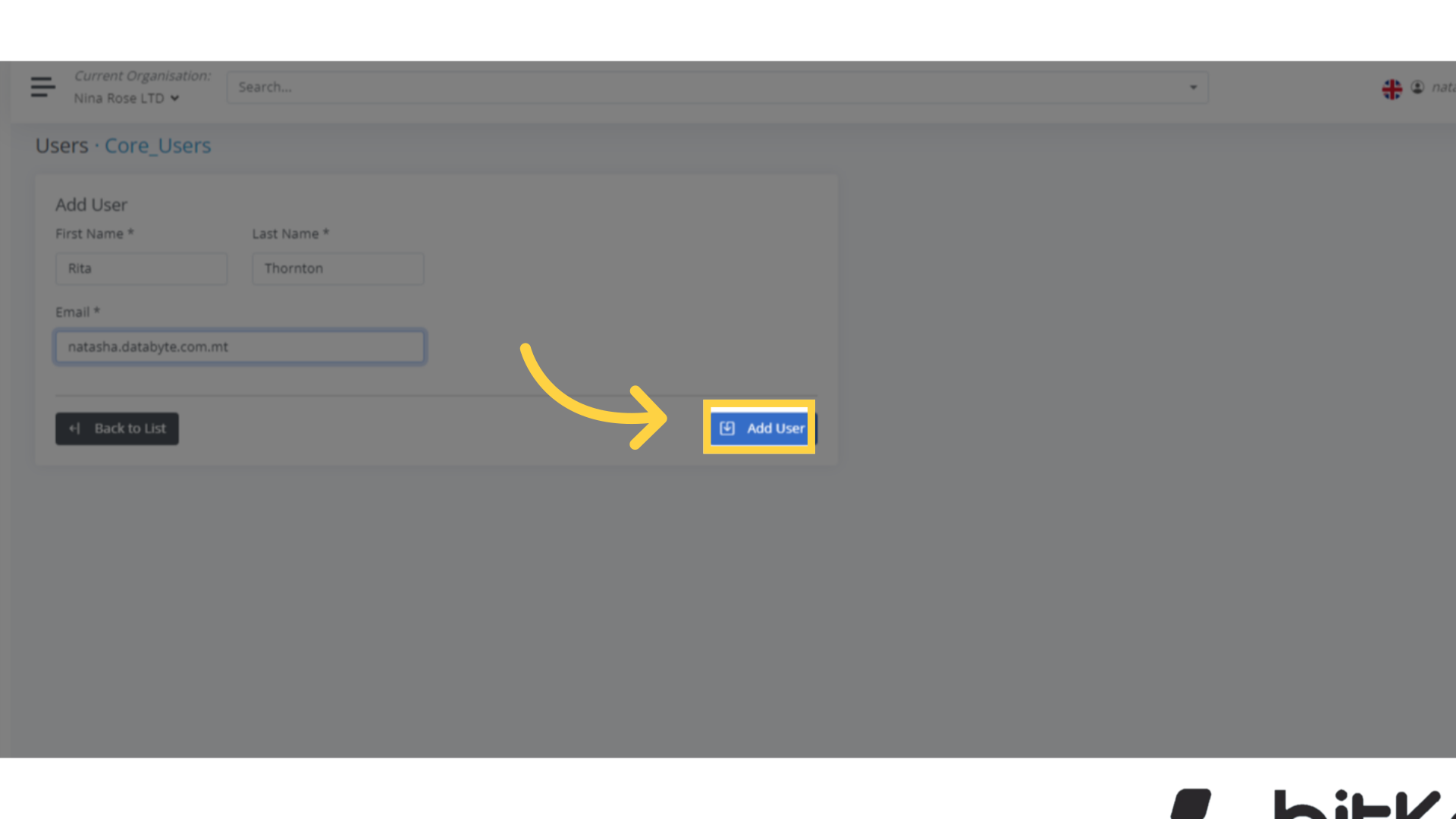
Step 4. Click “Add User” #
Once you have entered the user’s details, proceed by clicking the “Add User” button as illustrated in the image.
Upon clicking on Add User, the user will receive an invitation email with the steps to setup his own password.
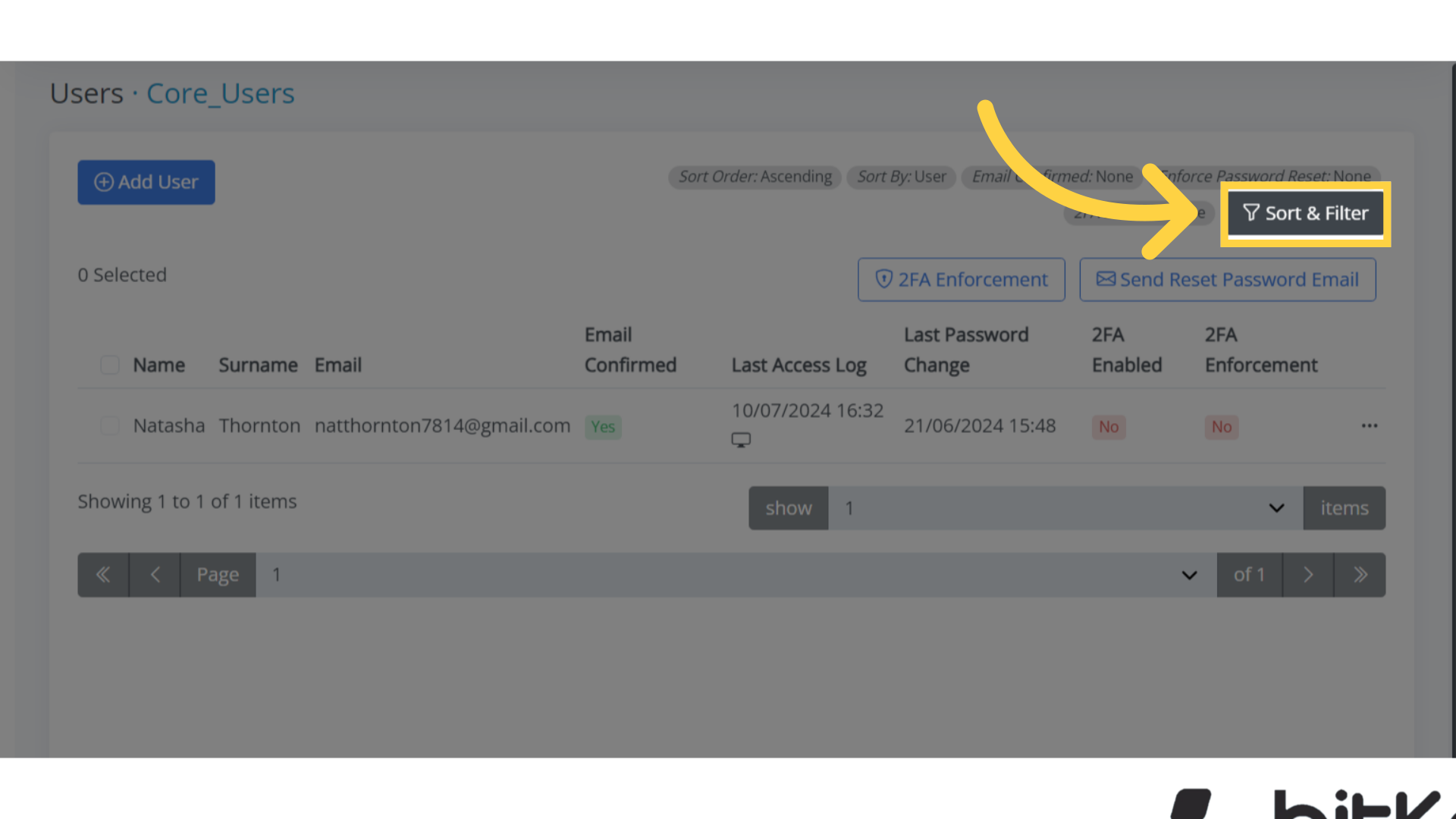
Step 6. Click “Sort & Filter” #
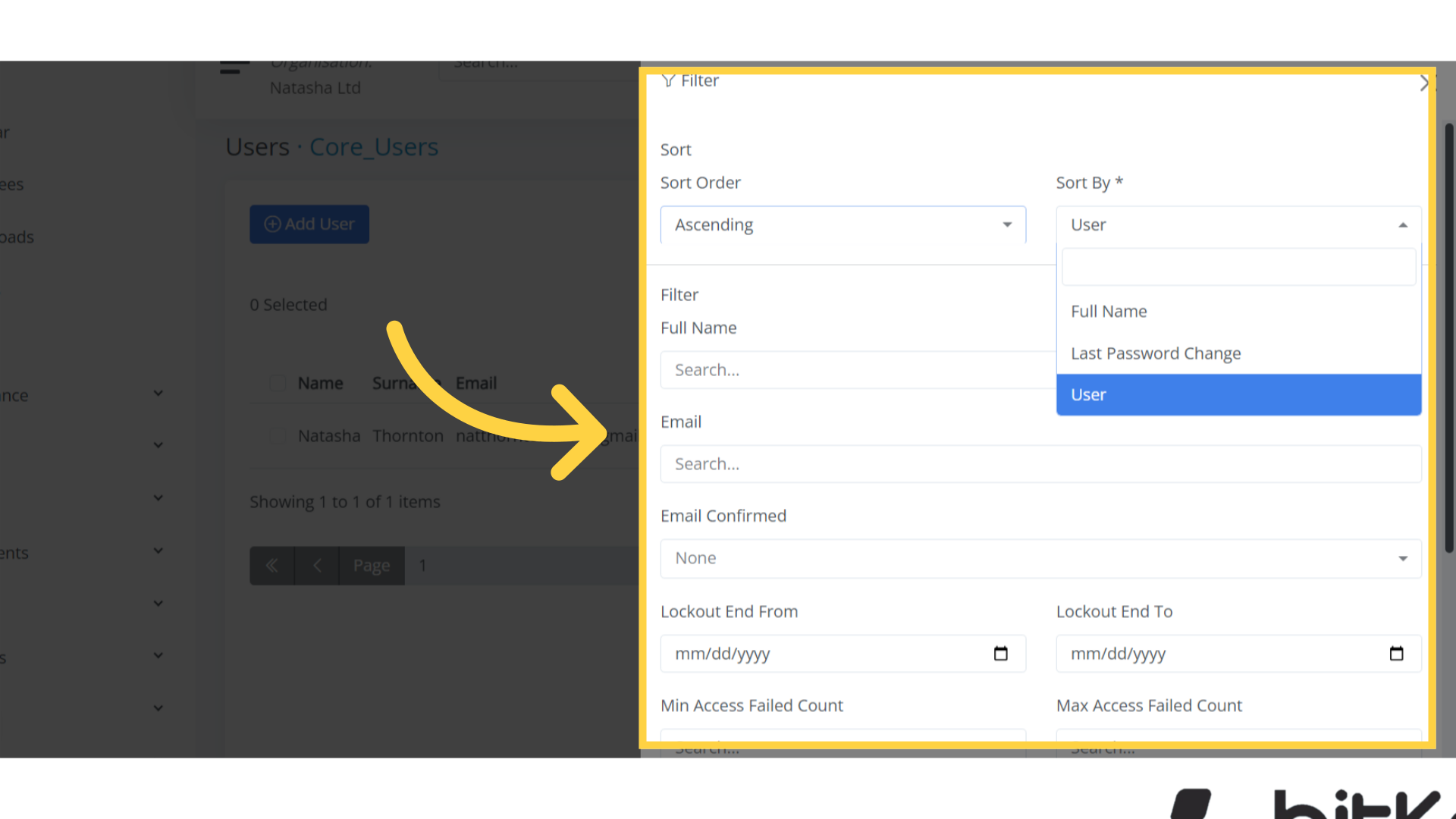
When a user is added, they gain the ability to sort and filter data based on their permissions.
For instance, an administrator can add users, assign permissions, and manage all aspects of the system sort and filter data, arranging and displaying the specific information they need.
 Step 7. Column Configuration #
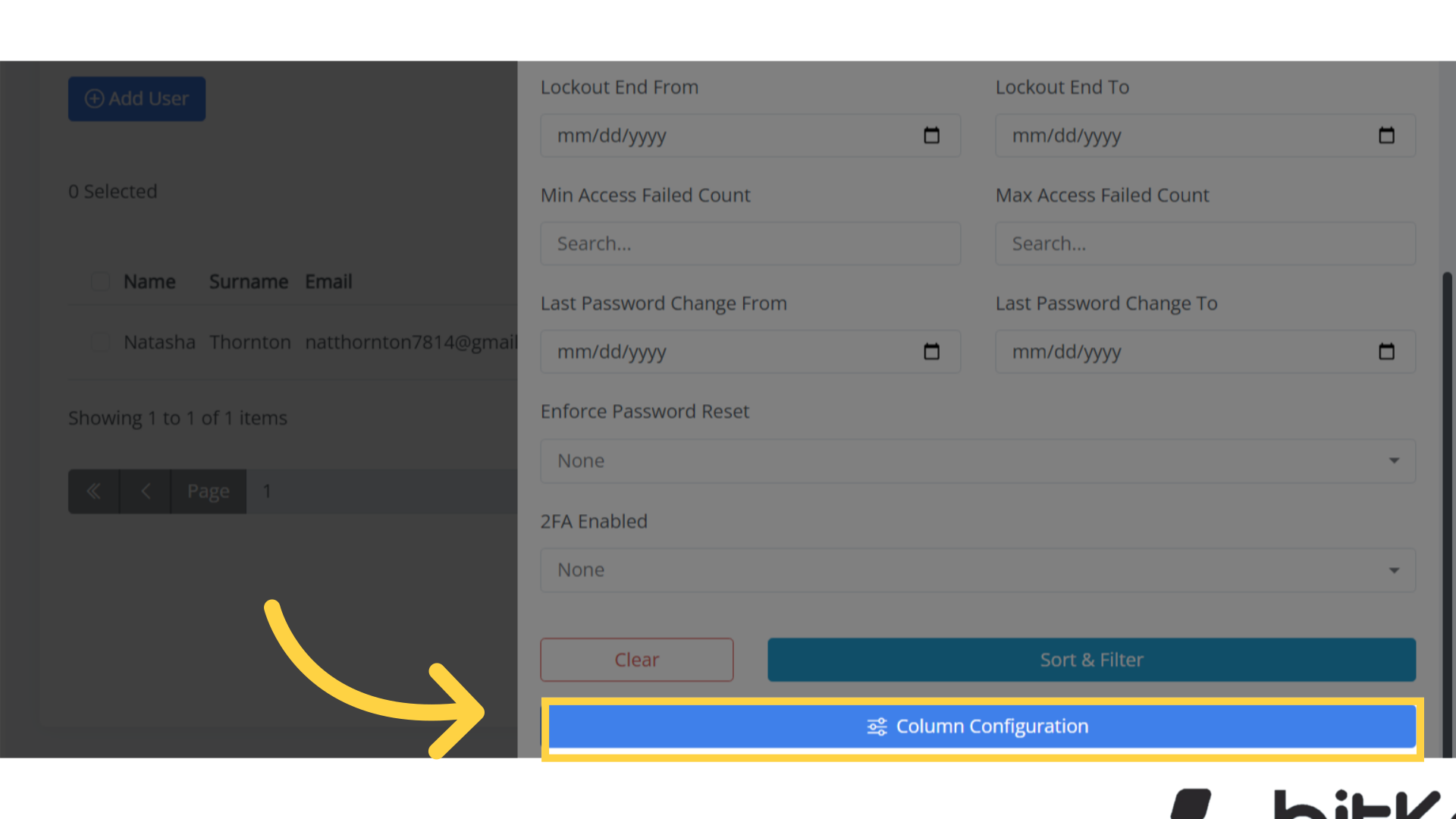
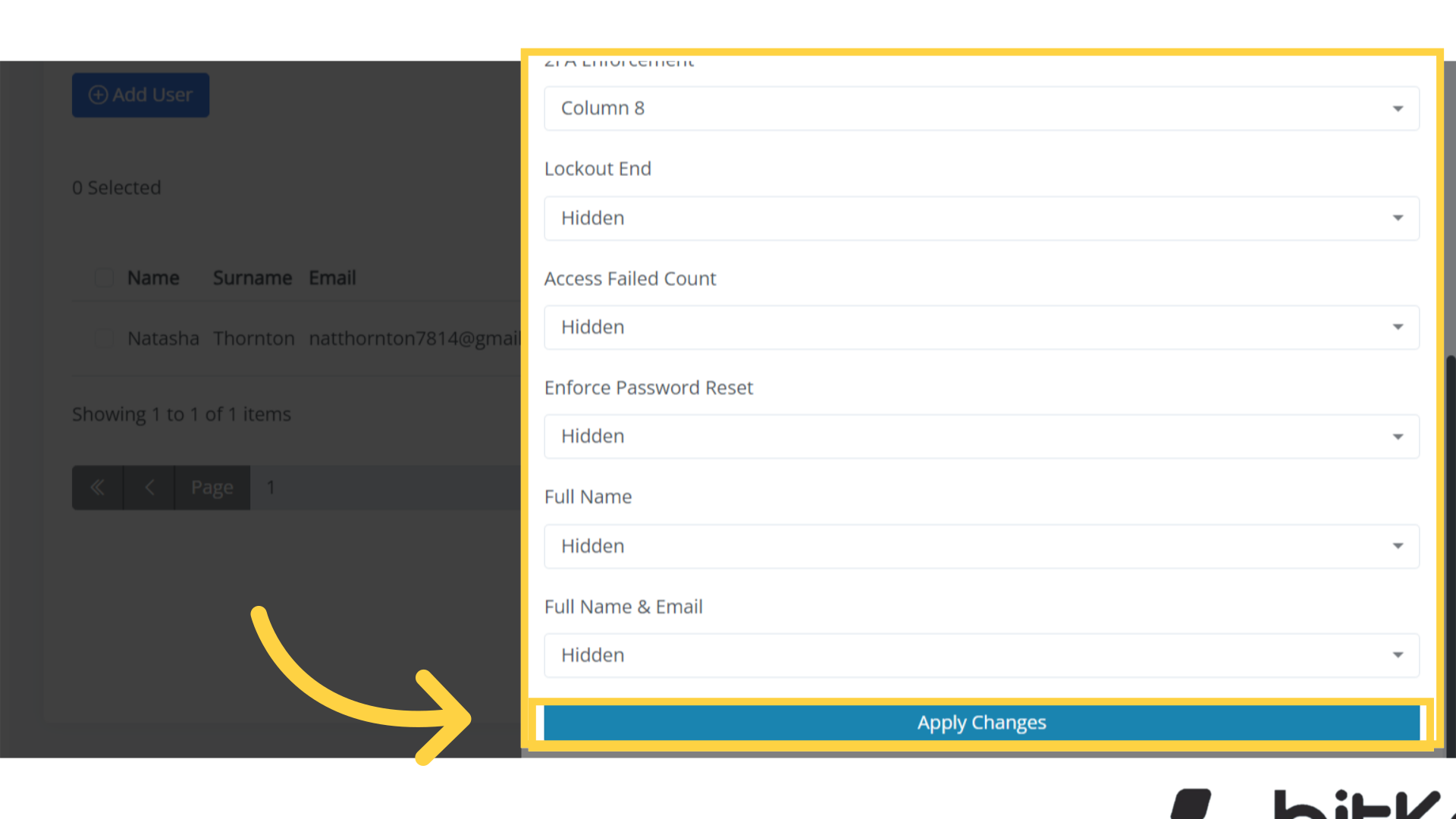
Another example is column configuration, where an administrator can customize and arrange columns according to their needs.
Step 8. Click “Apply Changes” #
On this page, you’ll find various lists, including email addresses, lockout end dates, minimum access failed counts, and the dates of the last password change.
This guide covered the essential steps in adding users to the bitKode application.


