Table of Contents
This guide will walk you through monitoring user activity on Audits in Bitkode. #
From accessing reports to configuring columns, follow these engaging steps.
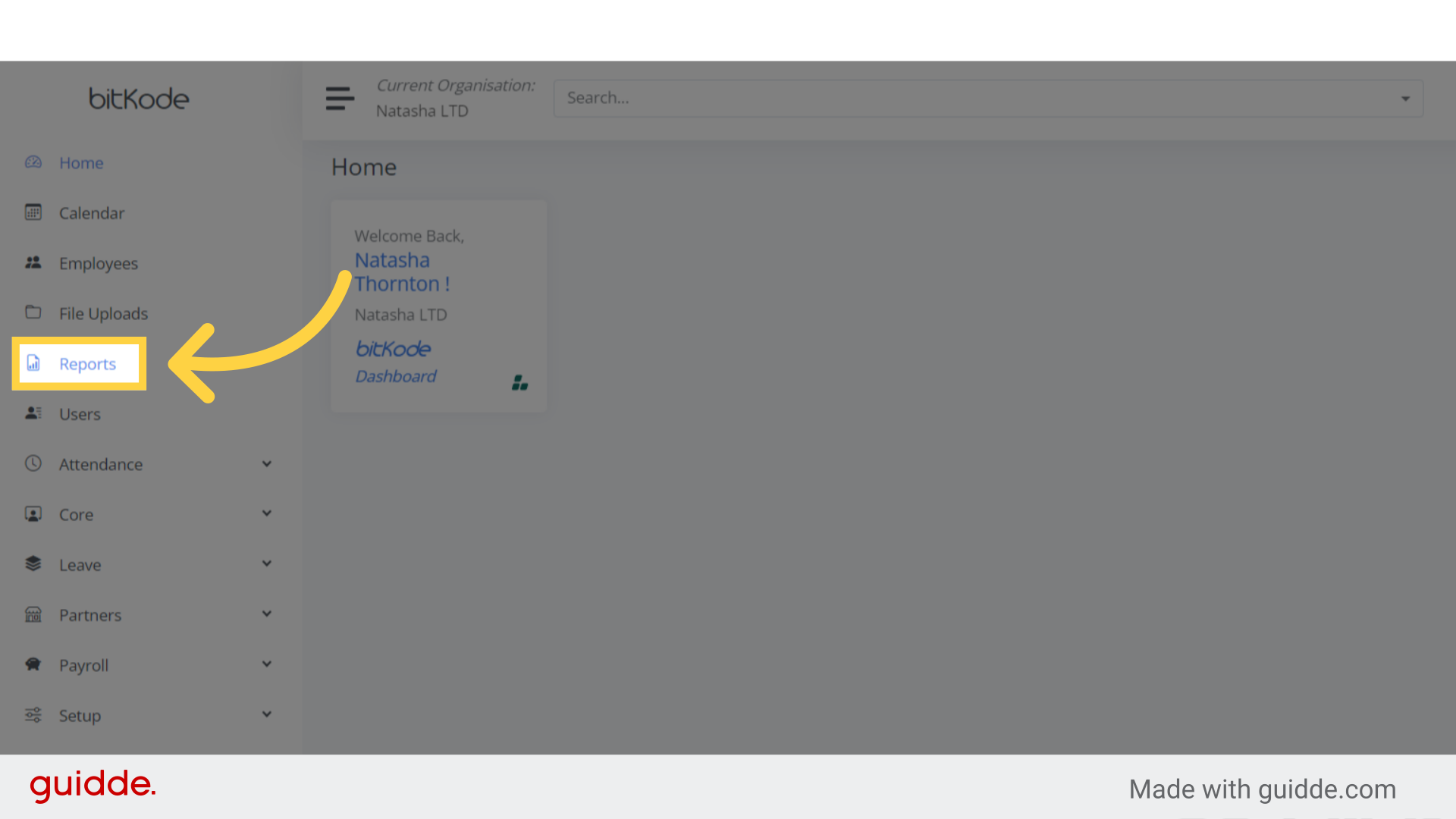
Step 1. Click “Reports” #
To get started, click on “Reports.”
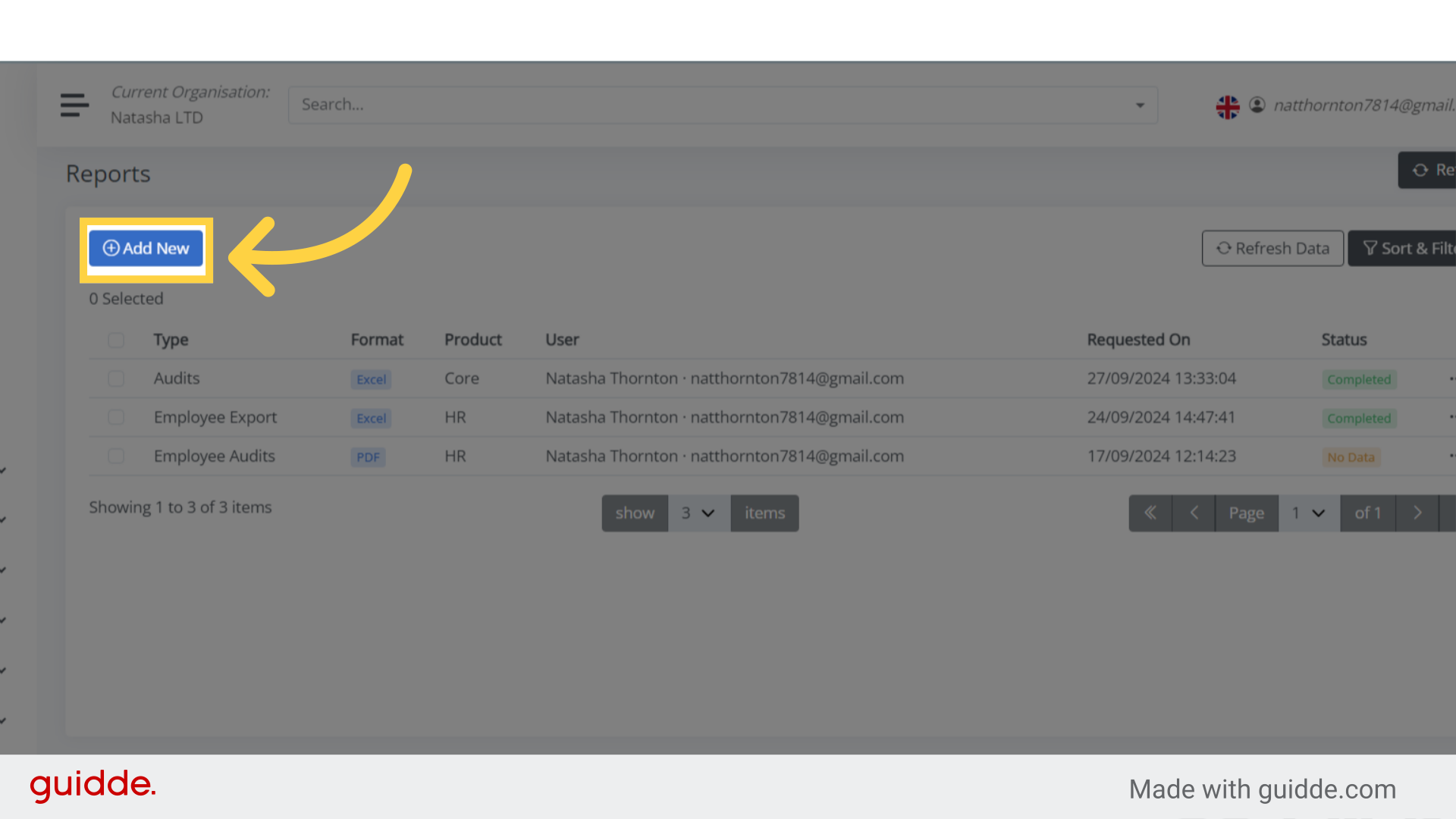
Step 2. Click “Add New” #
To proceed, click on Add New.
Step 3. Click “Audits” #
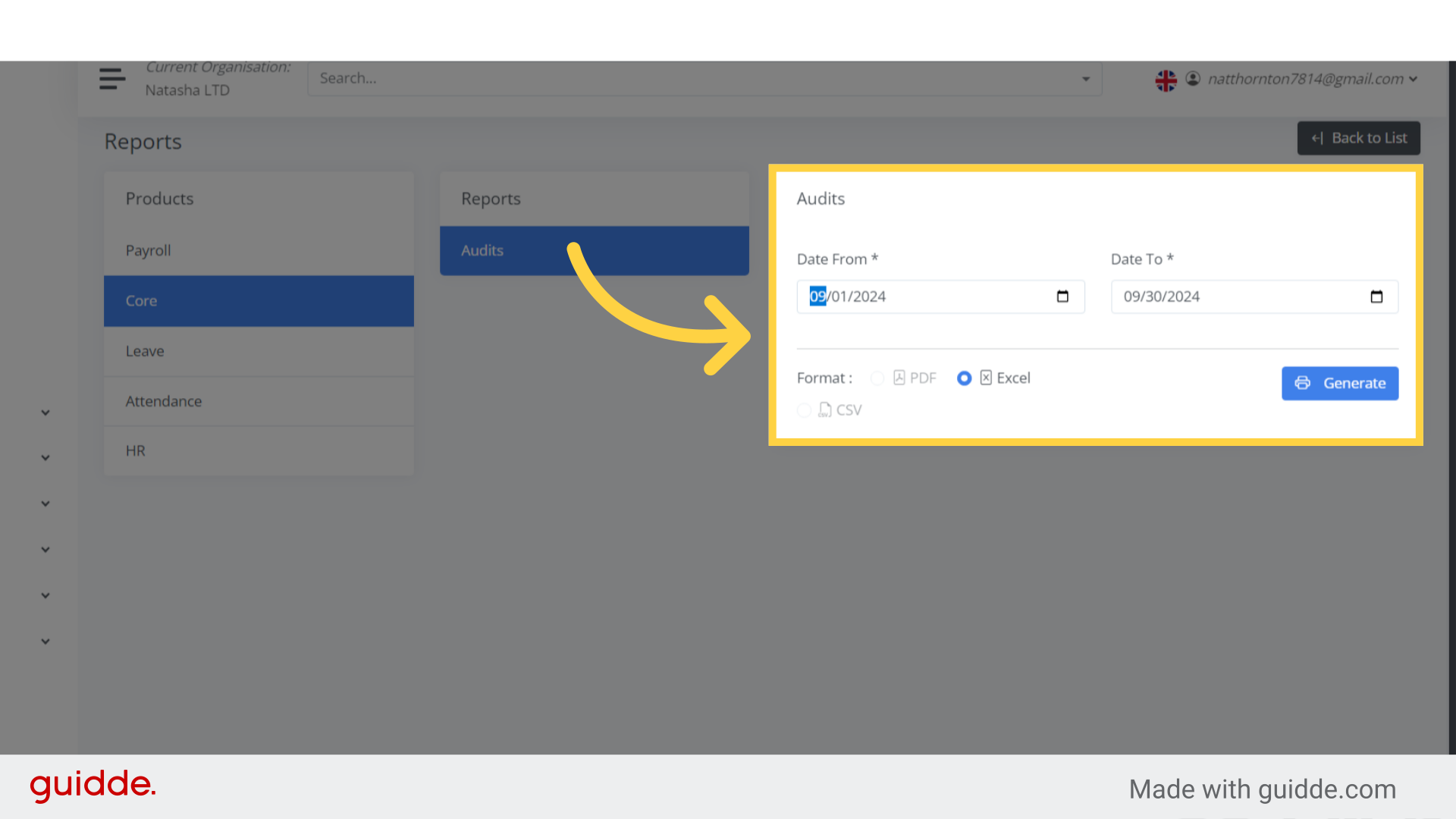
To generate an audit report, you need to access the Core option, where you will find the available audit reports to be accessed.
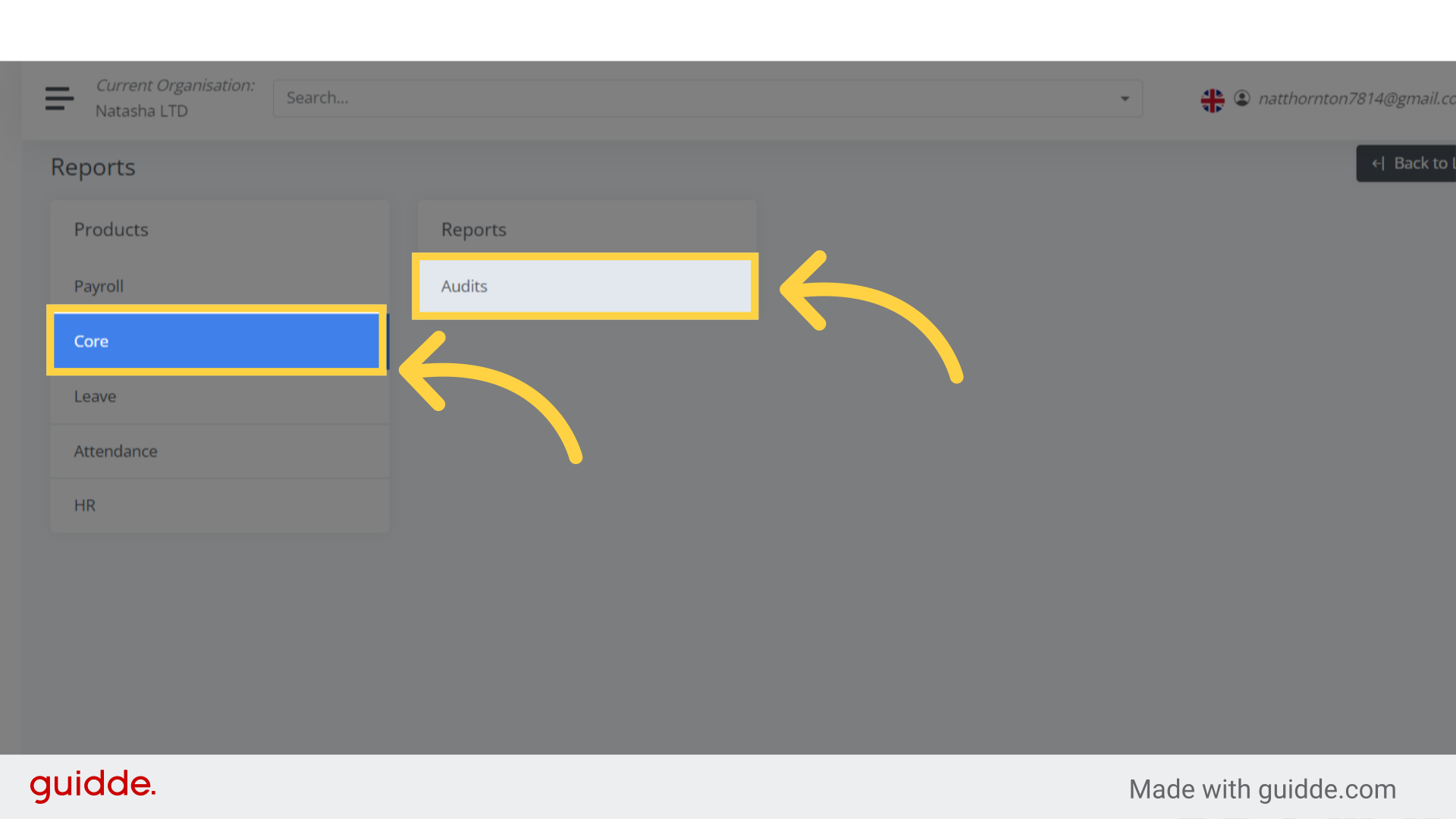
An audit can assist you in tracking the activities and actions of all users on bitKode, if needed, and generate this information in an Excel report
Step 4. Click here #
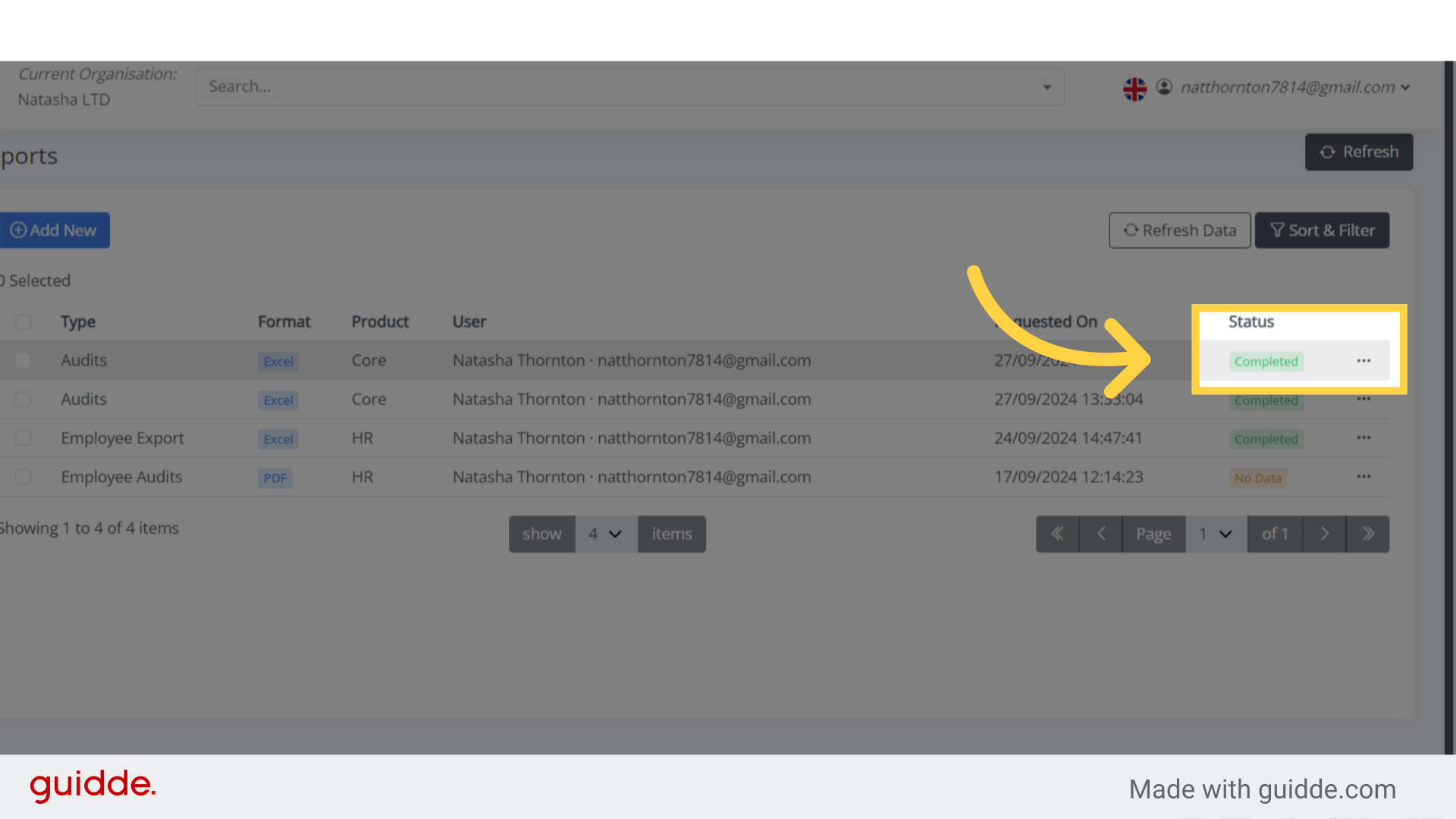
When the file has been generated, simply click on the three dots on the right-hand side to view, update, or download the file.
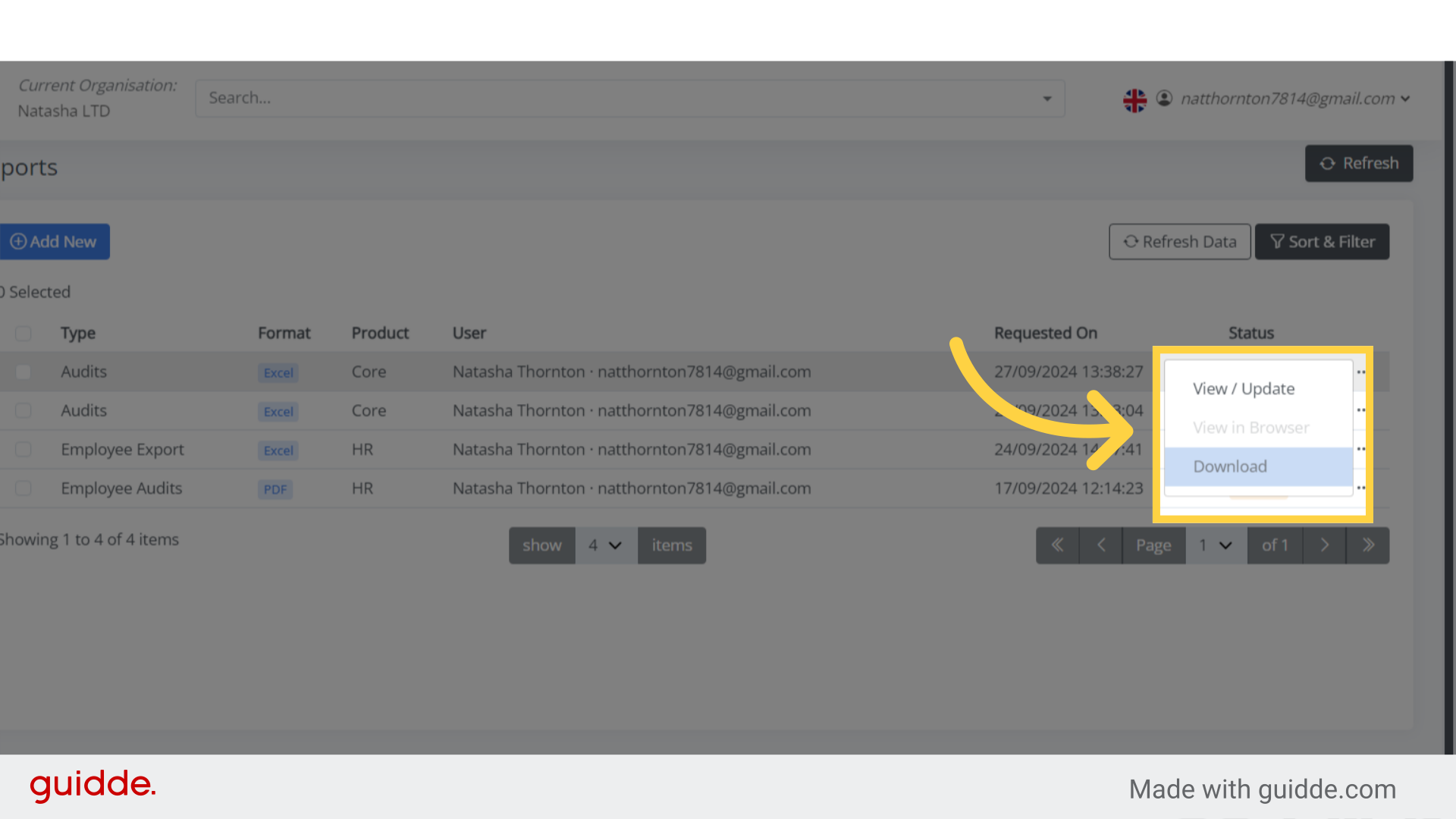
Step 5. Click “Download” #
Simply click “Download File.”
This will save the file to your laptop or PC in the Downloads folder.
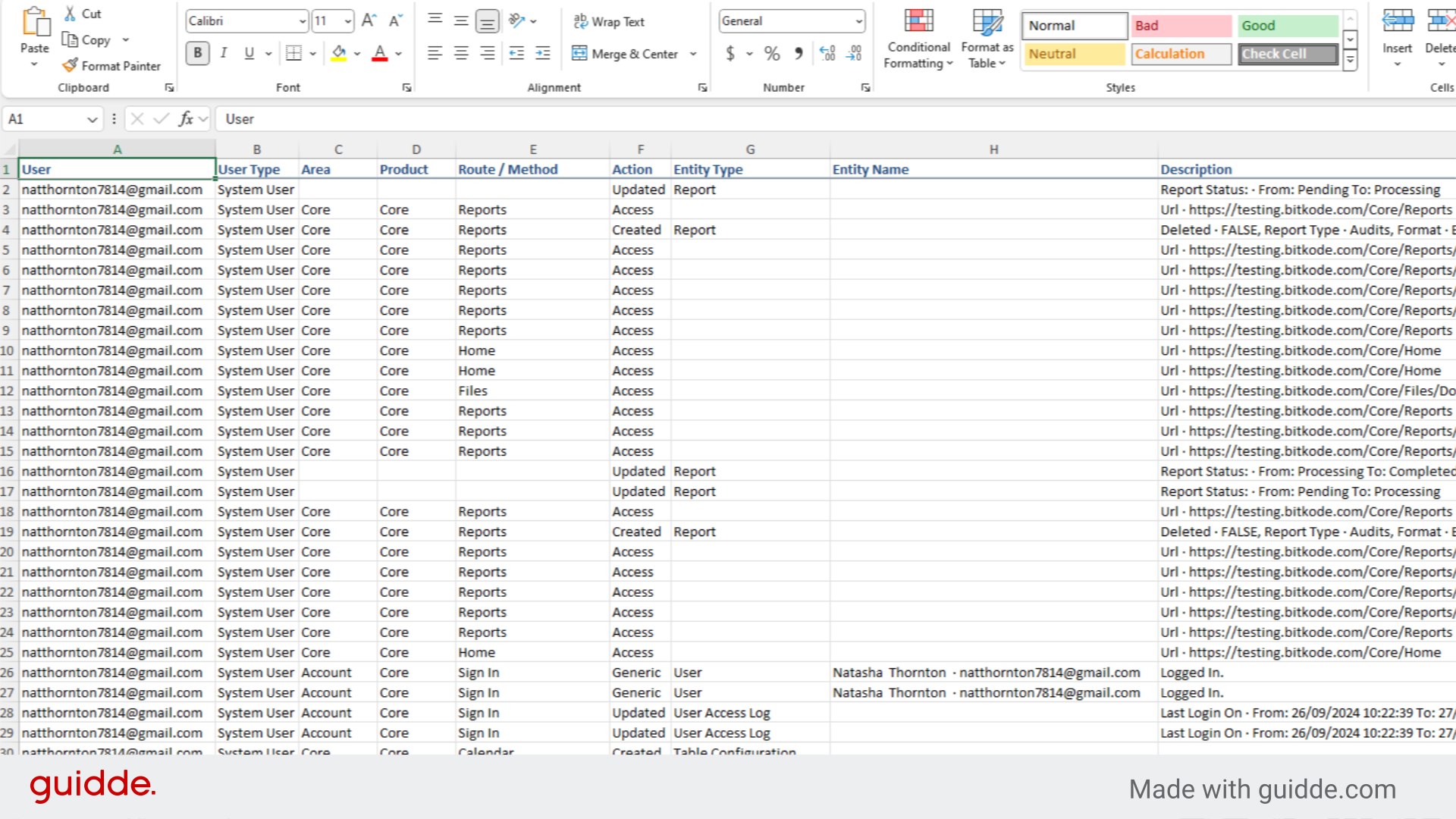
You can then open it, and it will open as an Excel sheet.
The Excel sheet will display details of users performing the activities and actions.
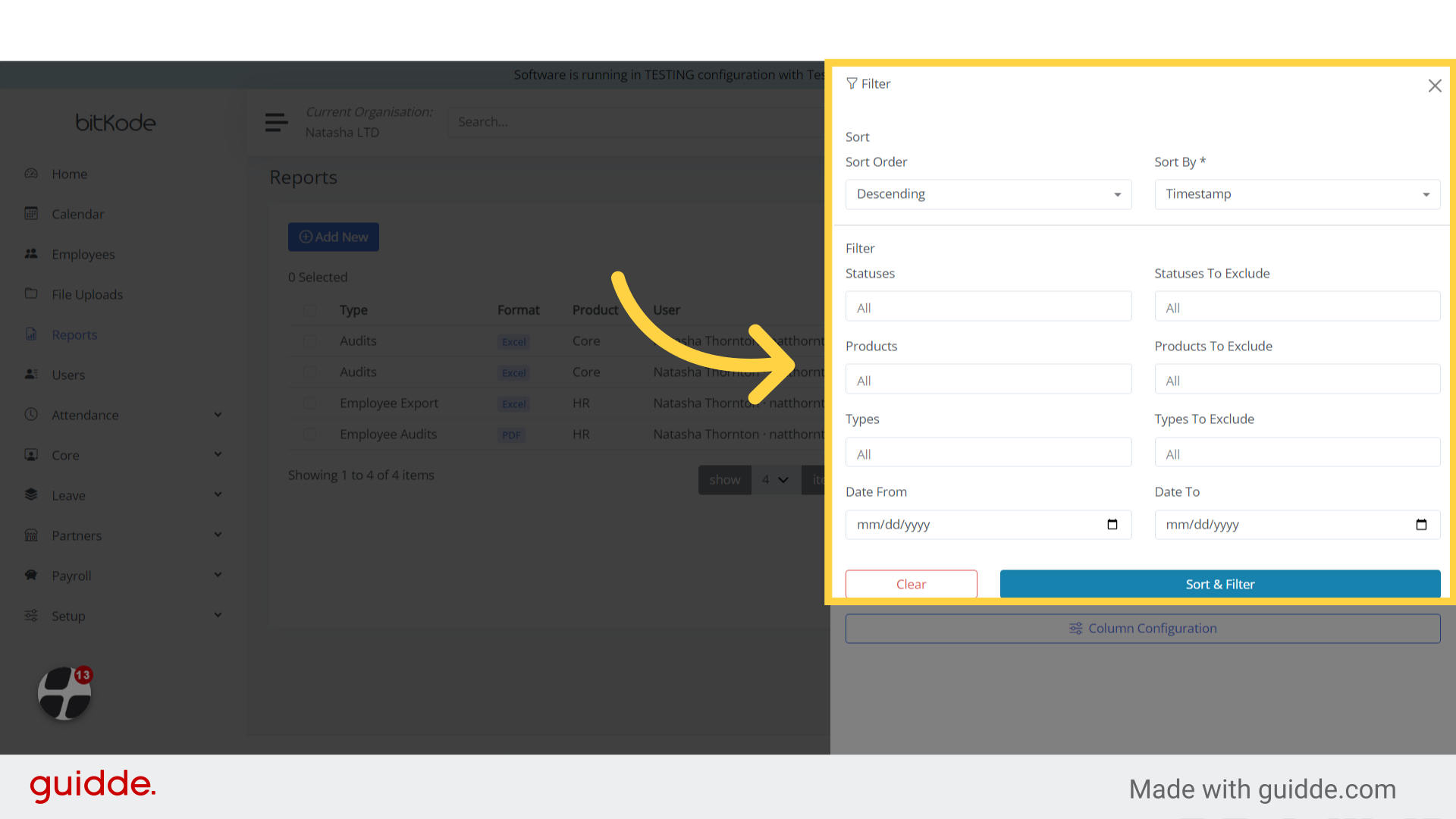
Sort & Filter field; #
With the sort and filter options, you can search for and display the specific information.
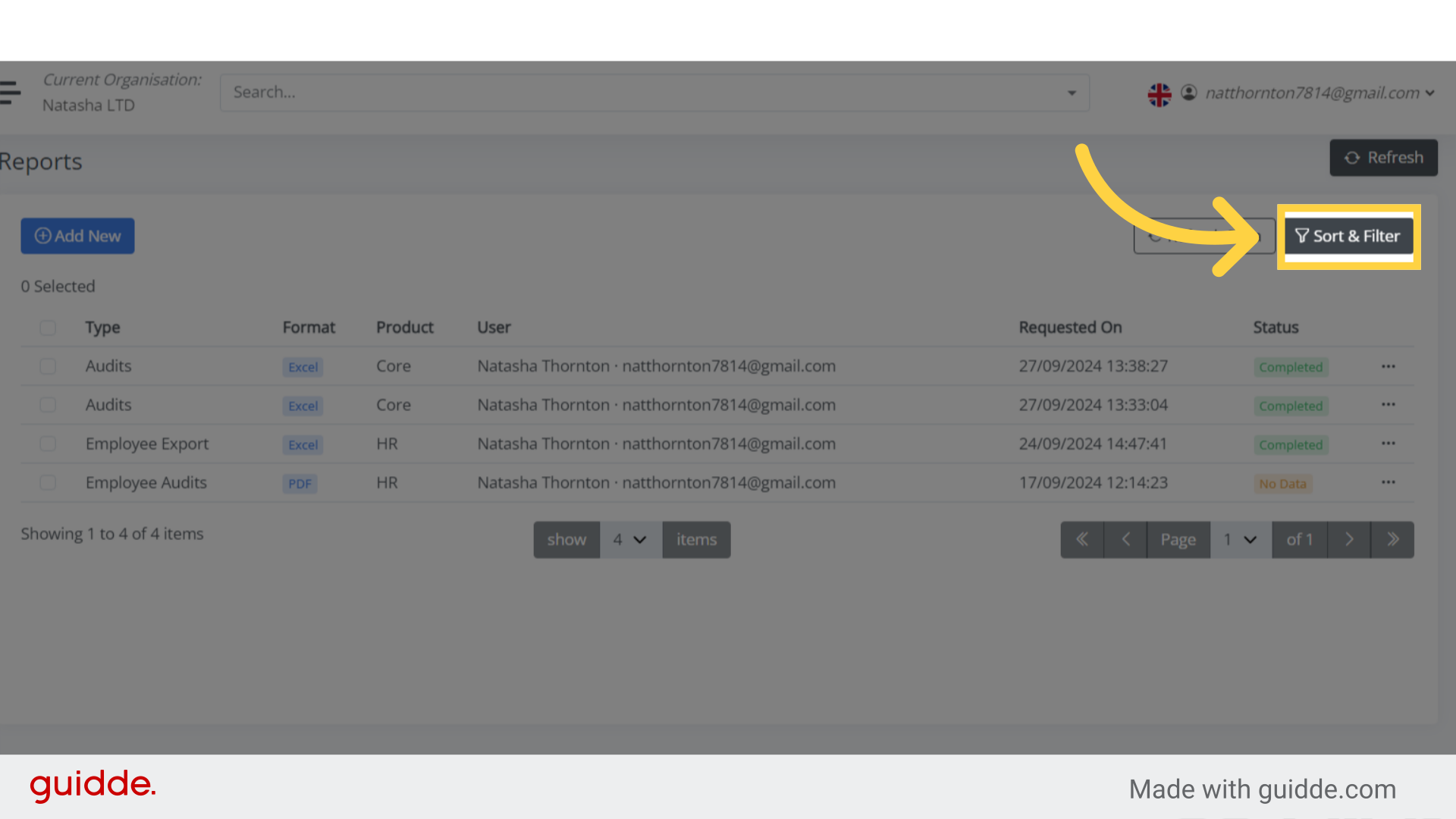
The sort and filter options offer several benefits, allowing you to quickly find and organize the information you need.
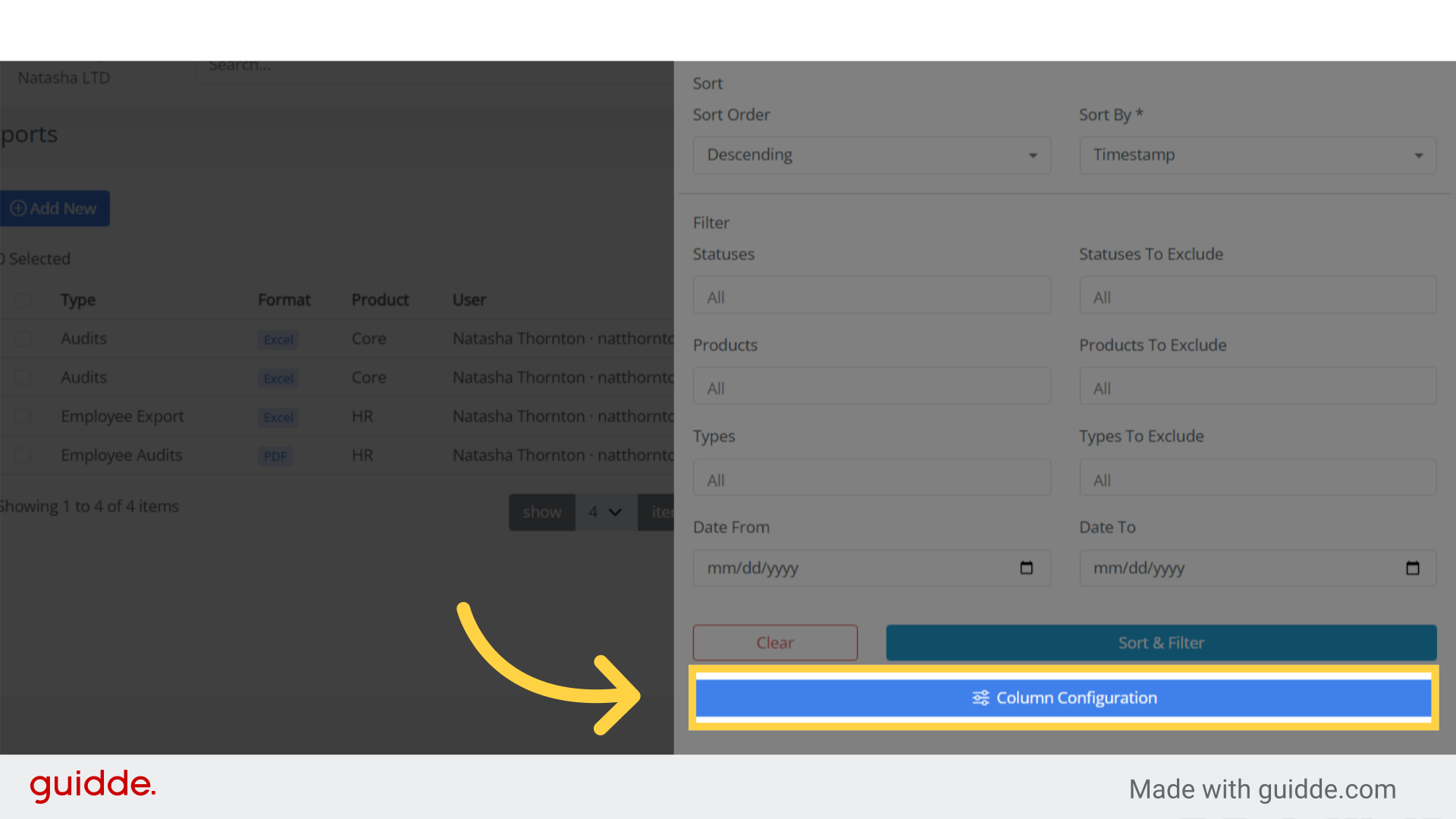
Column Configuration; #
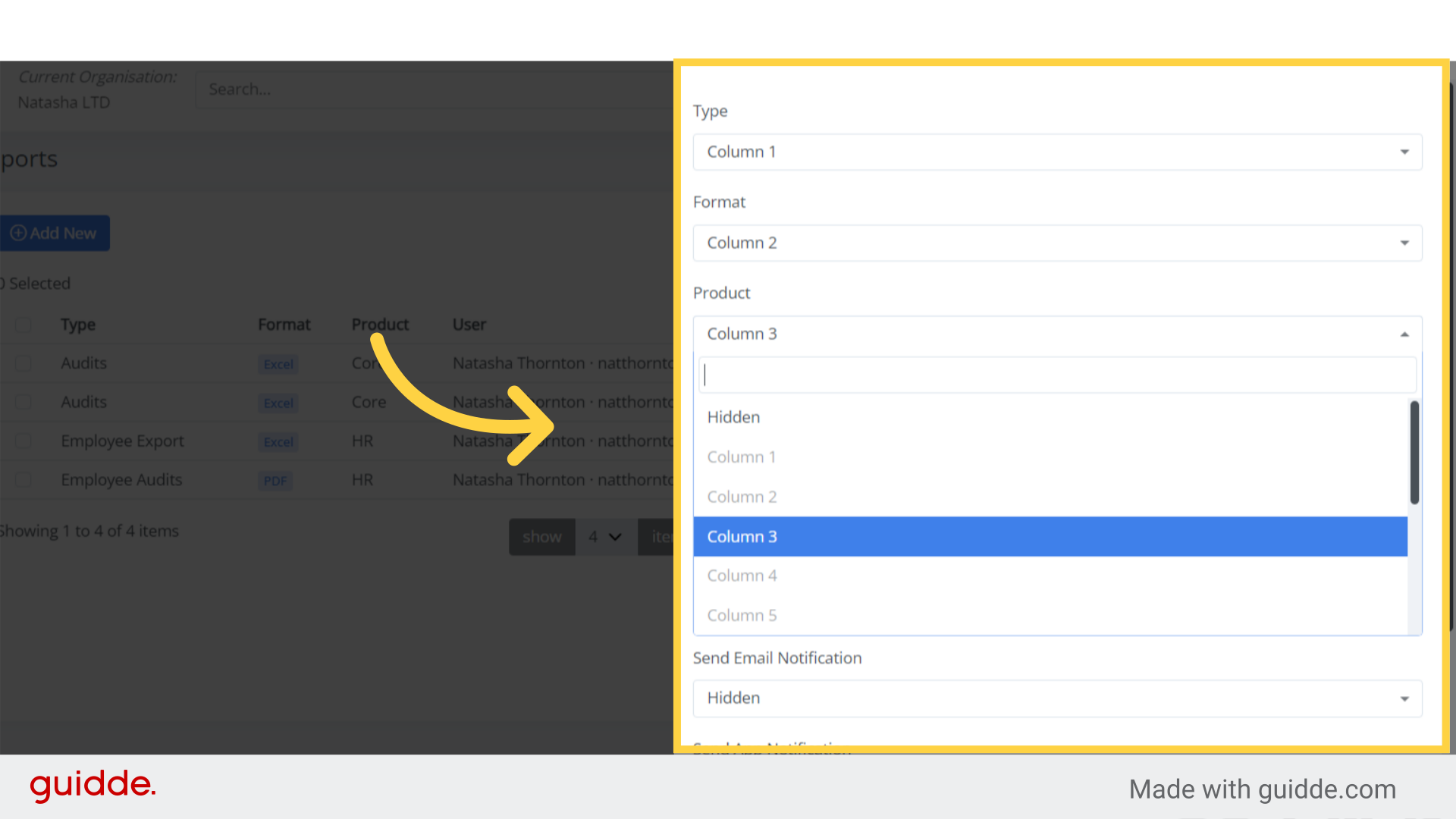
Apart from using the sort and filter options, you can also customize the columns to display only the required information.
This helps in focusing on the specific data you require.
By using the column configuration feature, you can perform tasks more efficiently and view only the columns you need.
This customization helps streamline your workflow and focus on the most relevant information.
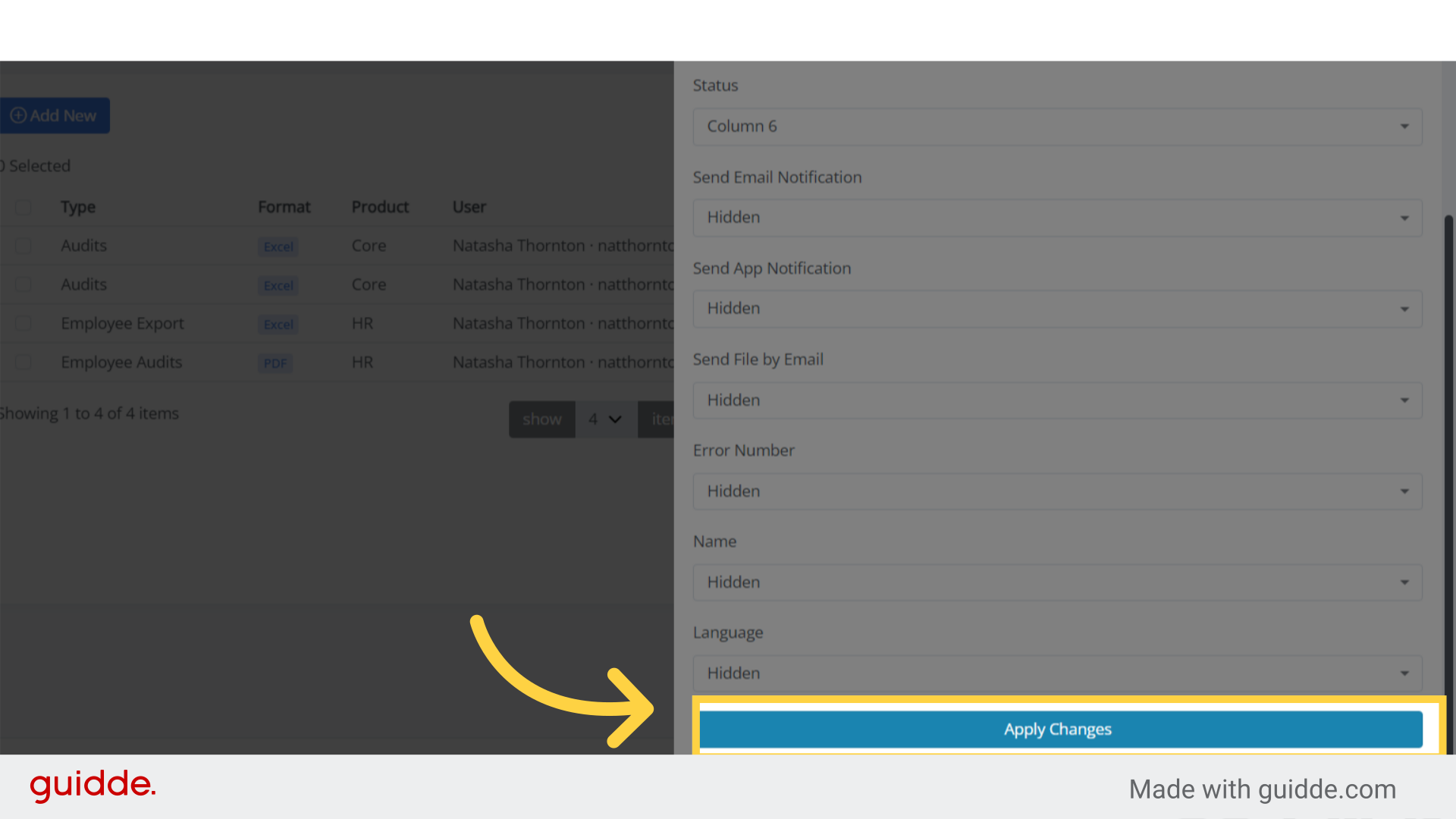
Apply Changes; #
Once the column configuration has been set, simply click on Apply Changes or press Enter on your keyboard to save the changes.