This guide will walk you through setting different levels of access in HR using bitKode. #
From navigating to specific users to assigning roles, follow these steps.
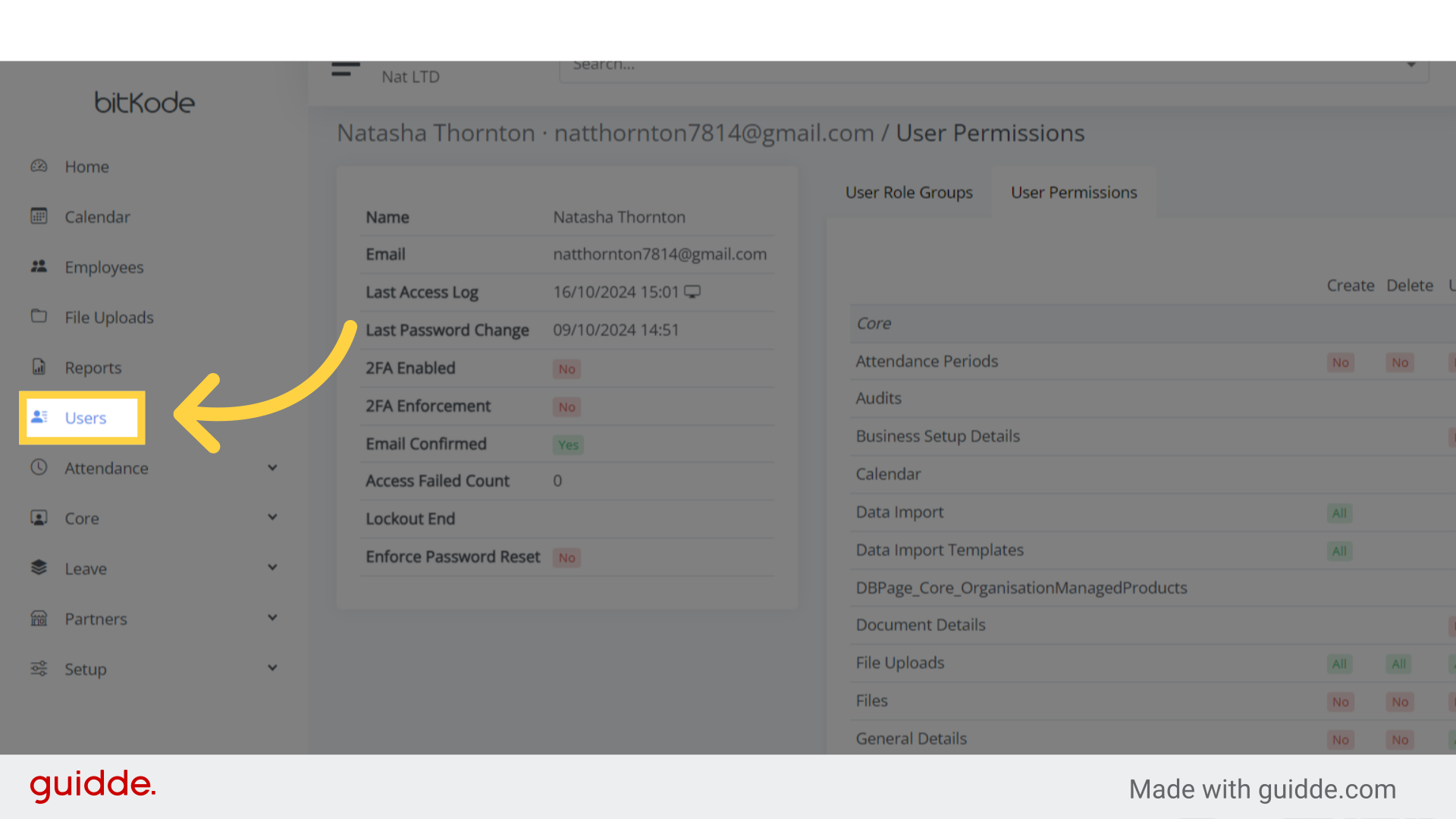
Step 1. Click “Users” #
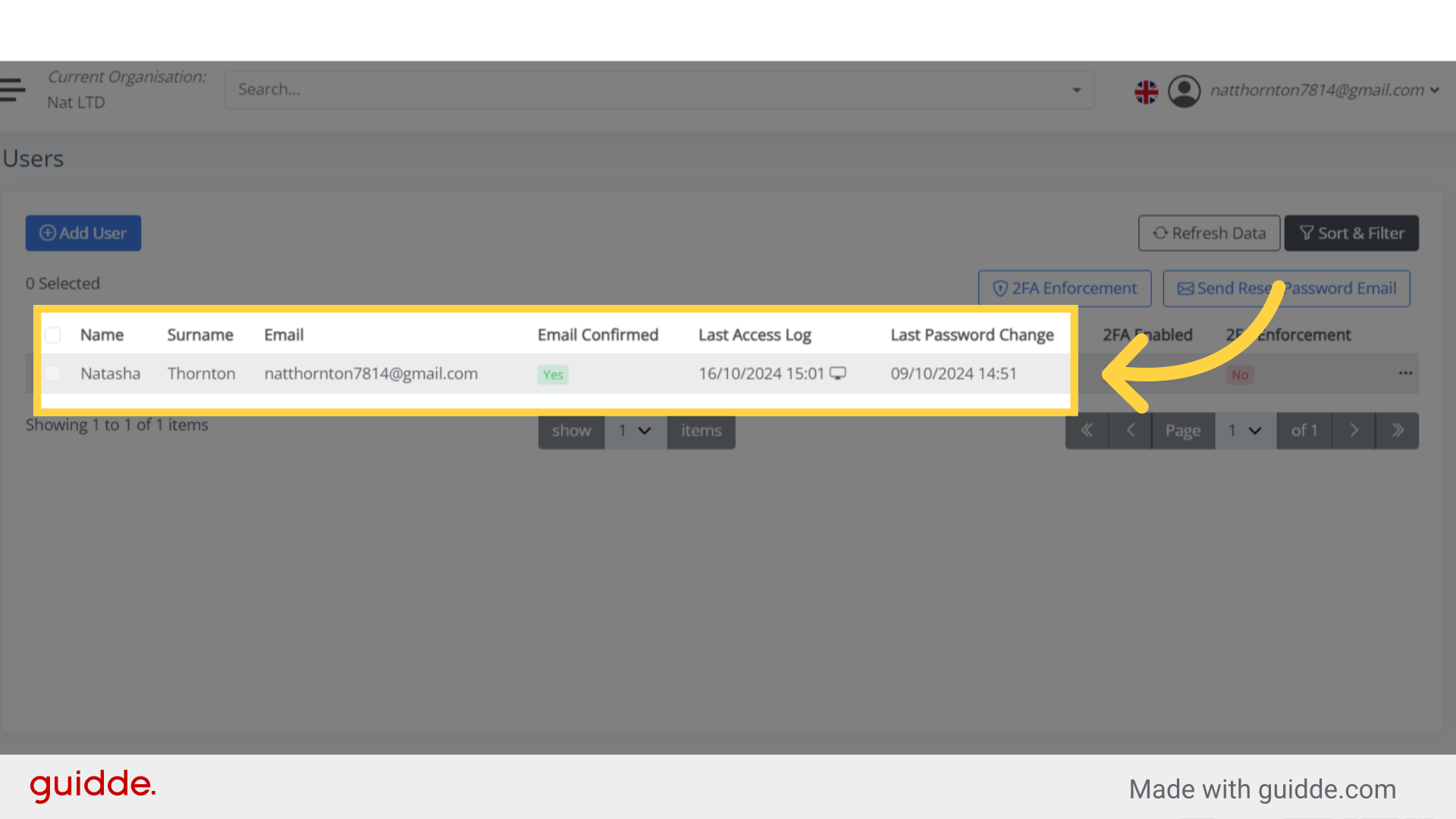
Step 2. Users #
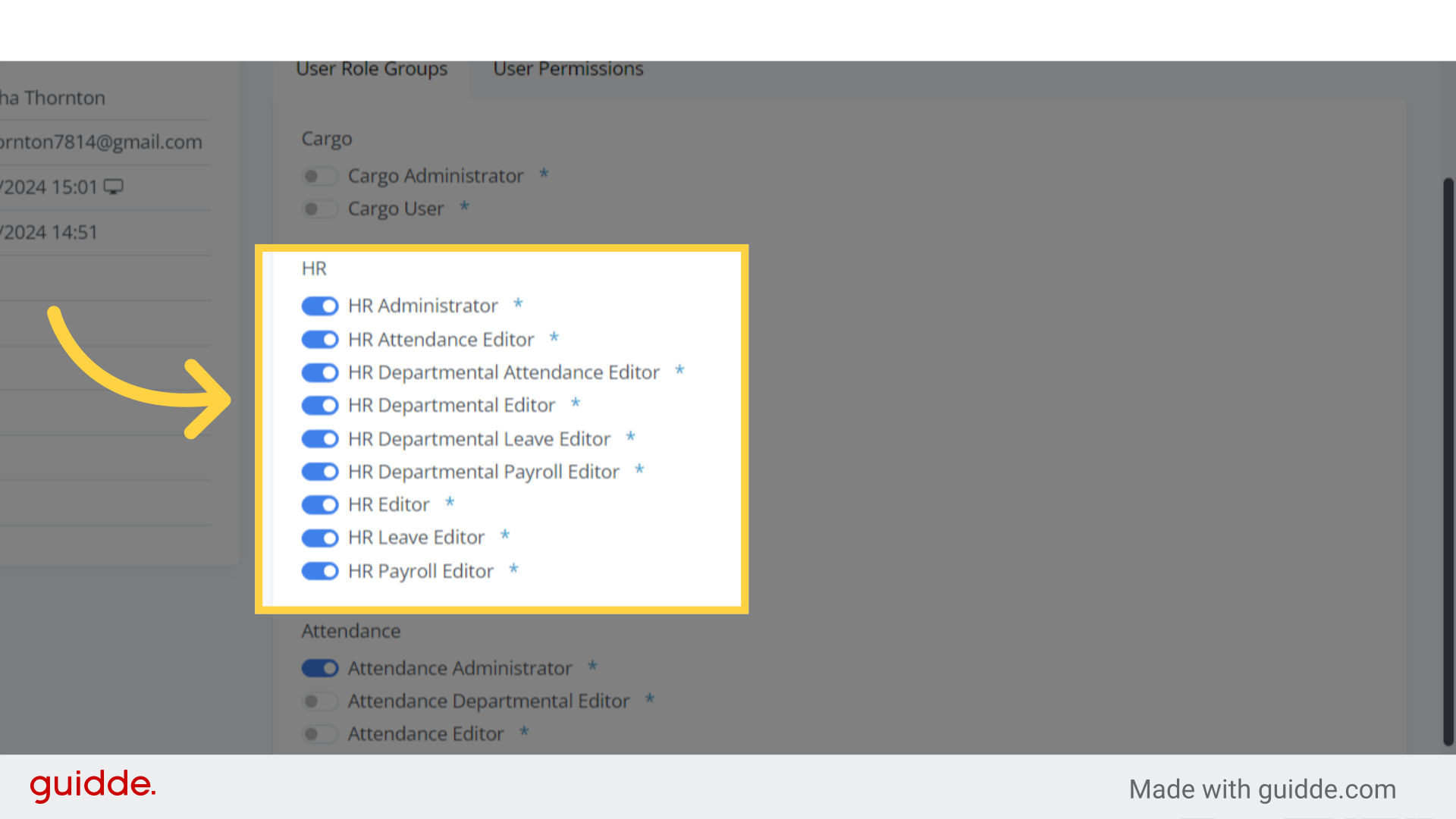
Step 3. HR Permissions #
HR Administrator: Can create and view all employee data, set up and have full access to all custom tabs, upload and view all files, set up and assign training, configure any type of workflow, and issue reports.HR Attendance Editor: Similar to an HR Administrator but only for attendance-related tasks. Can approve hours, view clockings, and generate reports.
HR Departmental Attendance Editor: Similar to an HR Attendance Editor, but with permissions limited to the team they supervise.
HR Editor: Similar to an HR Administrator, but cannot view or update custom data.
HR Departmental Editor: Similar to an HR Editor, but with permissions limited to the team they supervise.
HR Departmental Leave Editor: Can view, reject, delete, and approve leave requests, and generate reports, with permissions limited to the team they supervise.
HR Departmental Payroll Editor: Can view and edit payroll data in the Employee Details Form, but with permissions limited to the team they supervise.
HR Leave Editor: Can view, reject, delete, and approve leave requests, and generate reports for all employees.
HR Payroll Editor: Can view and edit payroll data in the Employee Details Form for all employees.