
Table of Contents
- This guide provides a clear path for updating an employee's working schedule efficiently.
- Step 1. Click "Setup"
- Step 2. Click "Schedules"
- Step 3. Add new
- Step 4. Click "Schedule Multi Line"
- Step 5. Shedule Multi Line
- Step 6. Click "Schedule Lines"
- Step 7. The Schedule Lines page
- Step 8. Click "Schedules Values"
- Step 9. Linked to
- Step 10. Click "Save"
- Step 11. Click "Employee"
This guide provides a clear path for updating an employee’s working schedule efficiently. #
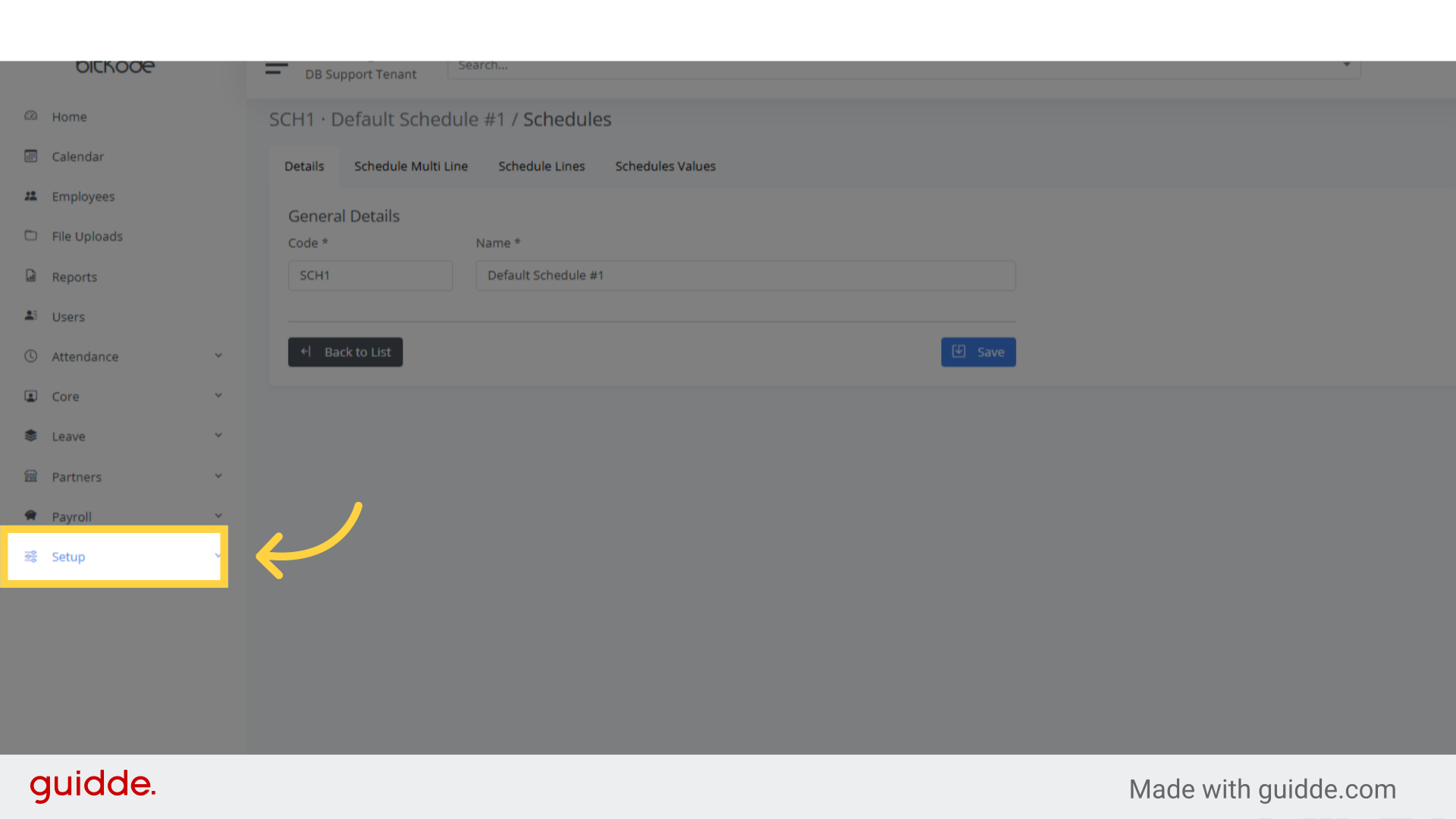
Step 1. Click “Setup” #
Access the configuration area to begin your updates.
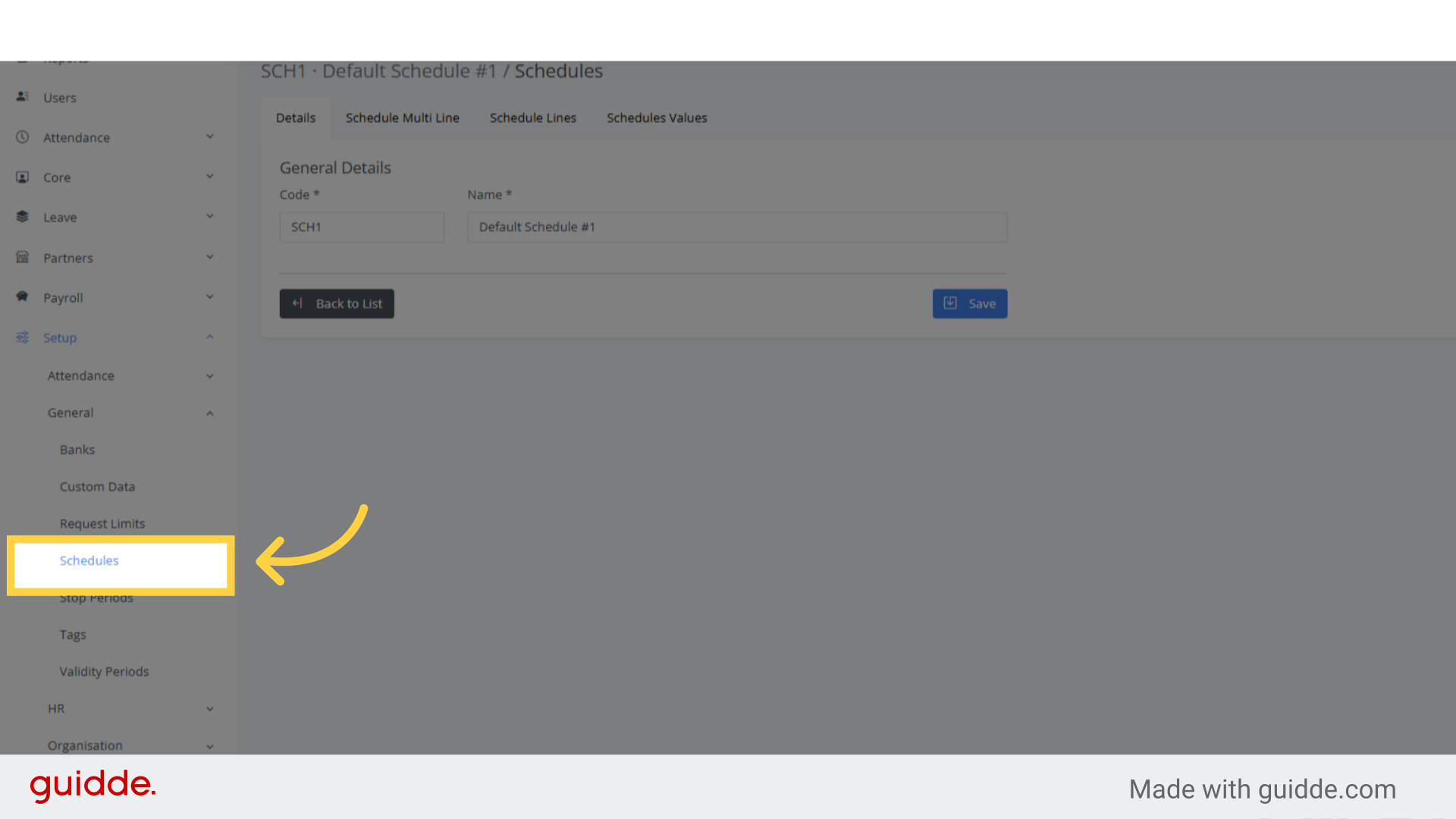
Step 2. Click “Schedules” #
Navigate to the scheduling section for employee management.
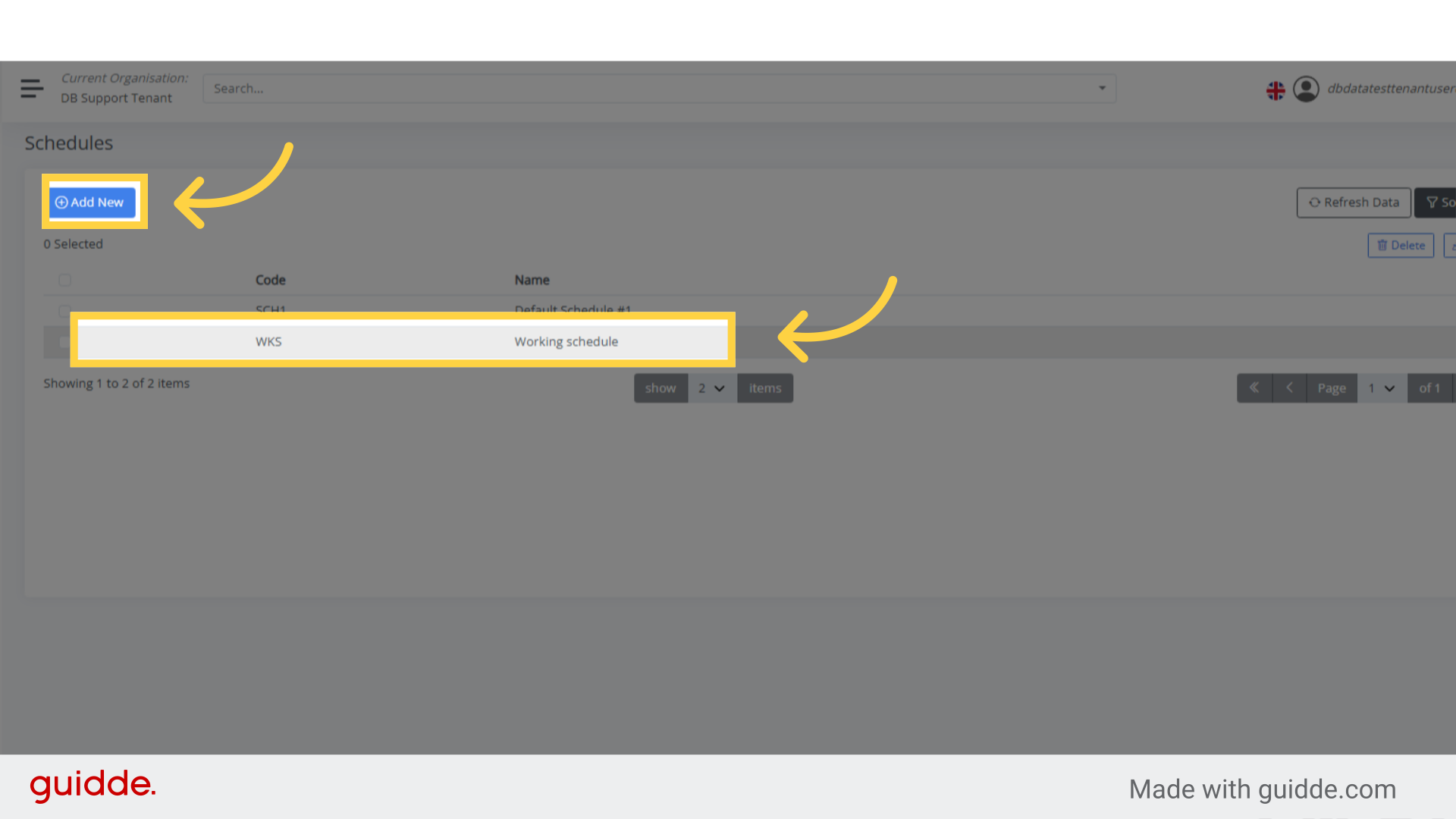
Step 3. Add new #
To initiate a new working schedule, follow these steps:
- Click on “Add New” button.
- Name the Schedule: Give your new working schedule a name of your choice.
For example, you could name it “Standard Working schedule:.
Once you’ve done this, a new working schedule will be created.
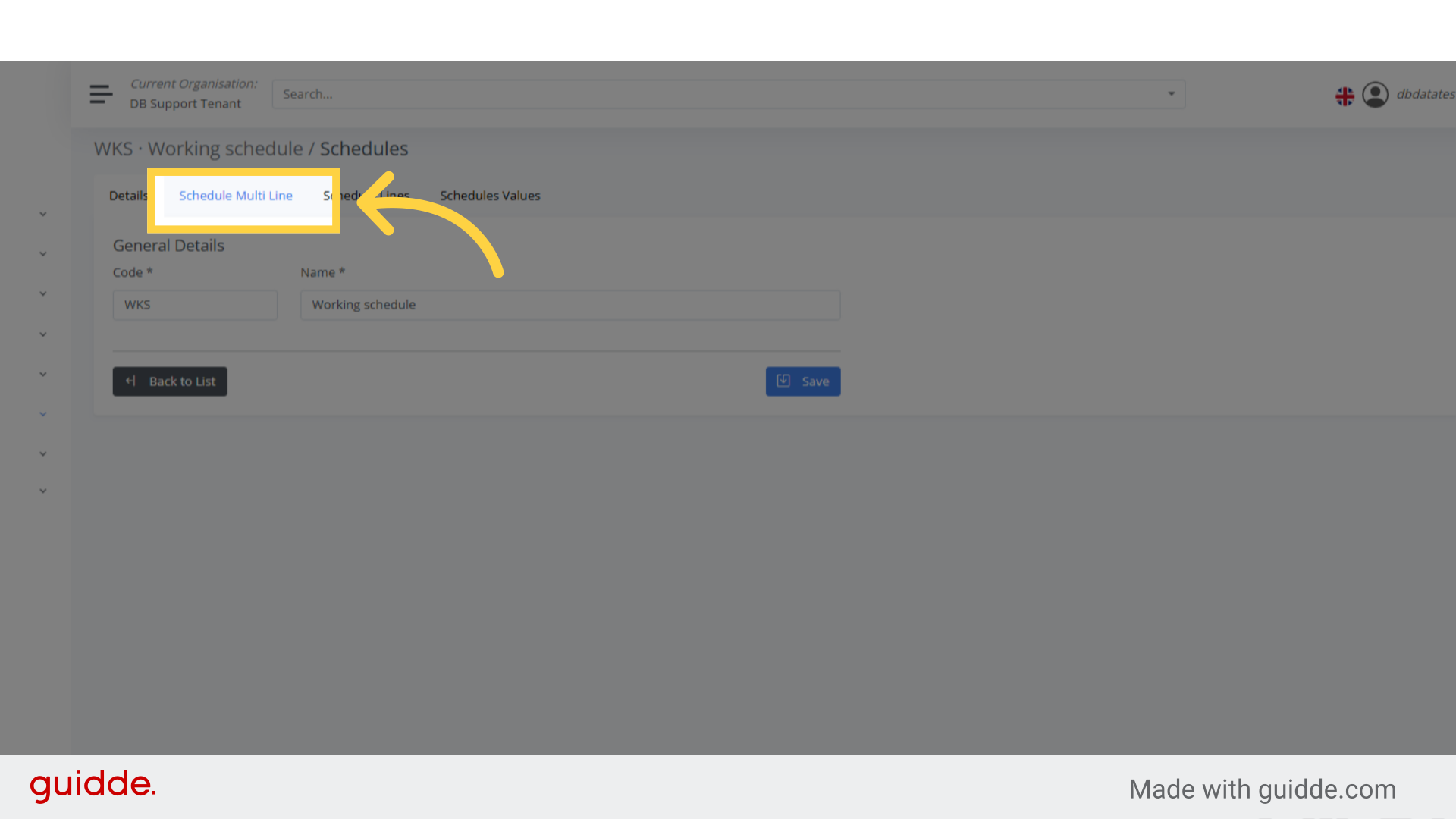
Step 4. Click “Schedule Multi Line” #
Choose the multi-line option for comprehensive schedule editing.
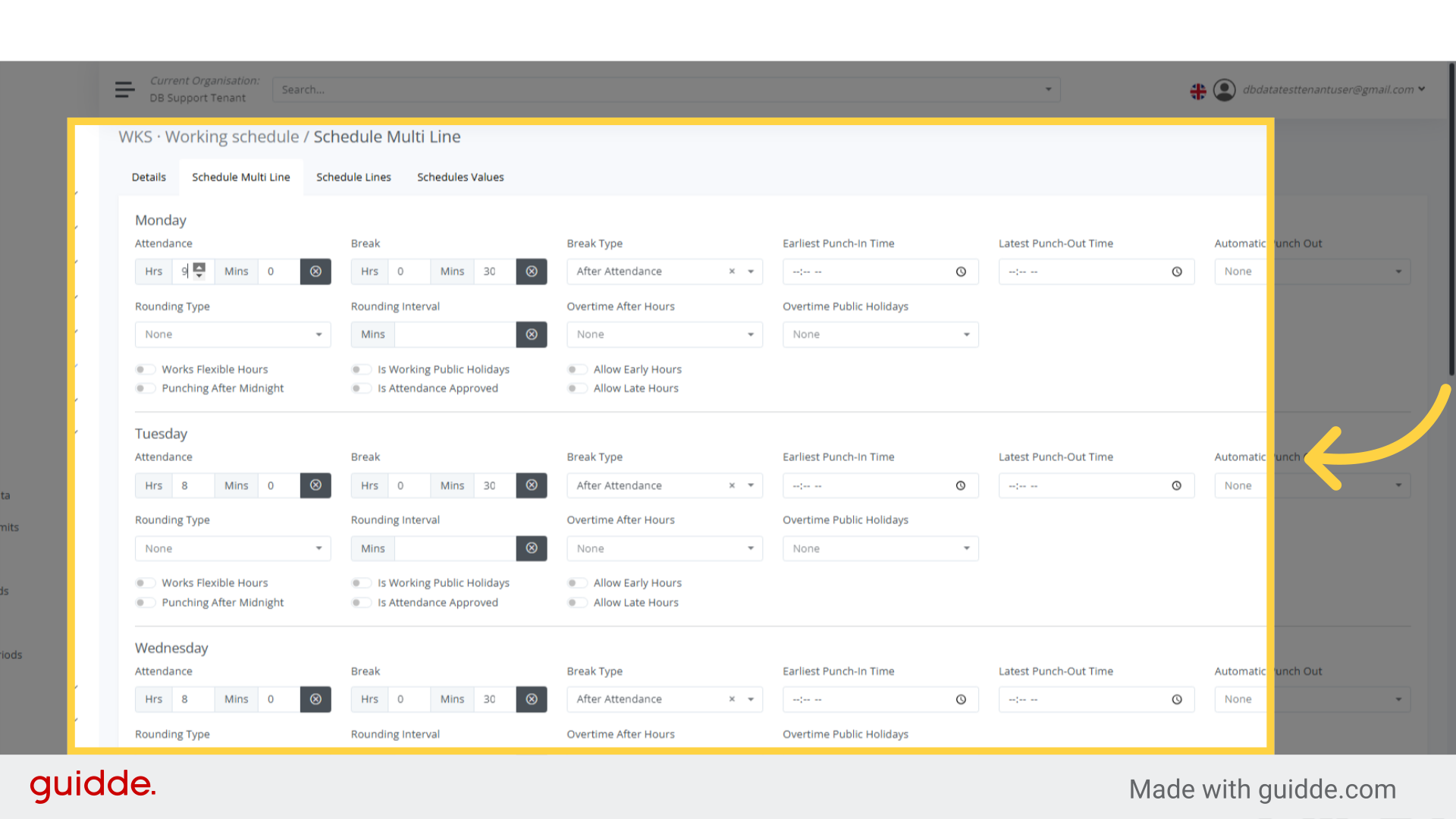
Step 5. Shedule Multi Line #
To update a working schedule, follow these steps:
- Select the Schedule: Choose the specific schedule you wish to update.
- Assign Days: You can assign the working schedule to any day of the week, from Monday to Sunday.
Refer to the Guide: For detailed information on all fields, please refer to the guide on working schedules.
How do I update my company working schedule?
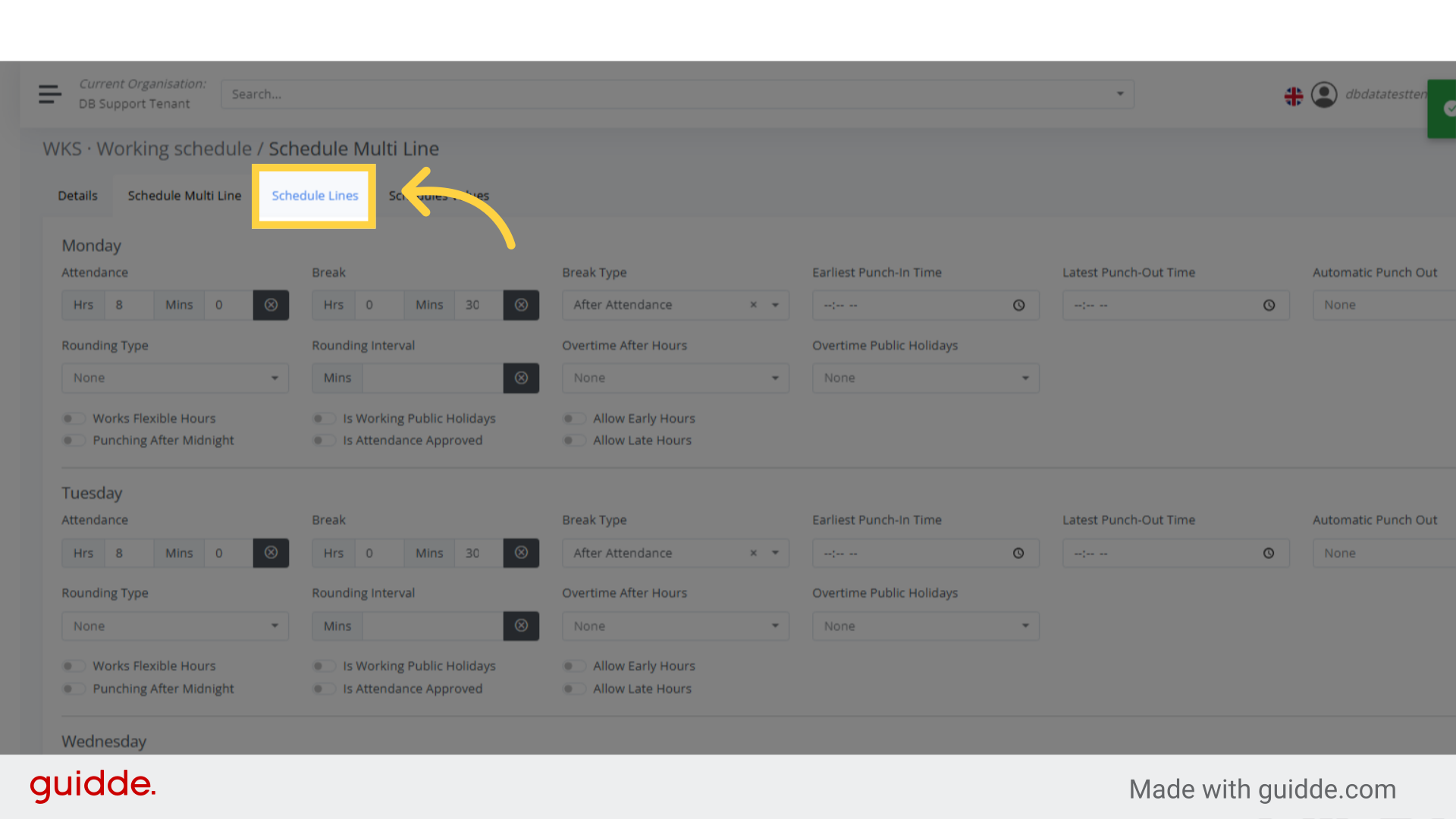
Step 6. Click “Schedule Lines” #
In the schedule lines, you will be able to view a list of the expected days and hours that were just created in the schedule multiline.
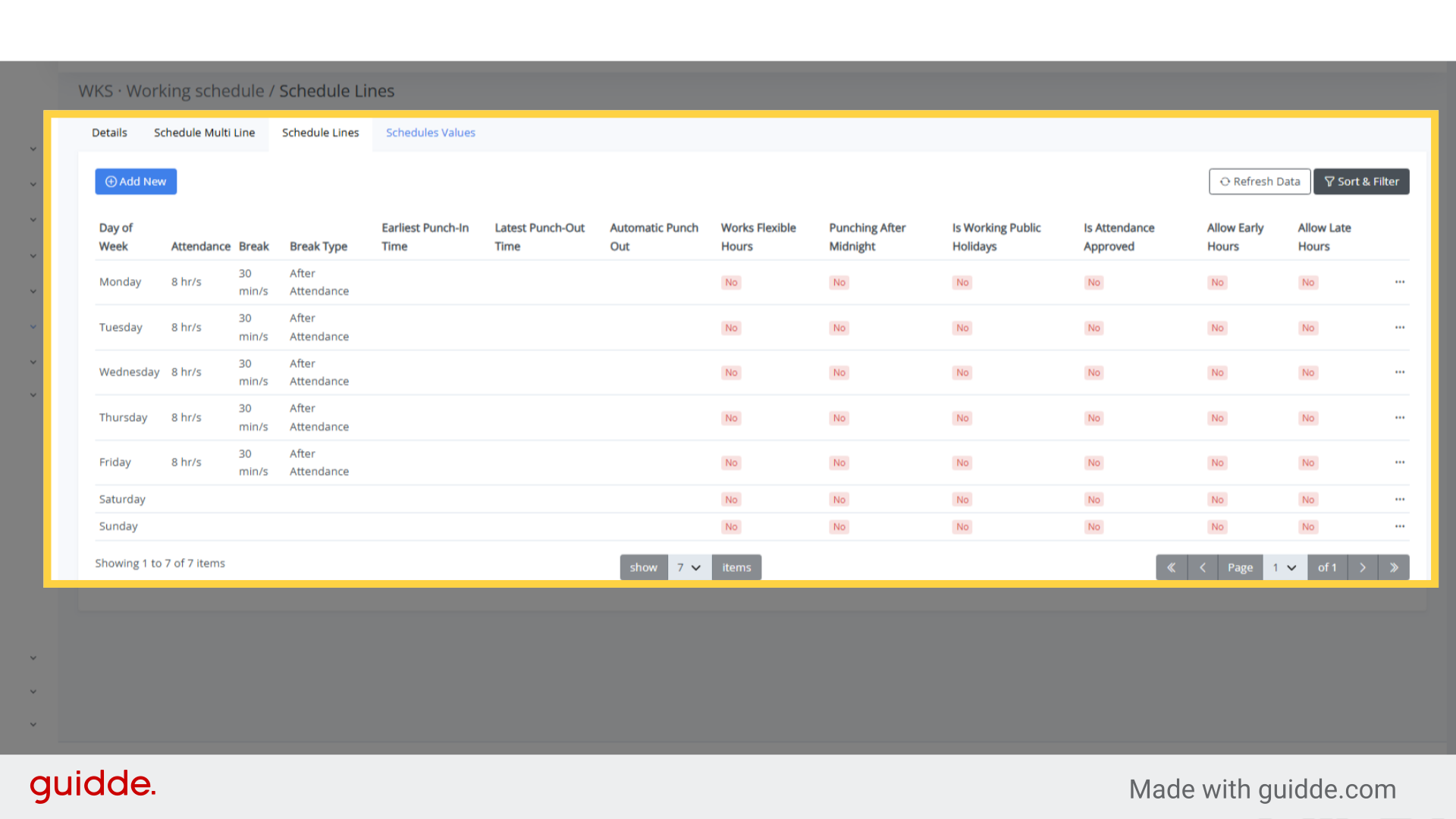
Step 7. The Schedule Lines page #
This is the schedule lines view page, where you can see the list of expected days and hours created in the schedule multiline.
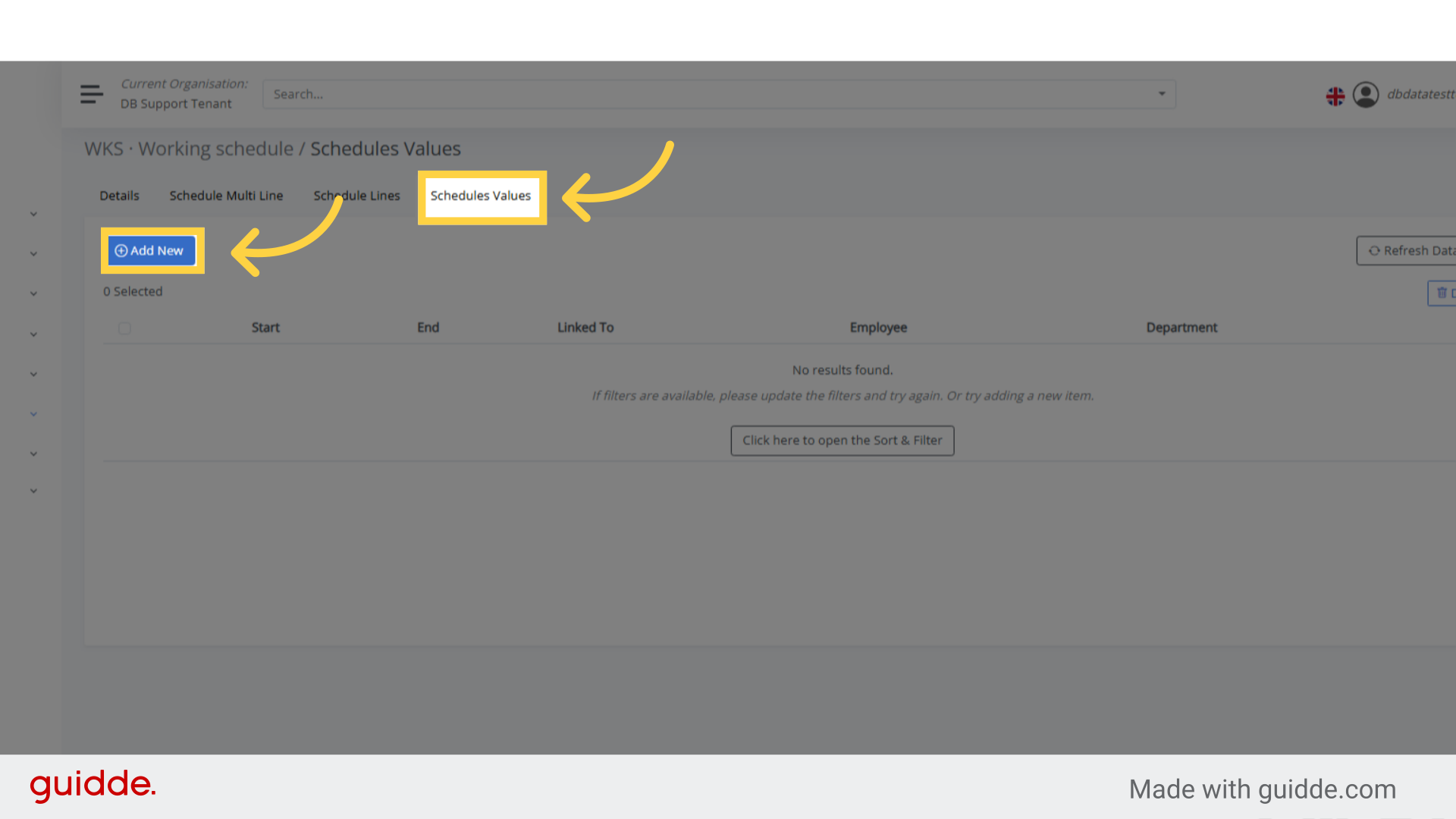
Step 8. Click “Schedules Values” #
To assign the working schedule you just created to an employee or a department, follow these steps:
- Click on the Schedules Field.
- Click Add New to assign the schedule.
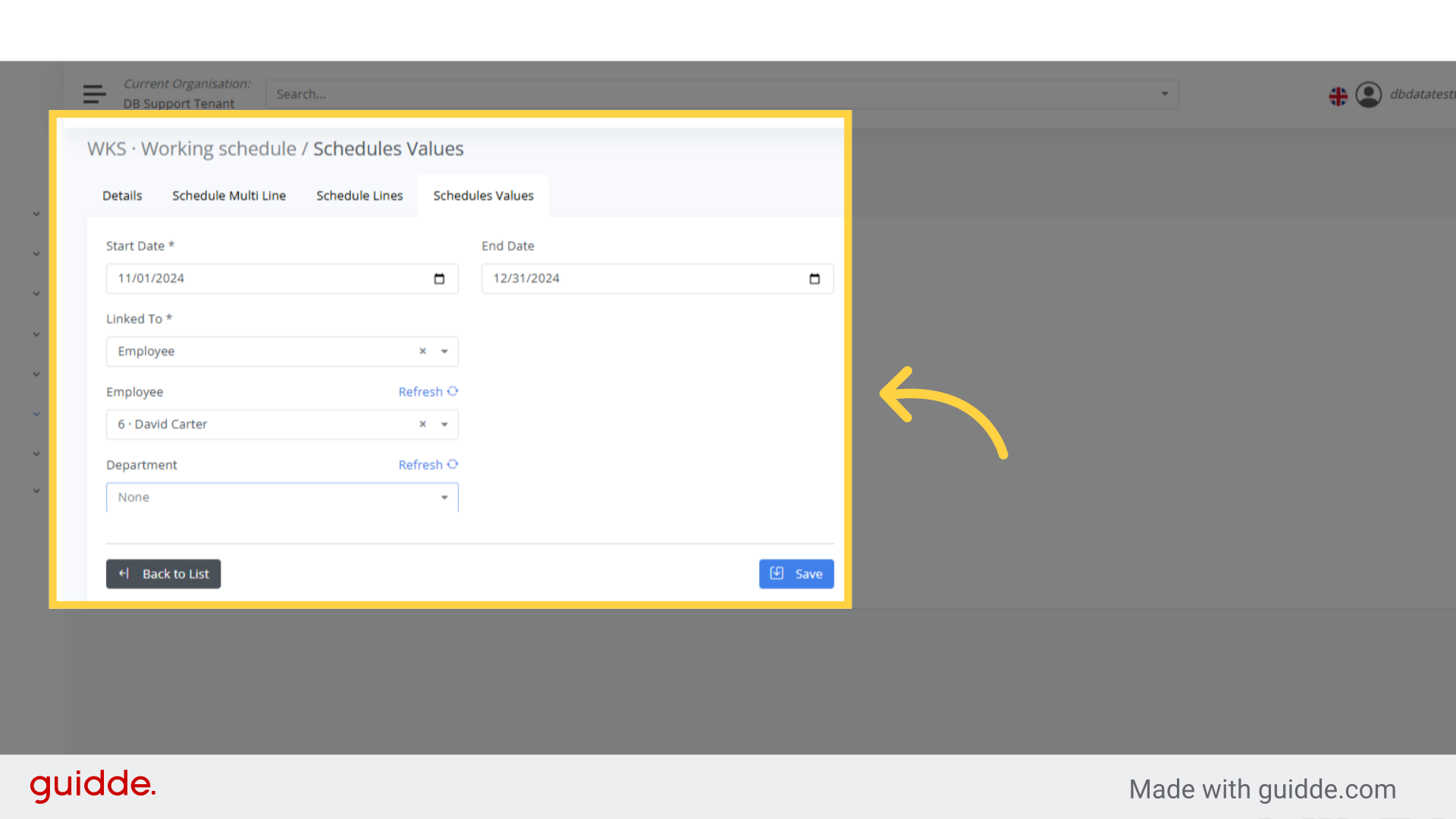
Step 9. Linked to #
You can assign the created working schedule to a specific department, an individual employee, or apply it generally to the entire organization.
In this case, we are assigning the working schedule to one employee.
This means their working schedule will be updated with the new one and will not follow the organization’s default working schedule.
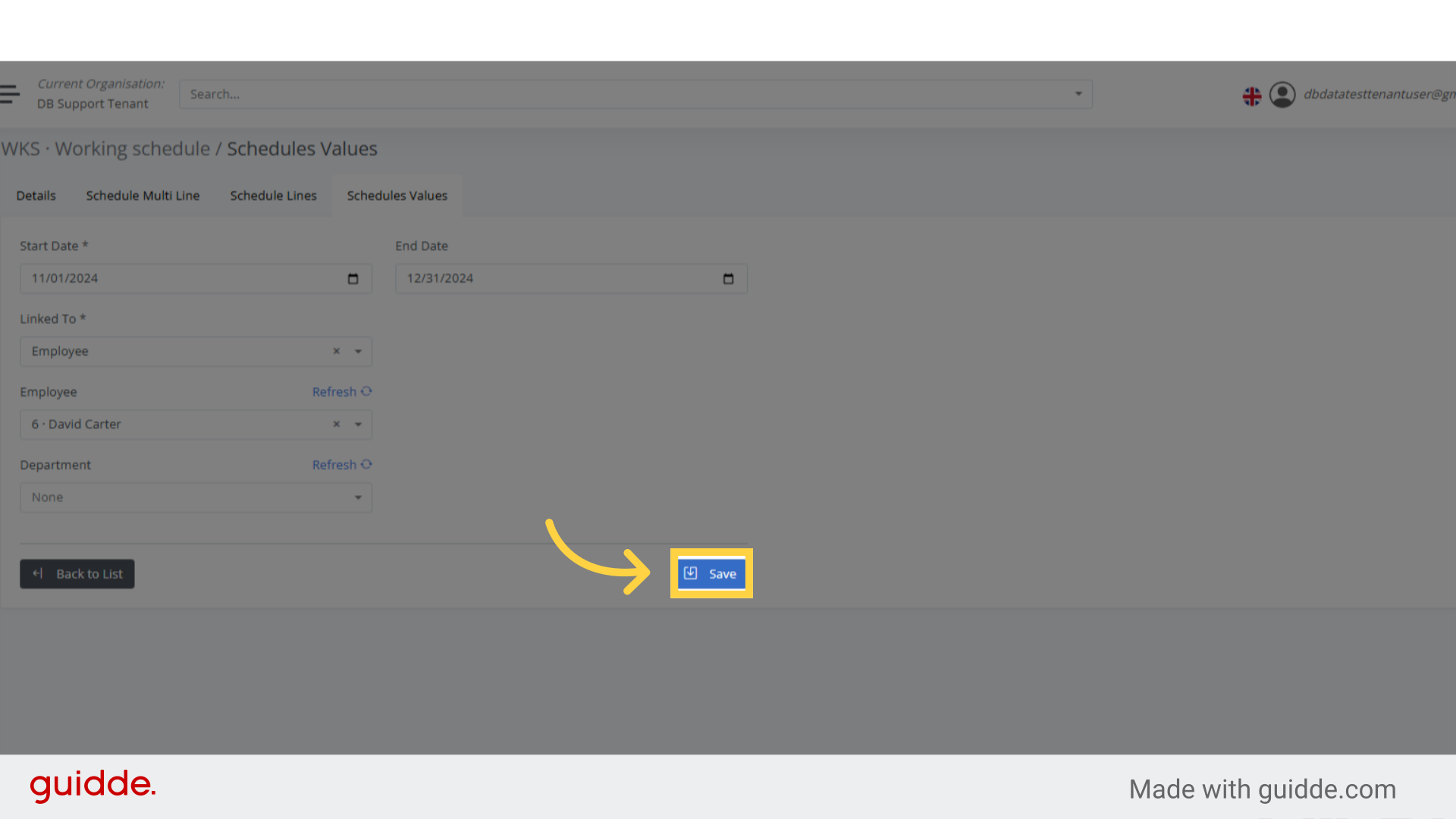
Step 10. Click “Save” #
Once the working schedule has been assigned, click on Save or press Enter on your keyboard to save the changes.
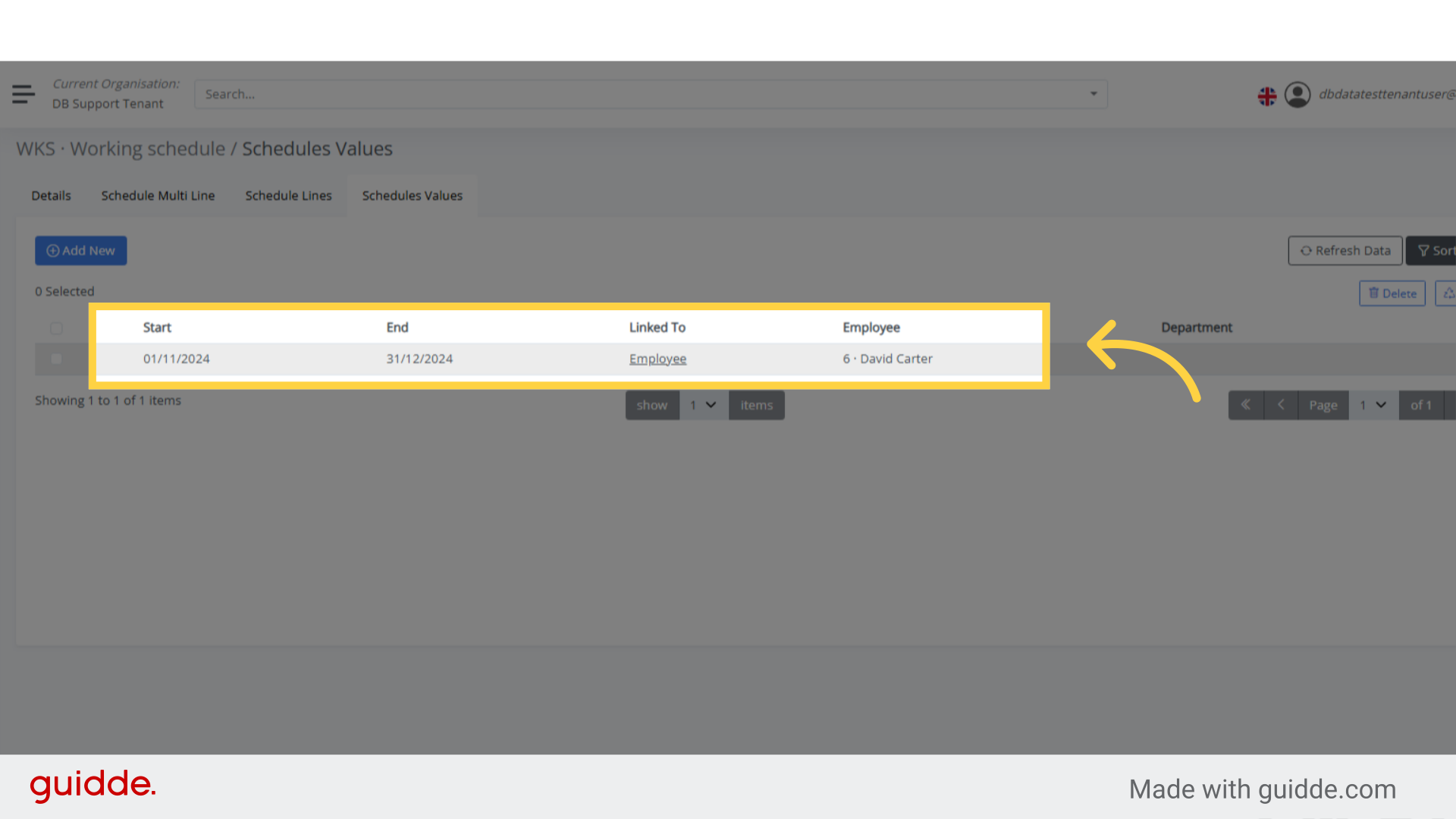
Step 11. Click “Employee” #
This will be added to the schedule values list.
As you can see, the schedule assigned to the employee is now listed.
In this guide, you learned how to update an employee’s working schedule.


