Table of Contents
Clocking Types Overview:
Clocking types refer to the various methods employees use to record their working hours within an Attendance system.
These types help track when employees begin and end their shifts, take breaks, or can be created to perform specific tasks.
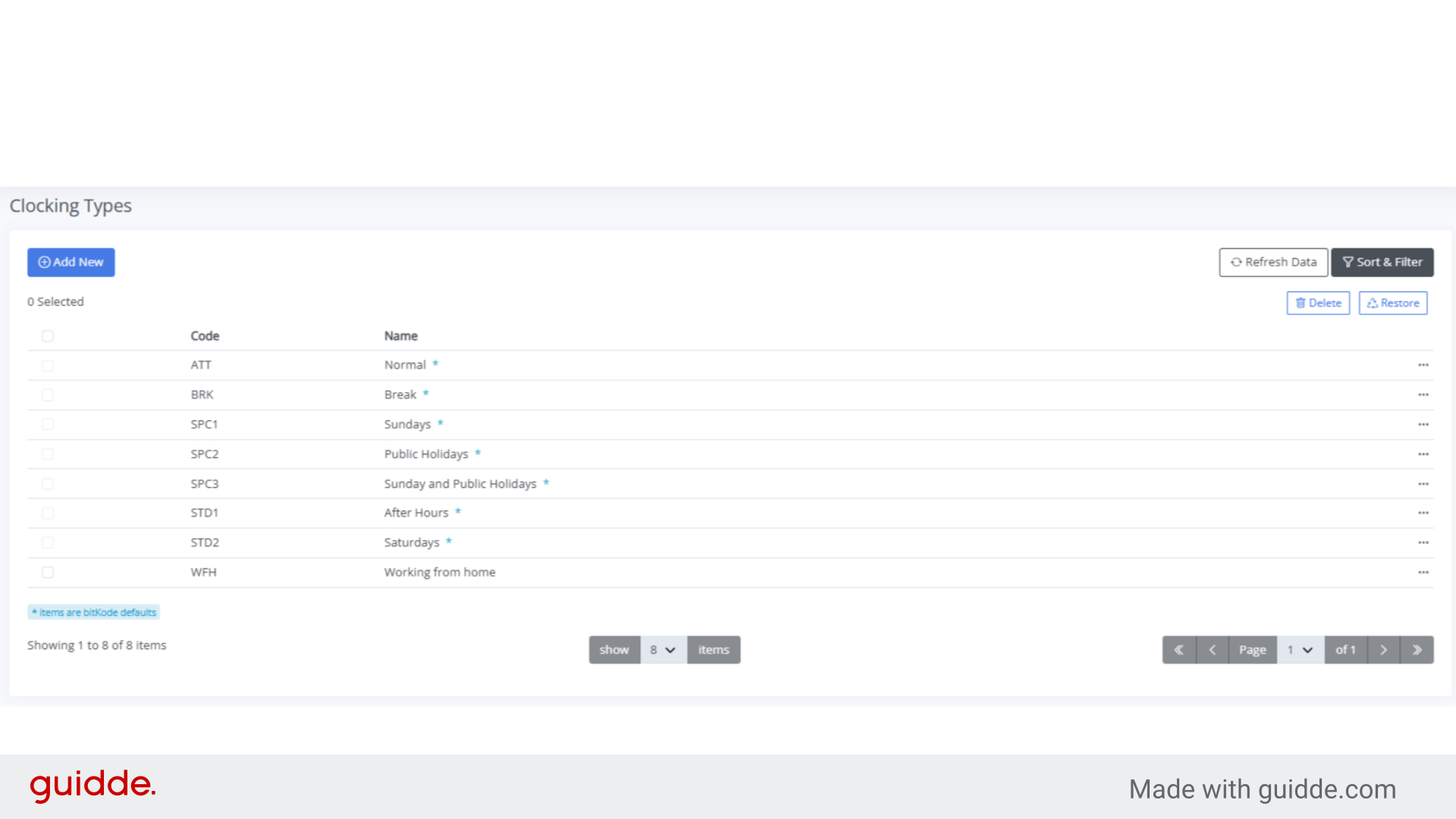
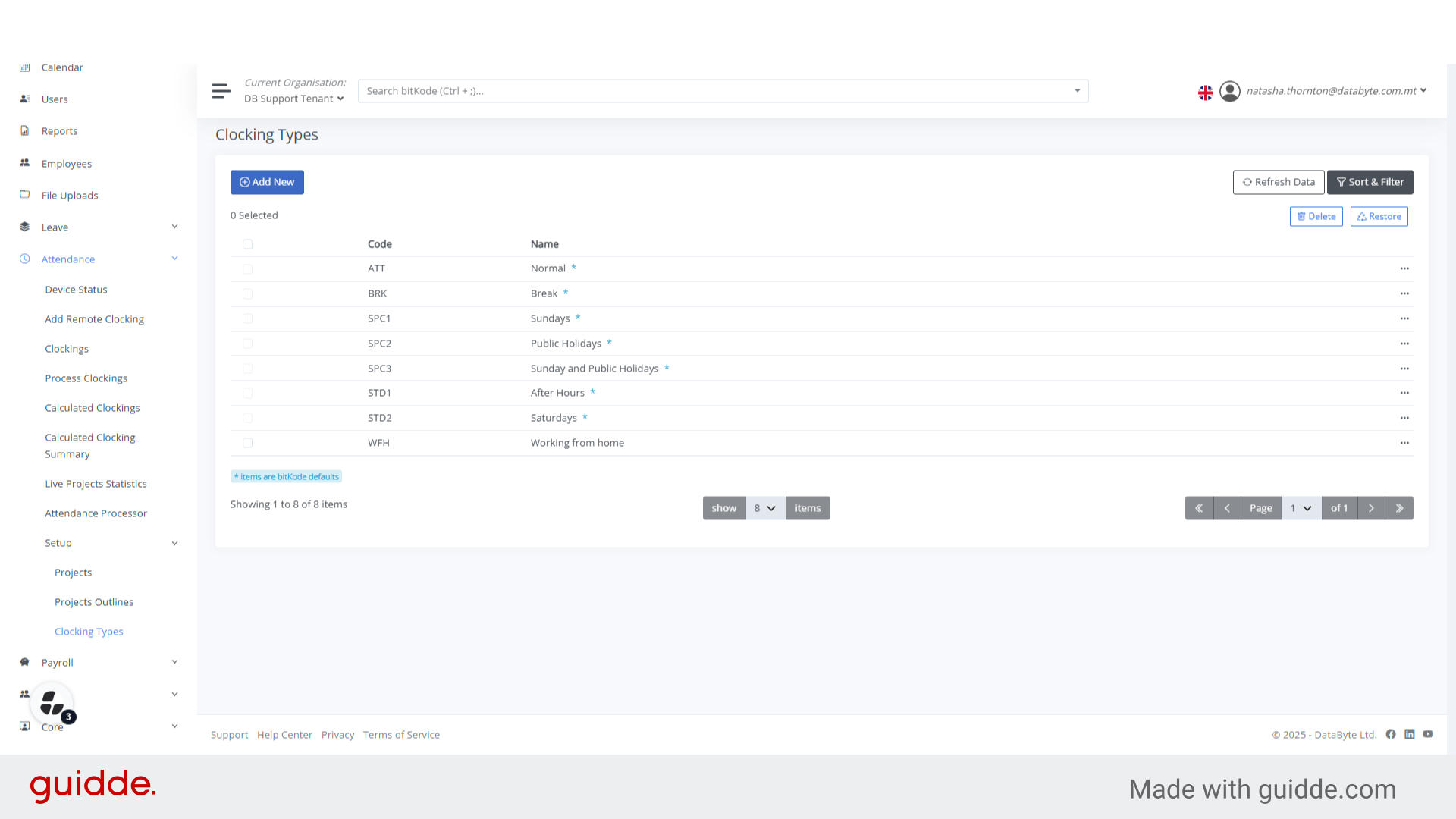
Below are the default clocking types configured in the system:
Normal:
Clock In / Clock Out);
- Clock In: Records the start of a work shift.
- Clock Out: Records the end of a work shift.
Break:
- Break Out: Indicates the start of a break (e.g., lunch).
- Break In: Indicates the end of a break and return to work.
Additional clocking types are used to identify work performed during special conditions, such as:
- Public Holidays
- Sundays
- After-Hours Work
All by defult clocking types are marked with an asterisk (*) and are linked to the payroll system for automatic calculations.
For accurate payroll processing: Attendance must be processed.
Any extra hours worked must be approved.
Once approved, the period is locked and transferred to payroll.
The Attendance Setup page allows you to both create new clocking types and view the default ones already configured in the system.
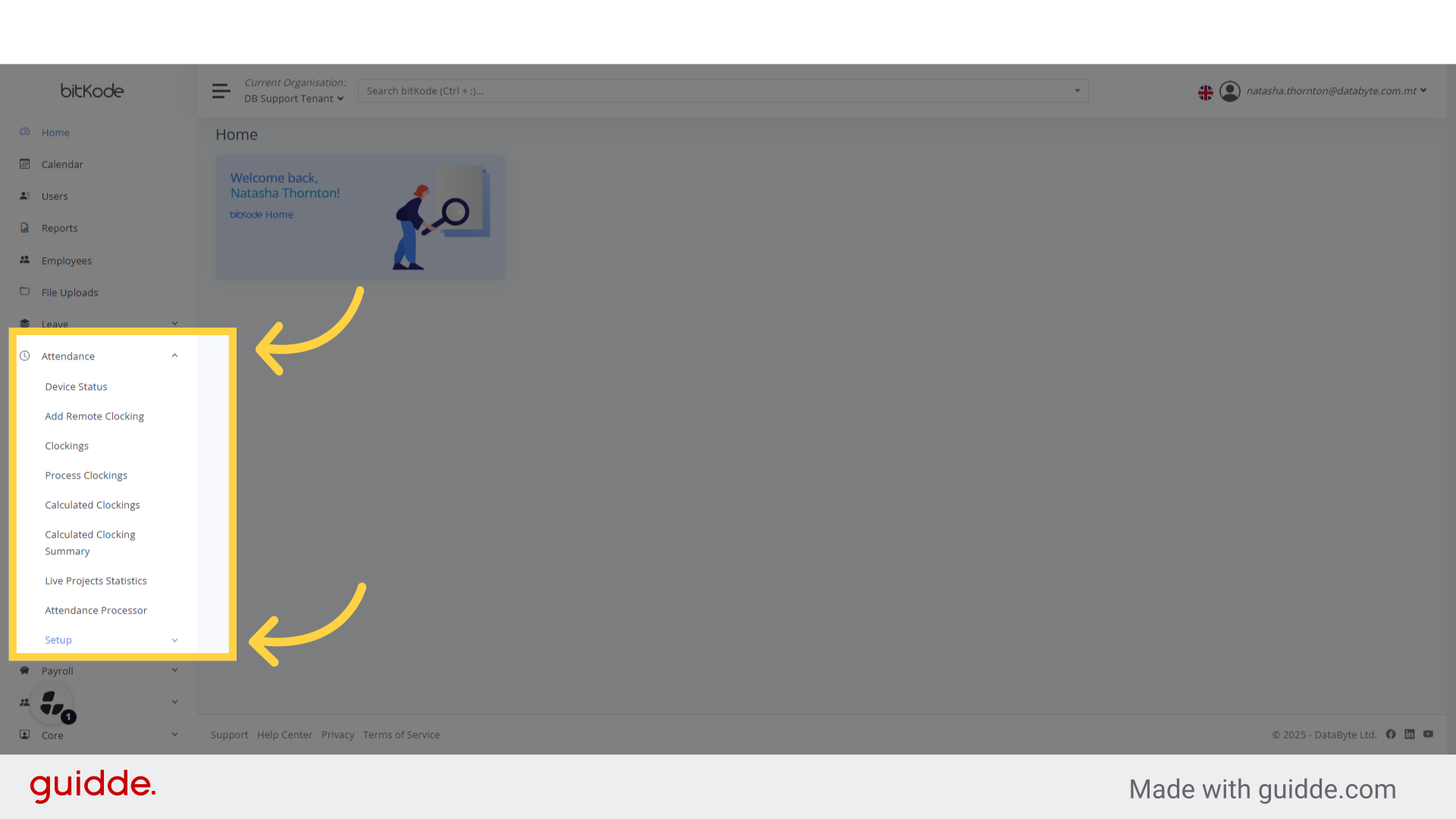
Step 1. Click “Clocking Types” #
Start by selecting Setup from the home menu, then choose Attendance followed by Clocking Types to view the Clocking Types.
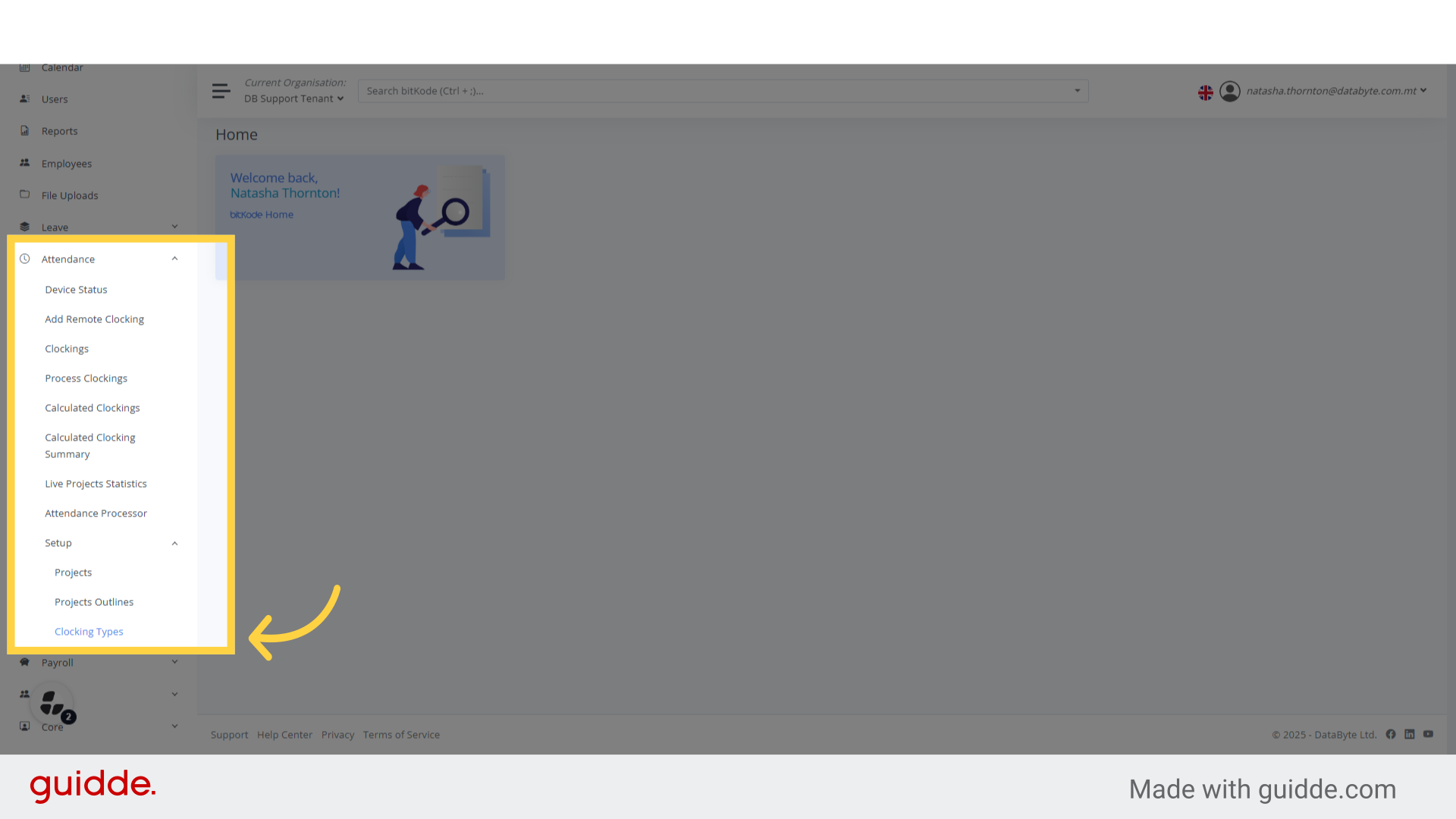
Step 2. Defult”Clocking Types” #
As shown in the image, clocking types marked with an asterisk (*) are all created by default.
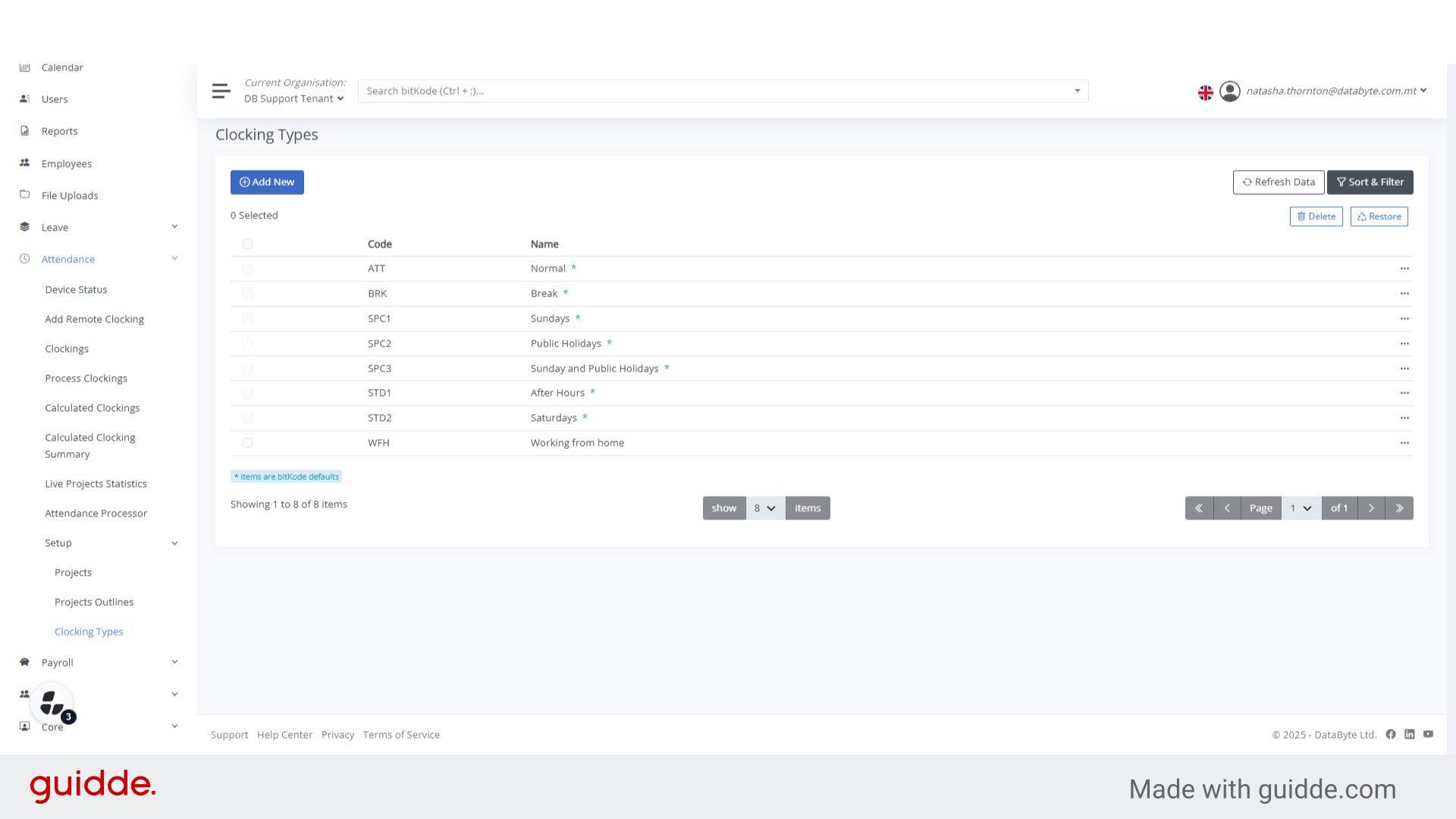
Step 3. Click “Add New” #
However, if you wish to create a new clocking type, you can do so by simply clicking on Add New.
Step 4. Creating a Clocking Type #
For example, creating a new clocking type called ‘Working from Home.’
After entering a code and name for the clocking type, simply press ‘Enter’ on your keyboard or click ‘Save’ to apply the changes.
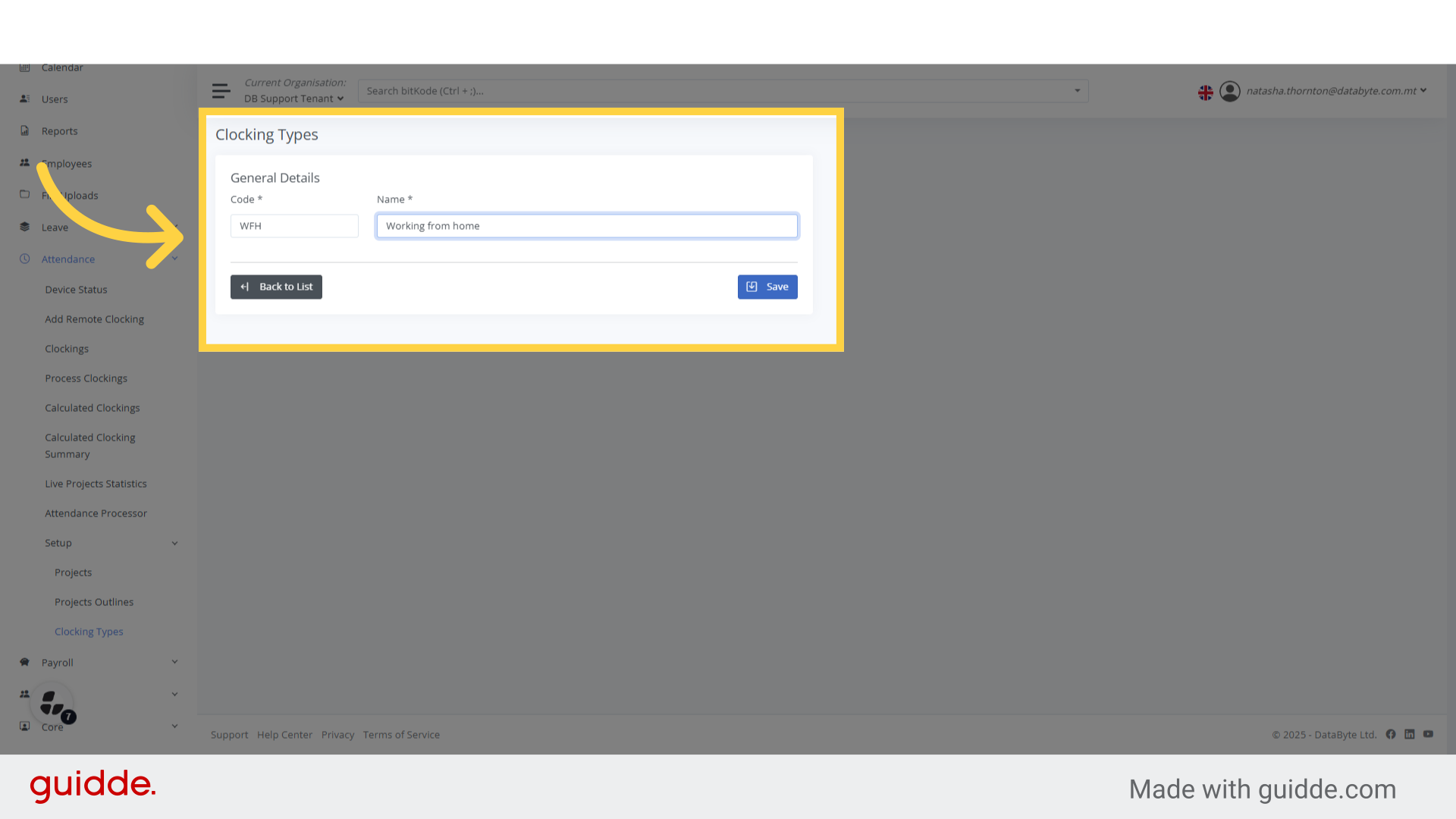 As you can see, the newly created clocking type is now visible in the list of clocking types below.
This option becomes available for employees to select when they punch in or out remotely.