Table of Contents
Explore how to efficiently manage the Company Calendar in bitKode with these precise instructions. #
From customizing columns to applying filters, this guide will help you navigate through essential features of the calendar effortlessly.
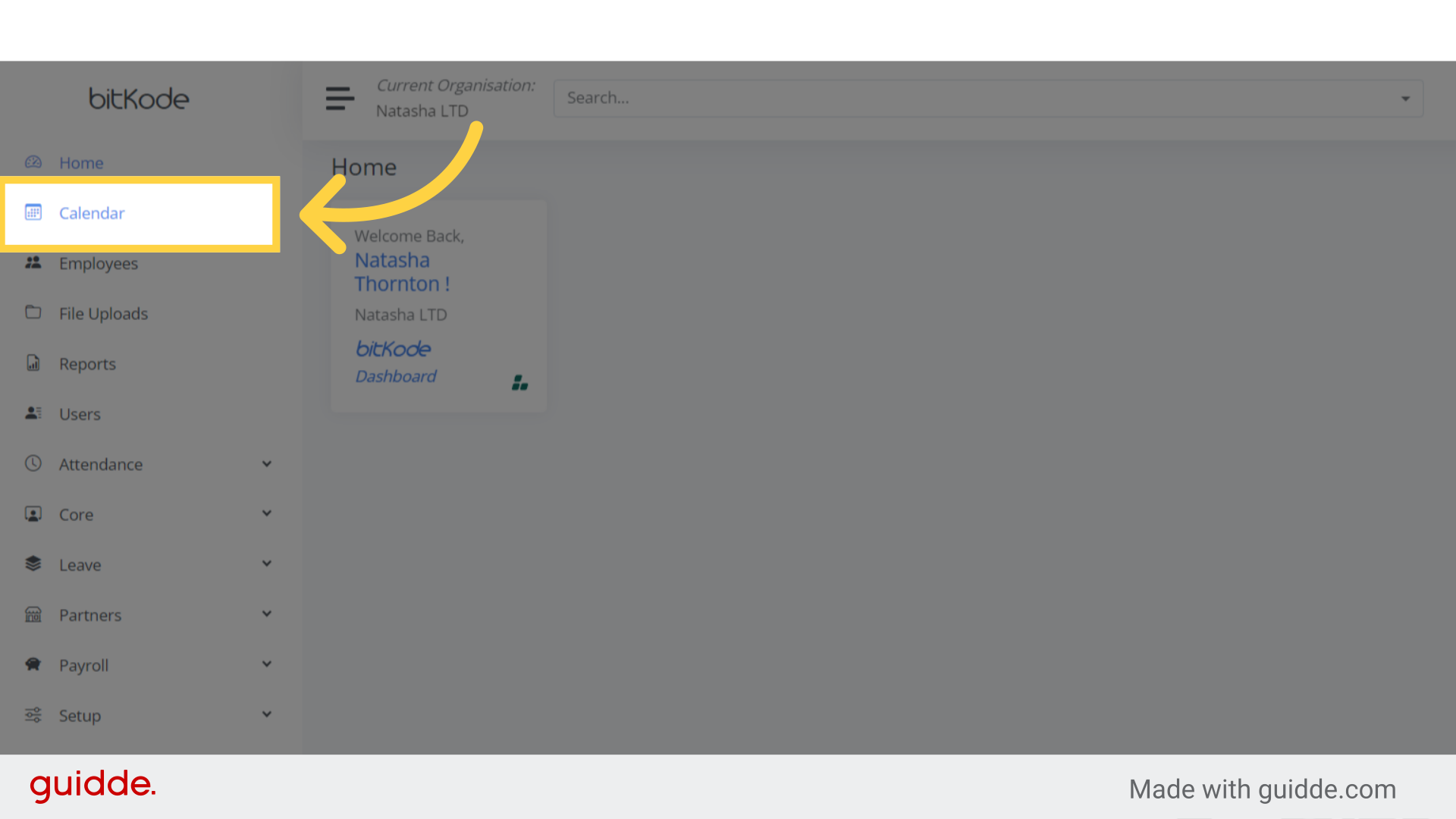
Step 1. Click “Calendar” #
The company calendar is available to all users.
Step 2. By default date #
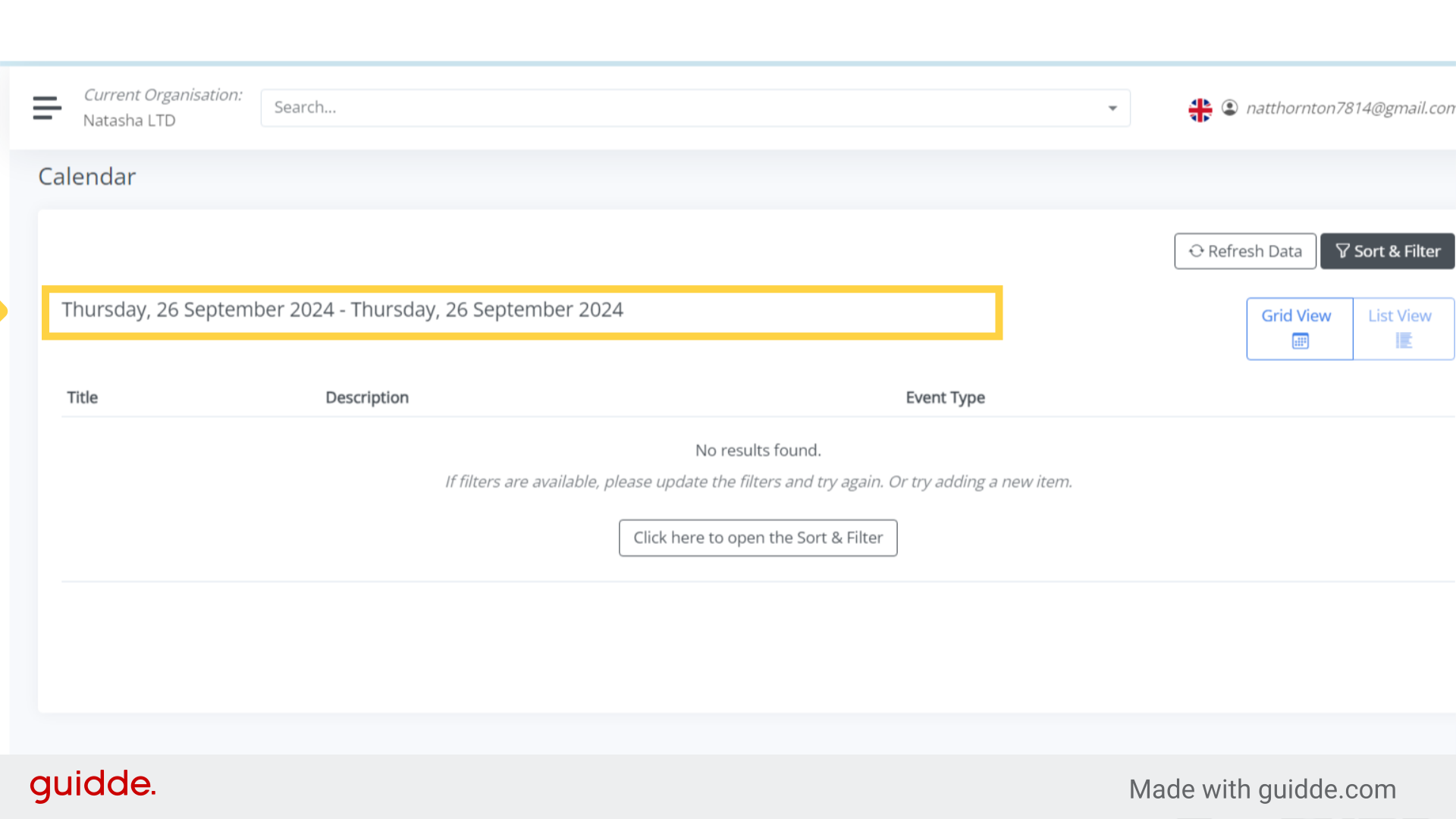
By default, when accessing the calendar, it will display the current day.
Step 3. Click “Grid View” #
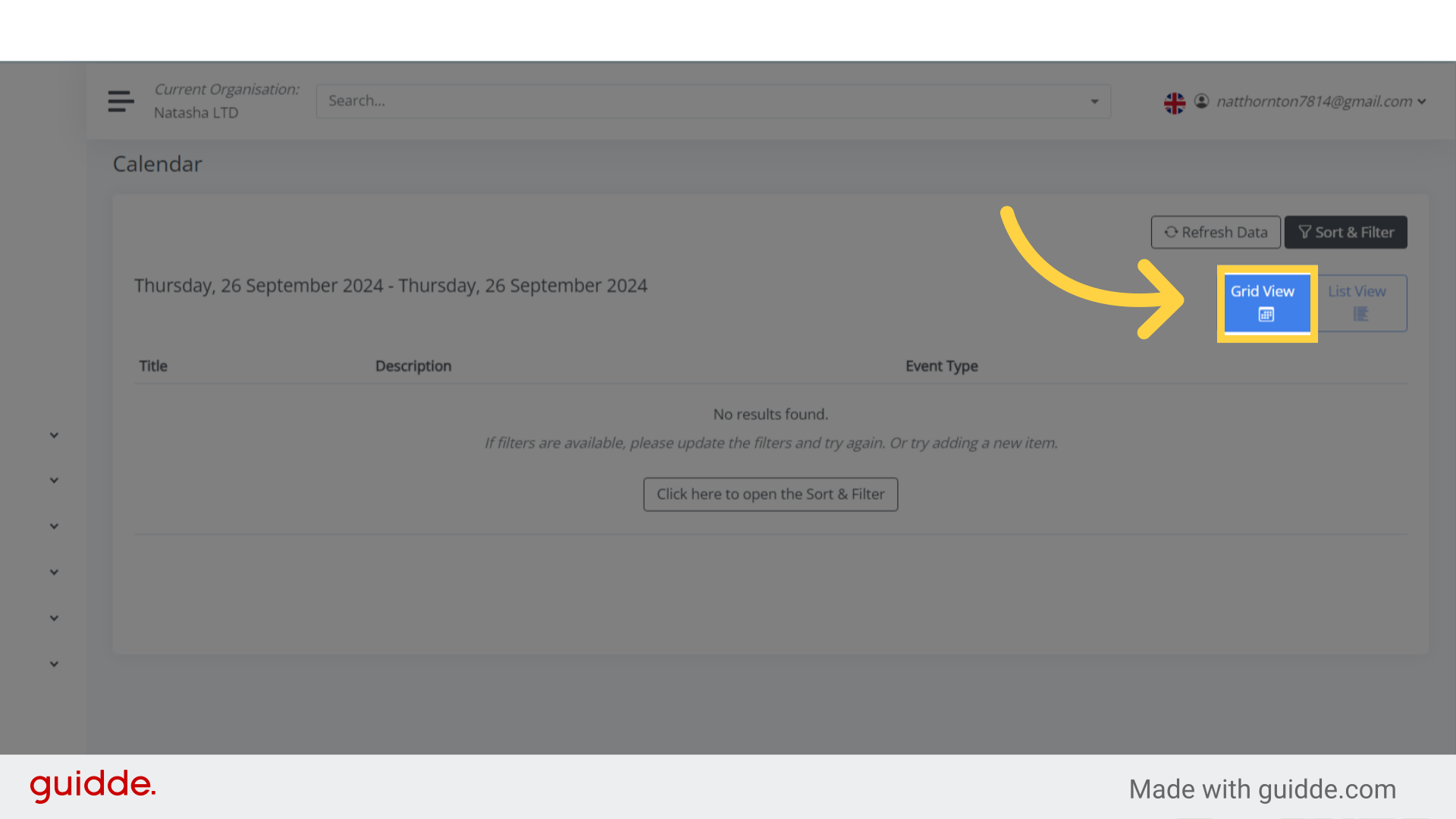
To view the calendar for the entire month, simply click on the grid view.
The Calendar Grid #
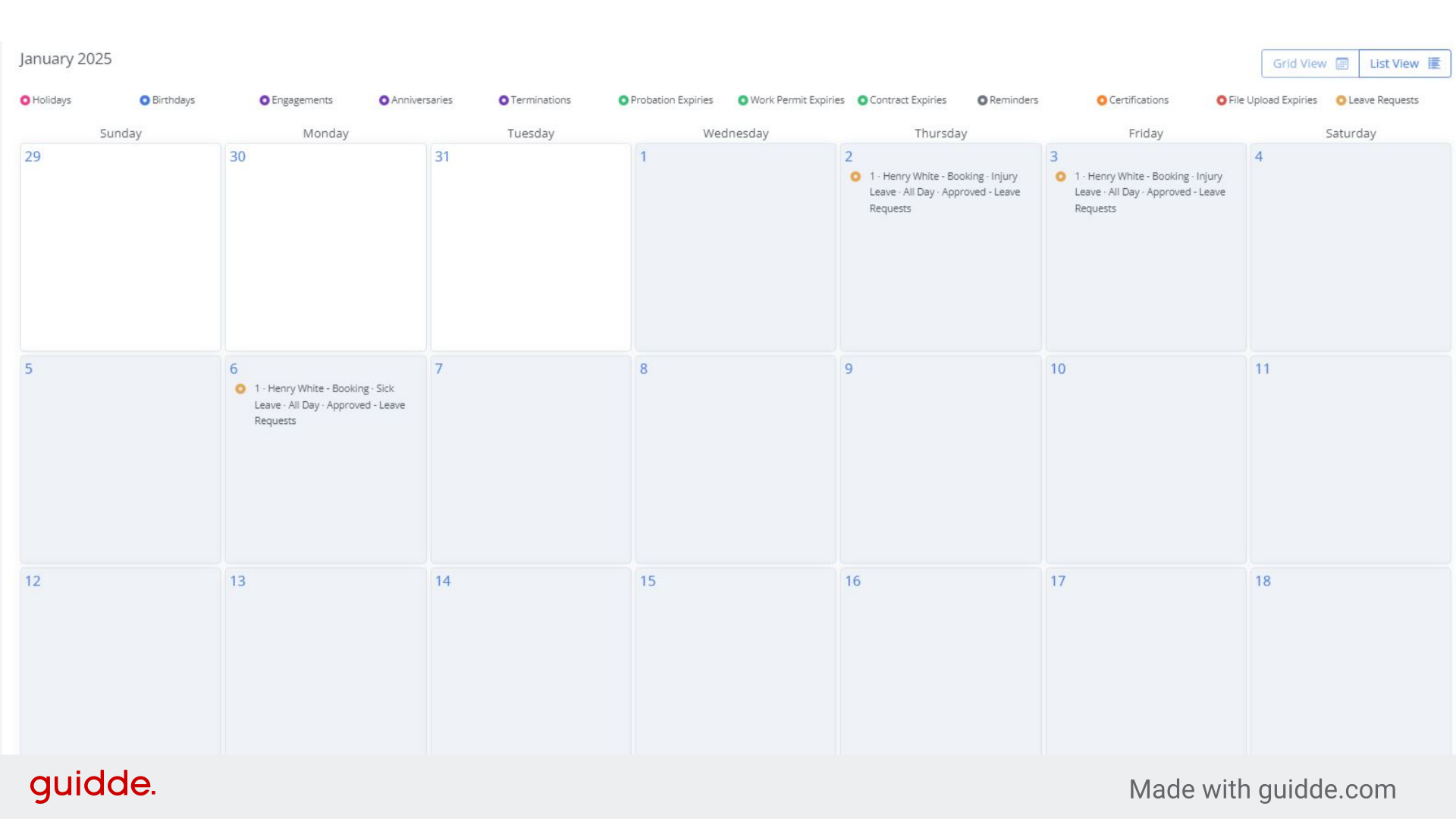
When selecting the grid view, you will see all activities for the entire month.
The visibility of these activities will depend on your permissions.
Additionally, as a user, you will have access to the leave calendar, allowing you to see who is on leave for the day.
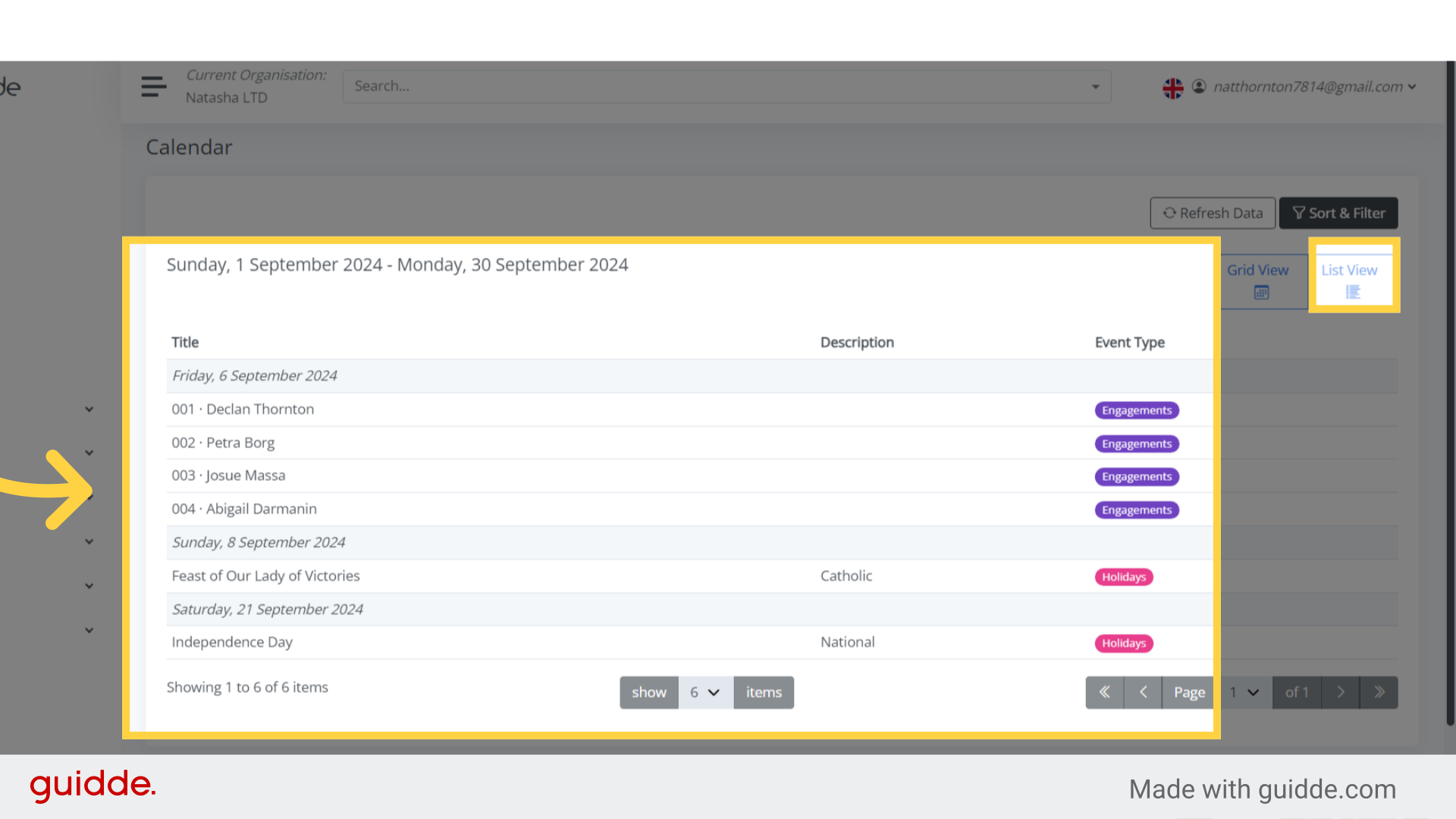
“List View” #
If you prefer to view the calendar in a list format, you can do so by clicking on the list view.
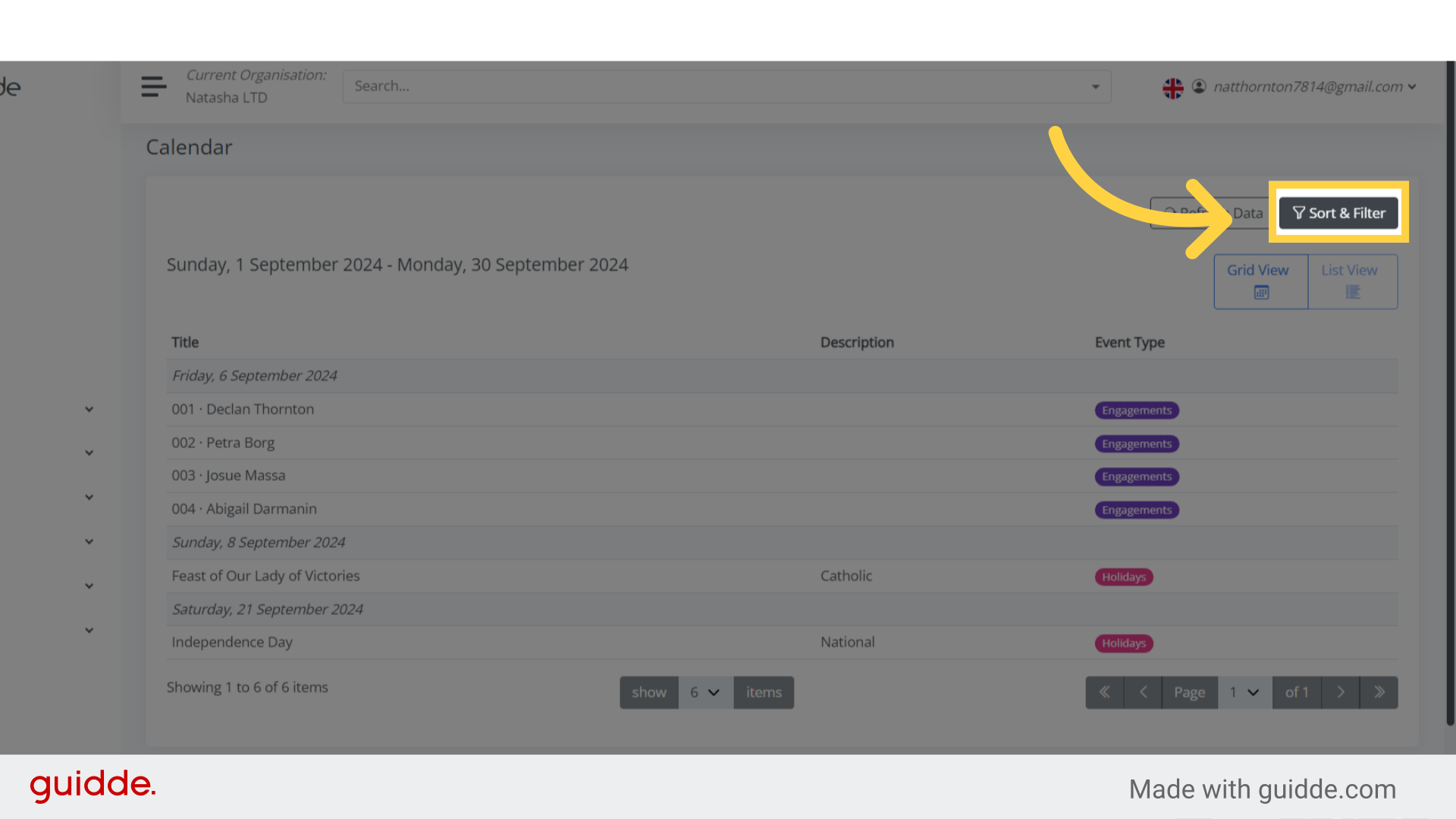
“Sort & Filter” #
Apart from both options, you can sort and filter to find what you need.
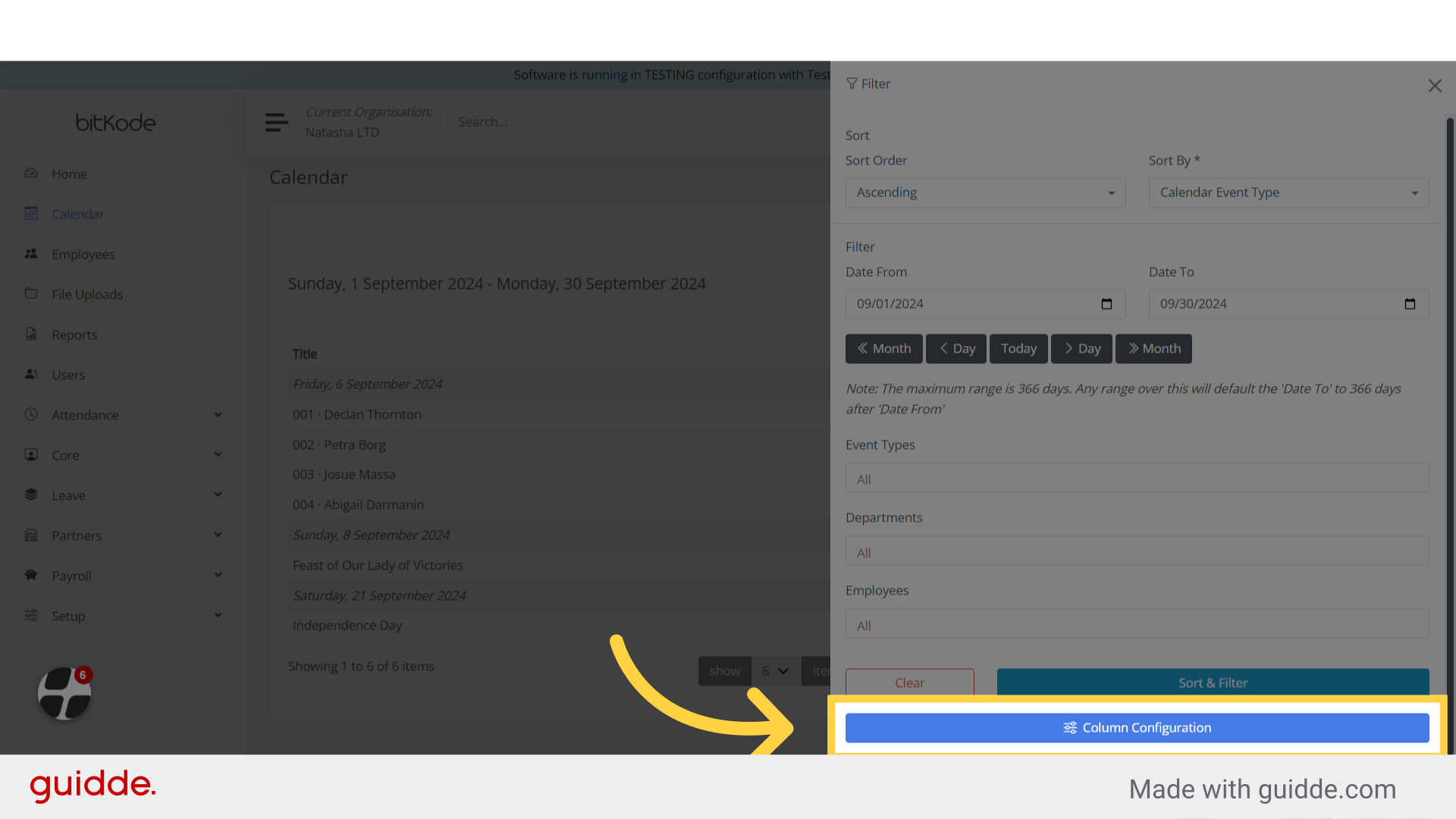
“Column Configuration” #
To make it more precise and tailored to what you want to view, you can adjust the information displayed using our cool feature, the column configuration.