
Table of Contents
Learn how to book your own leave efficiently with bitKode. #
Step 1. Click “Requests” #
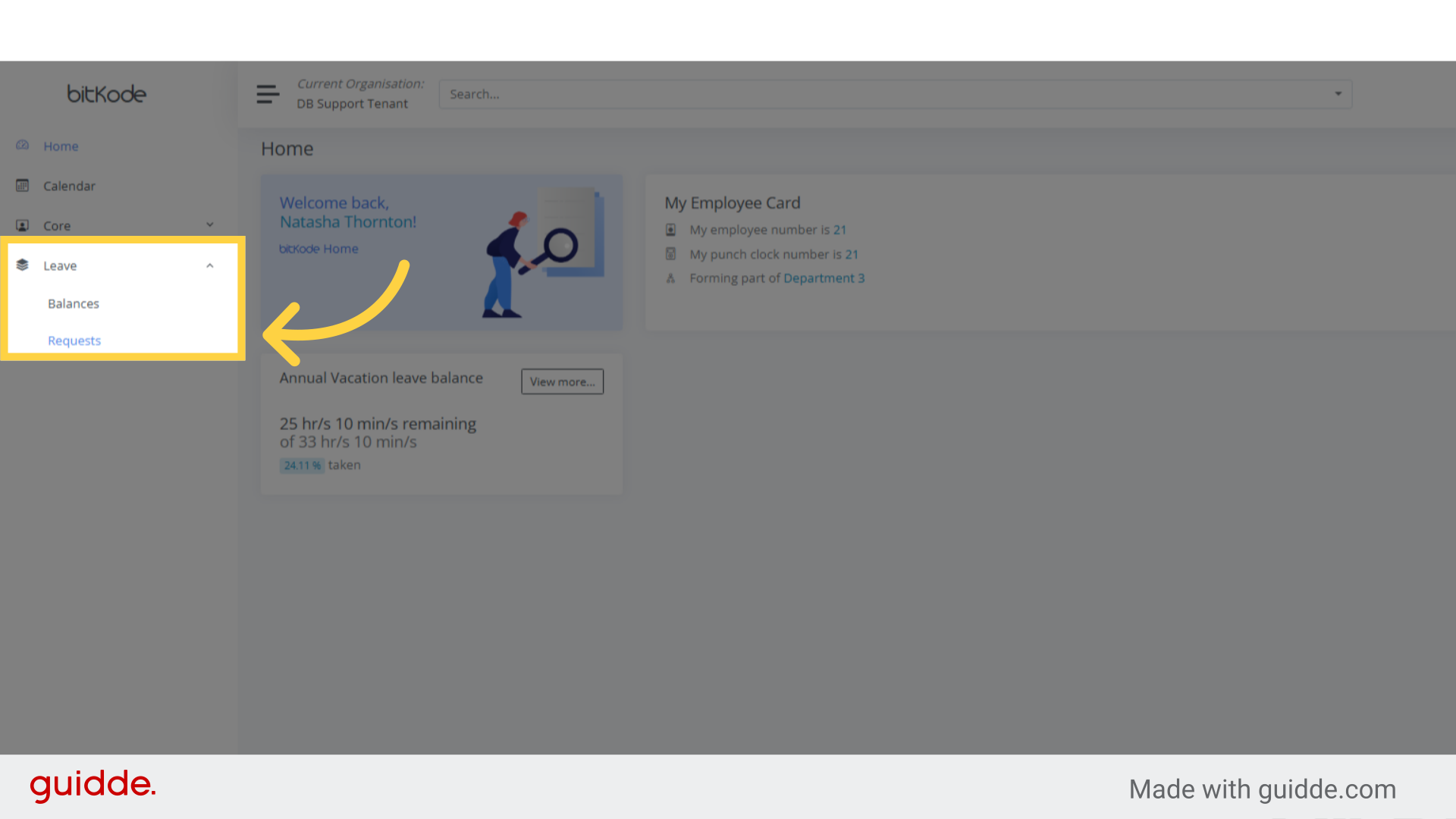
After logging in with your credentials, you will see your employment card displaying details such as your employee number, punch number, and department.
Additionally, you can view your leave entitlement and leave balance.
To book leave, click on “Leave” where a list will appear, then choose “Requests.”
Step 2. Click “Add New” #
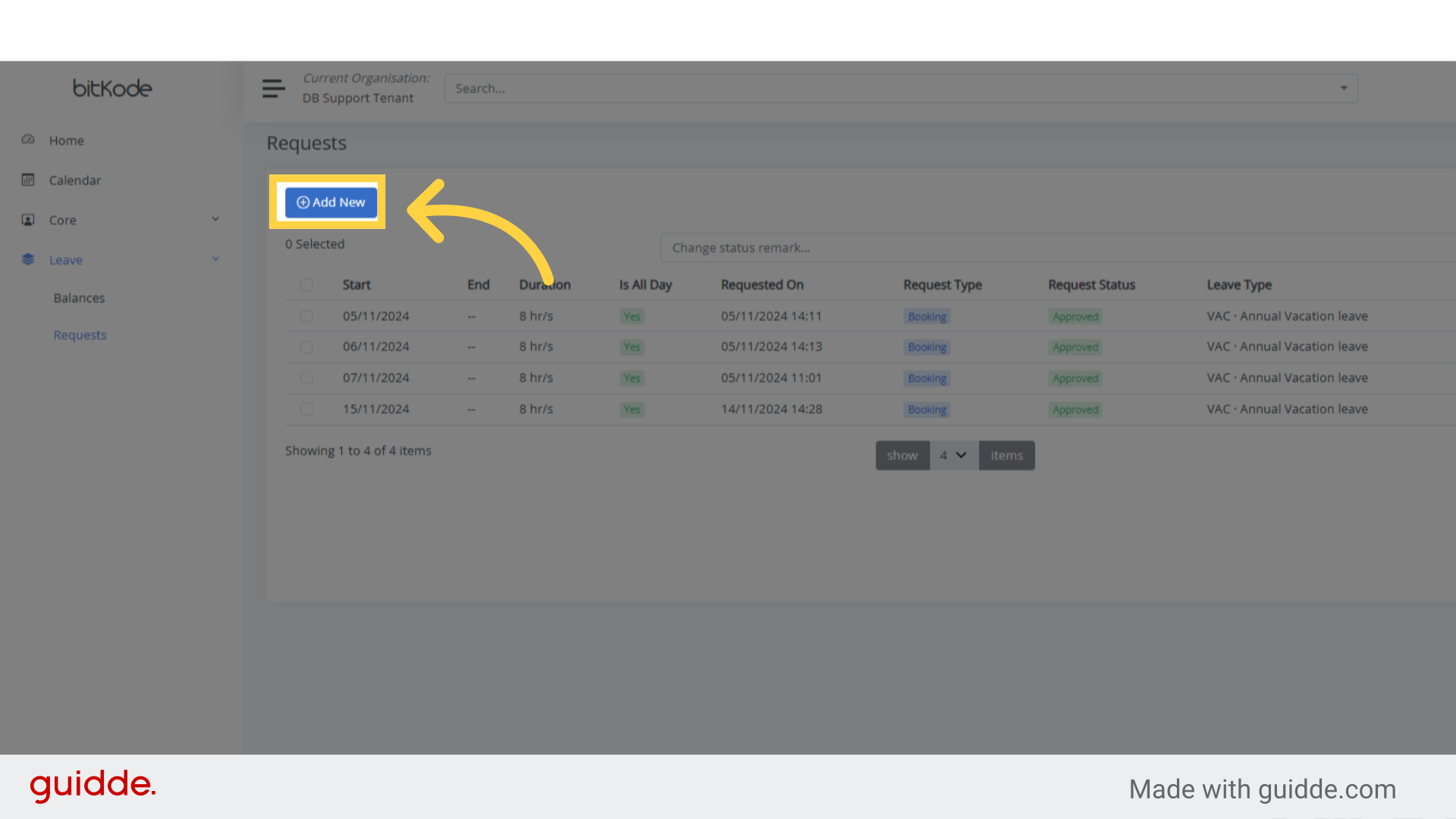
Choose to “Add New” leave request.
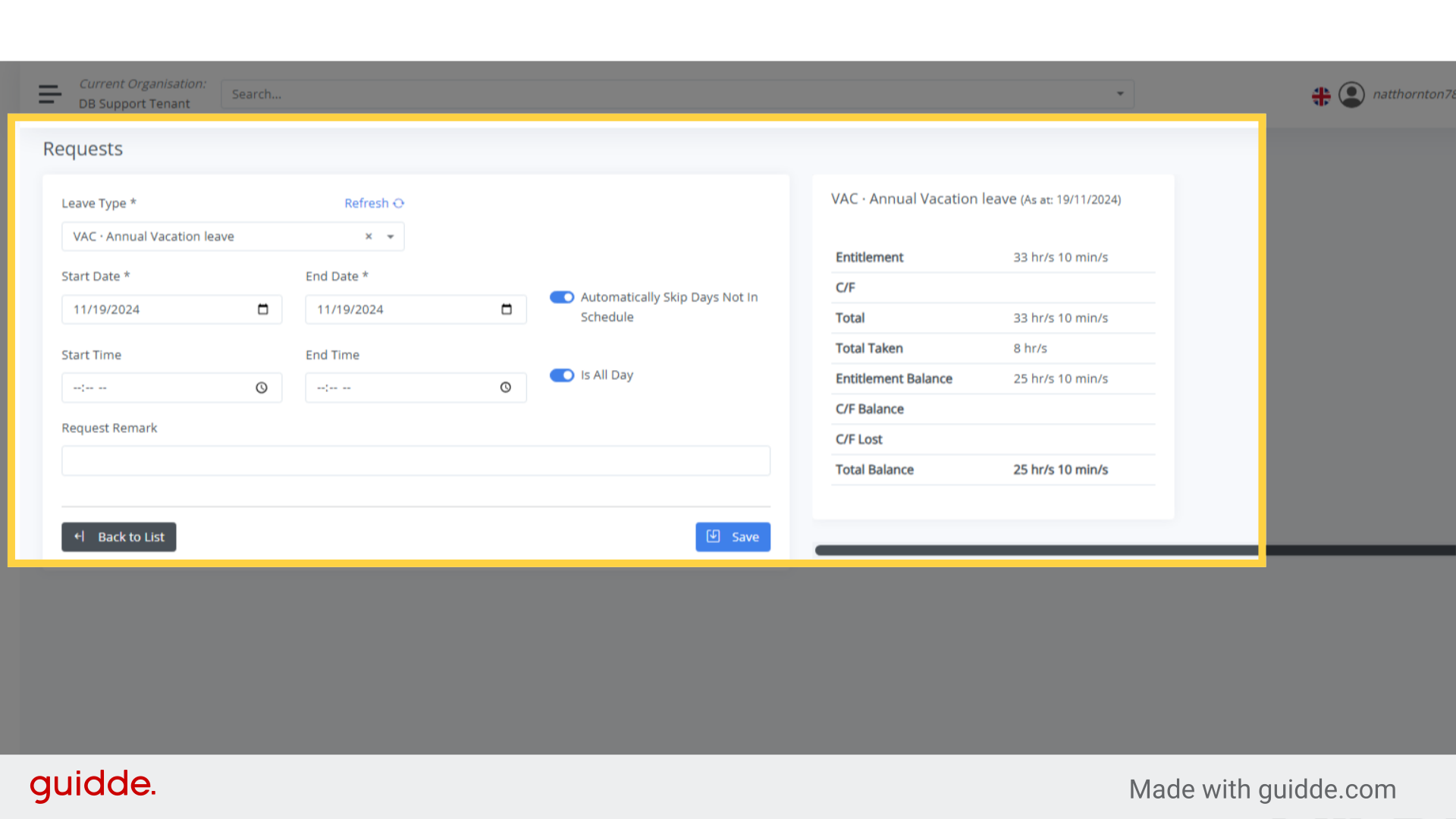
At this point, you can view your leave entitlements, leave taken, any leave carried forward, leave balance, and totals.
- To book your leave, select the leave type and dates.
- If it’s for the entire day, toggle on “All Day.”
- If it’s not for the entire day, turn off the “All Day” toggle and specify the time.
- If you want to add a remark, write it in the remark field.
The user can select multiple entitlements (which they have access to), multiple dates, choose “All Day” or not, toggle to skip days not in the schedule, add a remark, and view the entitlement card on the right-hand side.
Step 3. Click “Save” #
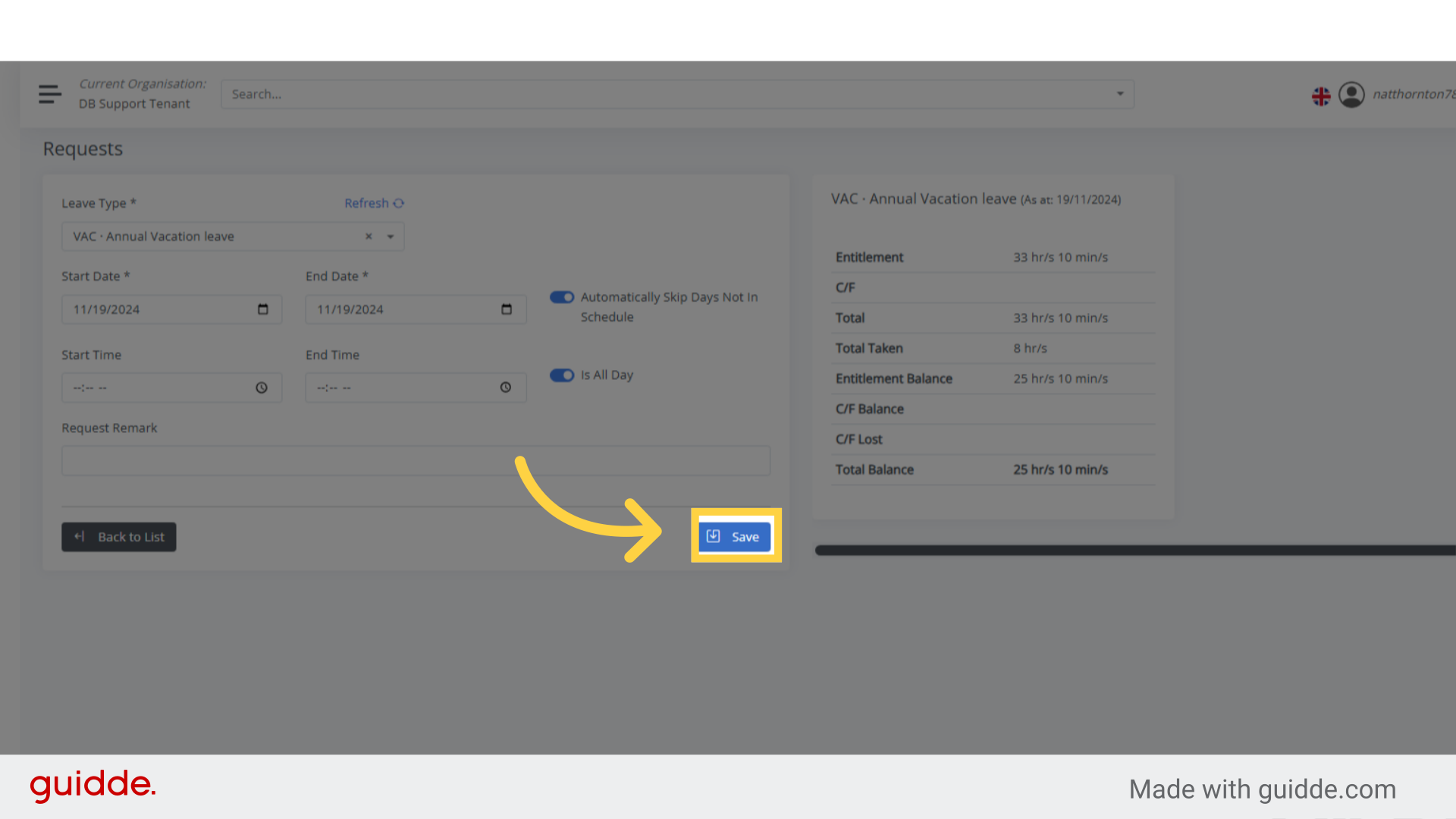
Click “Save” to submit the leave request.
The request will be listed as pending and must be approved by an administrator or the department supervisor.
An email notification will be sent to the department supervisor.
Related articles:


