Table of Contents
Learn how to efficiently book leave on behalf of employees. #
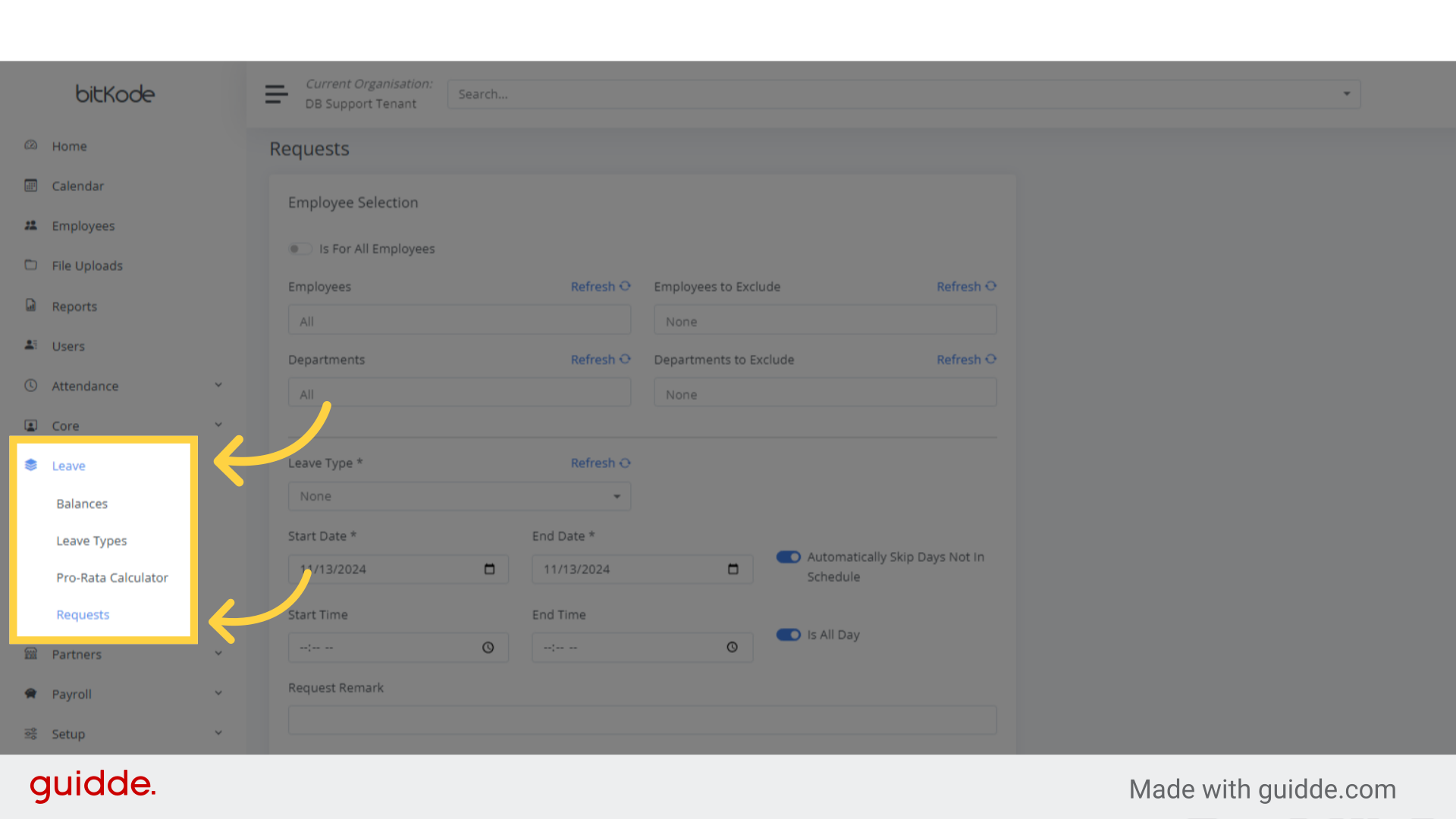
Step 1. Click “Leave” #
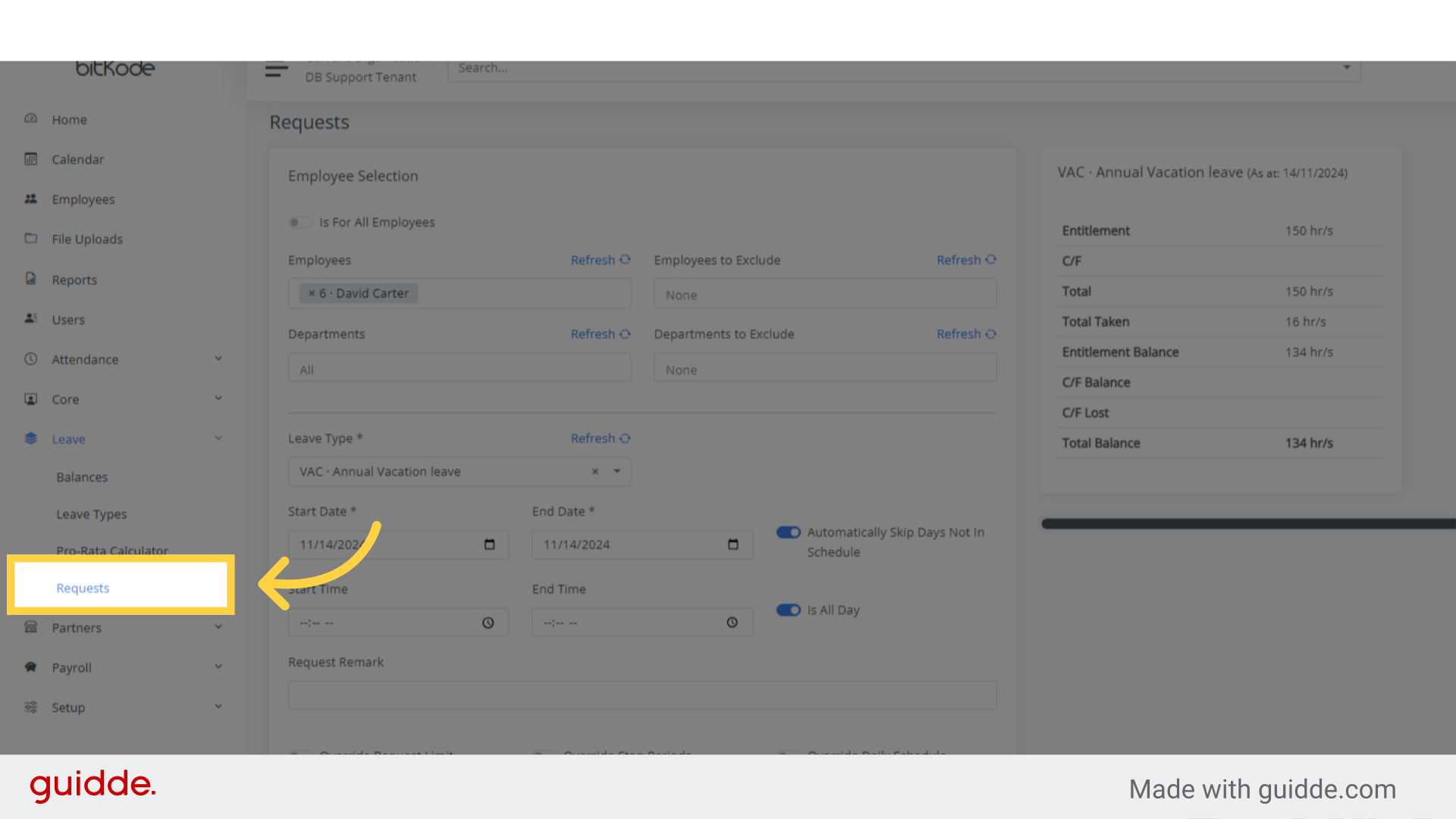
Begin by navigating to the leave section. You will be presented with a list;
- select “Requests” from the options.
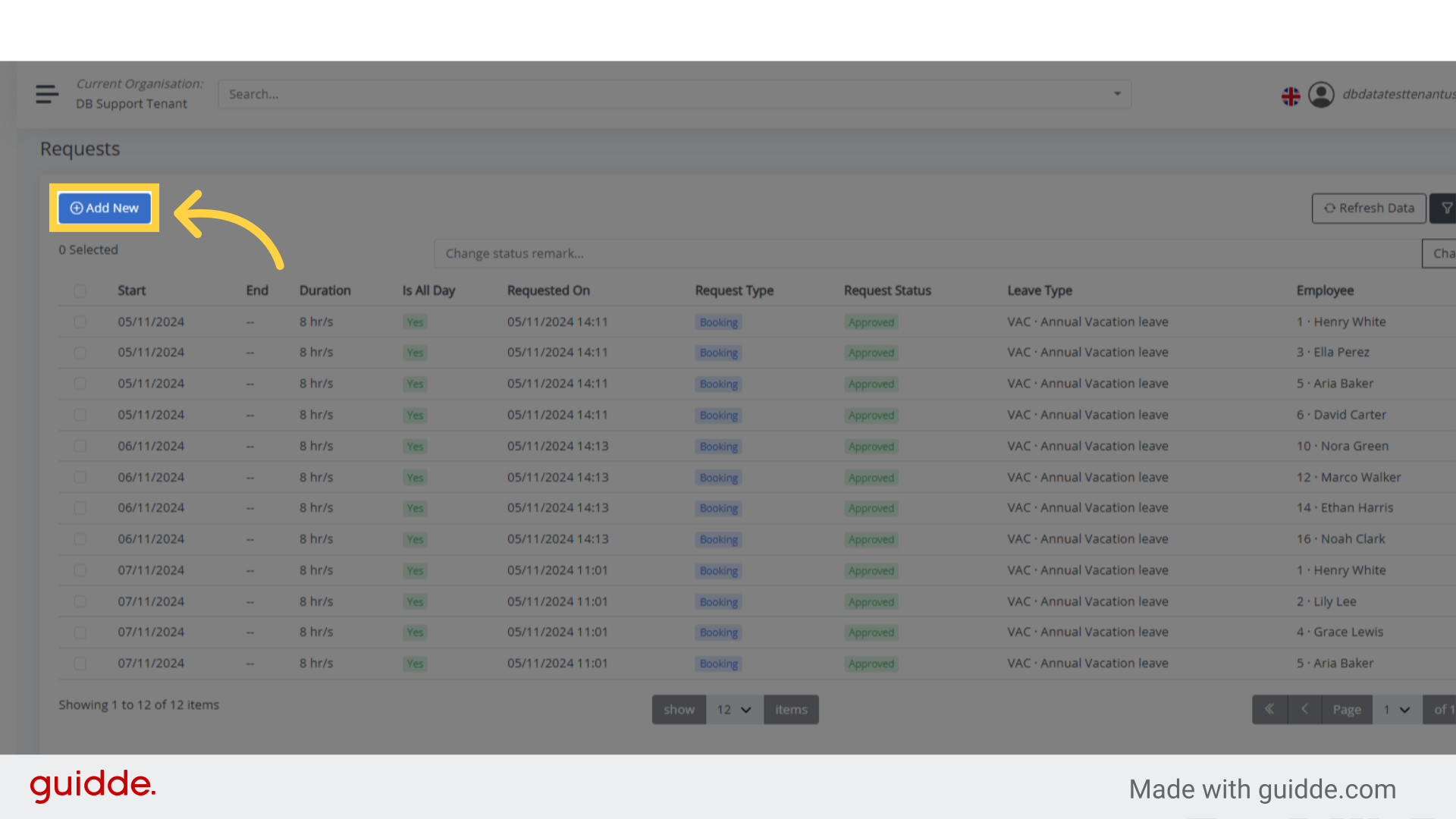
Step 2. Click “Add New” #
Initiate a new leave request.
Step 3. Select an employee or multiple employees #
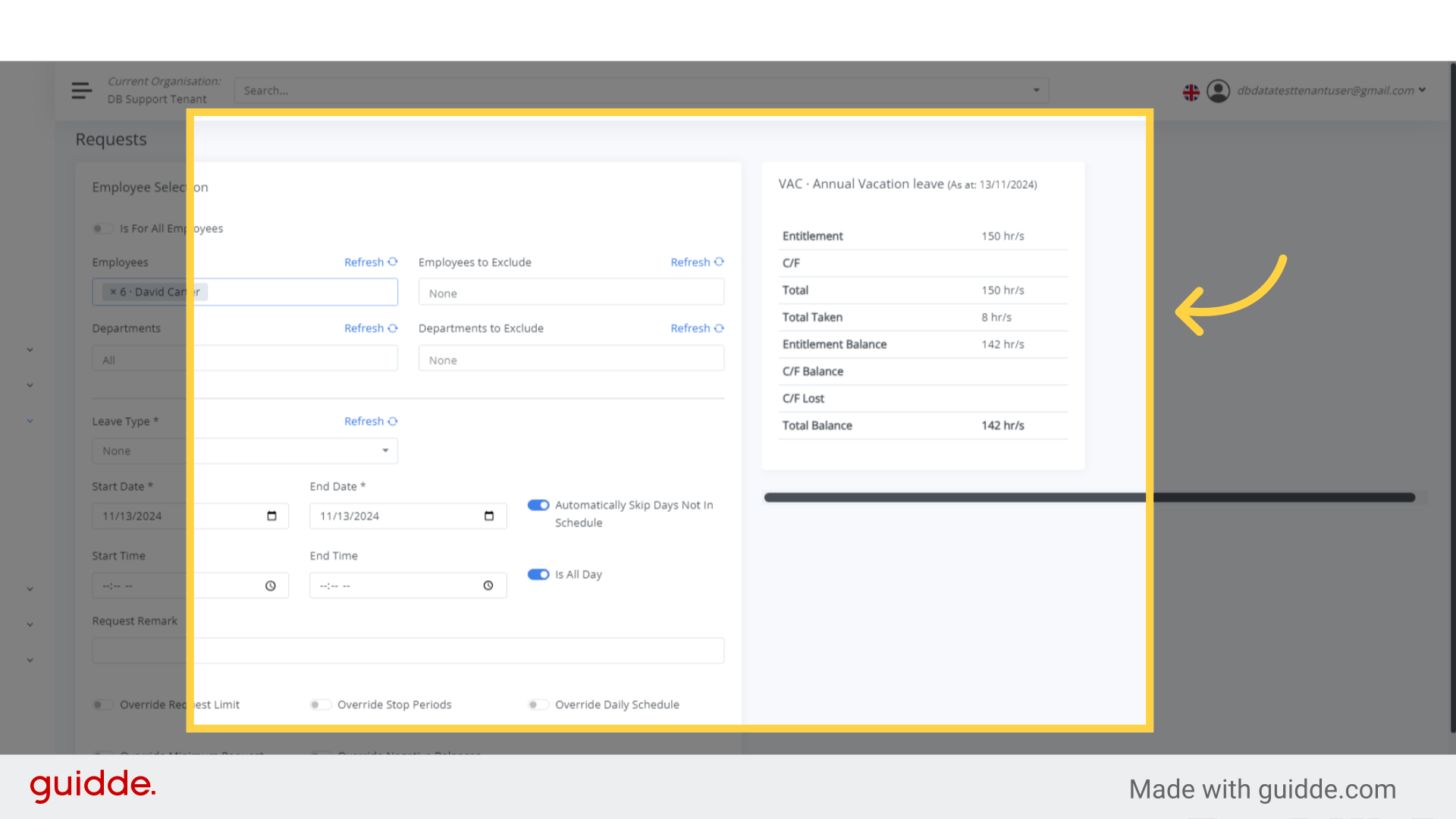
Begin by selecting the employee or multiple employees for whom you want to book leave.
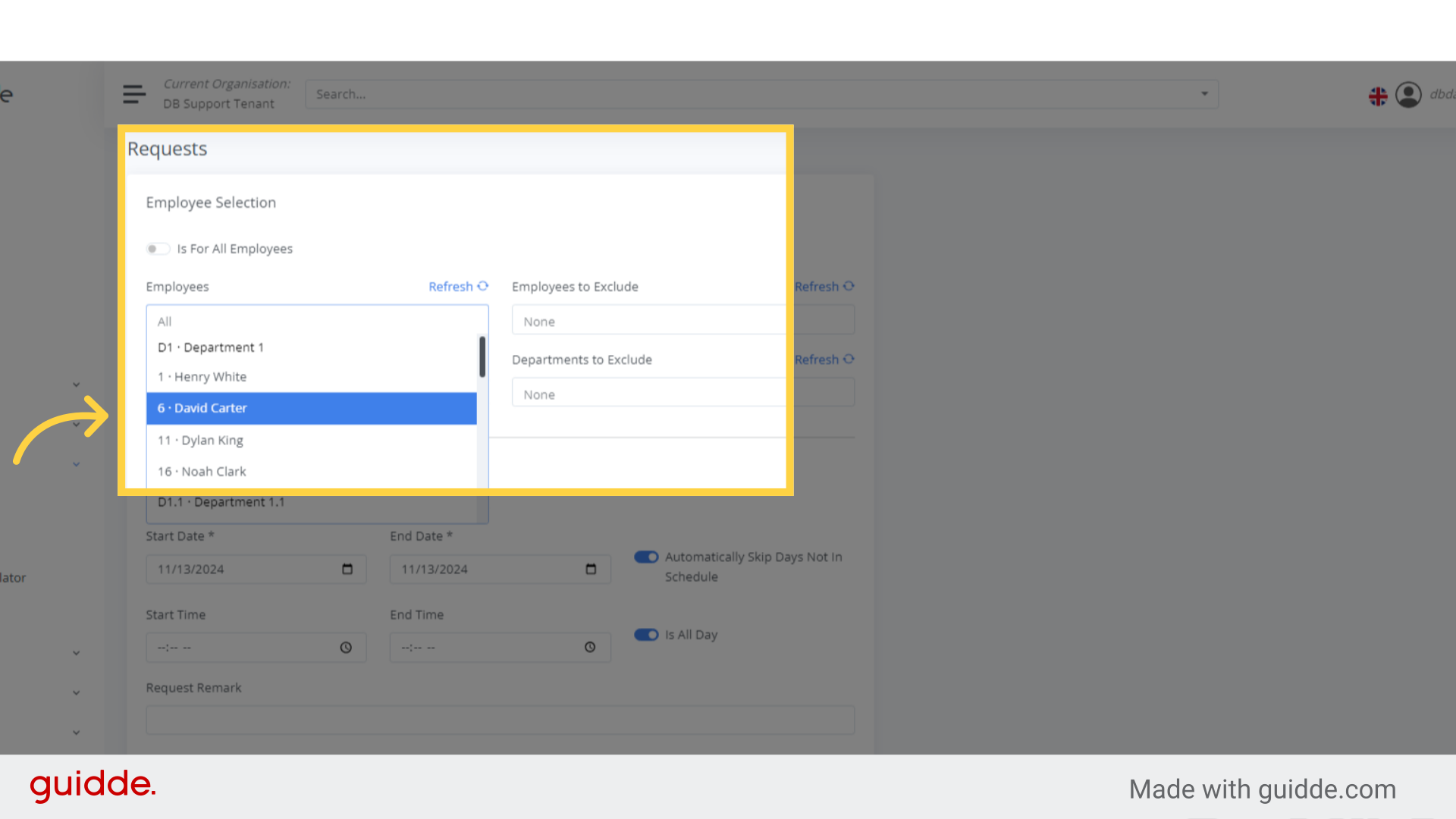
After selecting the employee, their leave entitlements card will be displayed.
Step 4. Functionality #
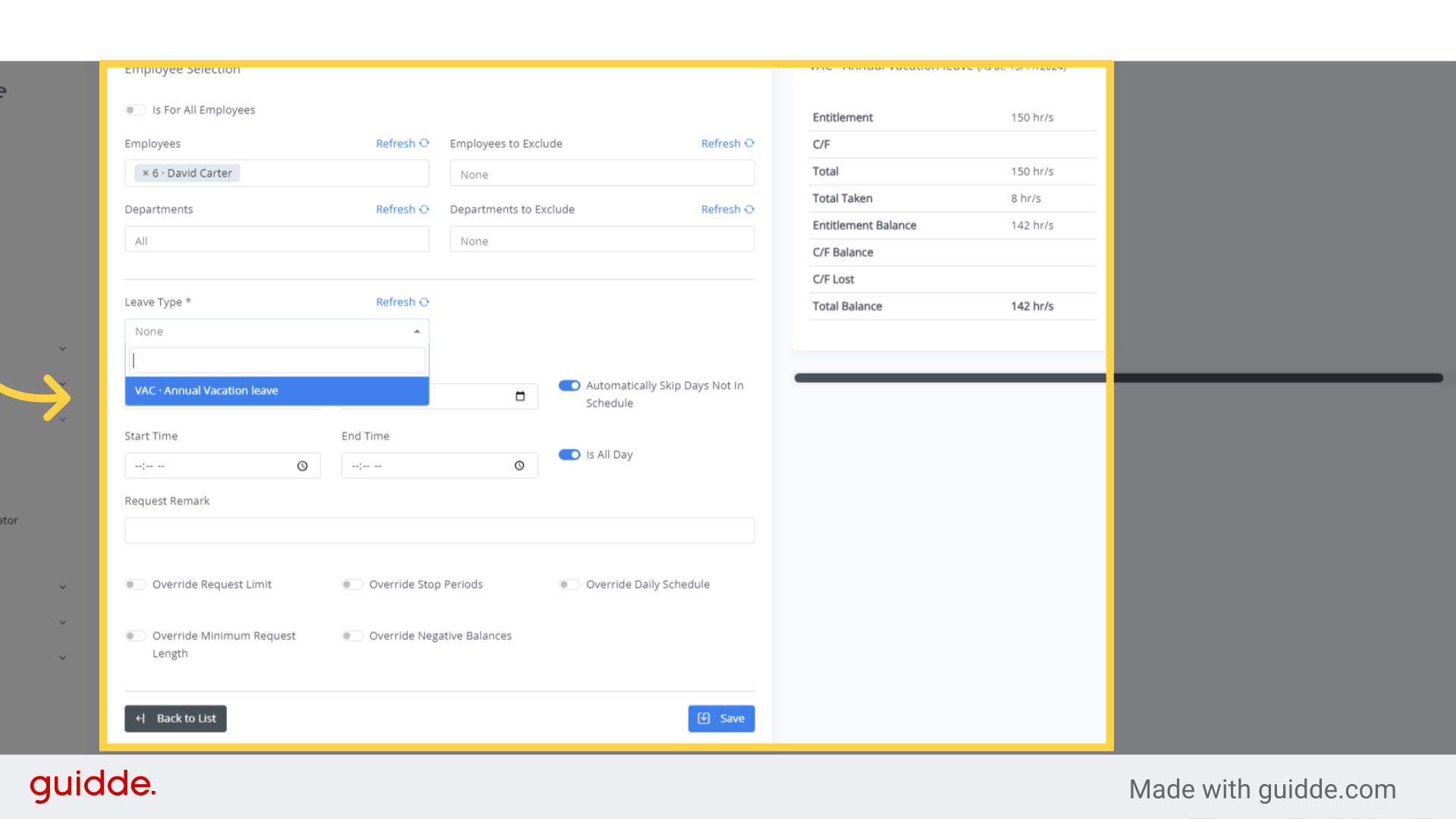
Select the date for the leave request and choose a leave type.
Please note that leave types must be created beforehand to have options available for selection.
When booking leave on behalf of employees, several functionalities are available, such as:
- Employees to Exclude.
- Departments to Exclude.
- Skip days not in schedule.
- All Day.
- Remark.
- All override toggles.
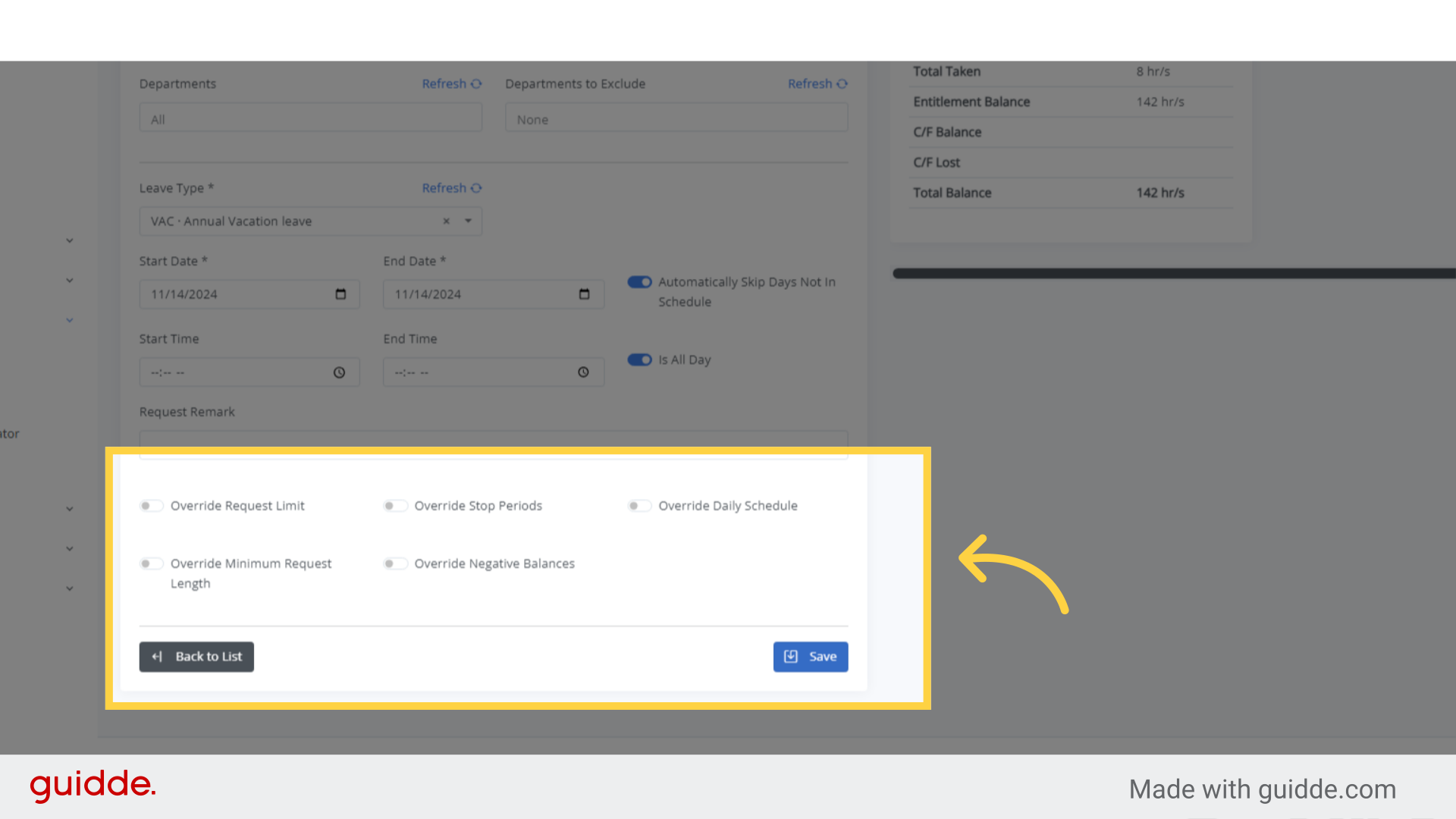
In this field, you can view options to enable toggles.
For example, if you have set a request limit for leave that can be taken by the organization, you can tick the override request limit if more employees require leave on that particular day.
- For override stop periods, if you have set up a stop period that includes the day you are booking leave for the employee, ticking this will override the stop period and allow the leave to be requested.
- Override daily schedule allows you to book leave for more hours than the employee’s standard working day.
- Override minimum request length limit refers to the minimum request length hours set for the organization. For example, if leave can be requested starting from 2 hours, ticking this will override that limit.
- Override negative balances means that even if the employee has a negative leave balance, ticking this will allow the leave to be booked and approved.
Step 5. Click “Save” #
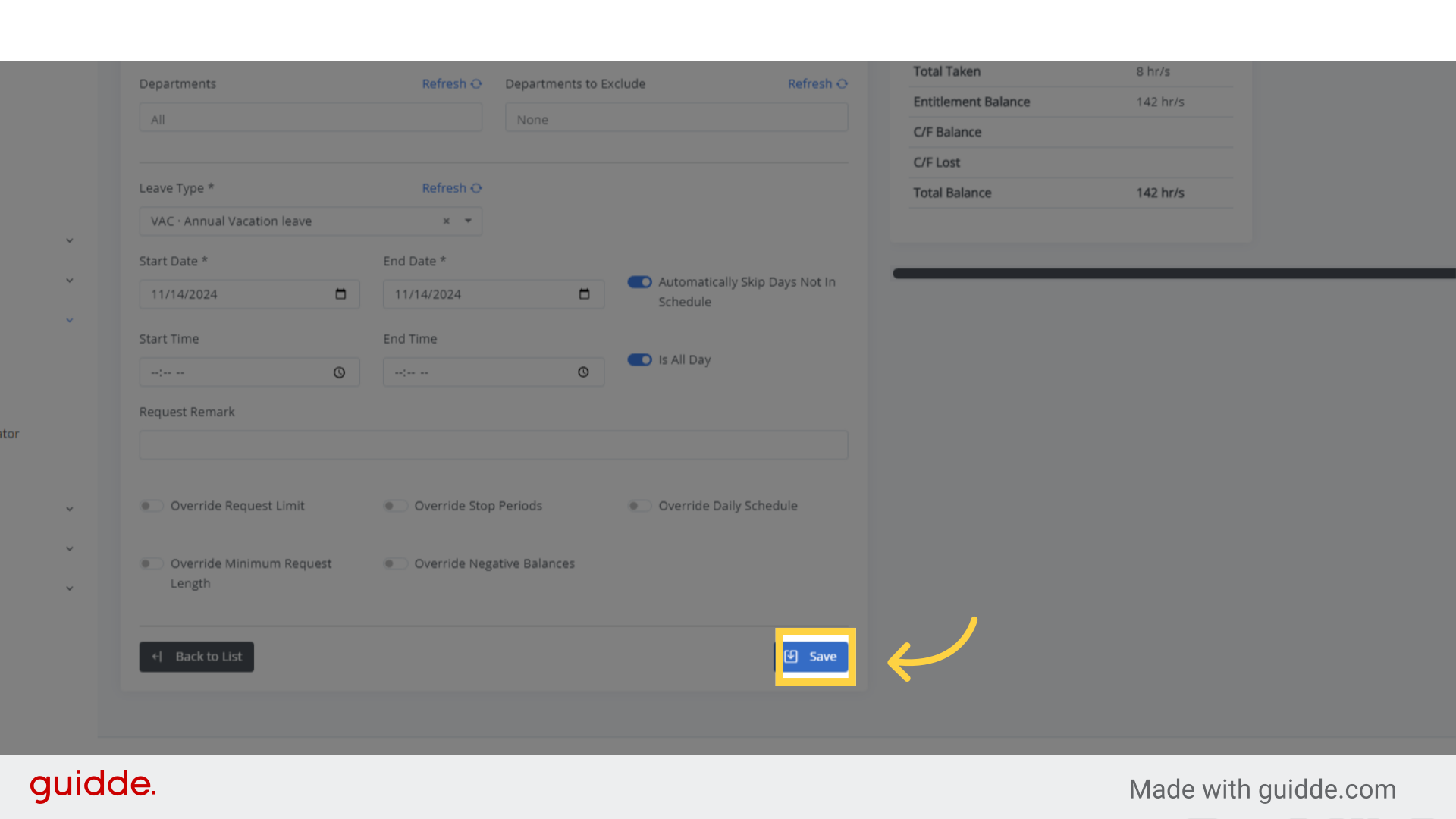
Once all the required fields are completed, click “Save” to book the leave request.
Step 6. Click “Requests” #
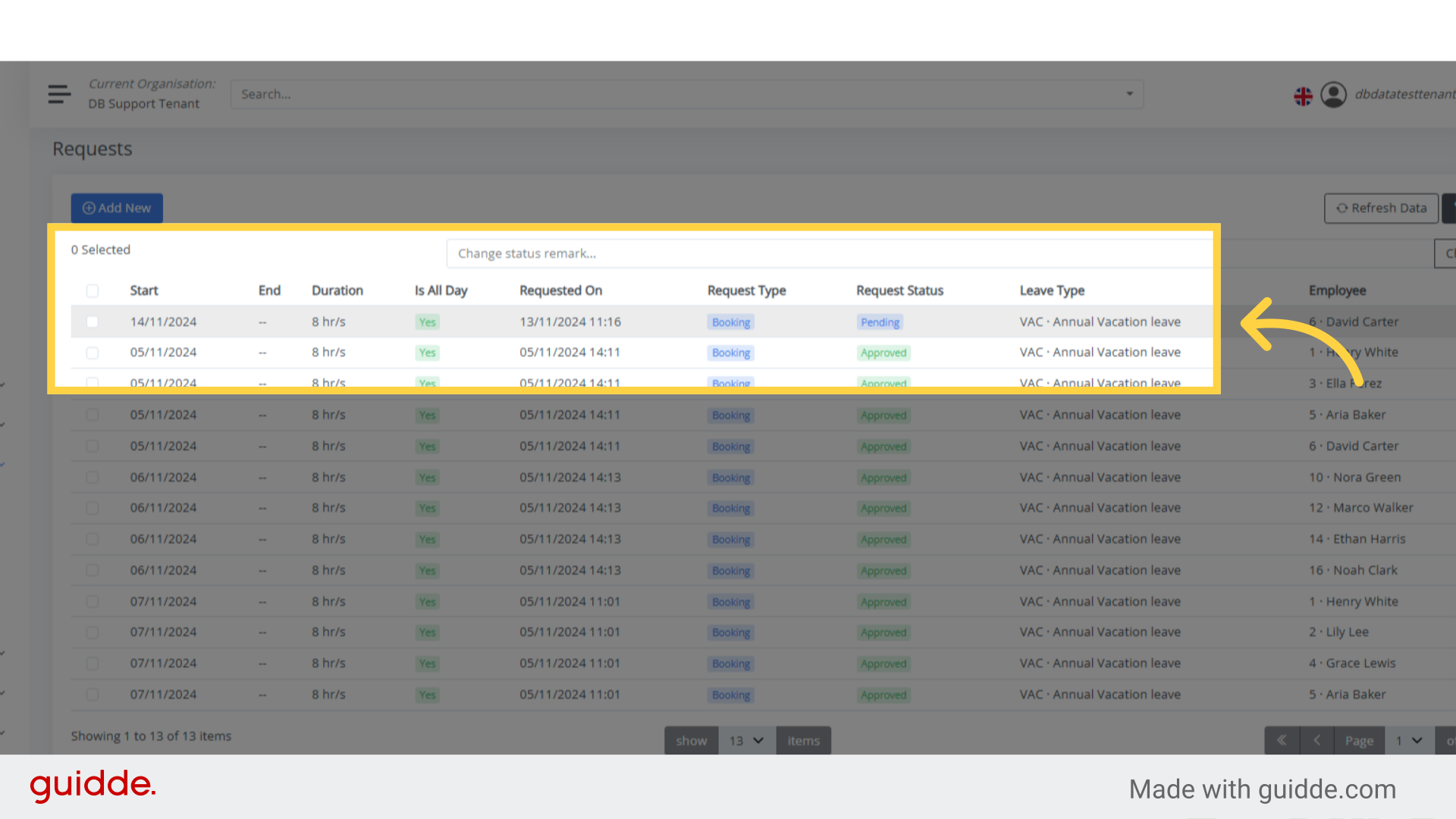
Go back to the Requests section to view the pending leave request.
Step 7. Click “Pending” #
As you can see, the leave request booked on behalf of the employee is now visible as pending and awaiting approval.
For instructions on how to approve leave requests, please refer to the guide titled “How Do I Approve Leave Requests.”