Table of Contents
Learn how to add custom payroll fields to display on generated payslips efficiently. #
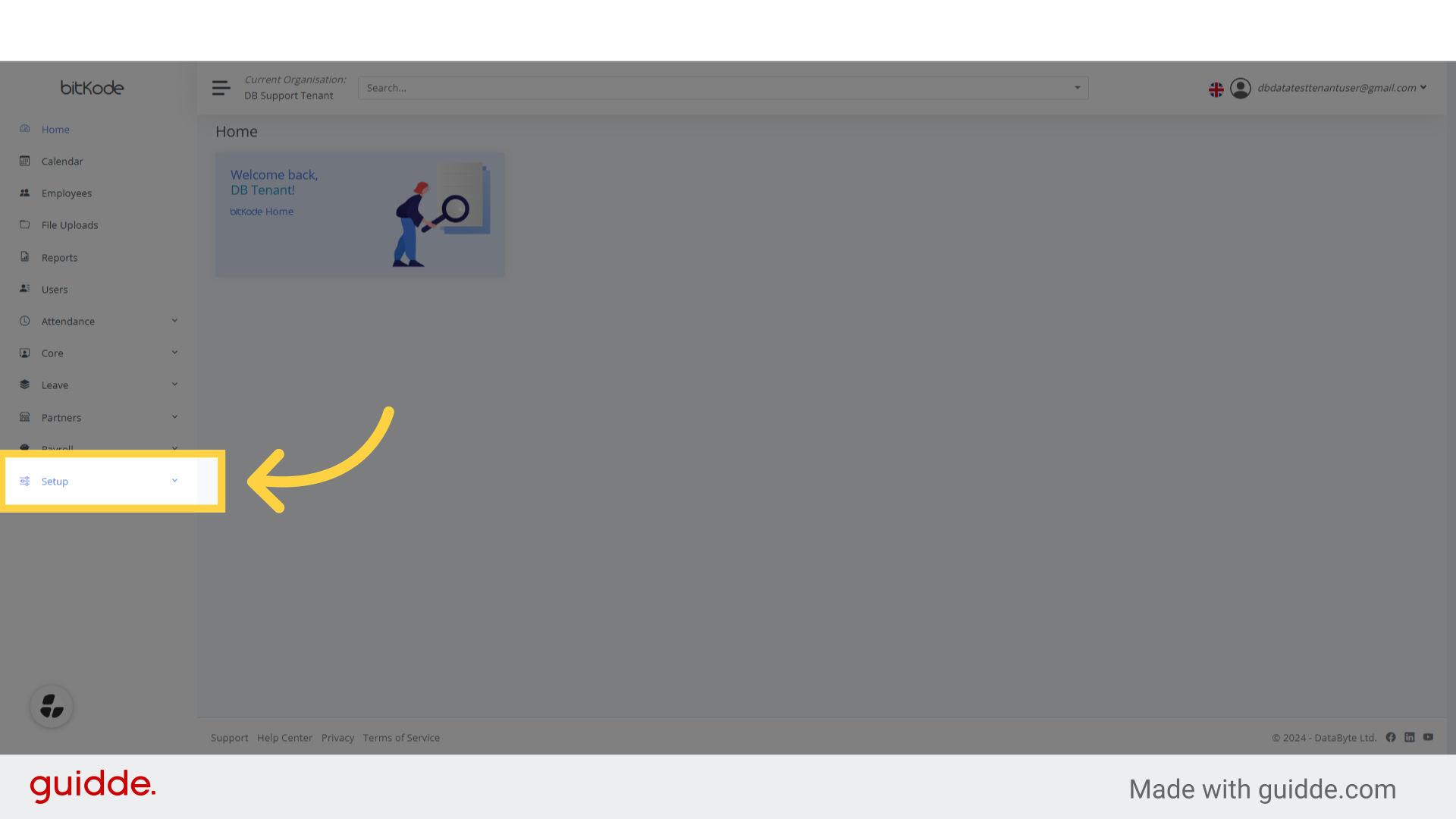
Step 1. Click “Setup” #
Access the setup menu.
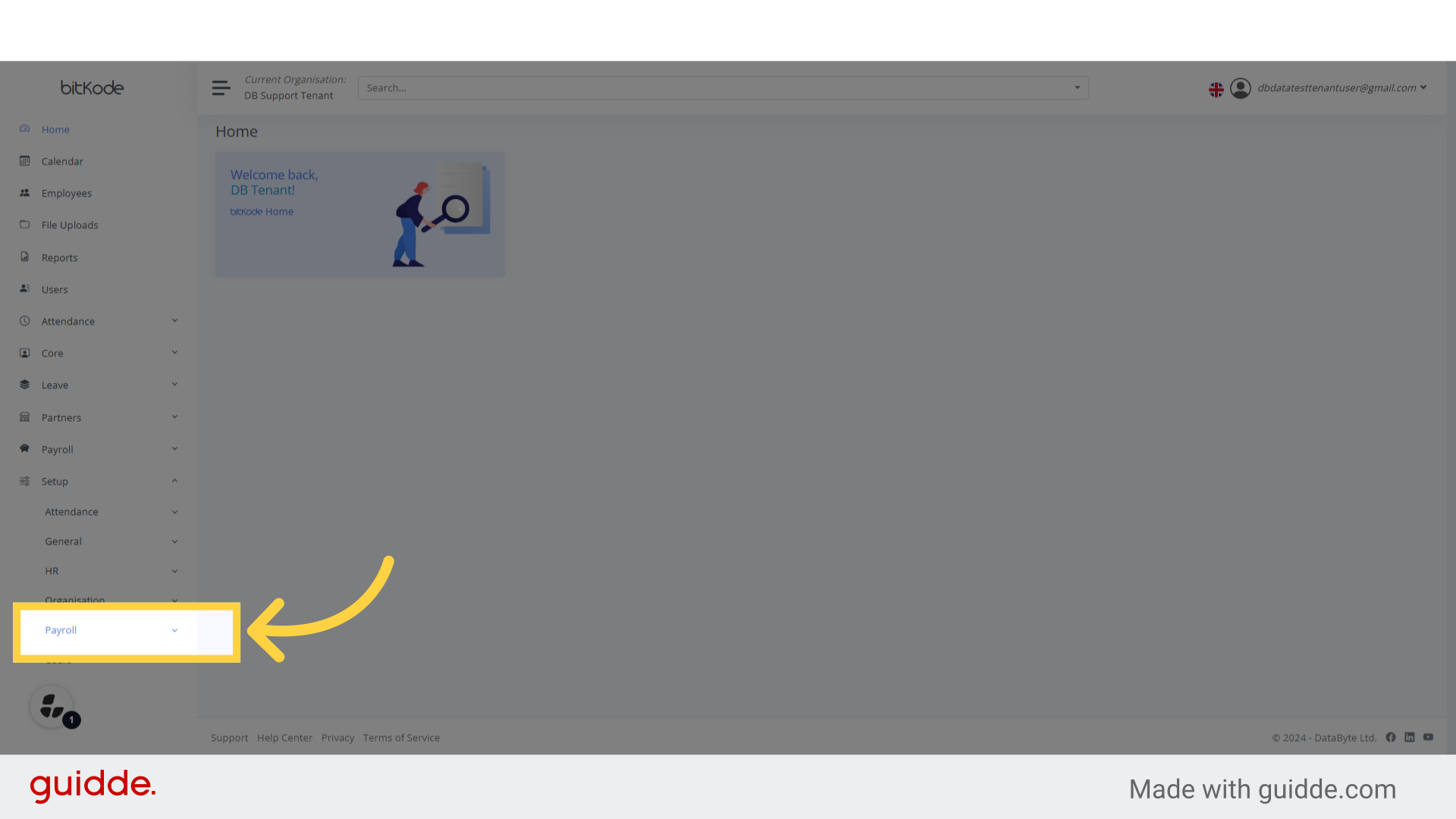
Step 2. Click “Payroll” #
Navigate to the payroll section.
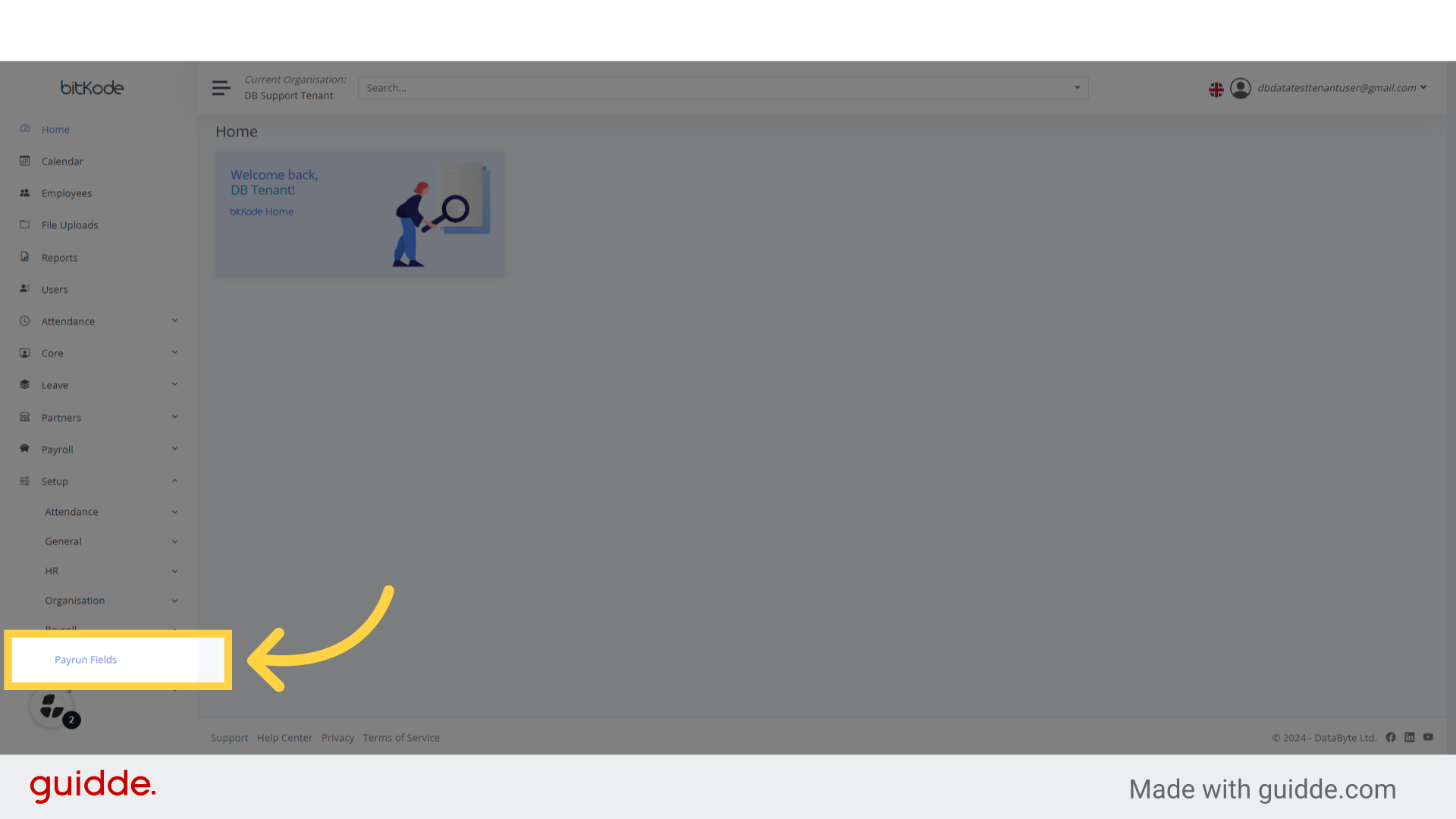
Step 3. Click “Payrun Fields” #
Select the Payrun Fields option.
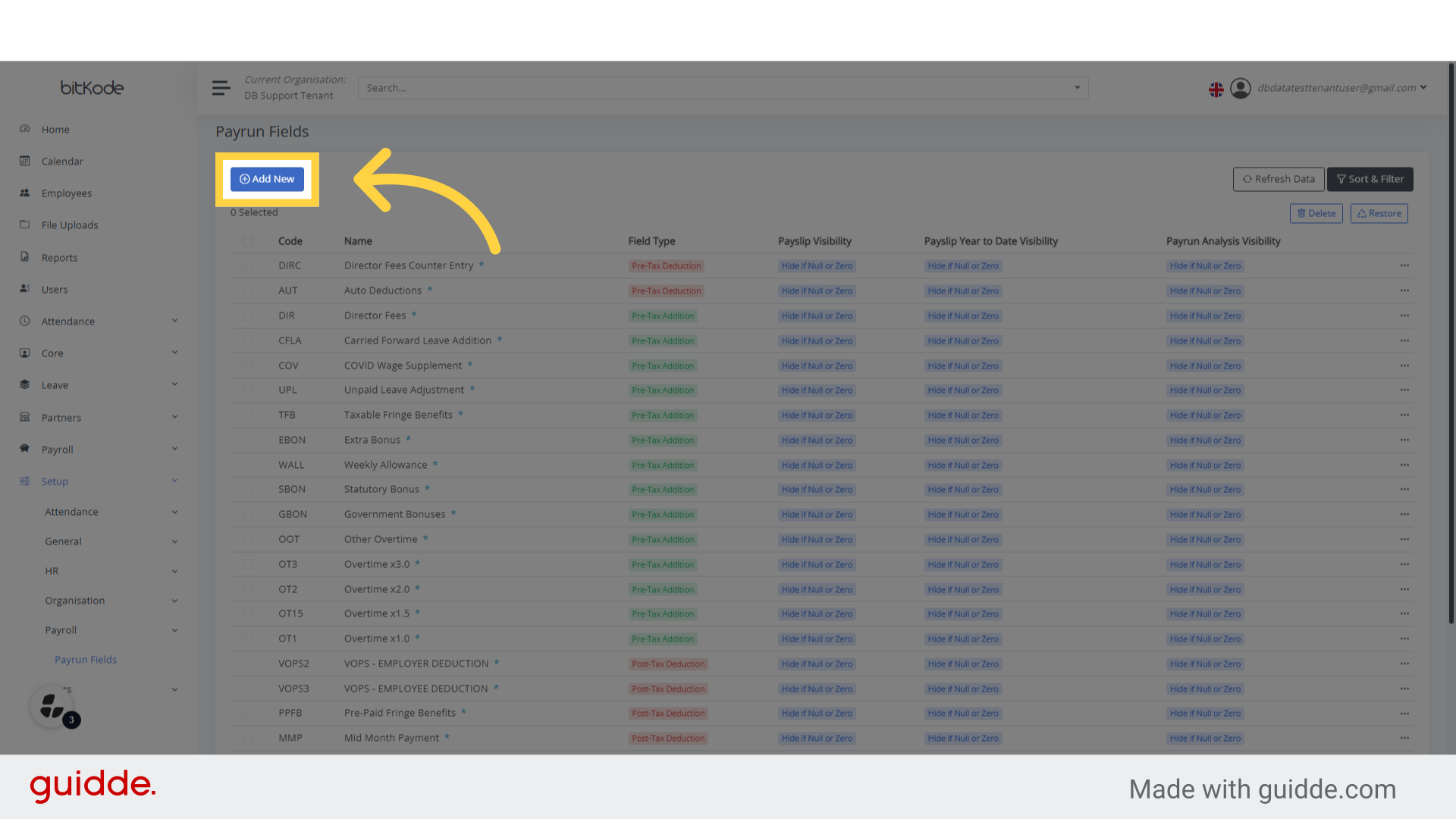
Step 4. Click “Add New” #
Create a new custom field.
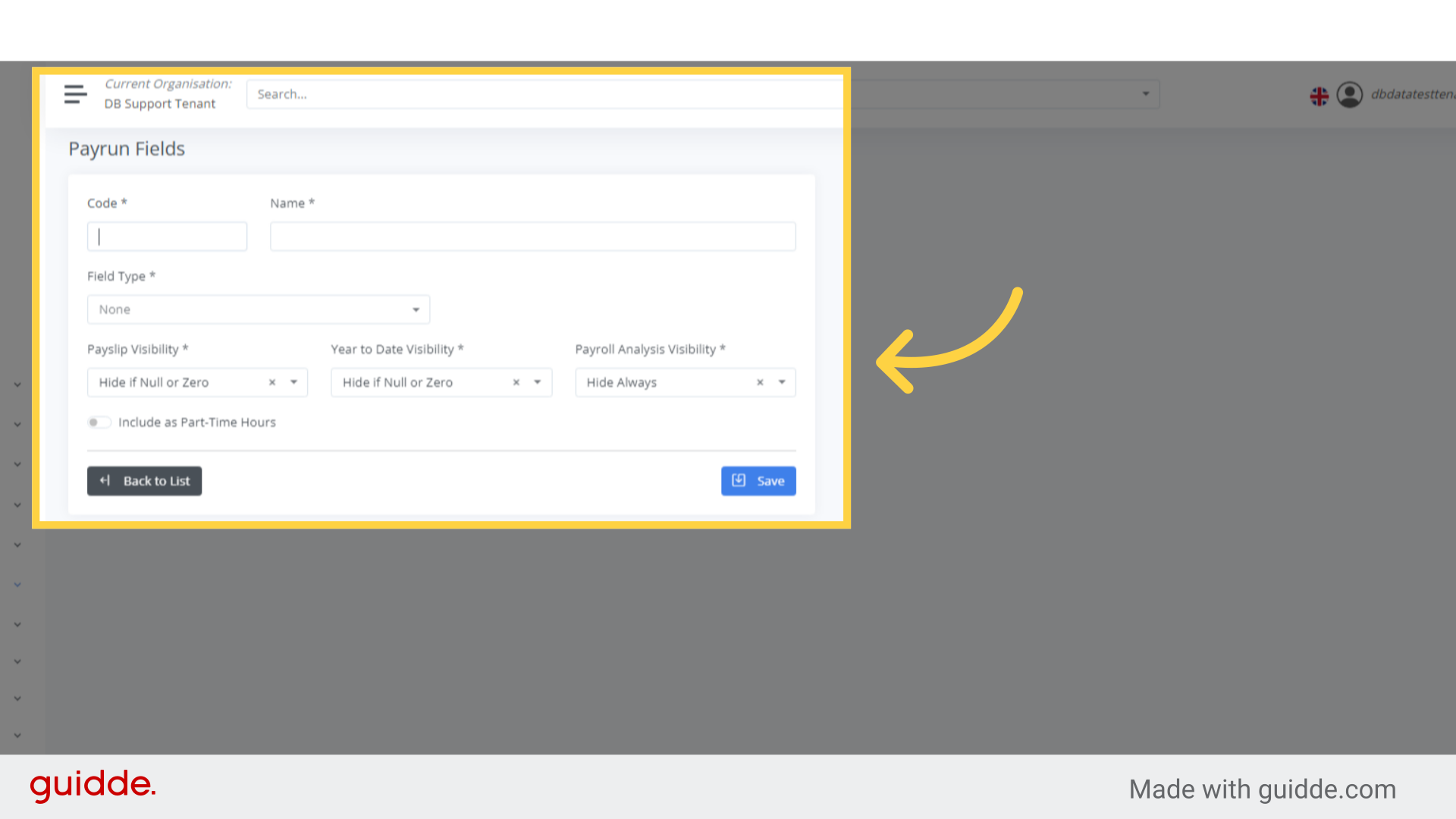
Step 5. Click “Code *” #
Begin by entering a code and a name for your custom field.
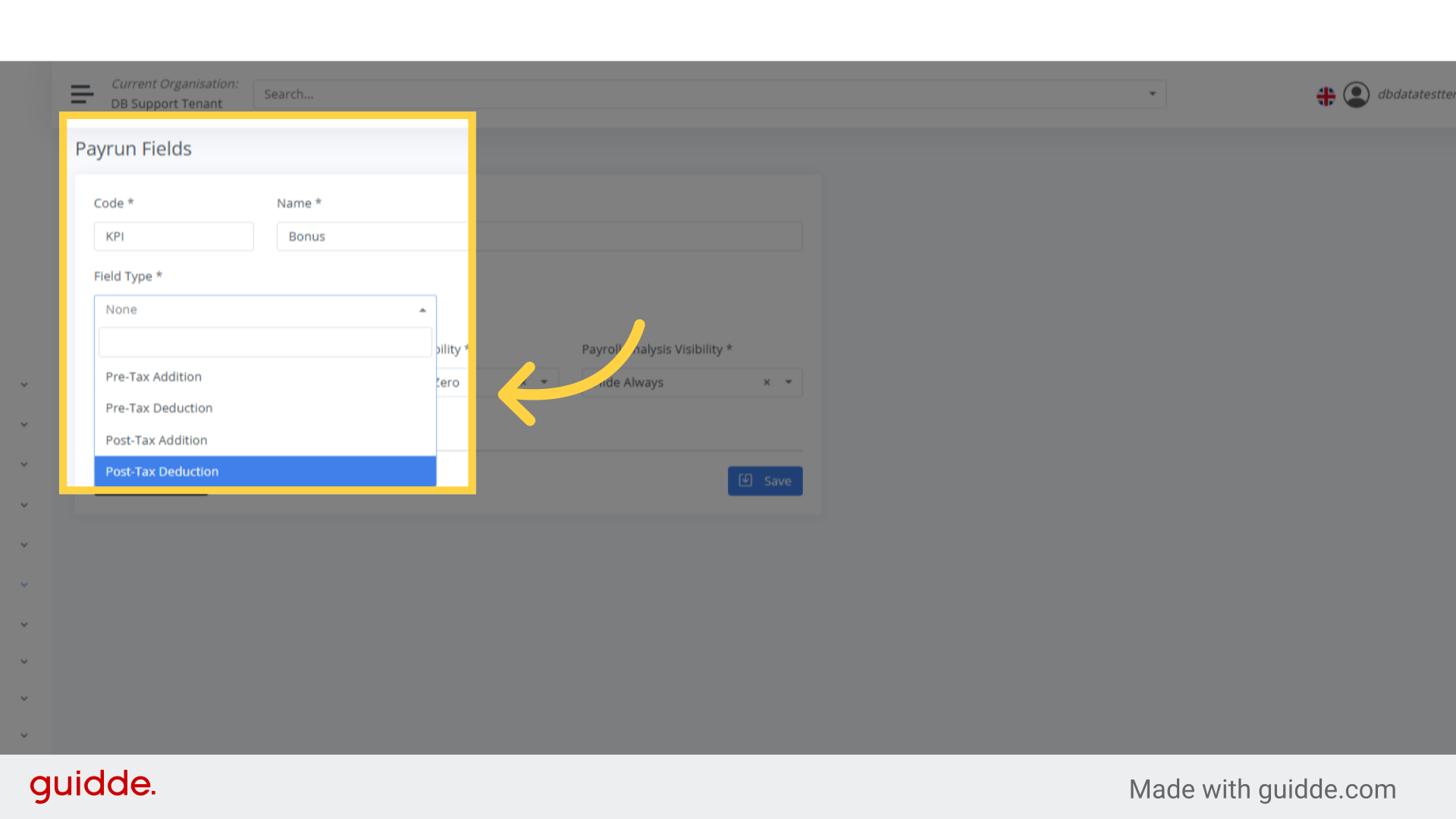
Step 6. Click “Post-Tax Deduction” #
Specify and indicate if it is a pre-tax addition or deduction, or a post-tax addition or deduction.
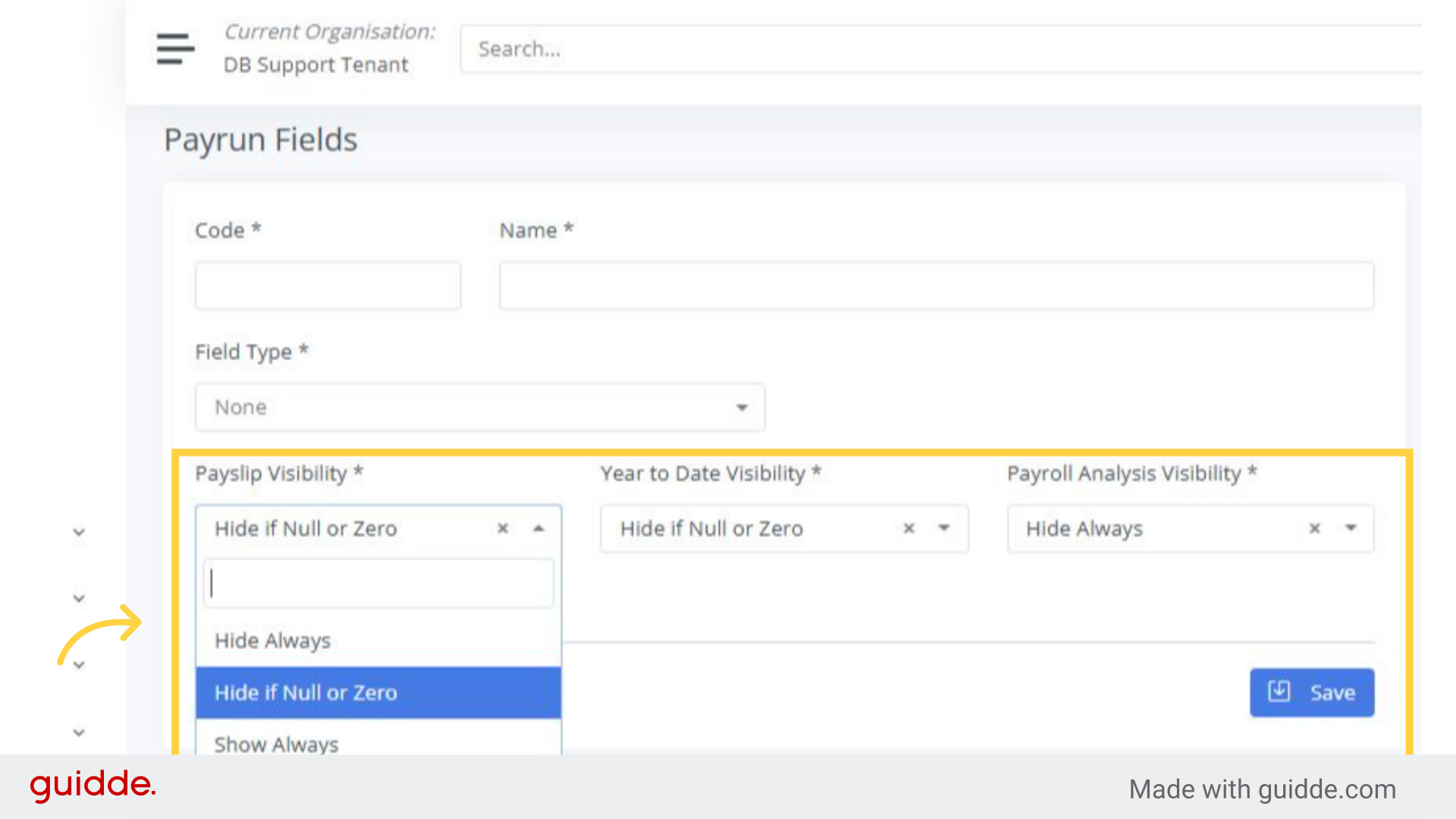
Step 7. #
Select an option from the dropdown list to specify whether you want to always show this, always hide it, or hide it if the value is zero.
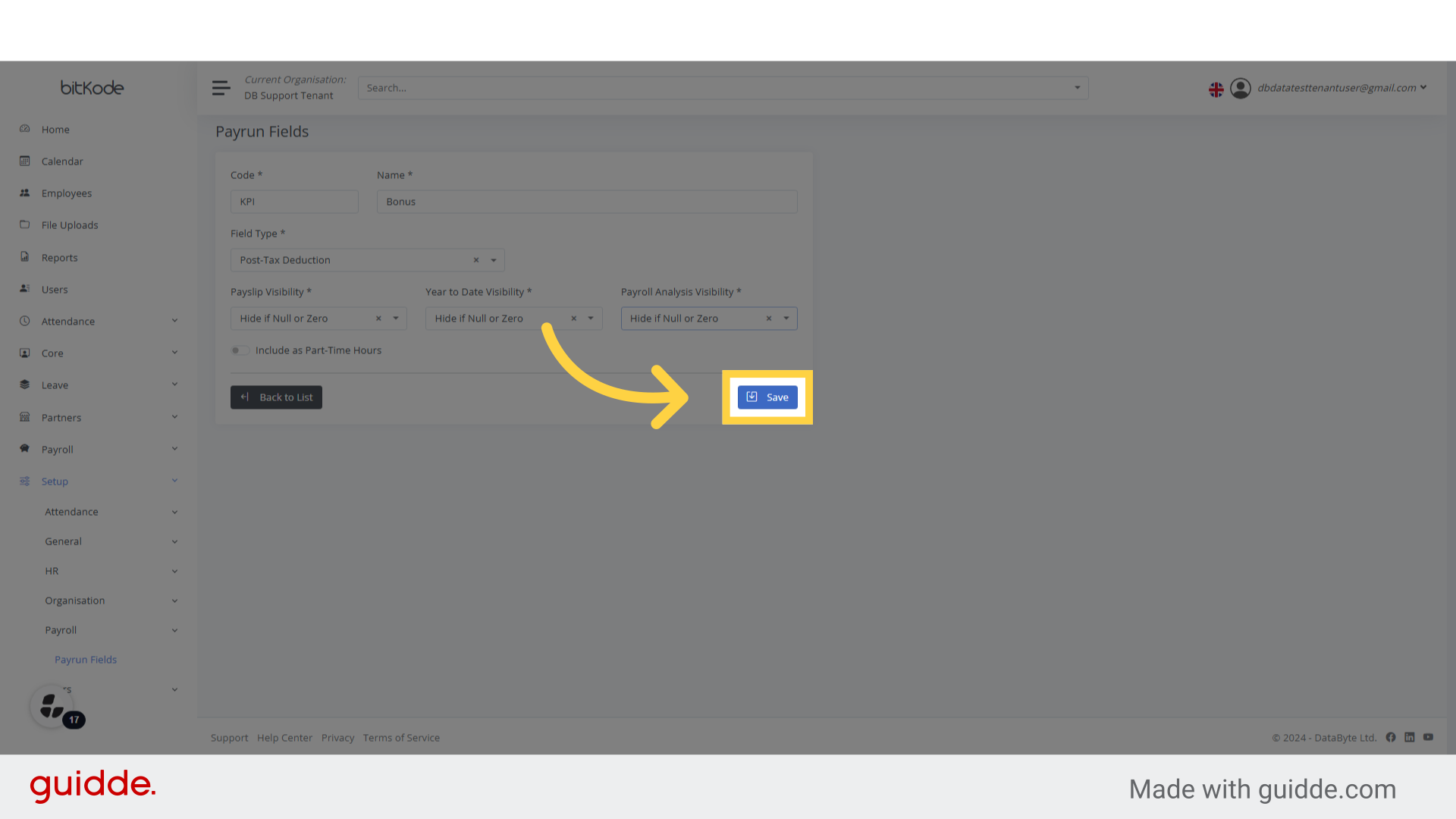
Step 8. Click “Save” #
Save the custom field configuration.
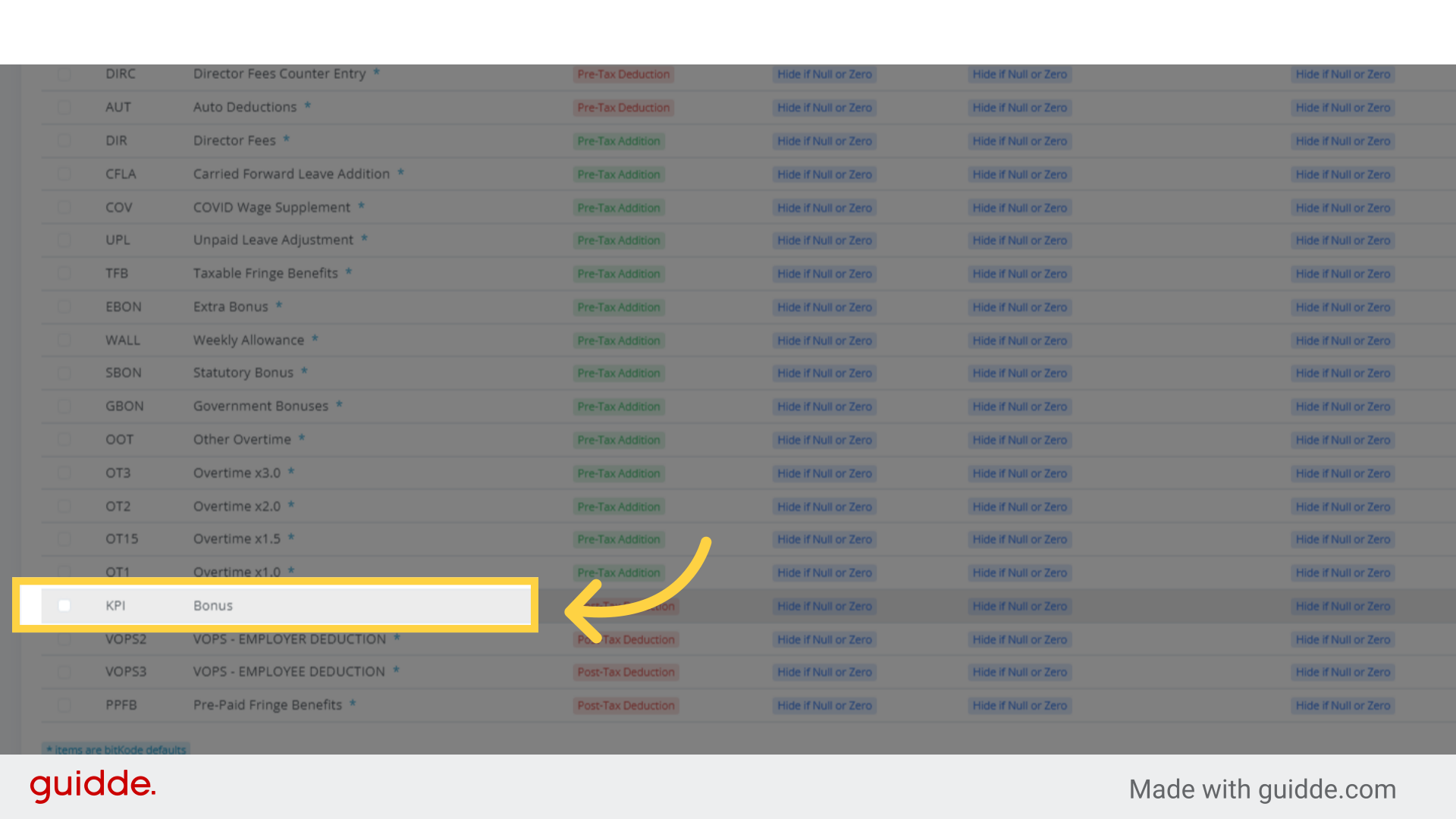
Step 9. Click “Bonus” #
Review the newly added custom field.