Table of Contents
Learn how to efficiently upload payslips to your employees’ portals using bitKode. #
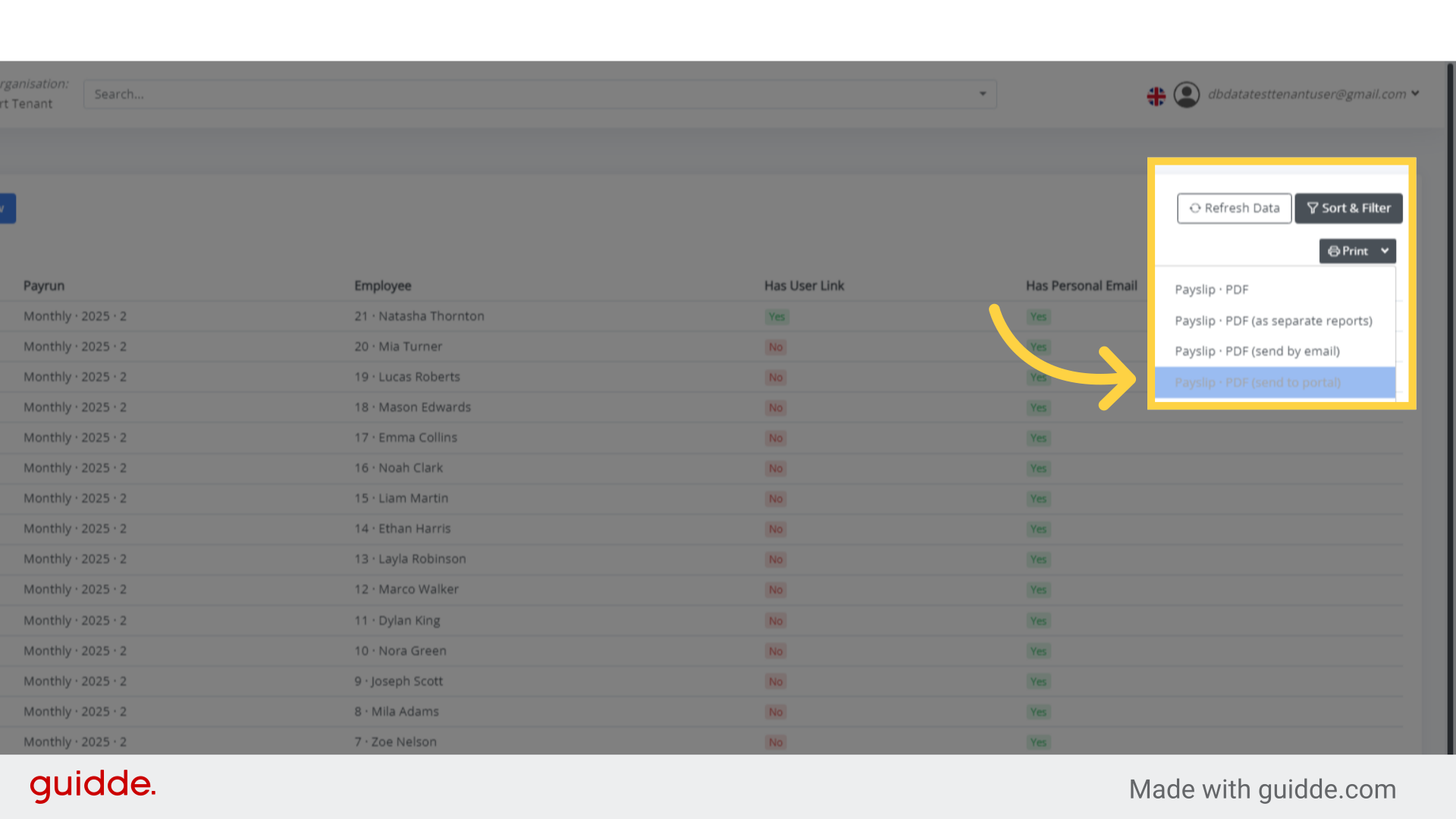
Step 1. Click “Payslip · PDF (send to portal)” #
After successfully generating the payslips, you can send them to the employees’ portals using a similar procedure to sending payslip PDFs via email.
Click on “Print” to display the options, then select “Payslip” to send them to the portal.
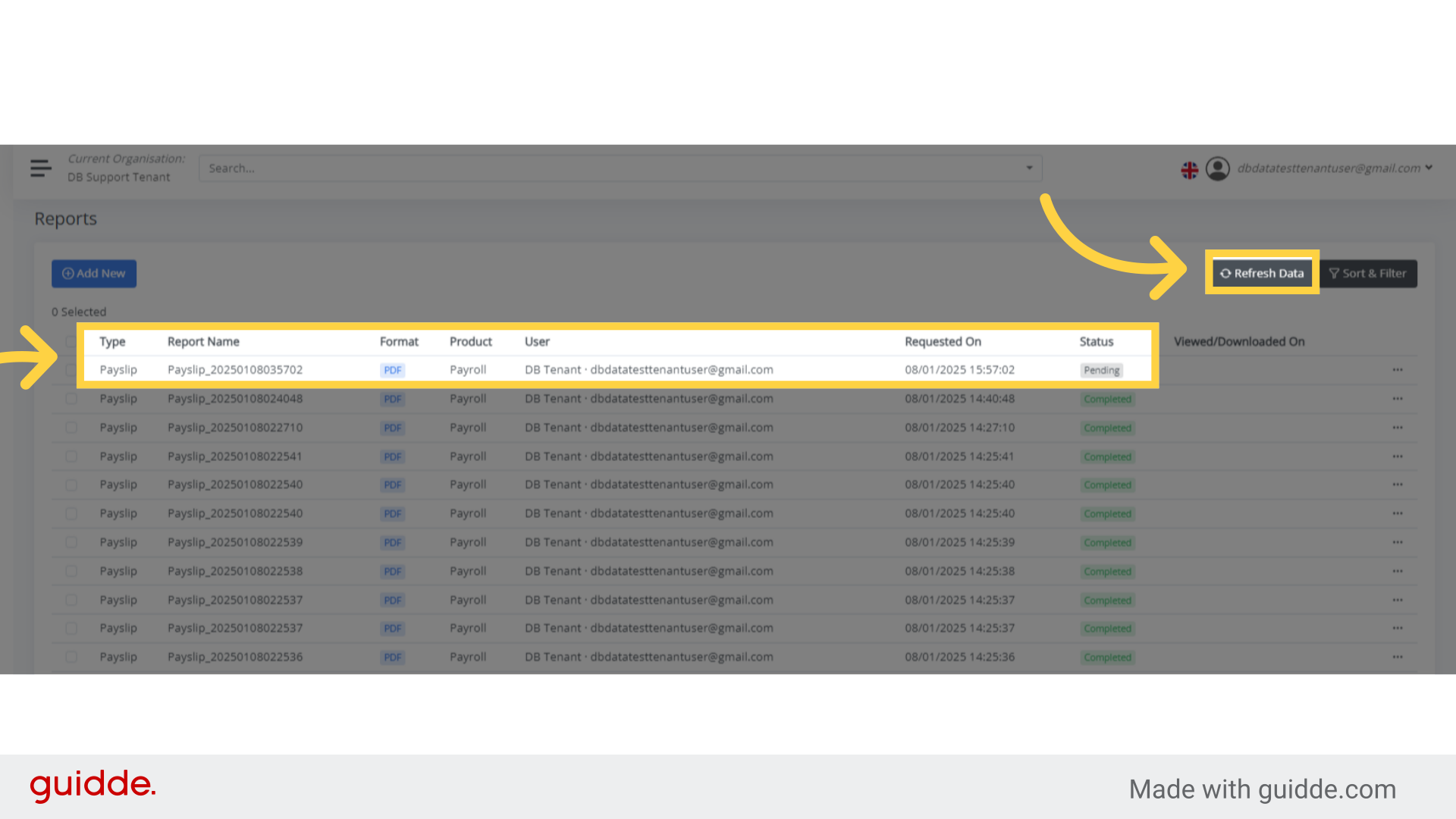
Step 2. Click “Refresh Data” #
At this point, you can notice that the status is pending, allow some time for processing, then click on “Refresh Data.”
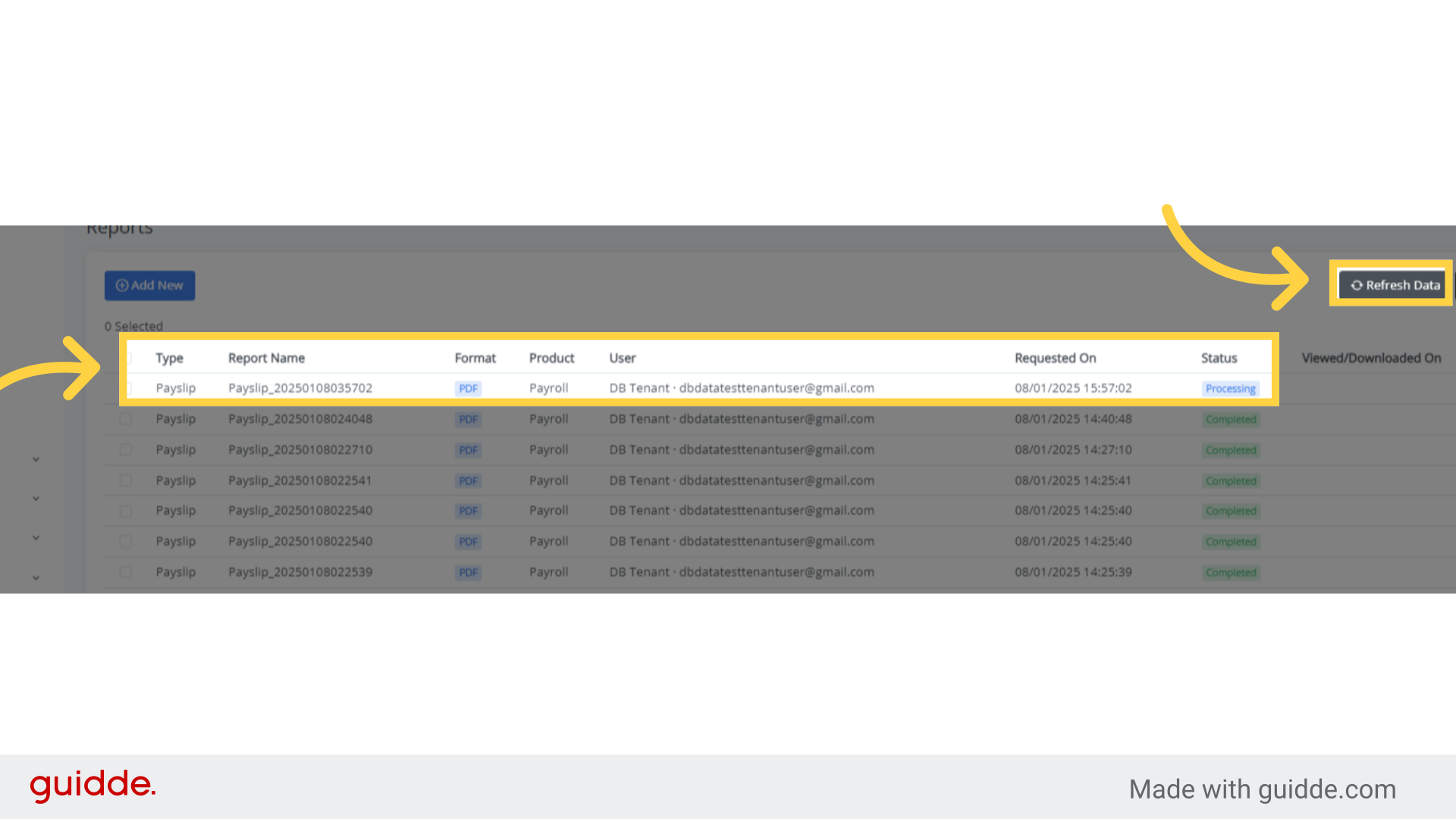
Step 3. Click “Refresh Data” #
After clicking the “Refresh Data” field, you will notice the status change from pending to processing.
Allow some time for it to process, then click on “Refresh Data” again to see the status change to completed.
Step 4. Click “View in Browser” #
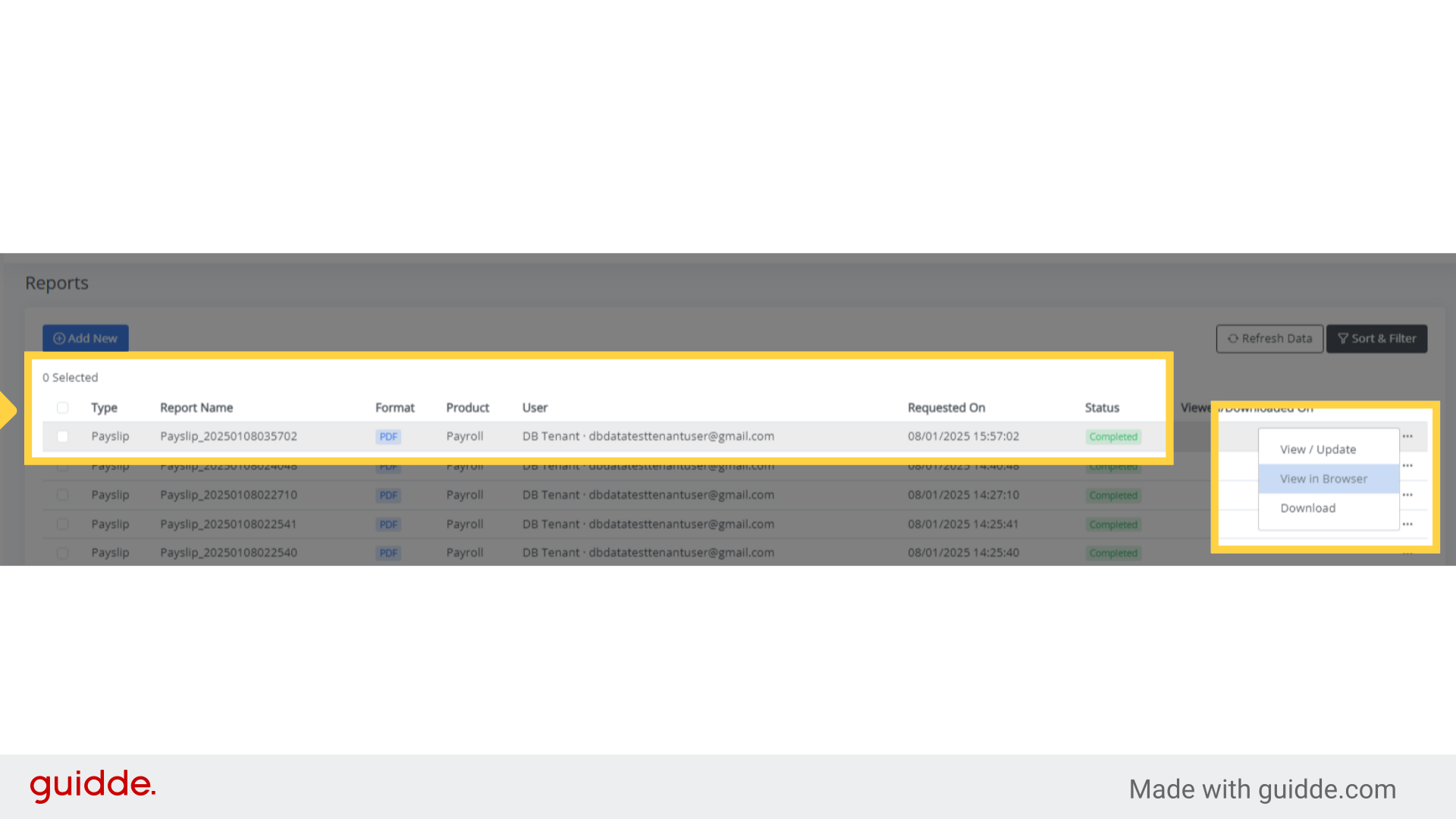
The status has changed to “Completed,” indicating that the payslip is now stored in the employee profile.
Click on the three dots to display the list of options, then select “View in Browser” if you wish to view the stored payslip in the employee’s profile.
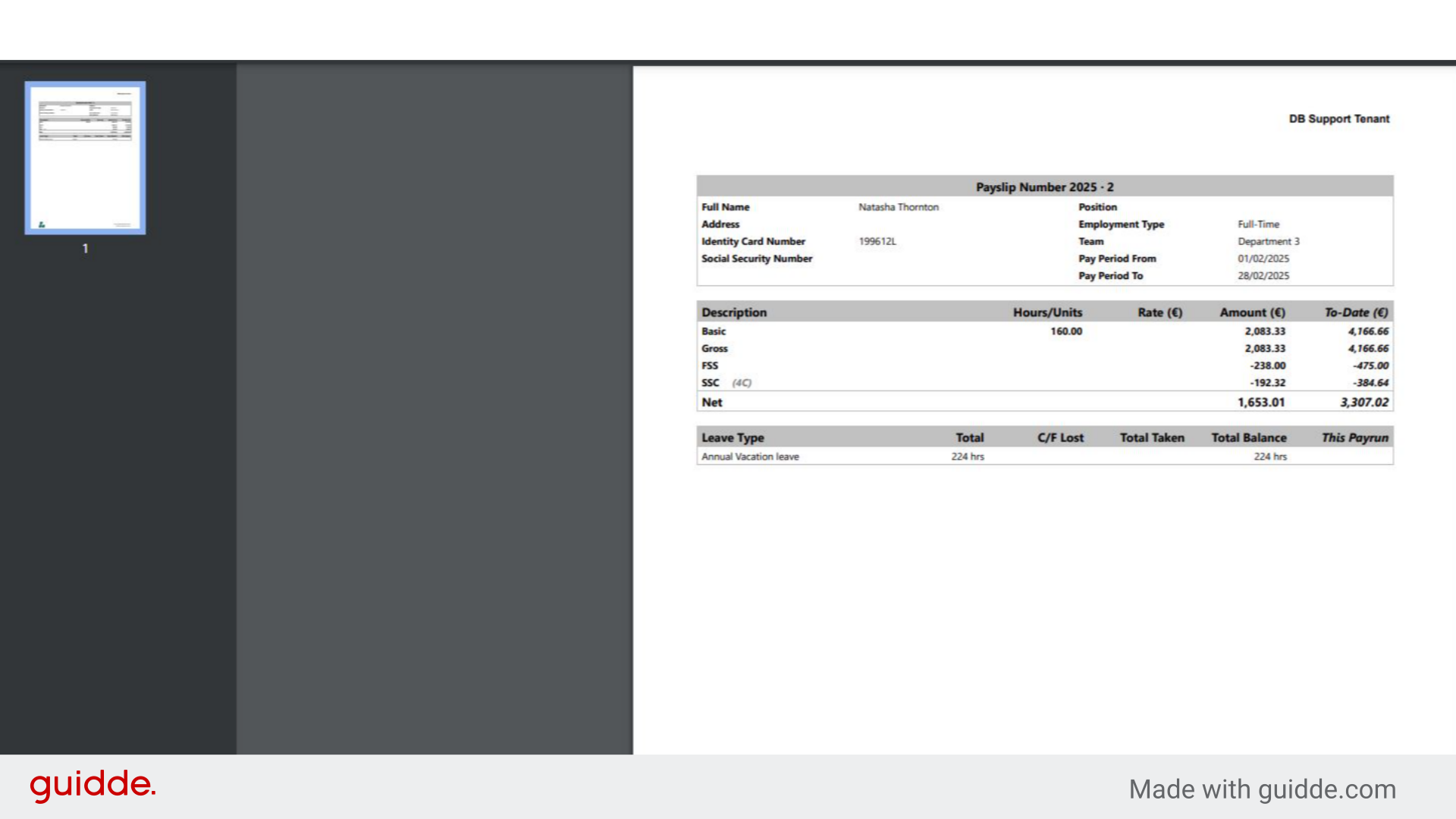
Sample payslip for your review below;