Table of Contents
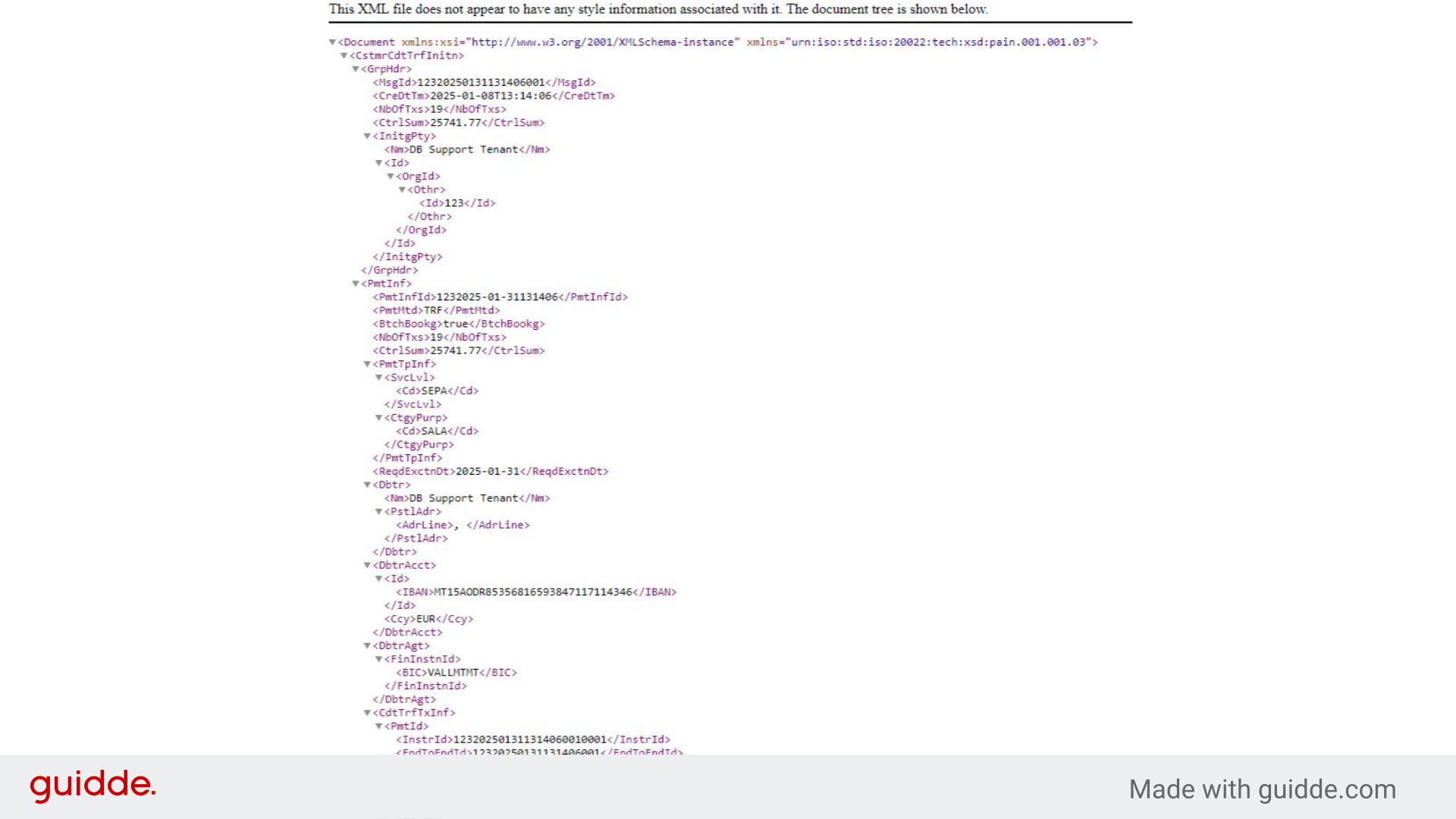
Learn how to generate a SEPA XML file in Bitkode with these detailed actions.
Step 1. Click “Payroll” from home page #
Before generating your first Direct Credit SEPA file for the bank, ensure that your company’s Bank and SEPA details are correct.
Additionally, verify that the employees you plan to pay via SEPA have their accurate bank details (IBAN, Bank, Bank Account Holder Name, and Amount) entered in their employee profile under the direct debit field.
Step 2. Click “Sepa” #
Access the SEPA option.
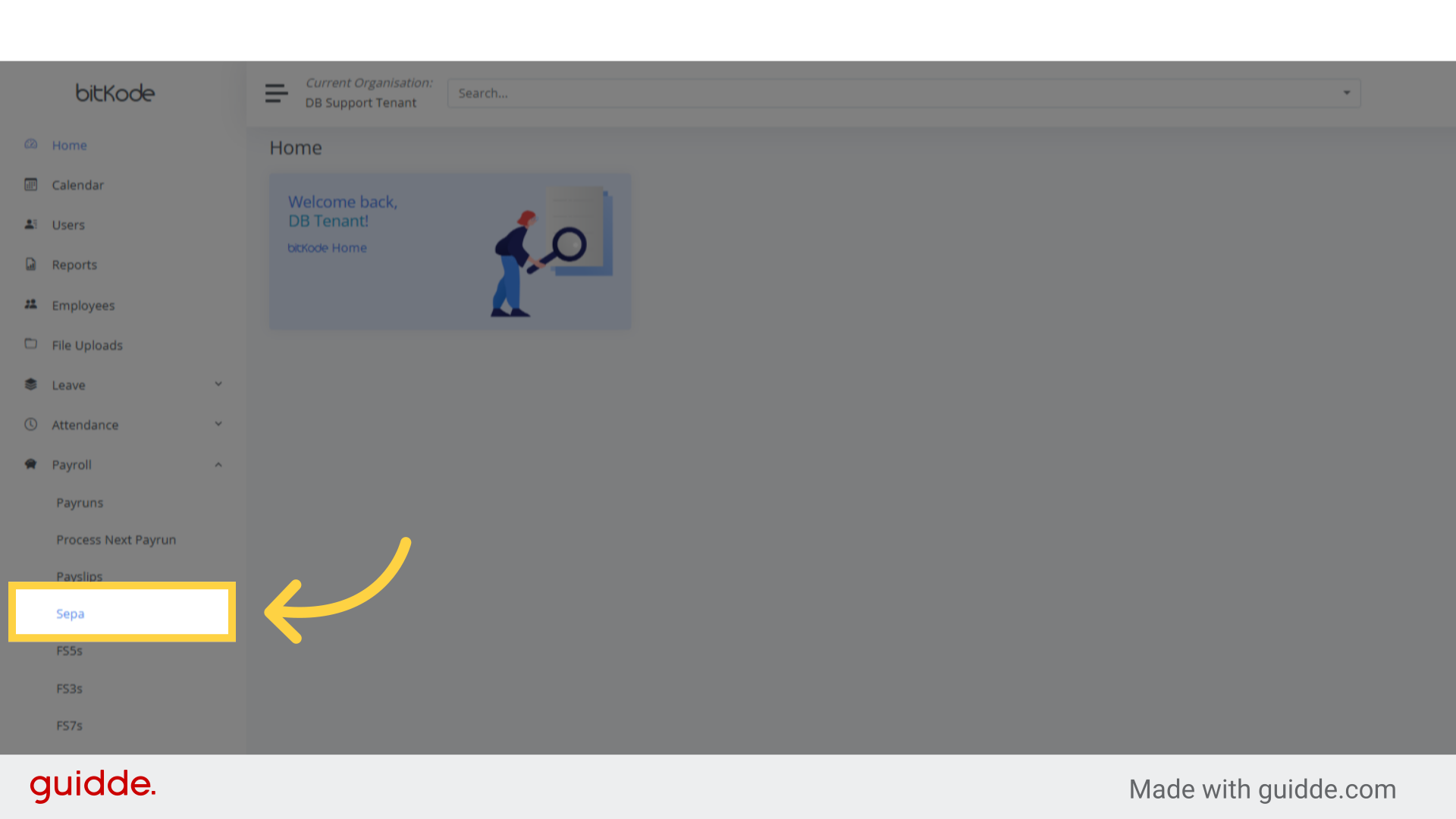
Step 3. Click “Add New” #
Create a new SEPA entry.
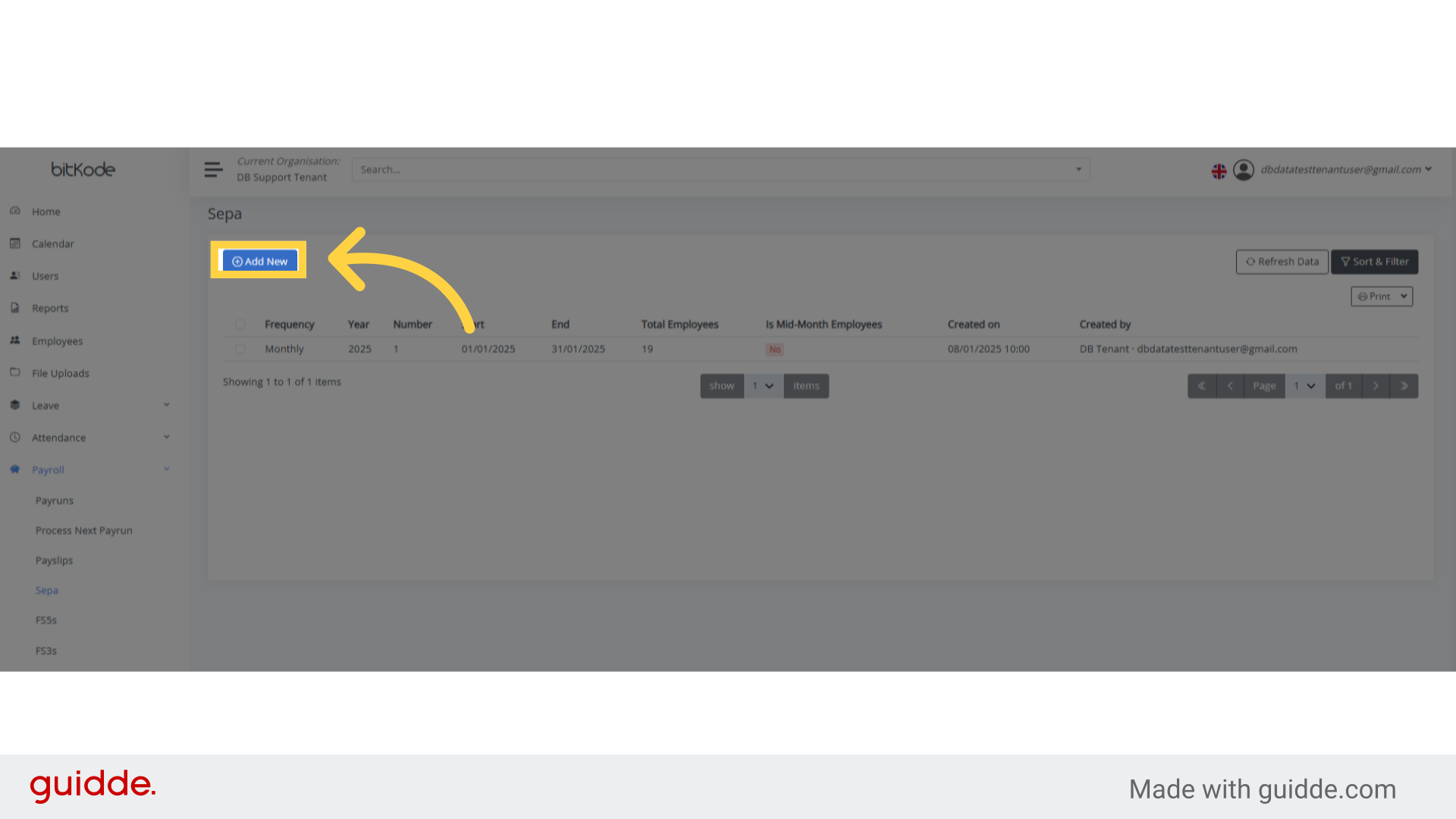
Step 4. Click “×Monthly” #
Choose the payroll processing frequency: monthly, four-weekly, fortnightly, or weekly.
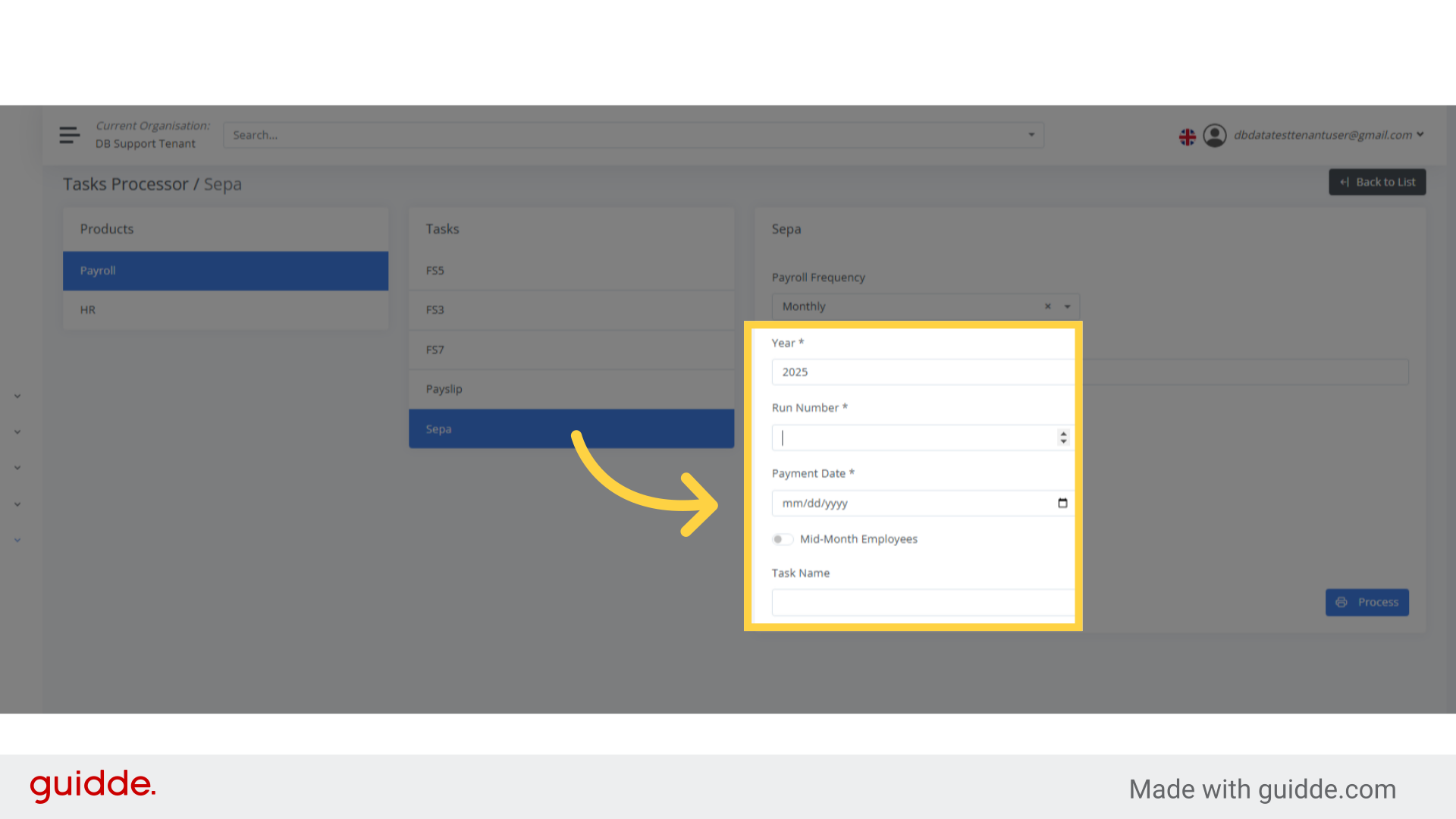
Step 5. Click “Run Number “ #
Choose the year and run number, then specify a payment date.
If you are creating the SEPA file for mid-month employee payments, enable the toggle next to the Mid-Month option.
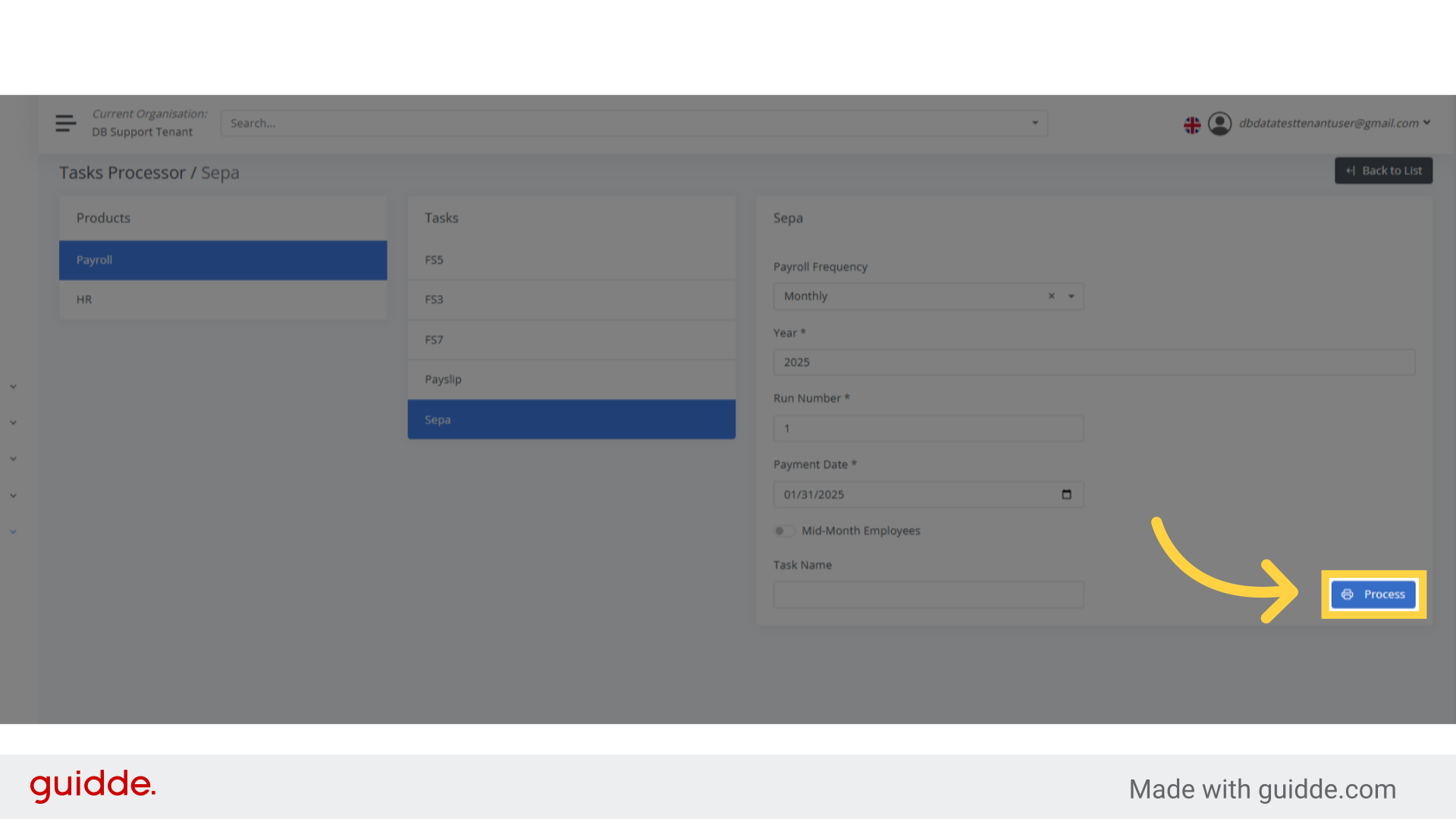
Step 6. Click “Process” #
Initiate the processing by clicking process.
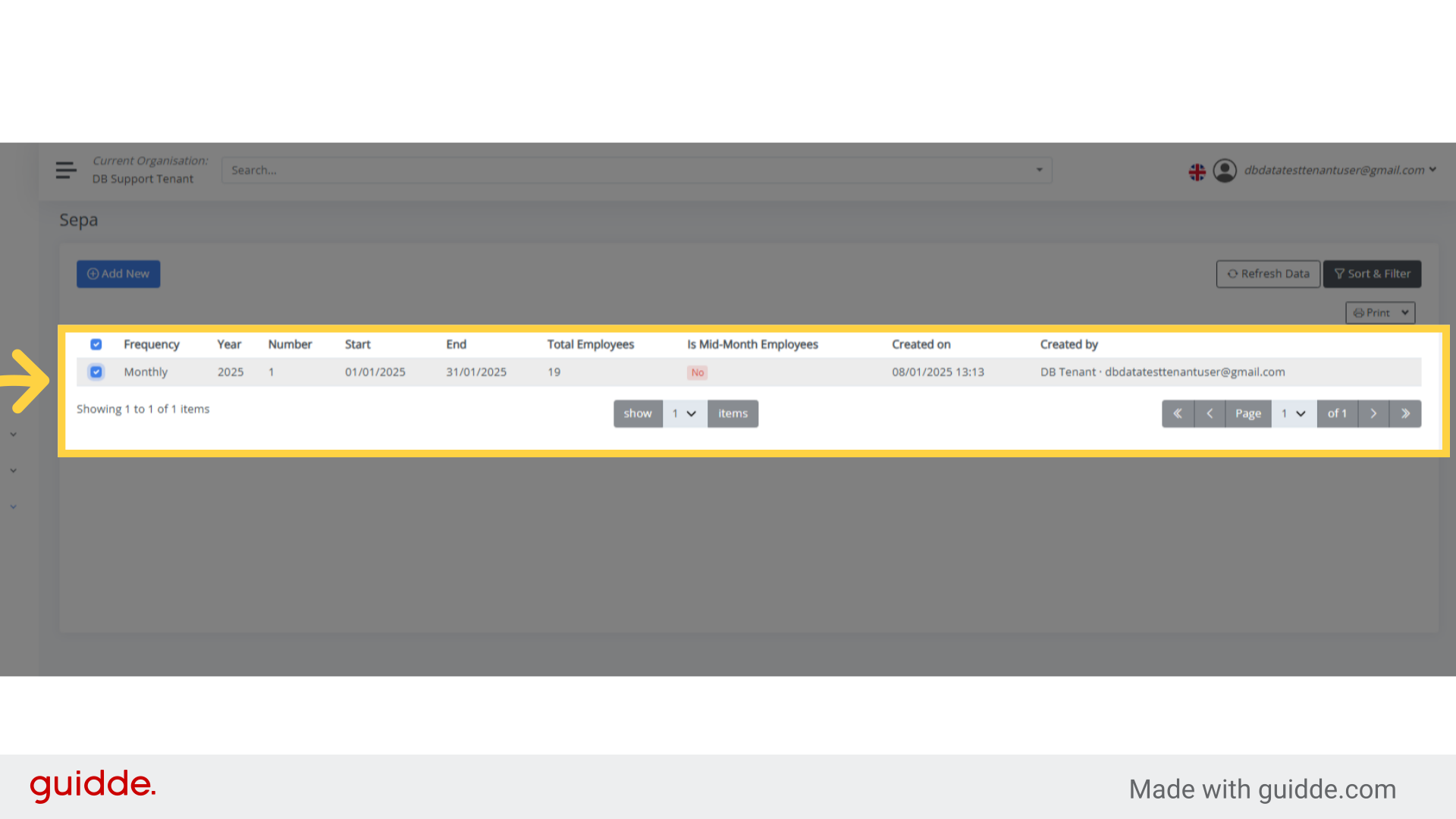
Step 7. Tick check box #
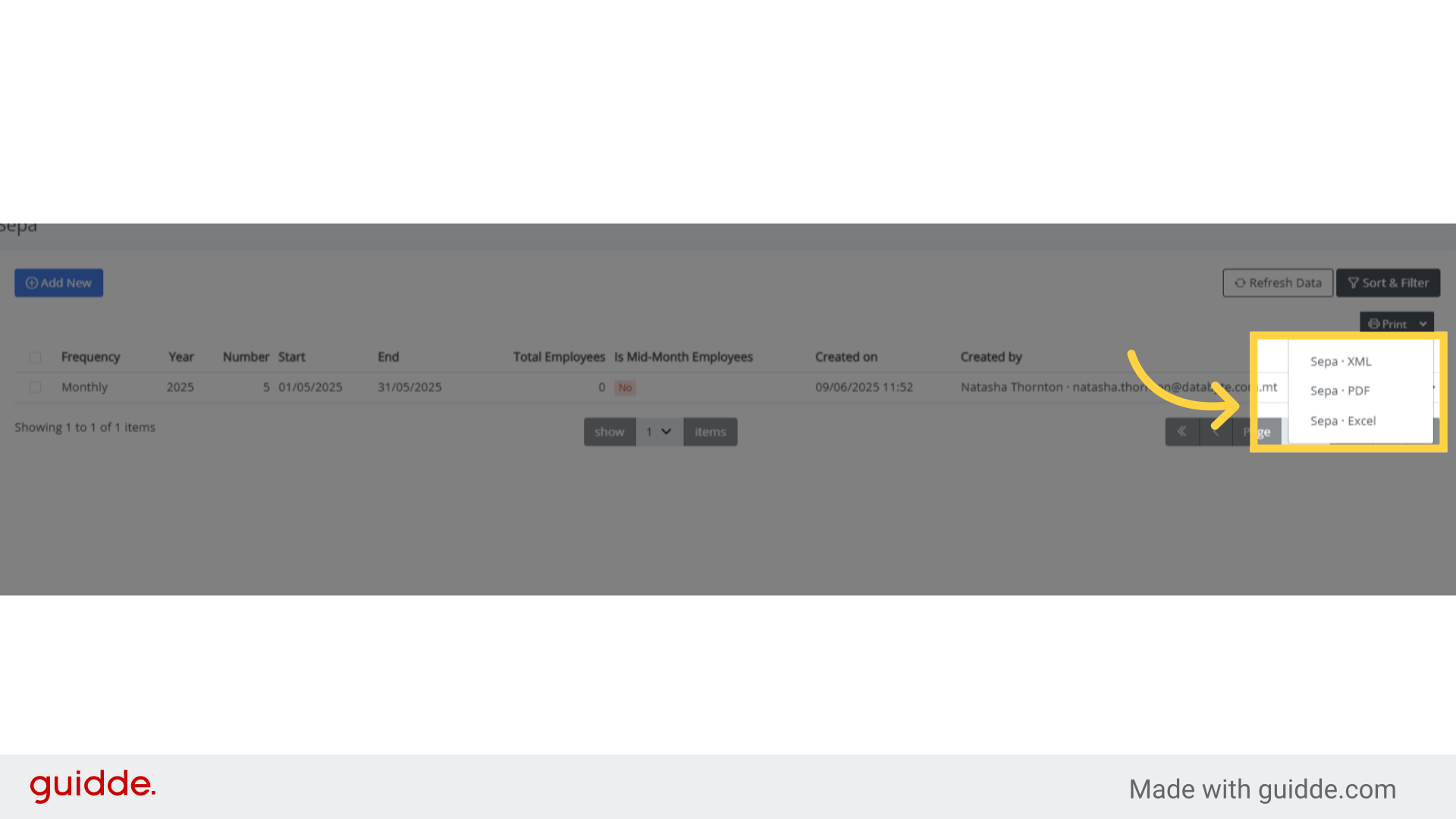
Step 8. Click “Print” to print the SEPA XML file #
Choose the SEPA XML format.
You can also generate the SEPA file as a report, allowing you to view the net payment initiated in the XML file.
This report can be exported as a PDF or an Excel sheet.
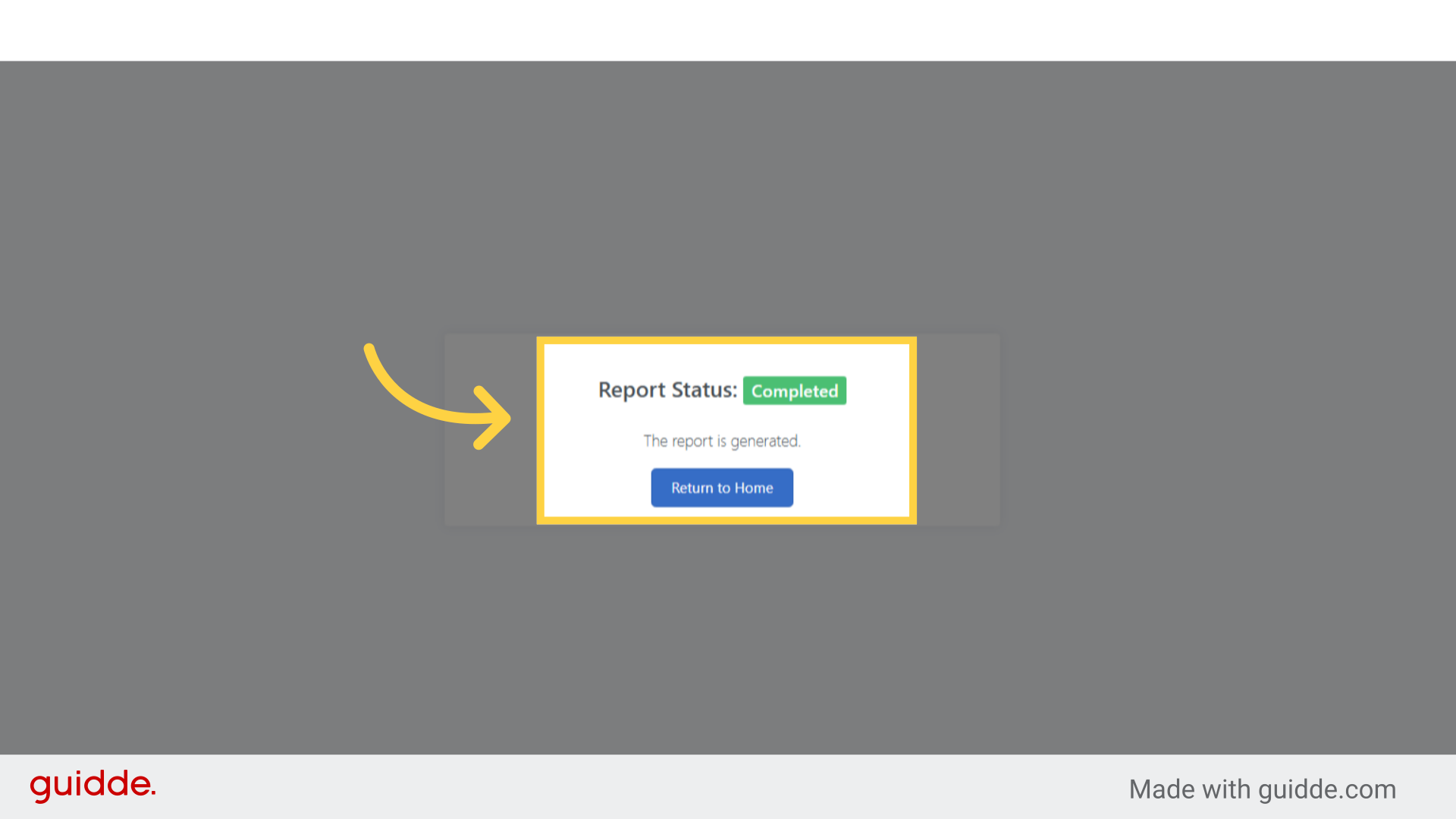
Step 9. Click “Return to Home” #
Report status completed. Navigate back to the home screen.
Step 10. Fill “on” #
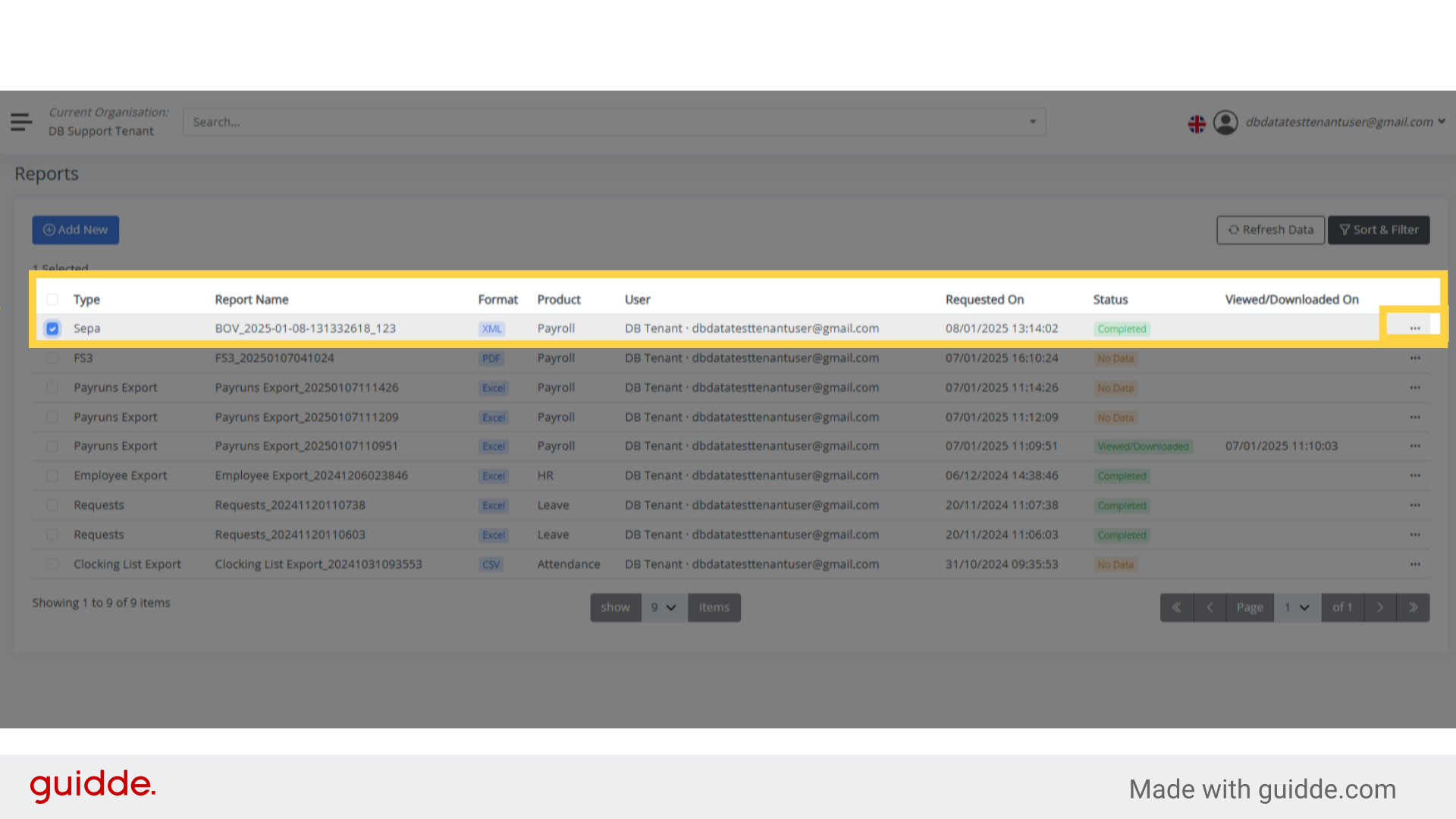
At this stage, the SEPA file has been generated and is ready for download.
To download it, check the box next to the SEPA file and click on the three dots to reveal the download option.
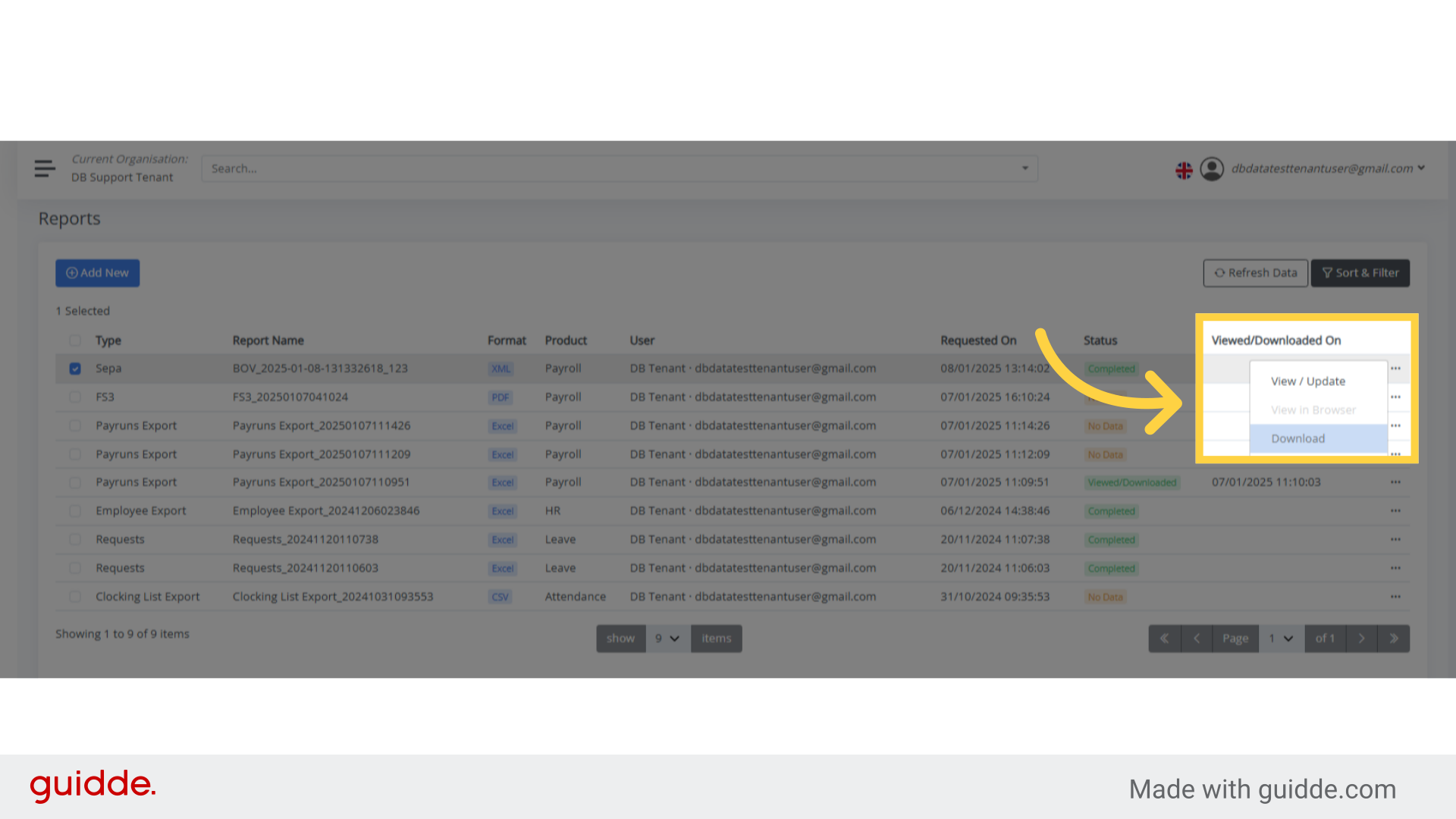
Step 11. Click “Download” #
Download the SEPA XML file.
Please proceed to upload the SEPA file to your bank via the bank’s website.