Table of Contents
Learn how to efficiently generate and distribute FS3 forms to your employees using bitKode. #
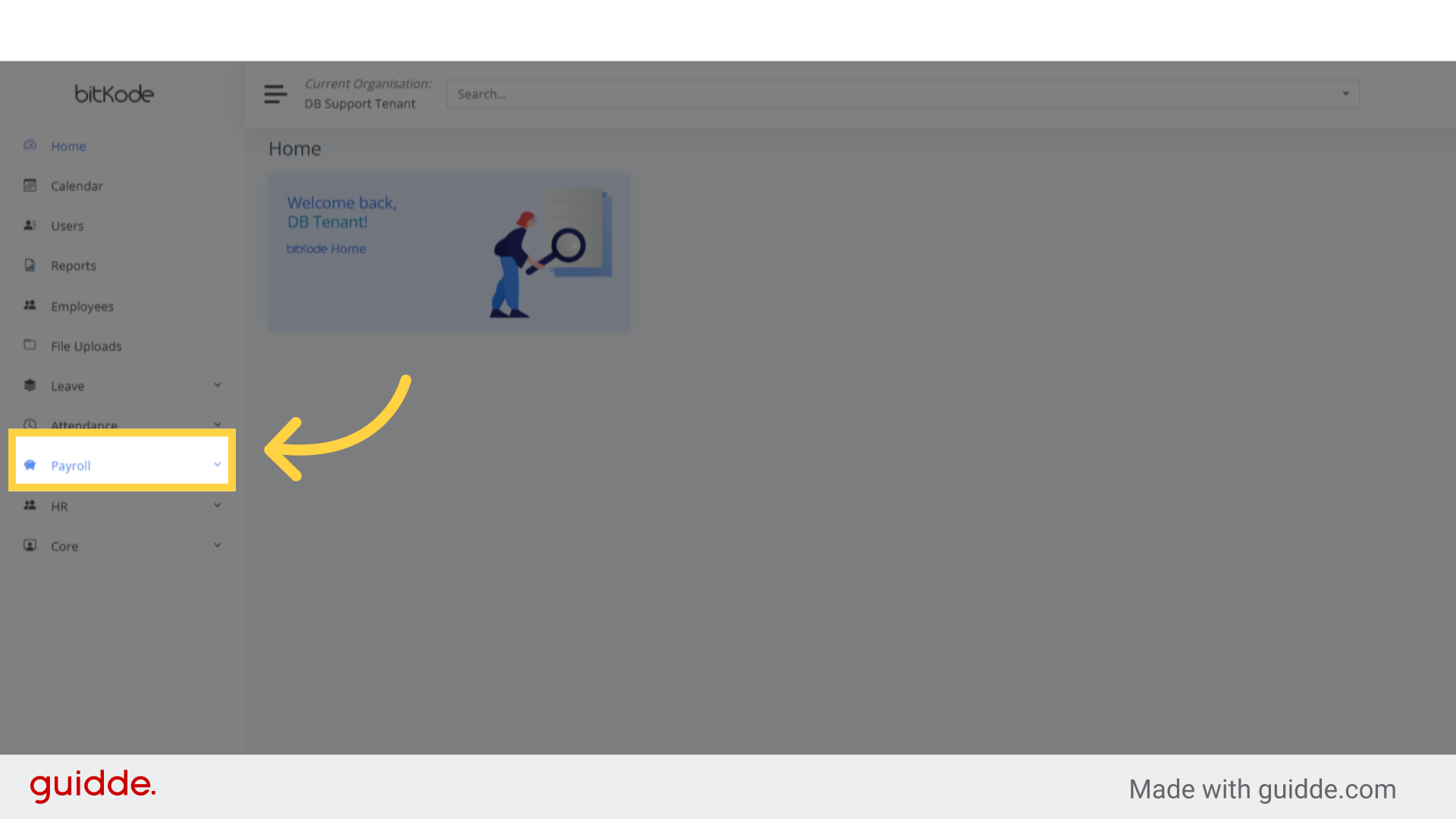
Step 1. Click “Payroll” #
Access the payroll section.
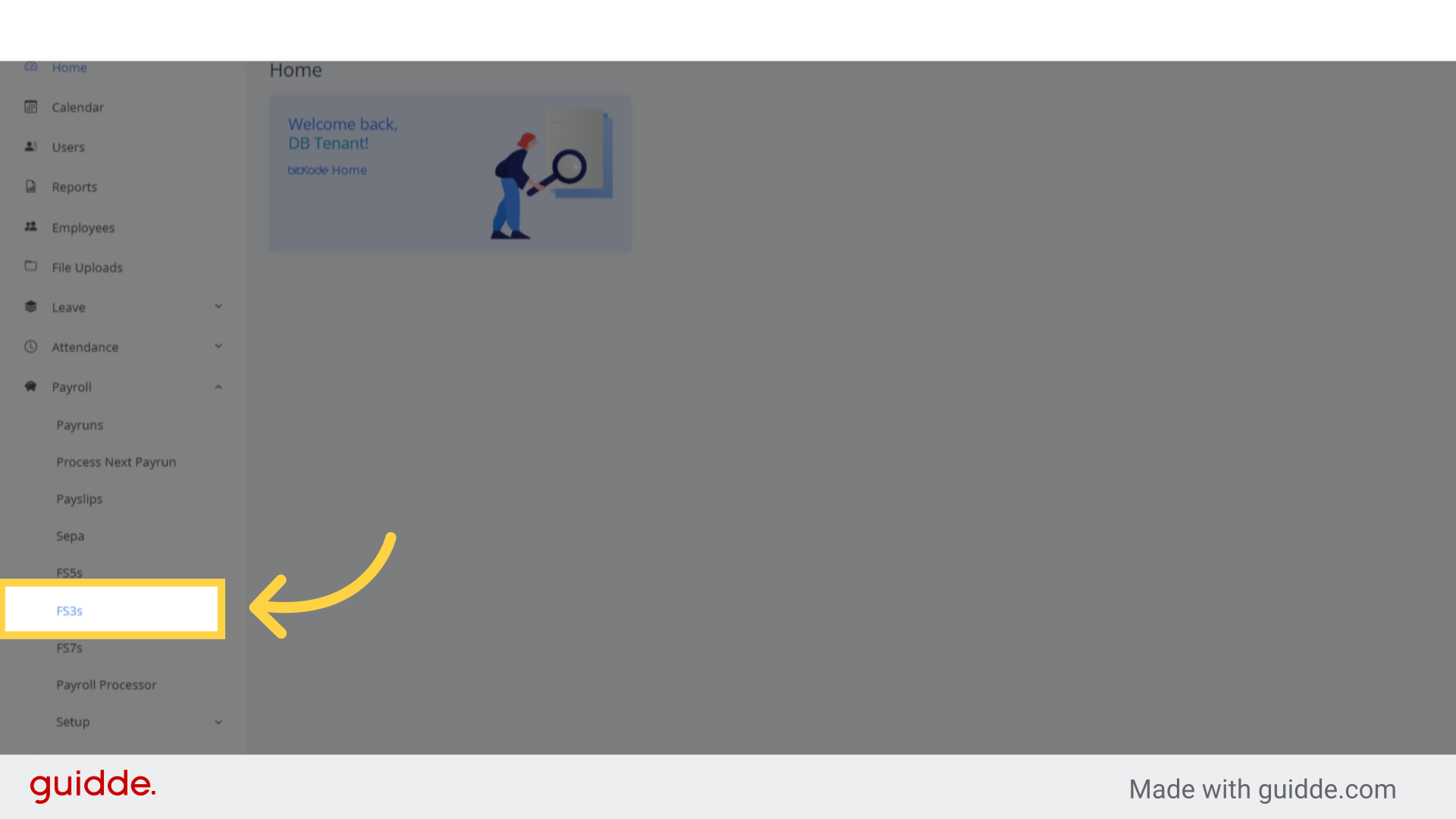
Step 2. Click “FS3s” #
Select the FS3’s option.
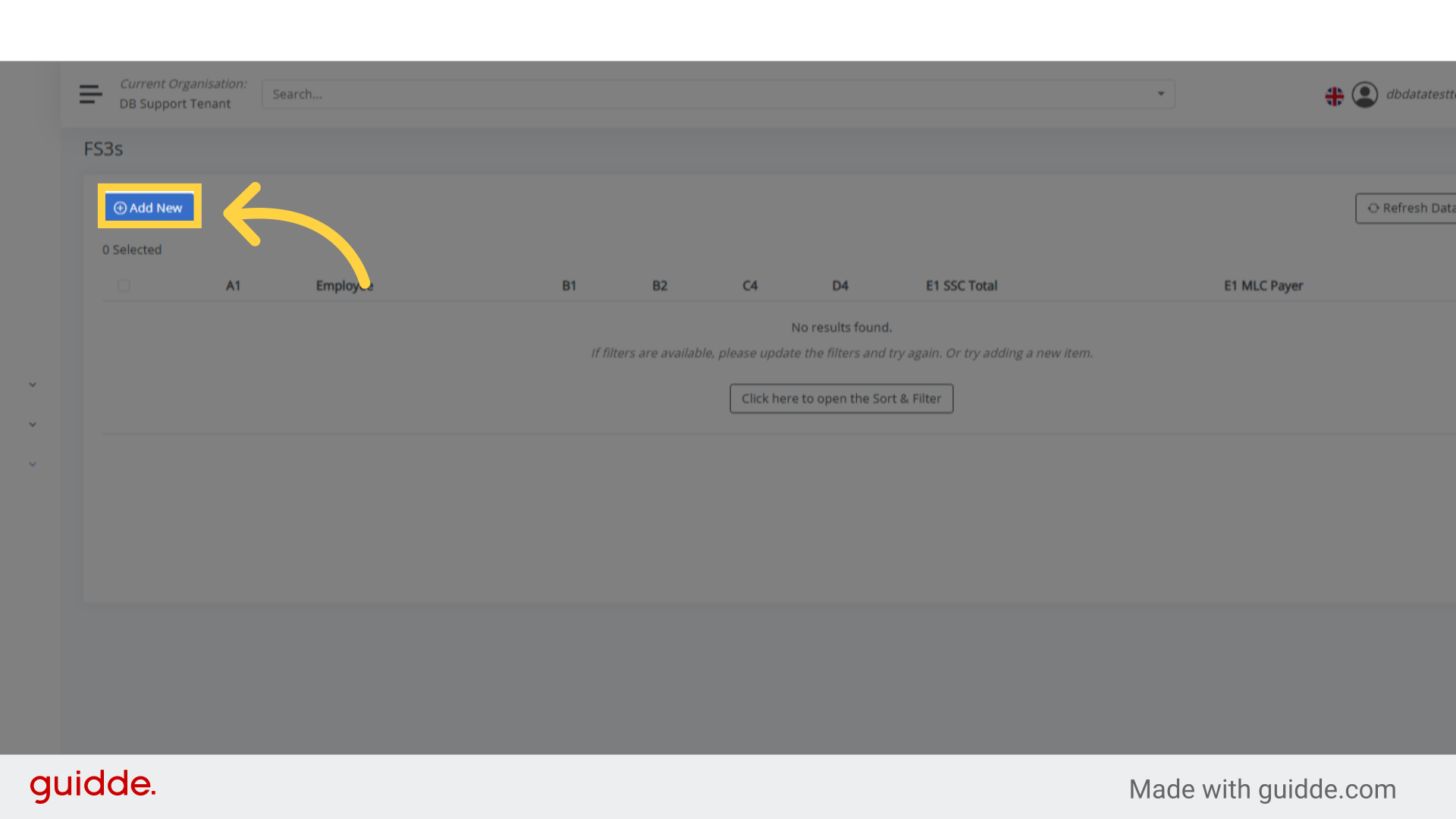
Step 3. Click “Add New” #
Select “Add New” to start the process.
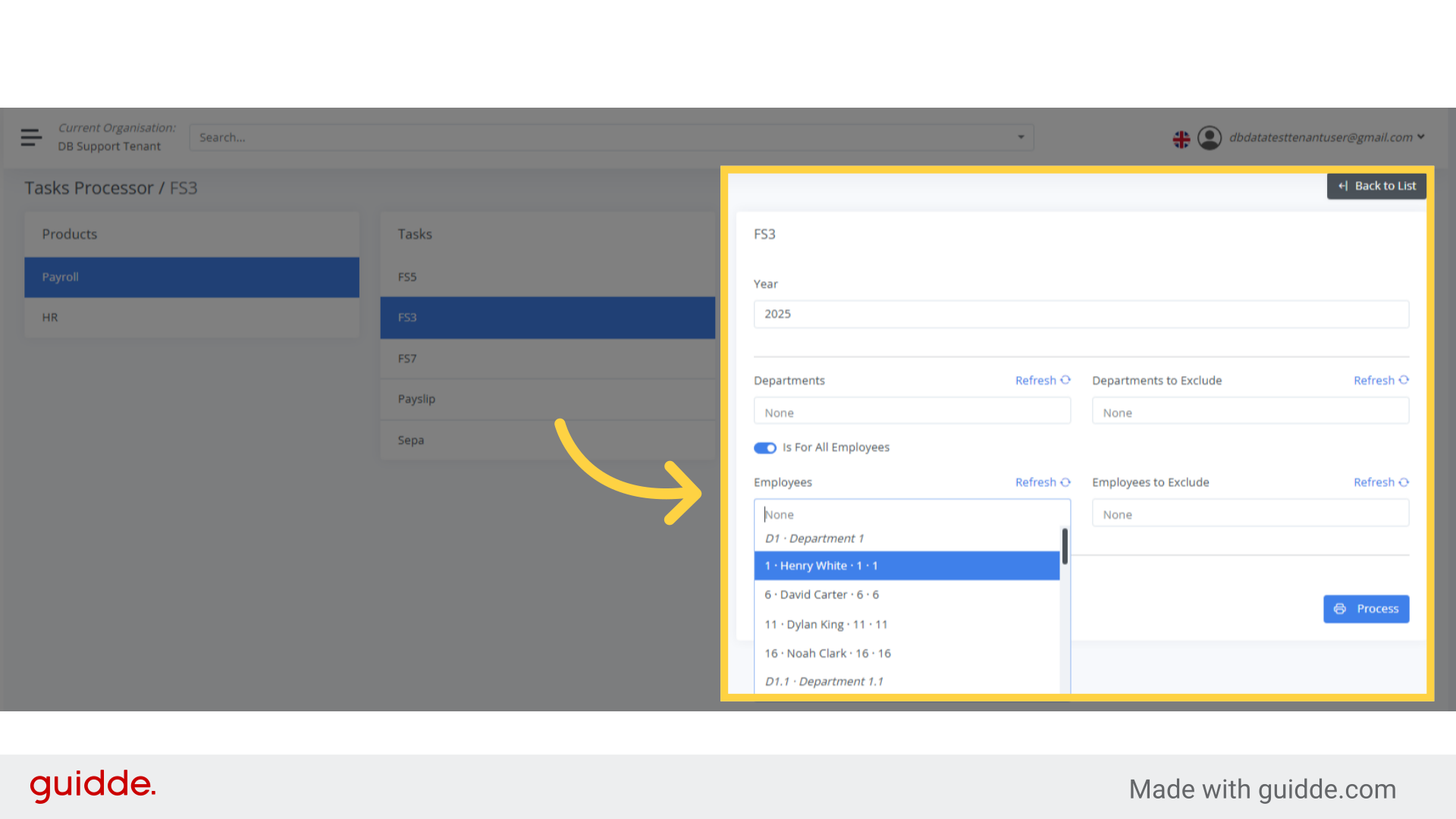
Step 4. Click “None” #
By default, the year will be set to the current year.
You can choose to process FS3s by departments or individual employees, or simply leave the toggle switched on to process FS3s for all employees
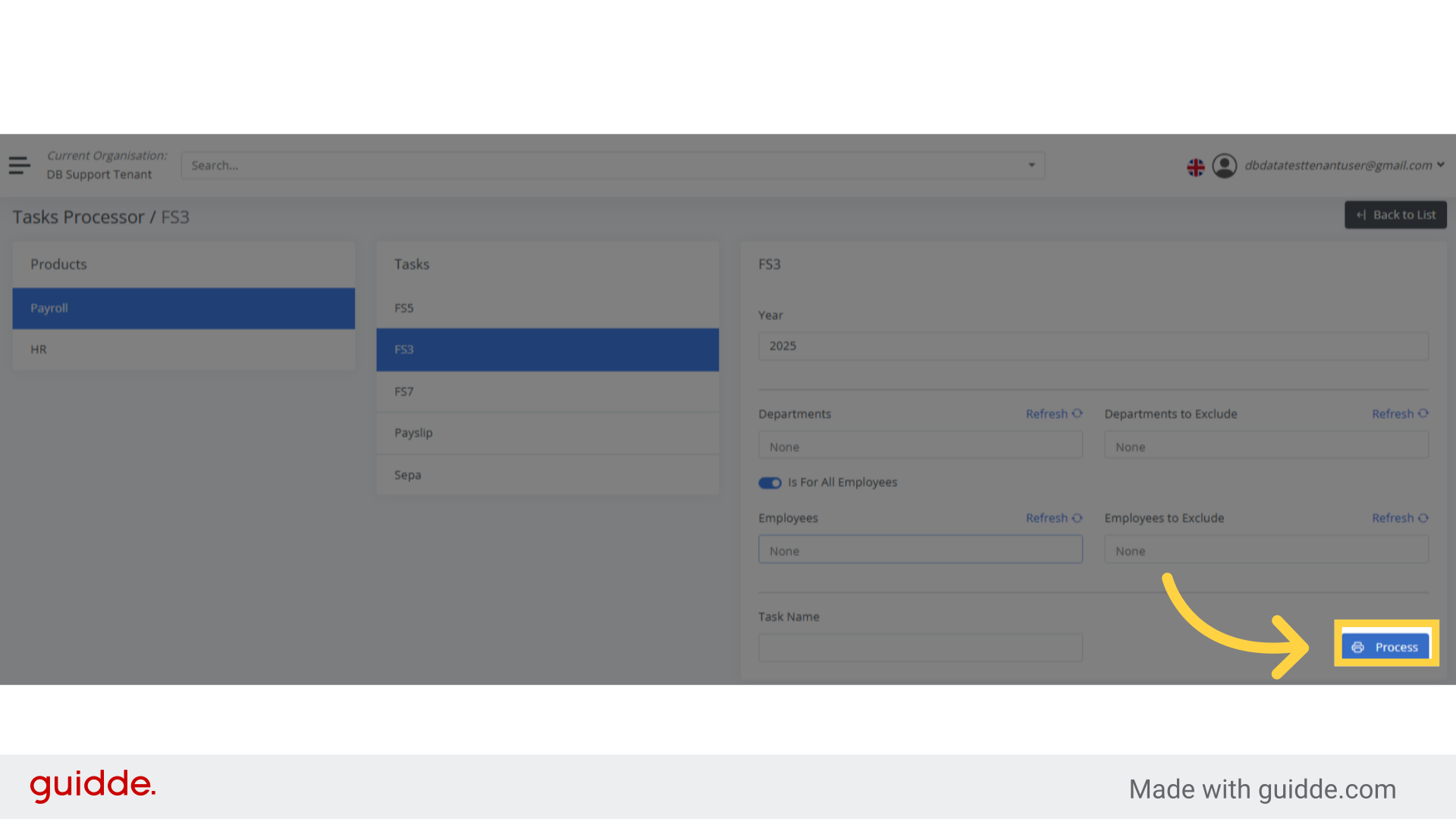
Step 5. Click “Process” #
Initiate the process by clicking on process.
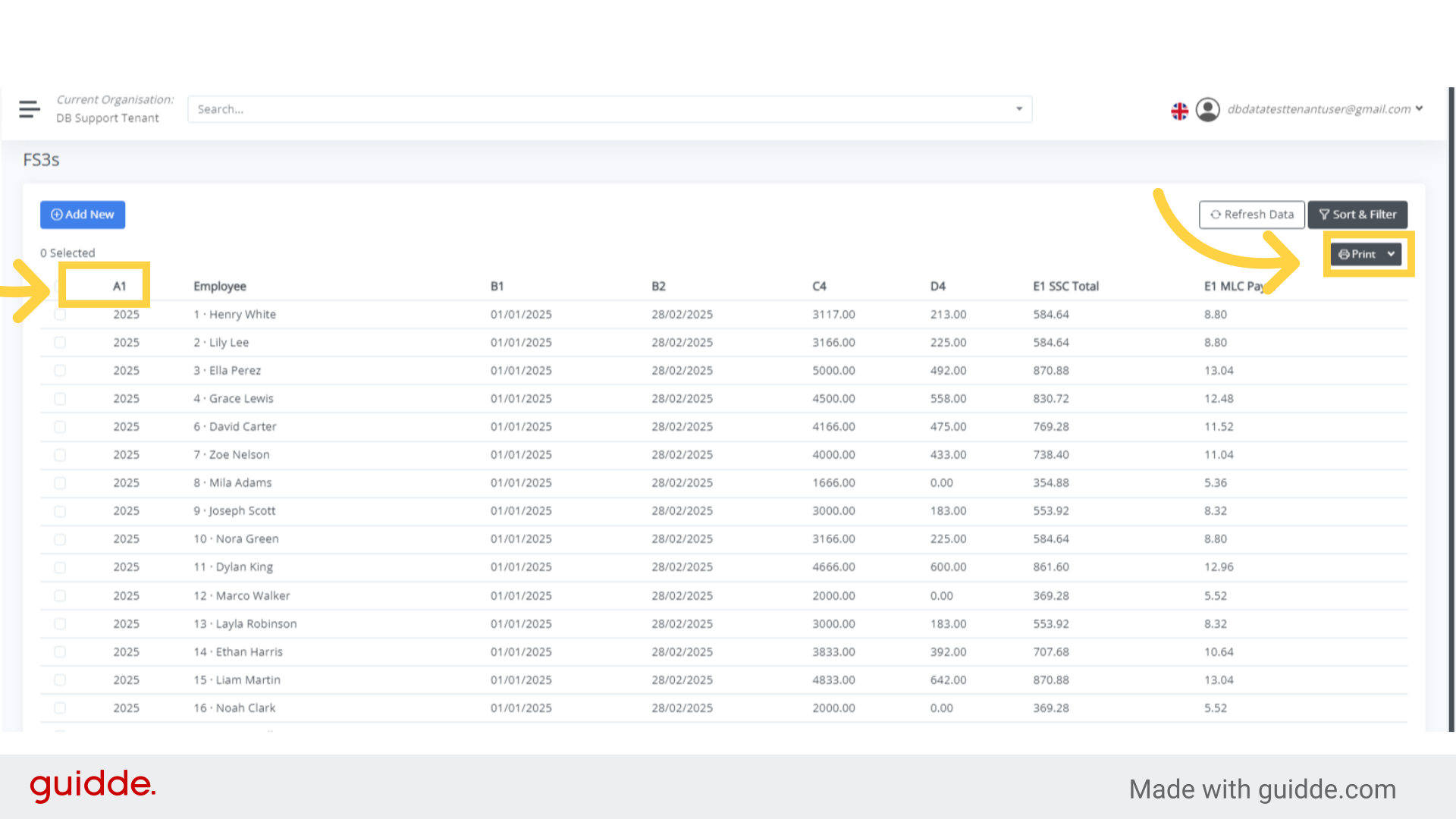
Step 6. Click “Print” #
At this stage, you will notice that FS3s for all employees have been generated.
Tick the checkbox for all to generate the FS3s in PDF format, and click on “Print” to proceed.
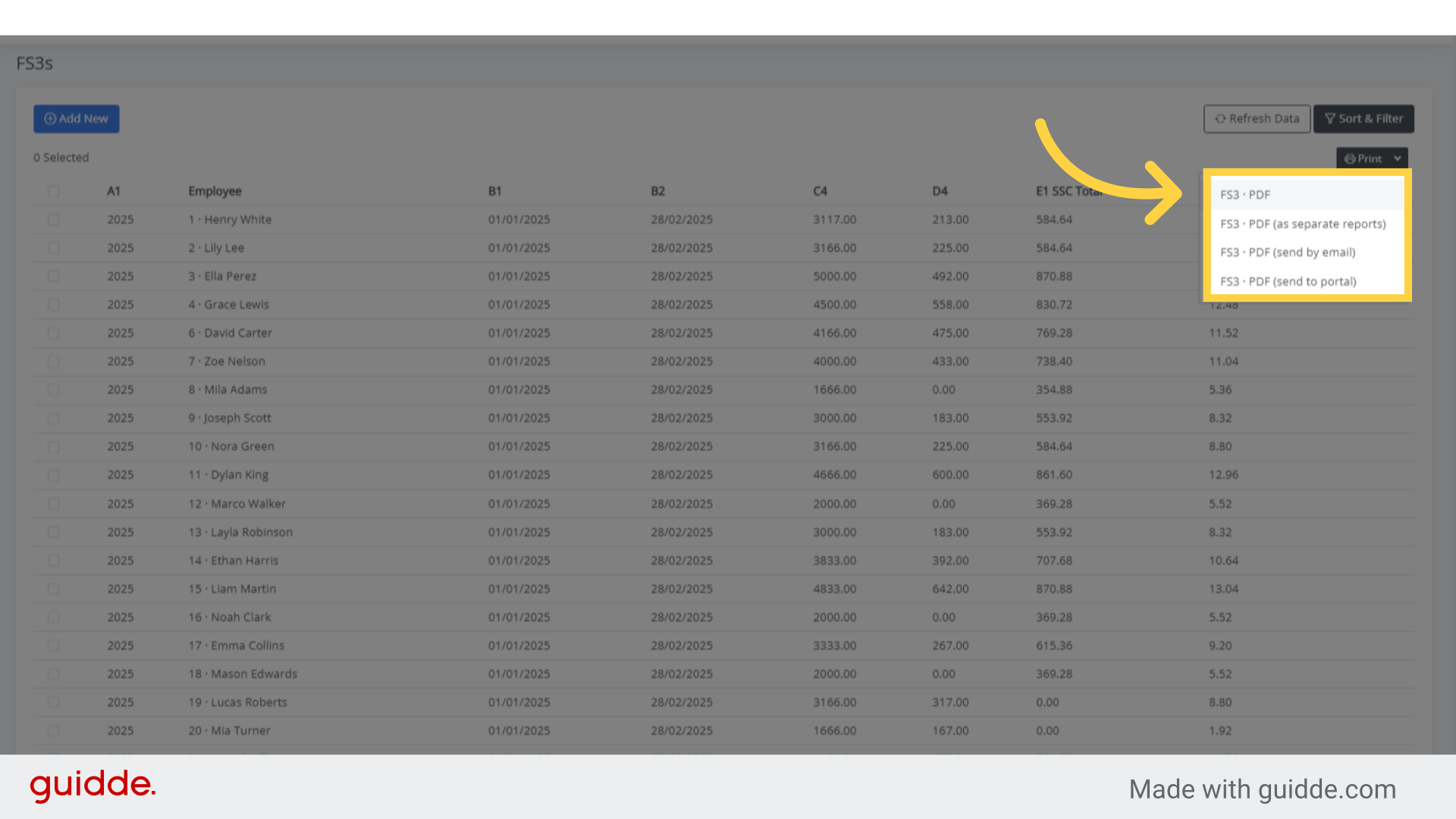
Step 7. Click “FS3 · PDF” #
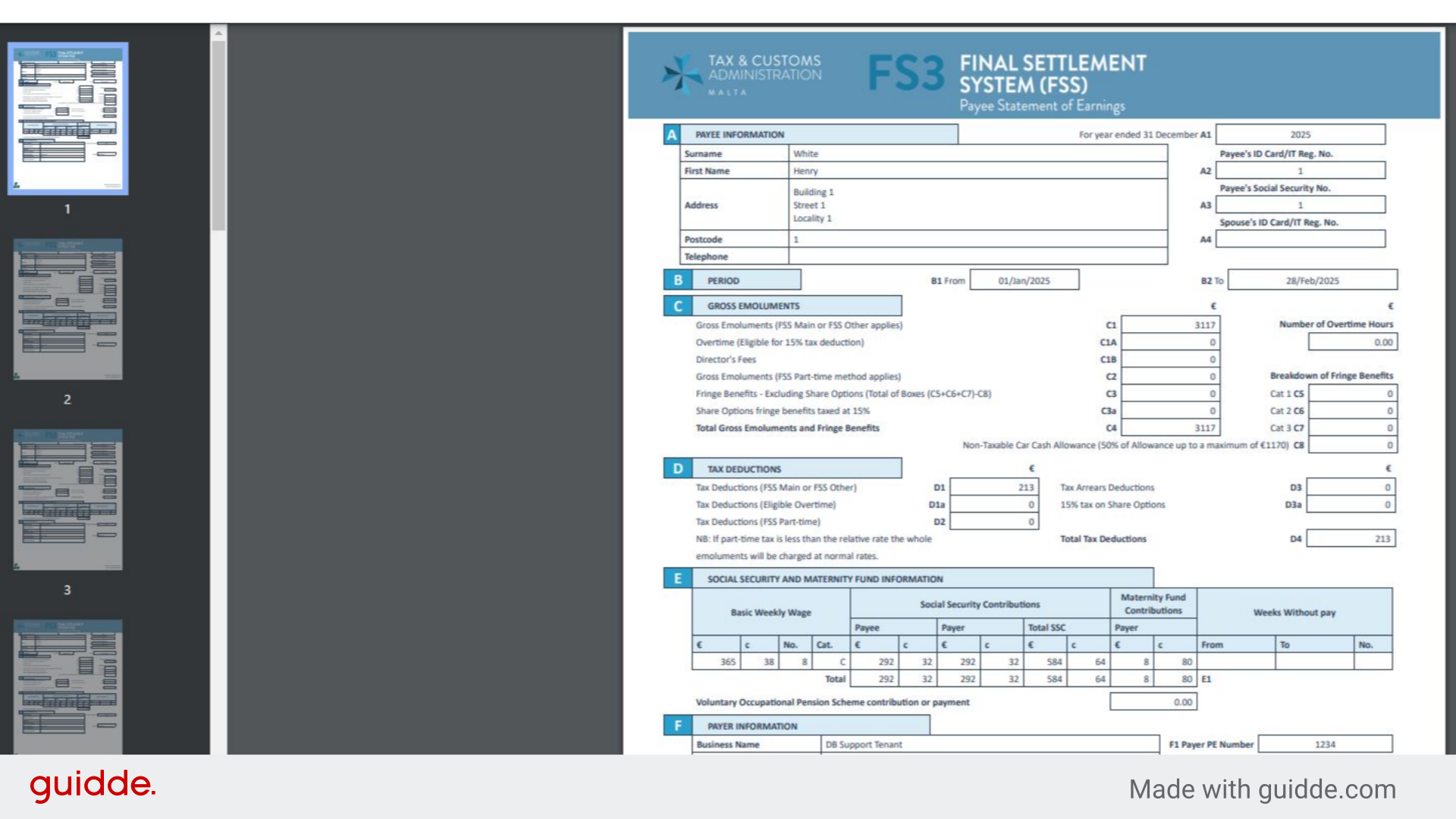
Download the FS3 form in PDF format by clicking on FS3 PDF.
As you can see, all FS3s have been downloaded in PDF format below;
Step 8. Click “FS3 · PDF (send by email)” #
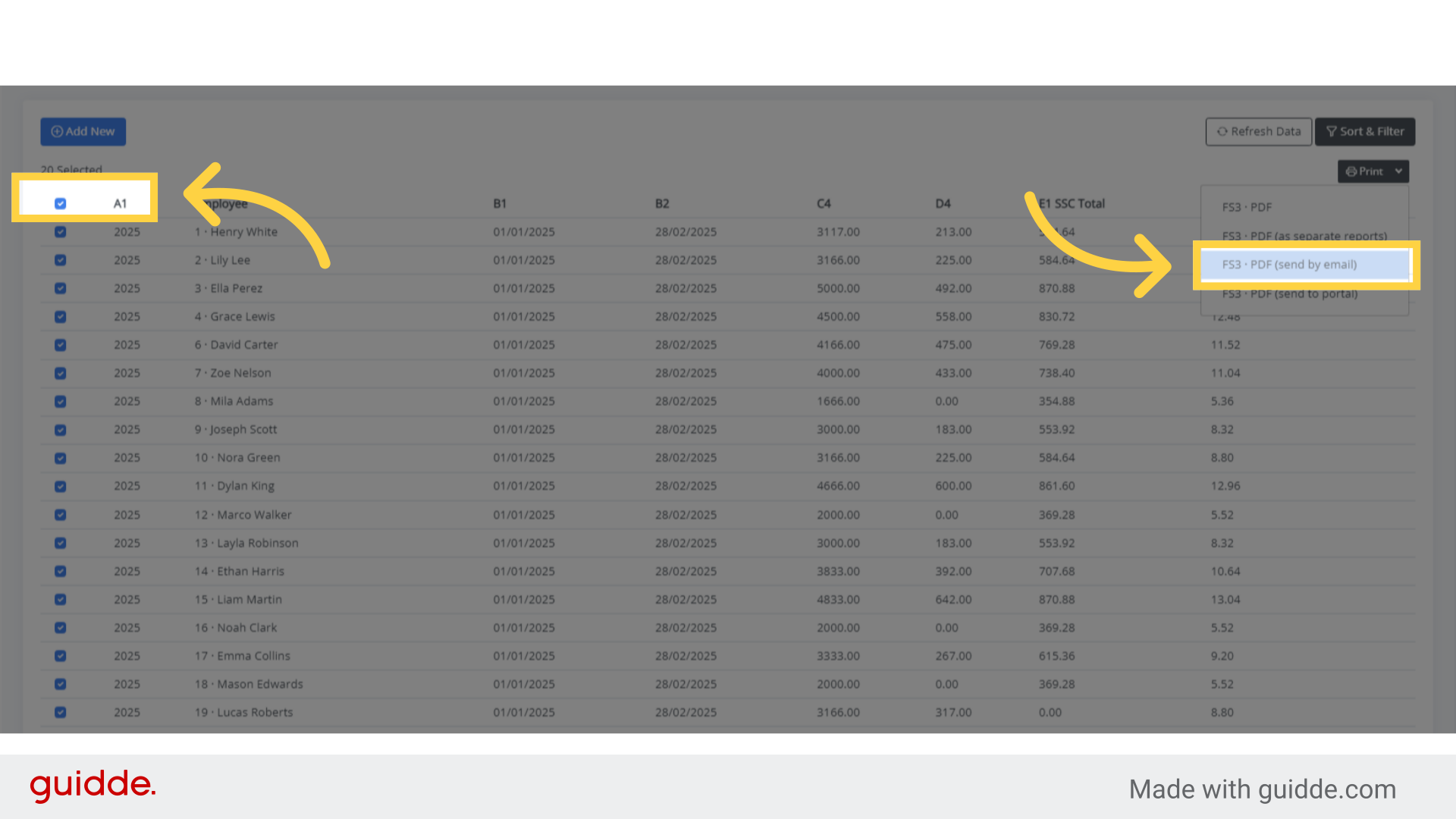
To send all FS3s to employees via email, follow the same procedure, but click on “FS3s Send by Email.”
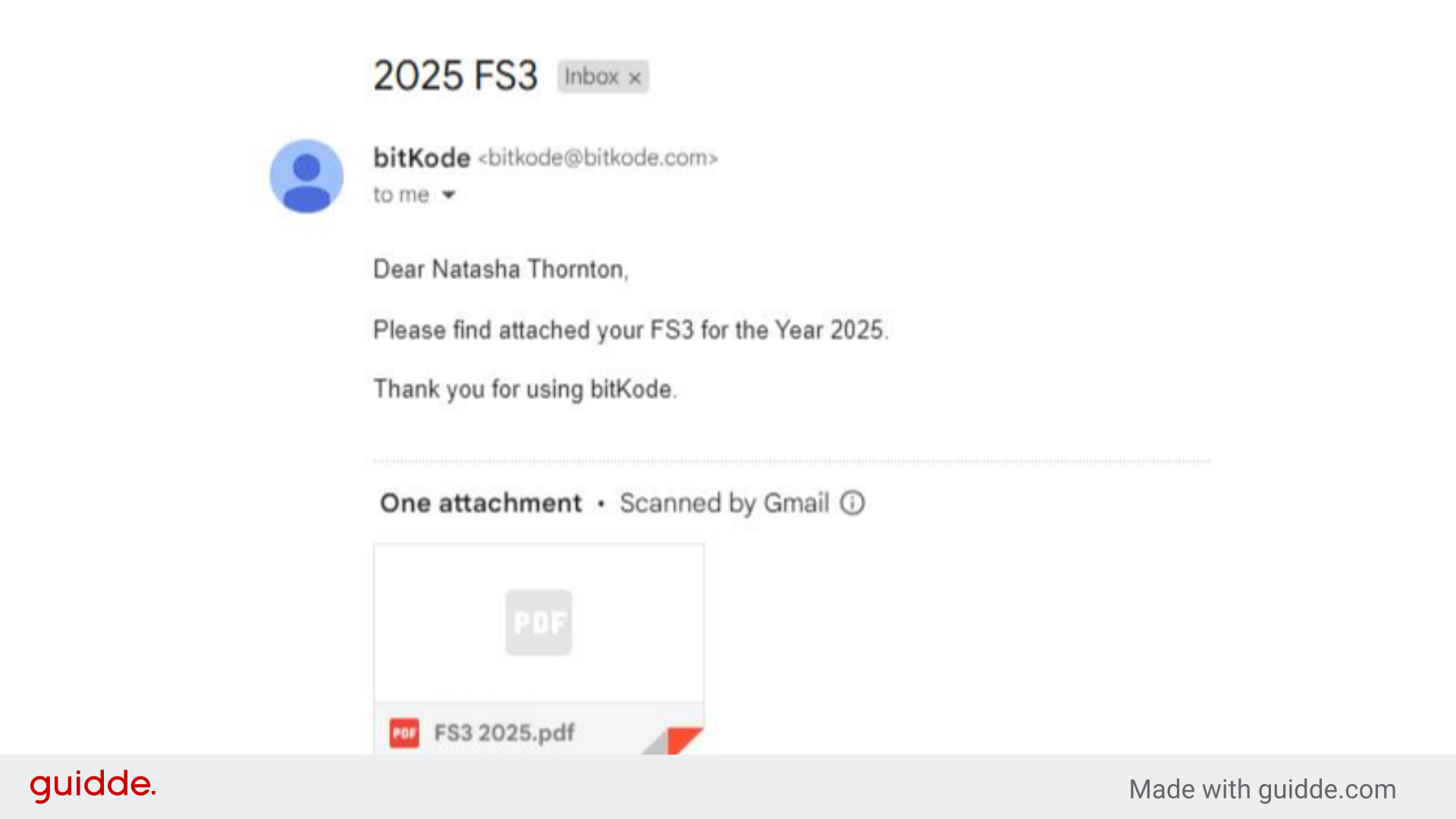
This is a sample email demonstrating how the email with the attached FS3 will be sent to the employee.