Table of Contents
- Learn how to efficiently access and view your Payroll history in bitKode with these clear instructions.
- Step 1. Click "Payroll"
- Step 2. Click "Payruns"
- Step 3. Click "Sort & Filter"
- Step 4. Sort & Filter
- Step 5. Click "Sort & Filter"
- Step 6. Click here
- Step 7. Click the three dots
- Step 8. Click "View / Update"
- Step 9. Click "Details"
Learn how to efficiently access and view your Payroll history in bitKode with these clear instructions. #
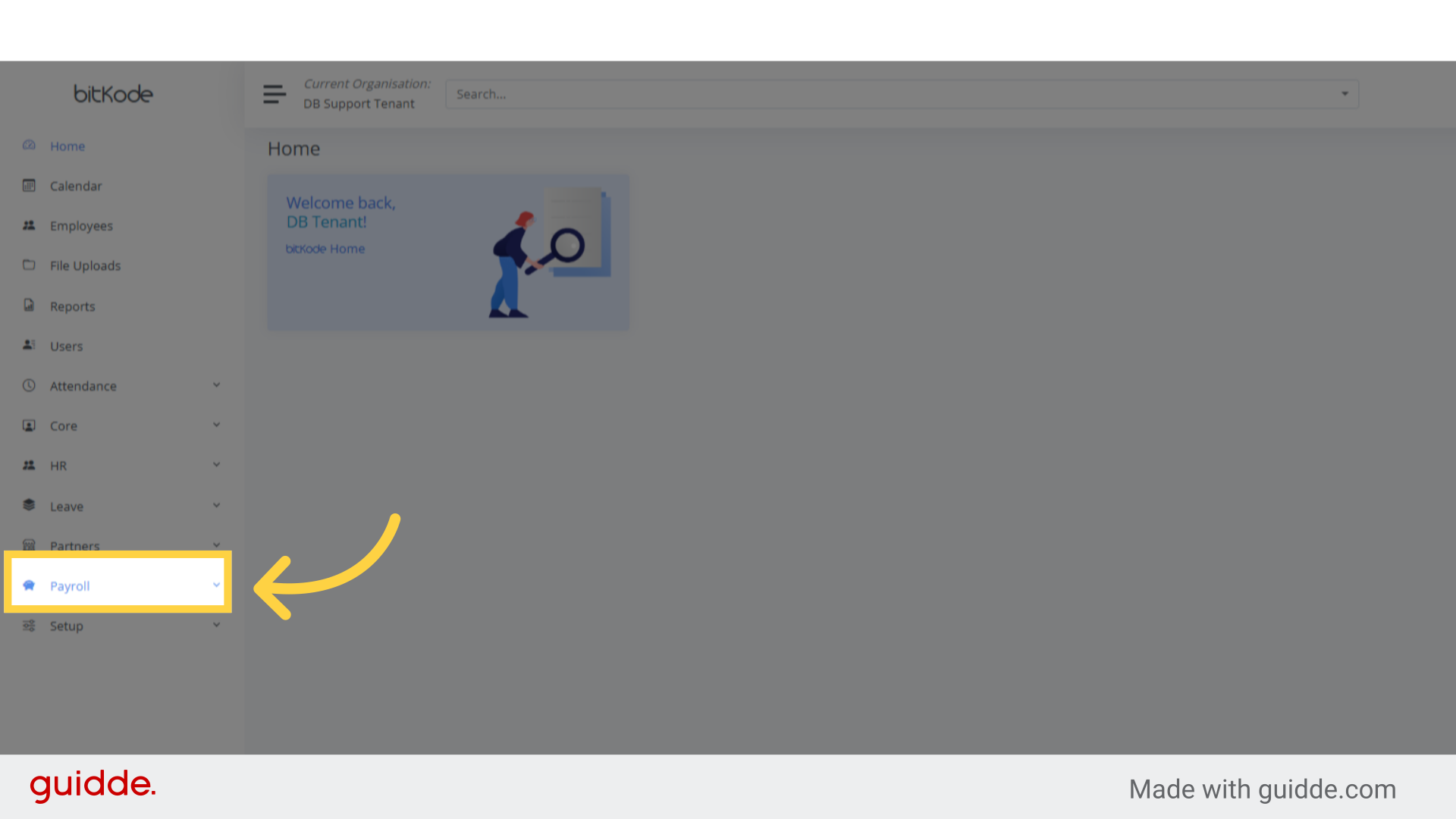
Step 1. Click “Payroll” #
Access the Payroll section.
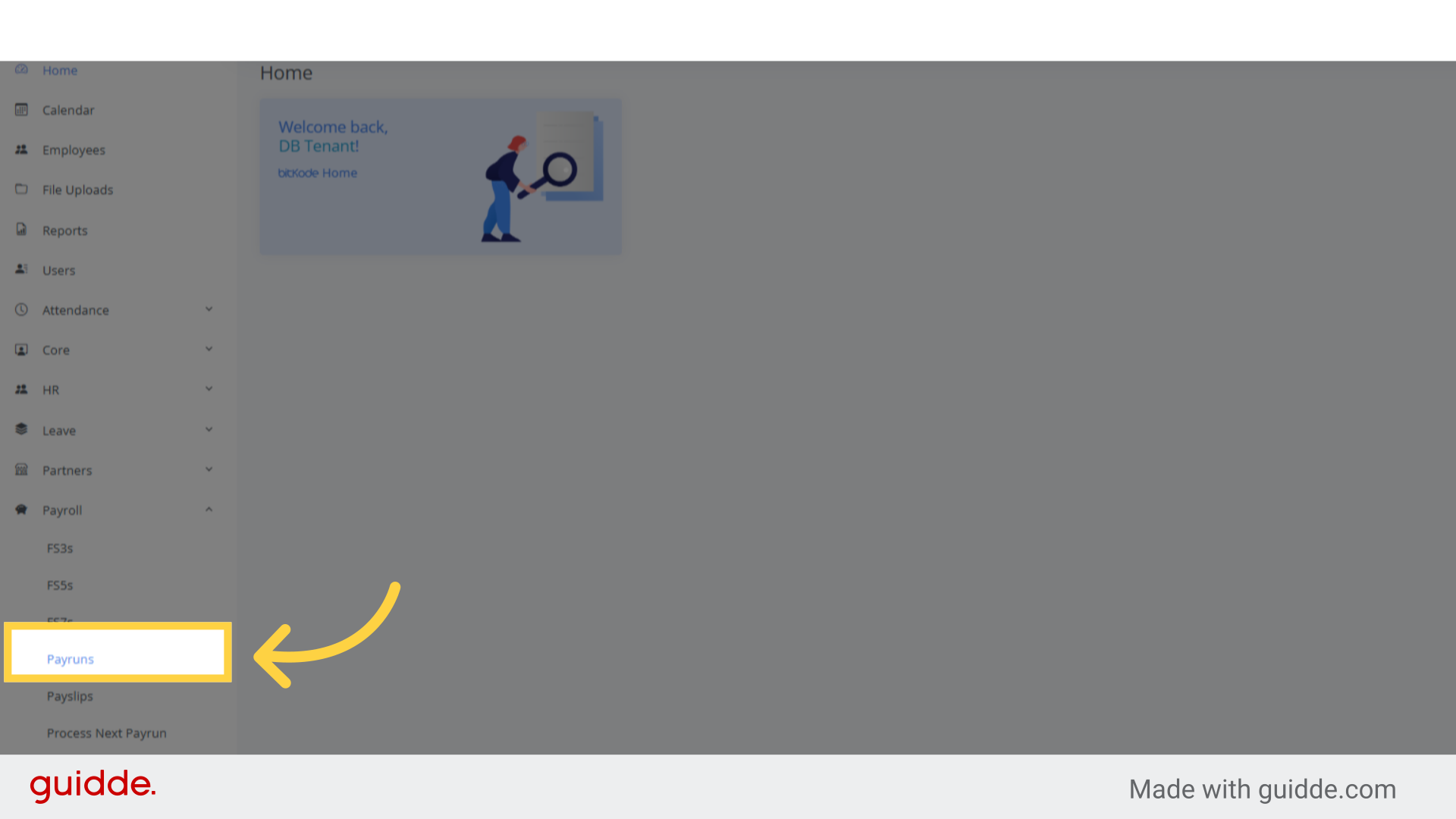
Step 2. Click “Payruns” #
Navigate to Payruns in the menu.
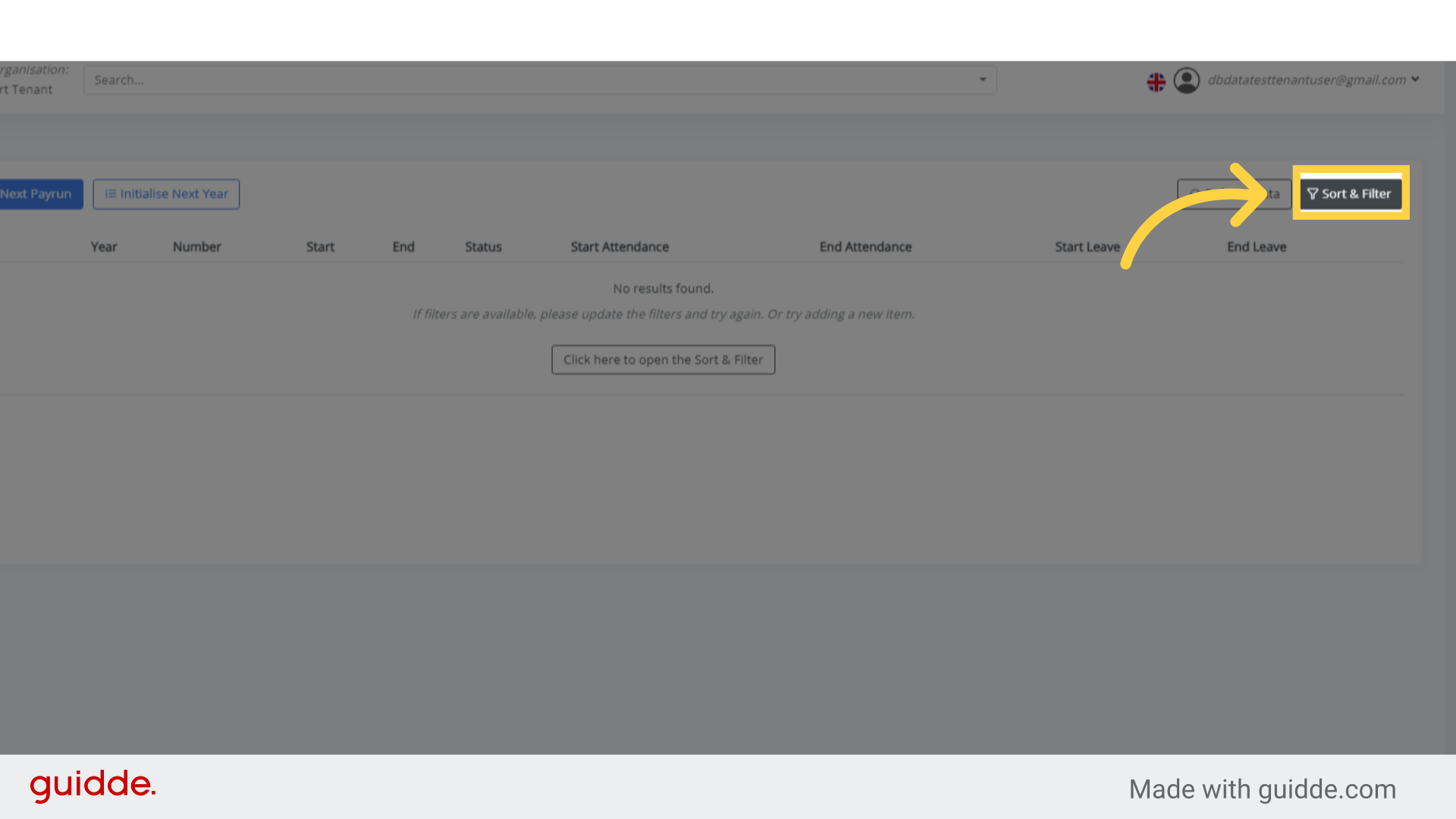
Step 3. Click “Sort & Filter” #
Utilize the Sort & Filter feature.
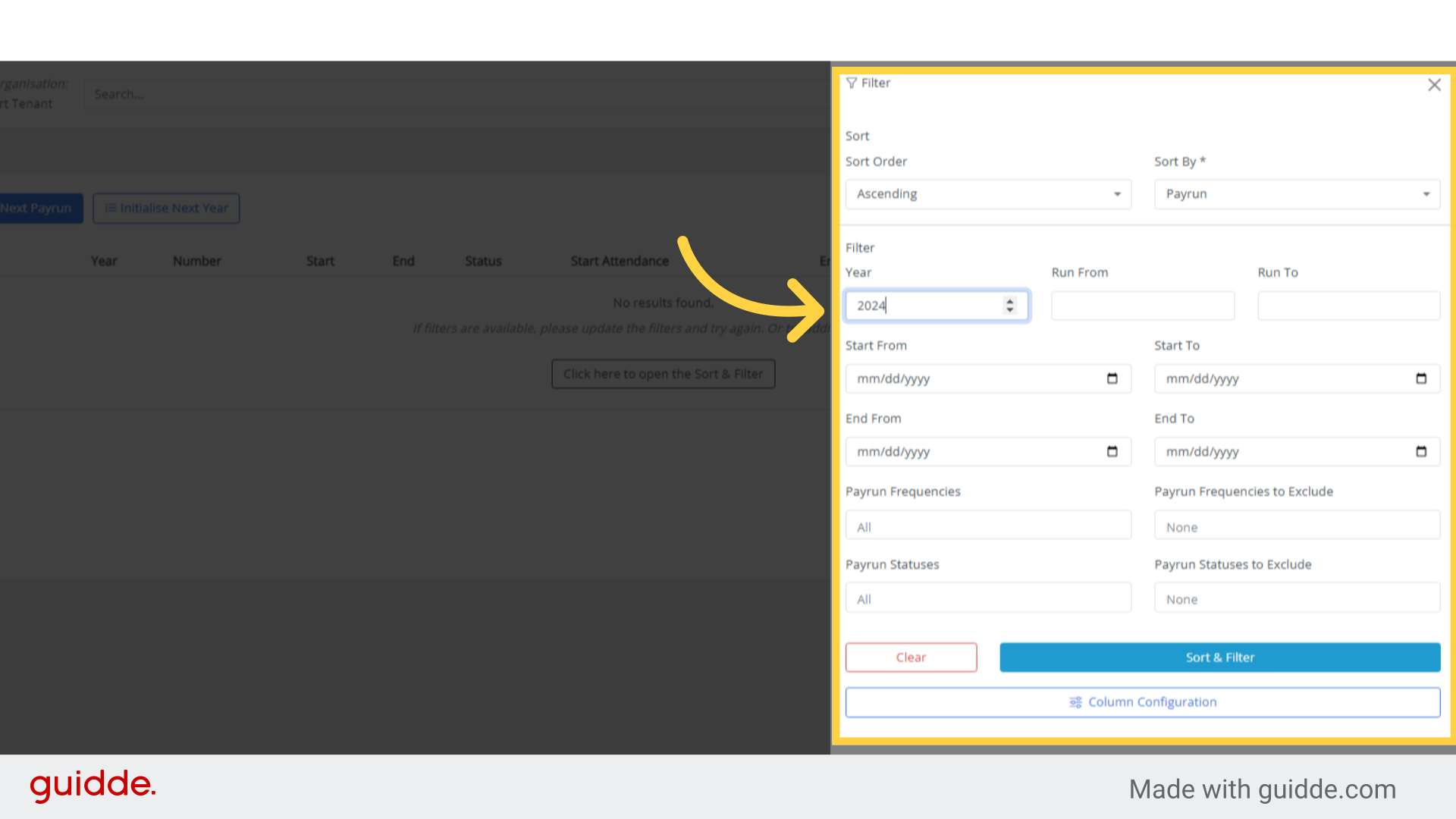
Step 4. Sort & Filter #
Sort and filter the information you want to appear.
For example, if you want to view all pay runs for the year 2024, set the filter to 2024, as the default year will be the current year.
After selecting the required sorting, click “Sort and Filter.”
You can also arrange the columns you would like to see and hide by navigating to the column configuration.
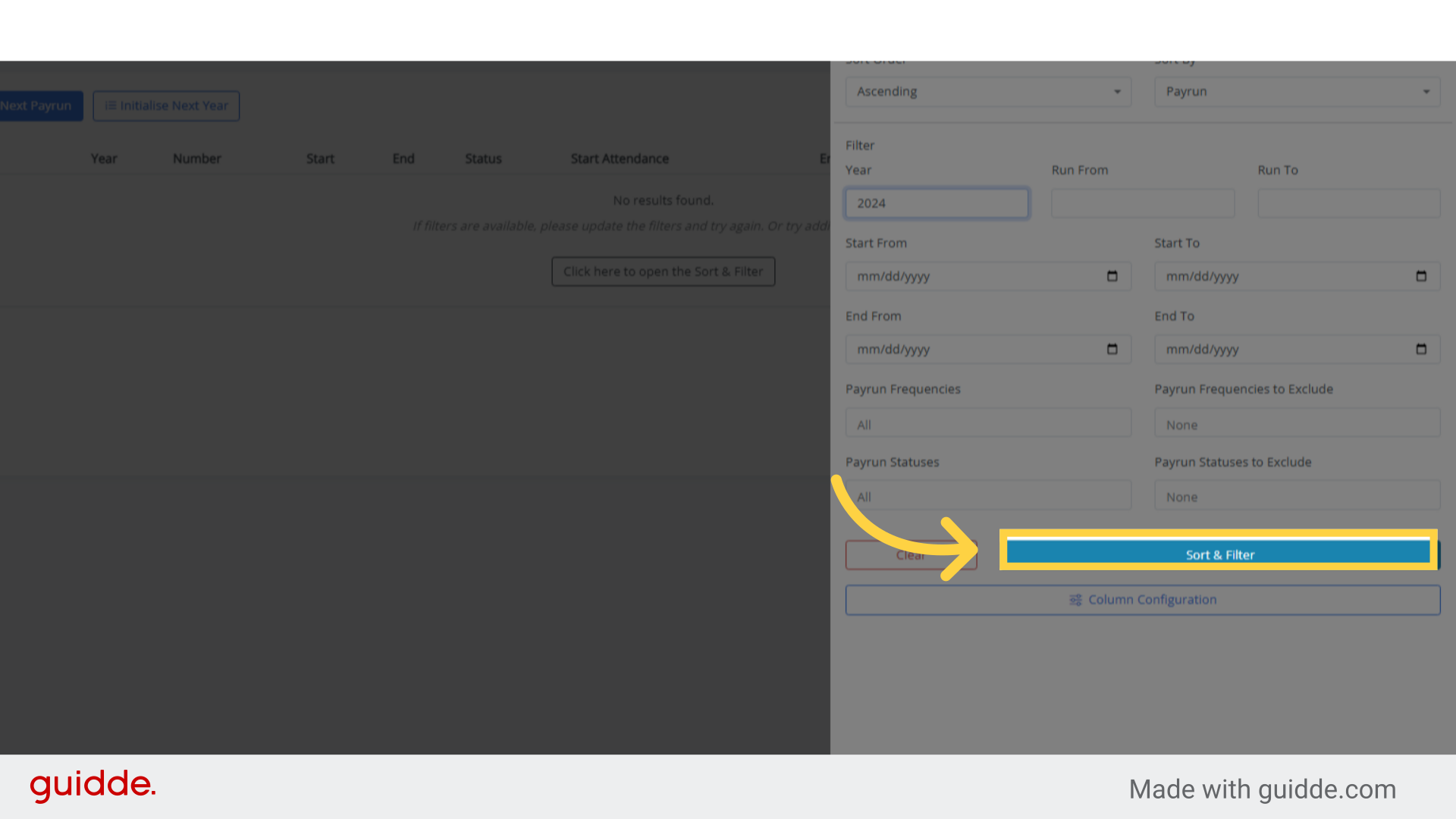
Step 5. Click “Sort & Filter” #
After selecting the required criteria, simply click on “Sort and Filter” for the pay run history to be displayed.
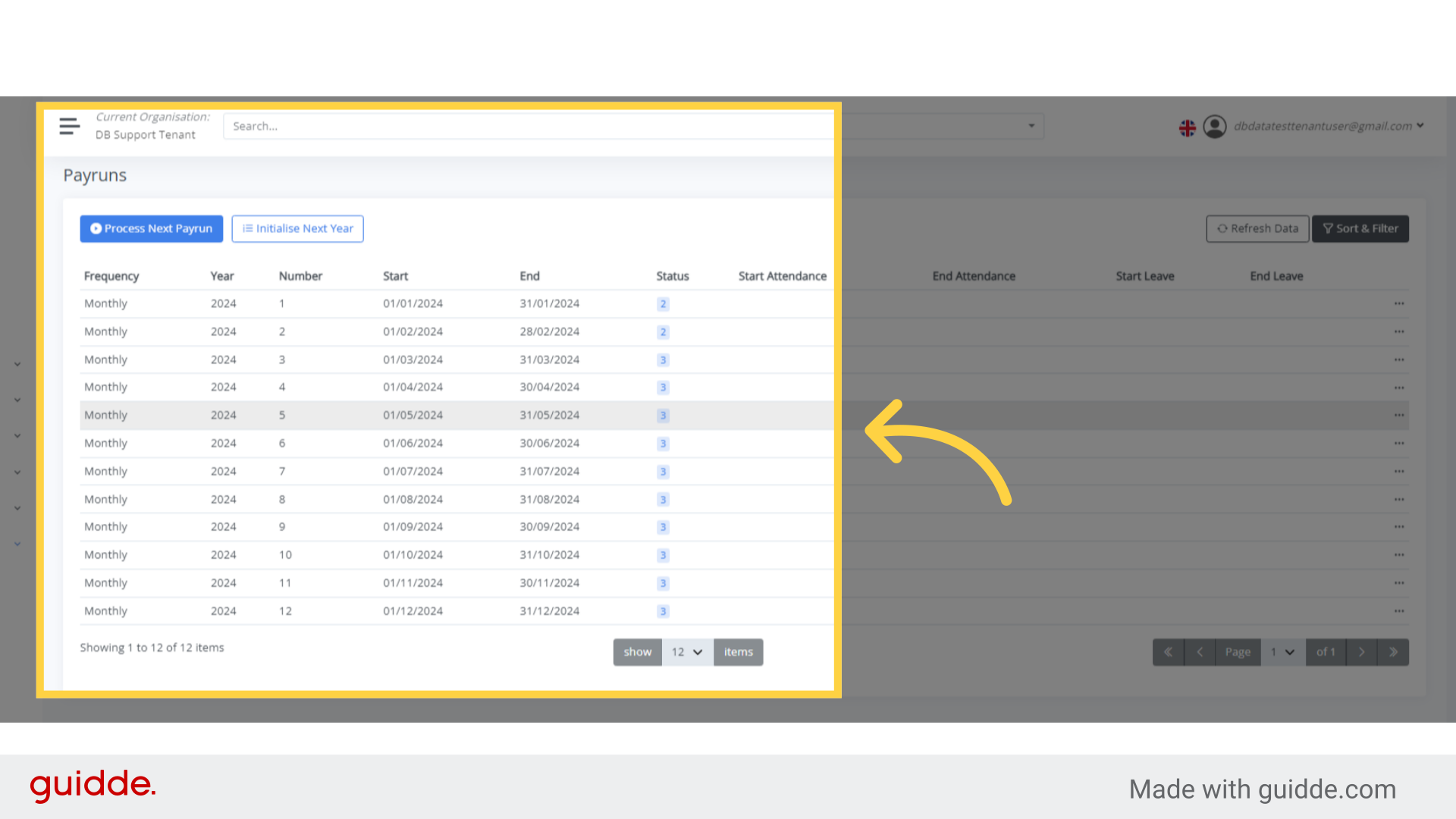
Step 6. Click here #
As you can see, the page displaying all pay runs for the year 2024 is now visible.
To access each pay run, please proceed to the next slide.
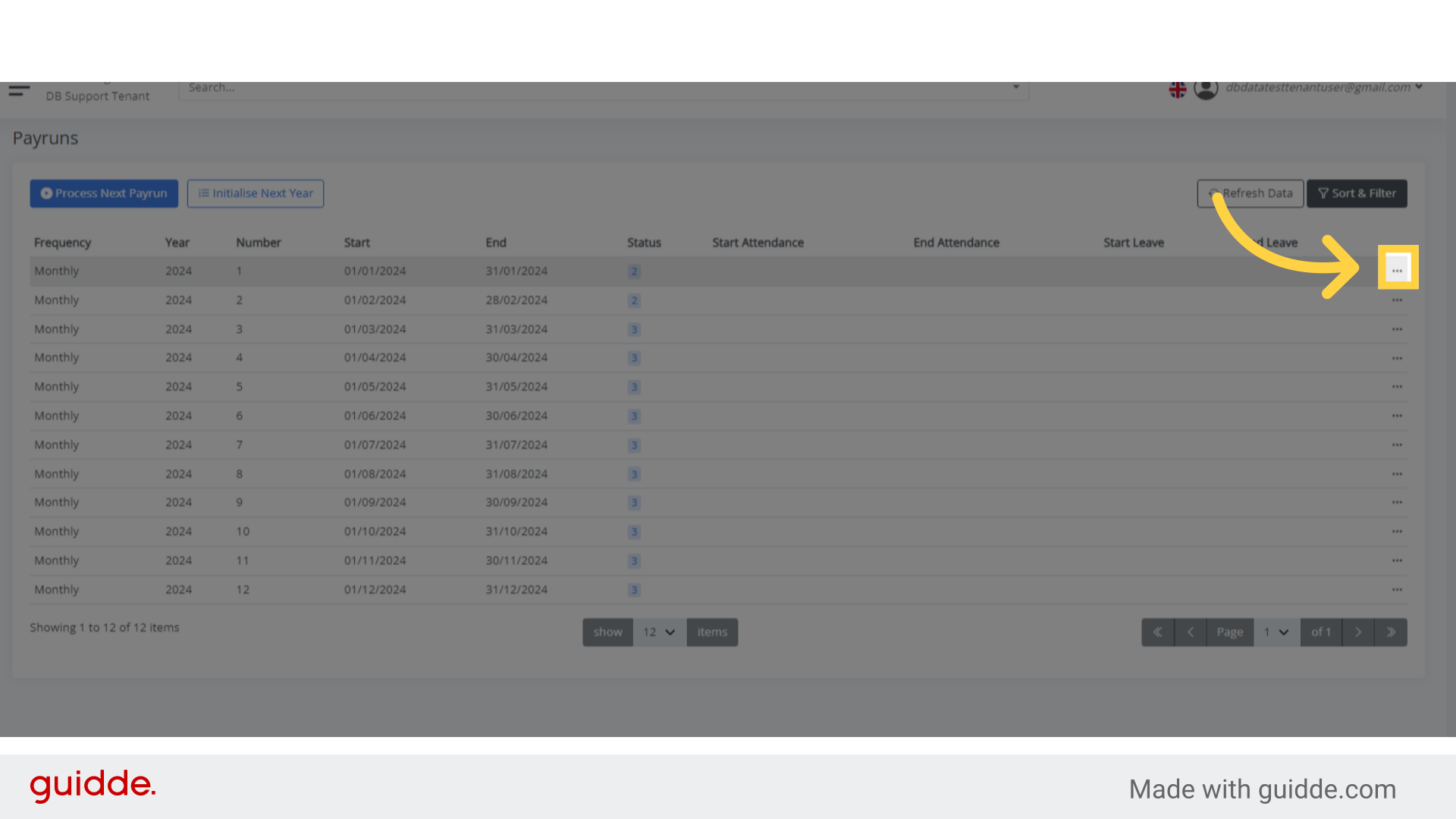
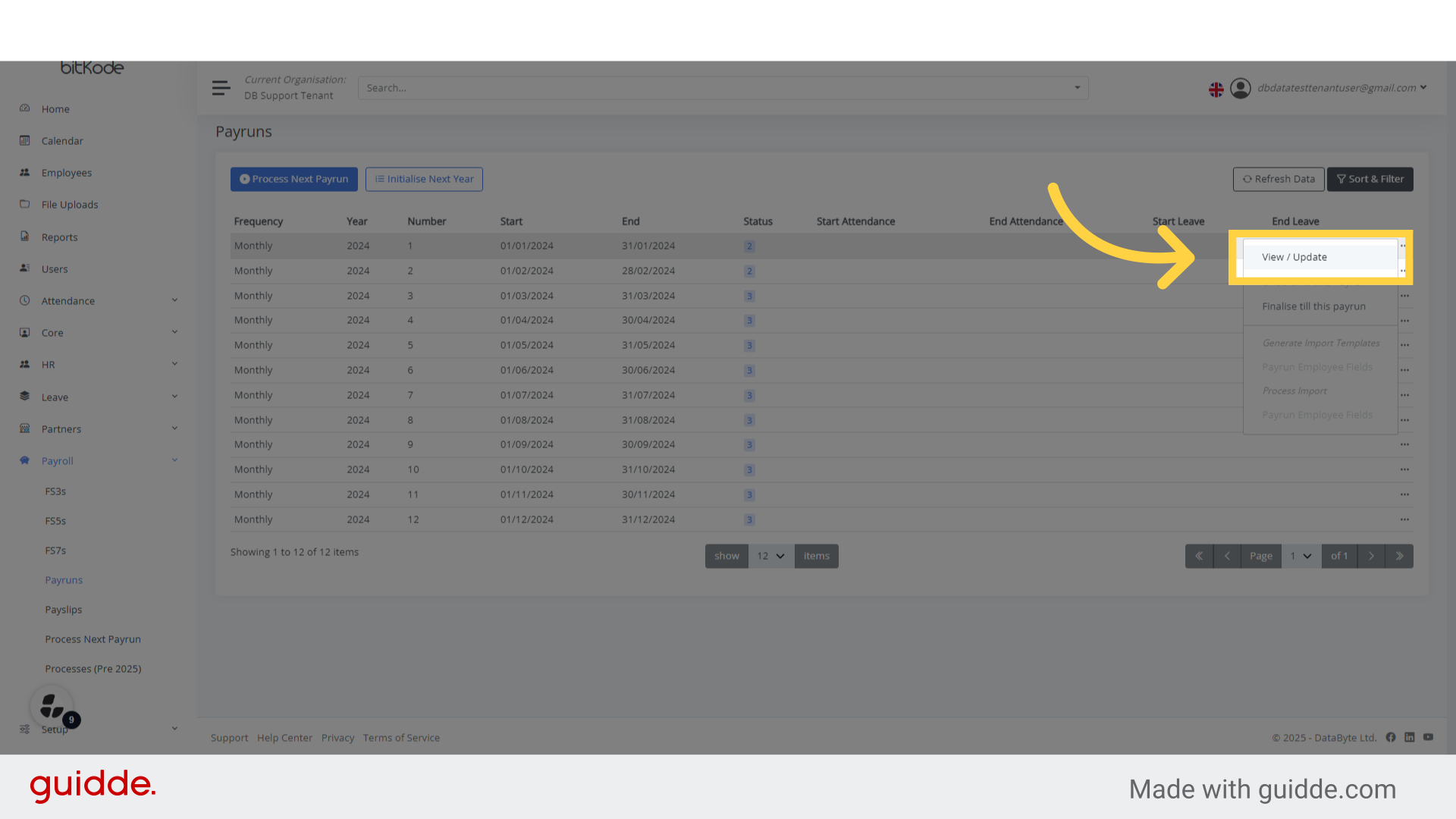
Step 7. Click the three dots #
To access a pay run, click on the three dots next to the pay run you want to view.
Step 8. Click “View / Update” #
After clicking on the three dots, you will be prompted with the “View and Update” option.
Simply click on it to access the pay run.
Step 9. Click “Details” #
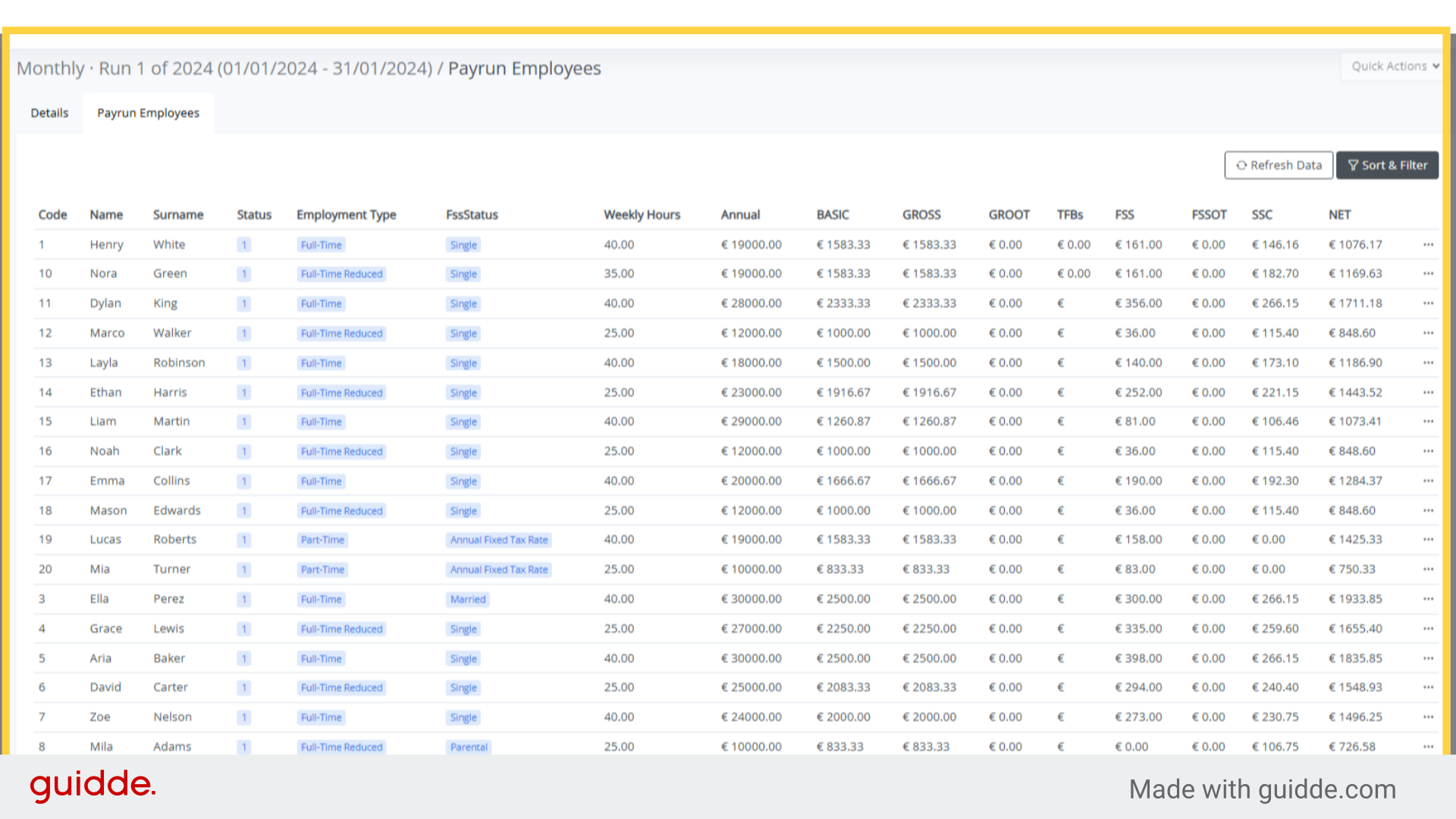
As you can see, the pay run has been accessed.
Follow the same process if you wish to view other historical pay runs.