Table of Contents
- This guide will walk you through adjusting National Insurance in Bitkode.
- Step 1. Click "View / Update"
- Step 2. Click on the employee
- Step 3. Click "N.I. Payments
- Step 4. Select the Mondays
- Step 5. Click "Delete"
- Step 6. Deleted
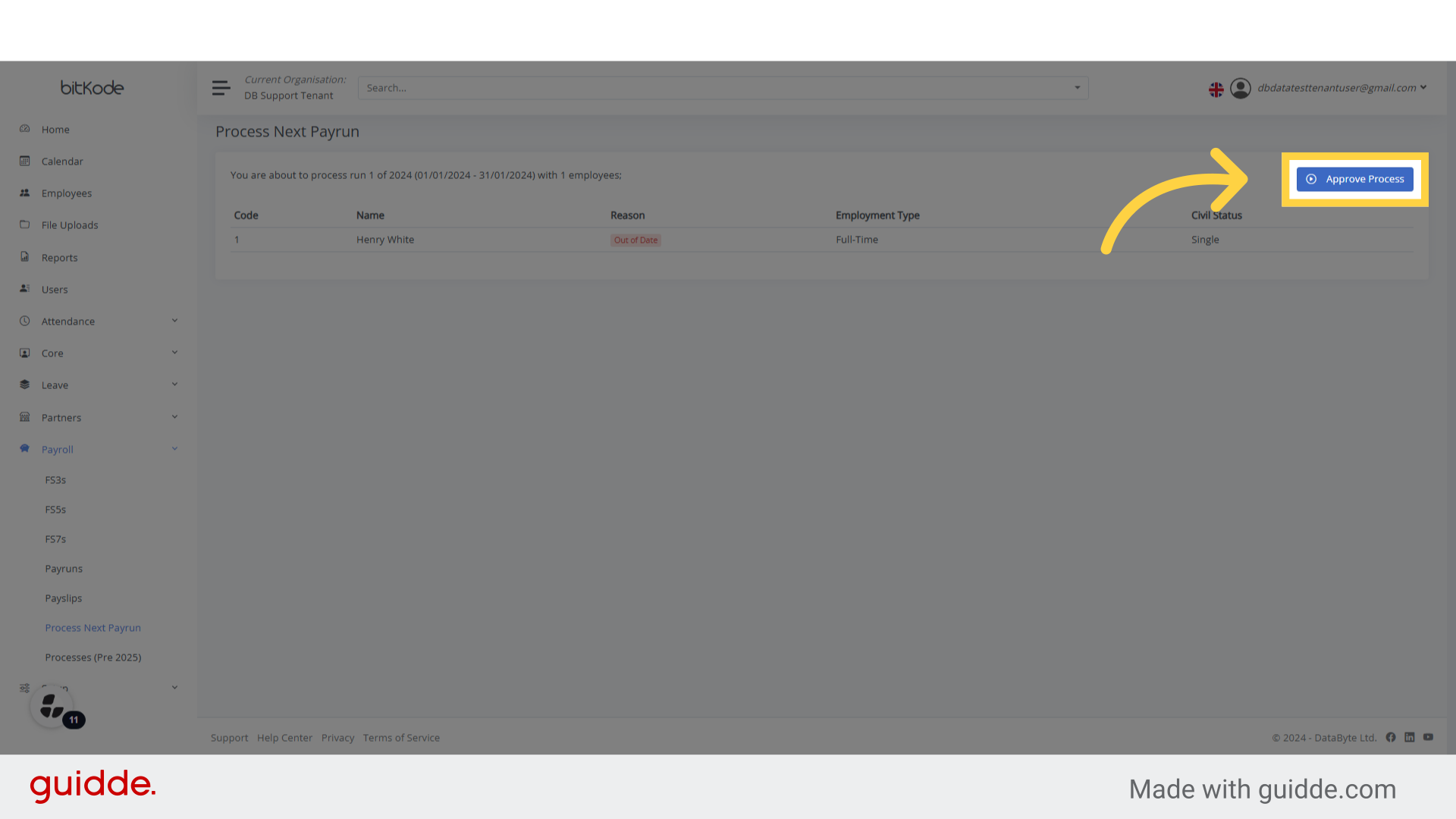
- Step 7. Click "Click here to go to process page."
- Step 8. Click "Approve Process"
This guide will walk you through adjusting National Insurance in Bitkode. #
bitKode Payroll automatically determines the employee’s National Insurance Category and Amount based on their Basic Salary and Date of Birth.
Additionally, you can select the specific Mondays on which N.I. will not be deducted.
To access the processed payroll, click on the three dots.
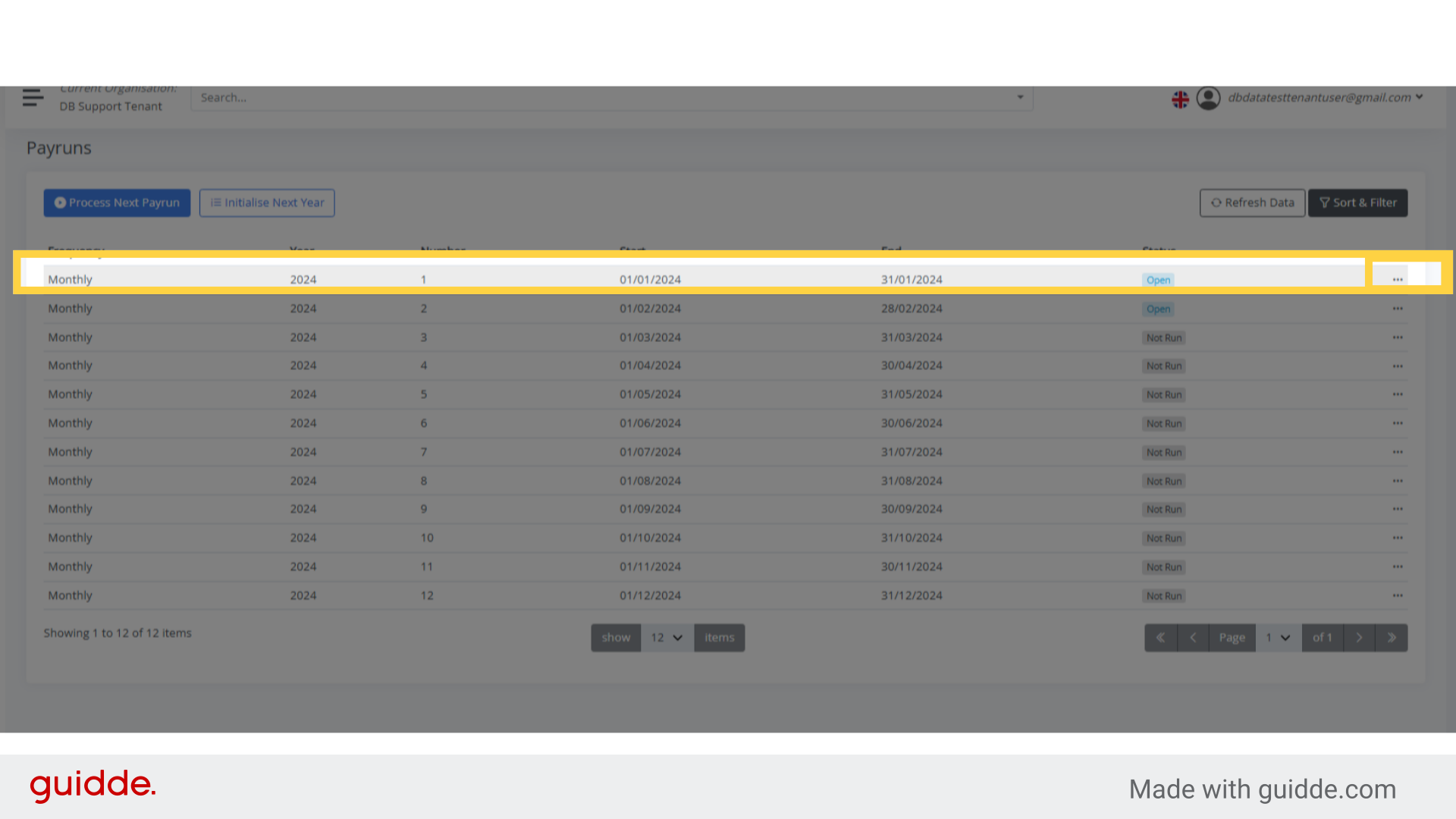
Step 1. Click “View / Update” #
Navigate to the specific section, by clicking on view update option.
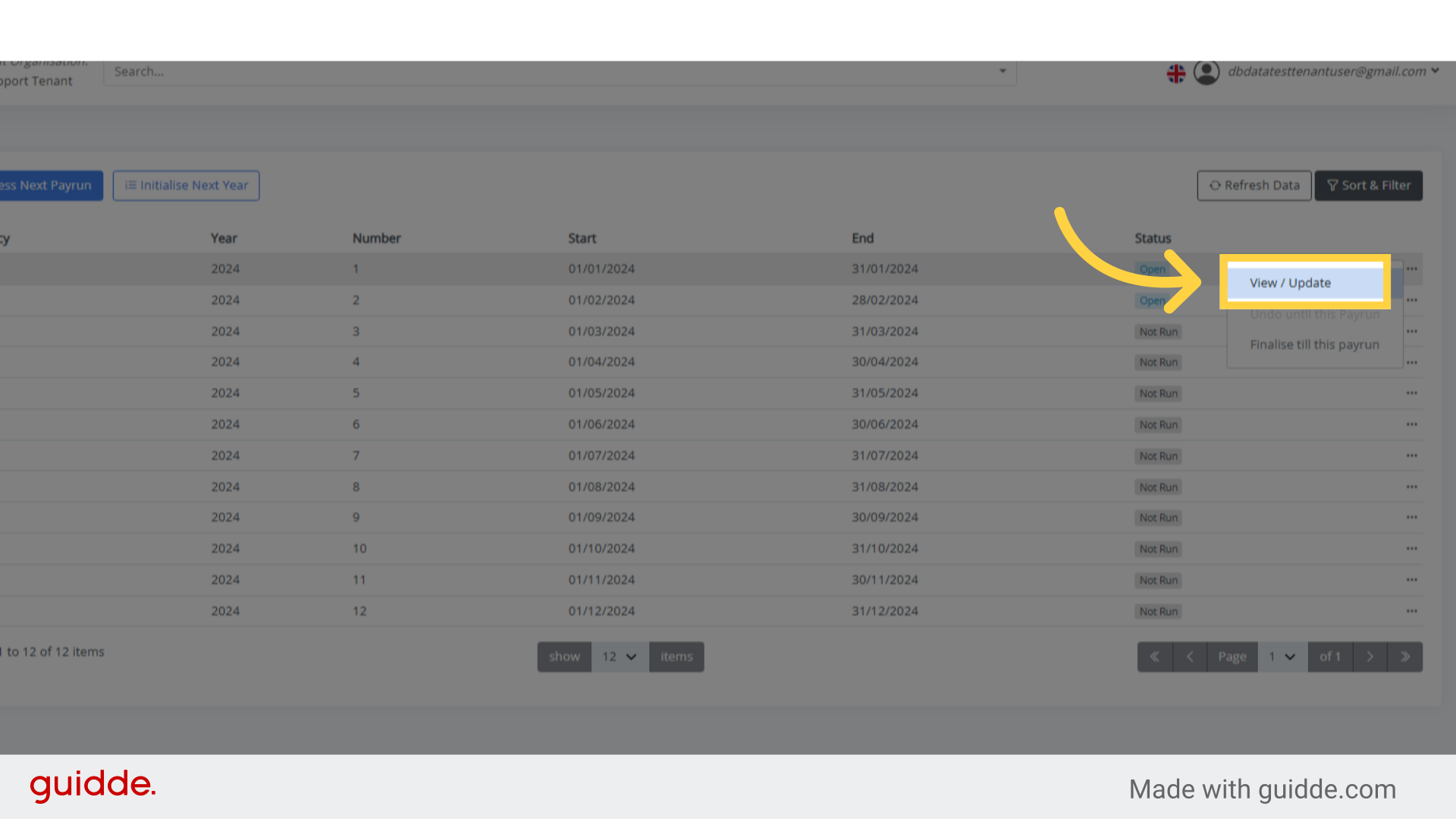
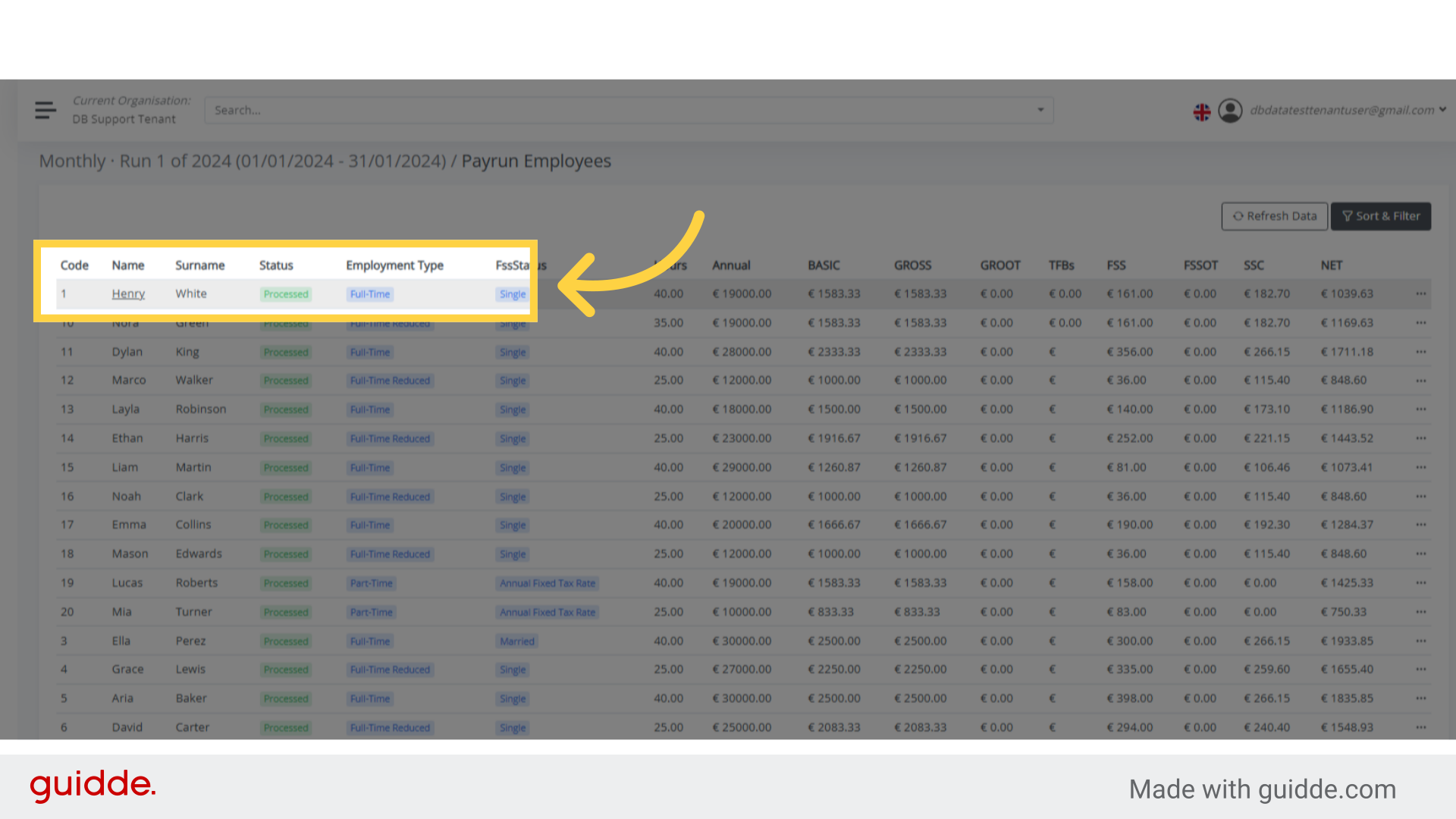
Step 2. Click on the employee #
After processing your payroll, select the employee.
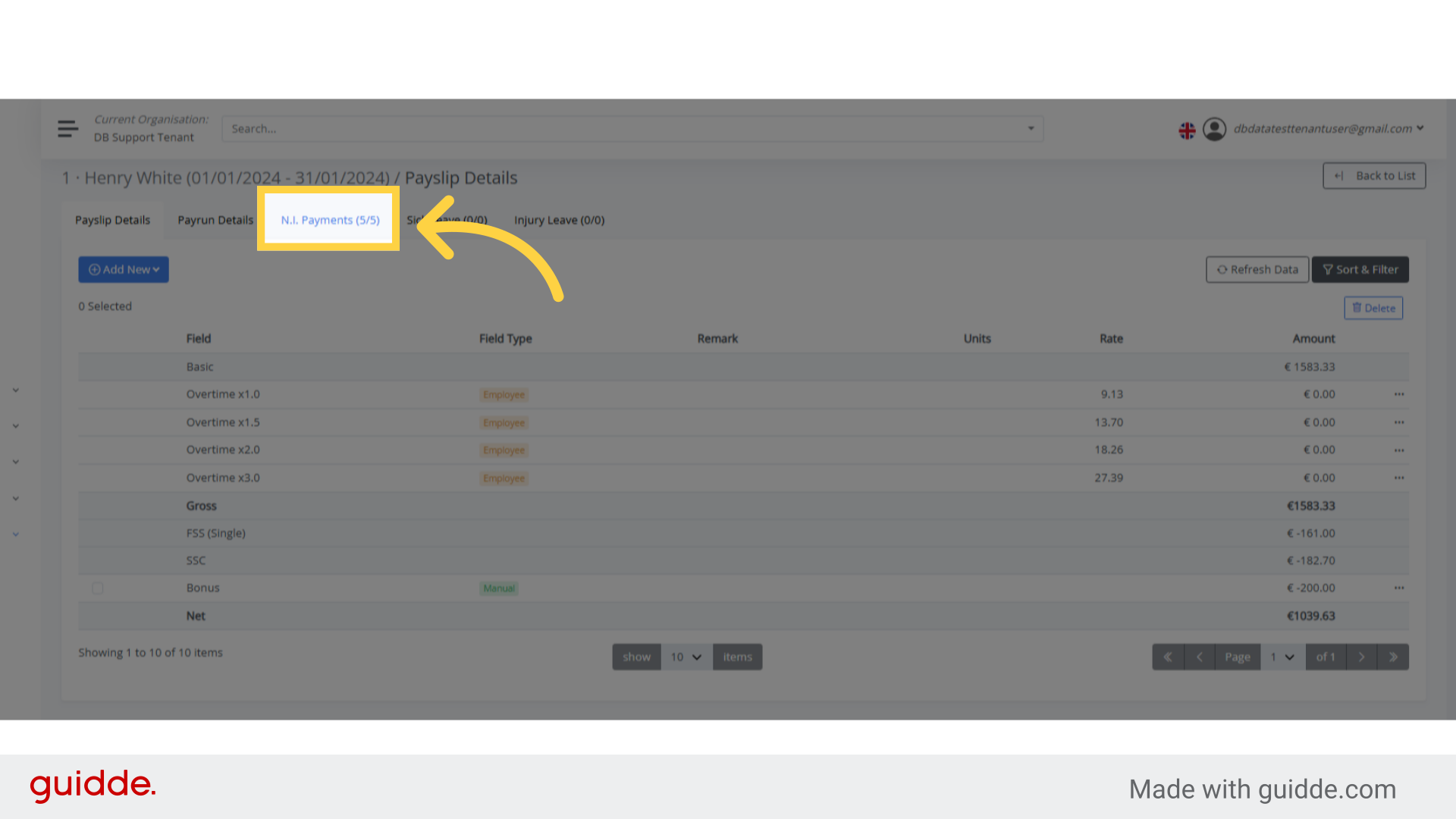
Step 3. Click “N.I. Payments #
Access the National Insurance payment section.
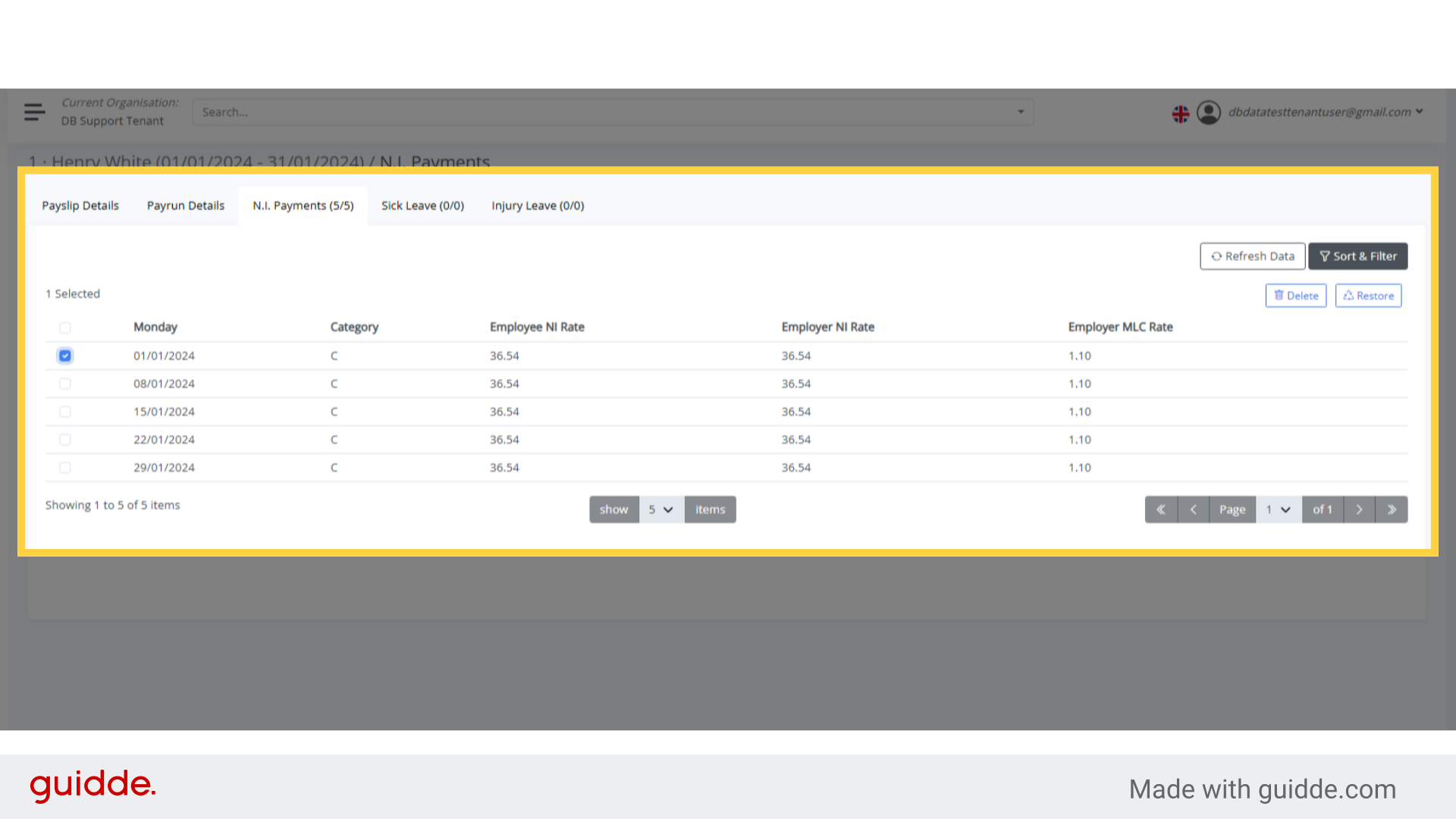
Step 4. Select the Mondays #
Select the Mondays on which N.I will not be deducted by clicking the checkbox next to the date.
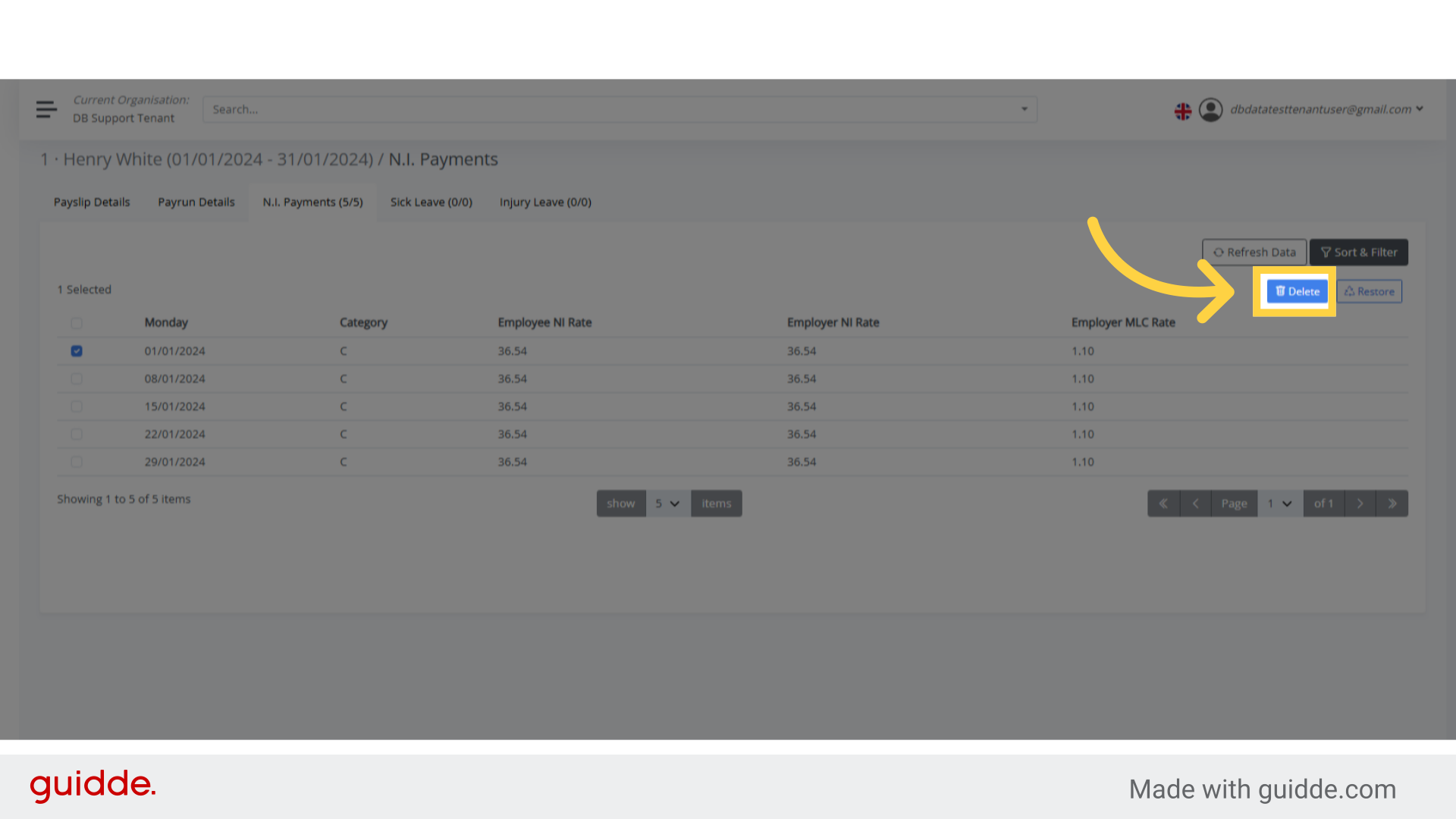
Step 5. Click “Delete” #
Remove selected data by clicking on the delete field.
Note: Any deleted NI’s can be restore and added back to the payrun.
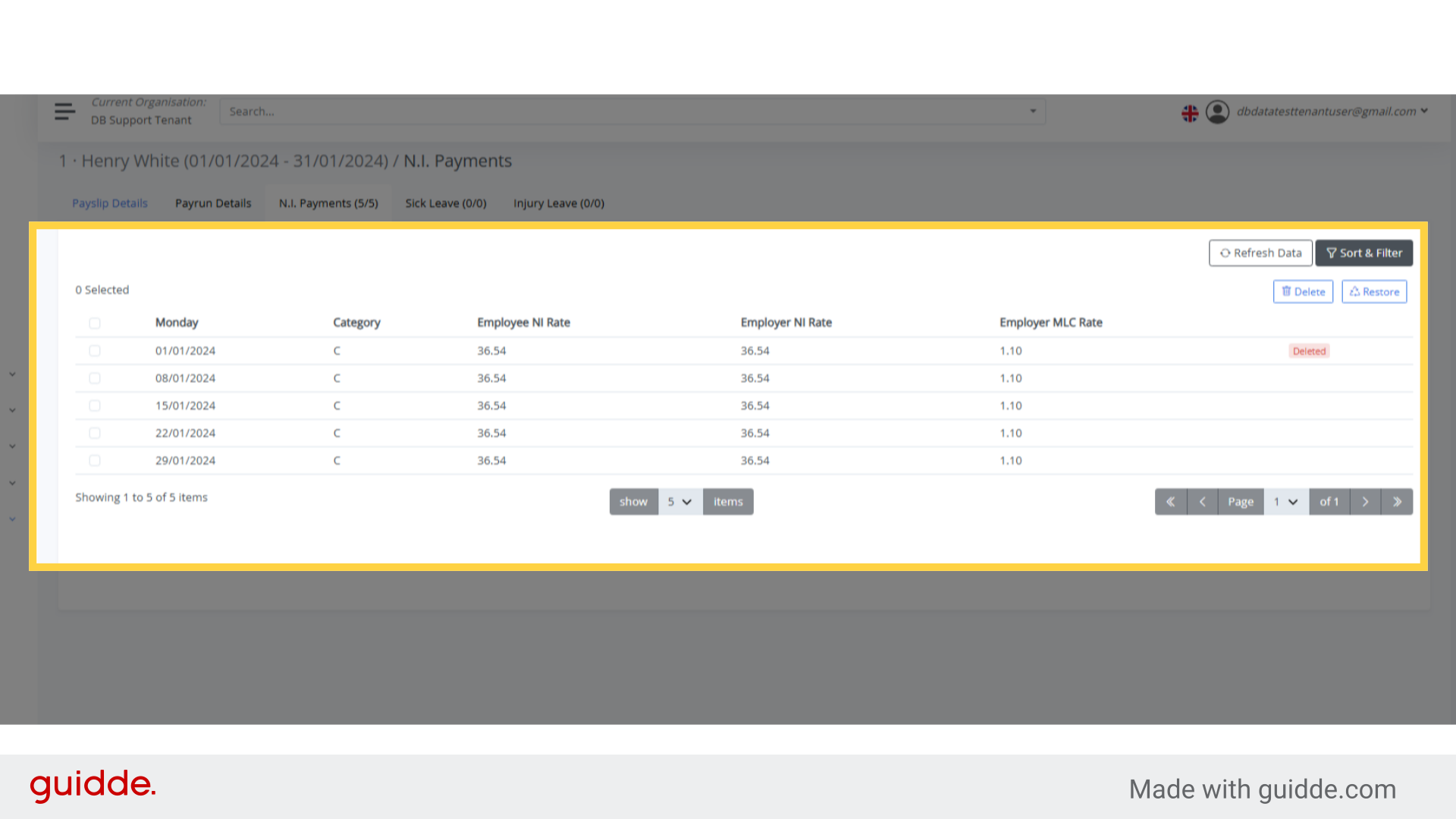
Step 6. Deleted #
At this stage, you will notice that the chosen Monday has been deleted.
However, for this change to take place, the employee must be reprocessed.
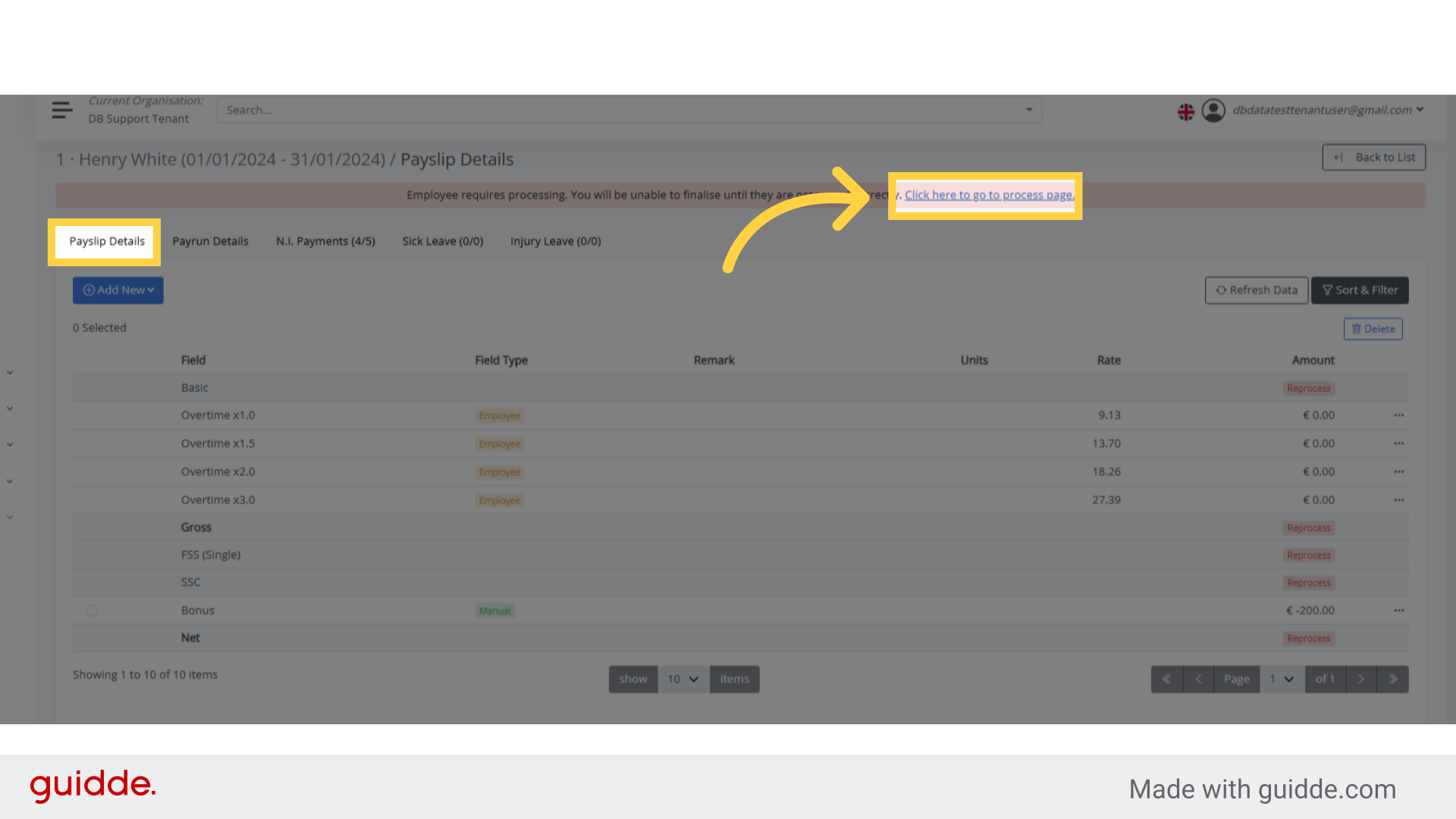
Step 7. Click “Click here to go to process page.” #
After returning to the payslip details for the employee, you will notice that you need to reprocess this pay run as indicated in the image
Step 8. Click “Approve Process” #
Approve process and, after approving the process, you can navigate back to the employee to see that the chosen Monday has been deducted from the payslip.
You can then proceed to finalize the pay run by following the guide ‘How do I finalize pay run.