
Table of Contents
- This guide will walk you through the process of adding manual payroll adjustments in bitKode.
- Step 1. Click on employee
- Step 2. Click "Add New"
- Step 3. Select either "Amount" or "Rate."
- Step 4. Choose the custom Payroll Field
- Step 5. Payroll Field
- Step 6. Click "Save"
- Step 7. Approve Process
- Step 8. Employee's Payslip
- Step 9. Click the three dots ...
- Step 10. Click "View / Update"
- Step 11. Save and Approve Process again
This guide will walk you through the process of adding manual payroll adjustments in bitKode. #
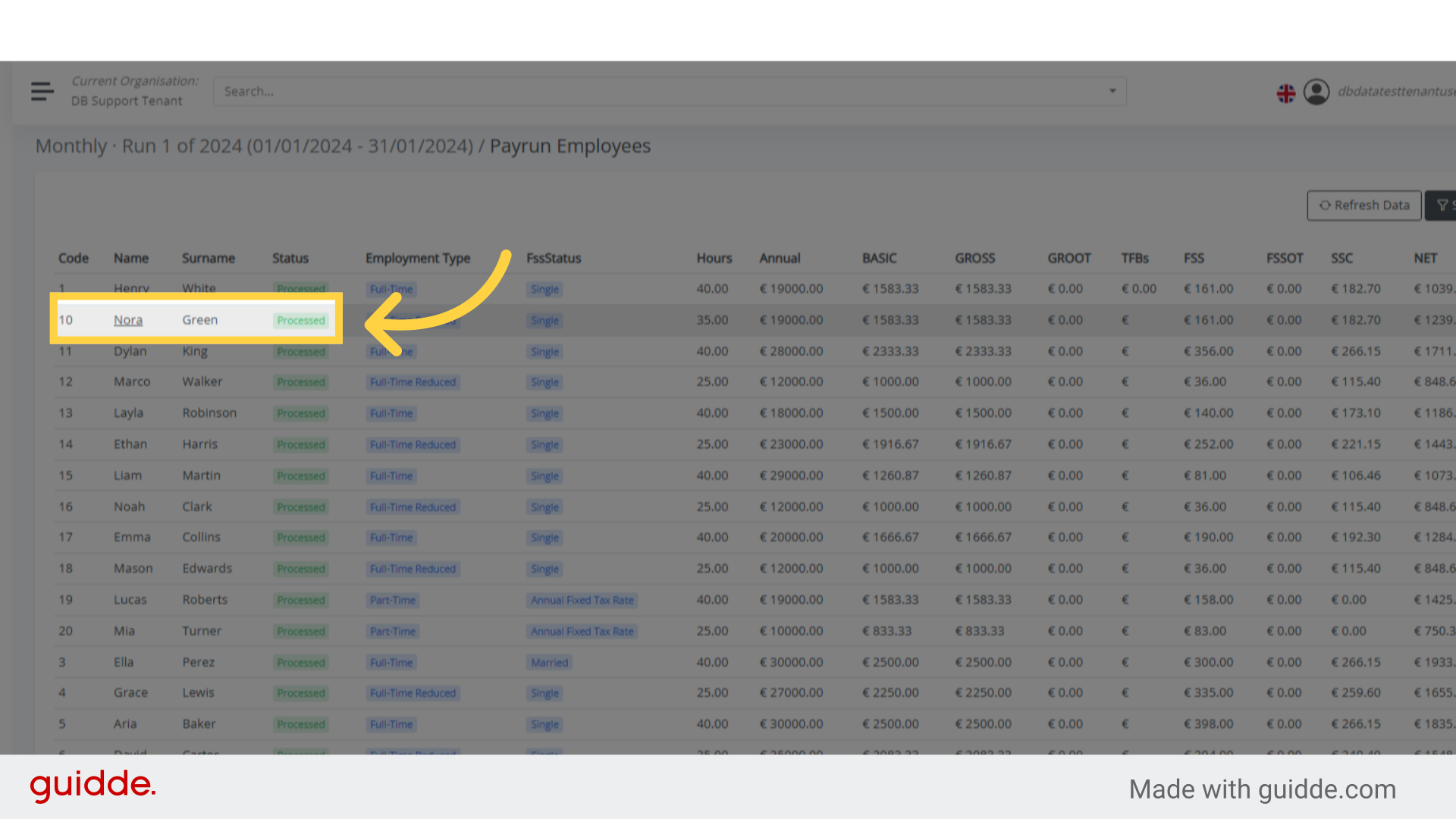
Step 1. Click on employee #
After processing your payroll, you can make adjustments to an employee by clicking on the employee you want to add a manual adjustment for.
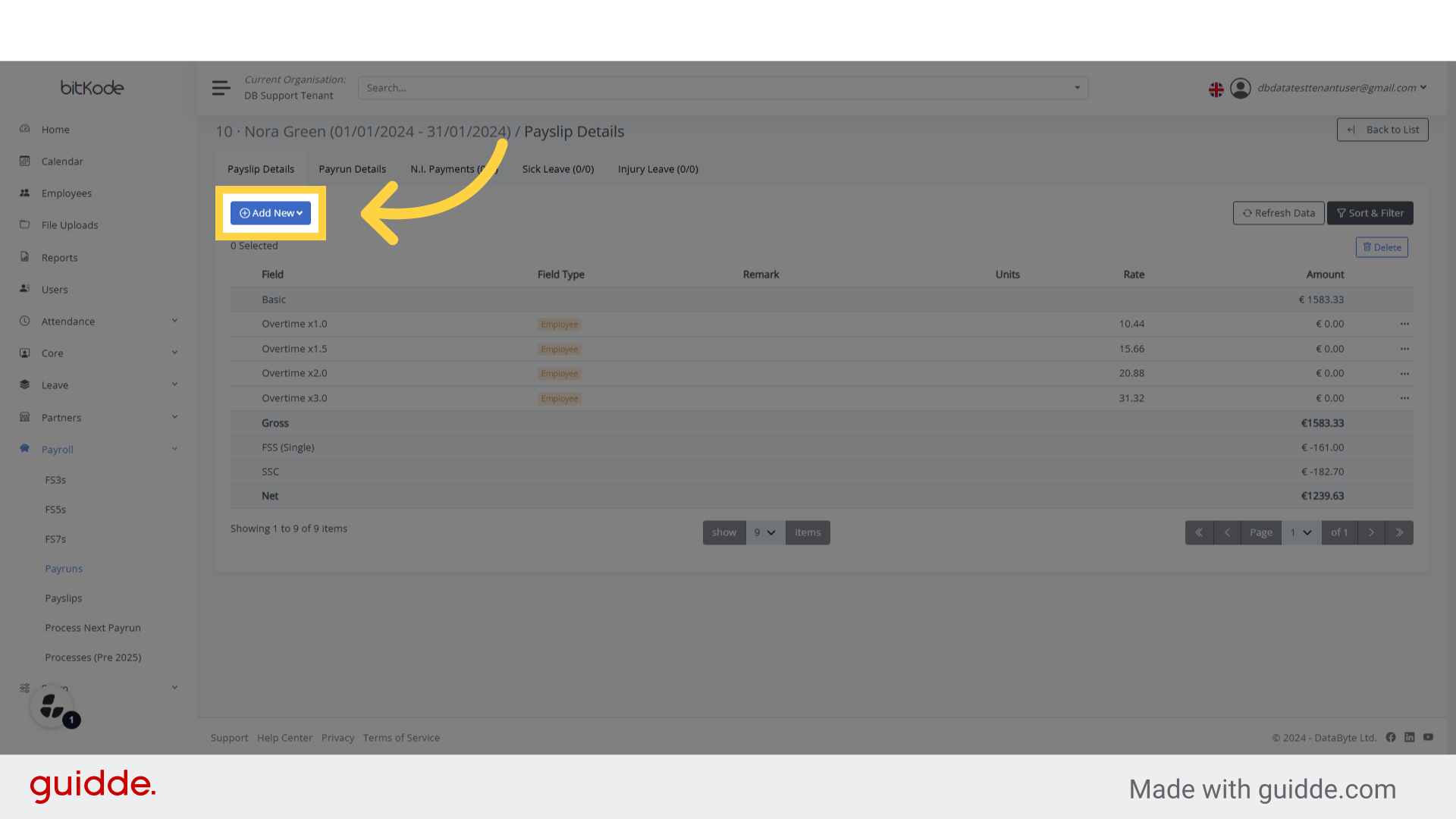
Step 2. Click “Add New” #
At this stage, you are in the processed run for that employee.
To add an adjustment, click on “Add New.”
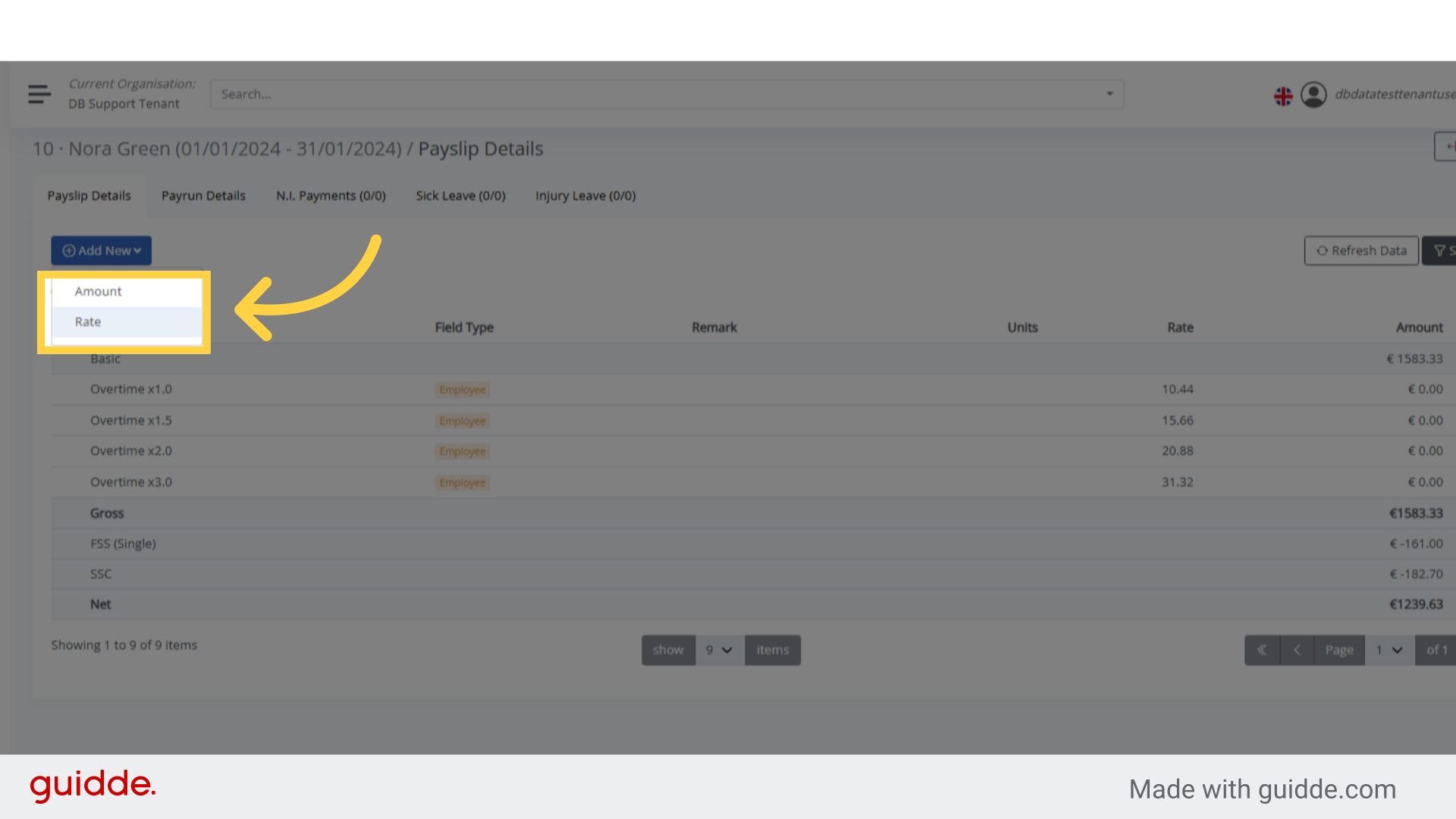
Step 3. Select either “Amount” or “Rate.” #
- If you choose Rate, the Amount (€) will be calculated automatically.
- If you choose Amount (€) the amount will be listed accordingly.
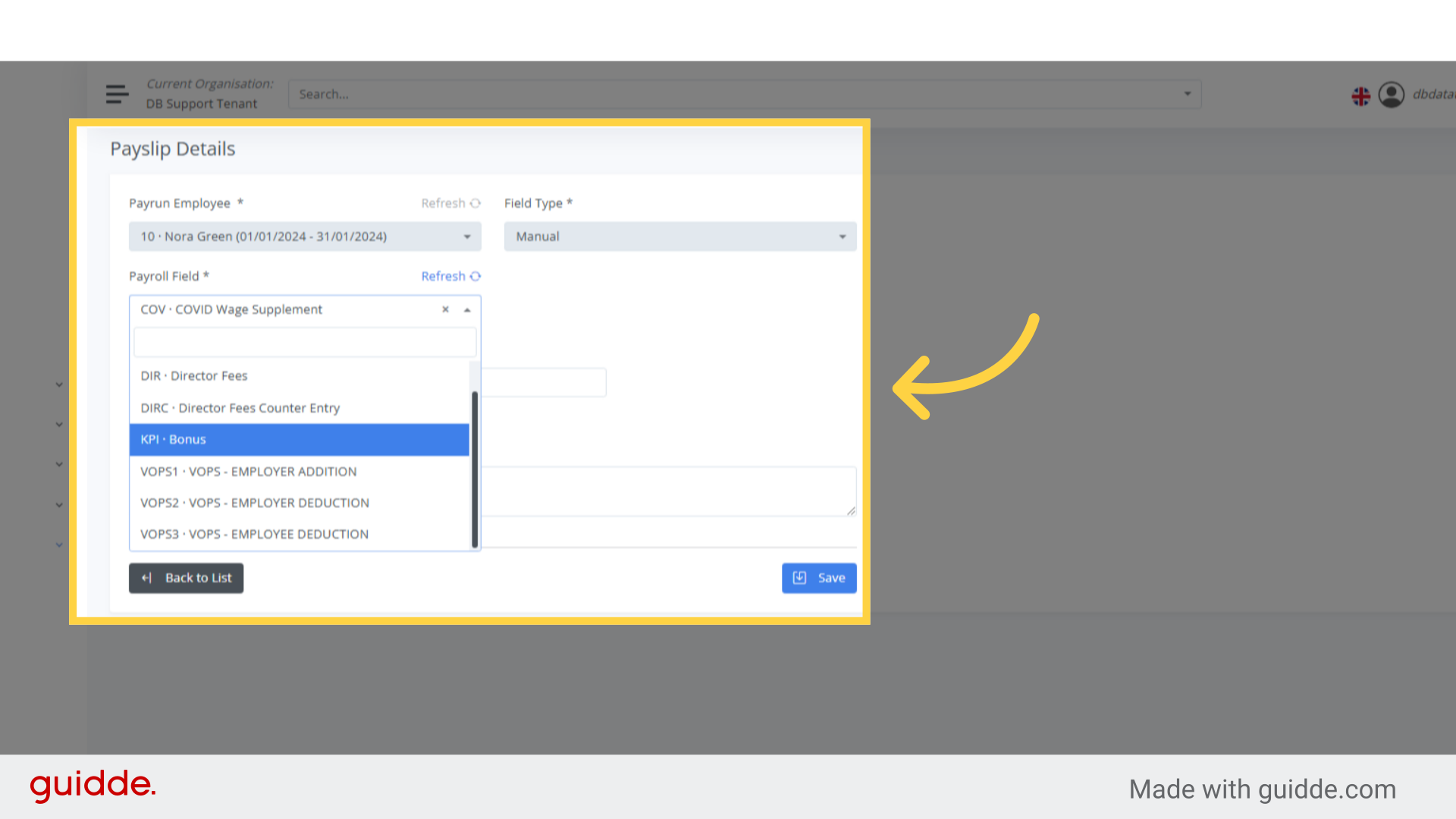
Step 4. Choose the custom Payroll Field #
Choose a payroll field.
Remember, this field must be created before processing payroll by following article;
How do I add custom payroll fields to appear on generated payslips?
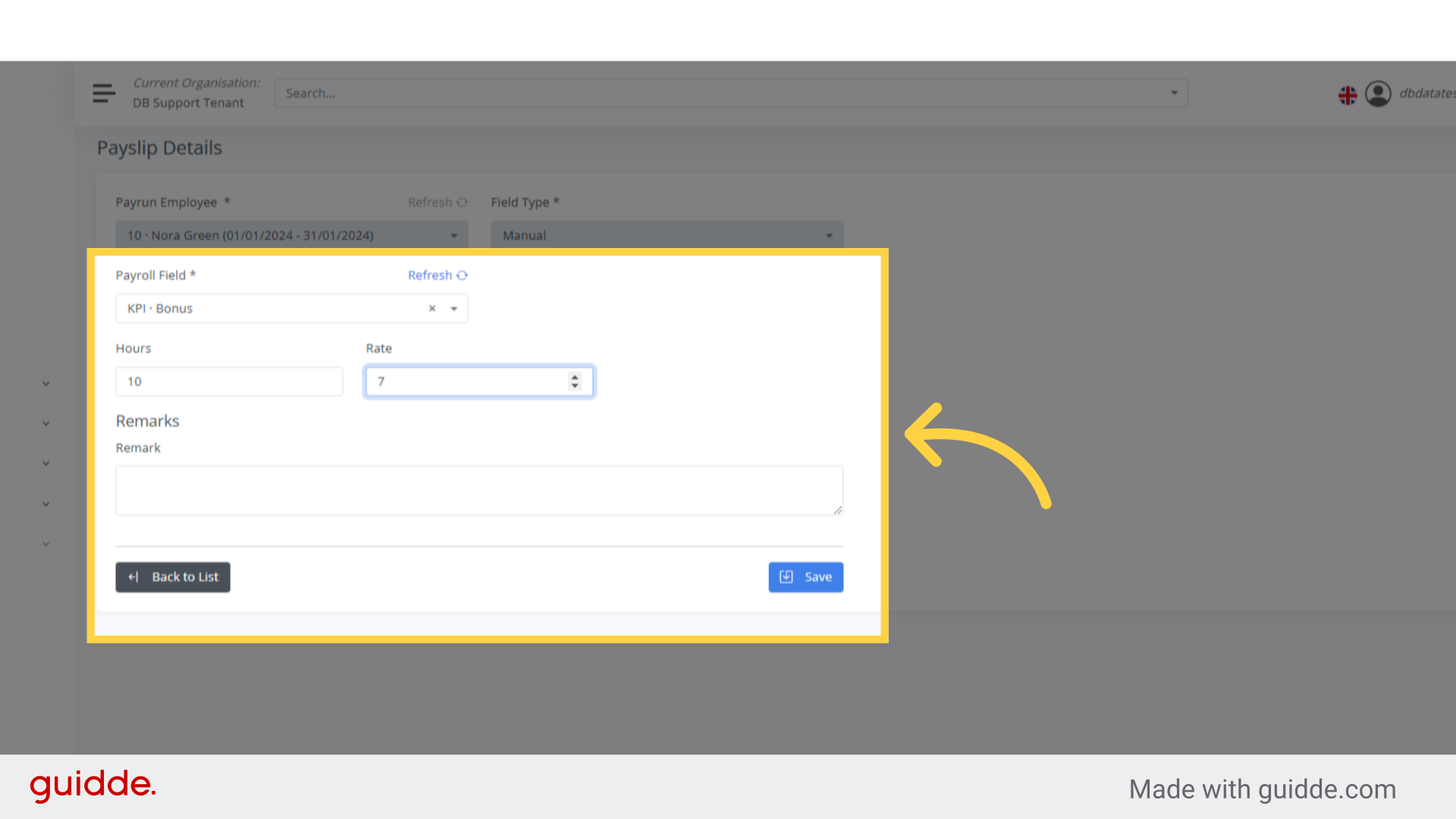
Step 5. Payroll Field #
Since “Rate” was chosen, you need to list the hours and rate.
As mentioned previously, the Amount (€) will be calculated automatically if rate is choosen.
You can also add a remark to be viewed on the employee’s payslip for the manual adjustment added.
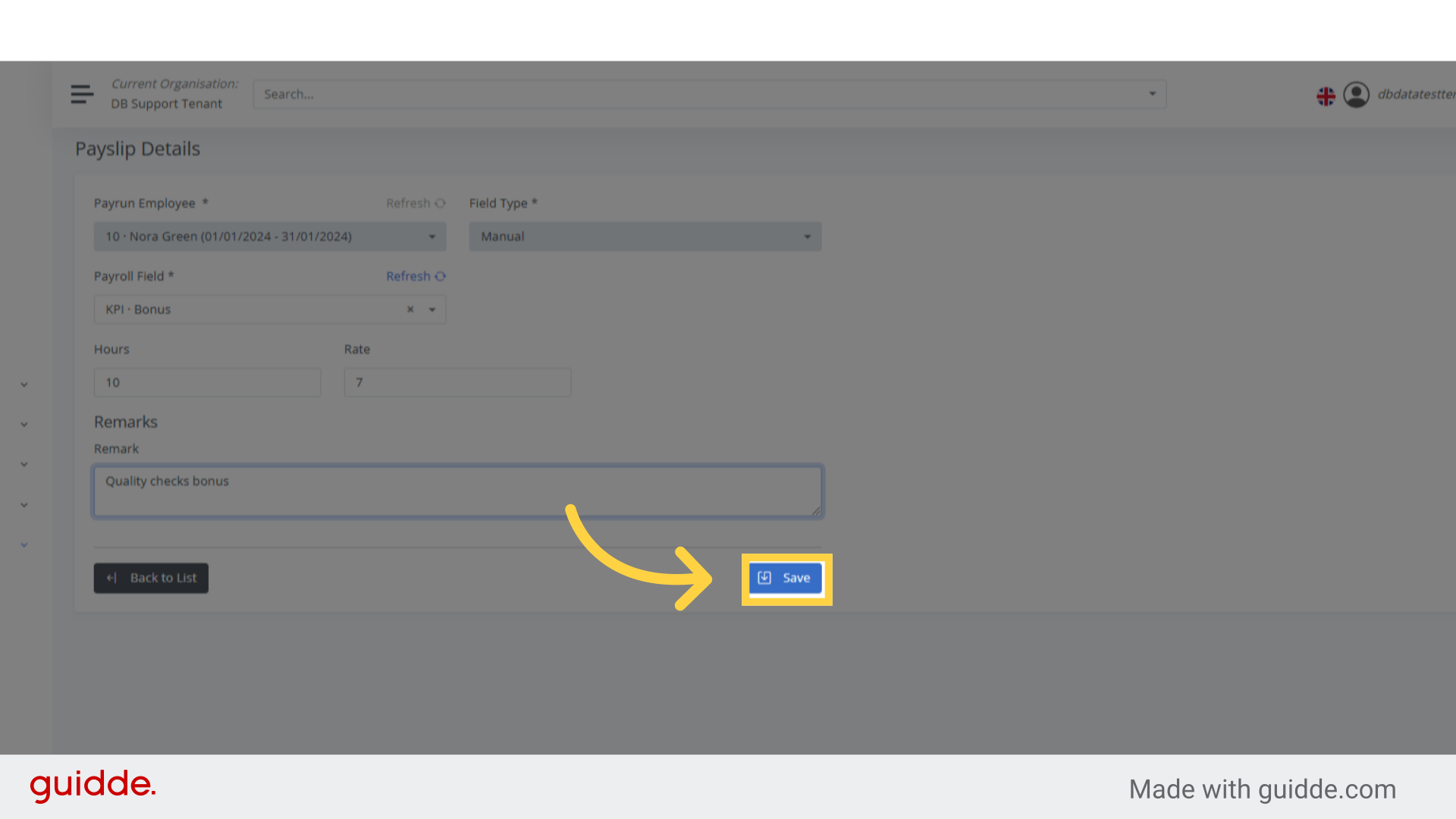
Step 6. Click “Save” #
Save the manual payroll adjustment.
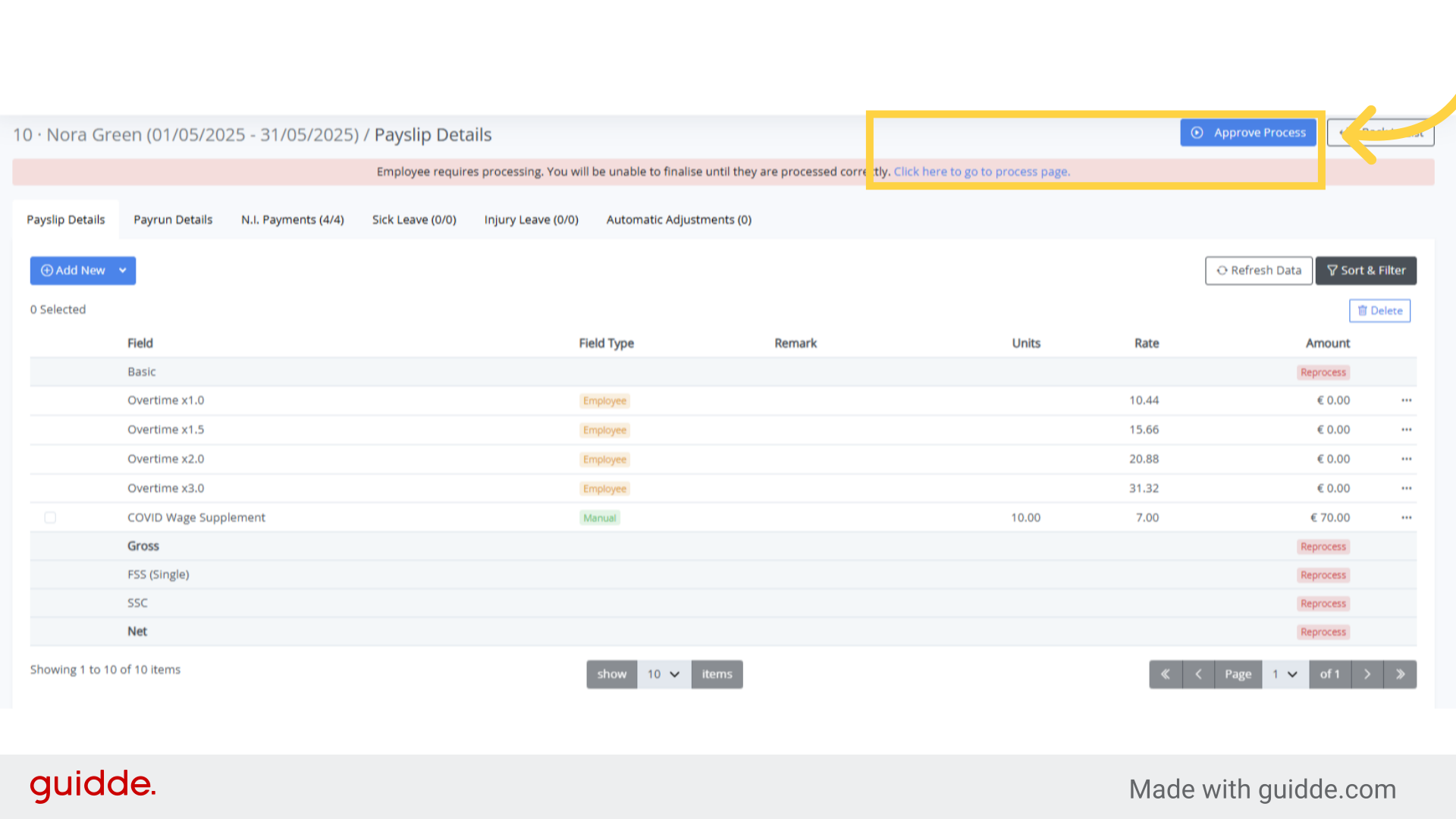
Step 7. Approve Process #
Once saved, you will be directed to another page indicating that the employee requires reprocessing due to changes made in the payrun.
Click on “Approve Process” as illustrated in the slide to reprocess the employee instantly while staying on the same page.
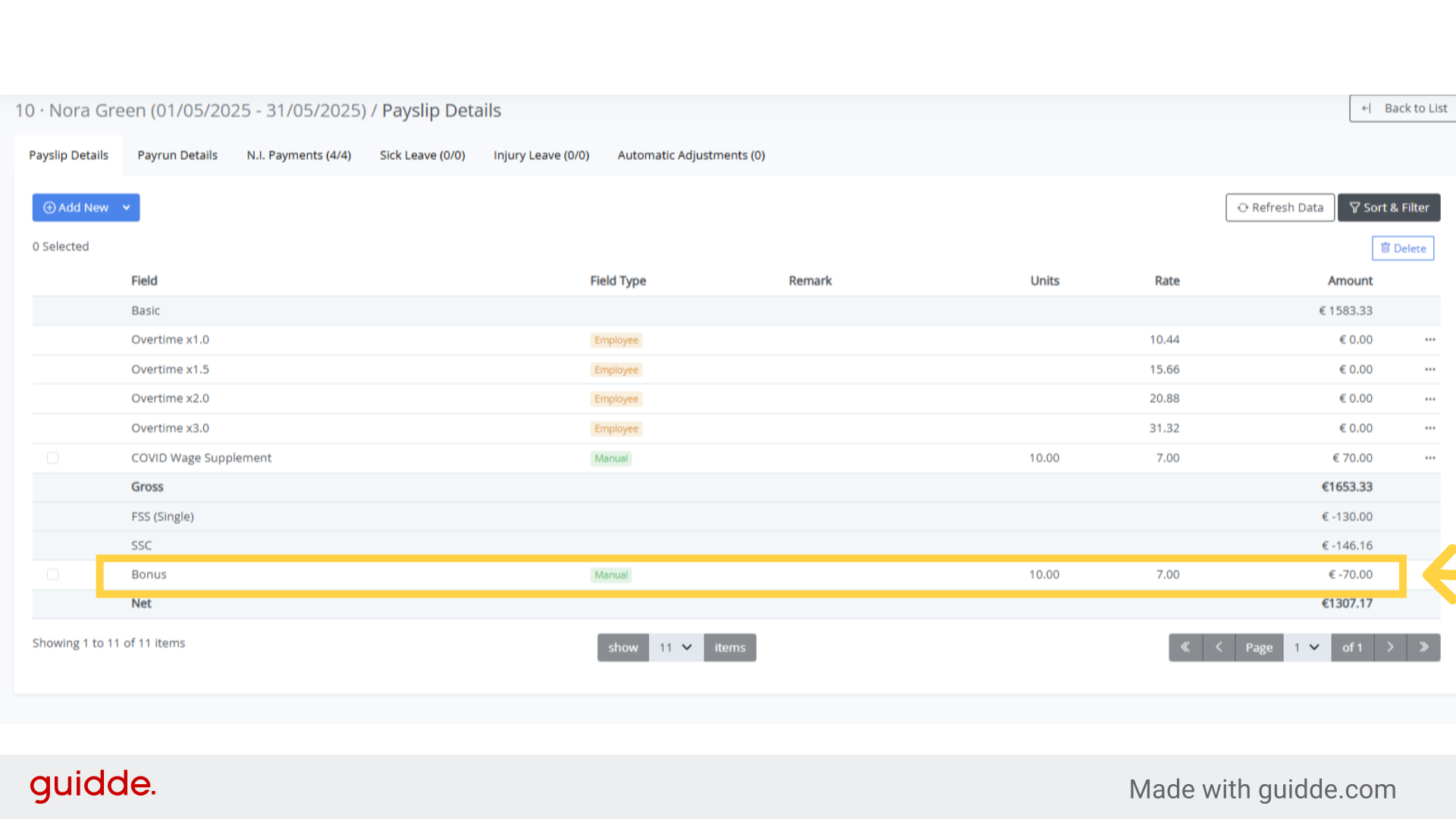
Step 8. Employee’s Payslip #
As you can see, the manual adjustment has been included in the employee’s payslip.
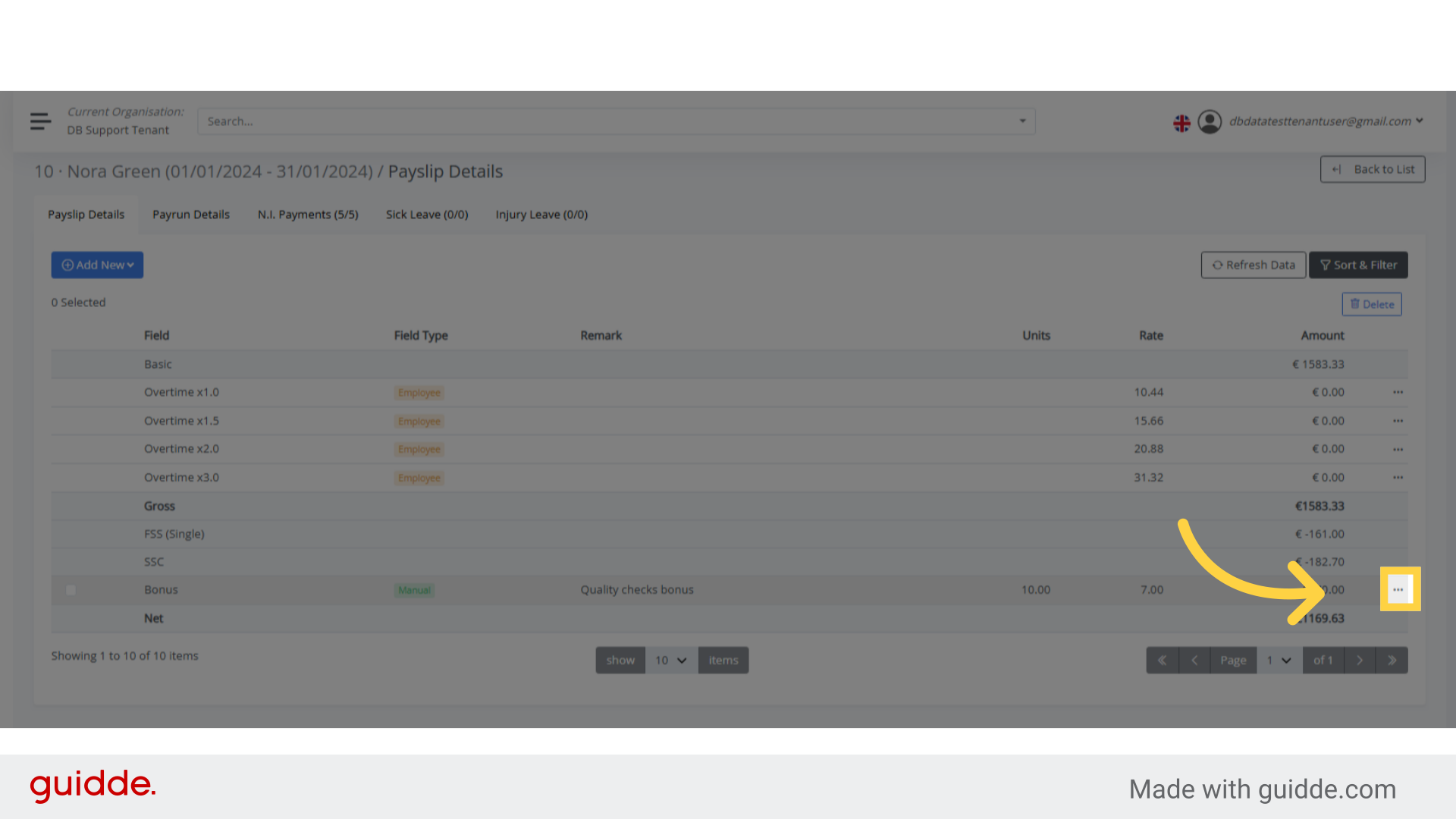
Step 9. Click the three dots … #
If you wish to modify the recent adjustment, simply click on the three dots.
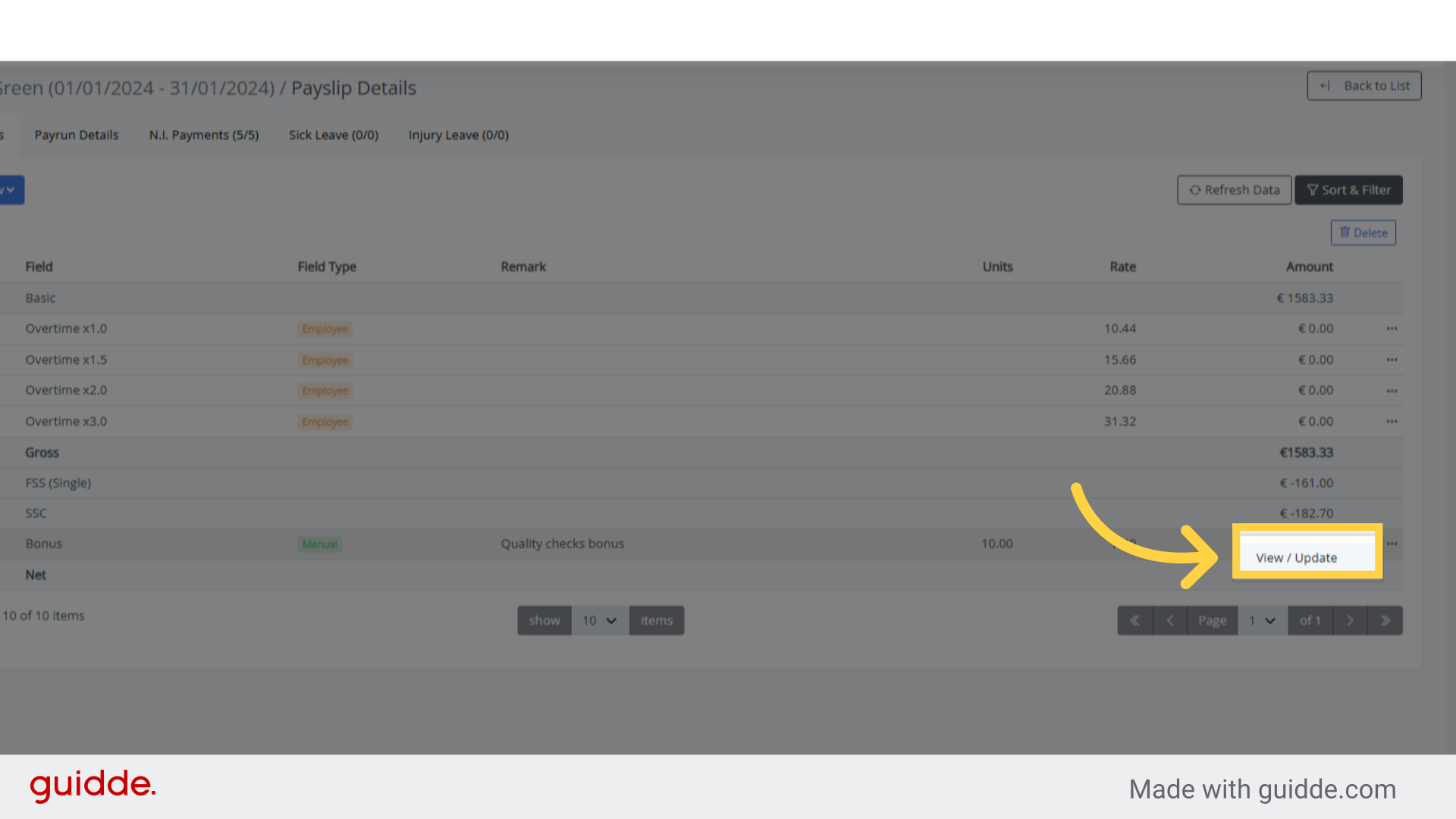
Step 10. Click “View / Update” #
After clicking on the three dots, select View Update.
You will then be prompted with the same page where you added the manual adjustment.
Step 11. Save and Approve Process again #
Make the necessary changes and click ‘Save.’
Once you click ‘Save,’ the same procedure applies, meaning an approve reprocess is required as for the change to be effected.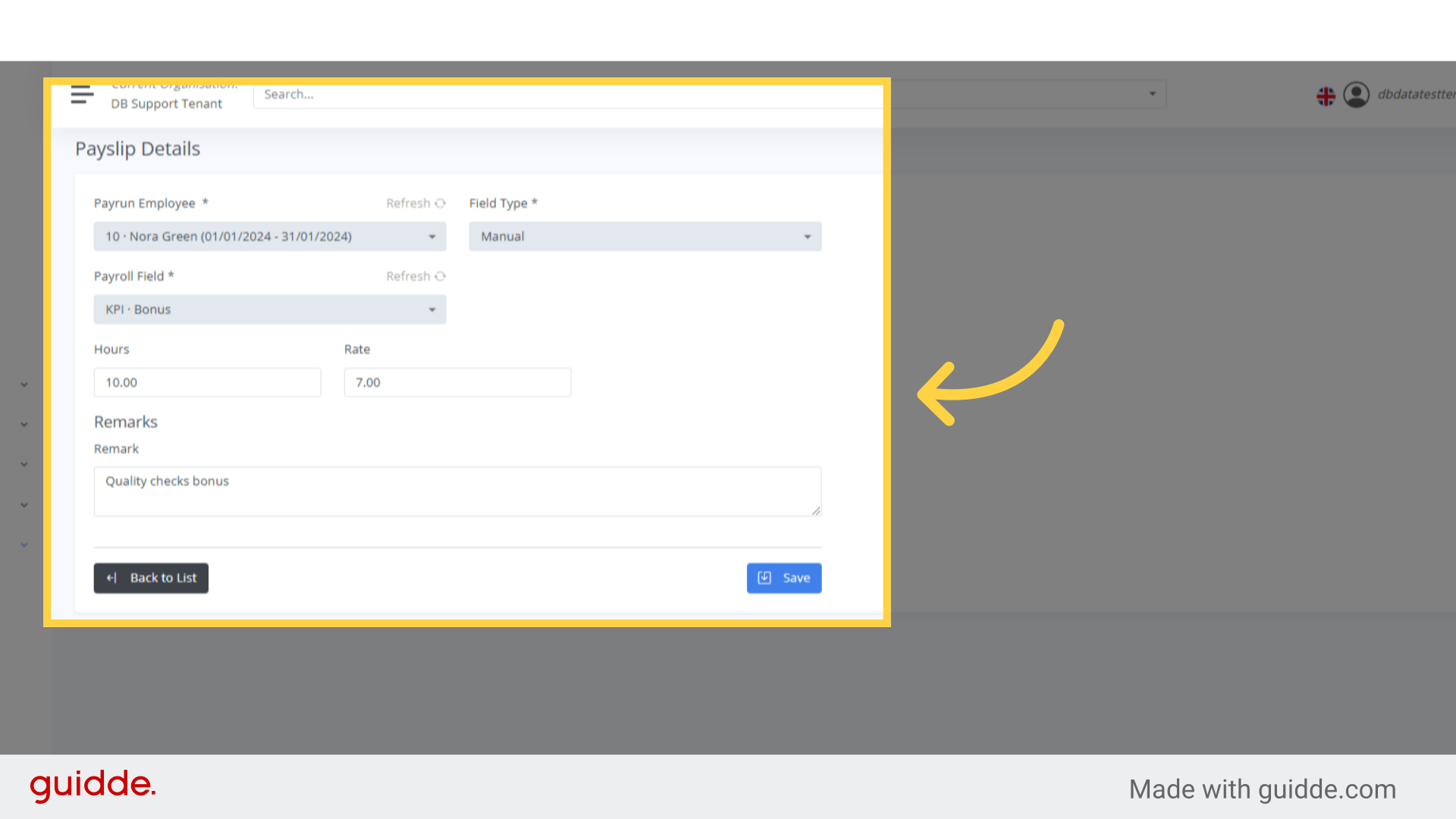
To generate Payslips please follow the related articles below;


