Table of Contents
This article will guide you on how to establish team request limits for your company throughout the year. #
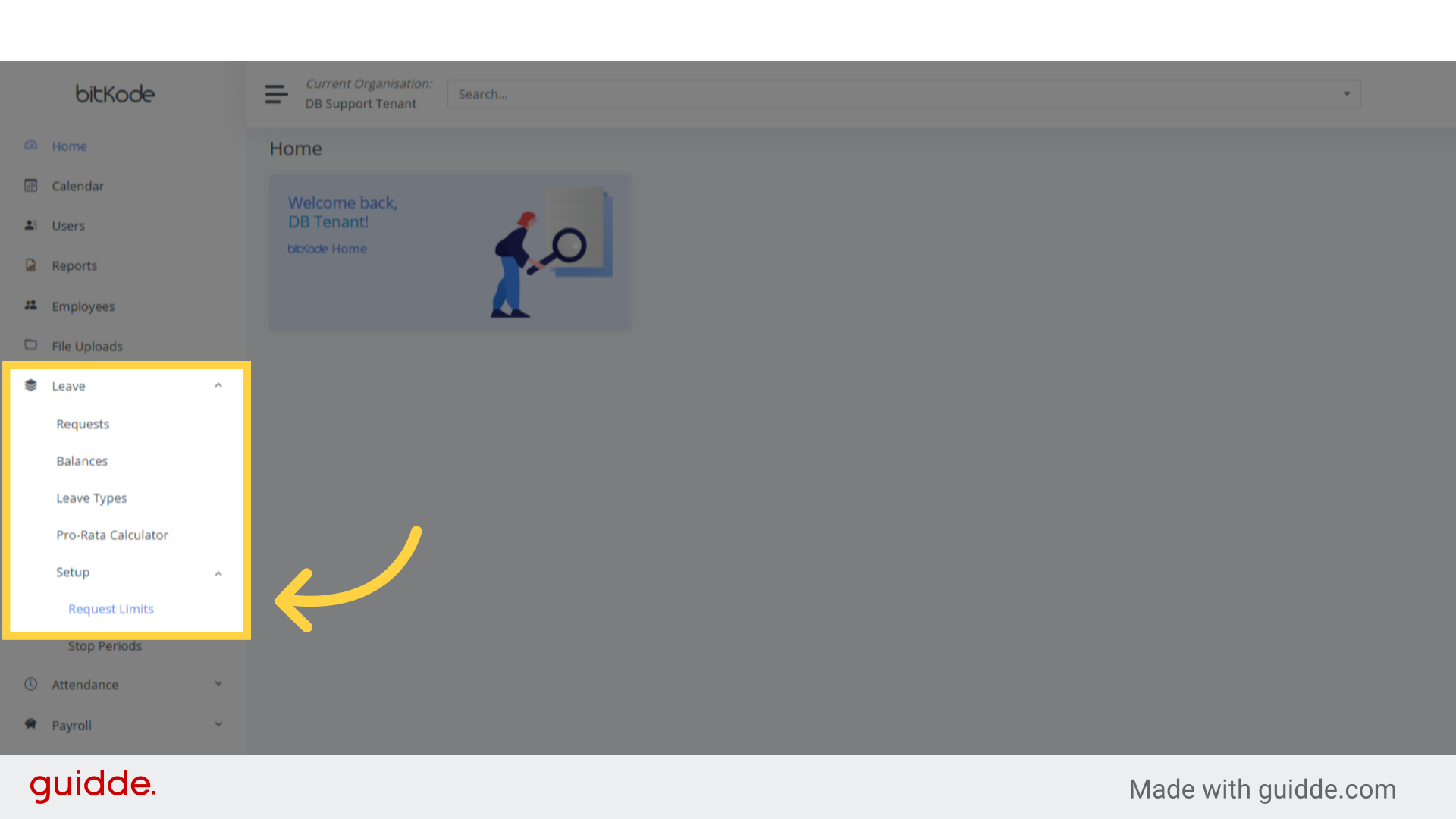
Step 1. Click “Request Limits” #
Navigate to Request Limits to manage and establish boundaries for leave requests, which is crucial for maintaining control over your team’s availability.
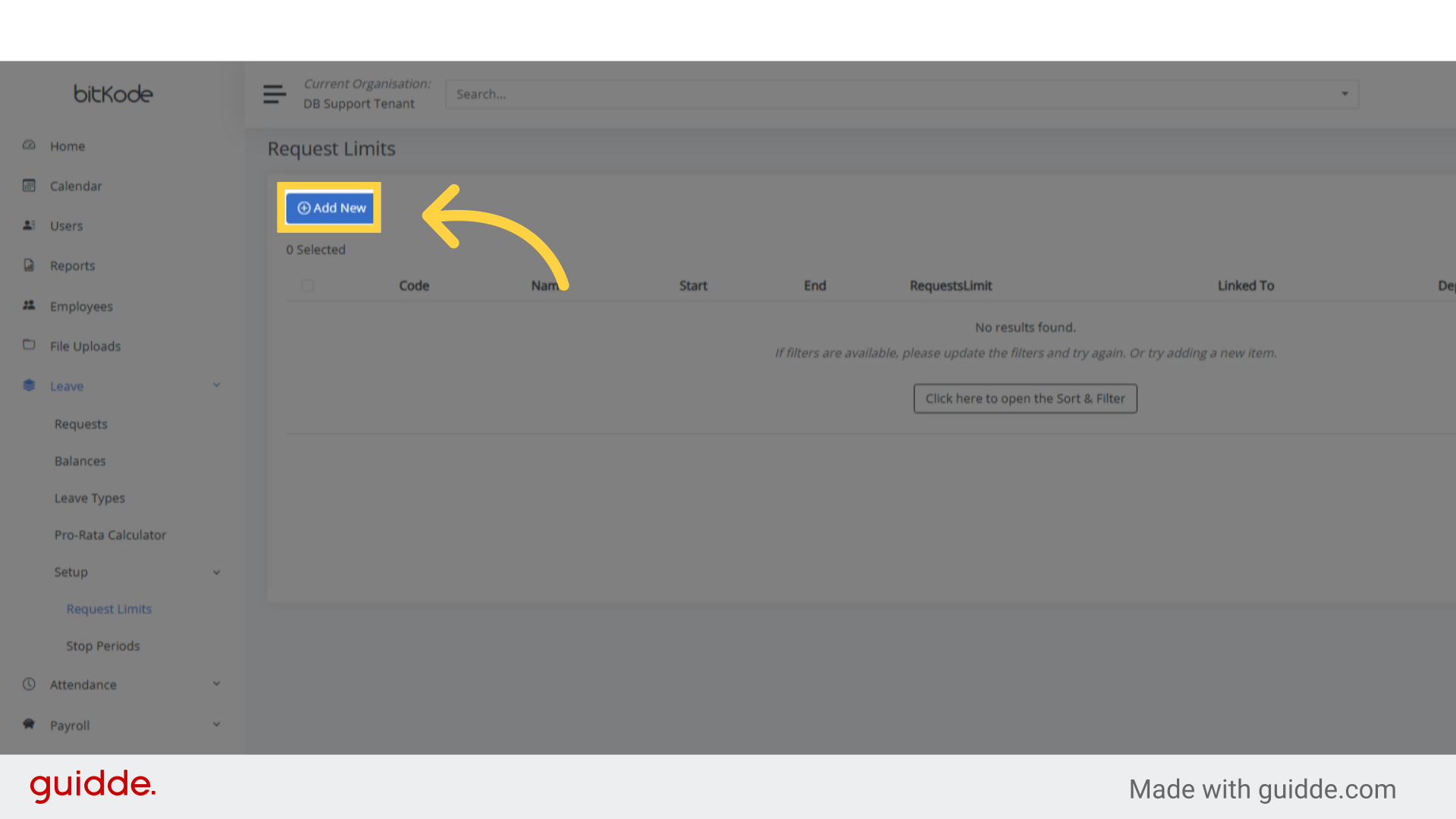
Step 2. Click “Add New” #
Initiate the process of creating a new limit by selecting Add New, empowering you to set specific parameters for your team’s requests.
Step 3. Enter details #
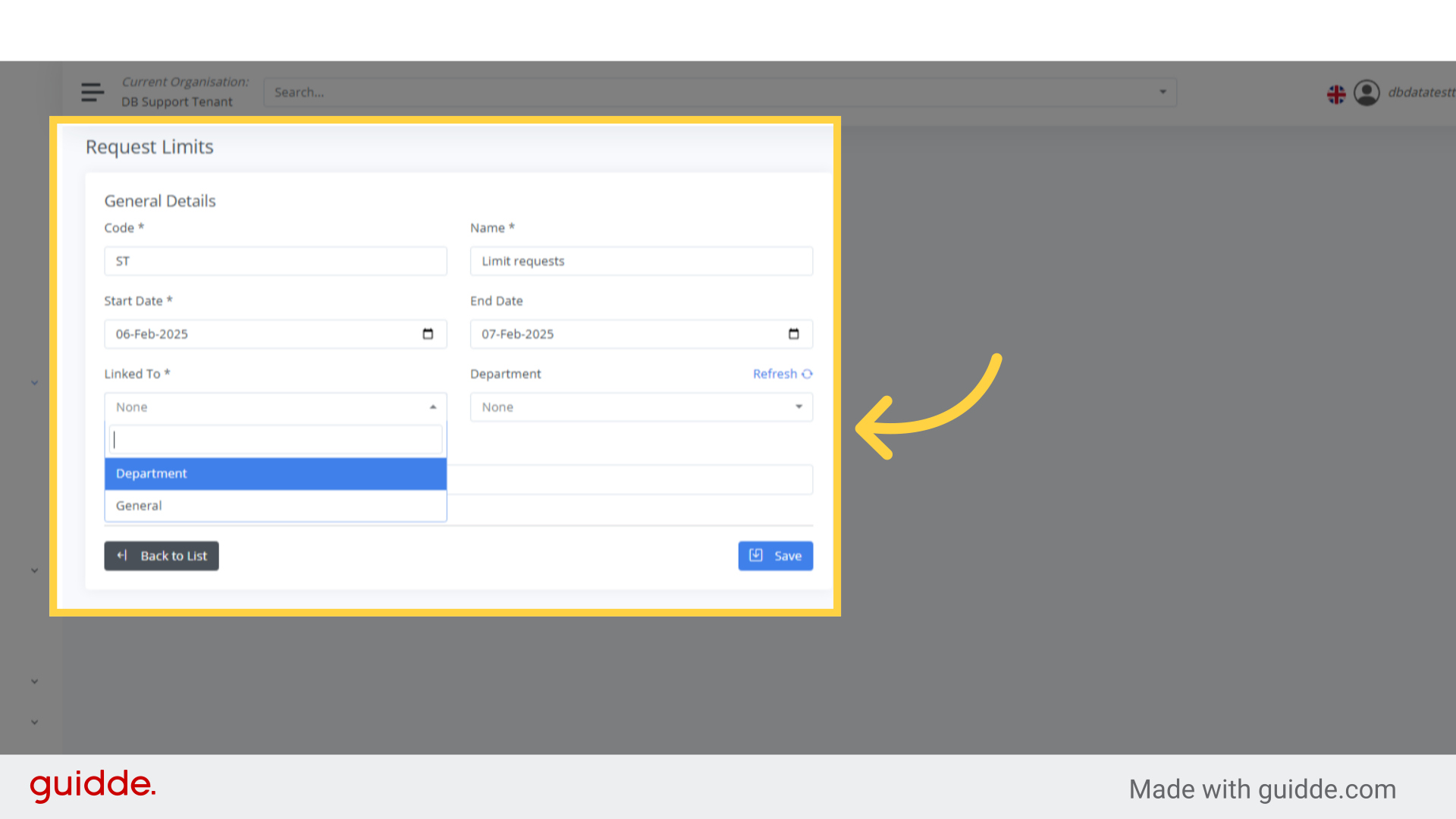
Provide a code, name, start date, and end date.
Link the request limit to a specific department or make it general.
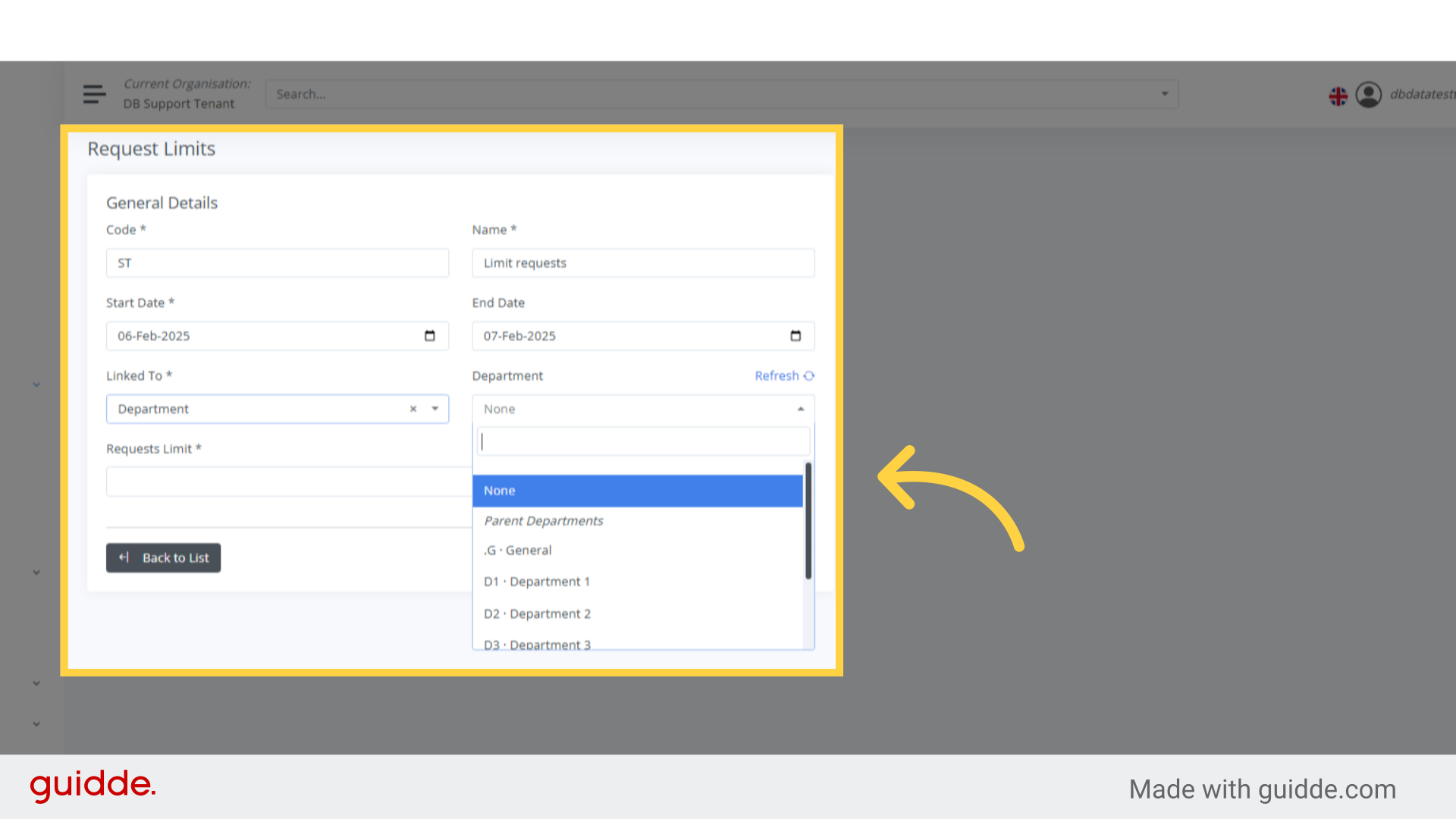
Step 4. Select a Department #
Select the department if you have chosen to link the request limit to a specific department.
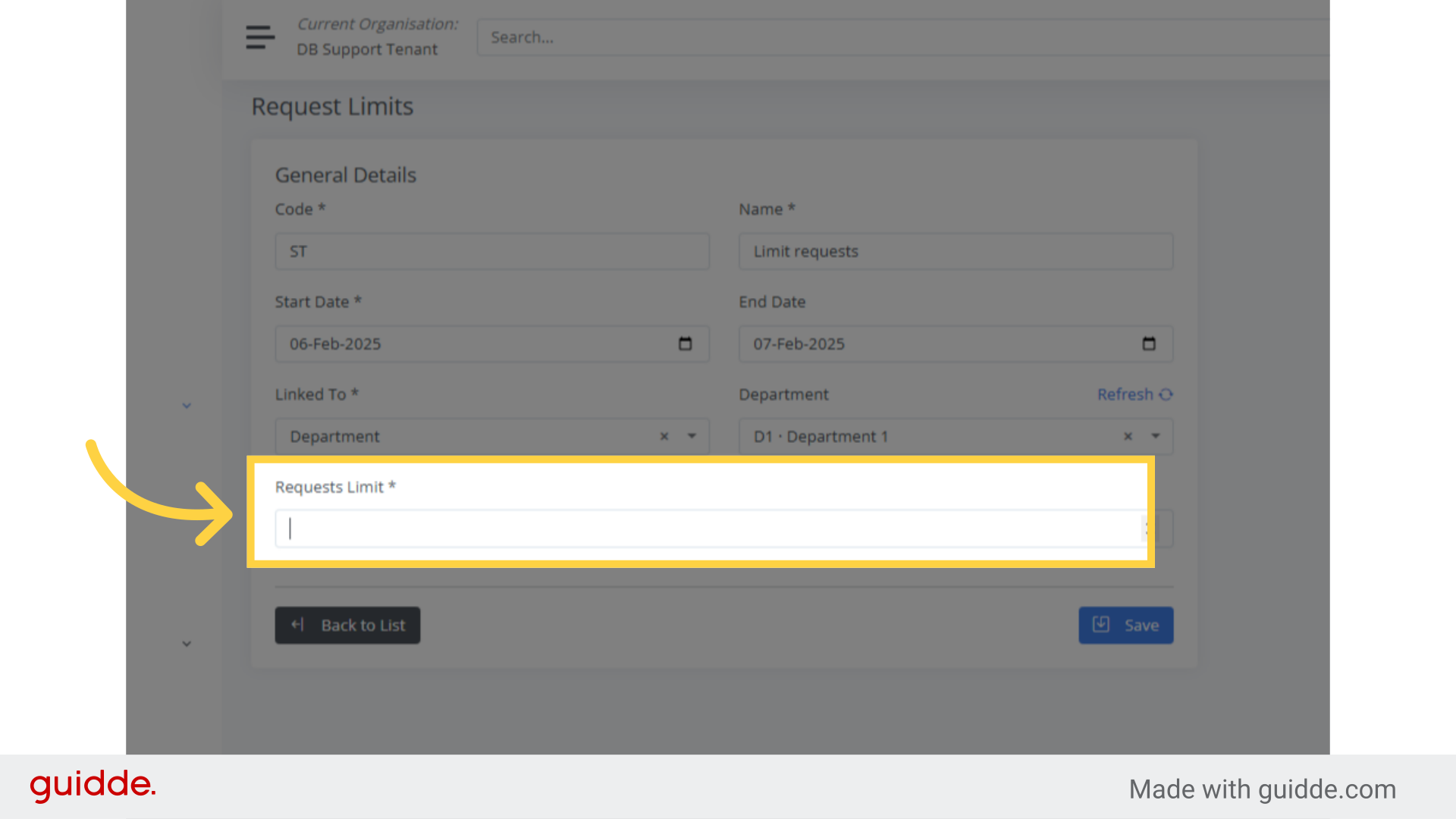
Step 5. “Requests Limit *” #
In the “Request Limit” field, specify the number of employees to set the limit.
This limit applies to the daily limit within the department.
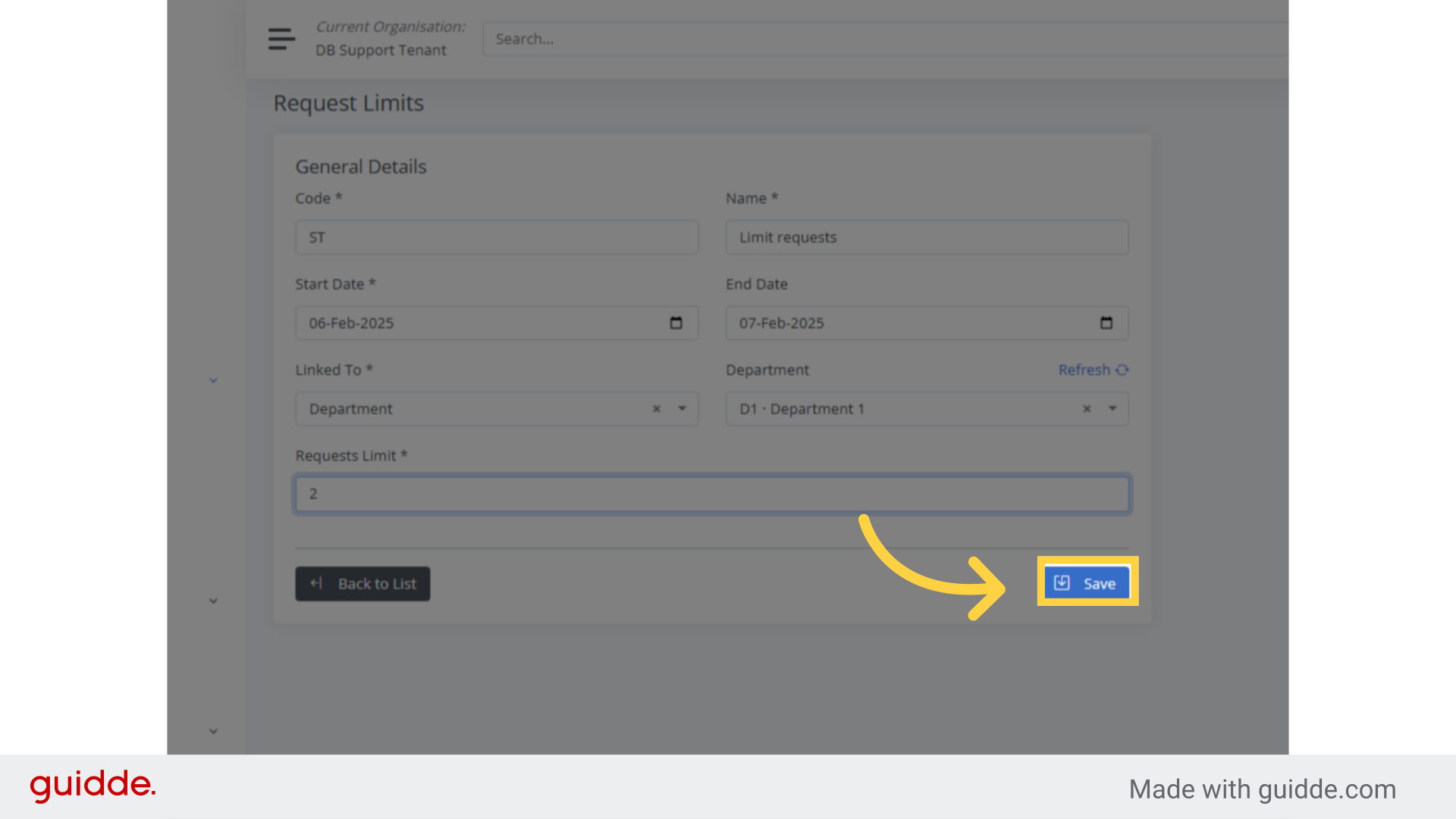
Step 6. Click Save #
Click “Save” once all the details have been entered.