
Table of Contents
- This guide provides detailed instructions on how to reset your password and regain access to your Bitkode account.
- Step 1. Confirm that the user have been invited into bitKode, and is in the list of users.
- Step 2. Enter email address
- Step 3. Click "Reset Password"
- Step 4. Fill details/password
- Step 5. Click "Reset Password"
- Step 6. Click "Return to login"
- Step 7. Email & password
This guide provides detailed instructions on how to reset your password and regain access to your Bitkode account. #
It also includes steps to confirm the password reset and successfully log in to your account, ensuring a seamless login experience.
Step 1. Confirm that the user have been invited into bitKode, and is in the list of users. #
You may encounter a case with new or existing user where they are encountering an issue logging in into bitKode.What would you need to check?
- Confirm that the user has been invited into bitKode, and is in the list of users.
- Confirm that the users email address which you used to invite them to bitKode is the same.
If the users are encountering an Invalid Credentials error, while trying to login:
- Check that the email address and password are being entered correctly.
- Check that the email address being used to login is the same as the email address that has been used to invite the user to bitKode.
- Check that their are no extra spaces at the beginning or at the end of the email address or password.
If all of the above are correct, the next option is for the users to reset their own password.
By clicking on the forgot your password button.
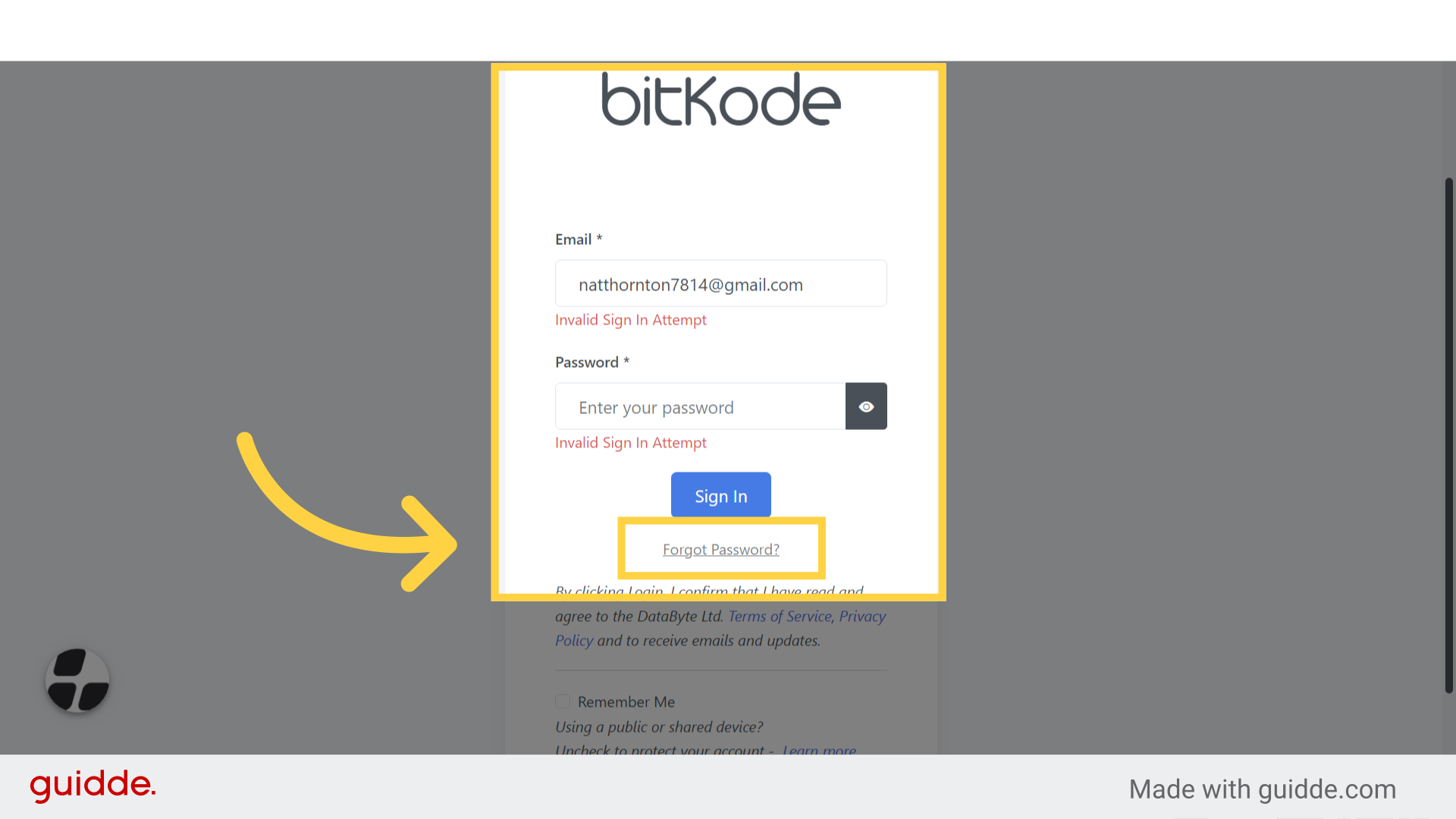
Step 2. Enter email address #
After selecting the Reset Password function, another page will prompt the user to enter their email address.
Where they will receive an email with further instructions.
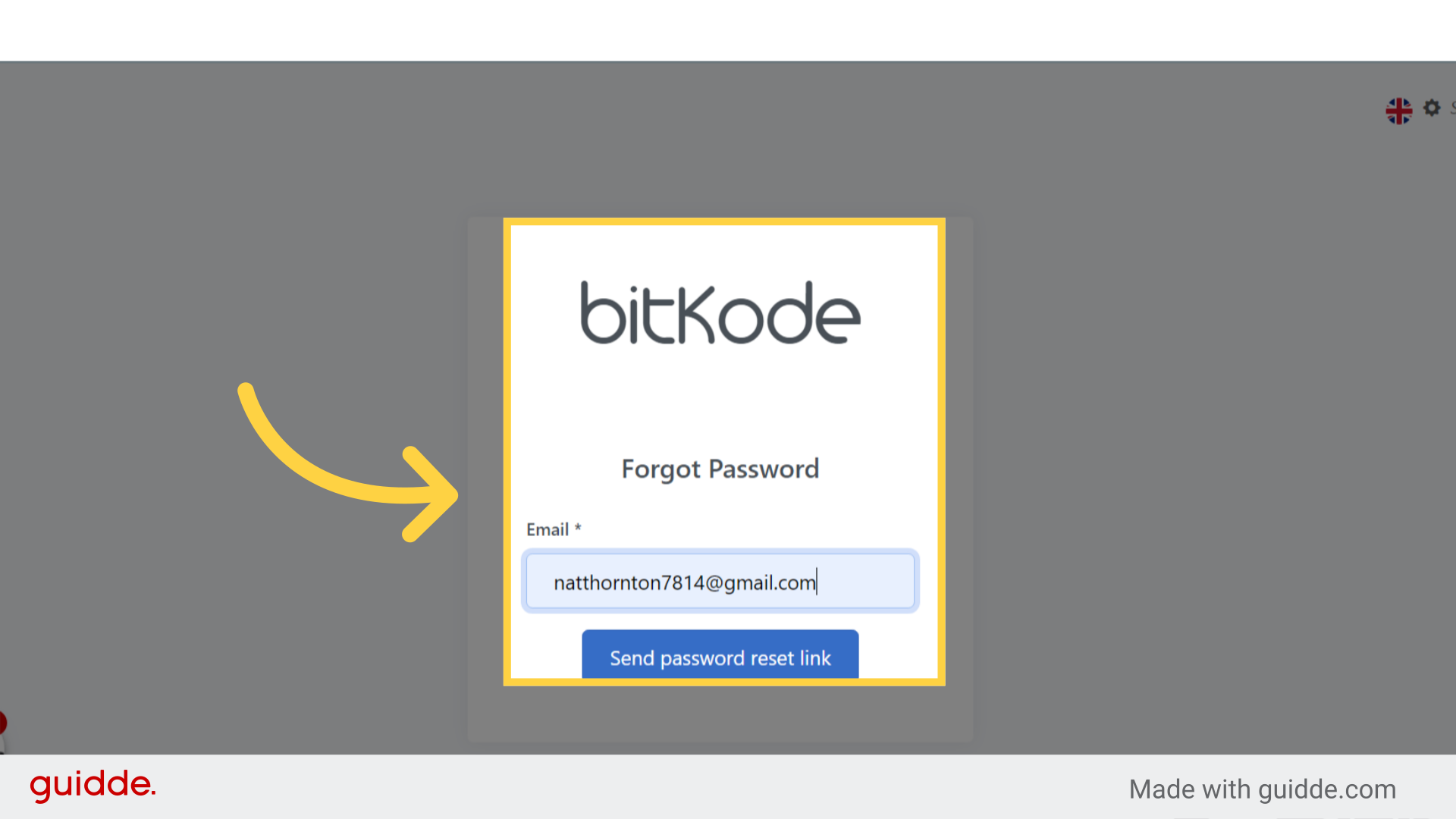
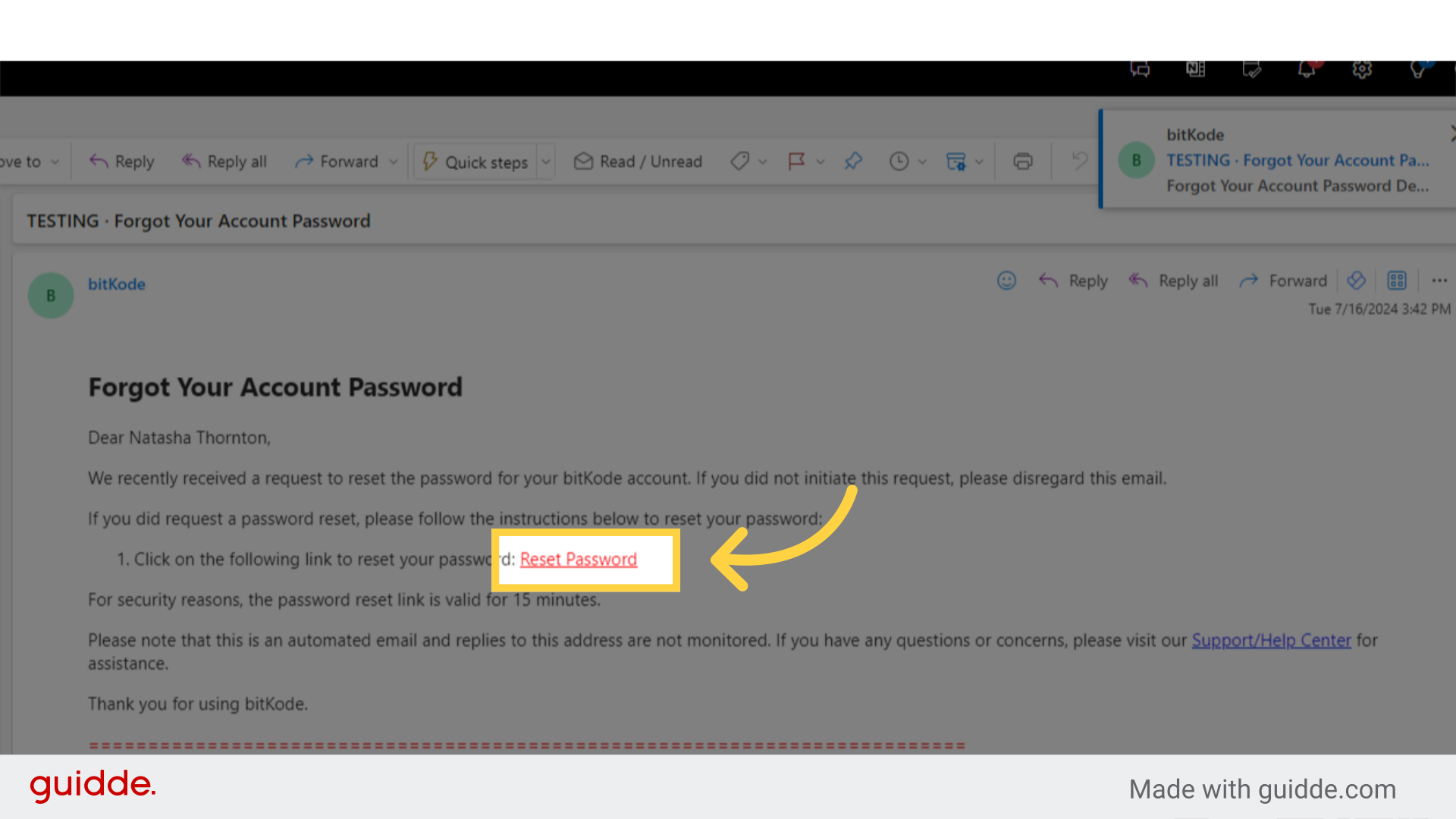
Step 3. Click “Reset Password” #
After reserving the email, the user, is to click on the link provided for the password reset.
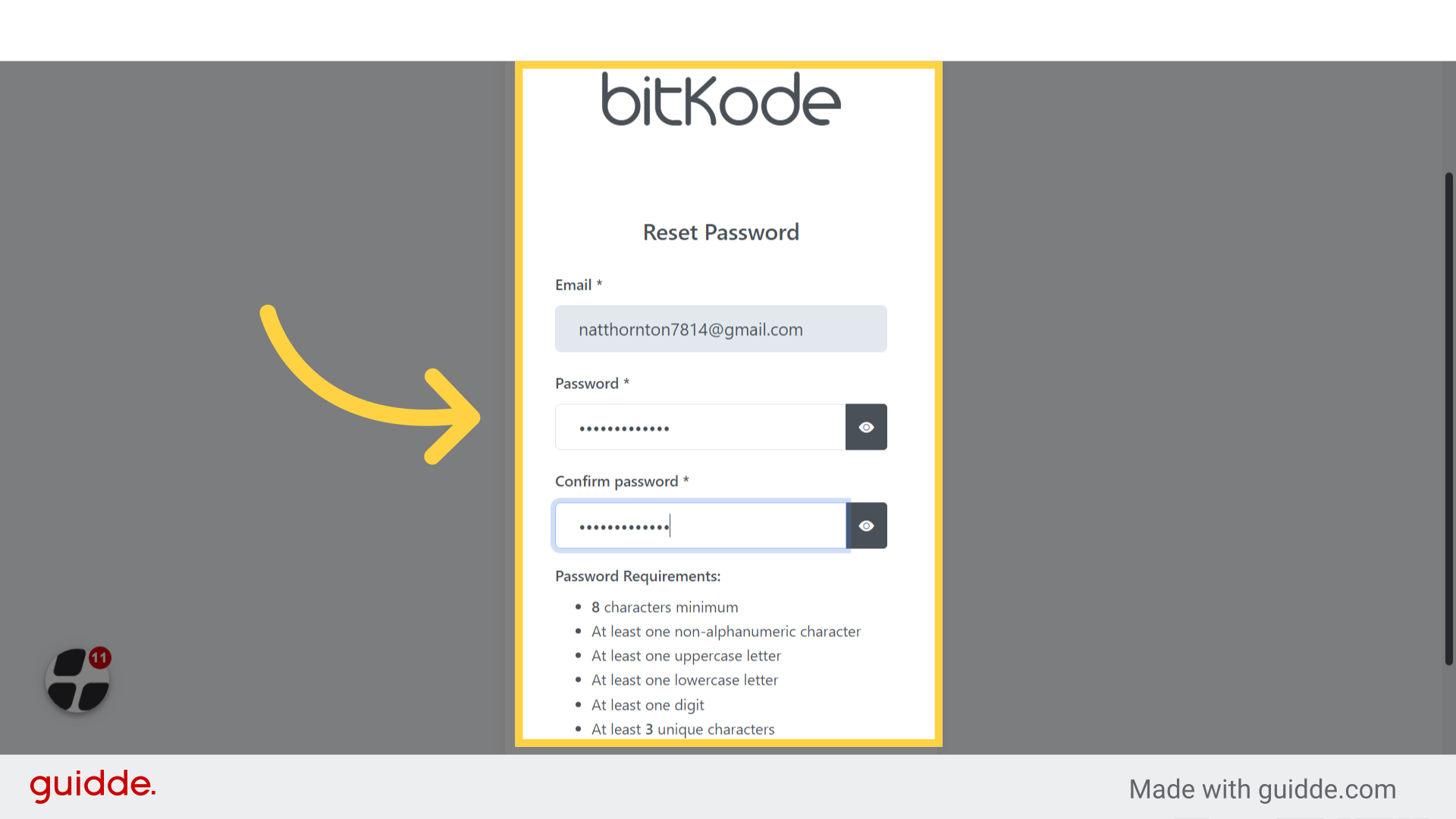
Step 4. Fill details/password #
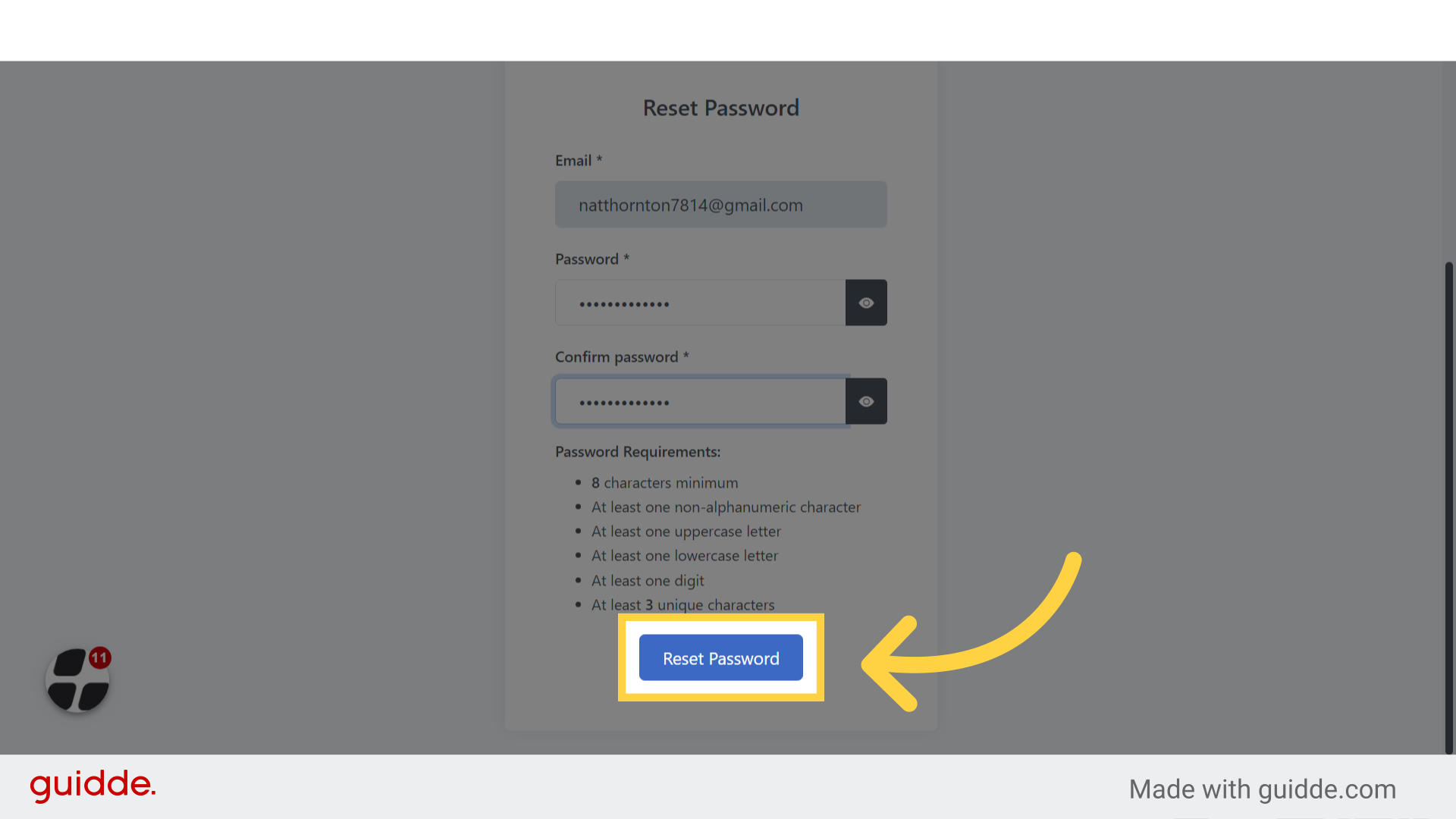
Once the user has selected the reset password link, they will be prompted to enter the following information on the next page:
- Email address: Provide the email associated with their account.
- New password: Create a new password. Remember not to use personal information such as their first and last name or the company name for security reasons.
- Password confirmation: Confirm the new password by entering it again.
For added security, ensure that their password meets the following criteria:
- Contains at least 8 characters.
- Includes upper-case and lower-case letters.
- Contains at least one number.
- Includes a special character
Step 5. Click “Reset Password” #
After entering the required details, simply click on Reset Password.
Step 6. Click “Return to login” #
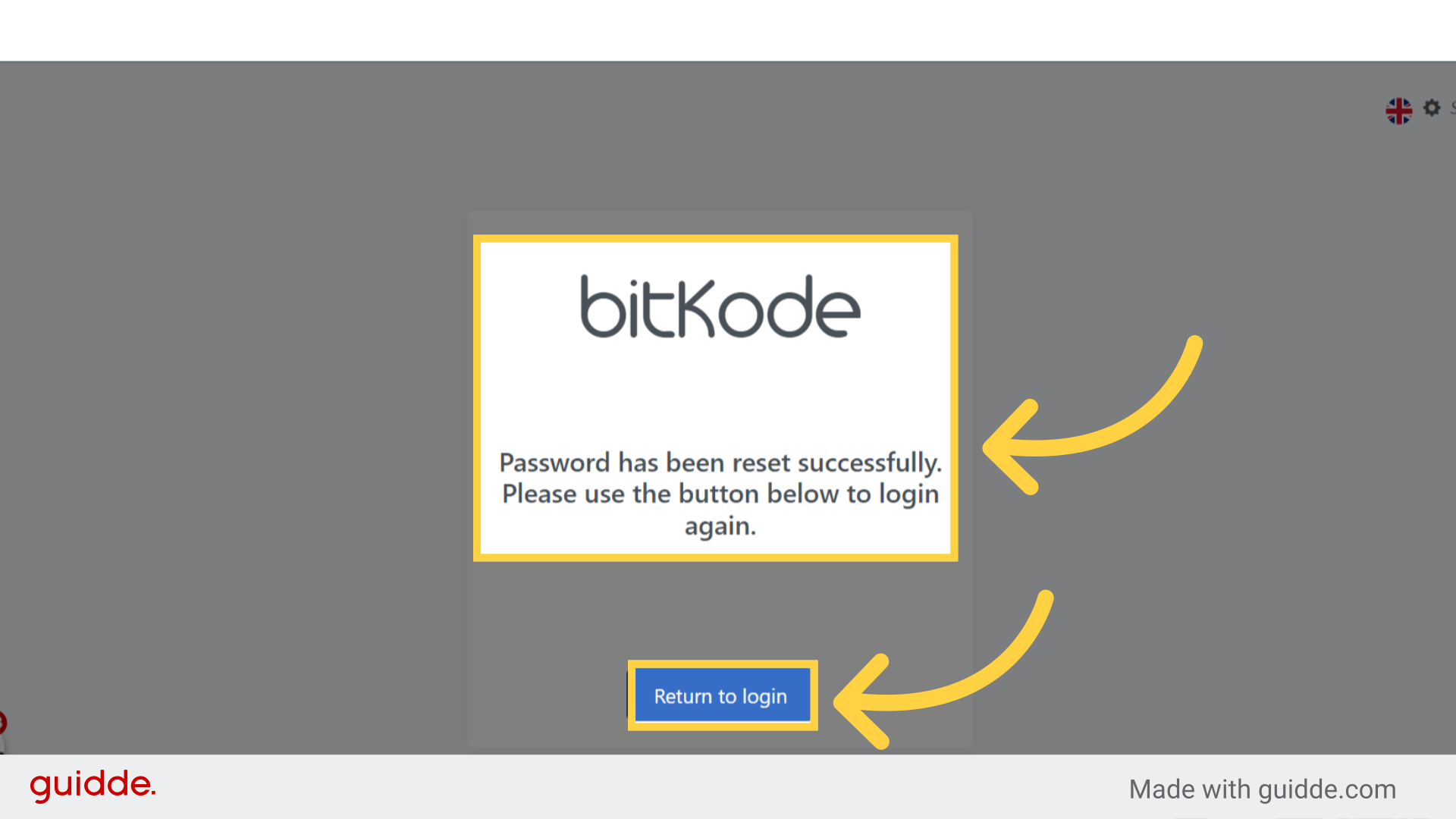
After clicking the Reset Password button, you’ll be redirected to a page confirming that your password has been changed successfully.
To return to the login home page, simply click on Return to Login.
Step 7. Email & password #
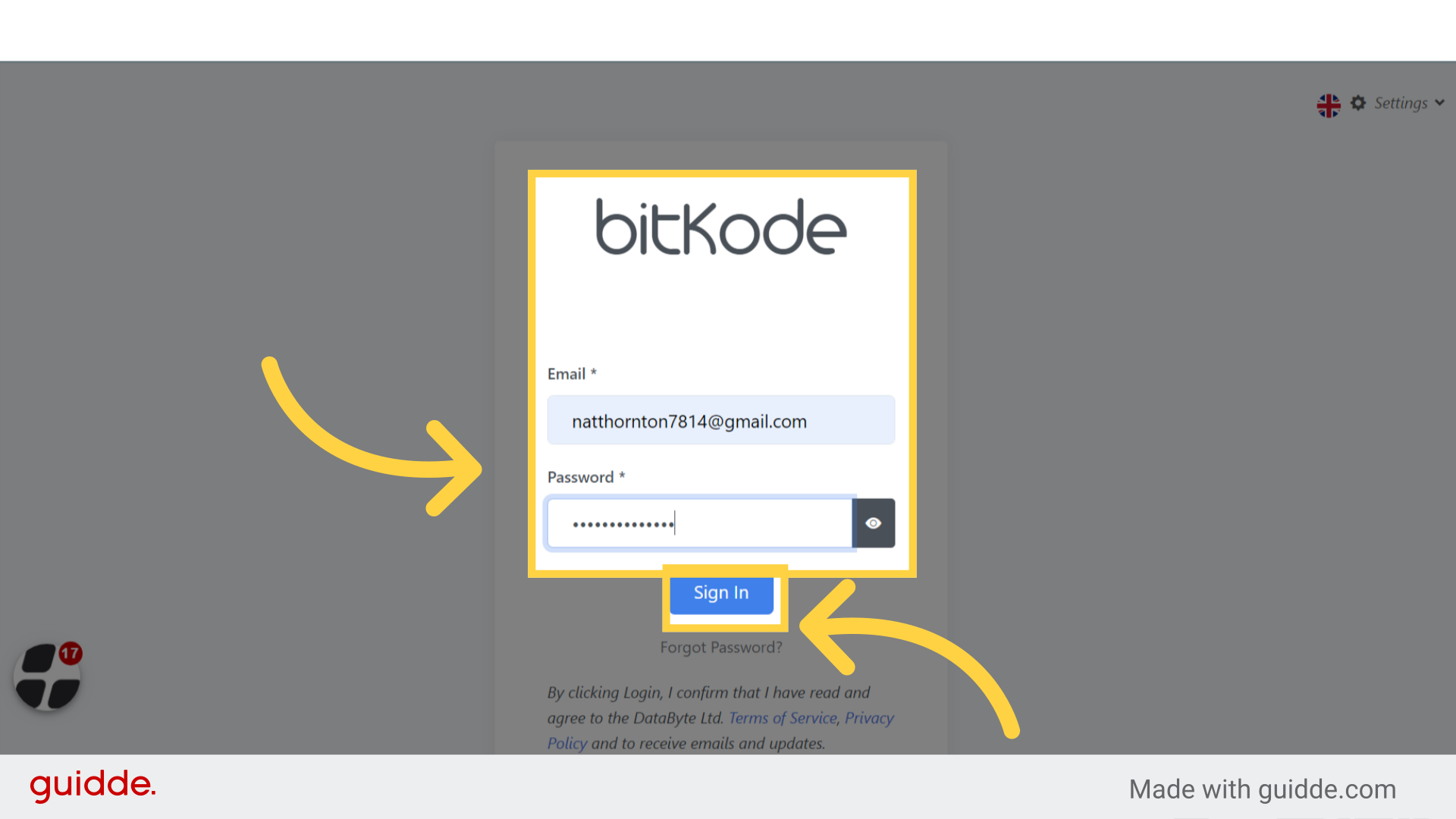
To sign in, enter your email address and password, and then click the Sign In button.
The guide covers the process of resetting your password, confirming the changes, and accessing your Bitkode account.


