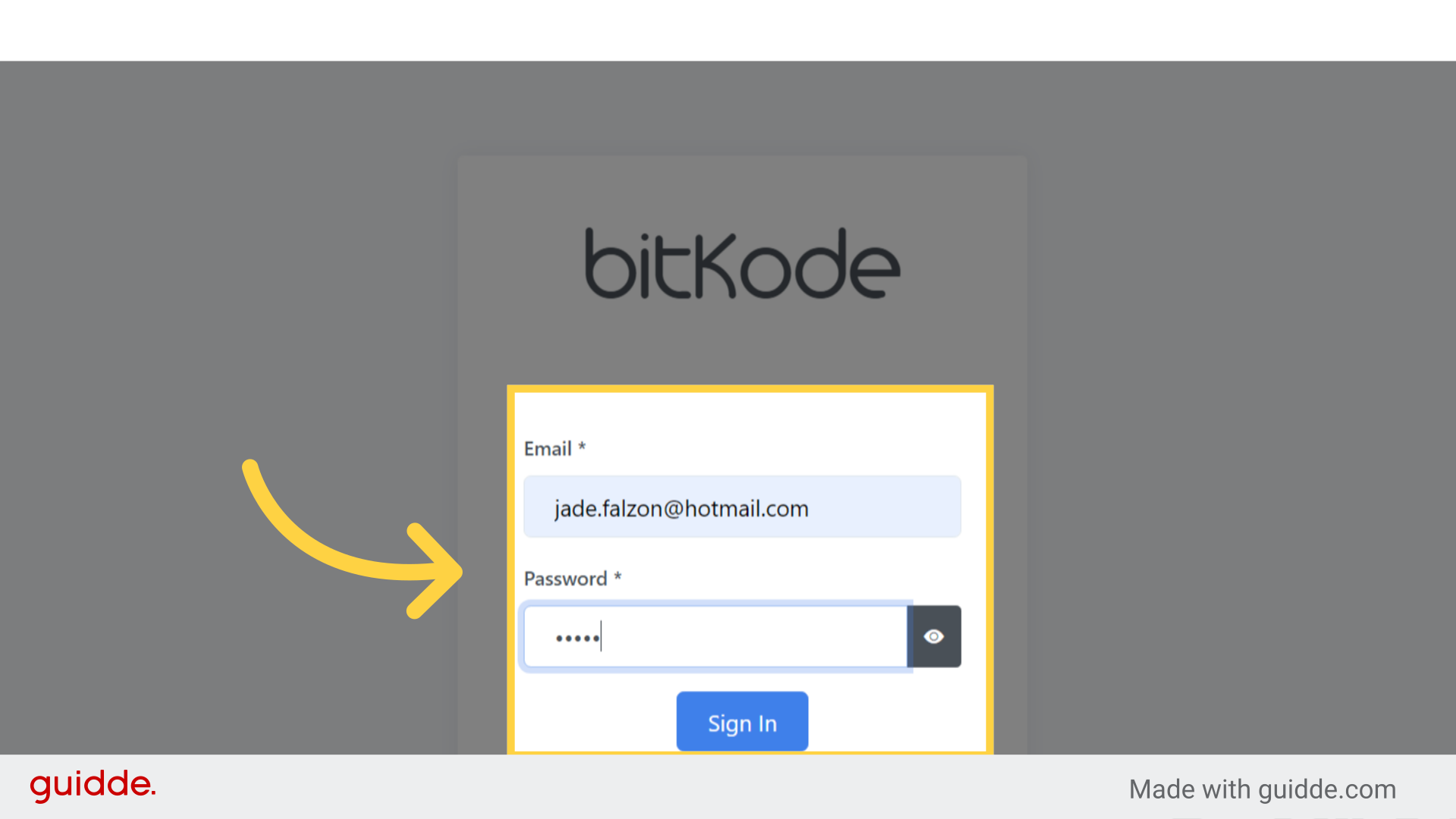
Table of Contents
- This guide will walk you through sending a reset password email to a user in Bitkode.
- Step 1. Click "Users"
- Step 2. Fill "on"
- Step 3. Click "Send Reset Password Email"
- Step 4. Click "Continue"
- Step 5. Email received
- Step 6. Click "Reset Password"
- Step 7. "Reset Password"
- Step 8. "Return to login"
- Step 9. Email & password
This guide will walk you through sending a reset password email to a user in Bitkode. #
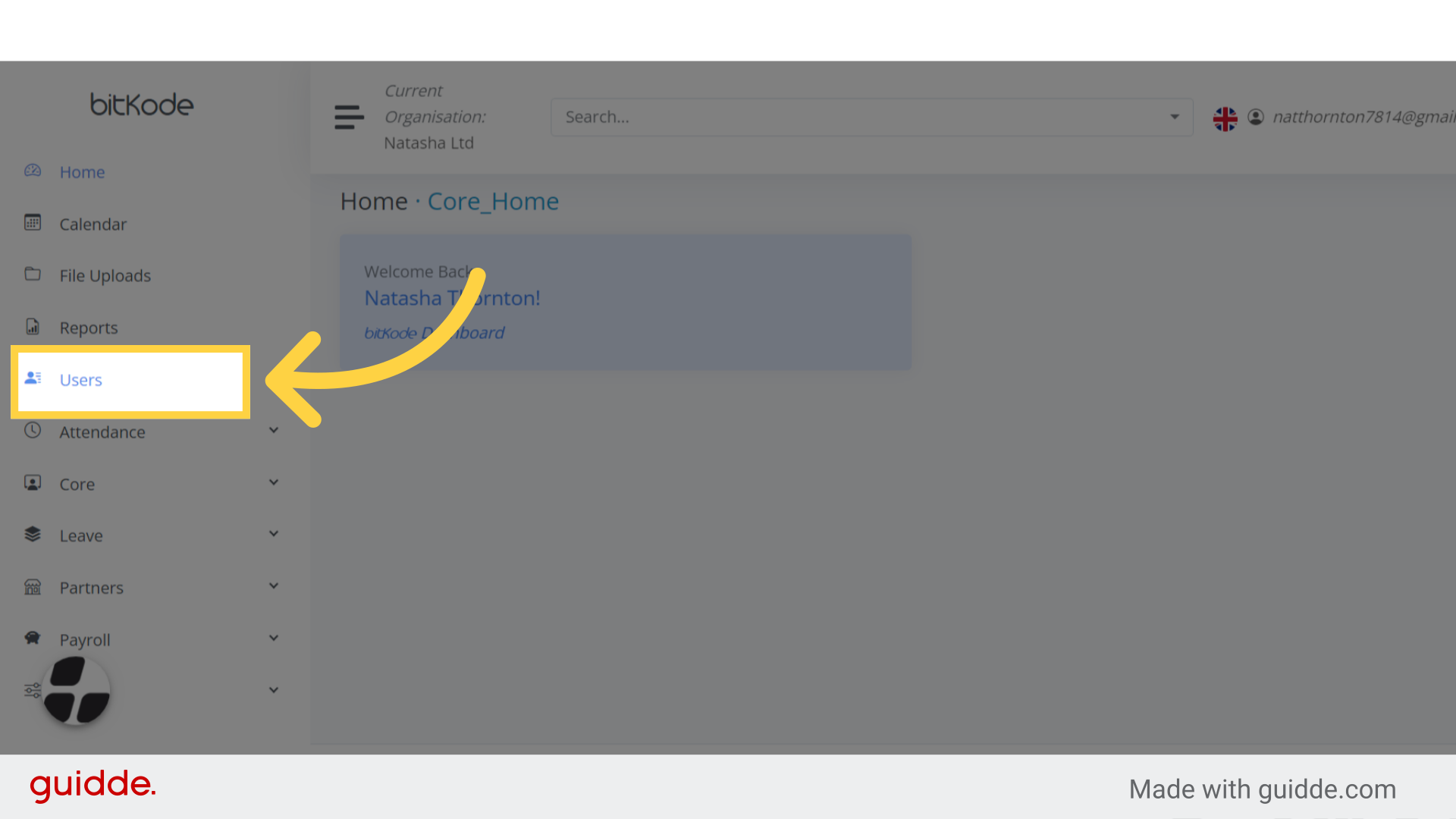
Step 1. Click “Users” #
Start by clicking on Users from the left-hand side of the homepage
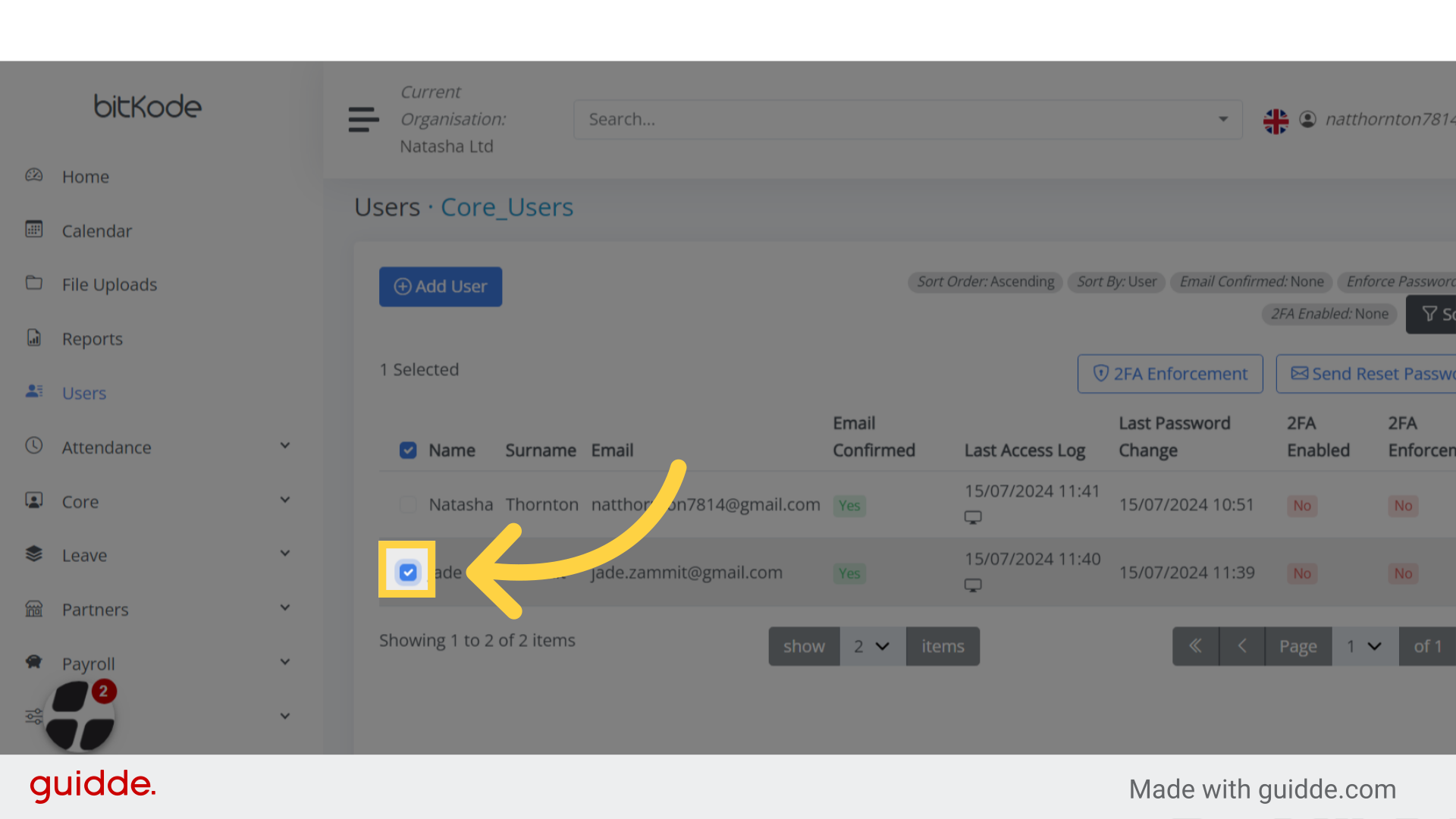
Step 2. Fill “on” #
Choose the user by clicking on the checkbox next to their name.
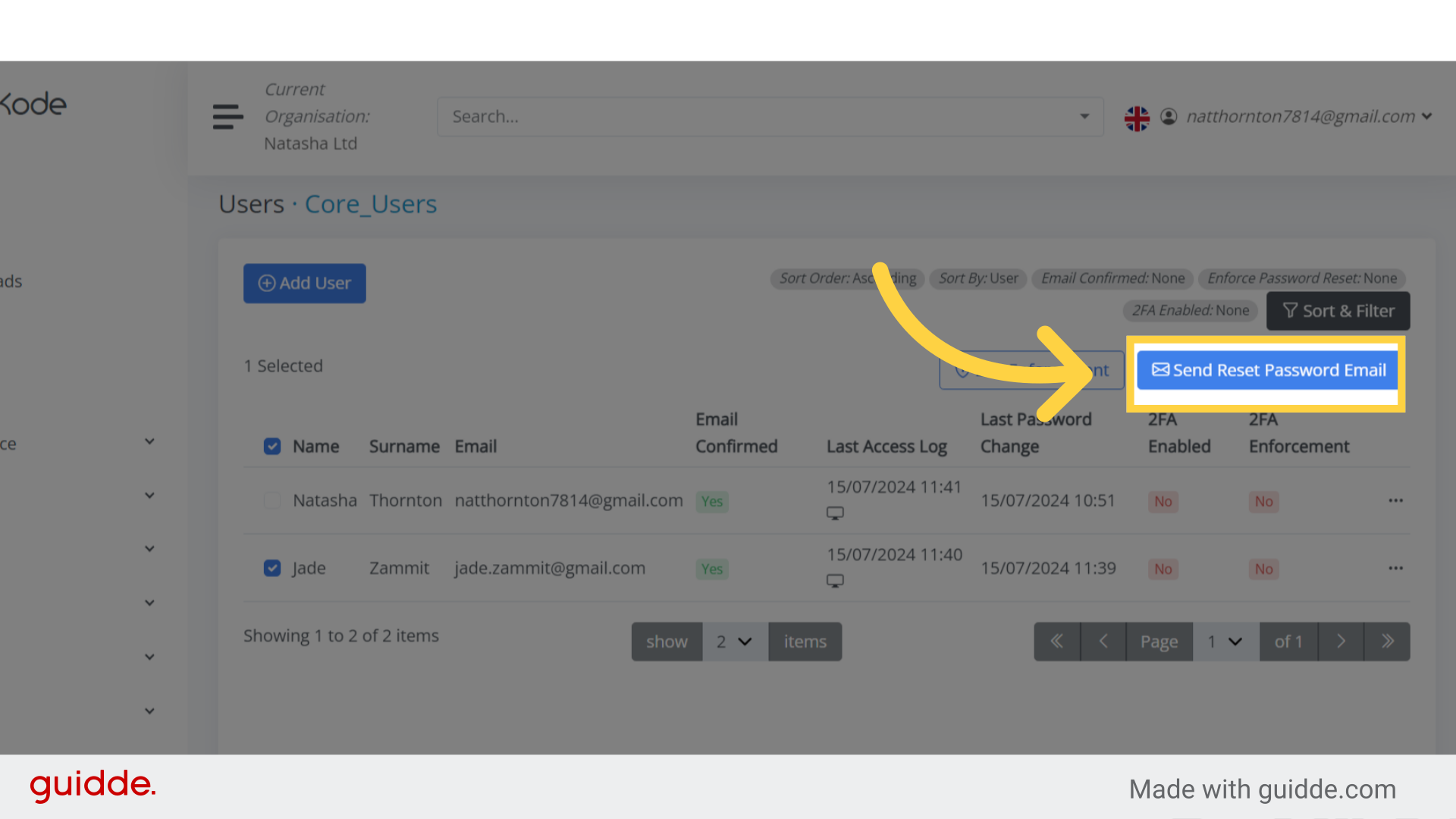
Step 3. Click “Send Reset Password Email” #
Once you’ve selected the necessary user, click the button to send the password reset email.
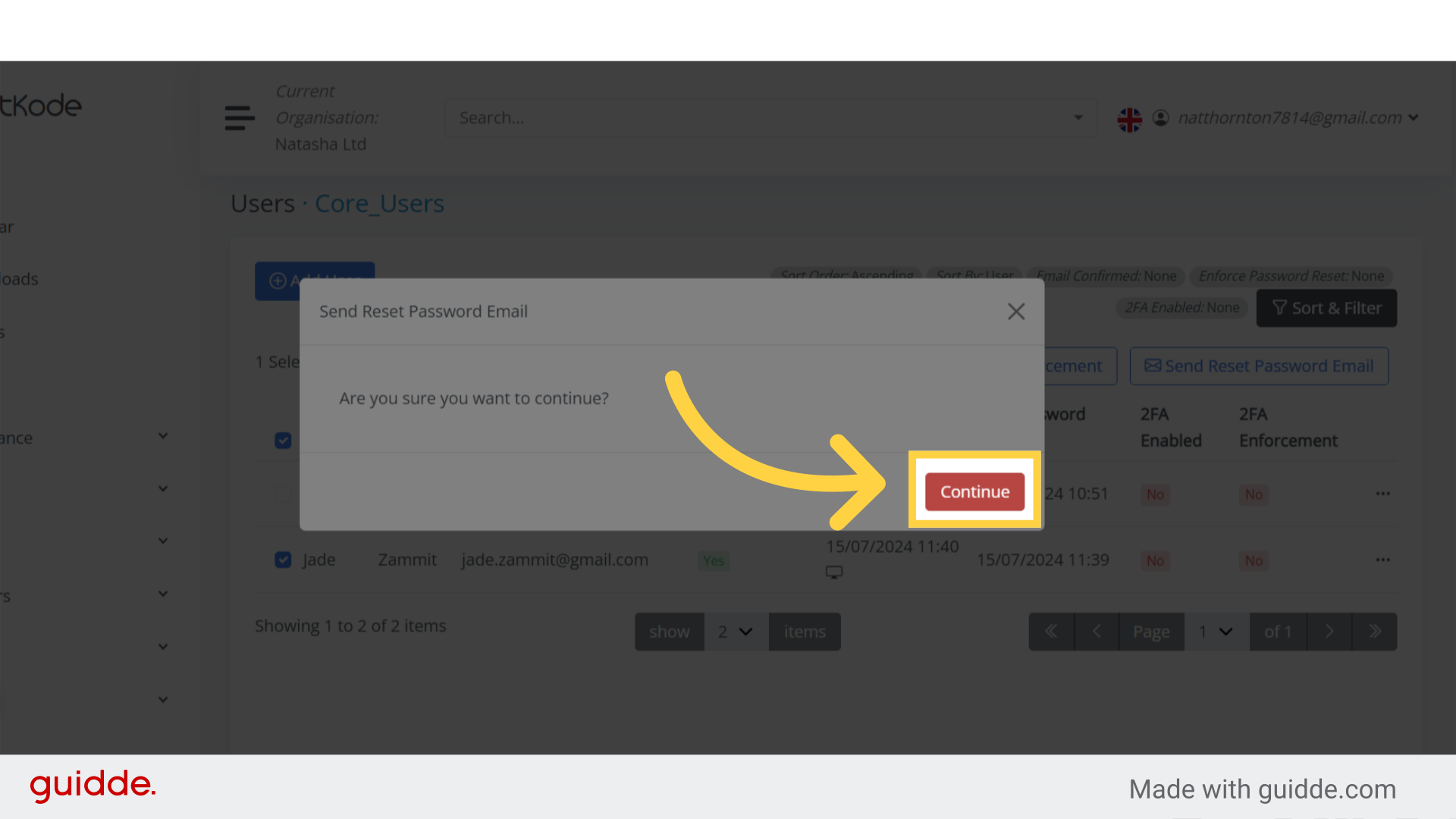
Step 4. Click “Continue” #
After clicking the sent password reset email, you’ll be directed to another page where you can click Continue to proceed.
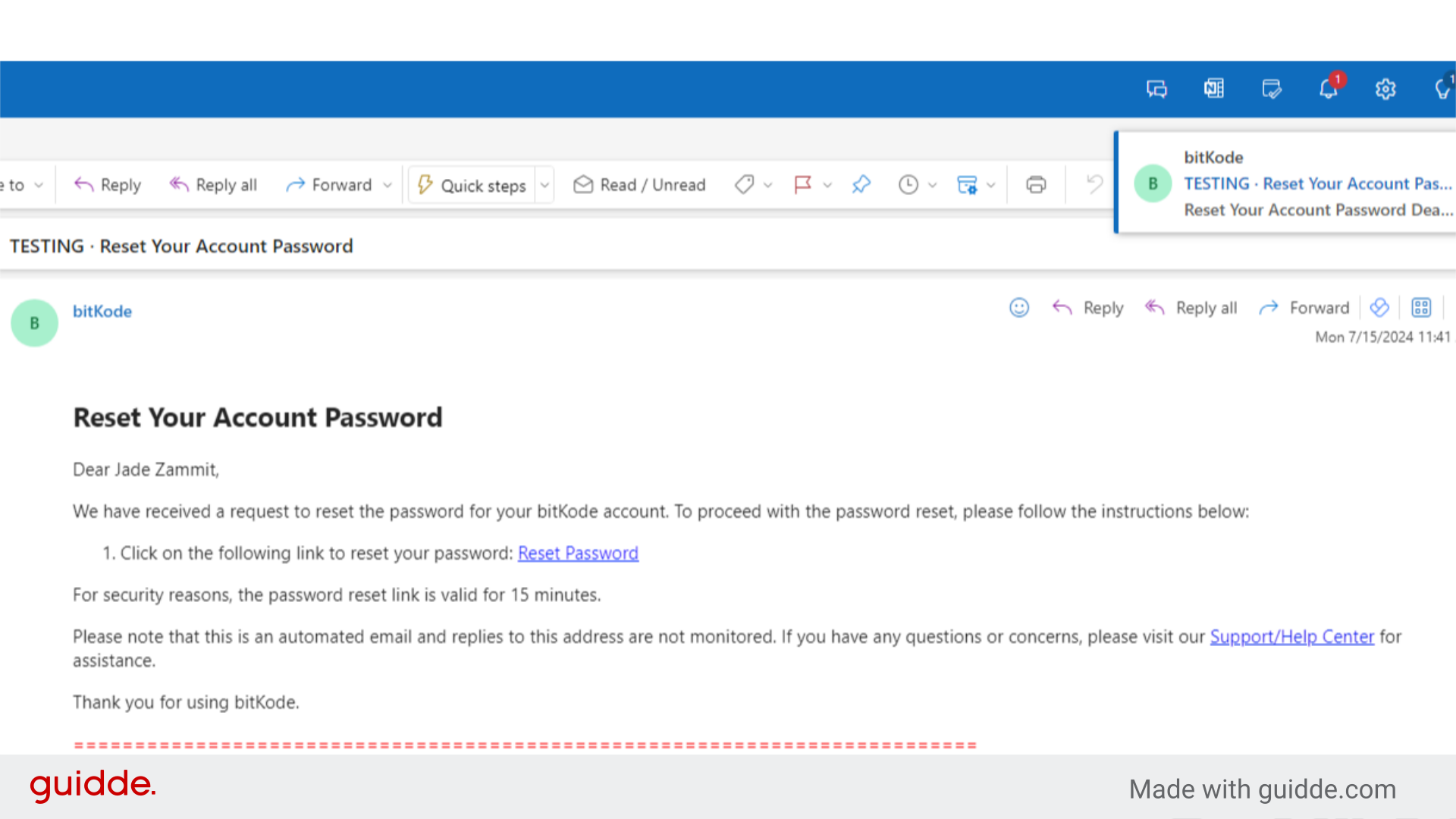
Step 5. Email received #
Once you click Continue, a notification will be sent to the user’s email address as displayed on the screen.
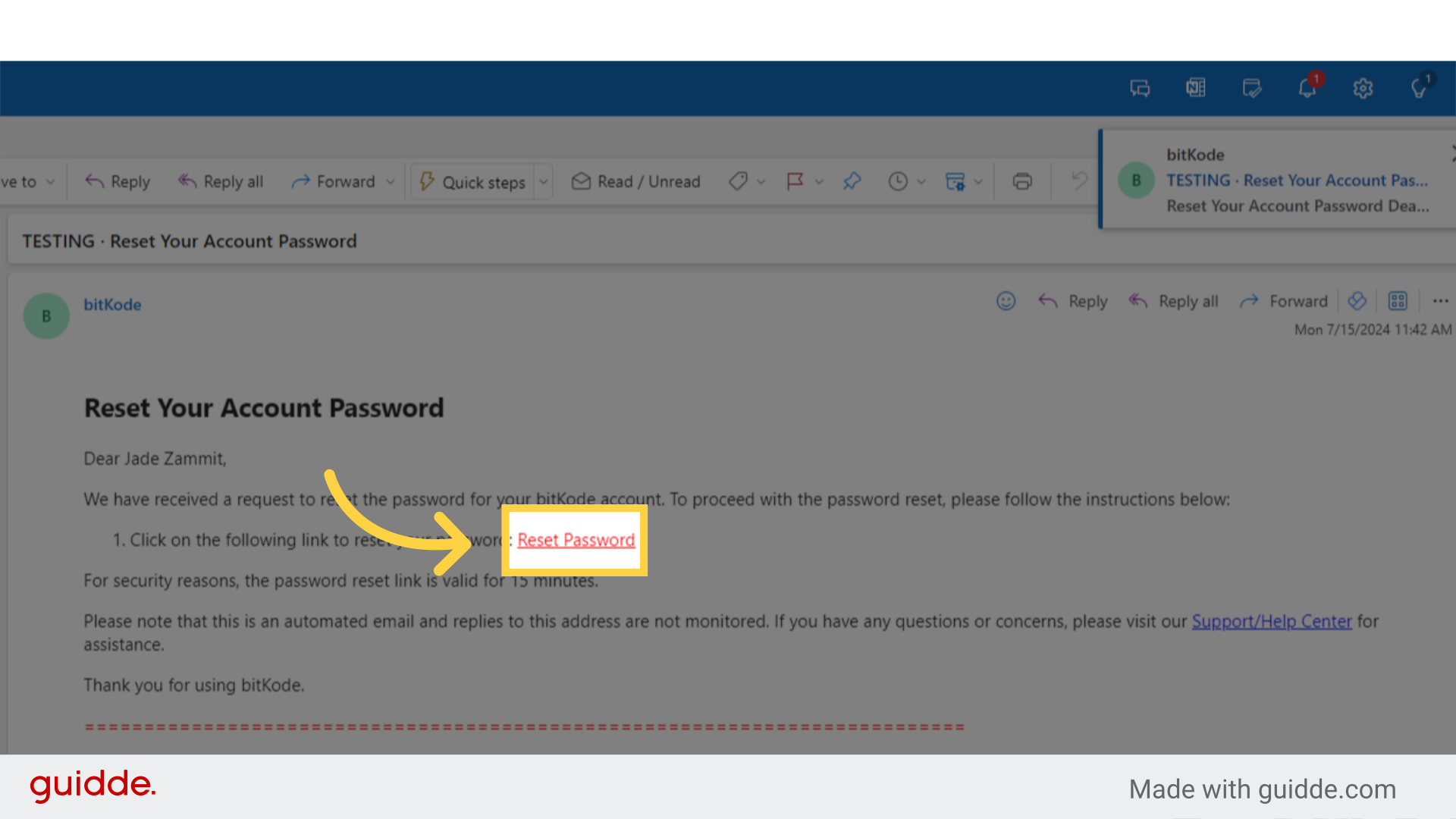
Step 6. Click “Reset Password” #
To enable the user to change their password, they should click on the red-highlighted Reset Password link.
This link will direct them to another page where they can set a new password.
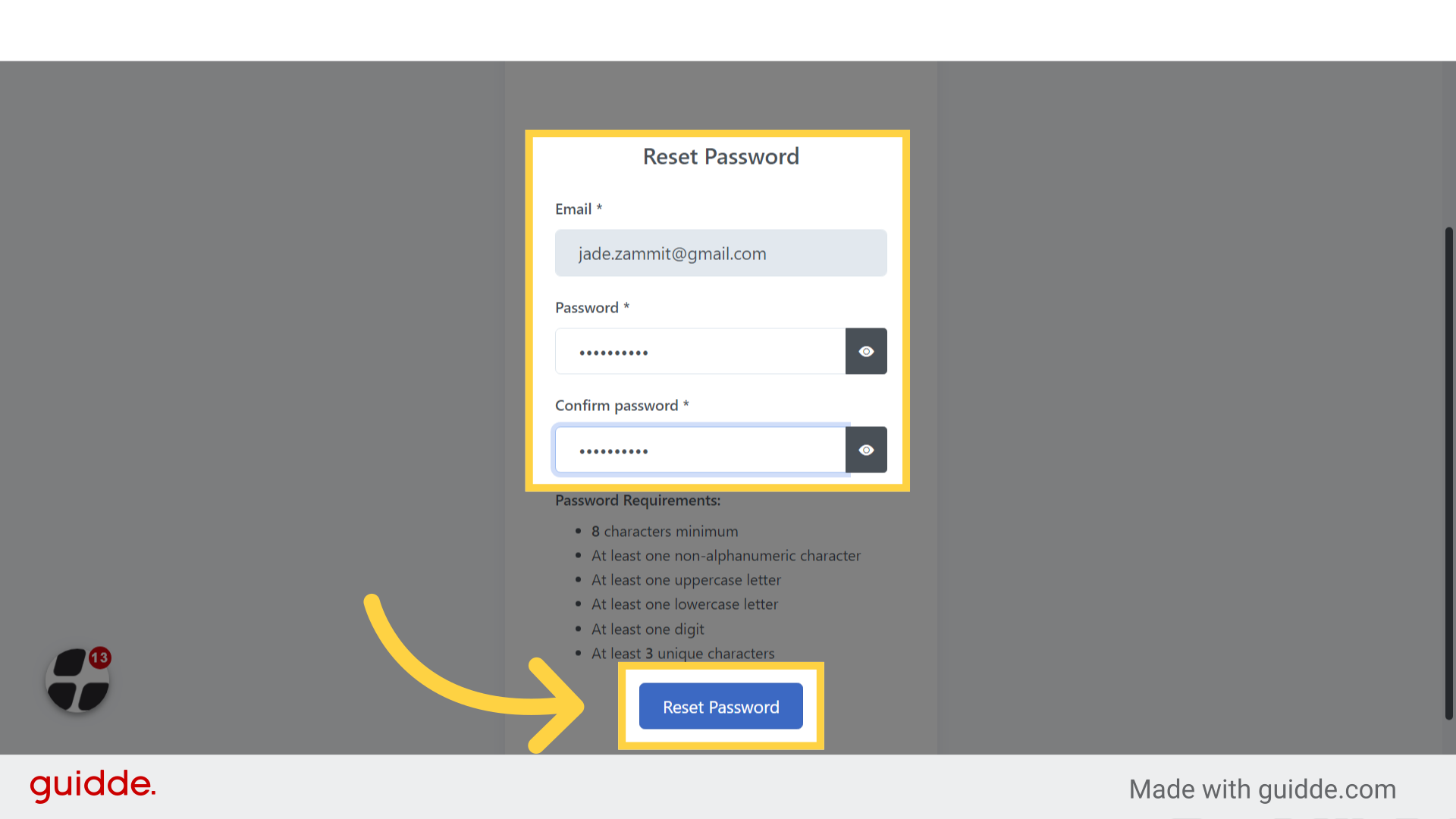
Step 7. “Reset Password” #
To initiate a password reset, the user should input their details, including their email address, new password, and confirmation of the new password.
Once completed, they can click the ‘Reset Password’ button.
Step 8. “Return to login” #
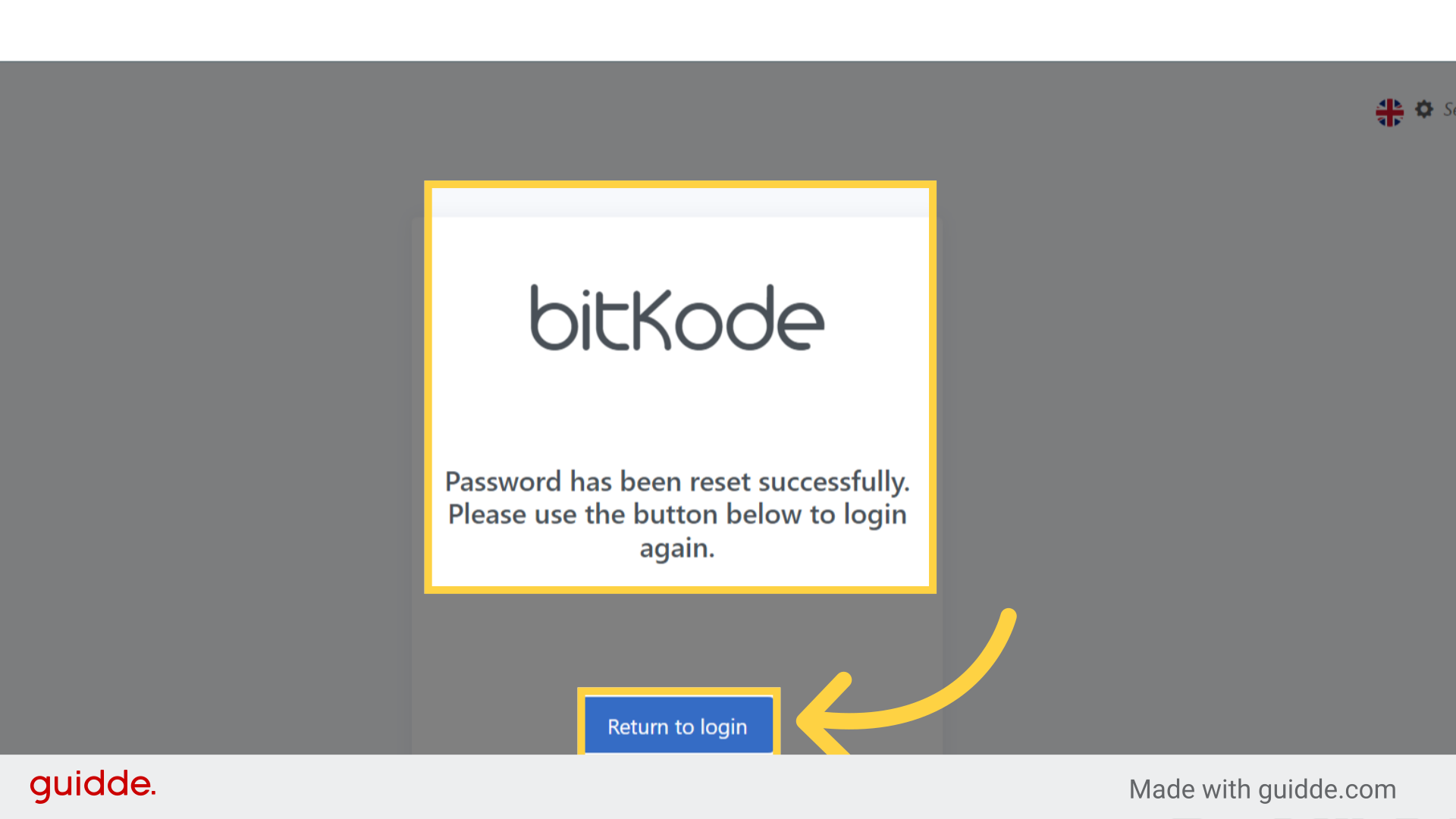
After resetting the password successfully, the user will be prompted with another page confirming the reset.
This page will display a Return to Login option.
When the user clicks on it, they will be redirected to the bitKode portal, where they can sign in again.
Step 9. Email & password #
On this page, the user can sign in using their email address and the new password they’ve set.