
Table of Contents
- Enhance your account security in Bitkode with Two-Factor Authentication.
- Follow these precise steps to set up 2FA easily and protect your data.
- Step 1. Fill "Enter your password"
- Step 2. Scan, insert code
- Step 3. Click "Proceed to Login"
- Step 4. Fill "Enter your password"
- Step 5. Click "Sign In"
- Step 6. Code
- Step 7. Home Page
Enhance your account security in Bitkode with Two-Factor Authentication. #
Follow these precise steps to set up 2FA easily and protect your data. #
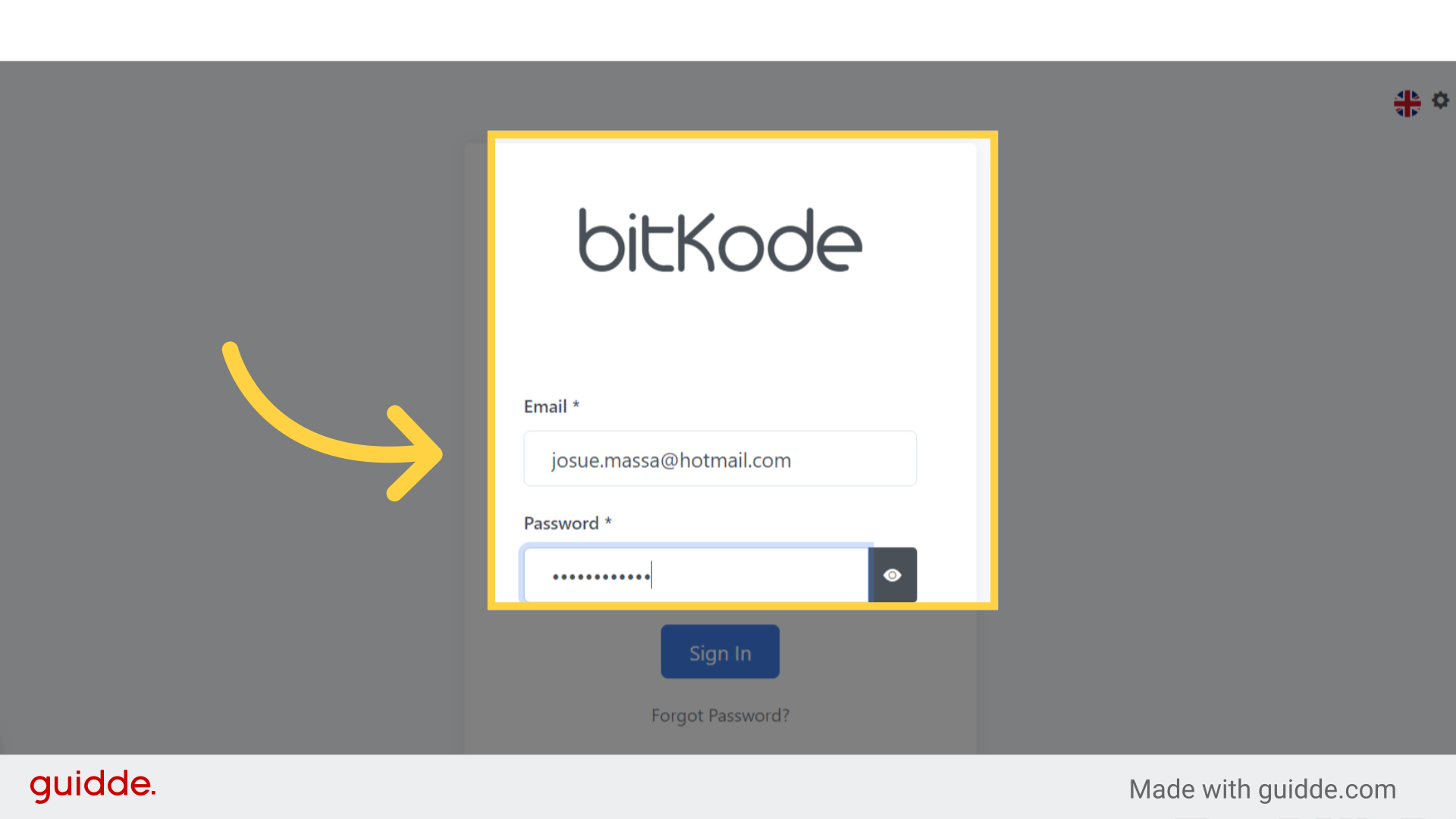
Step 1. Fill “Enter your password” #
Users who have 2FA enforced on their account will be asked to setup the 2FA upon the next login.
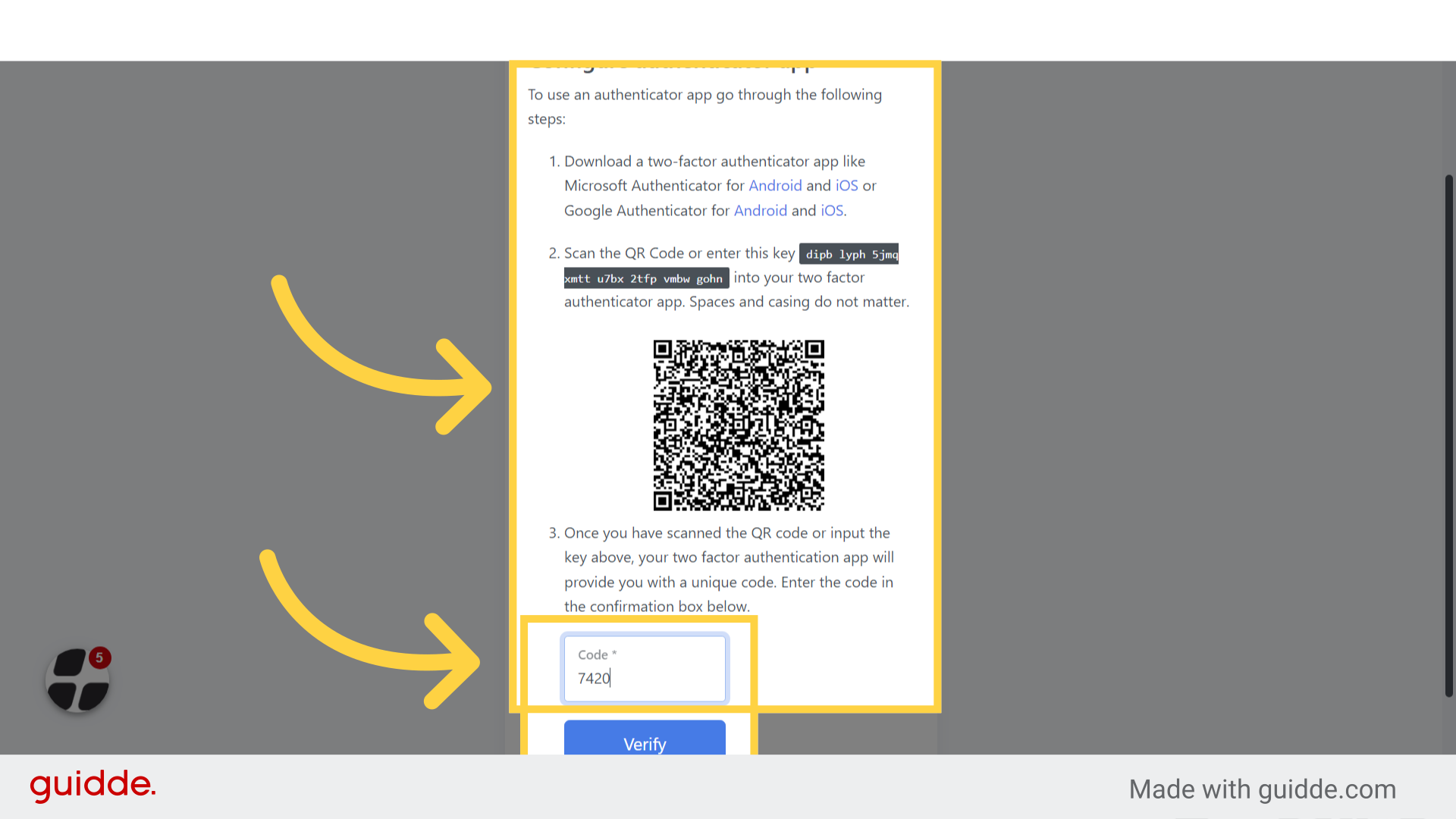
Step 2. Scan, insert code #
The login page will guide the user to download the Google Authenticator on their smart phone, and scan the QR code shown on screen, once scanned, the user will need to insert the code provided by the authenticator app.
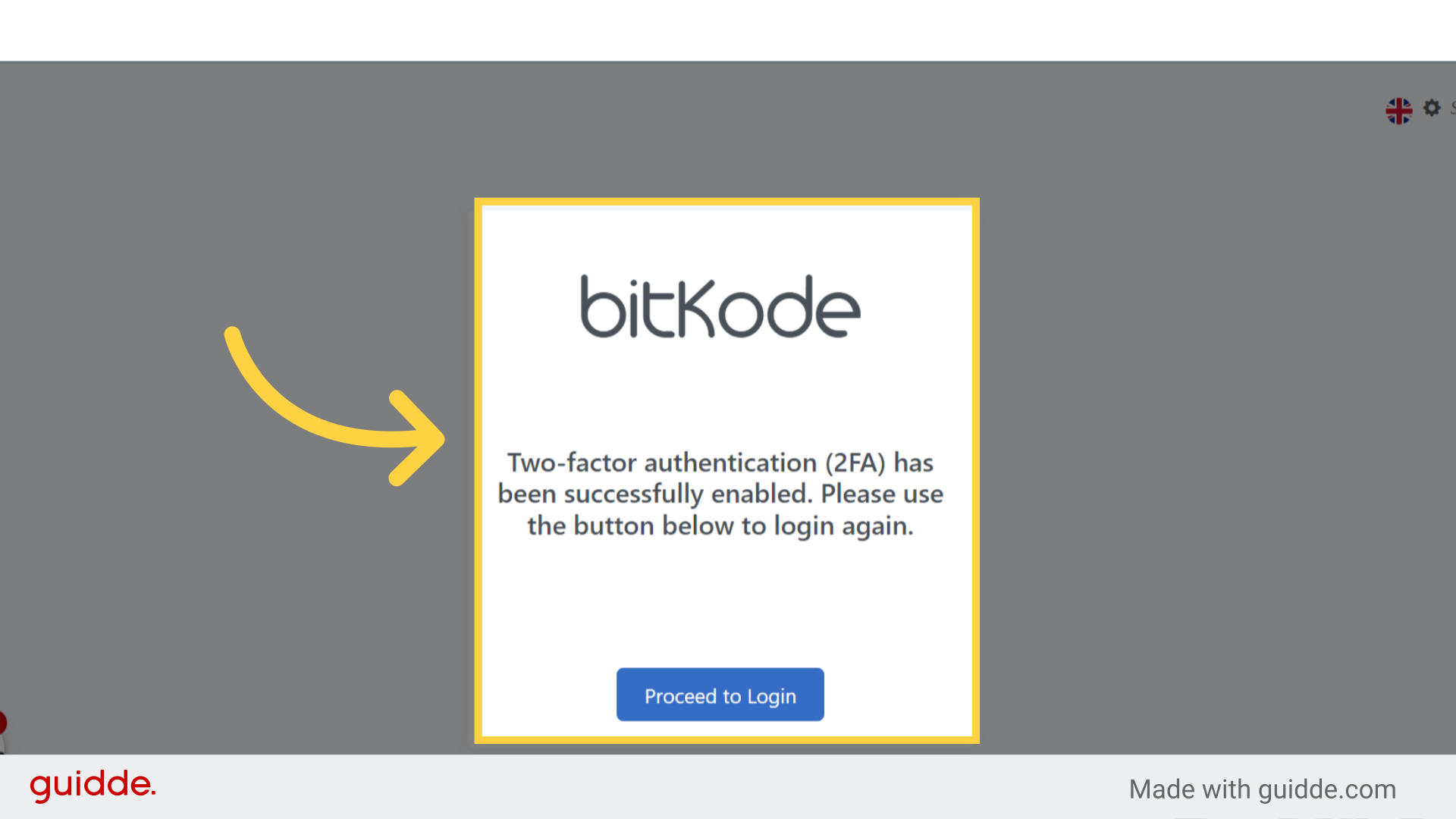
Step 3. Click “Proceed to Login” #
After scanning the QR code and entering the code, the user will be prompted with a notification confirming successful activation.
And can proceed to login.
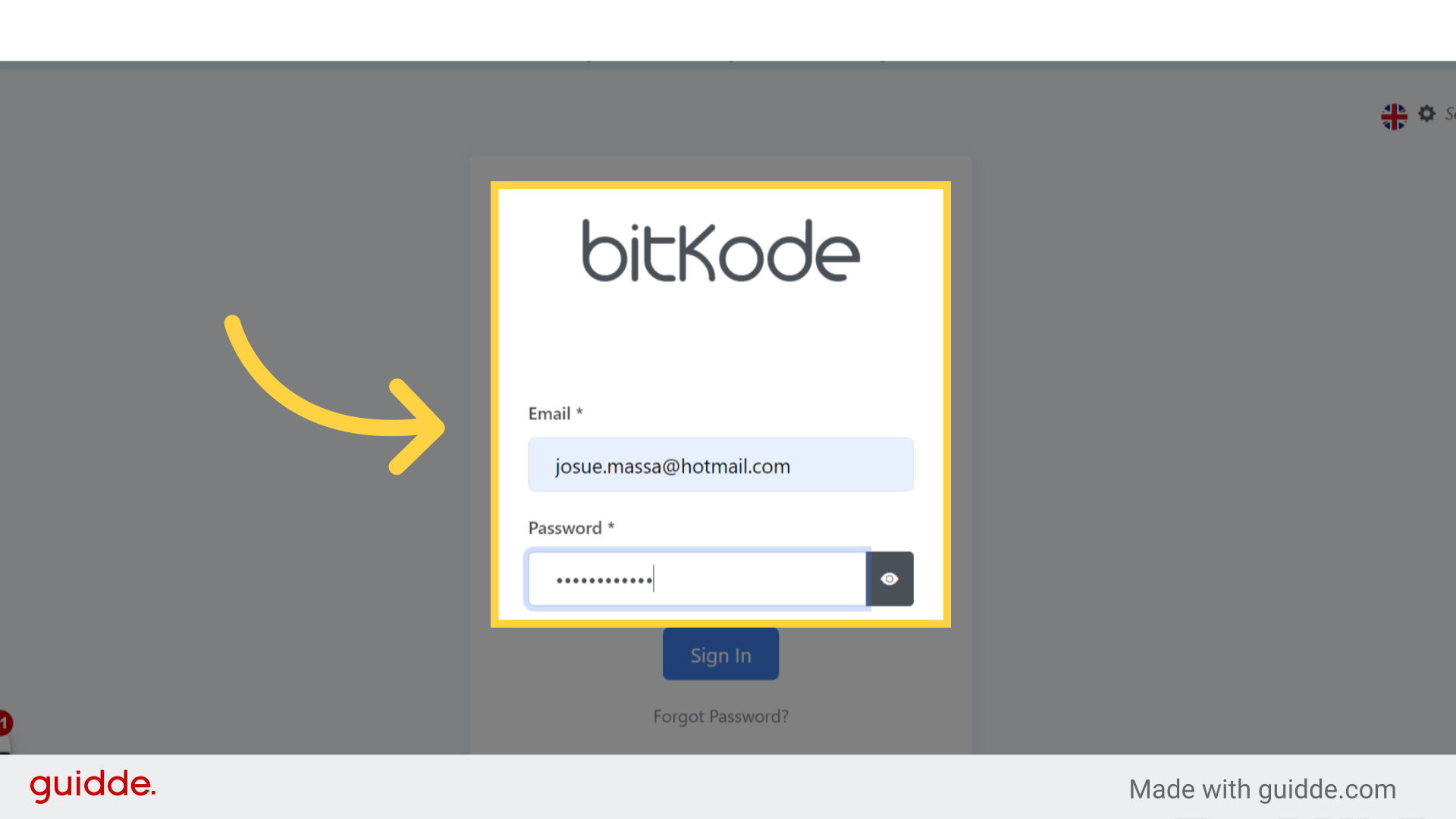
Step 4. Fill “Enter your password” #
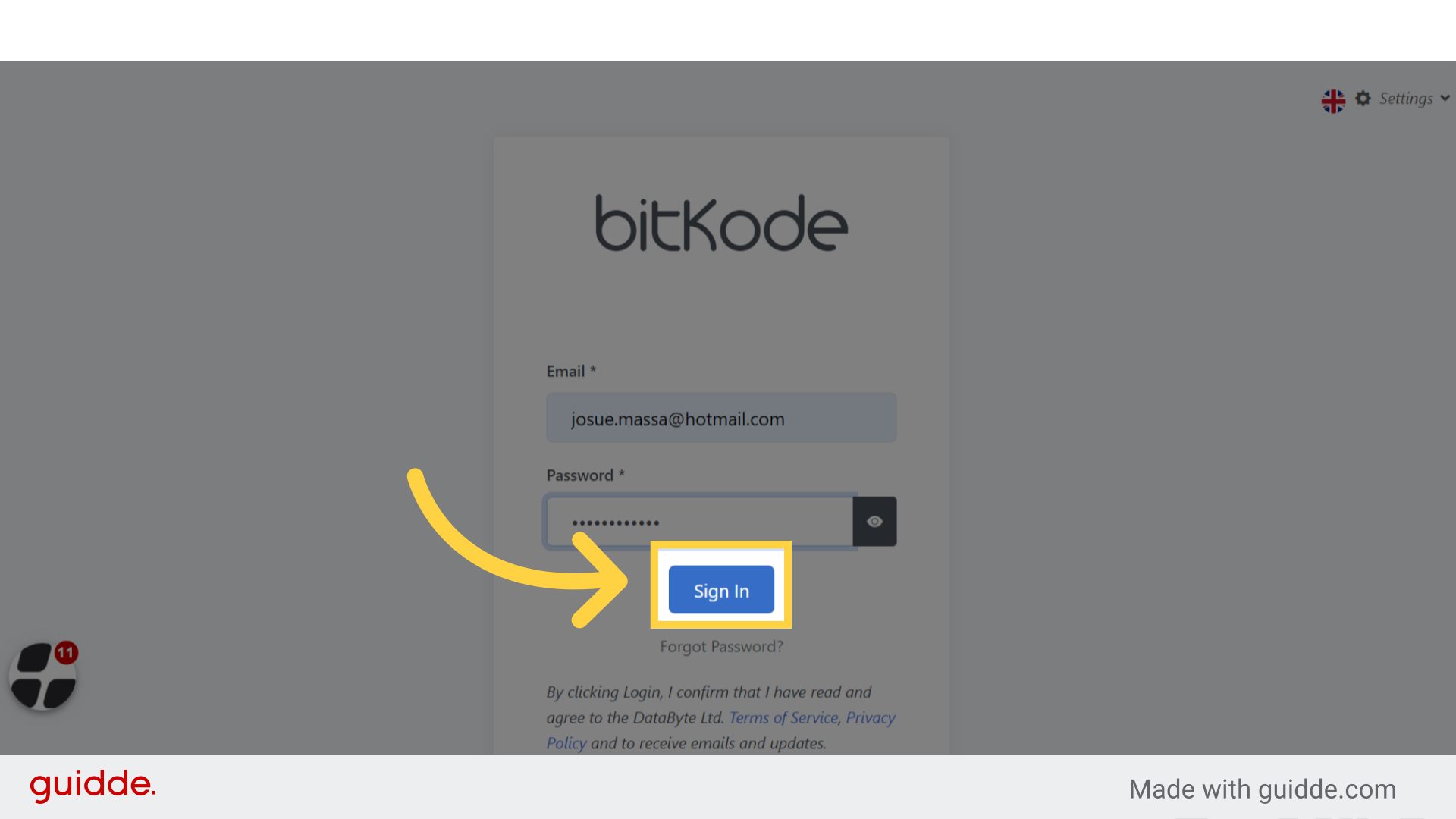
To log in, the user, is to enter his/her email address and password.
Step 5. Click “Sign In” #
The user is to click on sign in.
Step 6. Code #
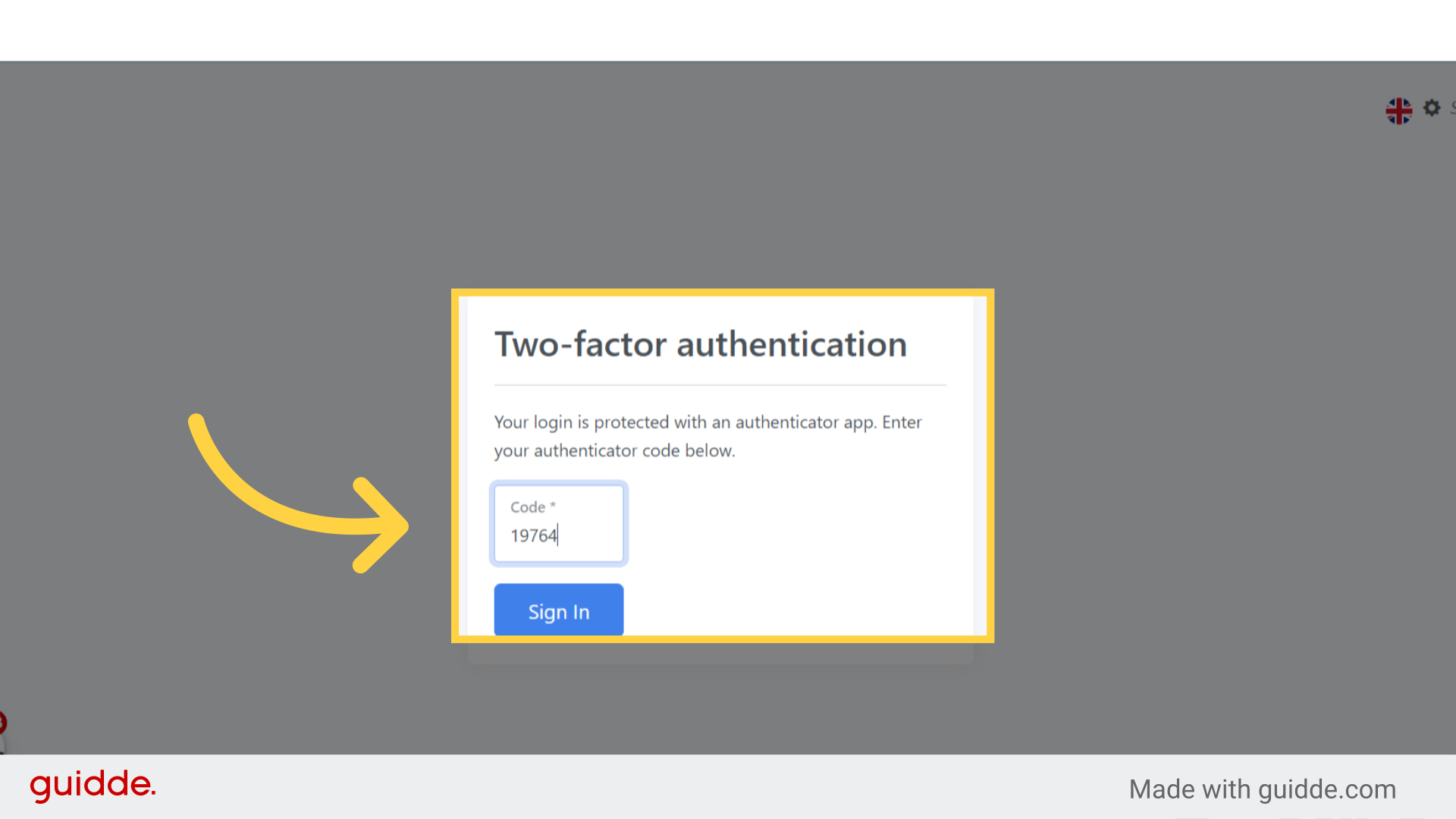
After clicking the Sign In button, another pop-up will prompt the user to enter a code.
This code is generated through the authentication app.
Step 7. Home Page #
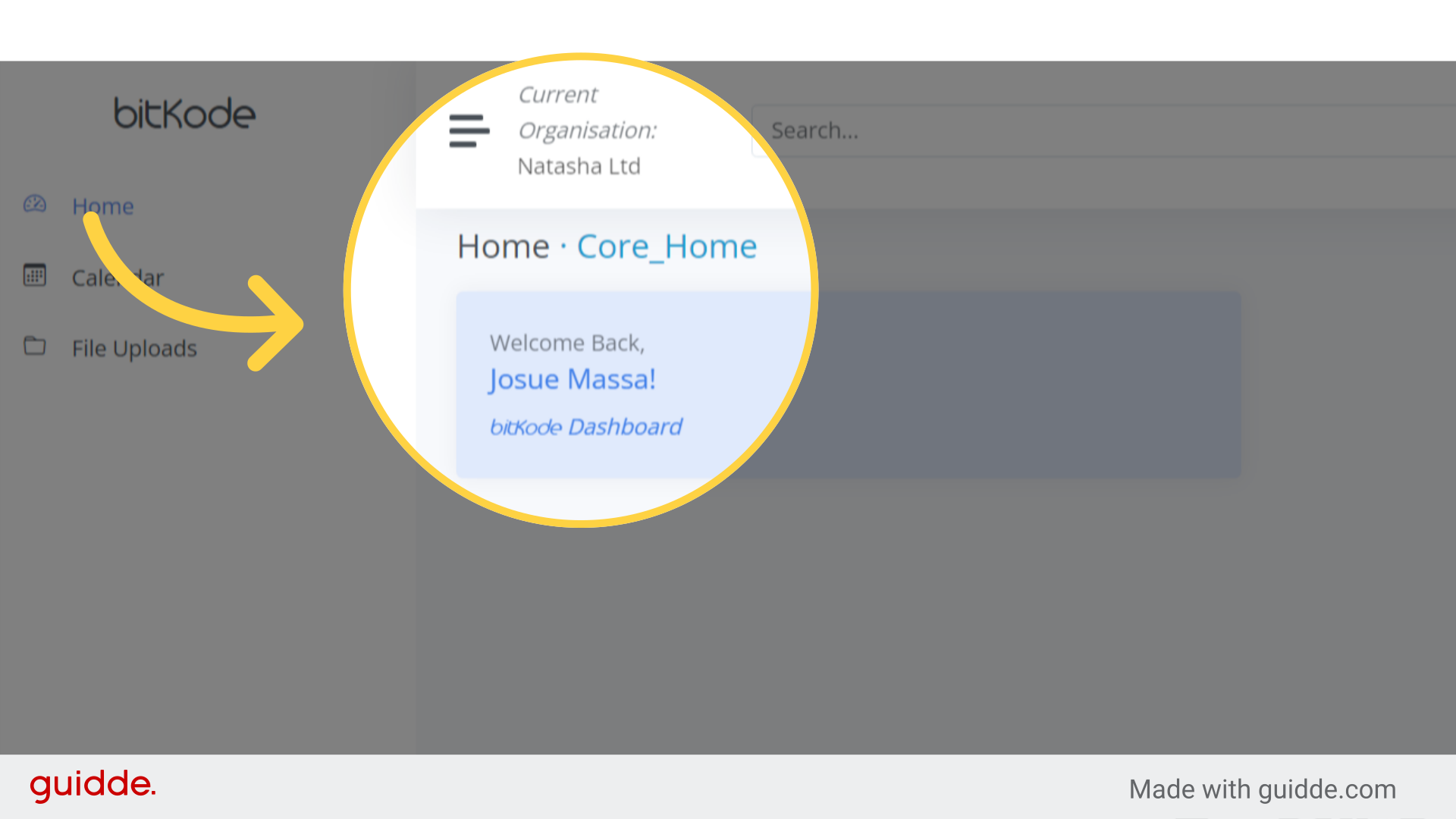
After entering the authentication code and signing in, the user, will be directed to his/her home page on bitKode.
This guide assists Bitkode users in setting up Two-Factor Authentication (2FA) for enhanced security.


