Table of Contents
- This guide will walk you through the process of enforcing Two-Factor Authentication (2FA) on other users in Bitkode as a Global Administrator.
- Follow these steps to enhance security for your team members efficiently.
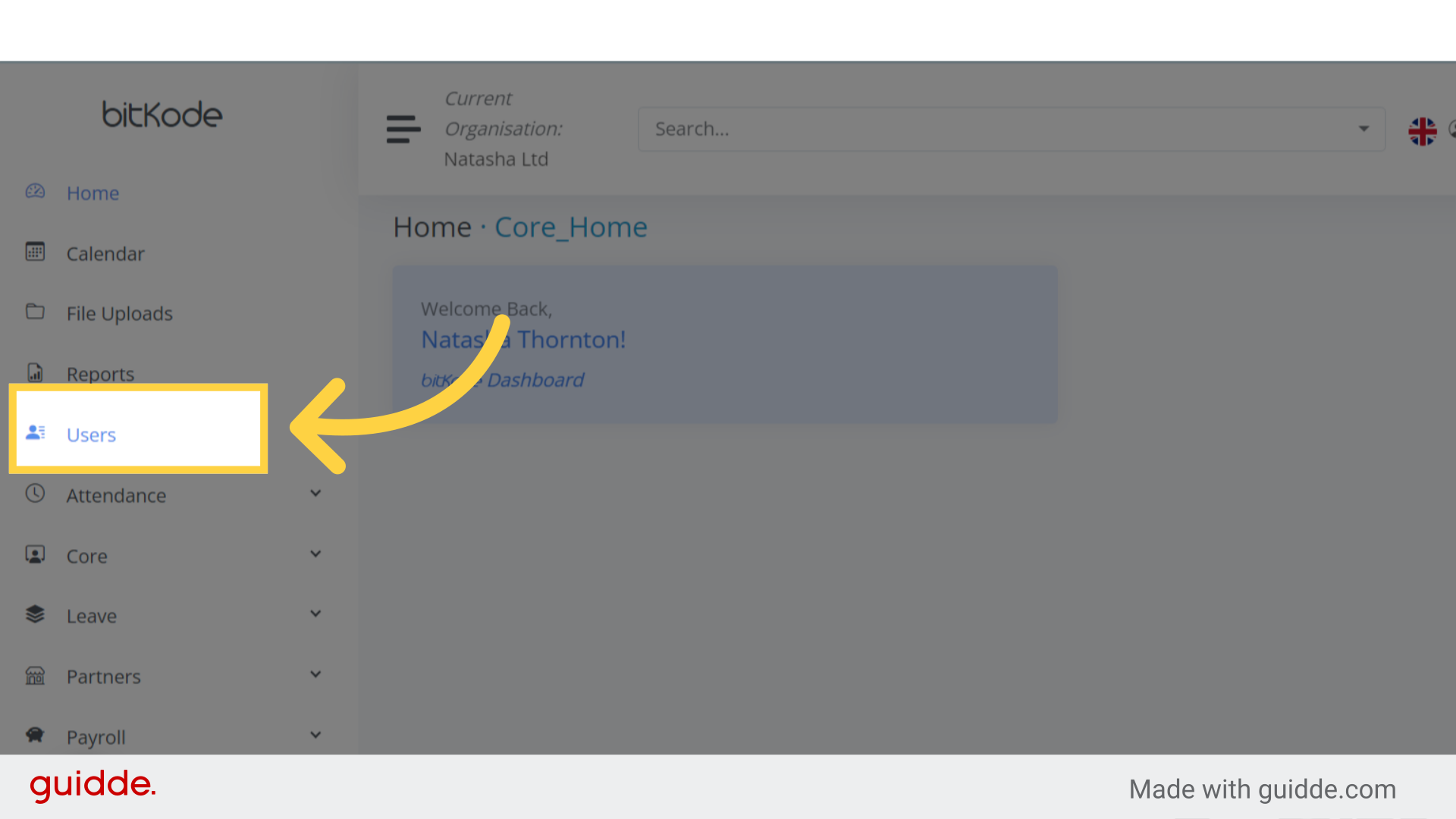
- Step 1. Click "Users"
- Step 2. Fill "on"
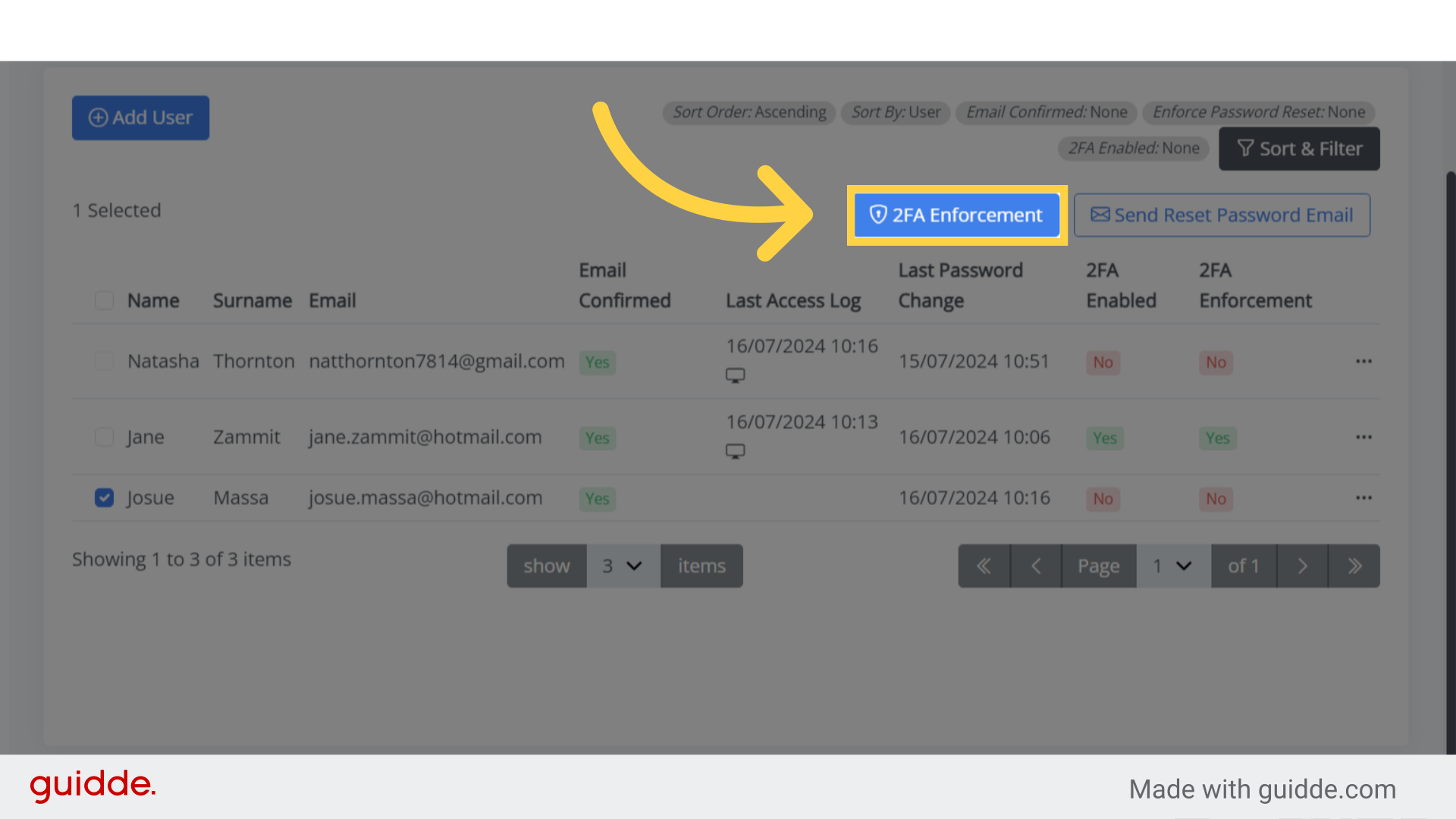
- Step 3. Click "2FA Enforcement"
- Step 4. Click "Continue"
- Step 5. How do I, as a user, setup my 2FA?
Step 1. Click “Users” #
bitKode enables you to set the Two-Factor Authentication (2FA) for better security against unauthorized access into the system.Global Administrators have the possibility of enforcing the use of 2FA for other users via the users section.
Moreover, all users can also set up the 2FA function on their own account.
To begin, navigate to the Users section on the left-hand side.
Step 2. Fill “on” #
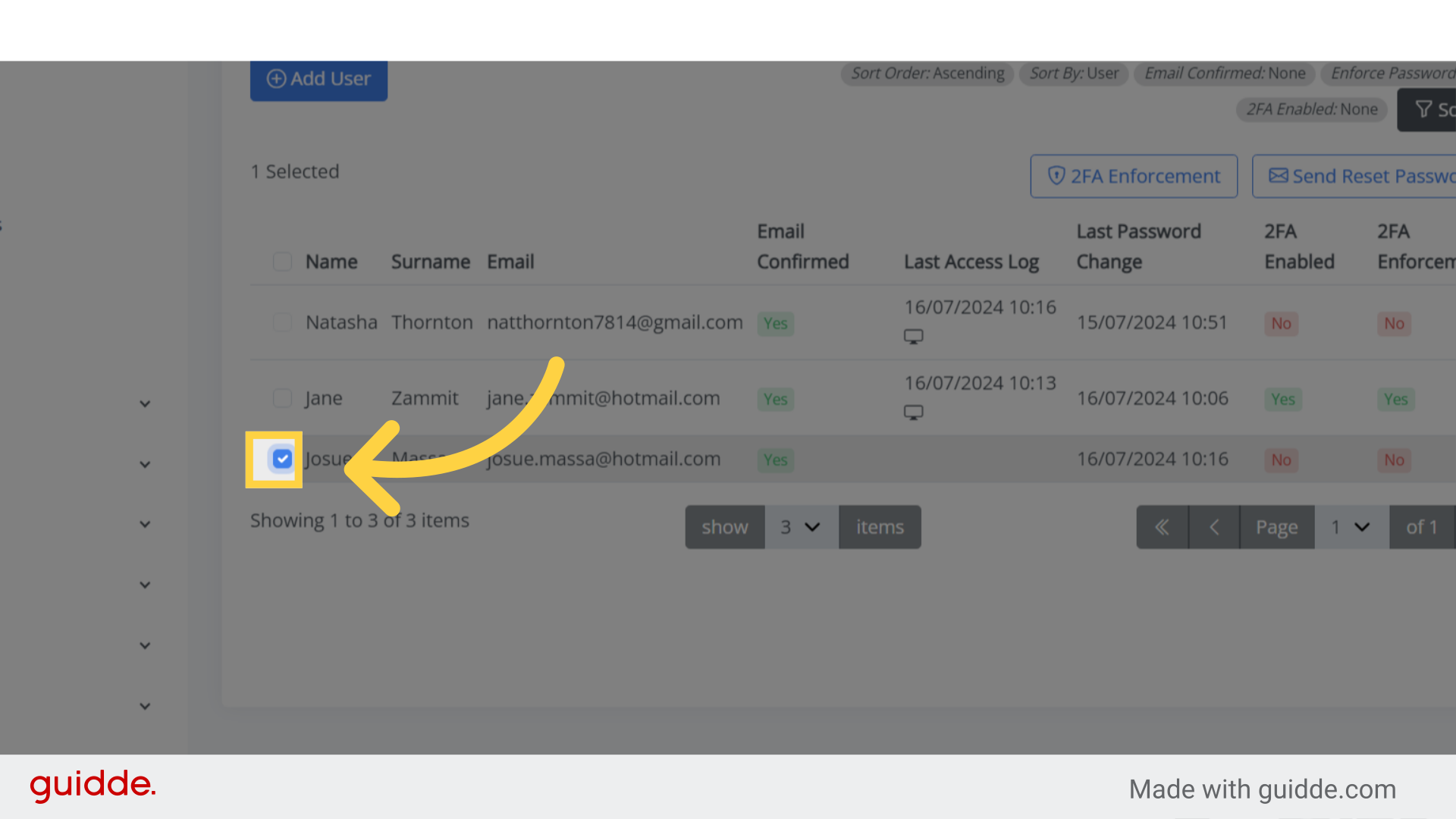
After clicking on the Users section, you’ll see a list of users.
To select the desired user or all users, simply tick the checkbox next to their name and surname.
Step 3. Click “2FA Enforcement” #
After selecting the desired users, click the button to enable 2FA enforcement.
Users with 2FA enforced on their account will be prompted to set up 2FA during their next login.
Step 4. Click “Continue” #
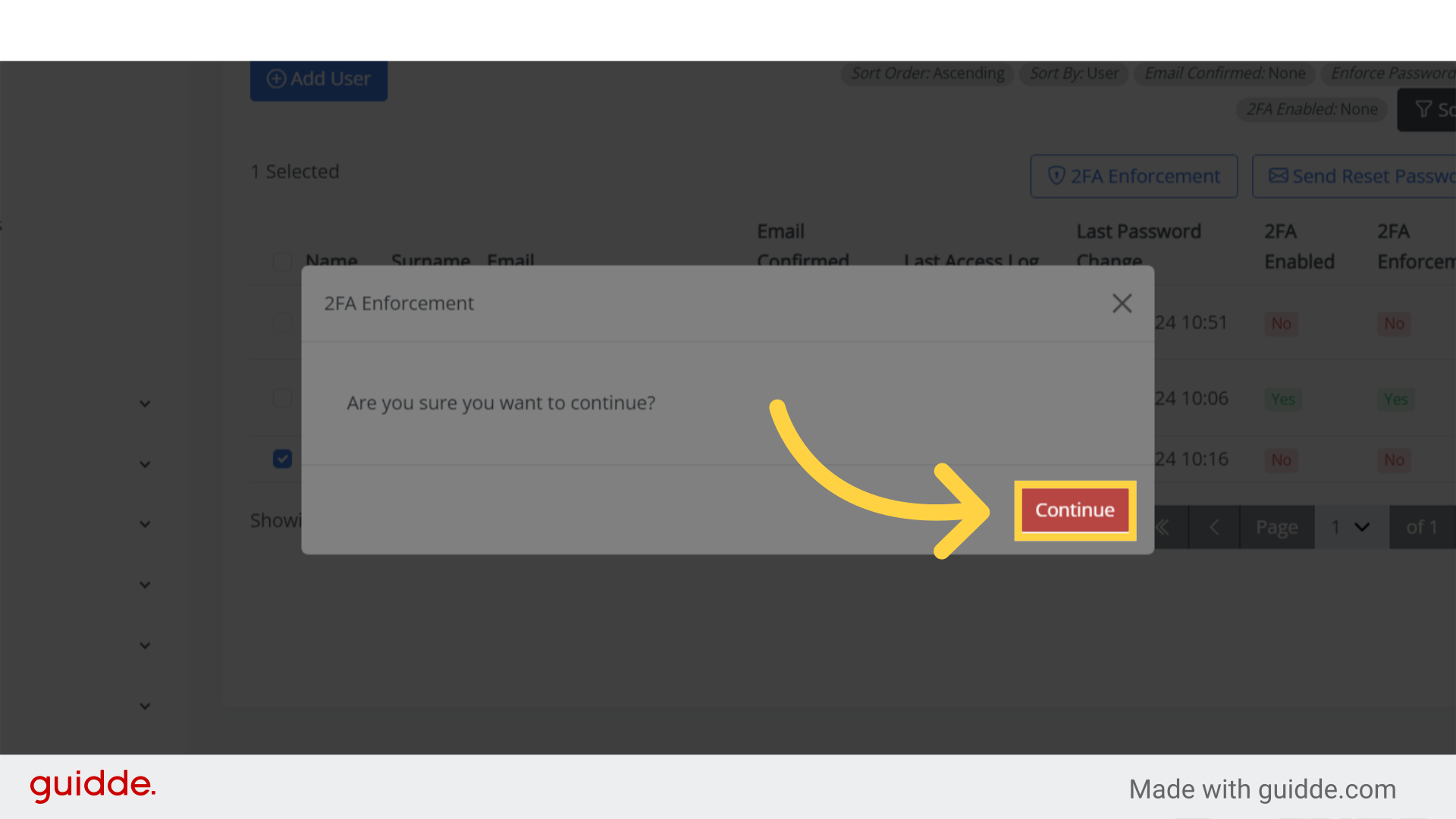
After selecting the users and enforcing 2FA, a notification box will appear, asking if you are sure you want to continue.
Simply click Continue to save the changes.
Step 5. How do I, as a user, setup my 2FA? #
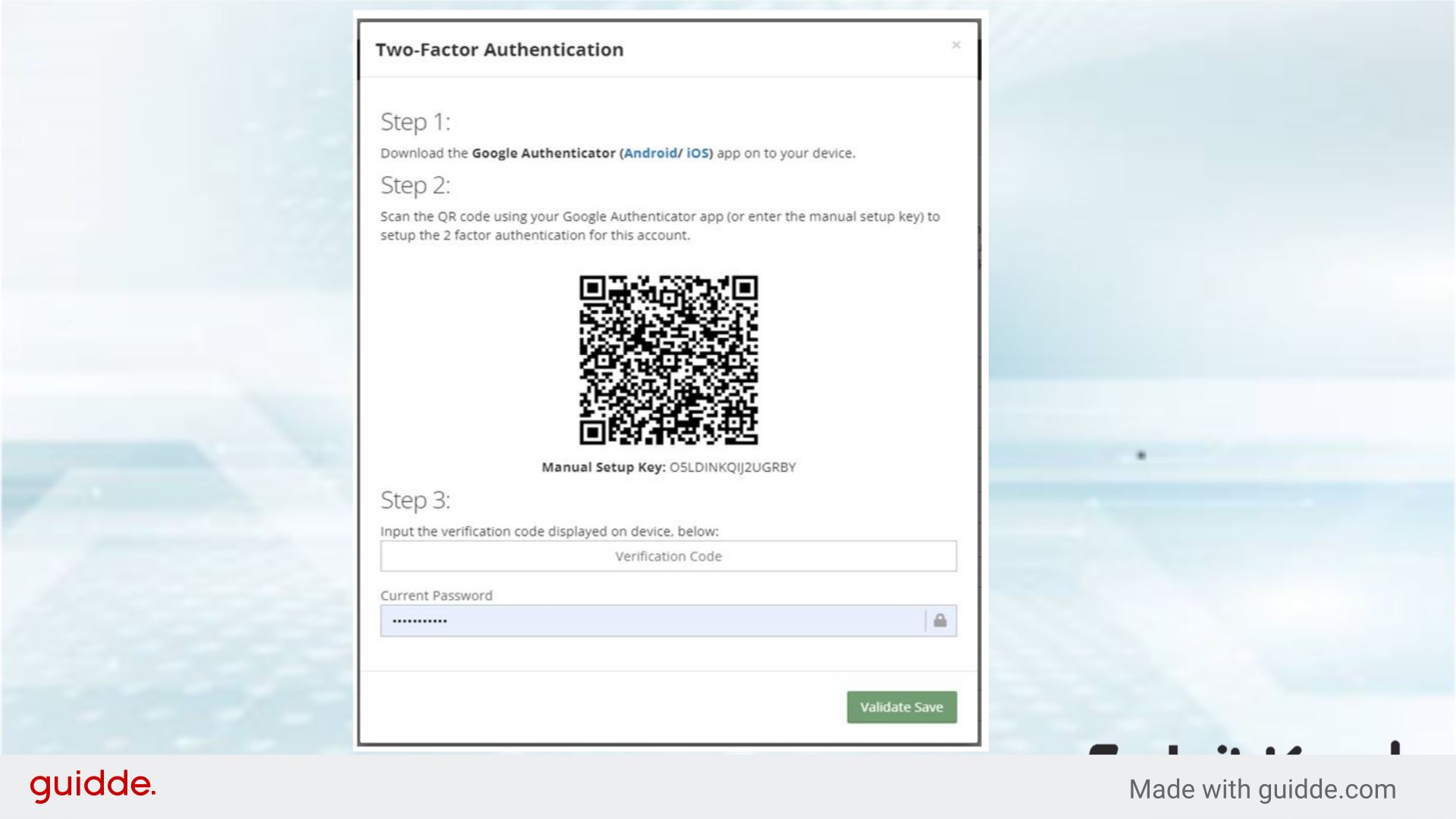
Follow the 2FA setup process, as described on screen:Step 1: Download the Google Authenticator (Android IOS app on your device.
Step 2: Scan the QR code using your Google Authenticator app, or enter manual setup key, to setup the 2 factor authentication for this account.
Step 3: input the verification code displayed on device.
Click on validate save.