
Table of Contents
- This guide will walk you through updating an employee's Department History in Bitkode.
- From navigating to the employee's profile to managing department entries, you will learn how to efficiently make changes and keep track of historical data.
- Step 1. Click "Employees"
- Step 2. Click on the employee
- Step 3. Click "Department History"
- Step 4. Click "Add New"
- Step 5. Department
- Step 6. Click "Delete"
- Step 7. Click "Sort & Filter"
- Step 8. Click "Deleted"
- Step 9. Click "Sort & Filter"
- Step 10. Tick the check box
- Step 11. Click "Active"
- Step 12. Click "Sort & Filter"
- Step 13. Department
This guide will walk you through updating an employee’s Department History in Bitkode. #
From navigating to the employee’s profile to managing department entries, you will learn how to efficiently make changes and keep track of historical data. #
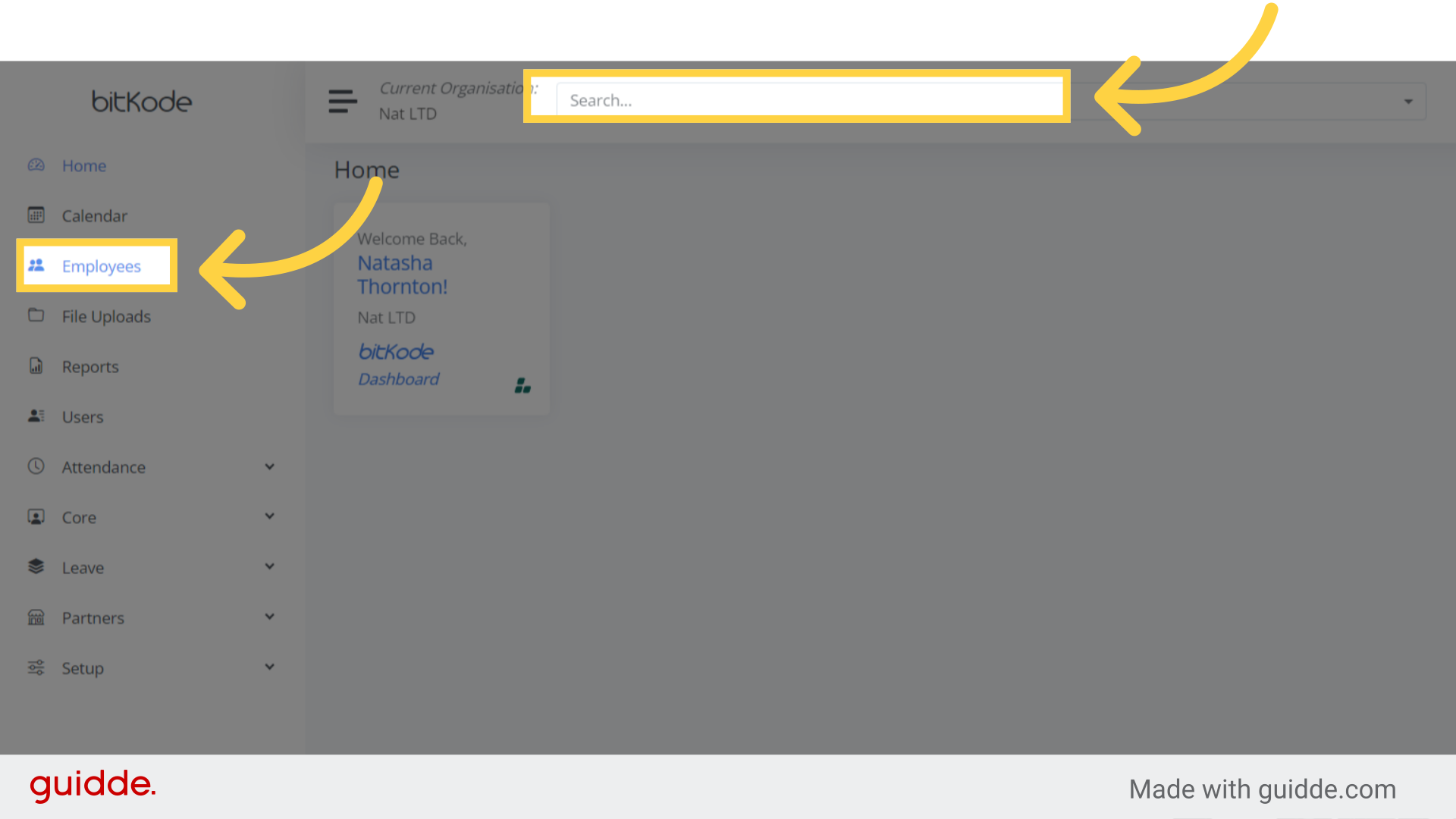
Step 1. Click “Employees” #
Begin by searching for the employee using the global search feature or by accessing the employee field.
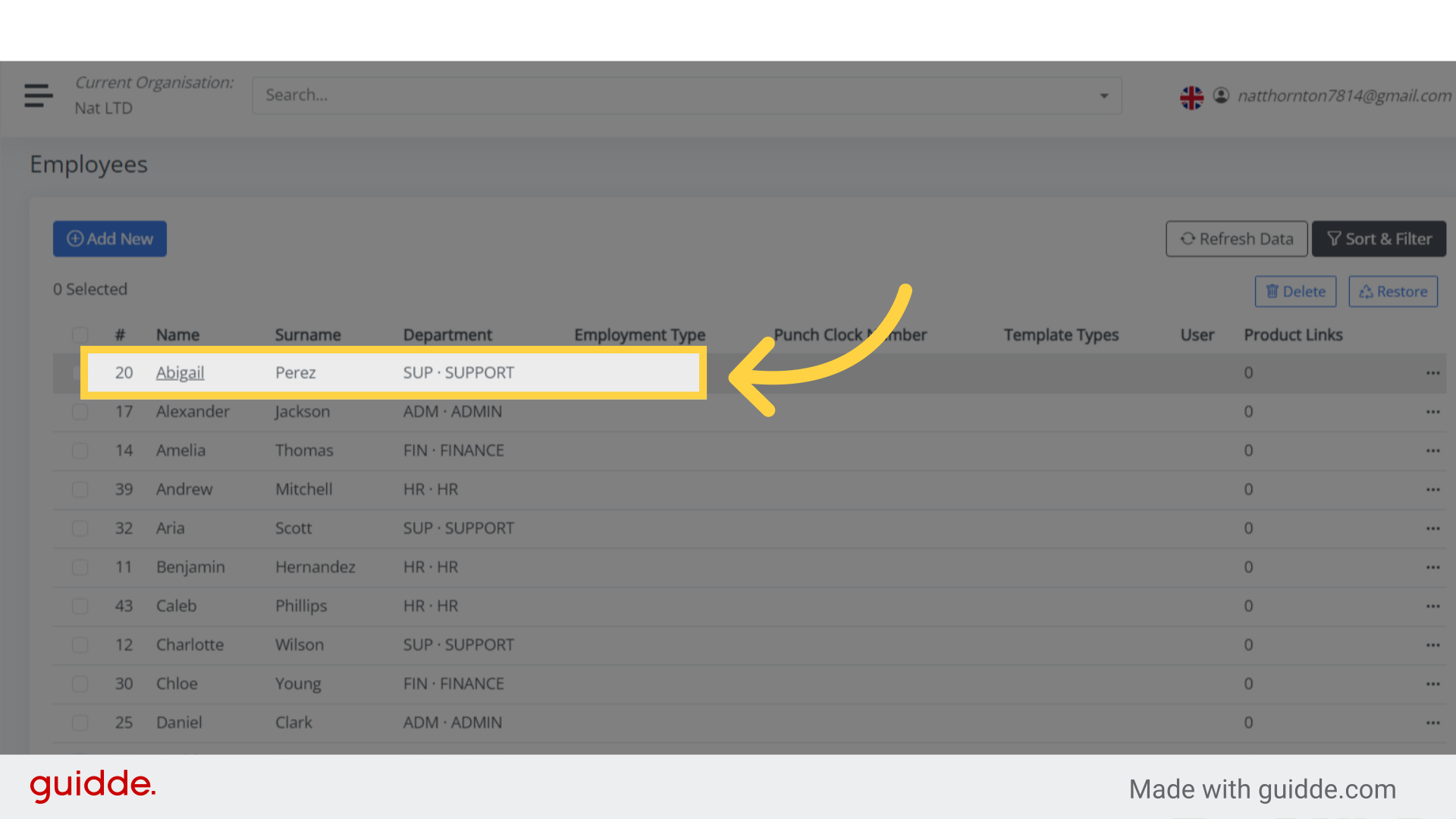
Step 2. Click on the employee #
Next, locate the employee whose department history you want to update.
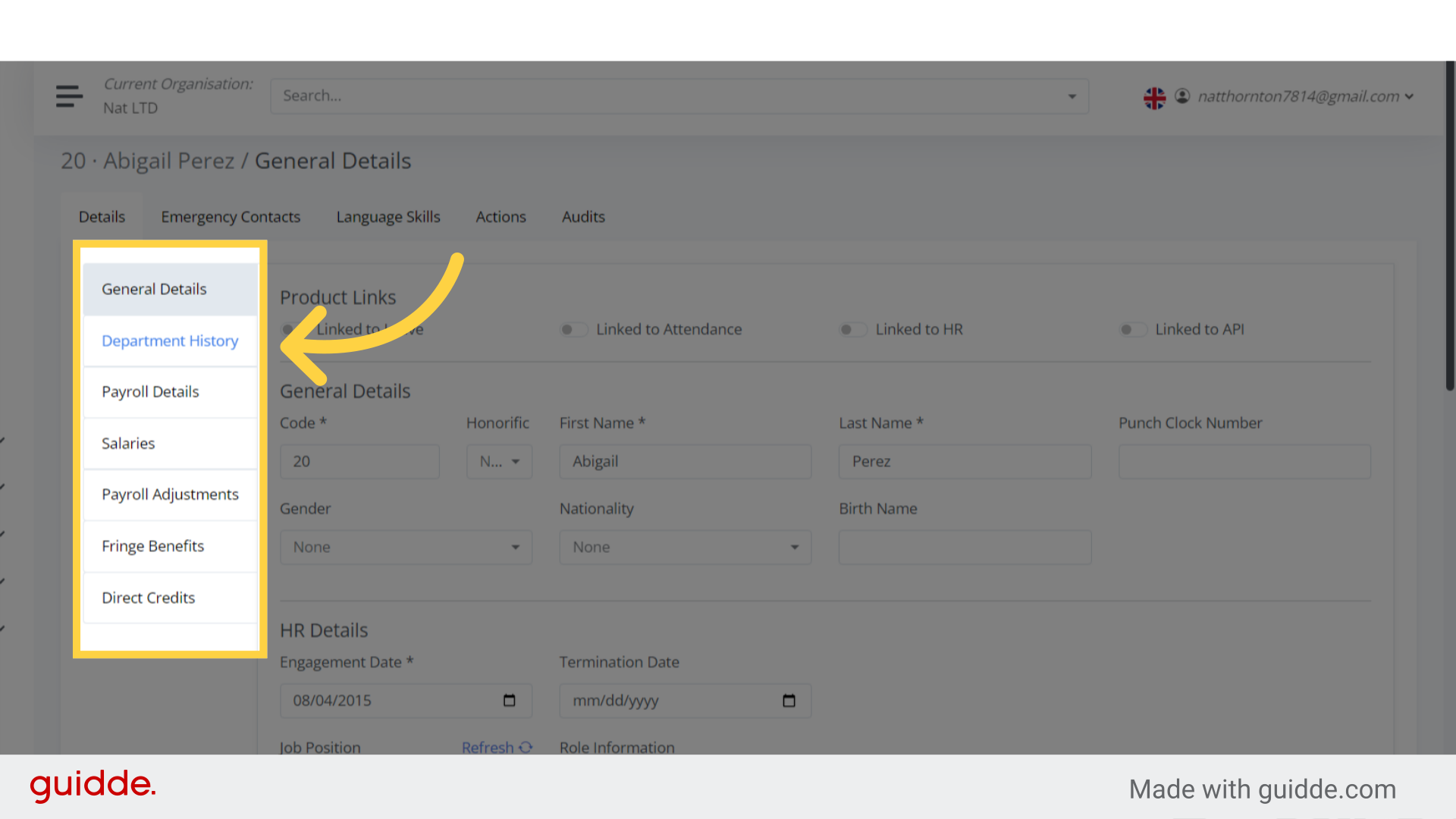
Step 3. Click “Department History” #
Once you’re in the employee’s profile, you’ll see all the fields containing their information.
Simply click on the “Department History” field.
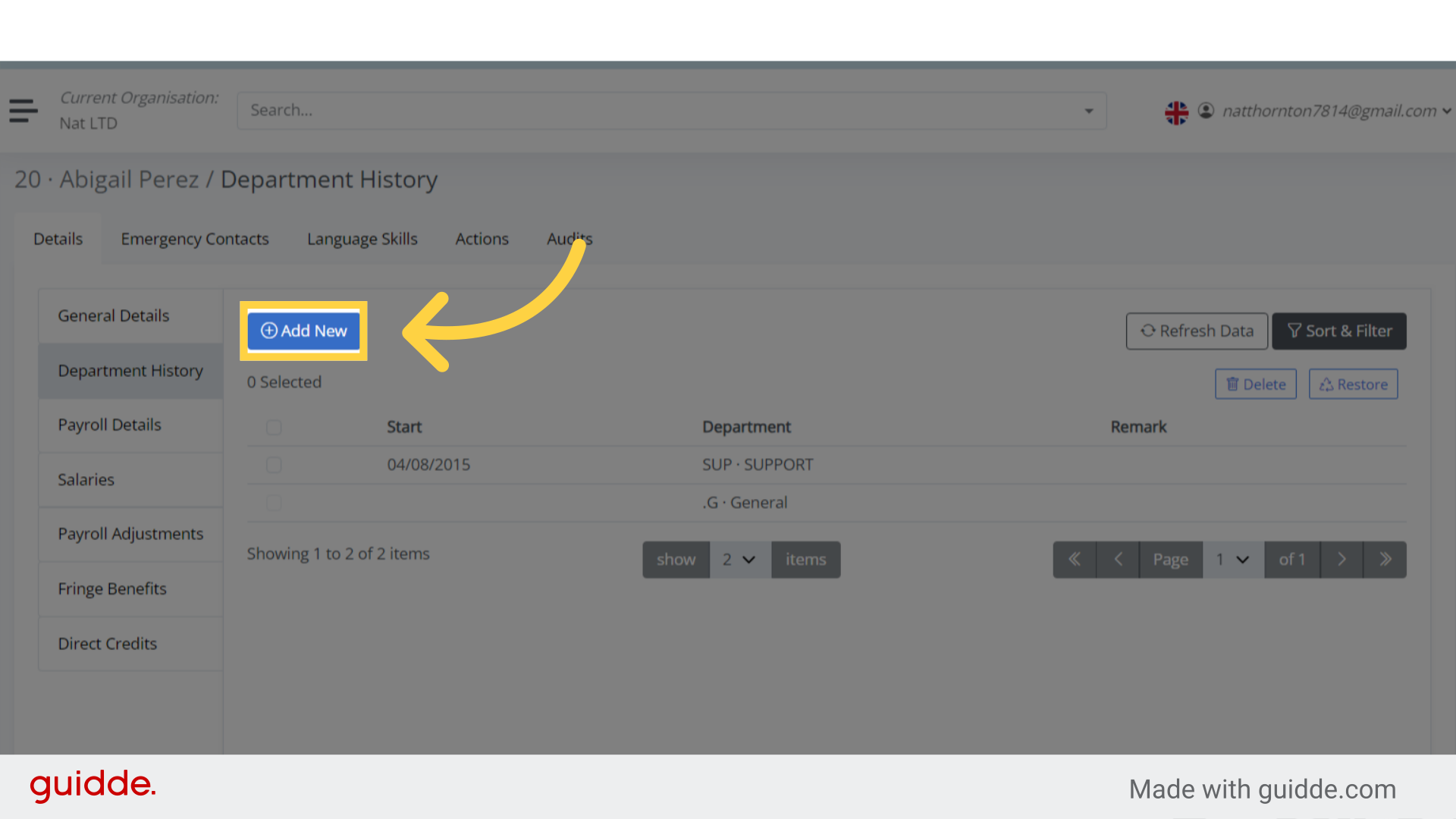
Step 4. Click “Add New” #
Initiate the process to add a new department entry.
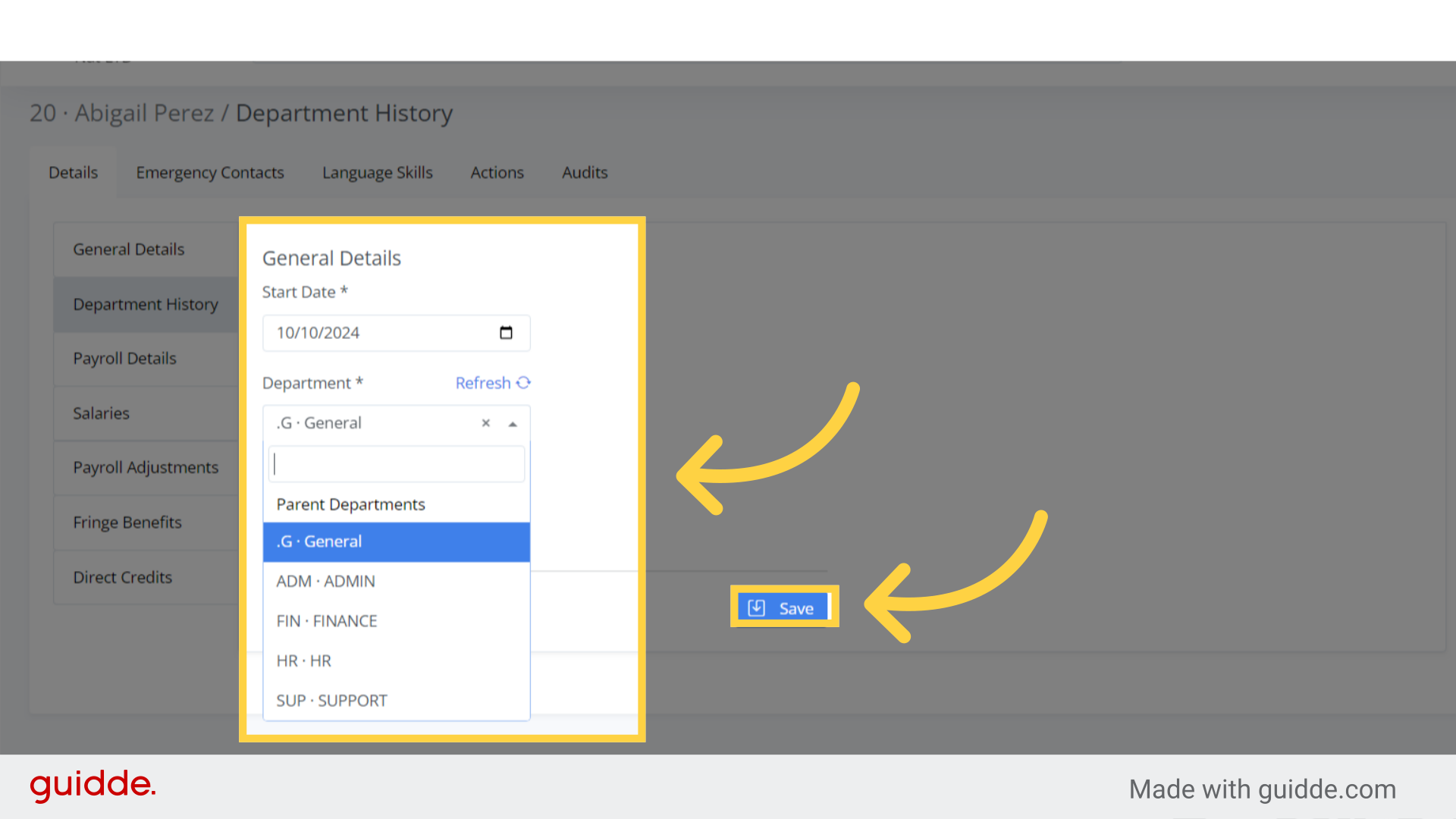
Step 5. Department #
Record the start date and select the department you want to assign to the employee and simply click “Save” to apply the changes.
Remember that the Department needs to be created first in order to be visible in the list.
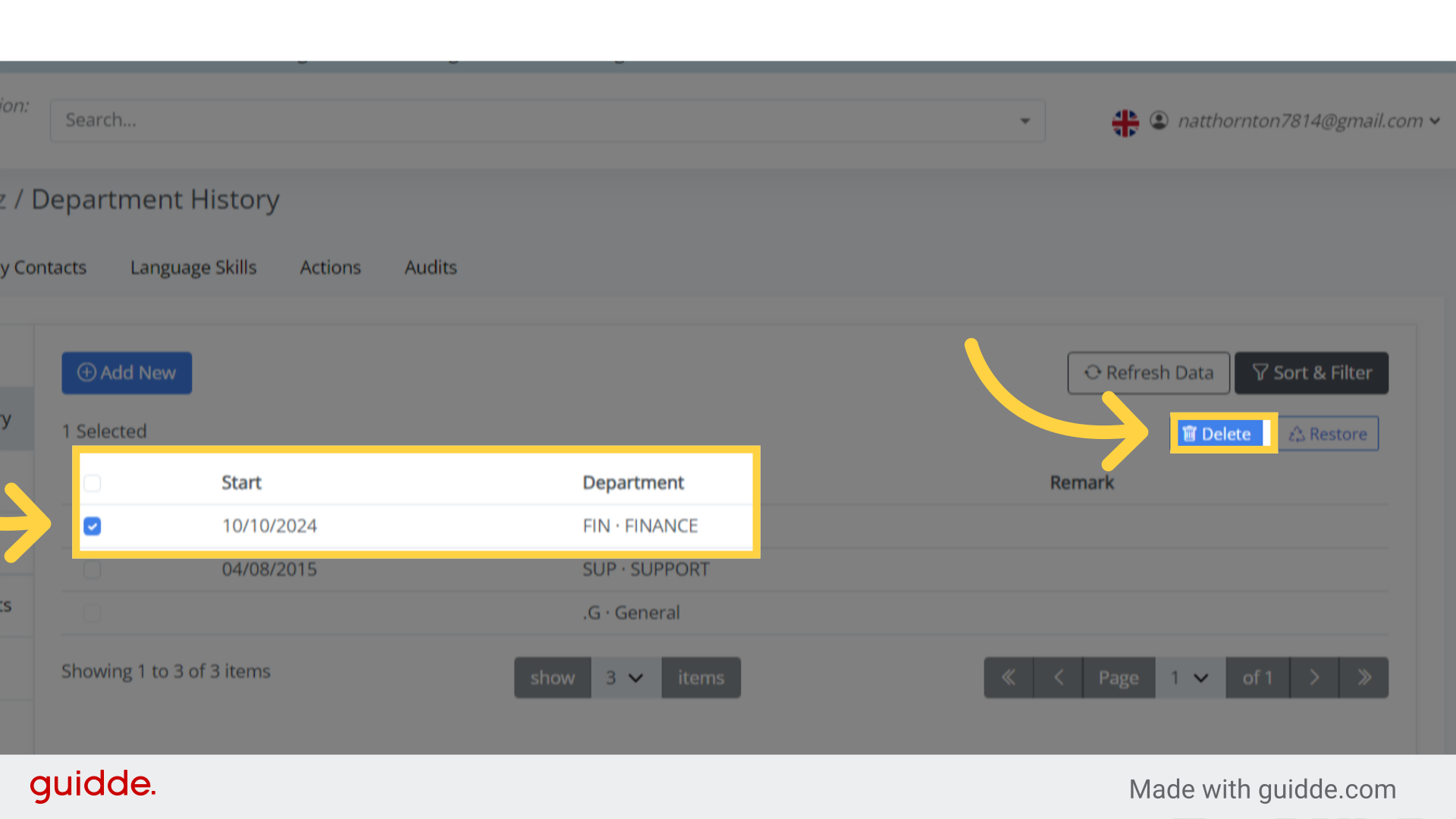
Step 6. Click “Delete” #
If you wish to delete a department history, check the box next to the department and select the “Delete” option.
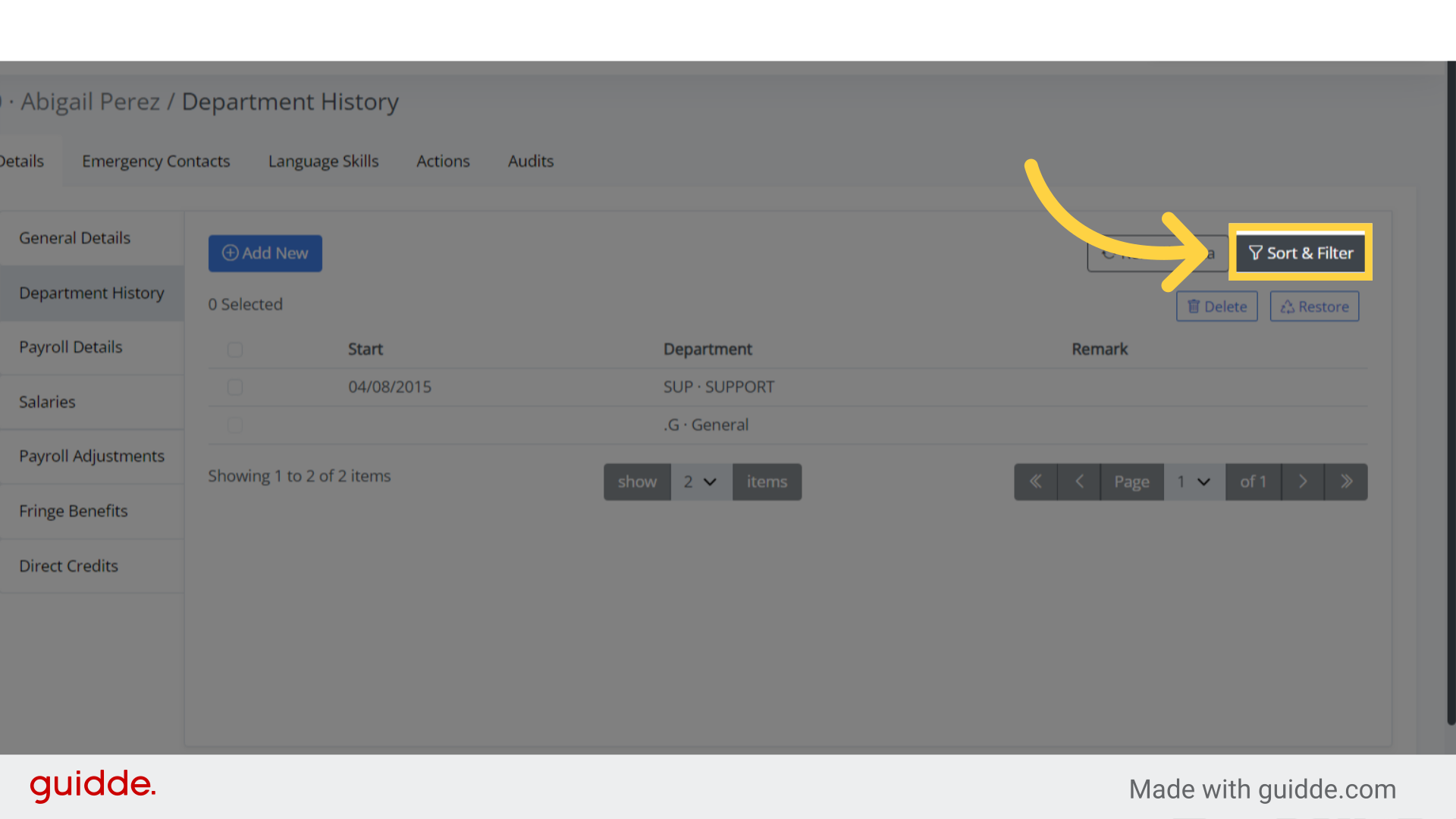
Step 7. Click “Sort & Filter” #
To restore a deleted department, click on the “sort and filter” option.
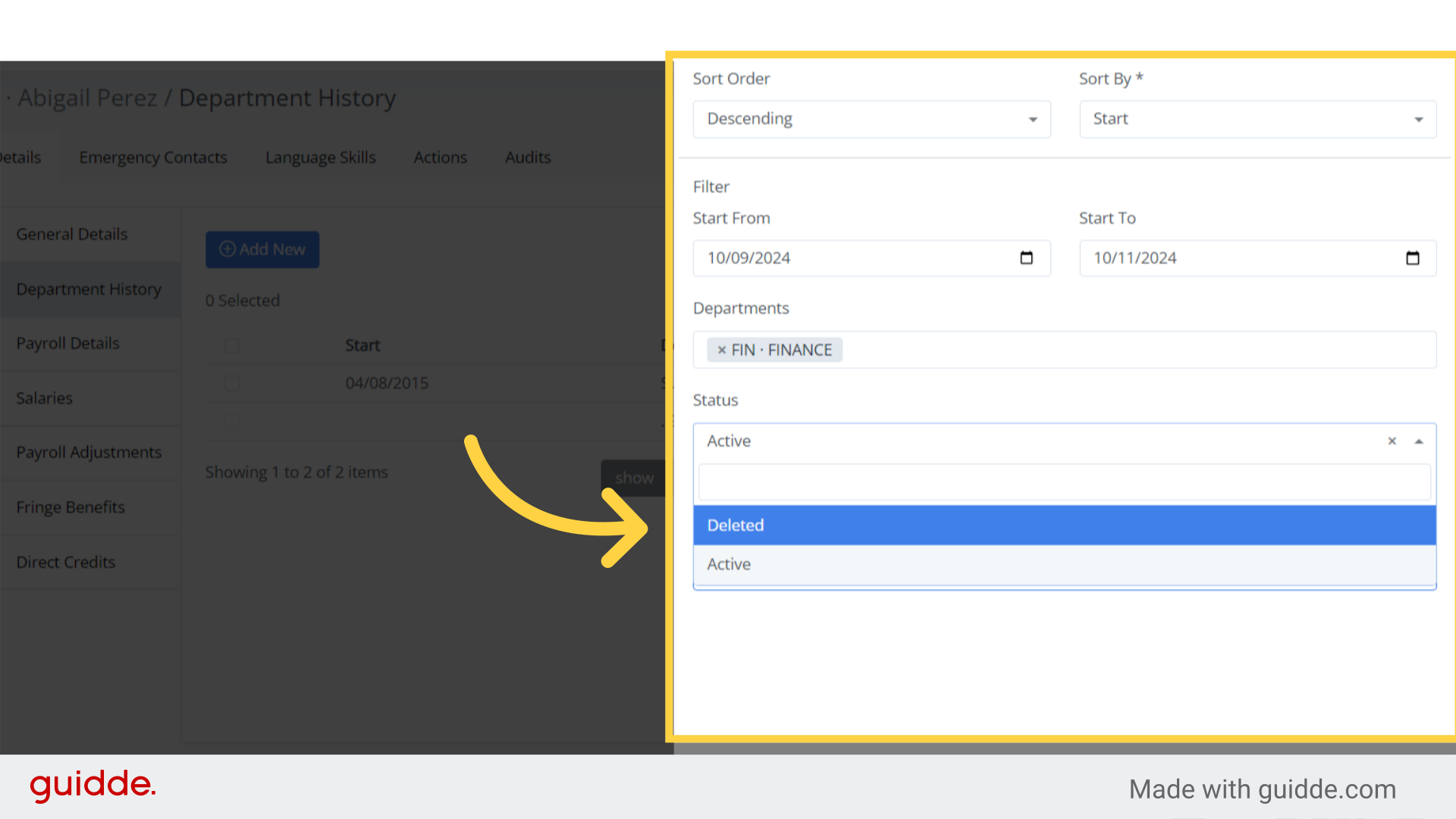
Step 8. Click “Deleted” #
Sort and filter by setting the status to “Deleted”.
This will display a list of all deleted department histories for the employee.
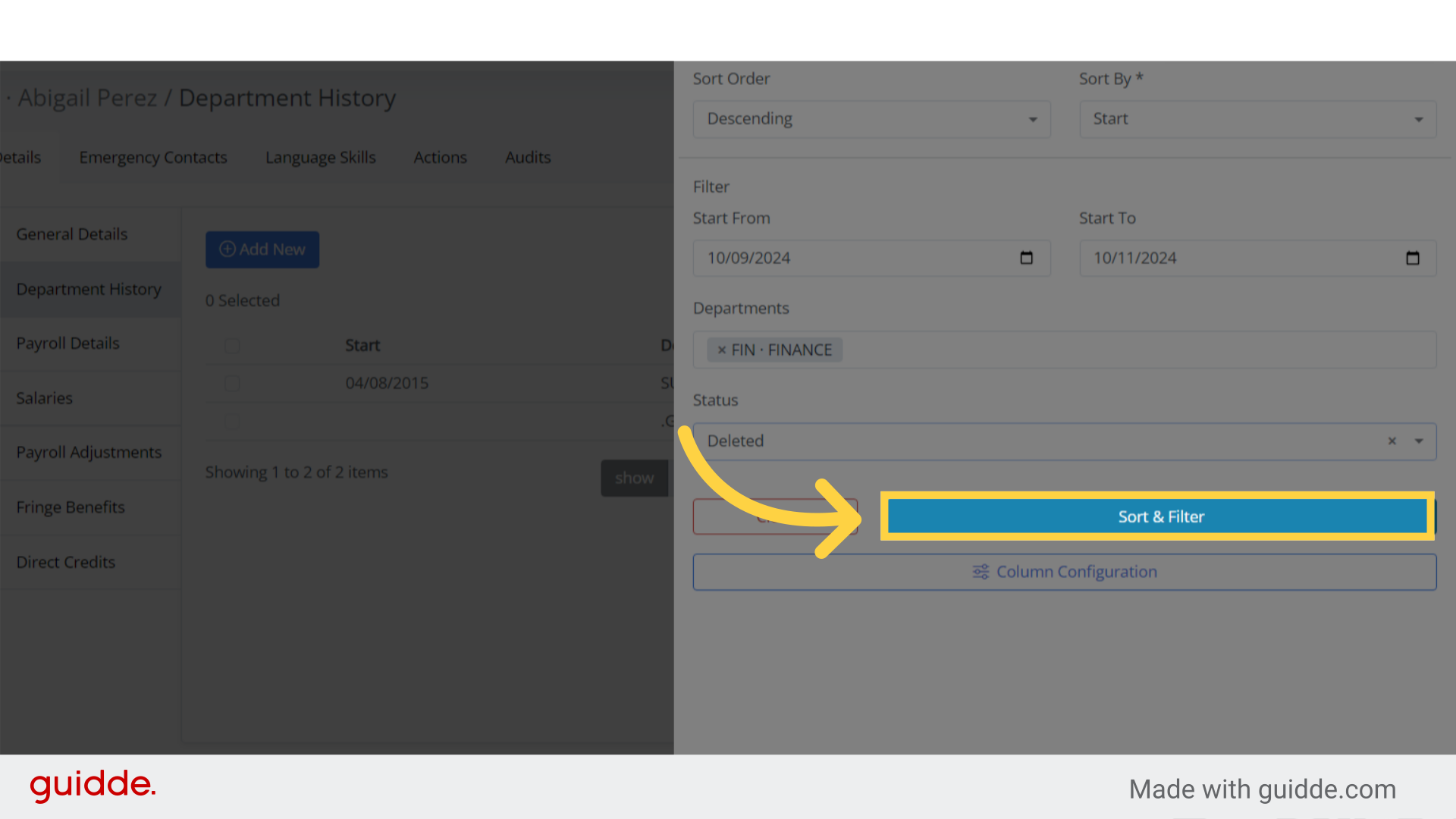
Step 9. Click “Sort & Filter” #
For the list to appear, click “Sort and Filter“.
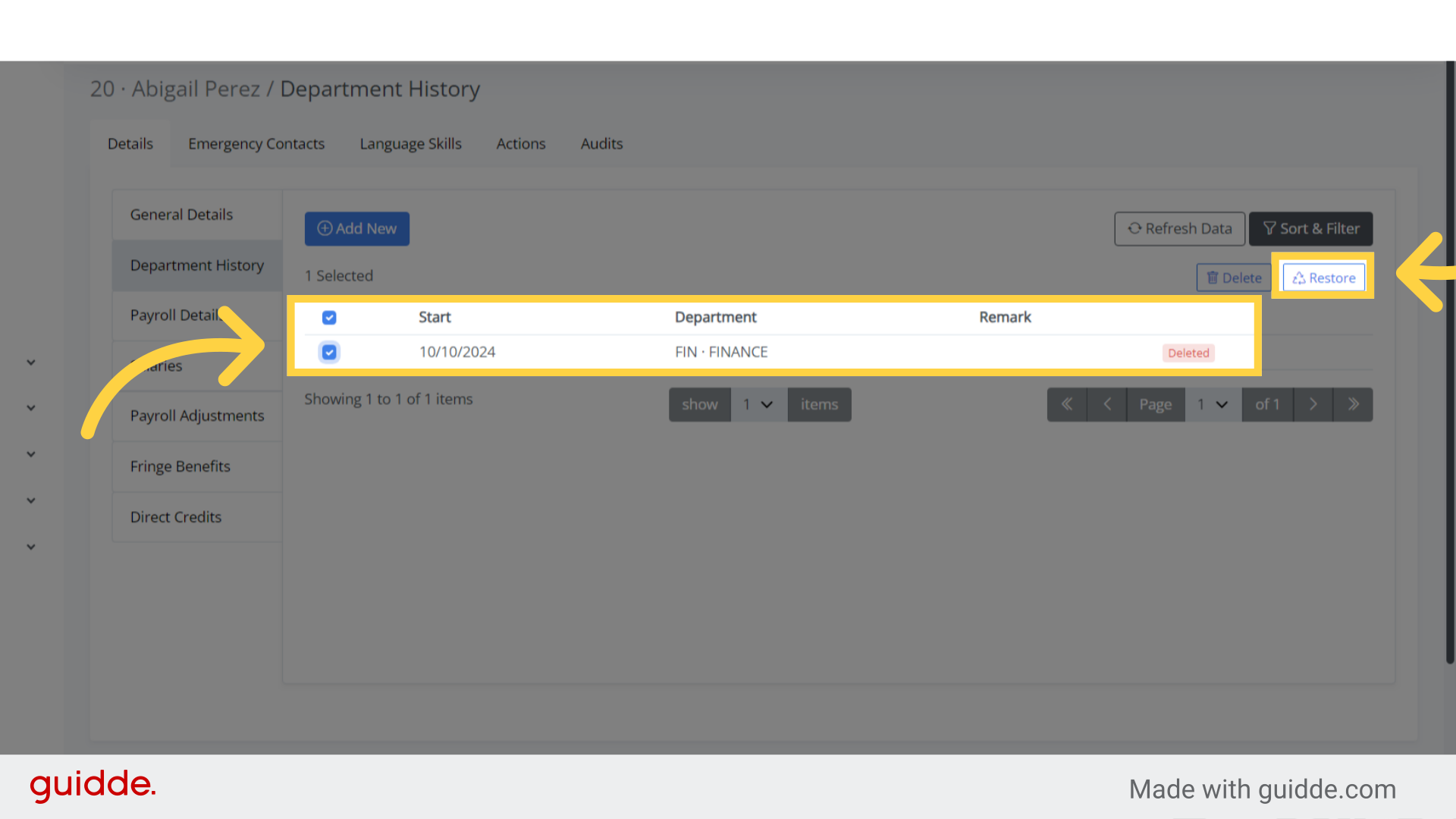
Step 10. Tick the check box #
As you can see, the list of deleted department histories is displayed.
To restore a deleted item, simply check the box next to it.
Then, click on the “Restore” field.
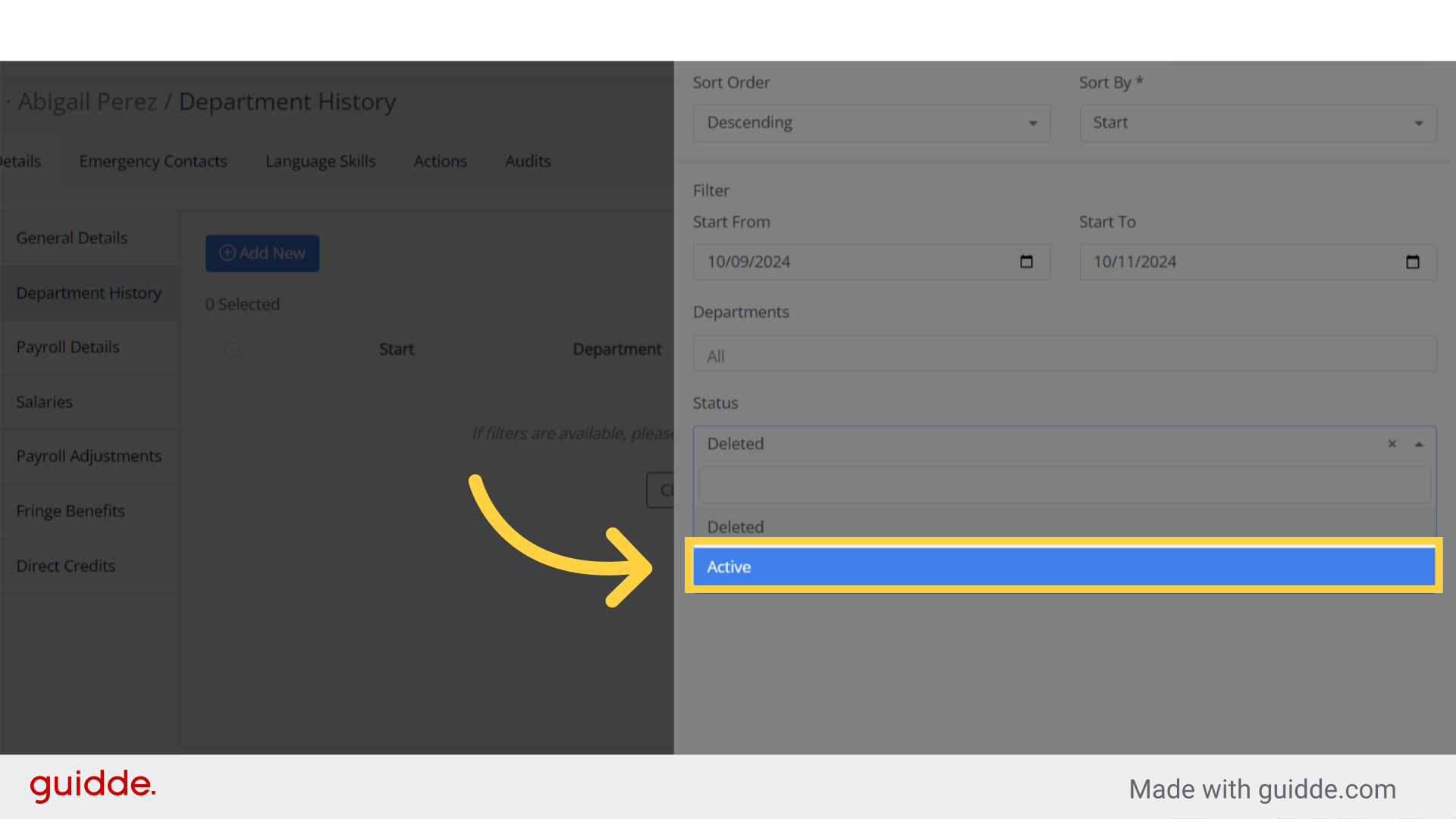
Step 11. Click “Active” #
Once that process is complete, return to the Sort and Filter options, and this time, click on “Active”.
This will make the restored department visible again in the active items.
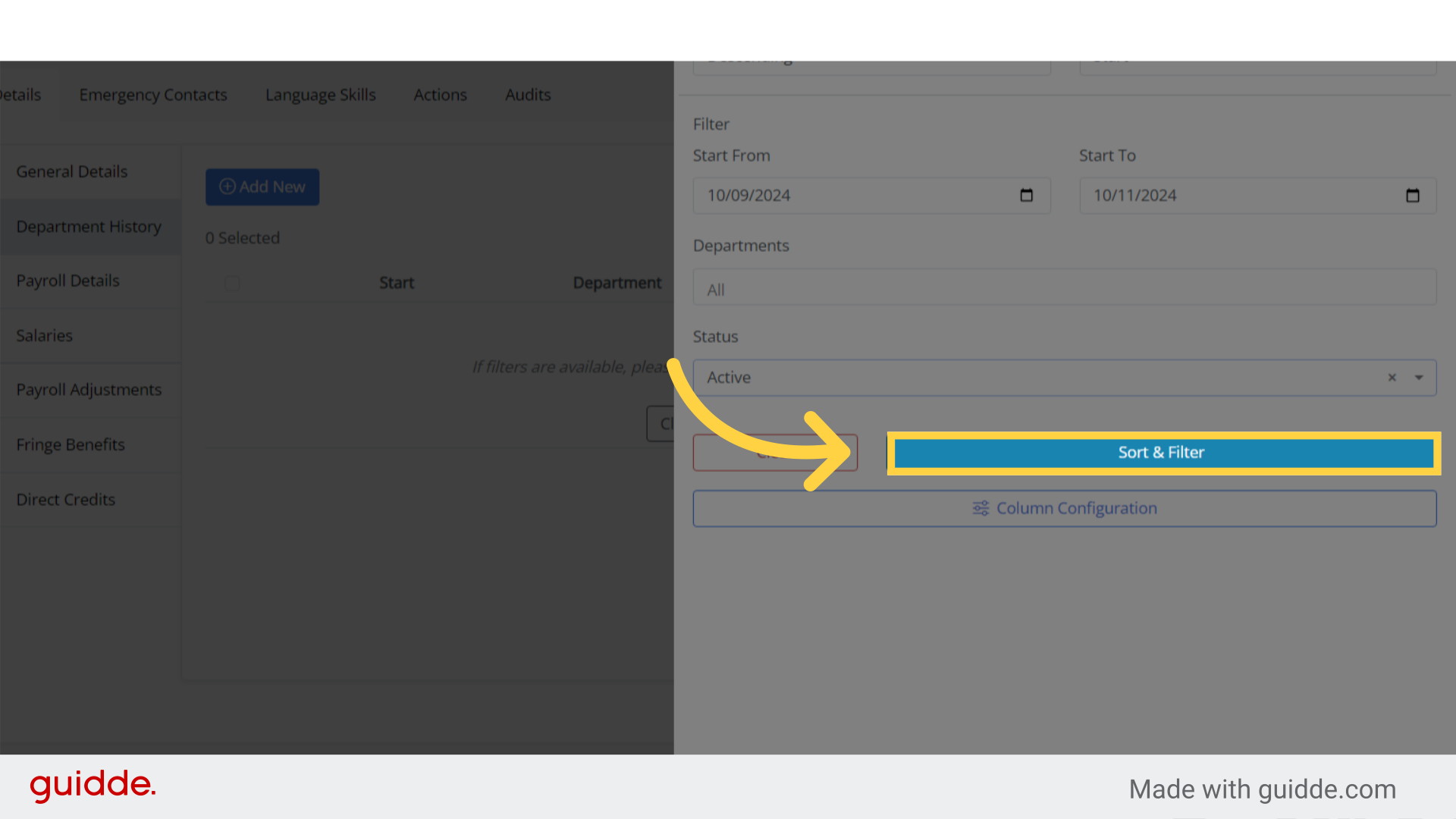
Step 12. Click “Sort & Filter” #
Click on “Sort and Filter” to display the chosen criteria in a list format.
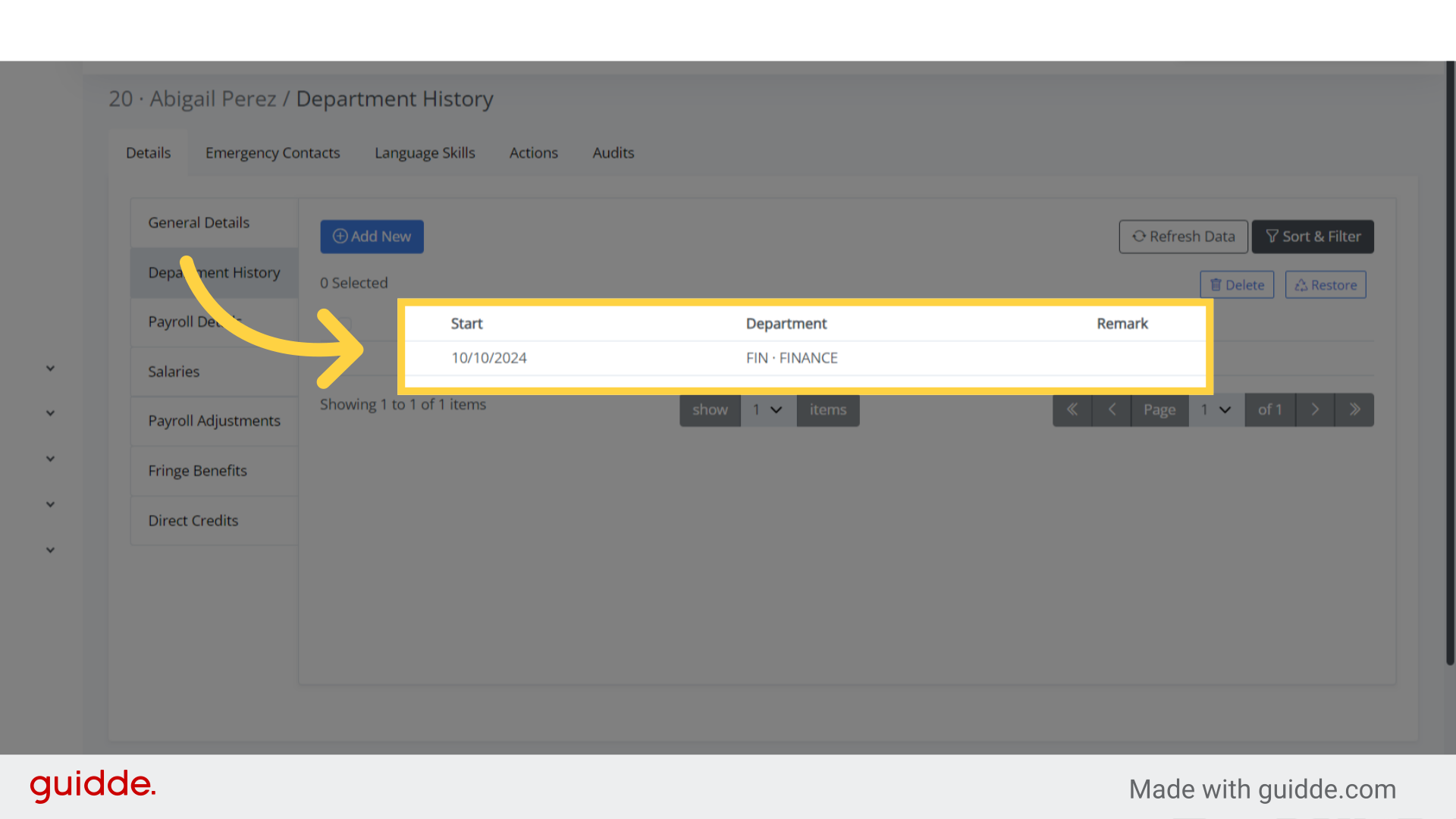
Step 13. Department #
As you can see, the item has been successfully restored.
The guide covered the process of updating an employee’s Department History in Bitkode, including how to delete and restore entries.


