
Table of Contents
- This guide will walk you through the process of searching for an employee within the Bitkode application.
- From initiating a search to filtering and selecting specific employees, follow the steps.
- Step 1. Search from global search
- Step 2. Click "Employees"
- Step 3. Click employees
- Step 4. Click "Sort & Filter"
- Step 5. Sort & filter
- Step 6. Click "Sort & Filter"
This guide will walk you through the process of searching for an employee within the Bitkode application. #
From initiating a search to filtering and selecting specific employees, follow the steps. #
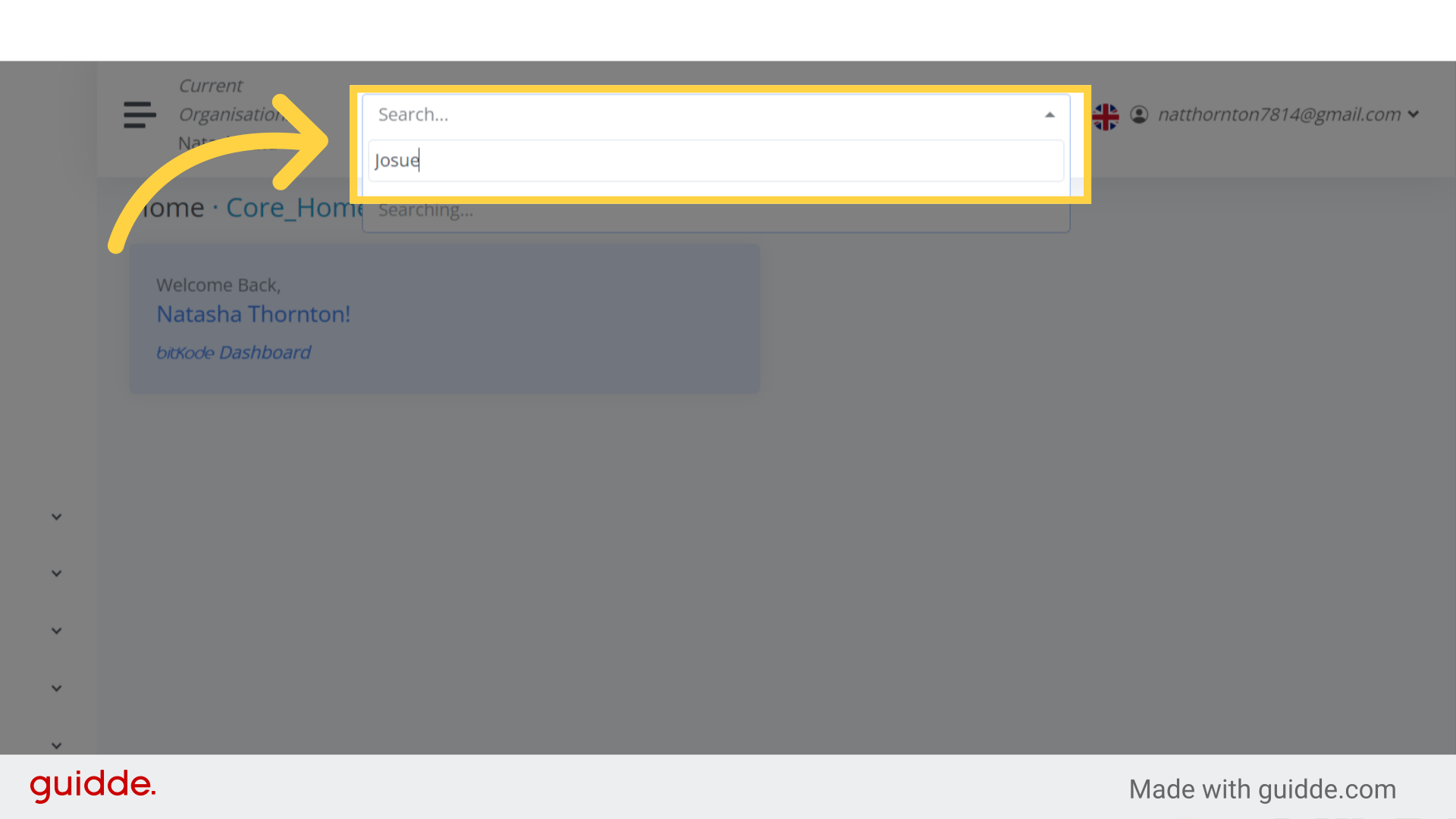
Step 1. Search from global search #
In bitKode, there are several methods to search for an employee:
Global Search: From your home page, use the global search feature by typing the employee’s name.
This will help you quickly locate the desired employee.
Step 2. Click “Employees” #
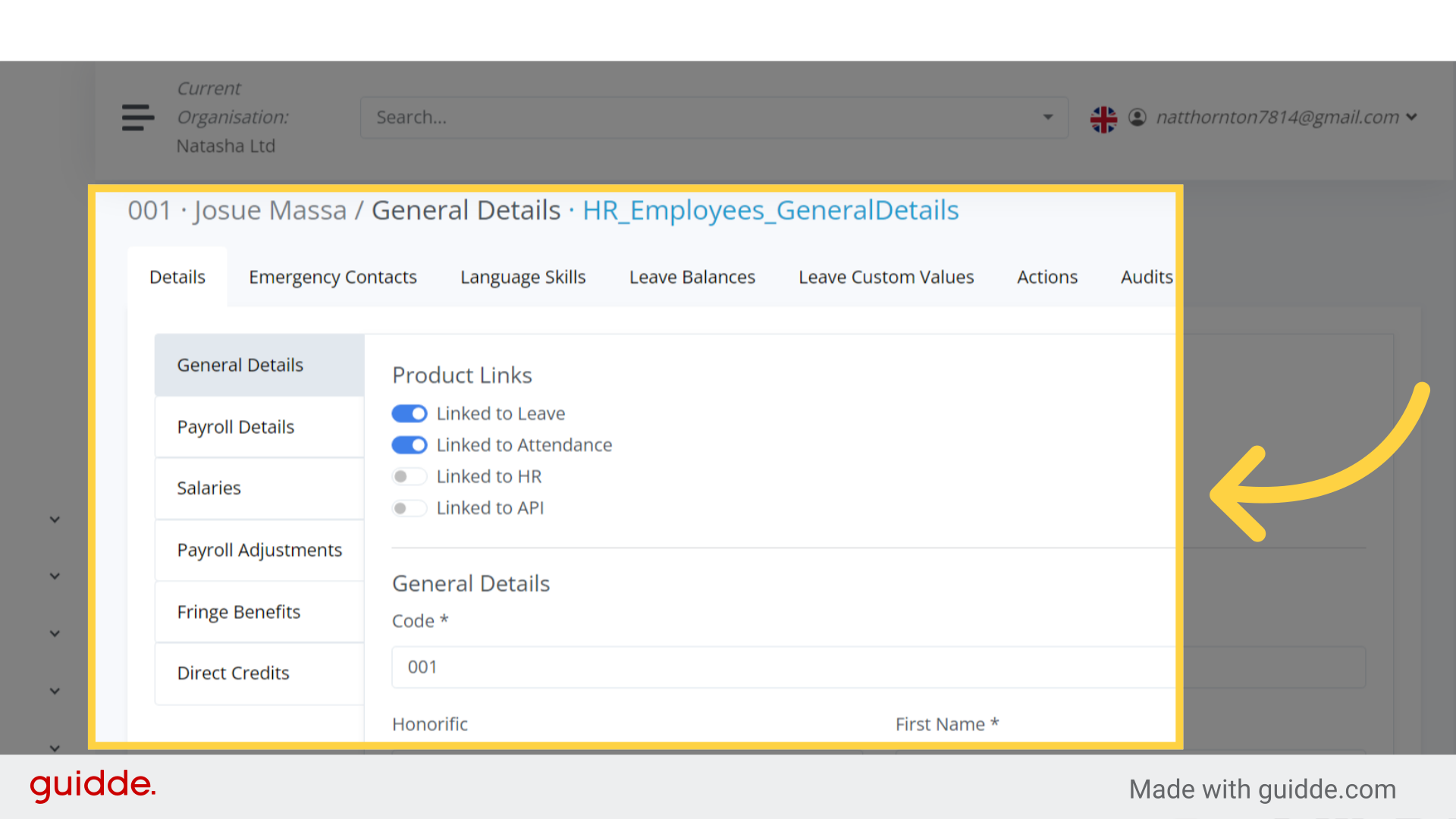
When you search for an employee using the global search in bitKode, you will be redirected to the employee’s profile.
This streamlined process allows you to quickly access the relevant information you need.
Step 3. Click employees #
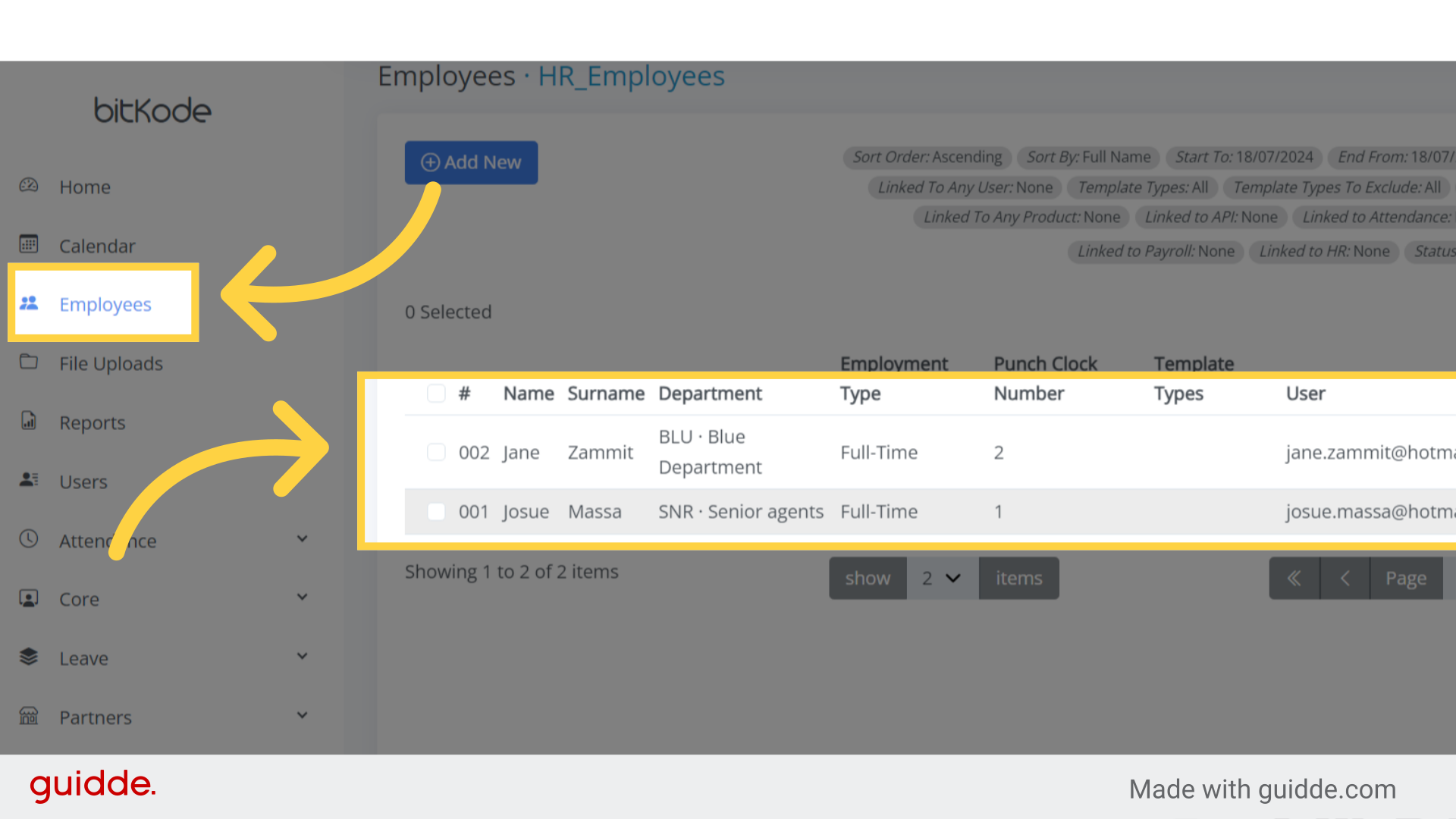
Another way to access employee profiles is by clicking on Employees, from the left-hand side of your home page.
This action will reveal a list of employees.
To view the profile of a specific employee, click on their name, and you’ll be directed to their profile.
Step 4. Click “Sort & Filter” #
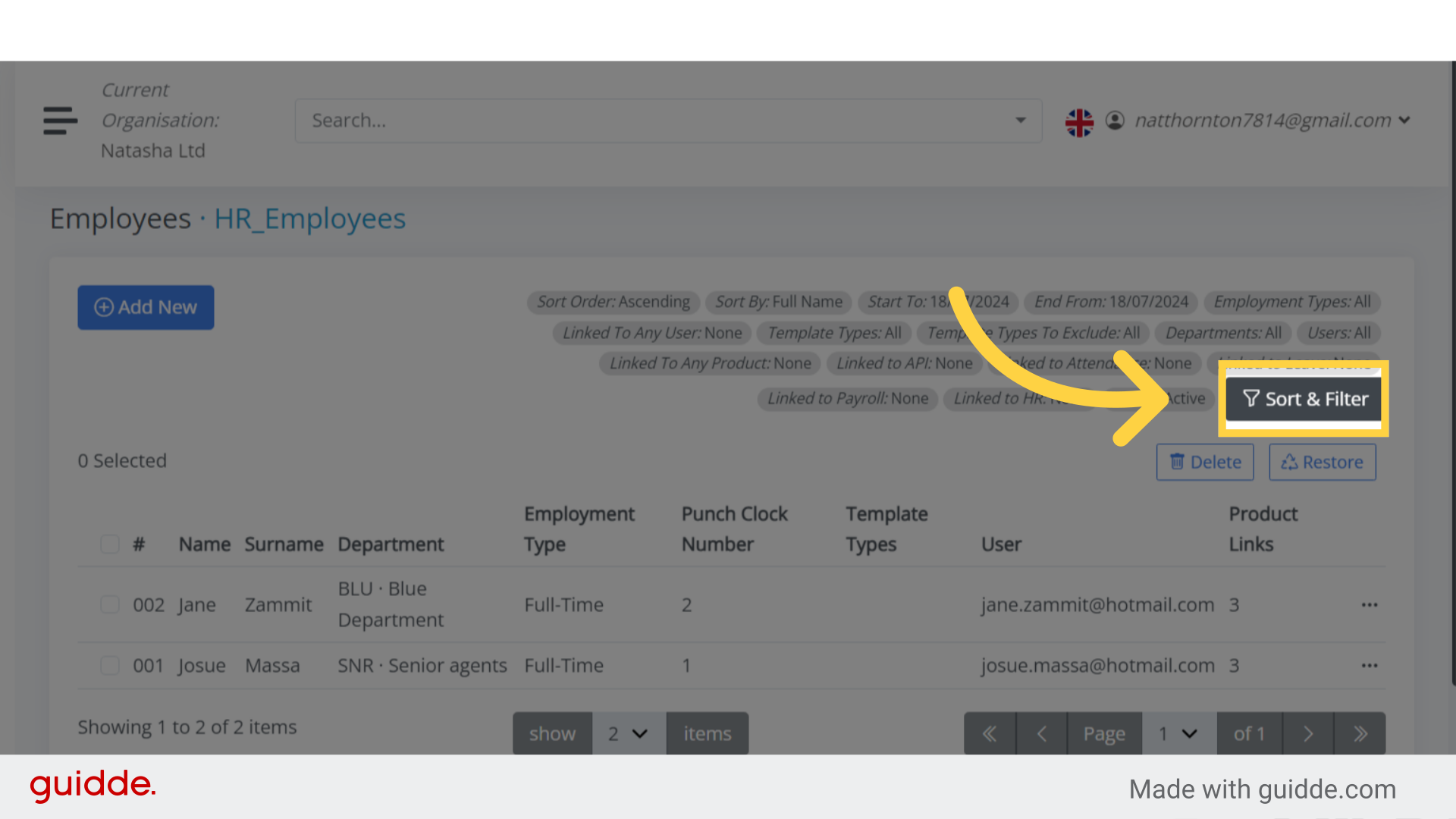
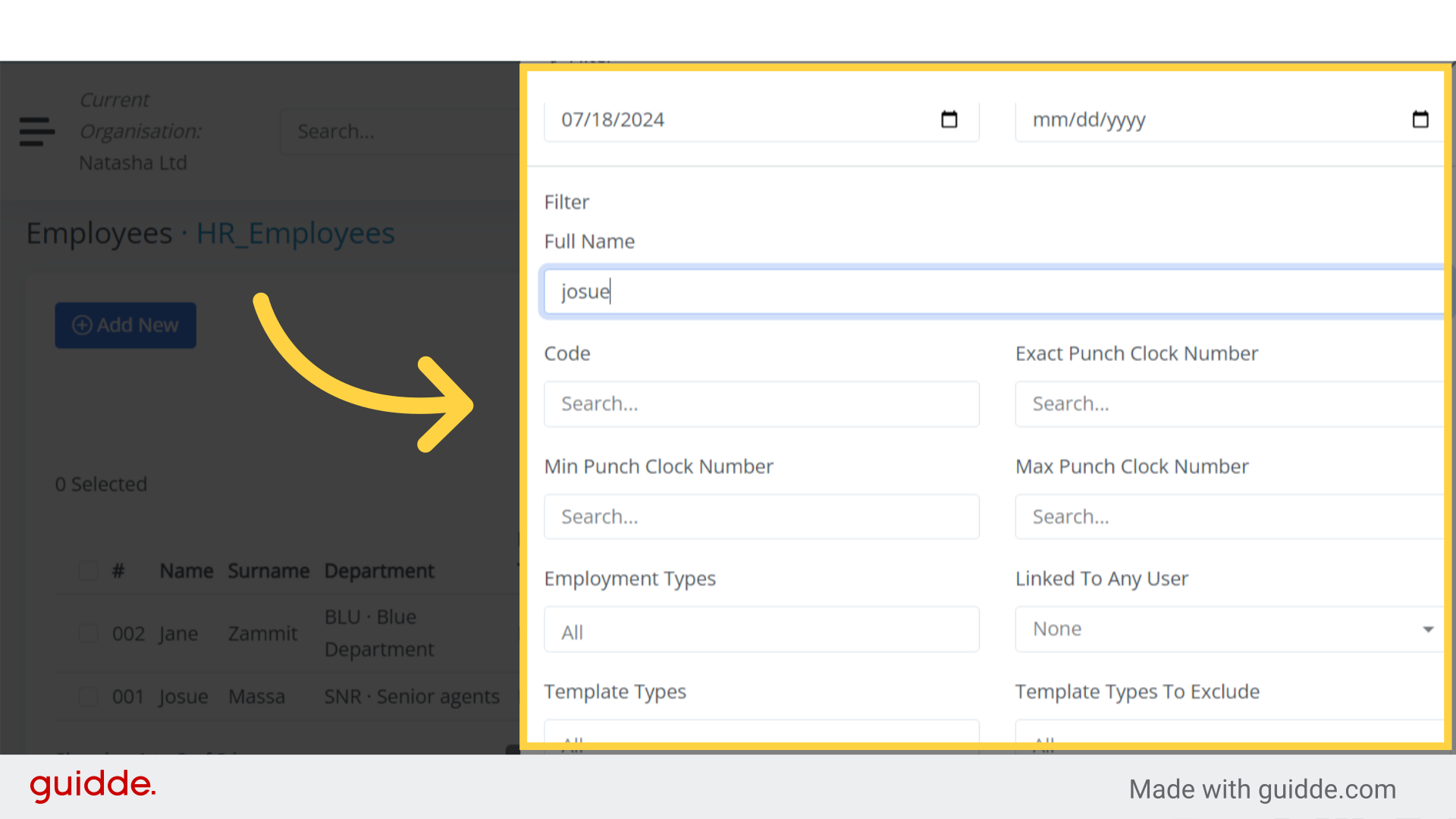
Another alternative method in bitKode is to use the sort and filter function to search for employees.
This feature allows you to refine your search based on specific criteria, such as department, employment type, or other relevant parameters.
Step 5. Sort & filter #
The sort and filter function in bitKode is designed to enhance your employee search experience.
By using specific criteria such as:
- department;
- employment type, or;
- other relevant parameters.
You can quickly find the information you need.
This feature streamlines the process and ensures efficient access to the required criteria.
Step 6. Click “Sort & Filter” #
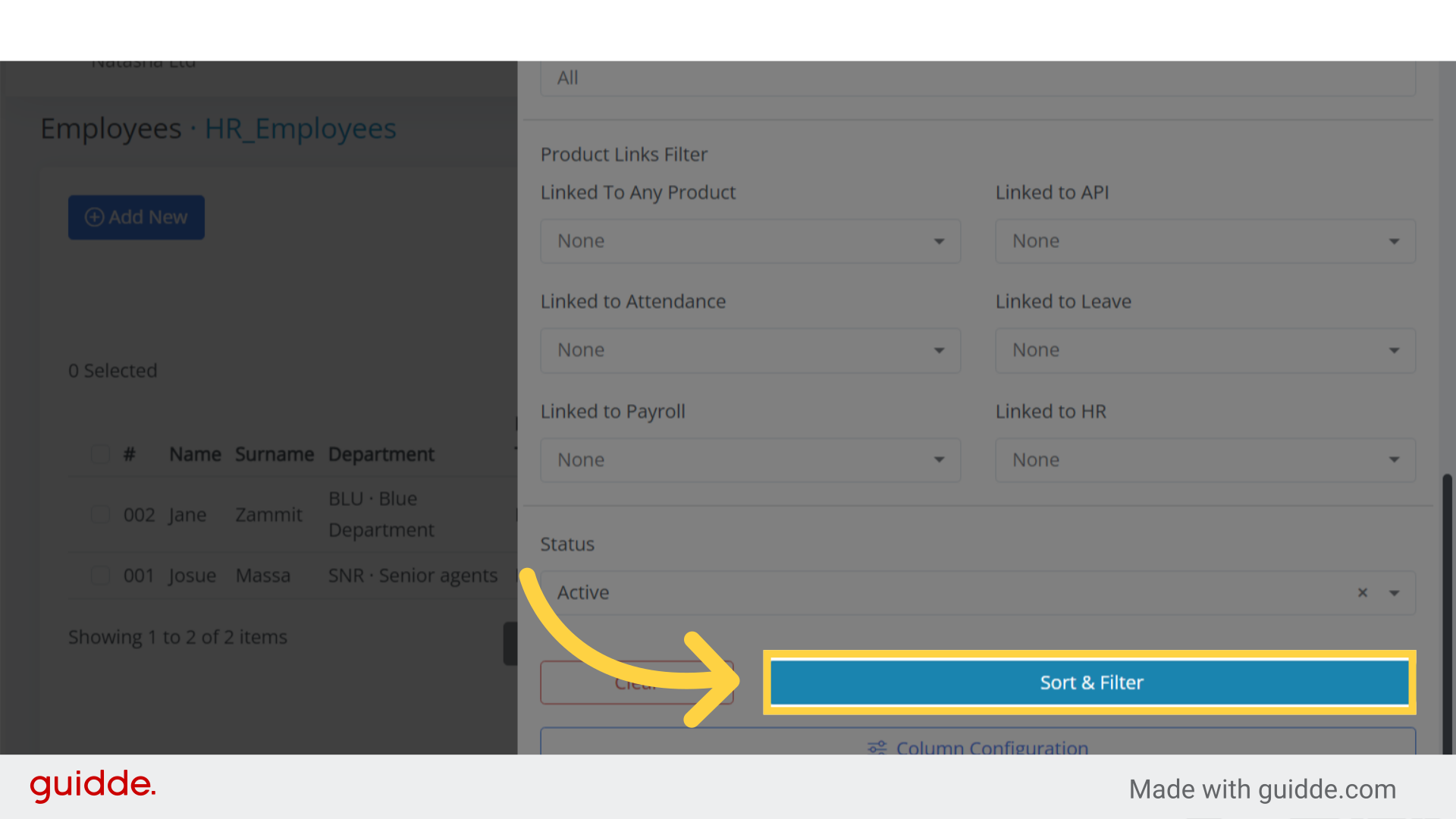
After selecting the desired criteria, click on the Sort and Filter button.
This action will redirect you to the results based on the fields you’ve chosen.
This guide covered how to efficiently search for and filter employees in the Bitkode application, including selecting specific employees and utilizing sorting options.
By following these steps, users can easily locate and manage employee records within the system.


