
Table of Contents
Follow this guide on how to add an employee through bitKode. #
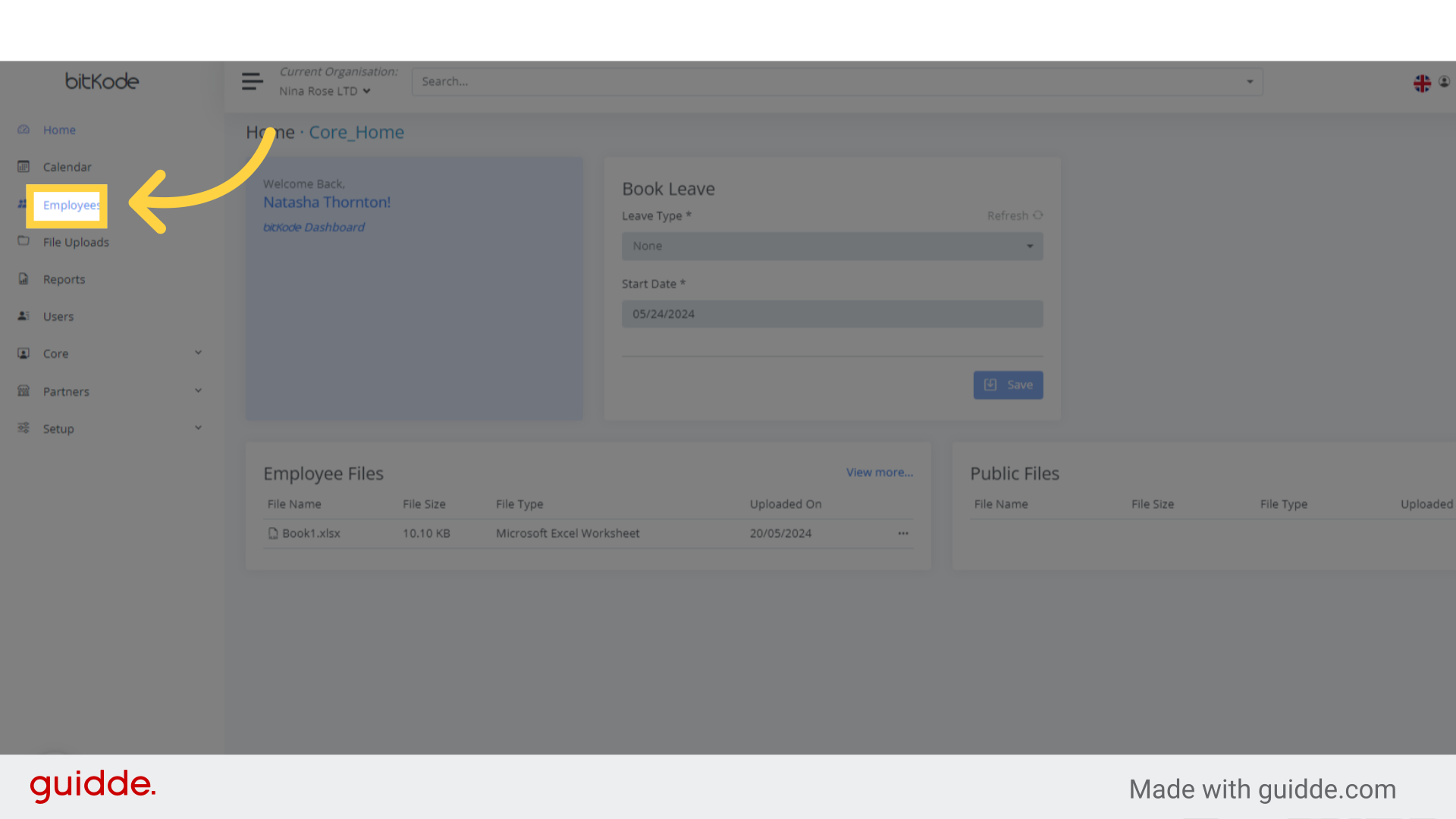
Step 1. Click “Employees” #
Begin by going to the Employees section.
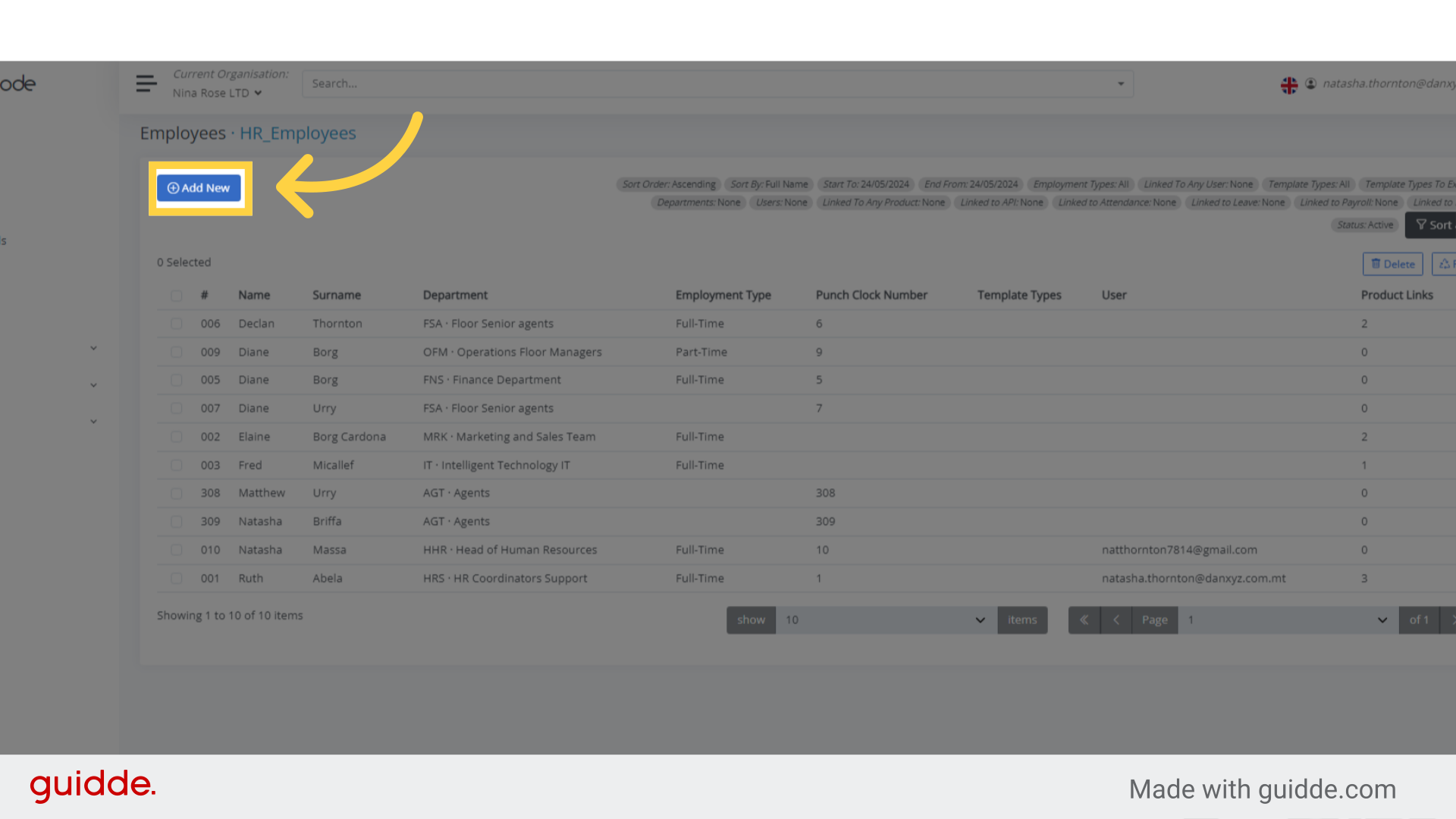
Step 2. Click “Add New” #
After going to the employee section, Initiate the process of adding a new employee.
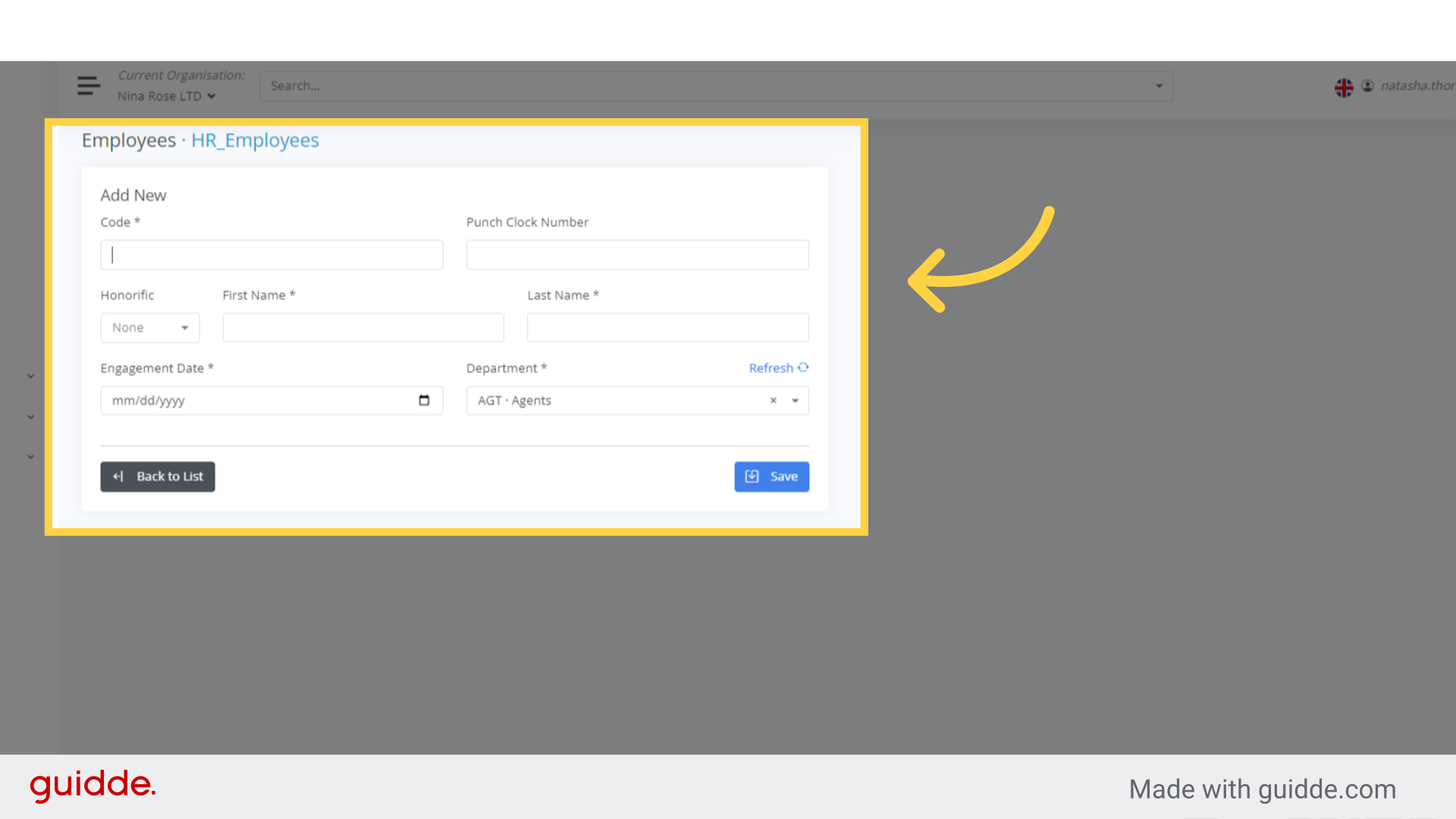
Step 3. Fill in #
Once you select the option to add a new employee, begin to create an employee, ensure that you complete the following five required fields:
- Code: (This can be a combination of numbers and characters).
- First Name:
- Last Name:
- Department:
- Engagement Date:
- Punch Clock Number: (if having the attendance subscription).
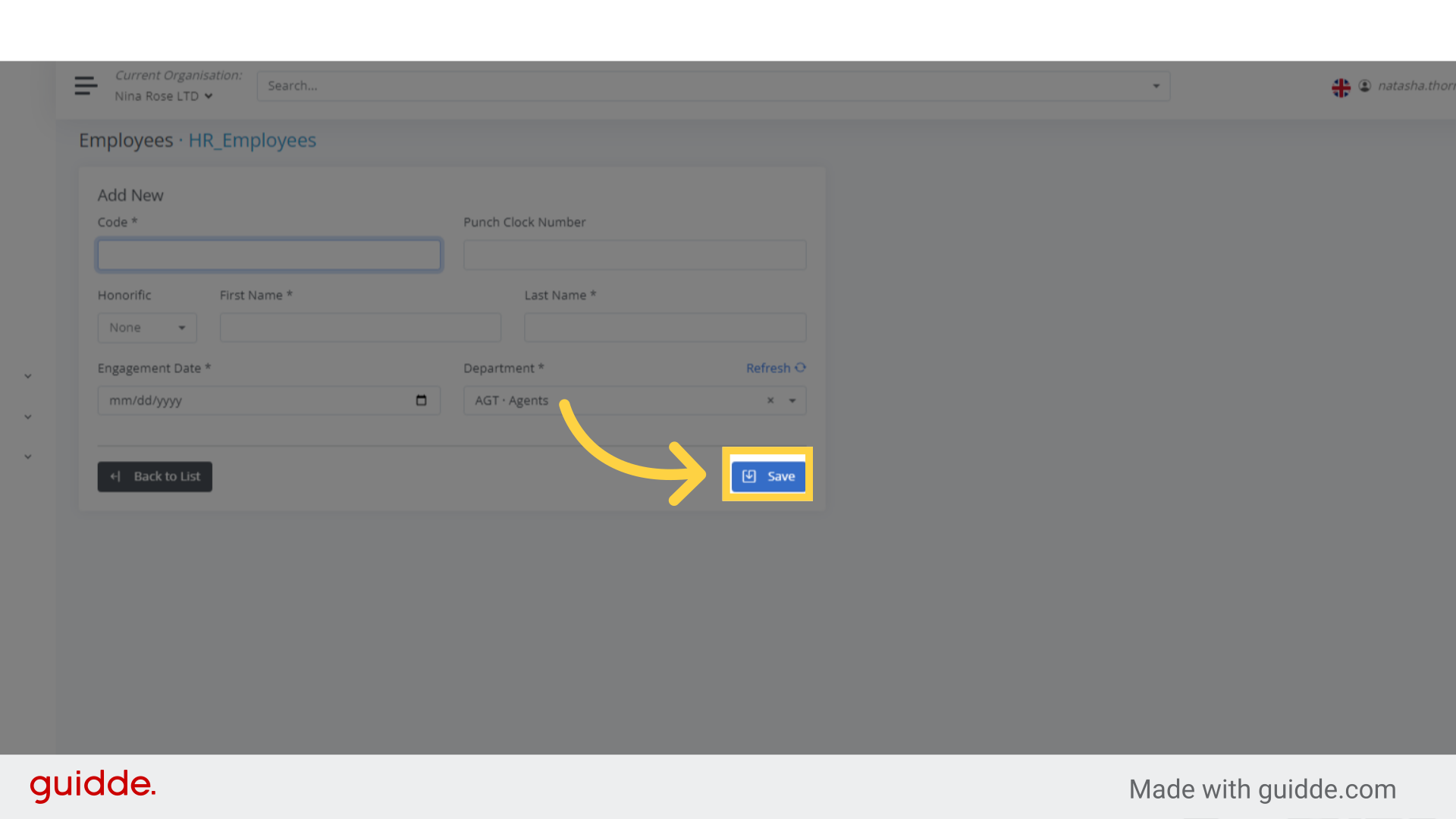
Step 4. Click “Save” #
After completing this section, remember to save the entered information.
Once you click Save, the employee profile will be successfully created.
This article serves as an introduction to adding employees.
Additional articles will cover the specific tabs required for the necessary licenses.
The smart concept behind bitKode is that you’ll use a common employee dataset across all bitKode modules.


