
Table of Contents
In this guide, we will walk you through the steps to view/update and download files uploaded through file uploads in bitKode. #
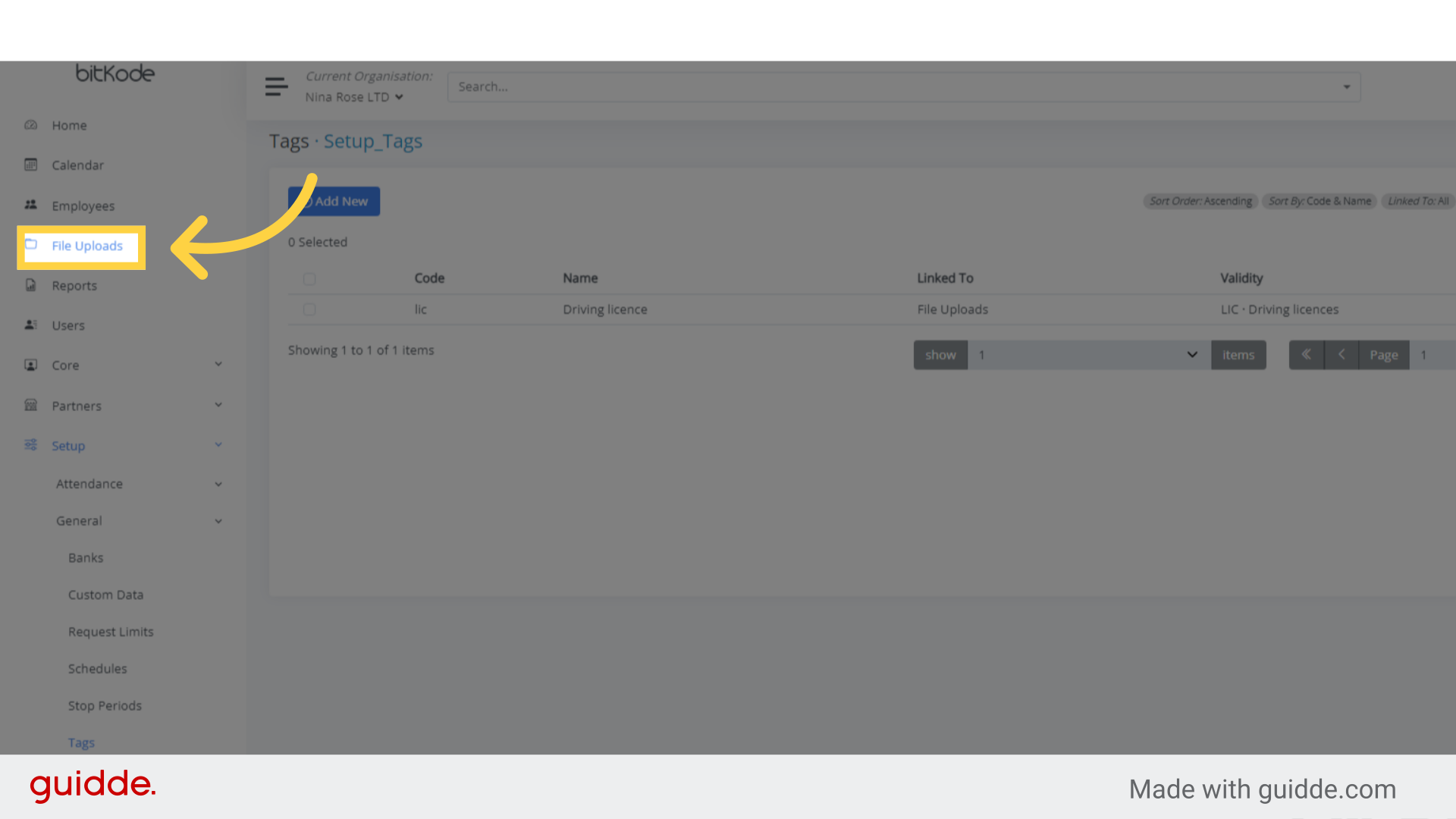
Step 1. Click “File Uploads” #
After logging in to bitKode, click on File Uploads from the left-hand side.
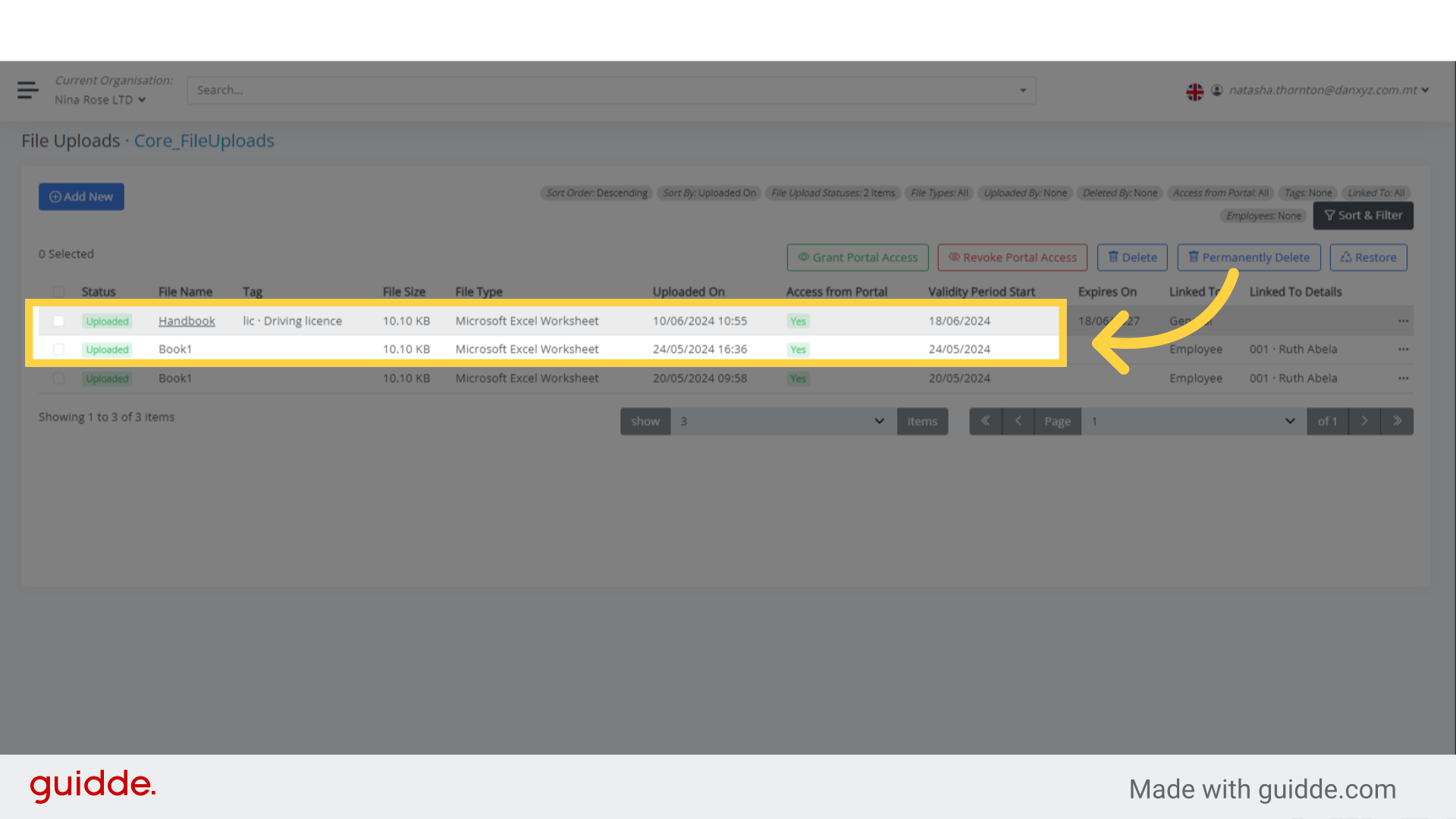
Step 2. Click “Handbook” #
By clicking on an uploaded file, you can view and update it as needed.
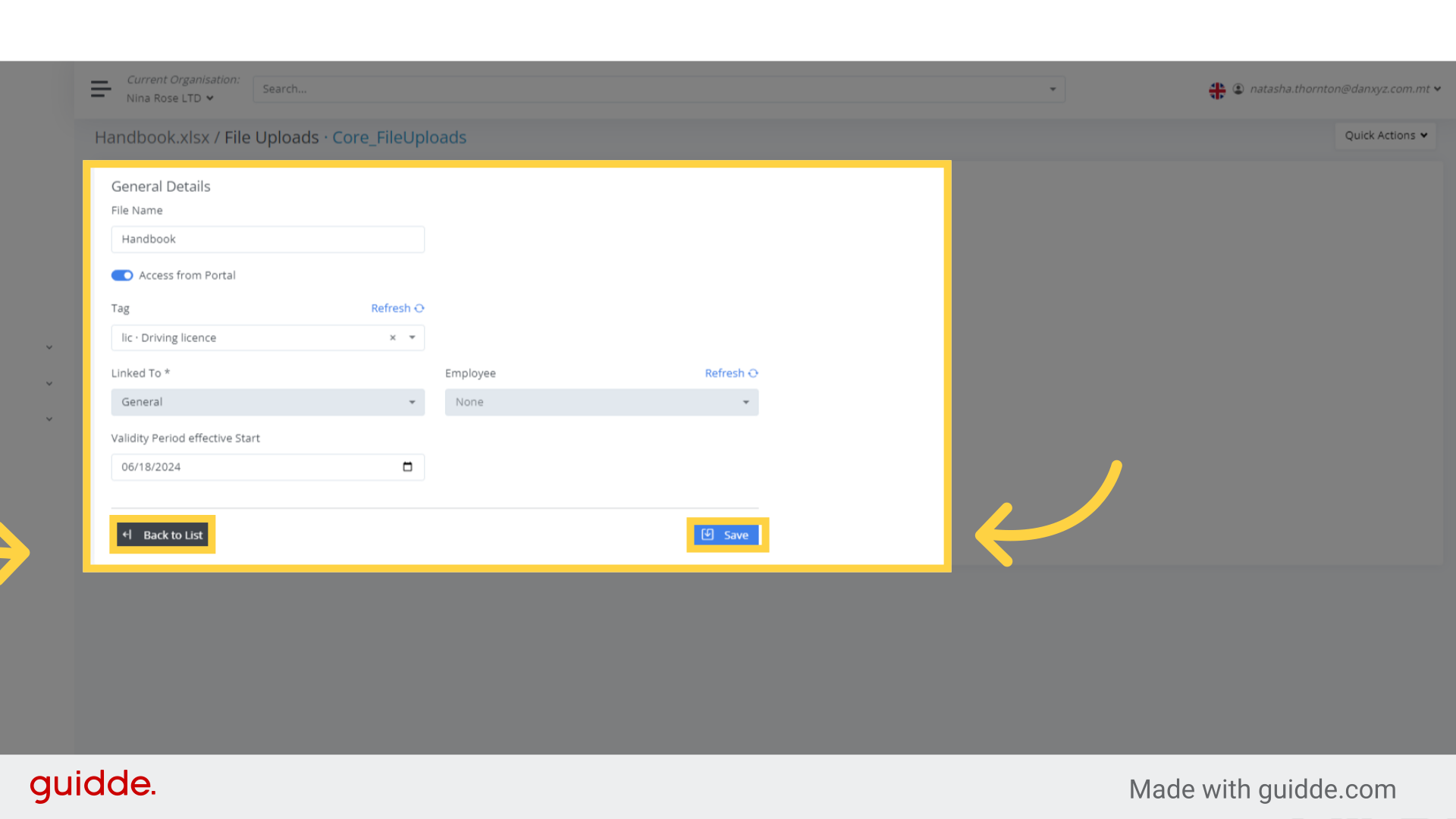
Step 3. Click “Back to List” #
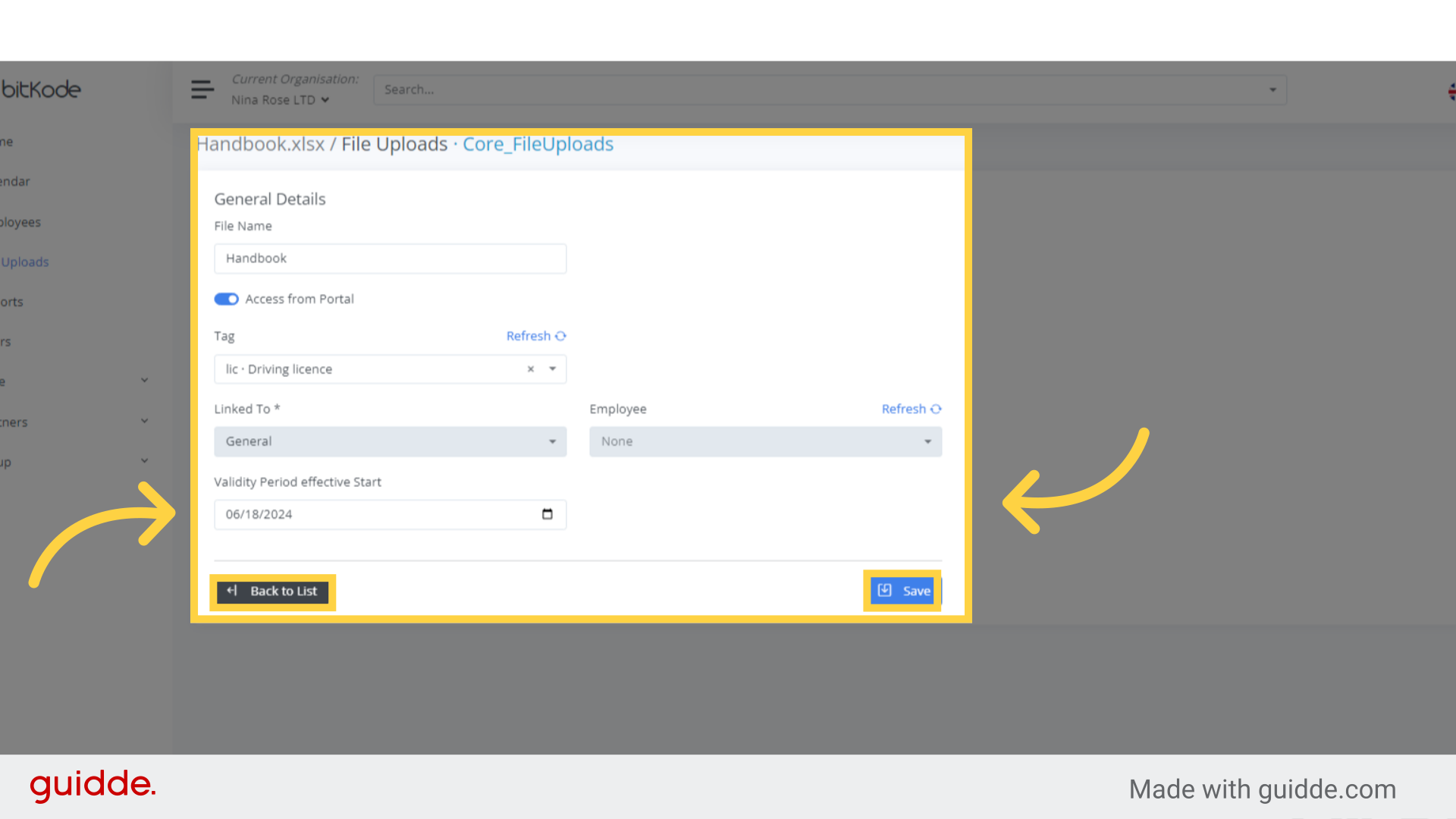
After making your updates and saving the changes, click on Back to List to return to the list of uploaded files.
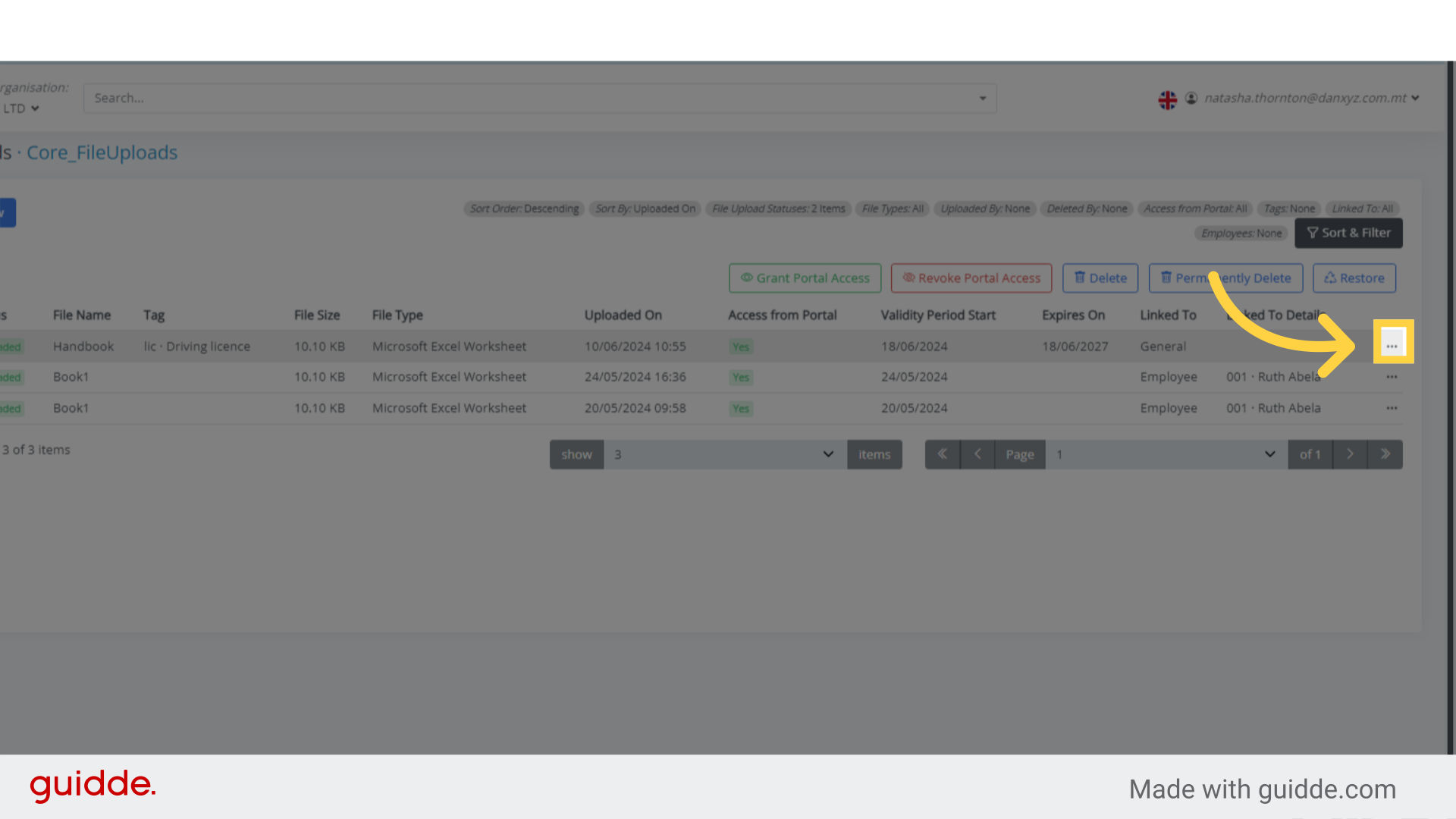
Step 4. Click here #
Another way to view or update an uploaded file is by clicking on the three dots (…) next to the file.
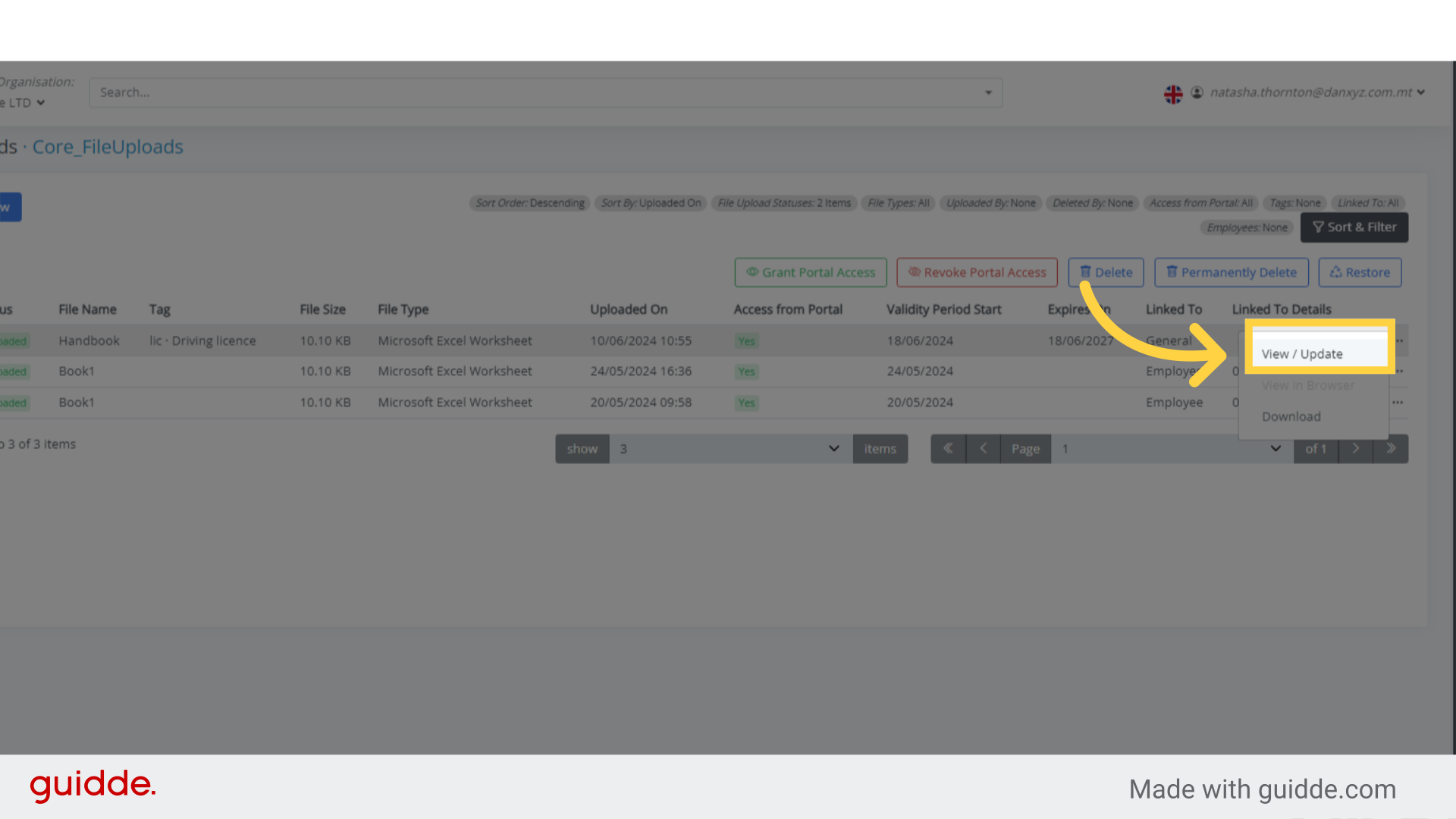
Step 5. Click “View / Update” #
After clicking on the three dots (…), you’ll be presented with the view/update function.
Step 6. Click “Back to List” #
Once you’ve updated and saved the changes, return to the list.
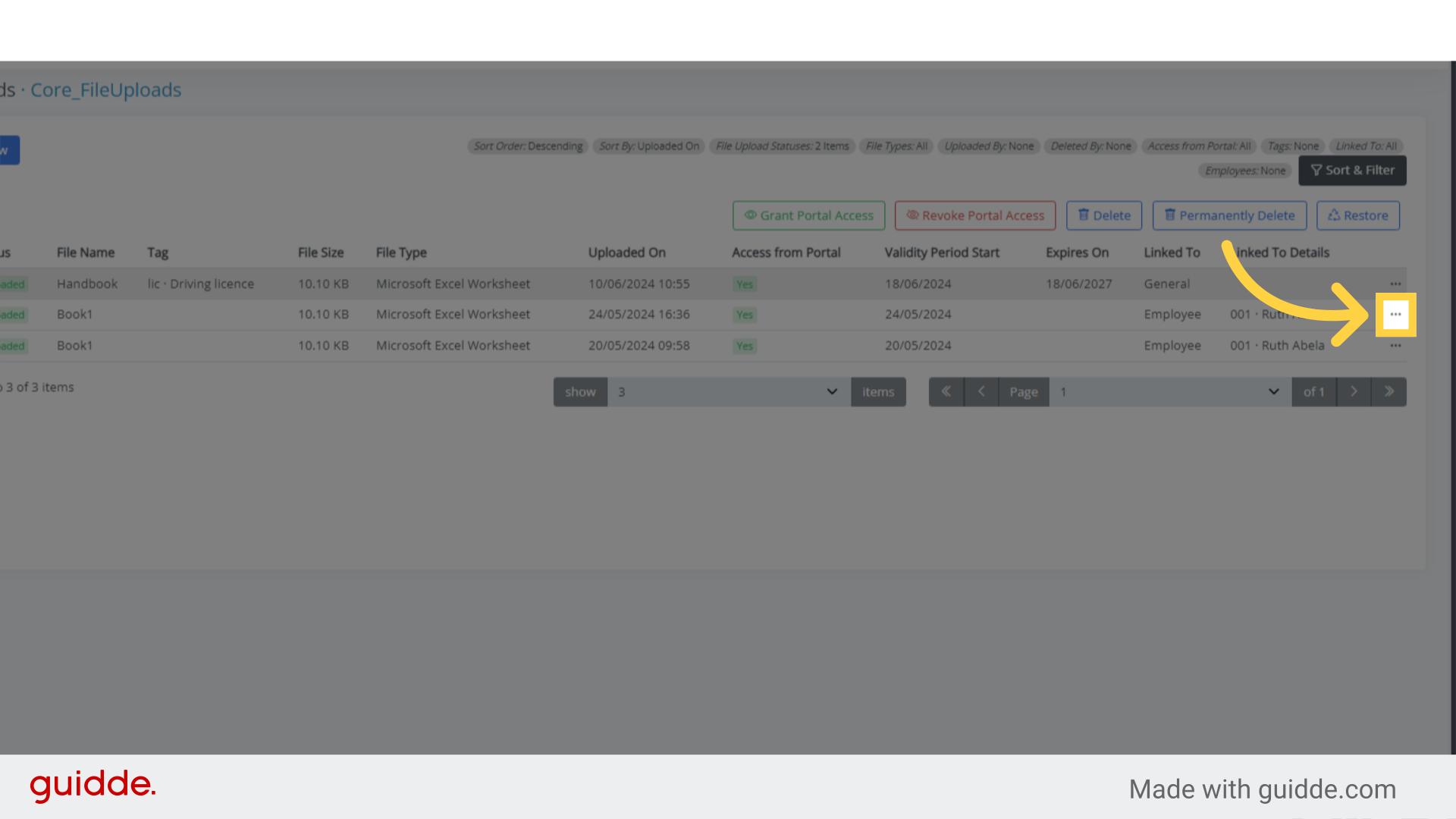
Step 7. Click here #
To download a file that has already been uploaded to bitKode, follow these steps:
- Locate the uploaded file in the list.
- Click on the three dots (…) next to the file.
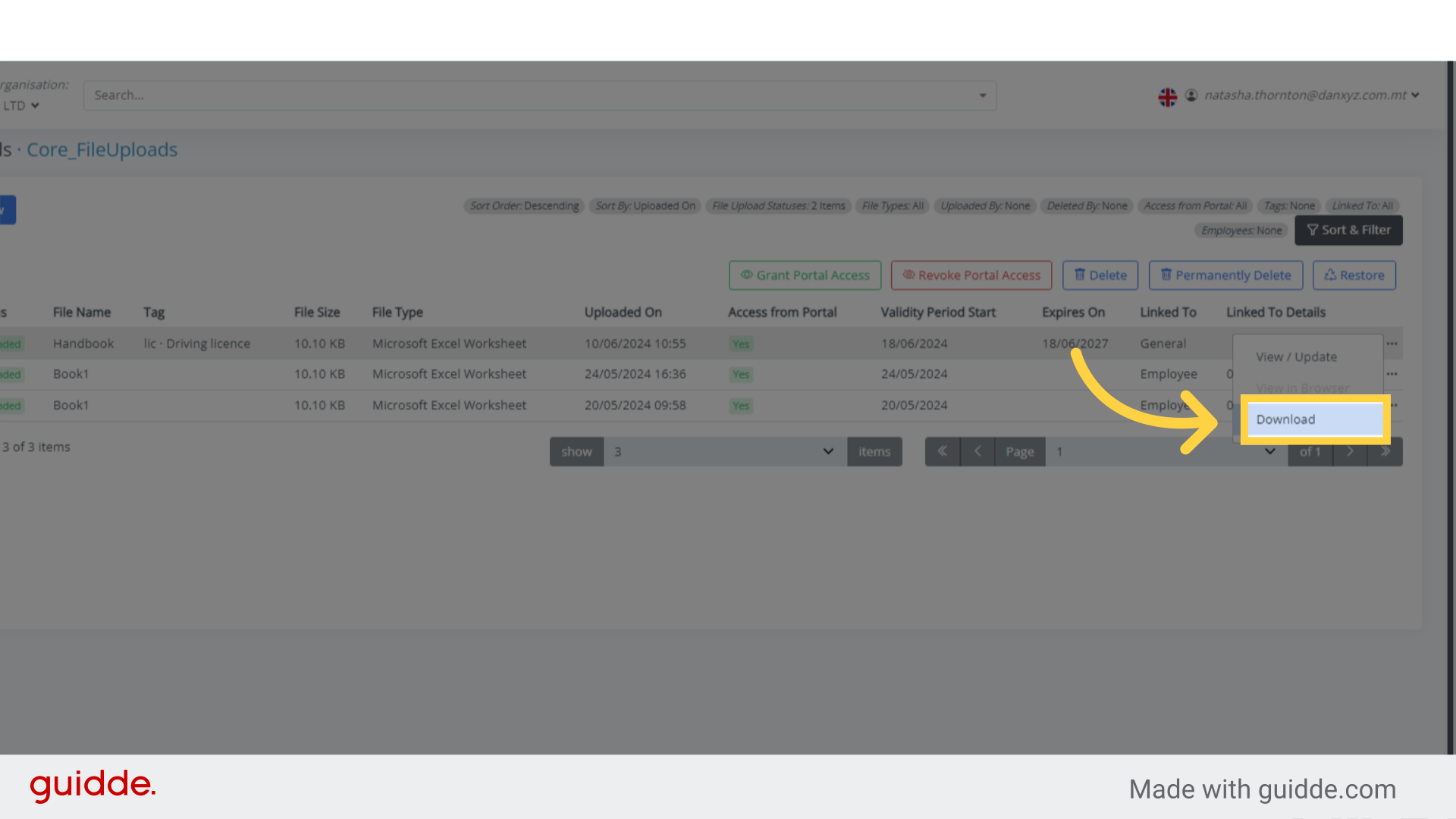
Step 8. Click “Download” #
Choose the download option from list prompted.
Thank you.


