
Table of Contents
Learn how to efficiently upload files to the General Folder in Bitkode.
Follow the detailed instructions below to streamline your file management process and ensure that your files are organized effectively.
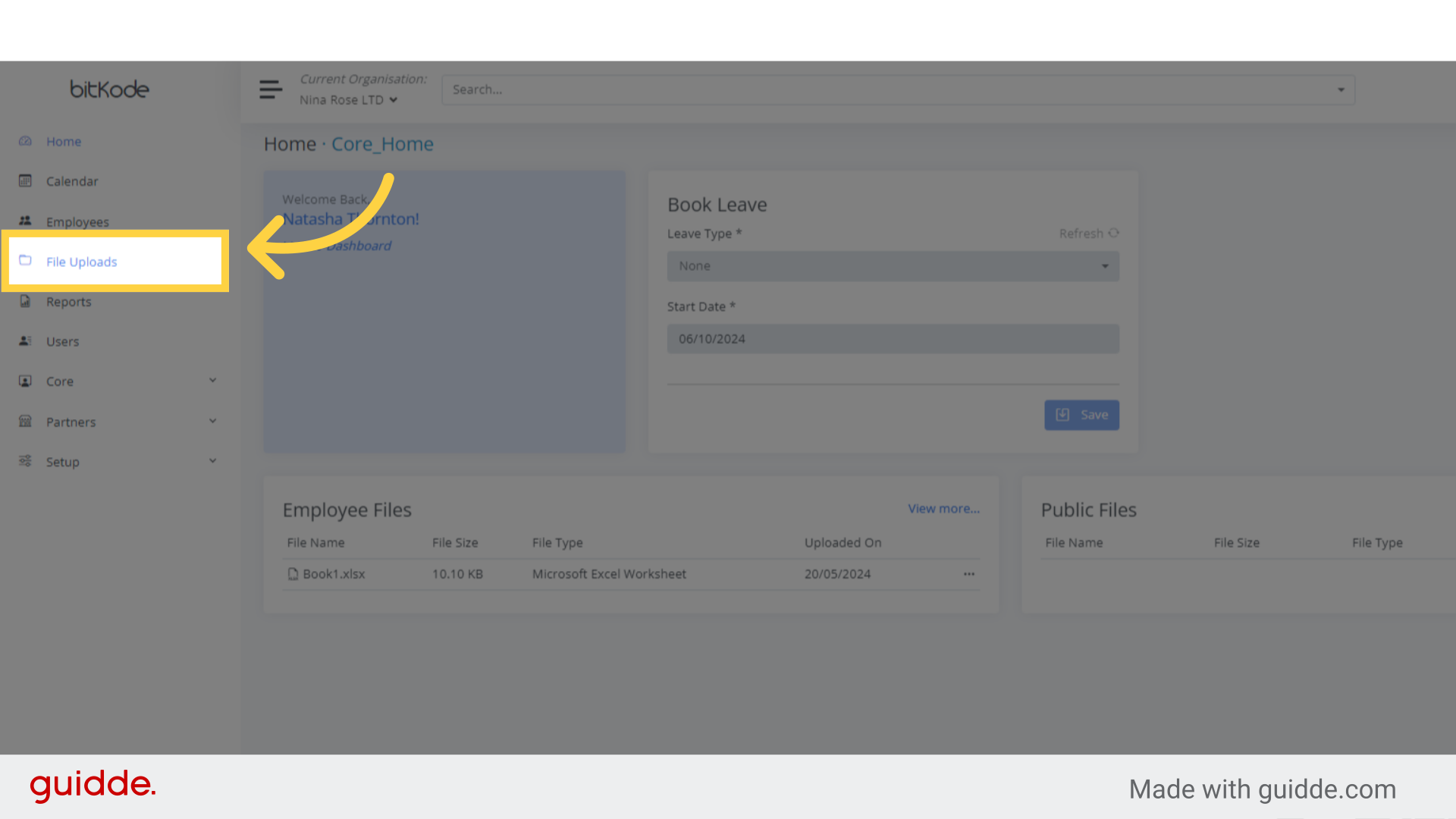
Step 1. Click “File Uploads” #
Once you’ve successfully logged into your account, click on the “File Uploads” option from the left-hand side.
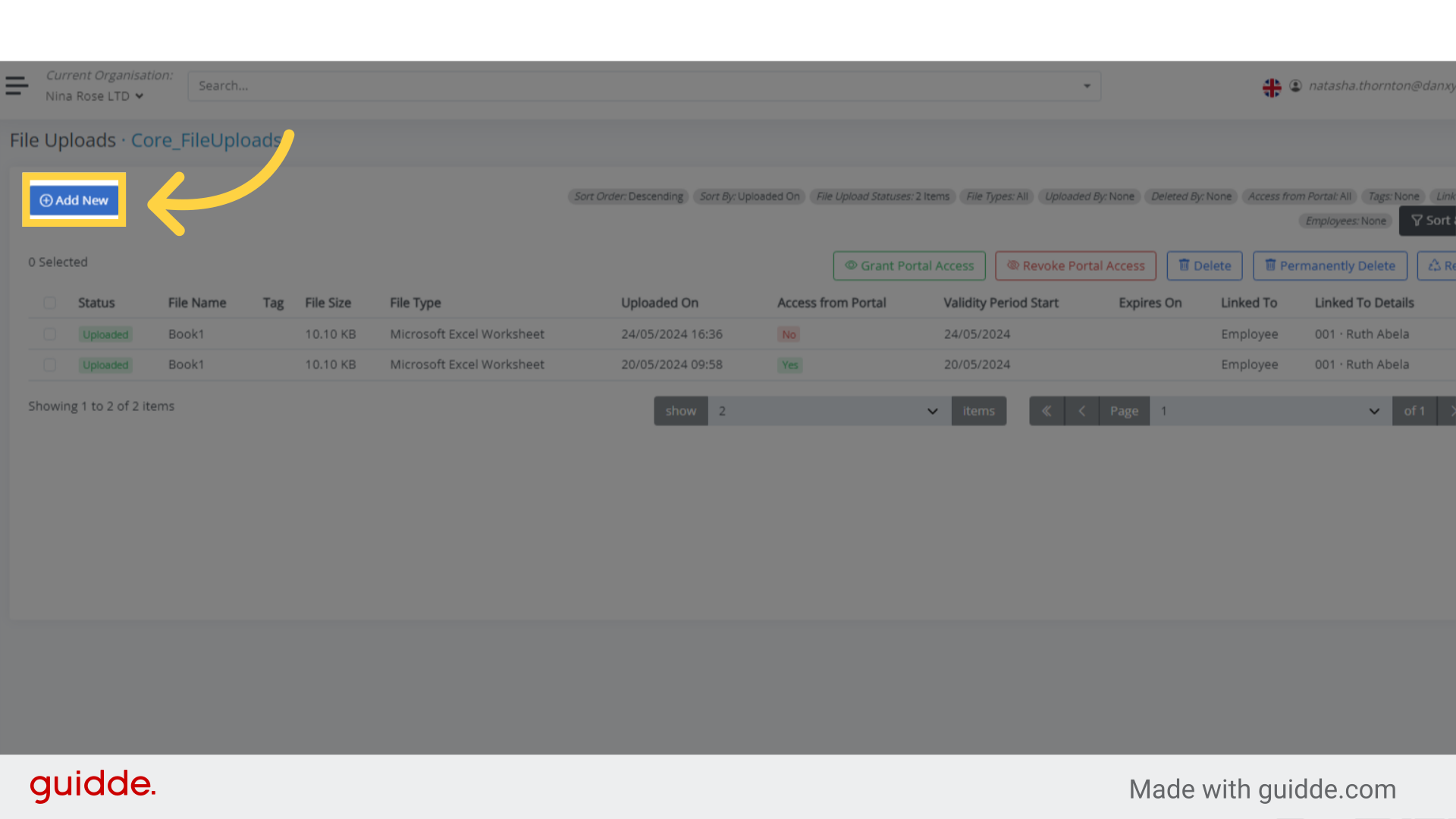
Step 2. Click “Add New” #
To begin the process, click on Add New.
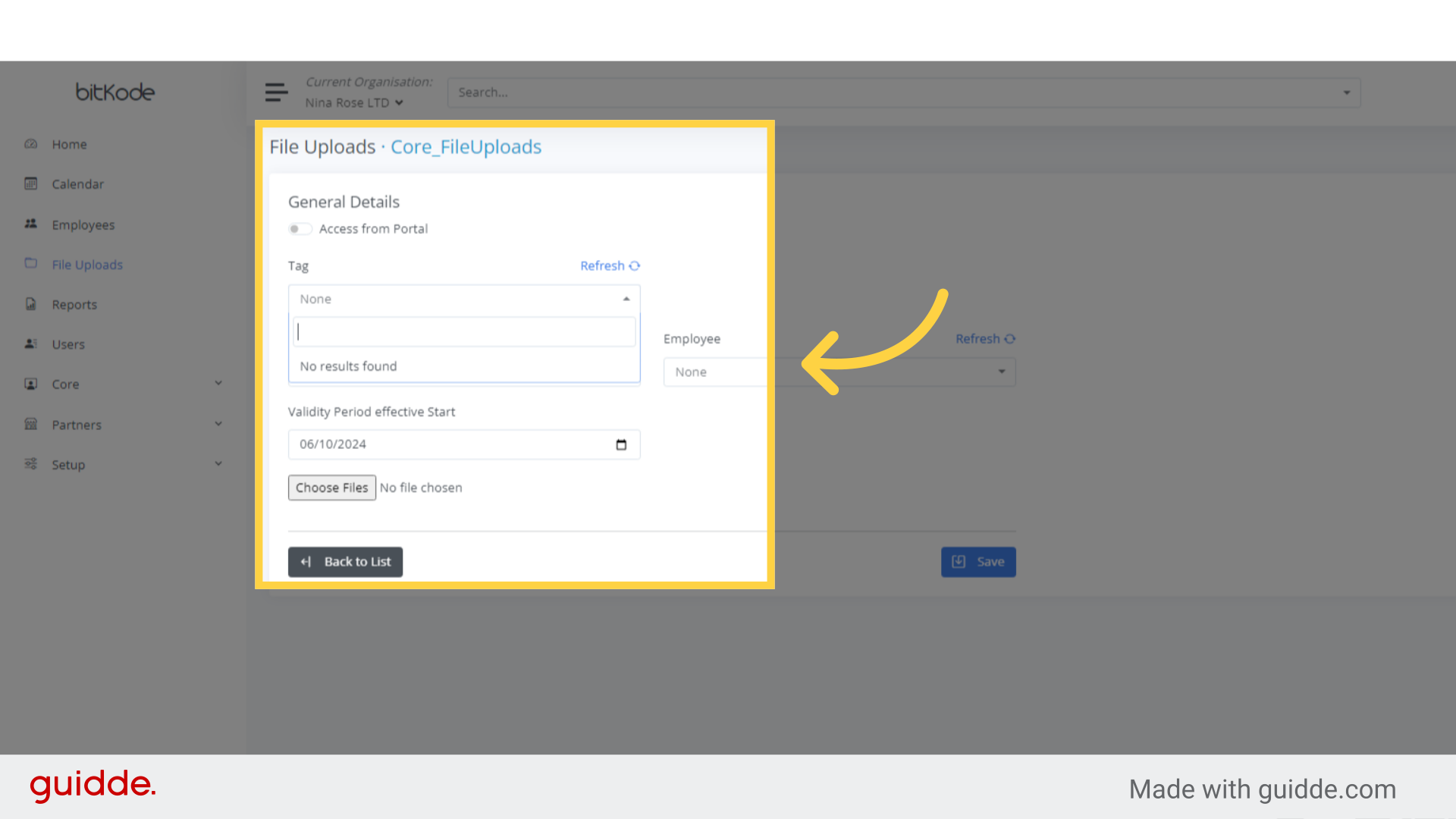
Step 3. Tags? #
If you’d like to set a specific expiry date, follow these steps:
- Create a validity period: Set the desired date range.
- Link it with tags: Associate the validity period with relevant tags.
- Choose the option: Once linked, you’ll be able to select the desired expiry date.
Another articles/video that will guide you further for this process to be done.
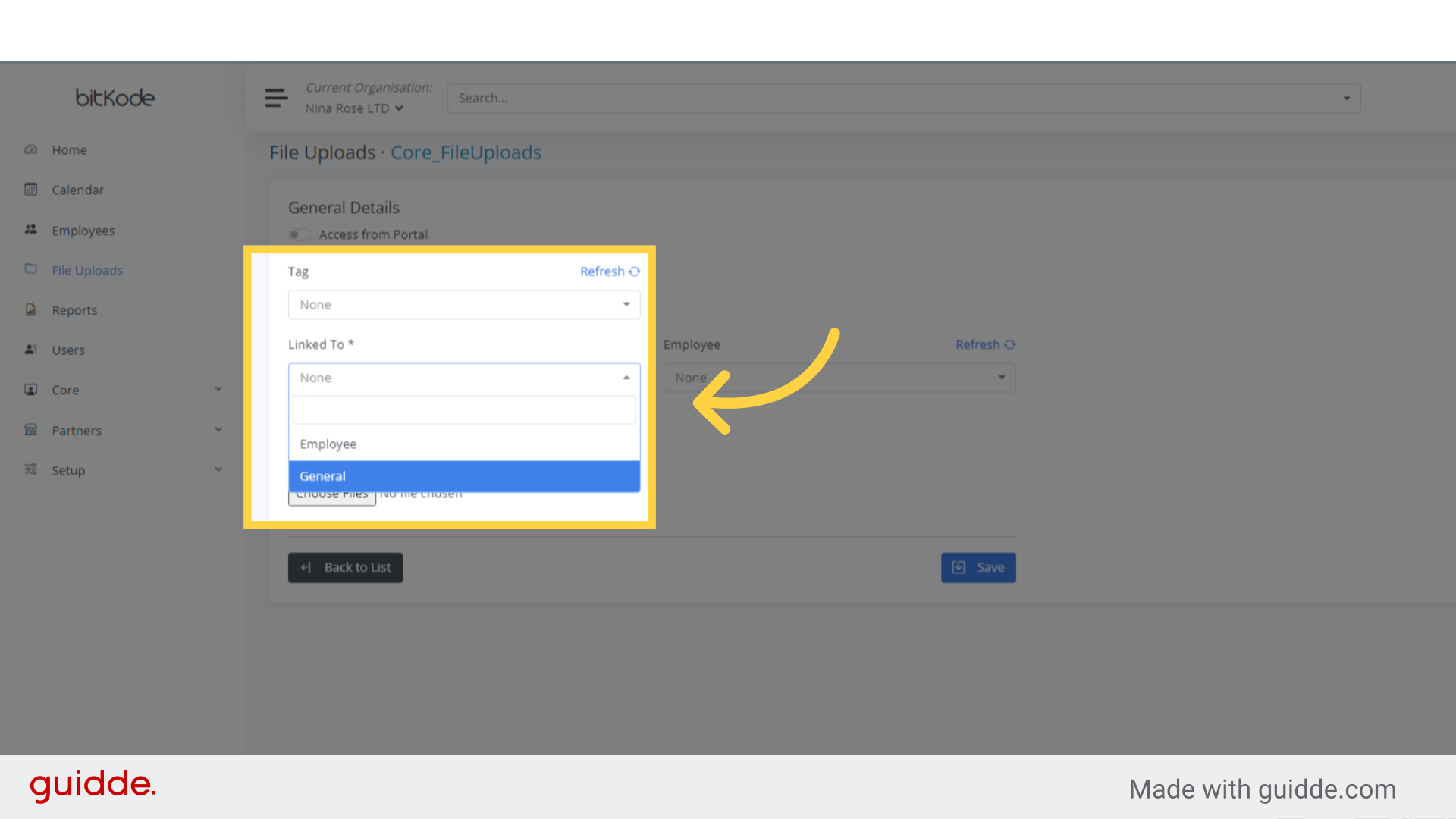
Step 4. Click “General” #
Select the “General” option, as demonstrated in the previous video.
This folder contains company-related files accessible to all employees.
Examples include the Employee Handbook, Company Policies (such as Internet Usage Policies), and Health and Safety manuals. Employees can view these files in their Employee Portal.
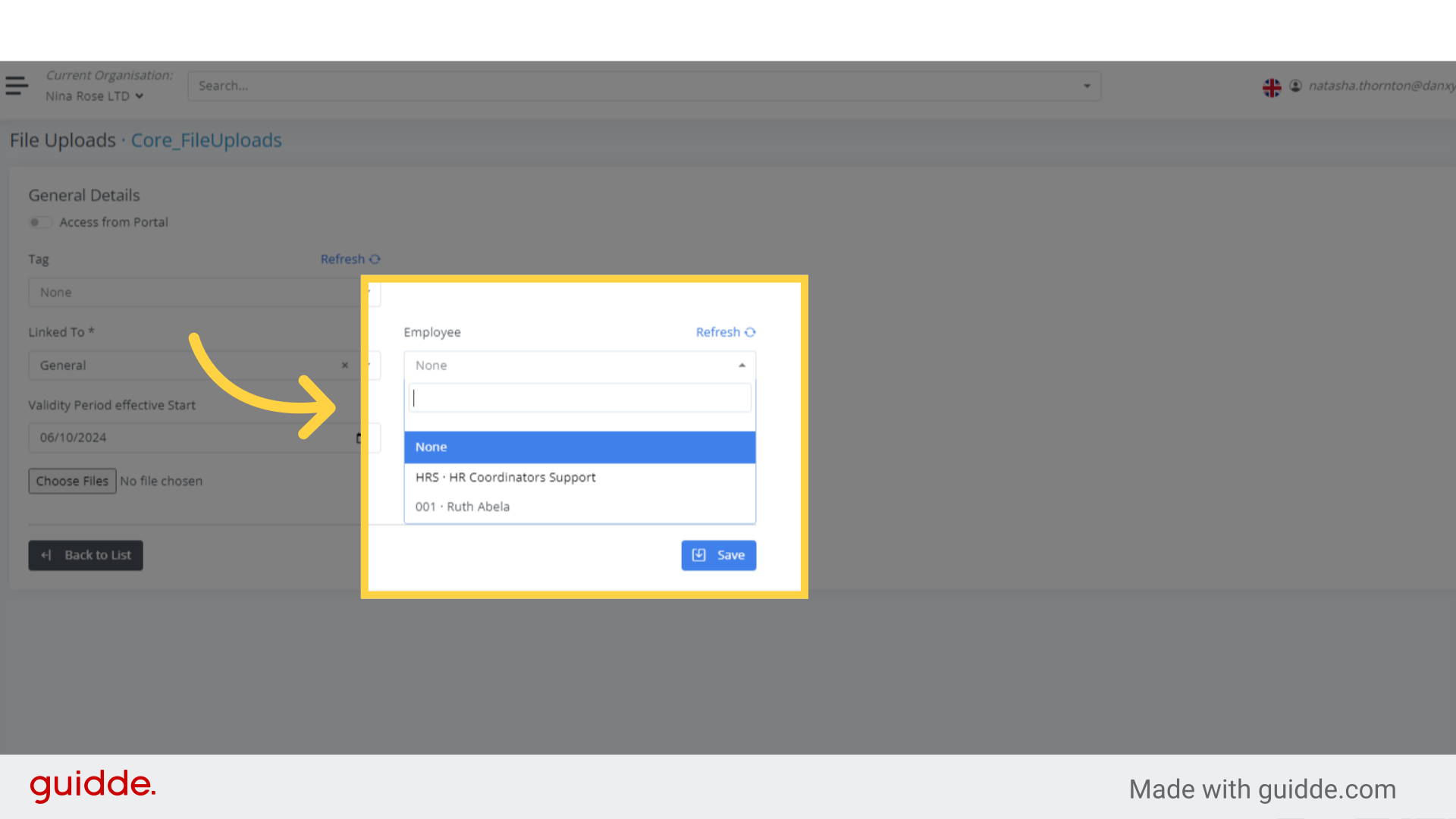
Step 5. Click “None” #
Since you’re uploading a general folder for employees to view files in their employee portal, choose “None“.
This will ensure that the files are accessible to all employees.
Step 6. Click here #
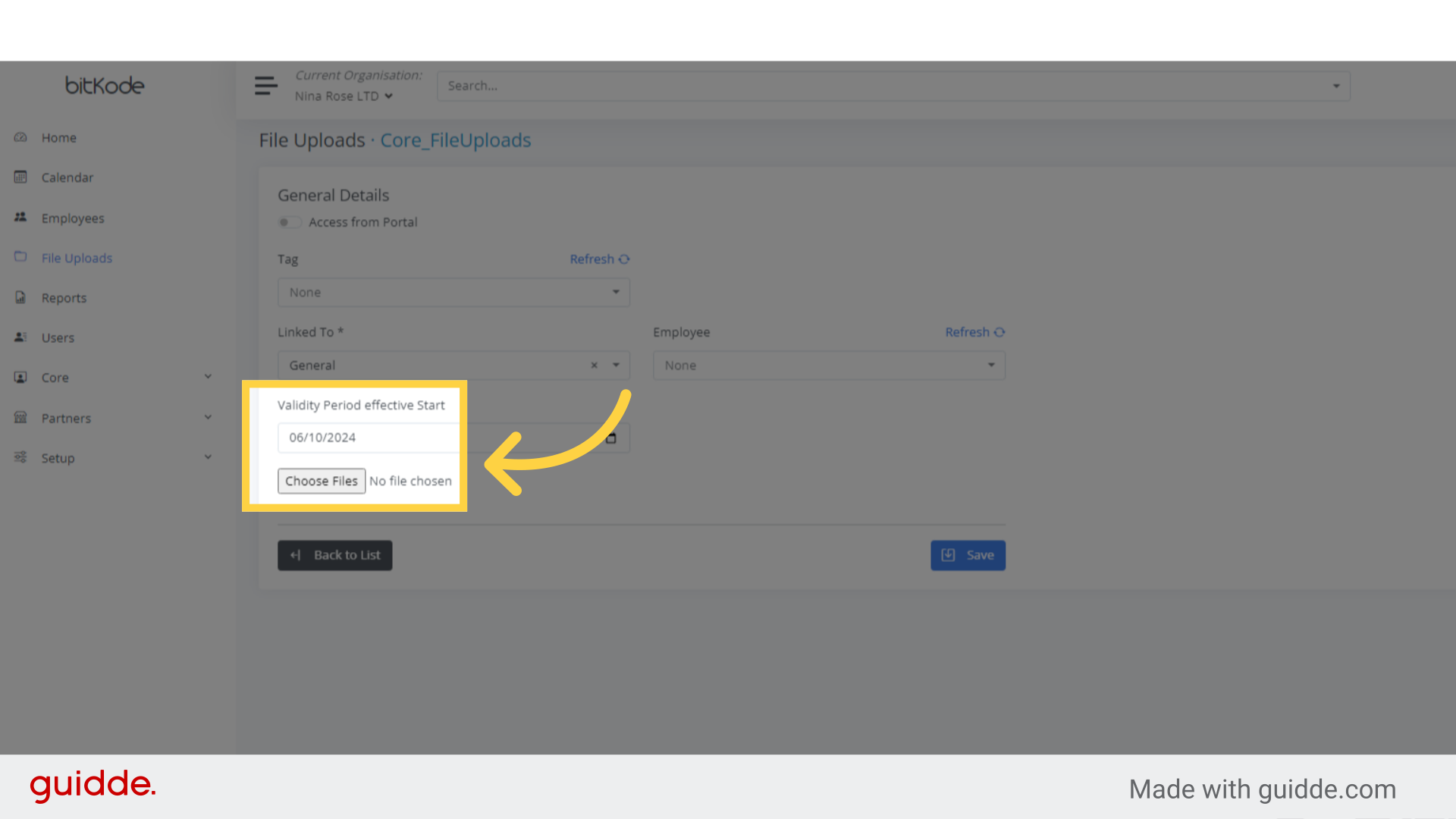
To upload a file, follow these steps:
- Click on “Choose File”.
- Navigate to the desired file in your PC folders.
- Select the file you want to upload.
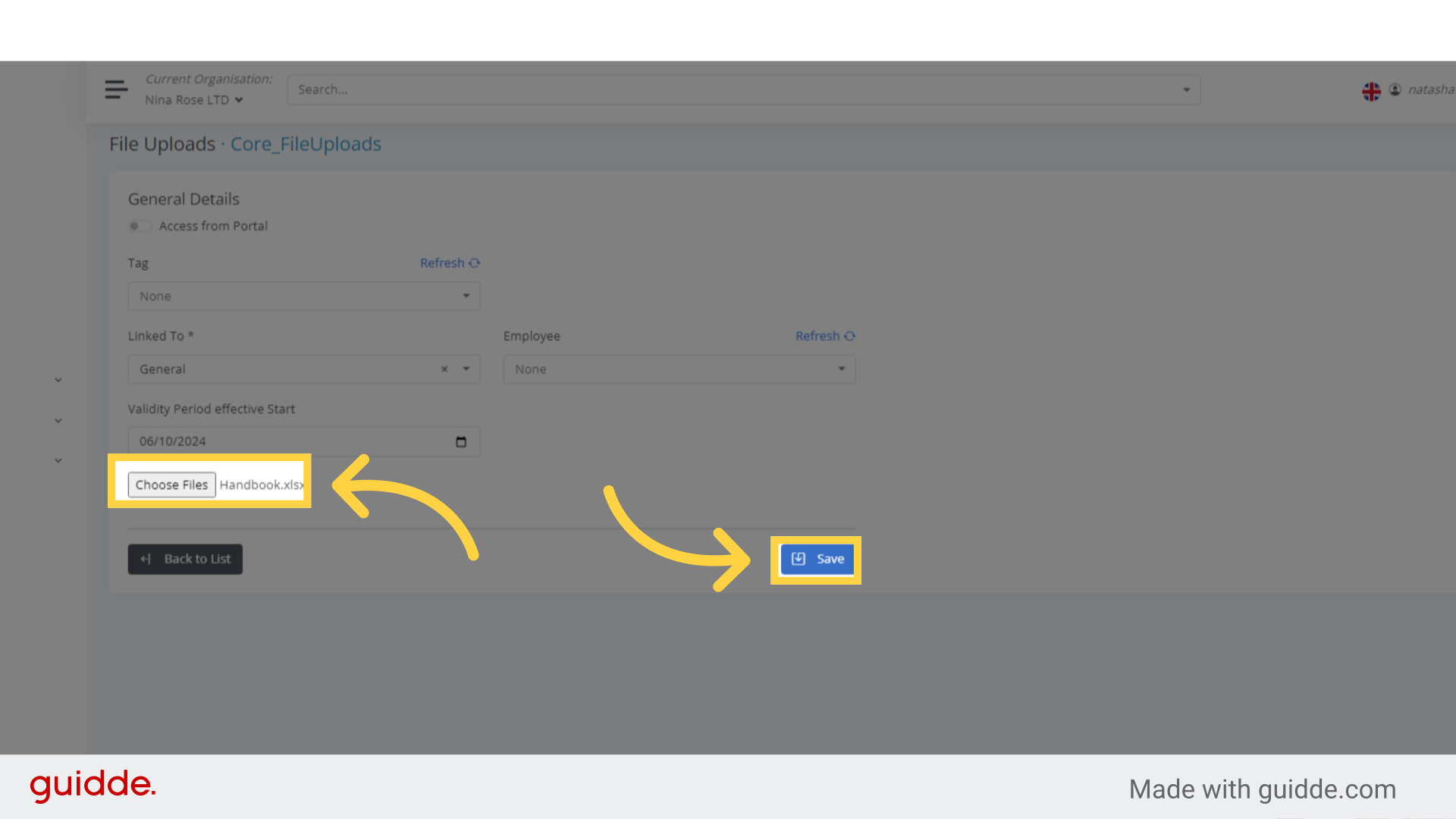
Step 7. Click “Save” #
After choosing and uploading the file, click on Save.
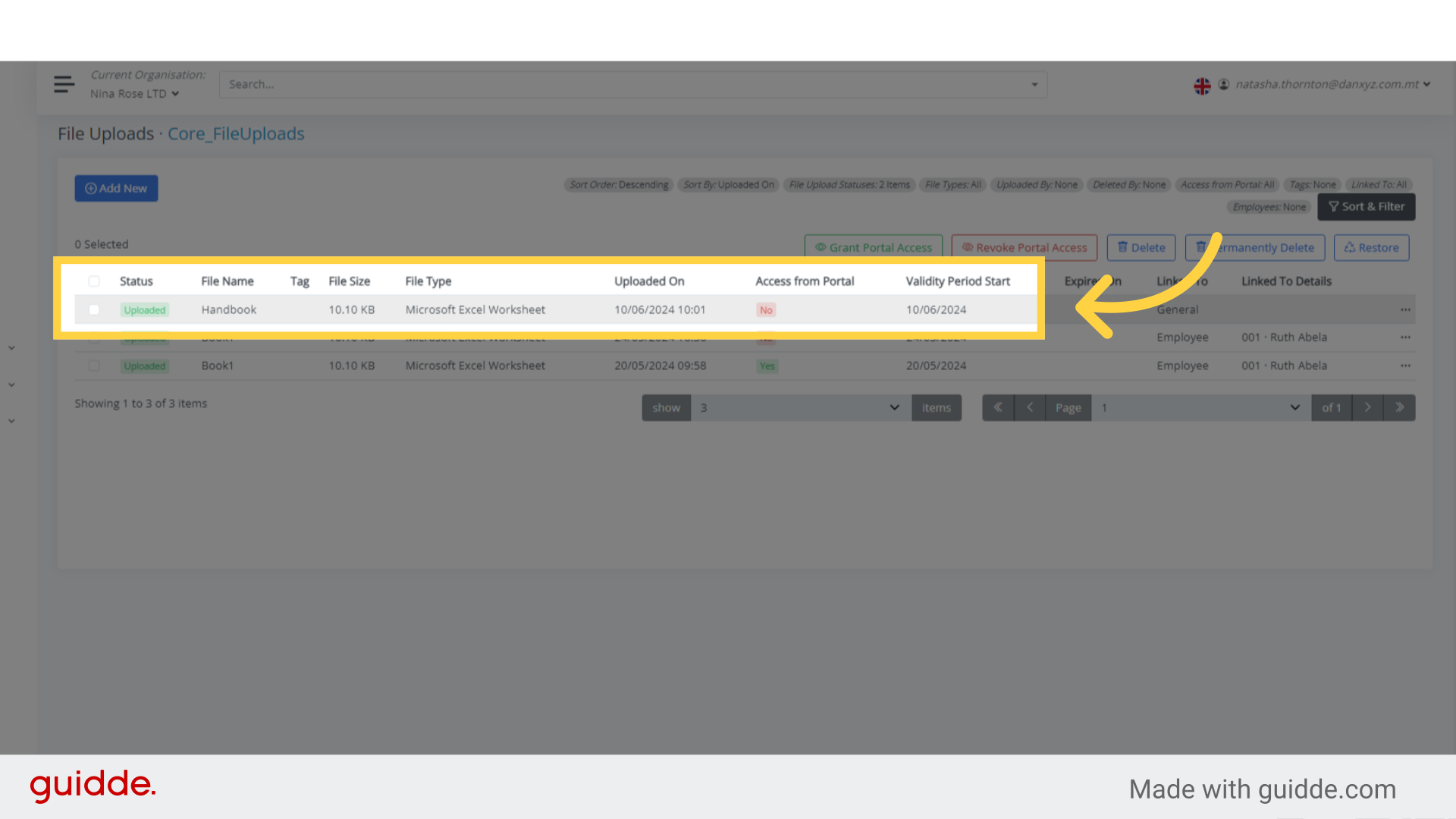
Step 8. Click here #
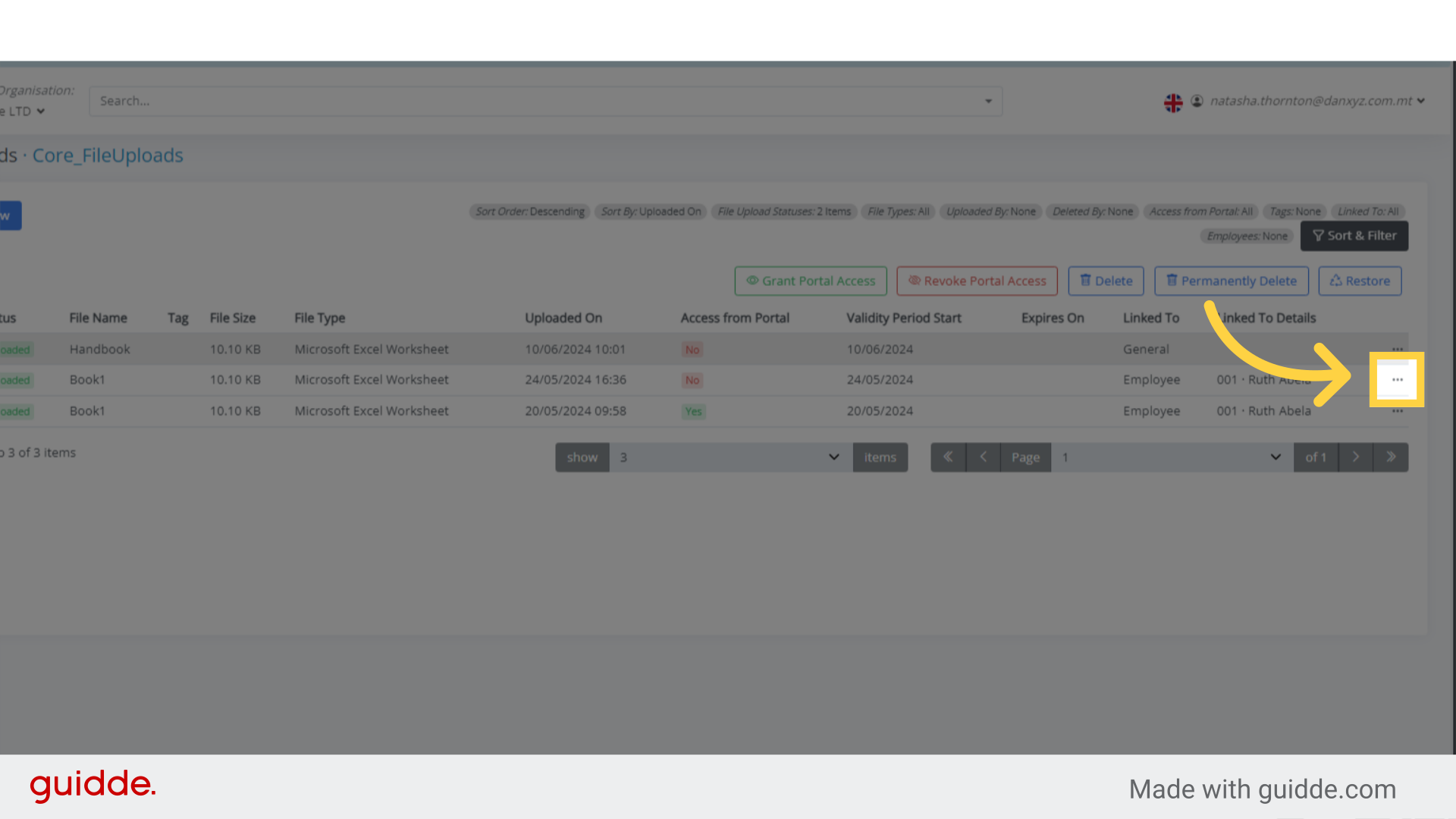
Once you’ve saved the uploaded file, it will appear in the list of uploaded files.
Step 9. Click “View / Update #
To download / view or update the file that has just been uploaded, click on the three dots (⋮) from the right-hand side.
Step 10. Click here #
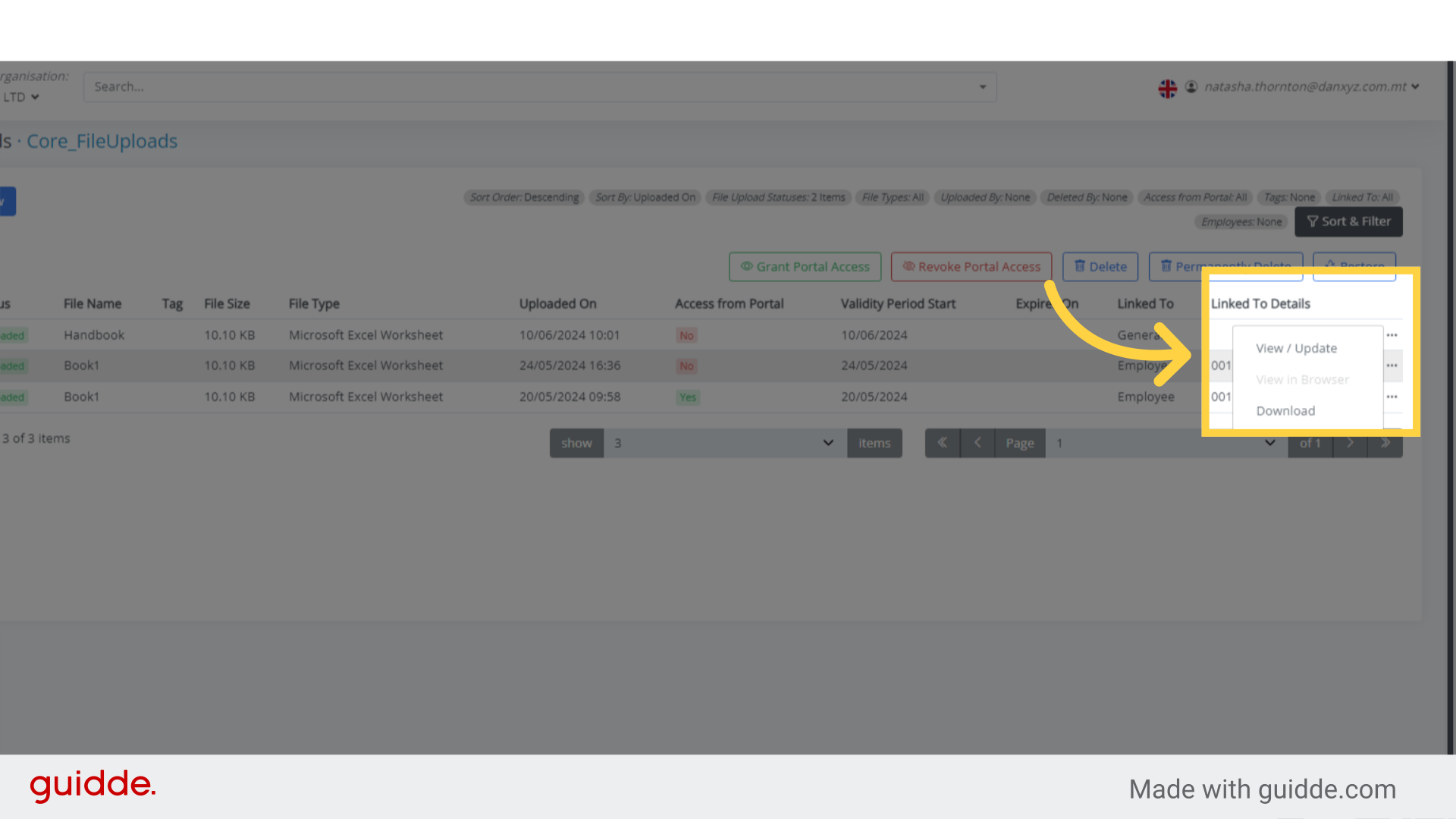
After clicking on the three dots, you’ll see options to download, view, or update the file.
Simply choose the feature you need.
This guide covered the process of uploading files to the General Folder in Bitkode, from accessing the homepage to selecting file types, tags, and saving the uploaded files.
Thank you.


