
Table of Contents
This guide will assist you in efficiently uploading files related to employee data in the BitKode application.
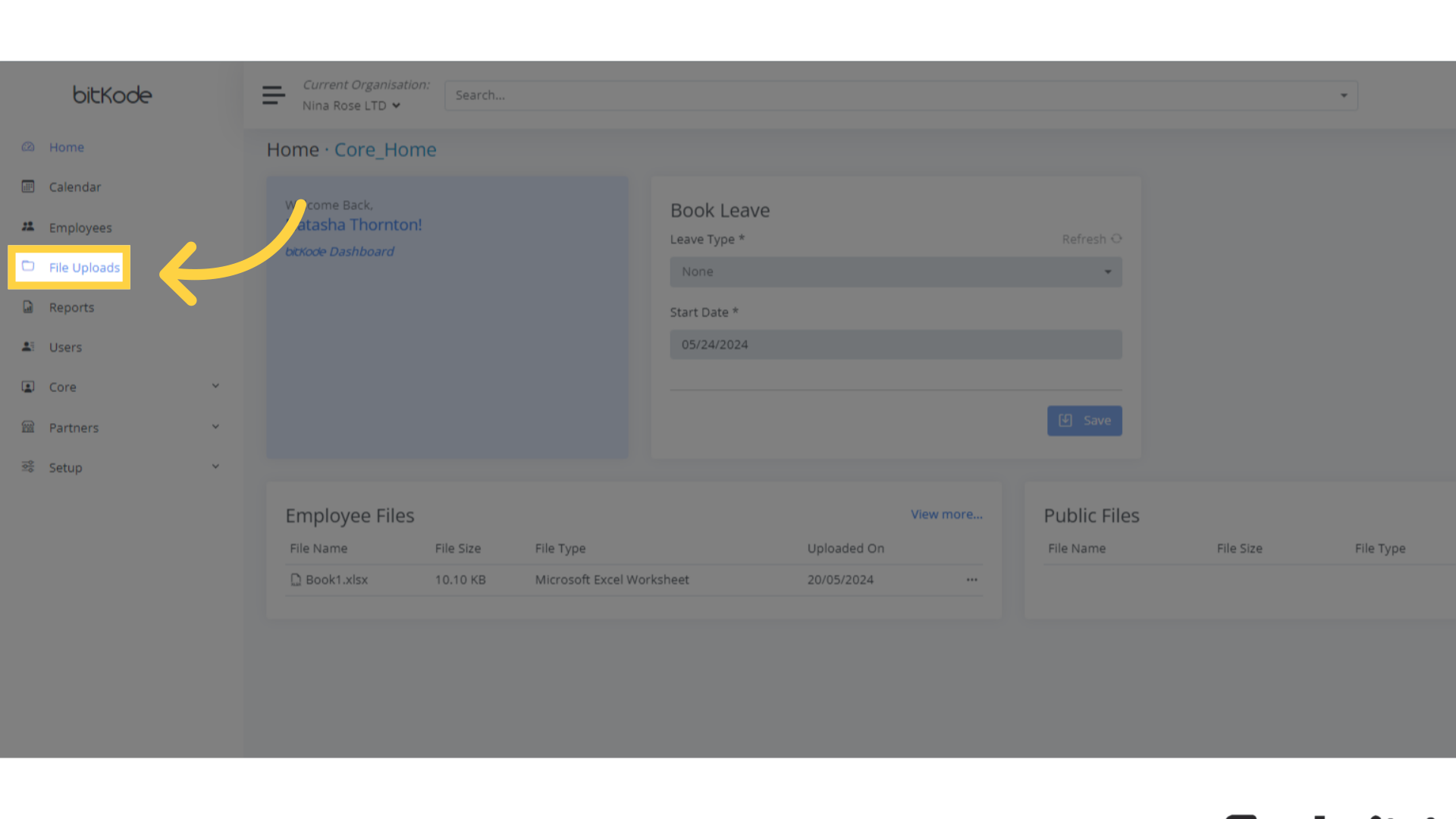
Step 1. Click “File Uploads” #
Begin by navigating to the section for uploading files.
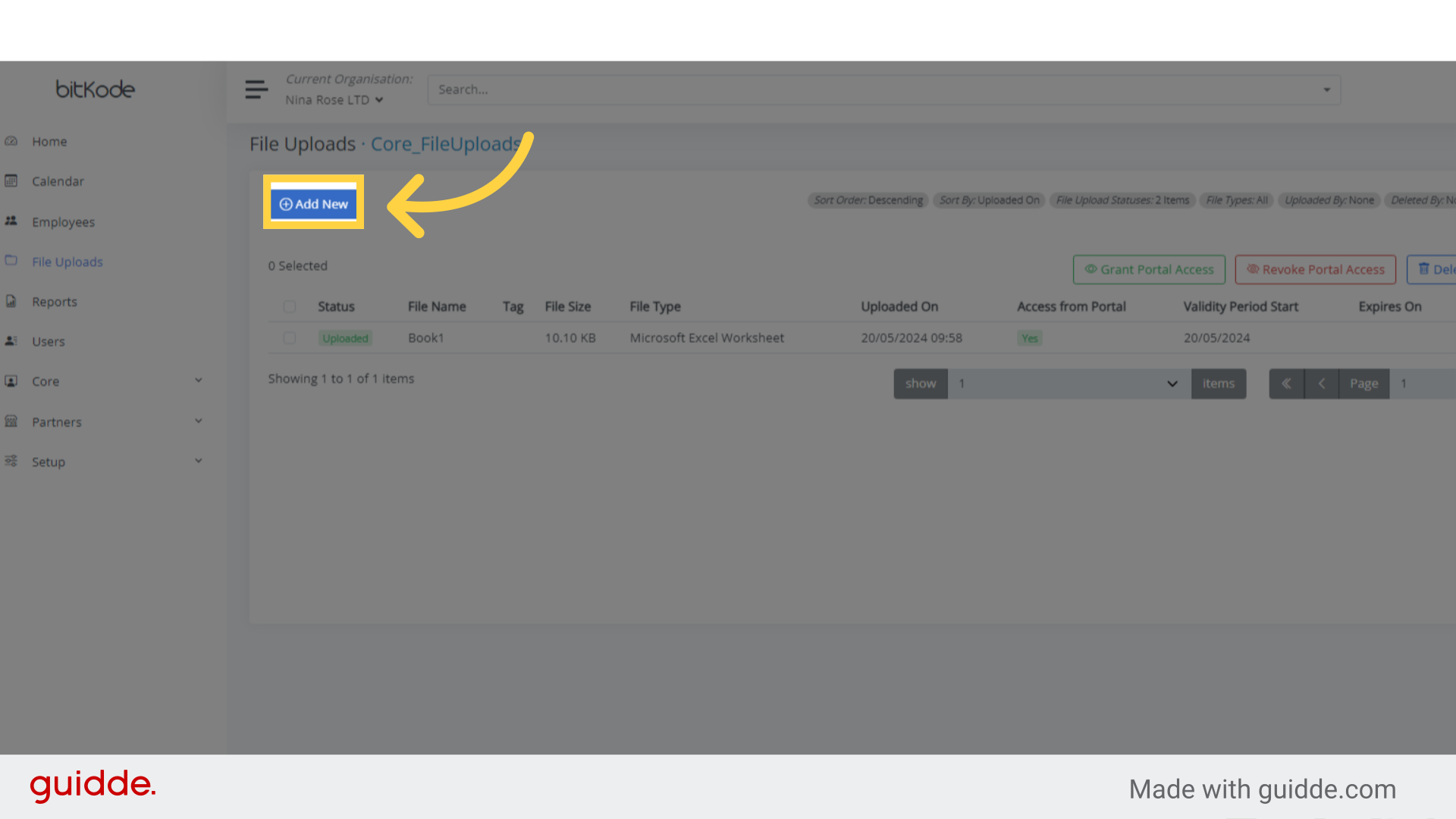
Step 2. Click “Add New” #
Once you’ve selected the file upload area, proceed to click on “Add New.”
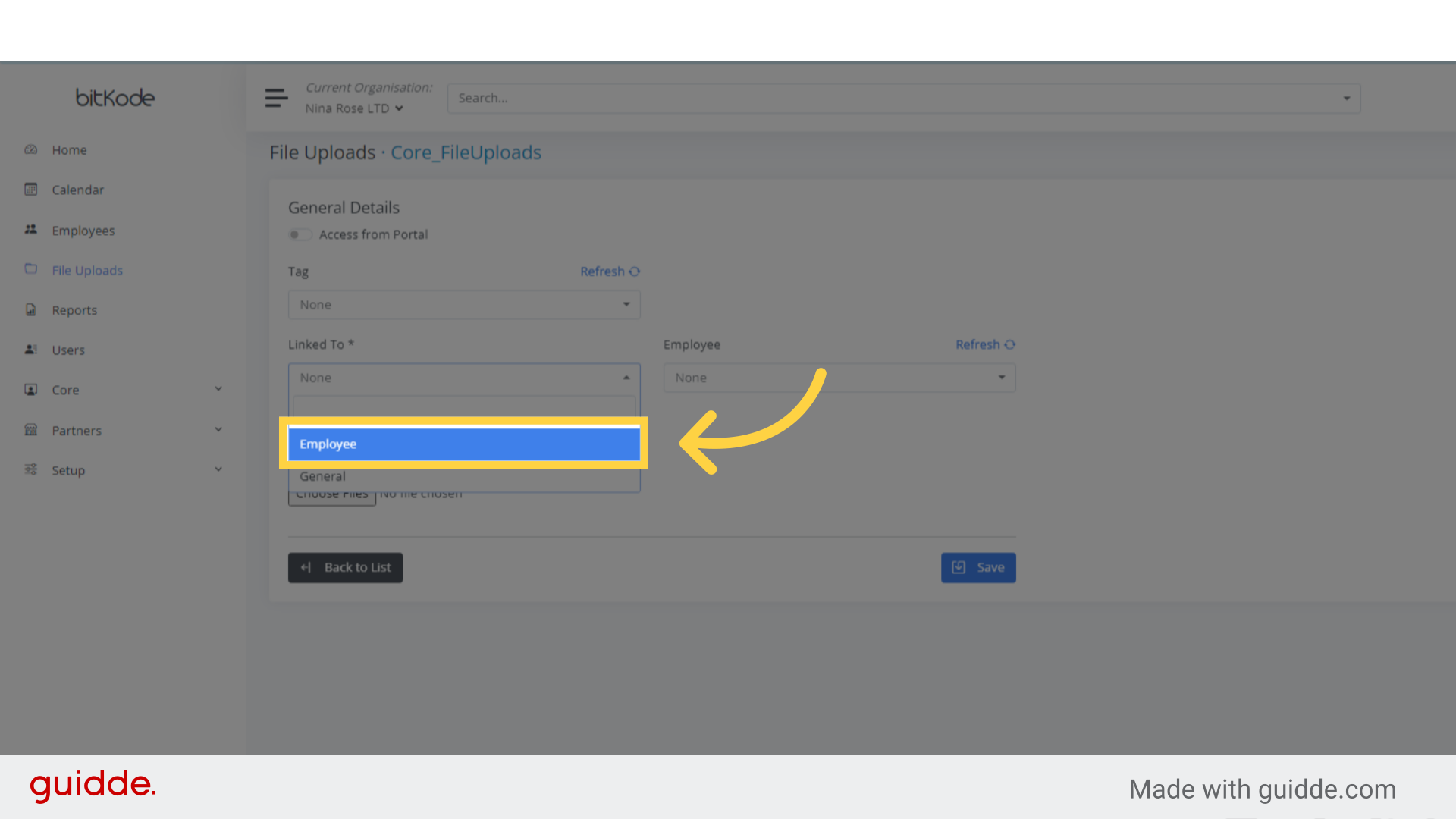
Step 3. Click “Employee” #
Following the selection of “Add New,” choose the employee from the dropdown menu.
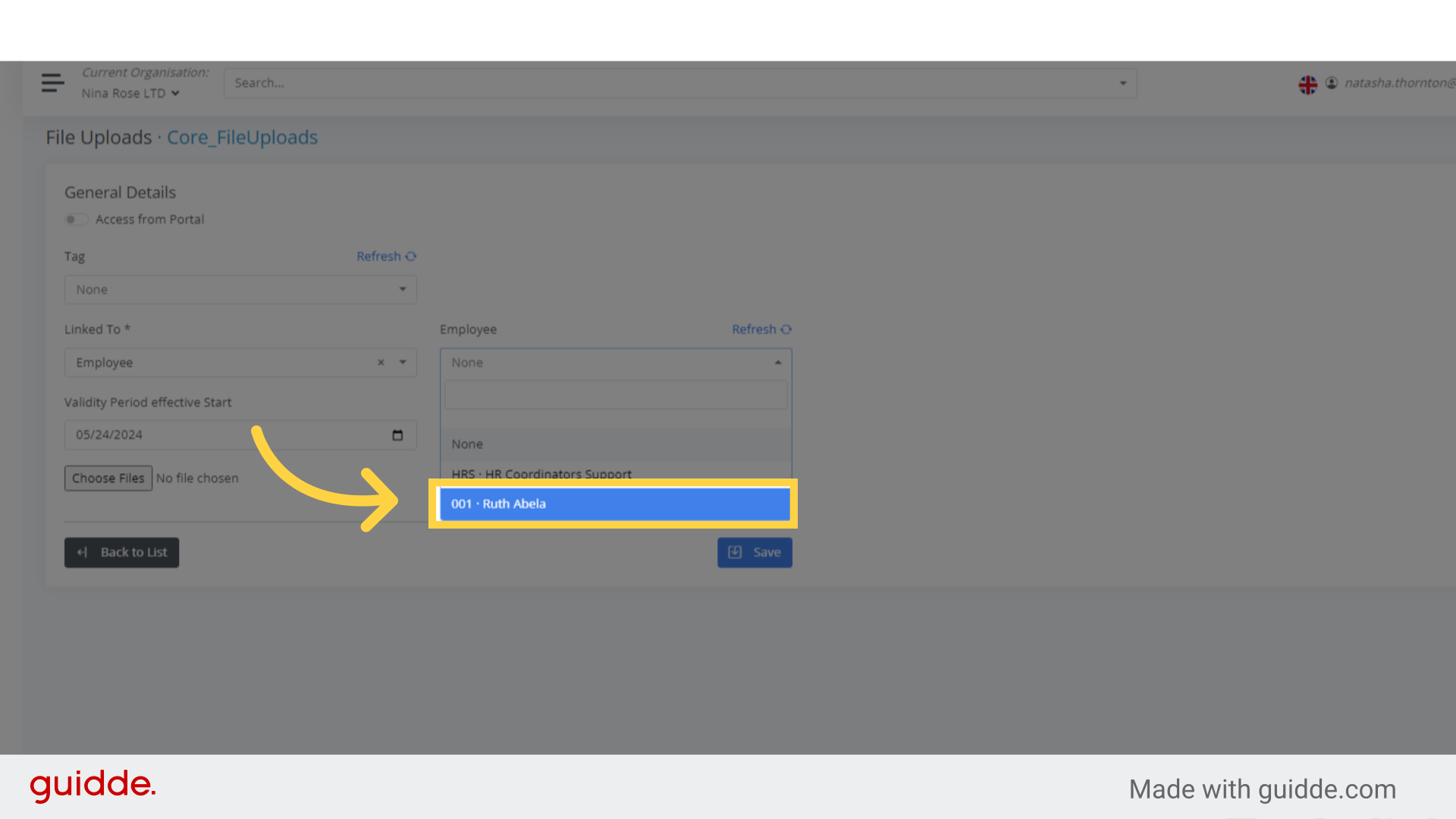
Step 4. Search by name #
Once you have successfully selected an employee, proceed to search for the employee by name.
Step 5. Choose date #
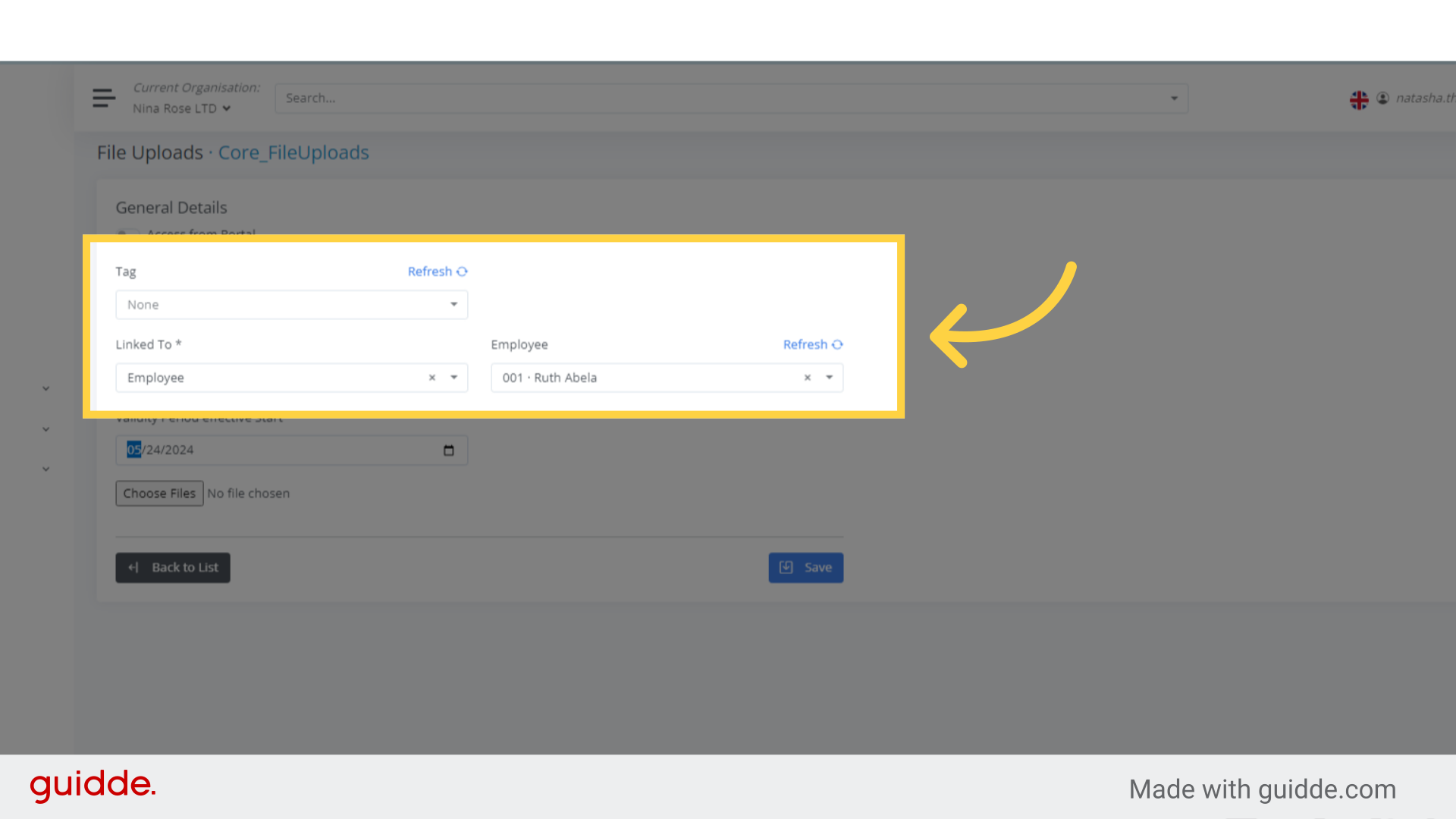
Once the employee has been successfully added to the list, please proceed to choose a date.
Step 6. Click here #
Once you’ve input all the necessary details and dates, click the Choose File button to navigate to your computer’s files and select the file you wish to upload.
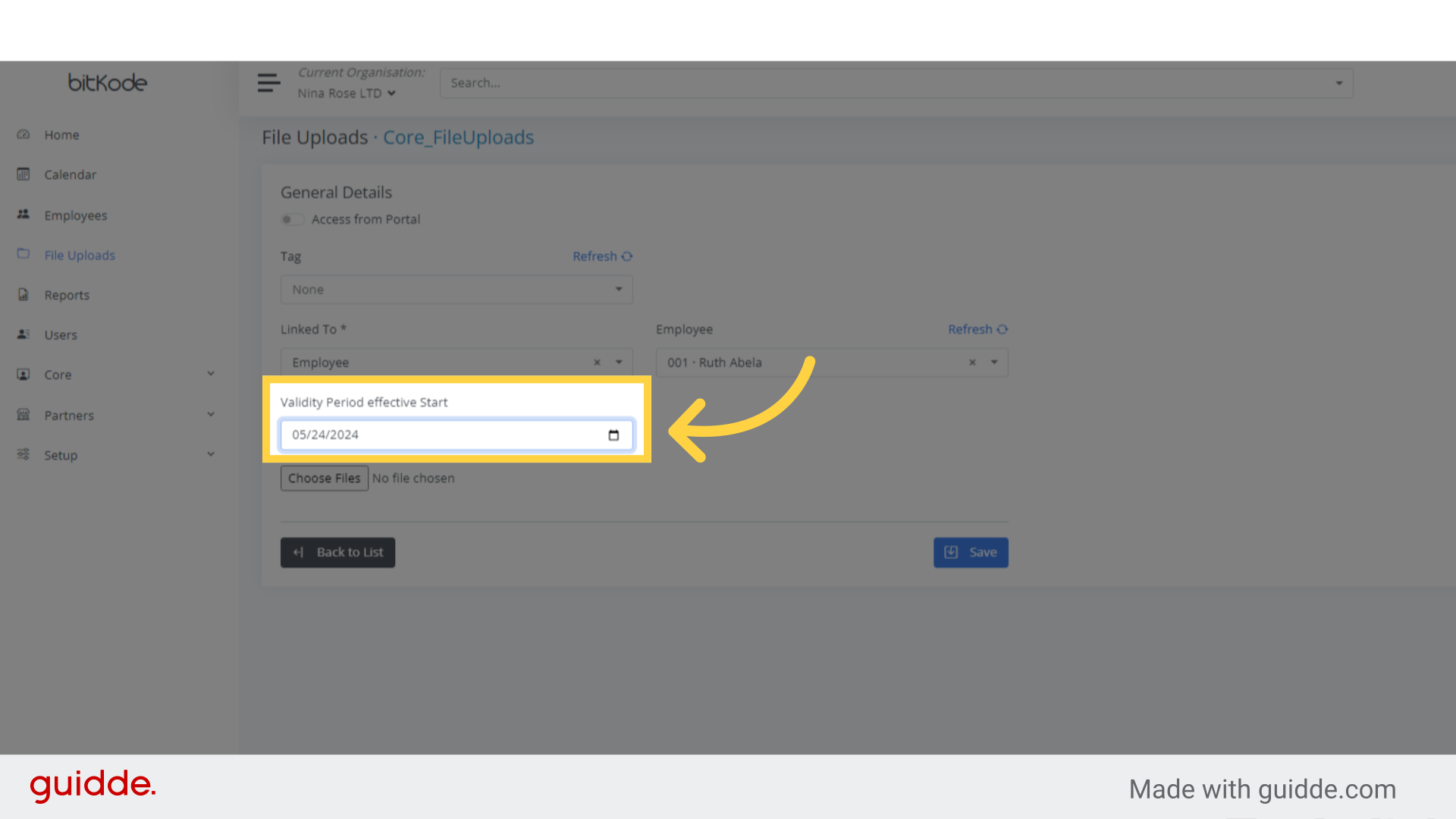
Step 7. Click “Save” #
Once the file has been uploaded successfully, please click the Save button.
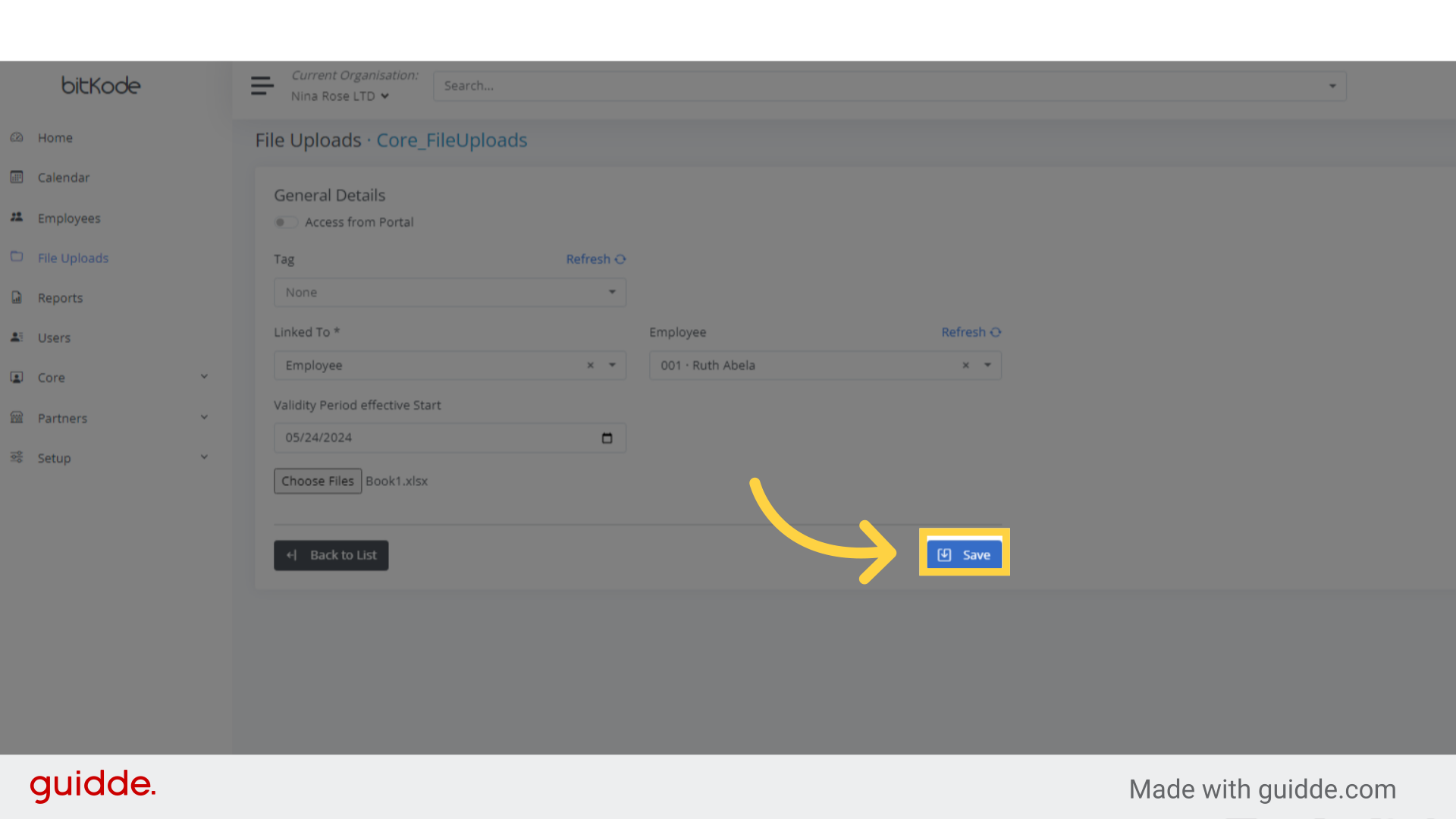
Step 8. File uploaded #
After the file upload is complete, you can review the file details as displayed in the image.
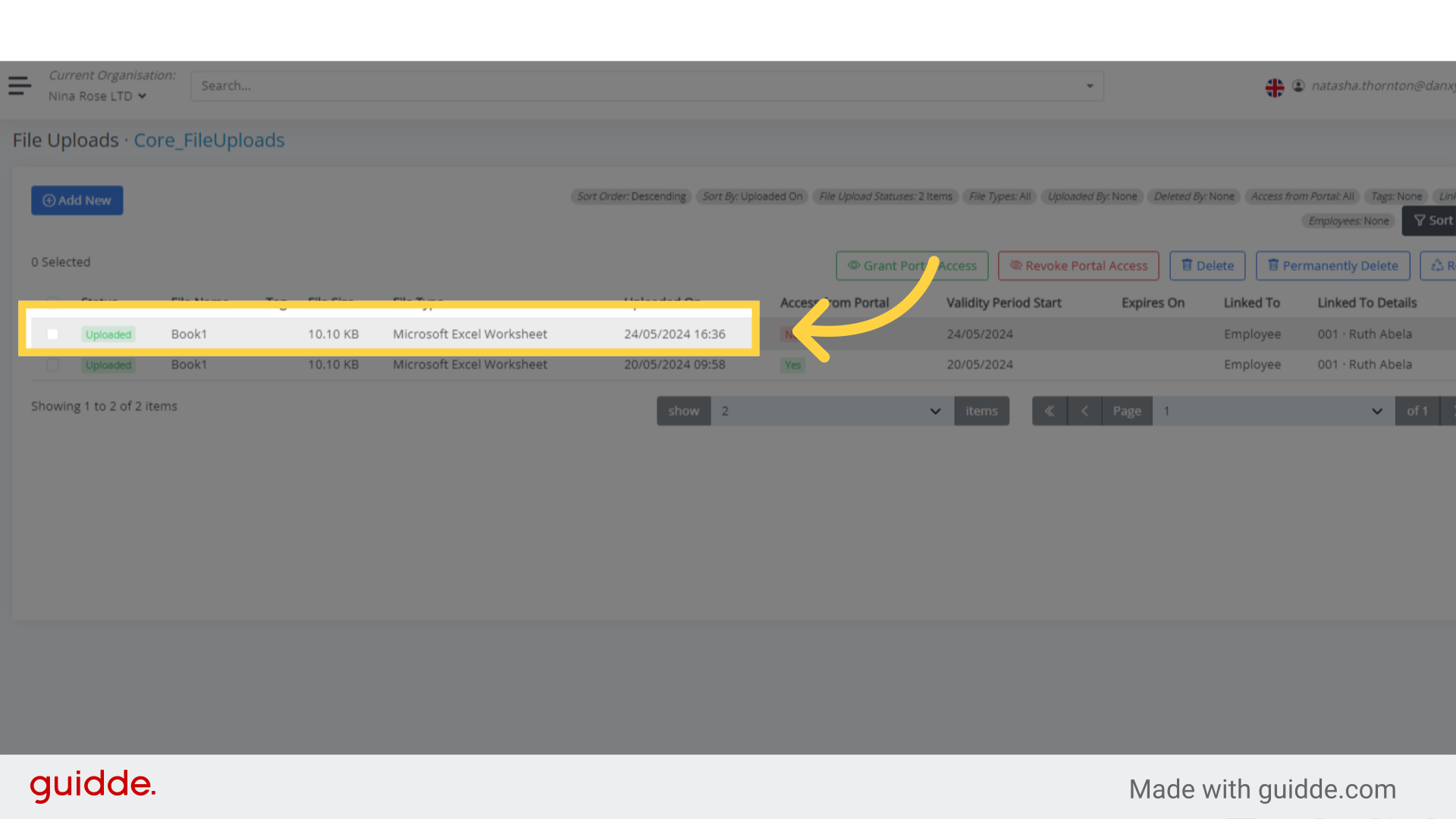
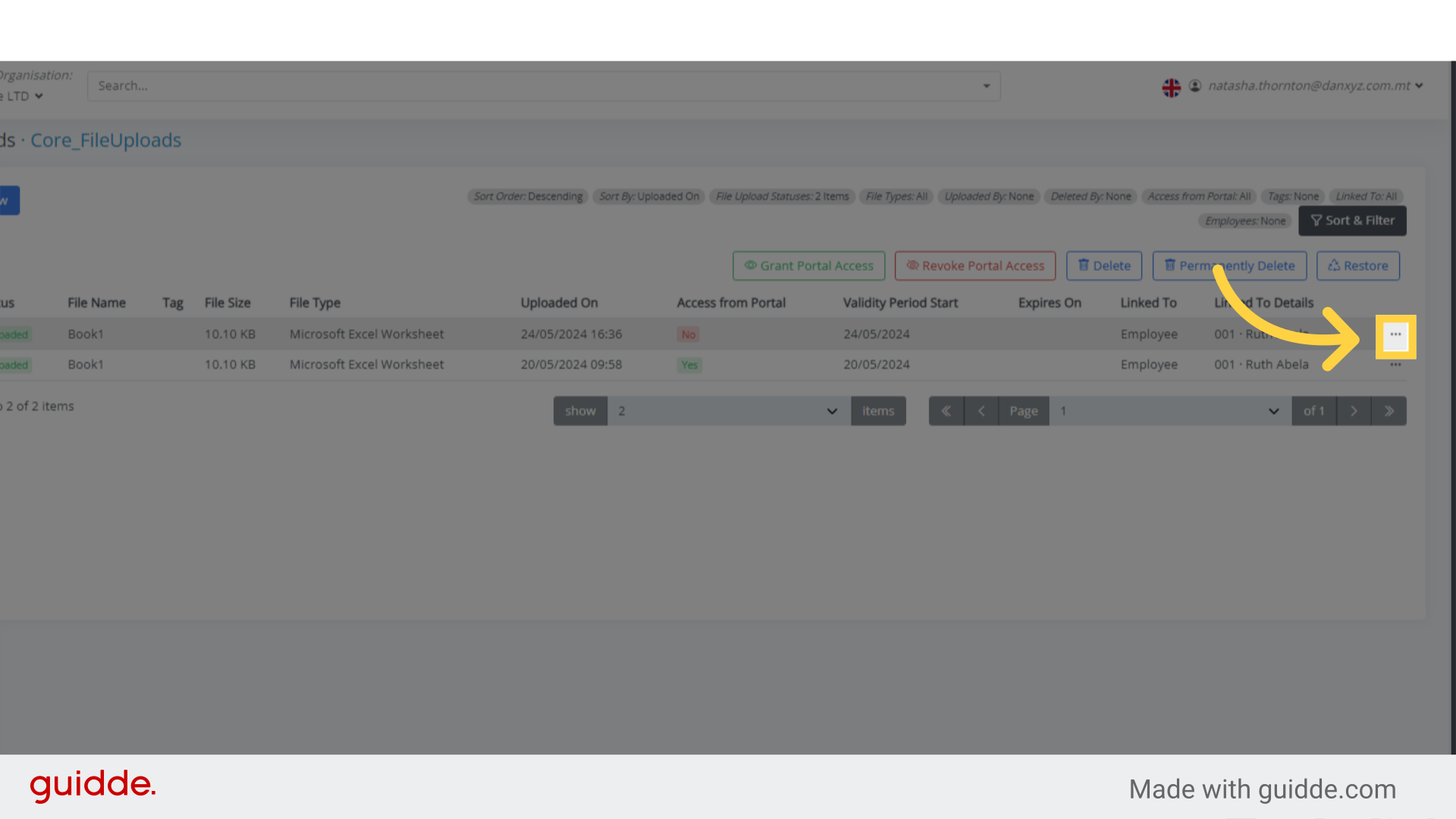
Step 9. Click here #
To view or update, simply click on the three dots that are visible in the image.
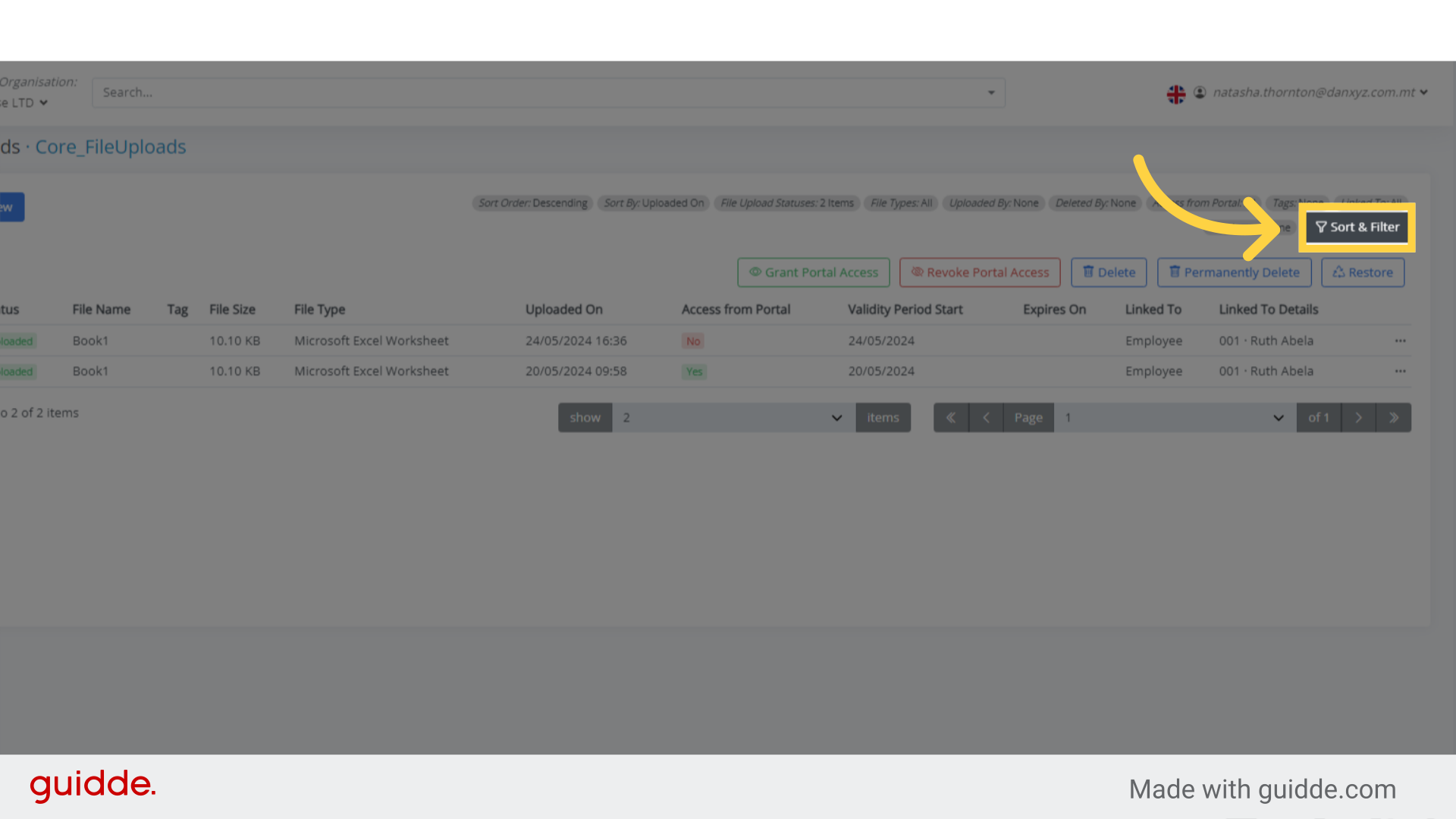
Step 10. Click “Sort & Filter” #
If you’d like to organize your files by sorting and filtering them, please click on the Sort and Filter option.
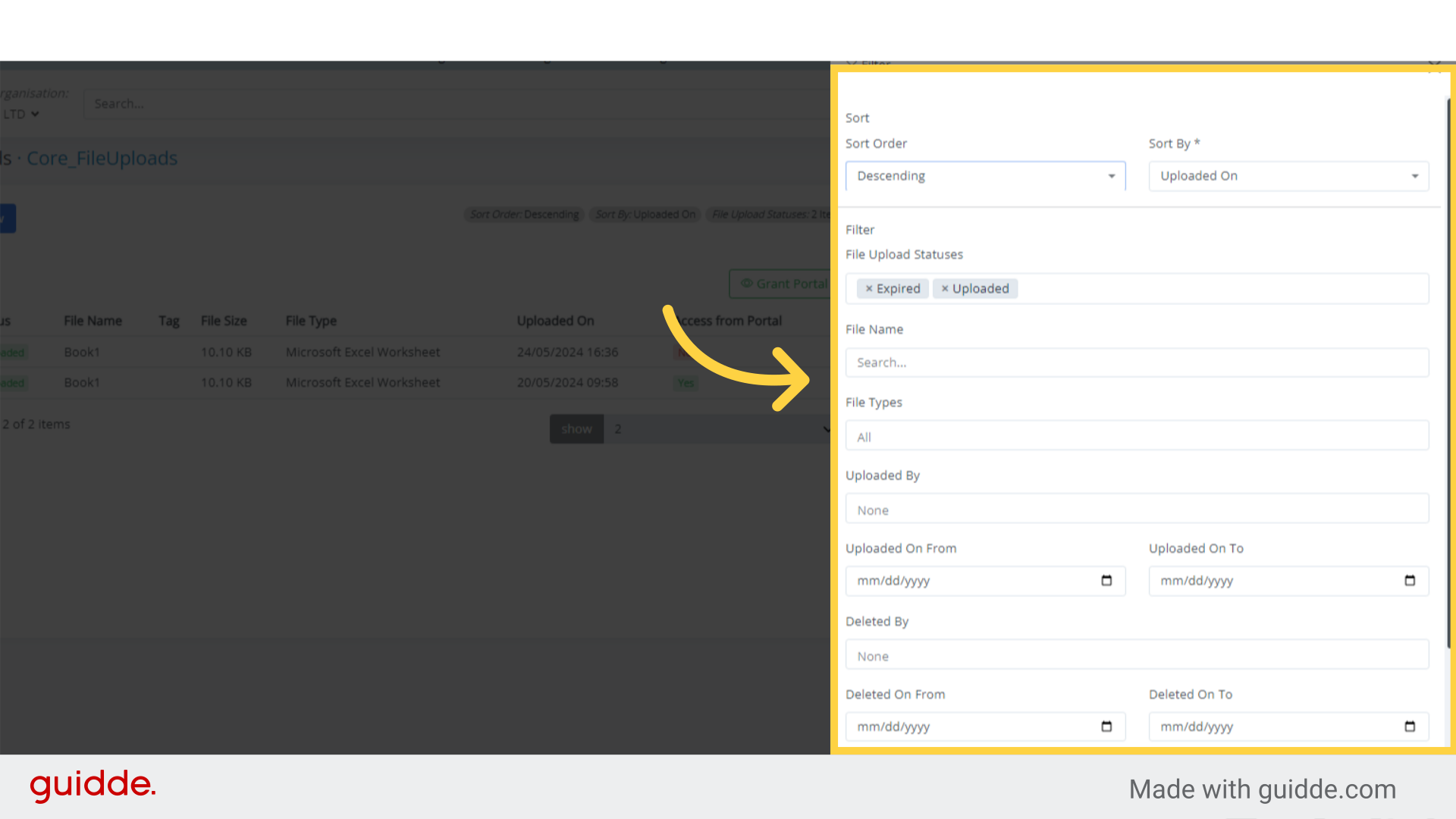
Step 11. Click “Filter” #
Upon choosing the Sort and Filter feature, you have the ability to set the sorting sequence.
This includes options for sorting order, categories such as:
- file upload status;
- file name;
- file type;
- uploader details;
- date ranges for upload and deletion;
- portal access;
- expiration dates; and
- linkages to either employees or general categories.
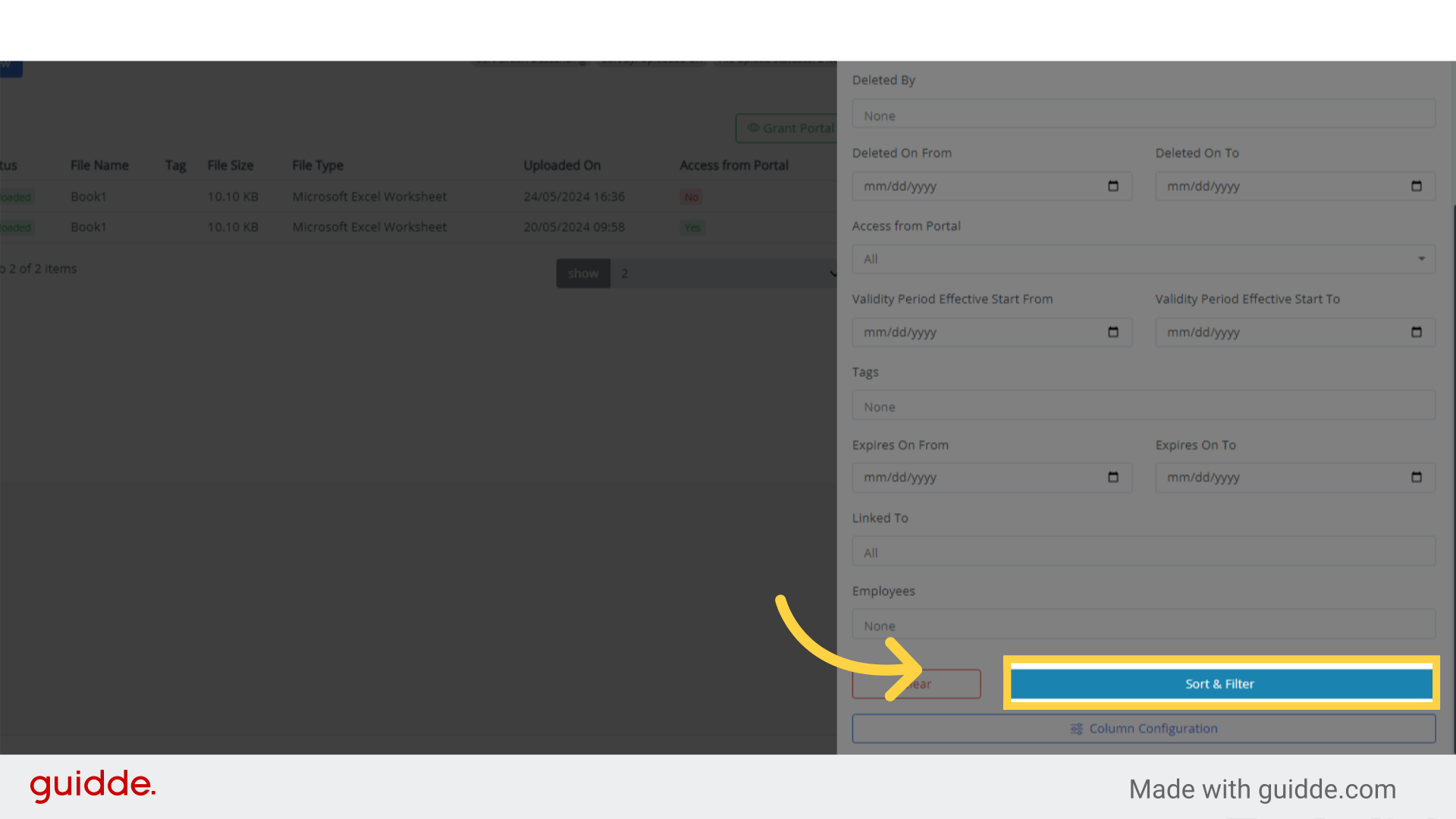
Step 12. Click “Sort & Filter” #
After selecting all the desired filters, click on the sort and Filter button as indicated in the image.
In this guide, you learned how to upload files for employees in the Bitcode application.
Thank you.


