
Table of Contents
- Knowing how to manage files is crucial.
- Step 1. Click "File Uploads"
- Step 2. Choose file
- Step 3. Click "Delete"
- Step 4. Click "Sort & Filter"
- Step 5. Click "Deleted"
- Step 6. Click "Sort & Filter"
- Step 7. Click "on"
- Step 8. Turn on
- Step 9. Click "Permanently Delete"
- Step 10. Click "Continue"
- Step 11. Turn on
- Step 12. Click "Restore"
- Step 13. File restored
Knowing how to manage files is crucial. #
This guide will walk you through the process of deleting, permanently deleting, and restoring uploaded files in Bitkode.
Follow these precise steps to streamline your file management tasks.
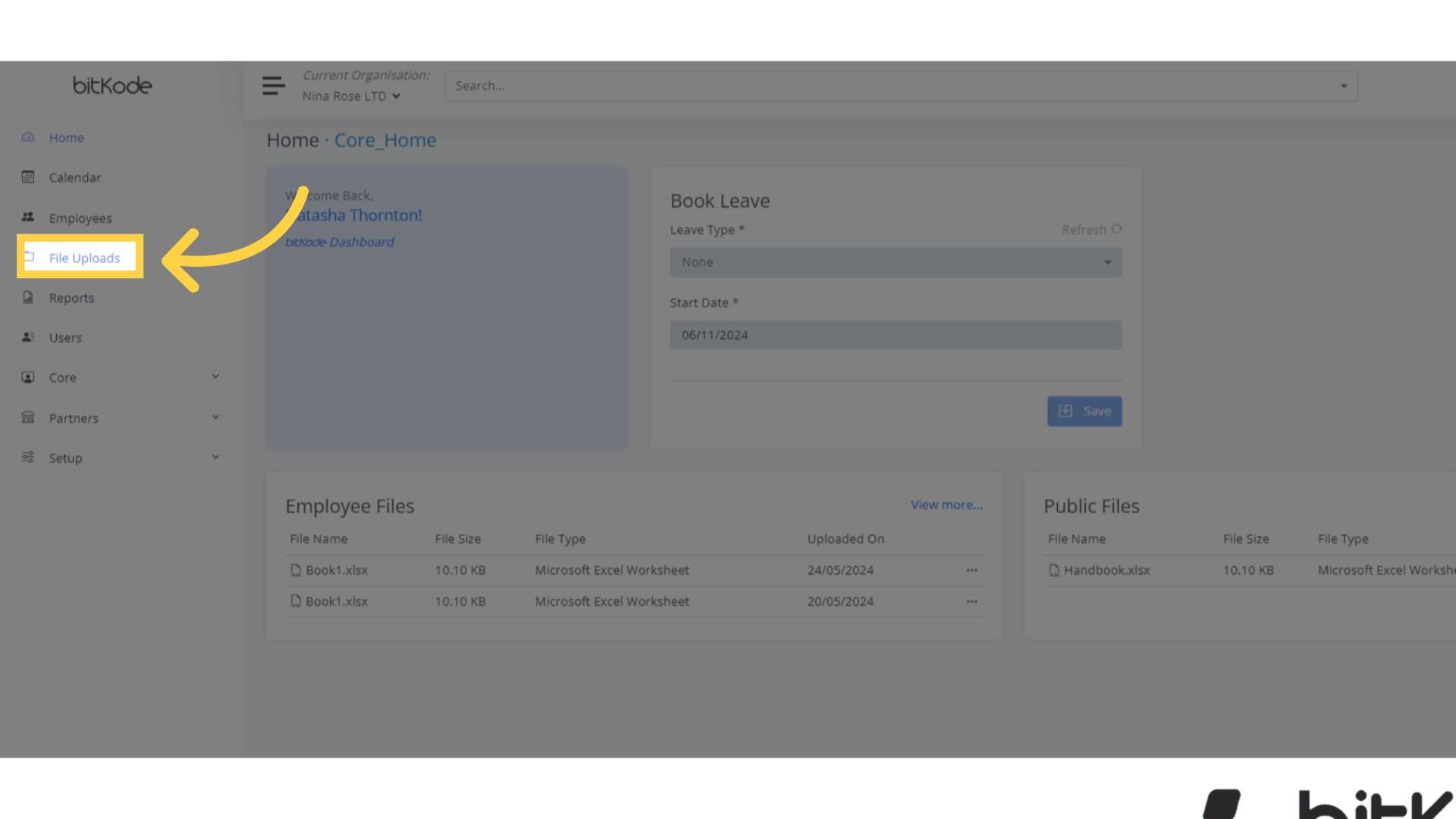
Step 1. Click “File Uploads” #
After logging in to bitKode, click on “File Uploads” from the left-hand side.
Step 2. Choose file #
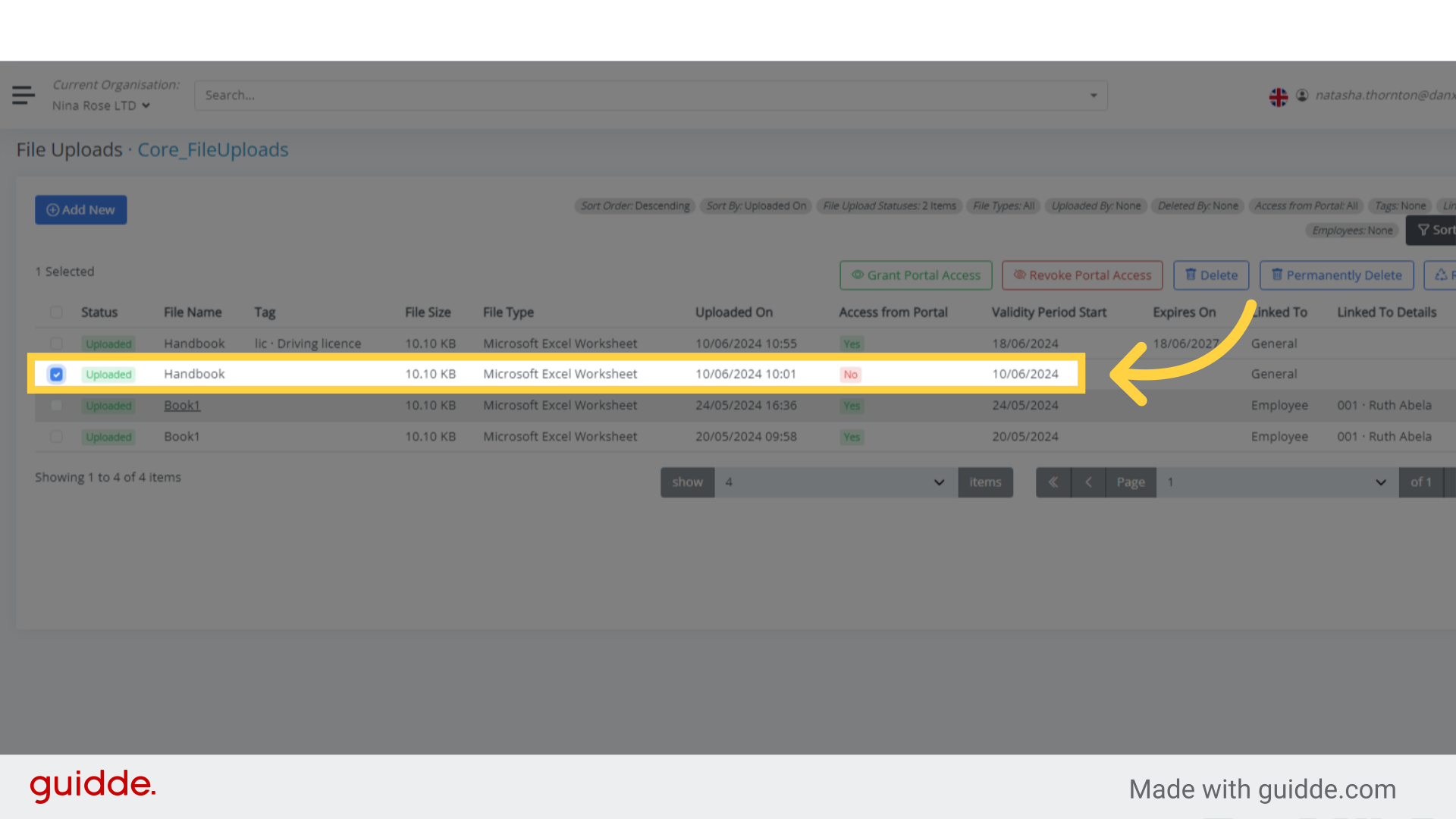
After clicking on “Upload Files,” you’ll be prompted with a list of files.
Choose the file you wish to delete.
Step 3. Click “Delete” #
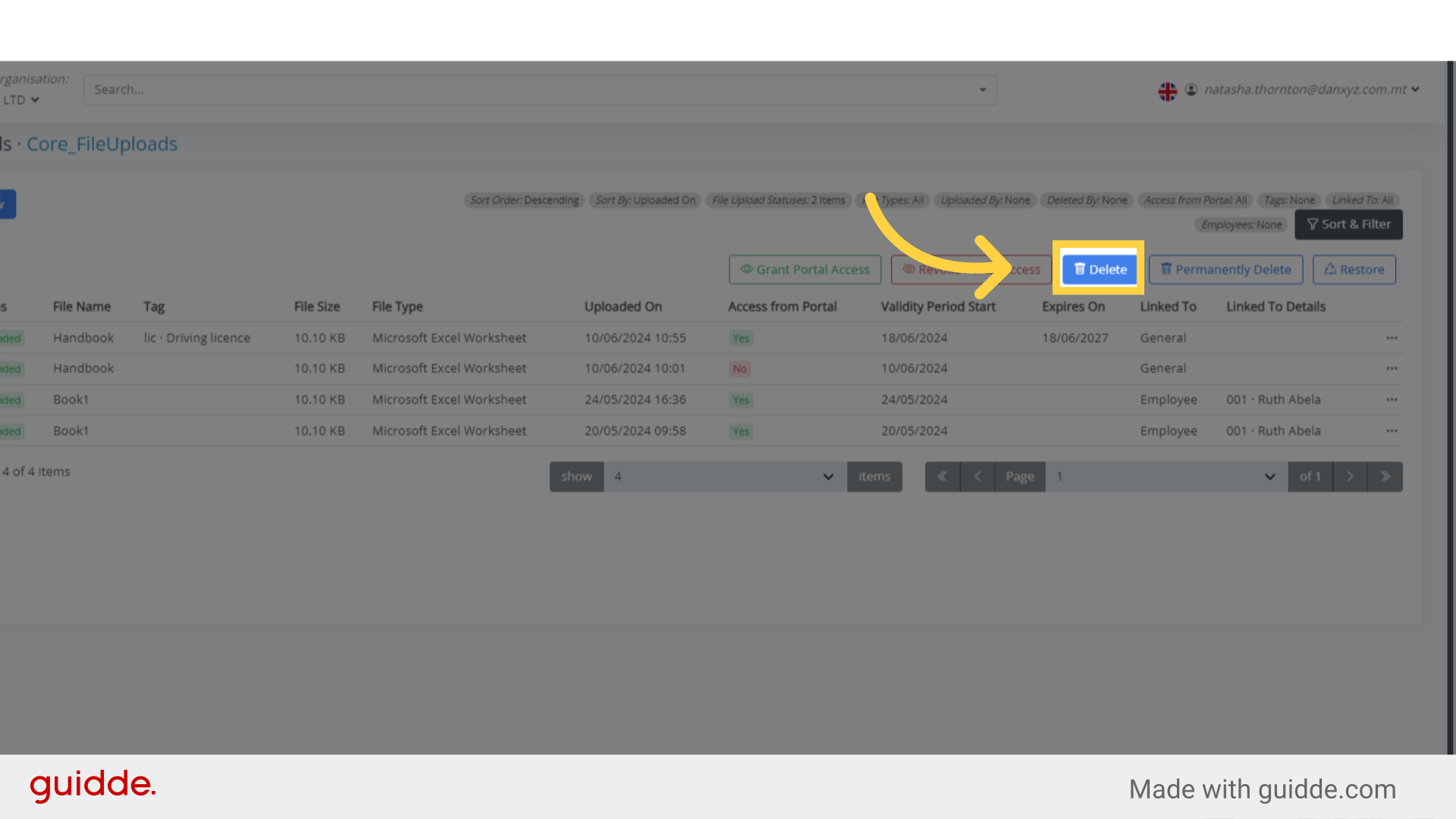
To delete, simply click on the Delete button.
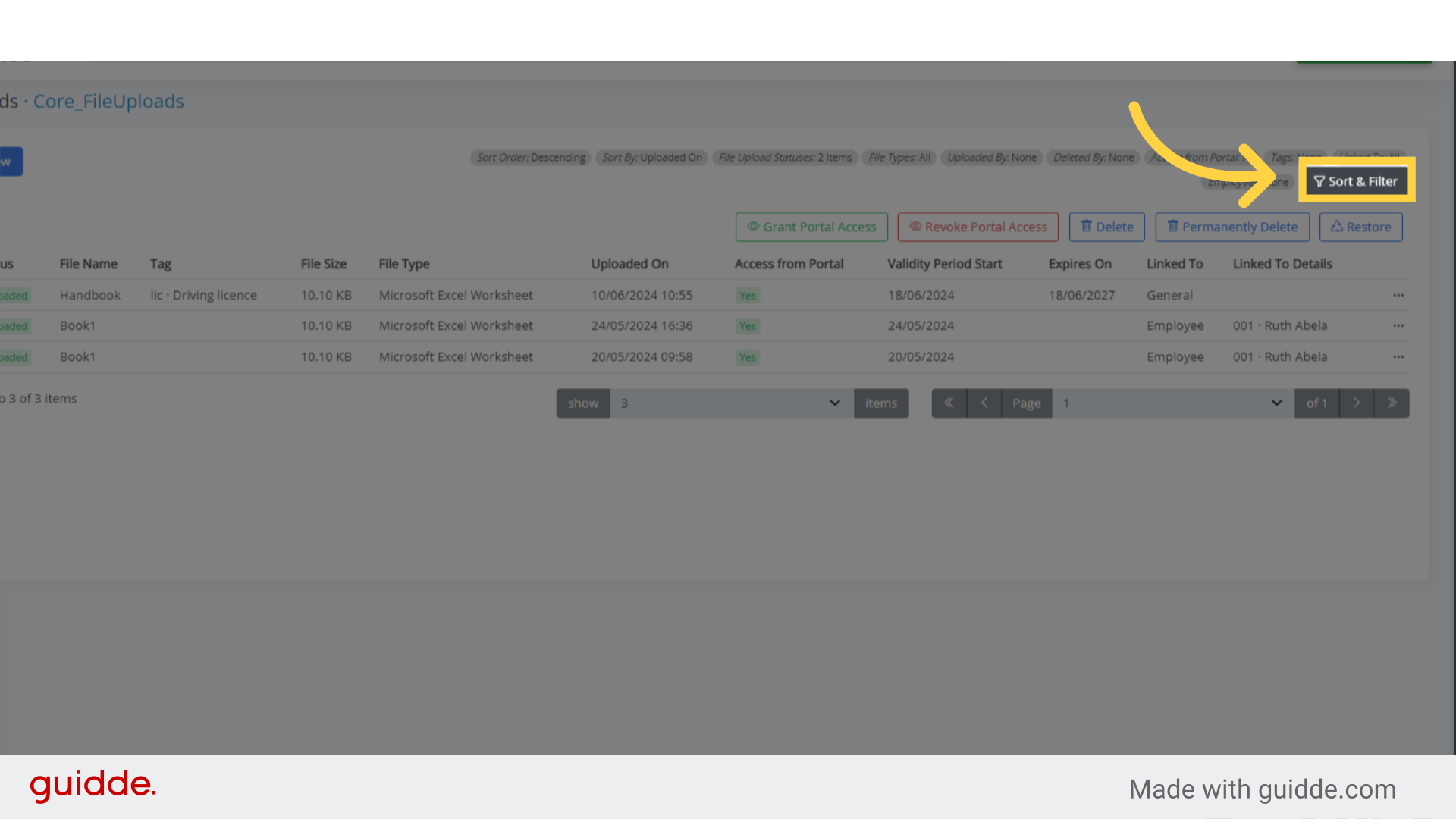
Step 4. Click “Sort & Filter” #
Please be aware that if you delete a file, it doesn’t mean it’s irretrievable.
You can restore a deleted file using the appropriate option.
However, if you choose to permanently delete a file, it cannot be restored.
To permanently delete a file, follow these steps.
Step 5. Click “Deleted” #
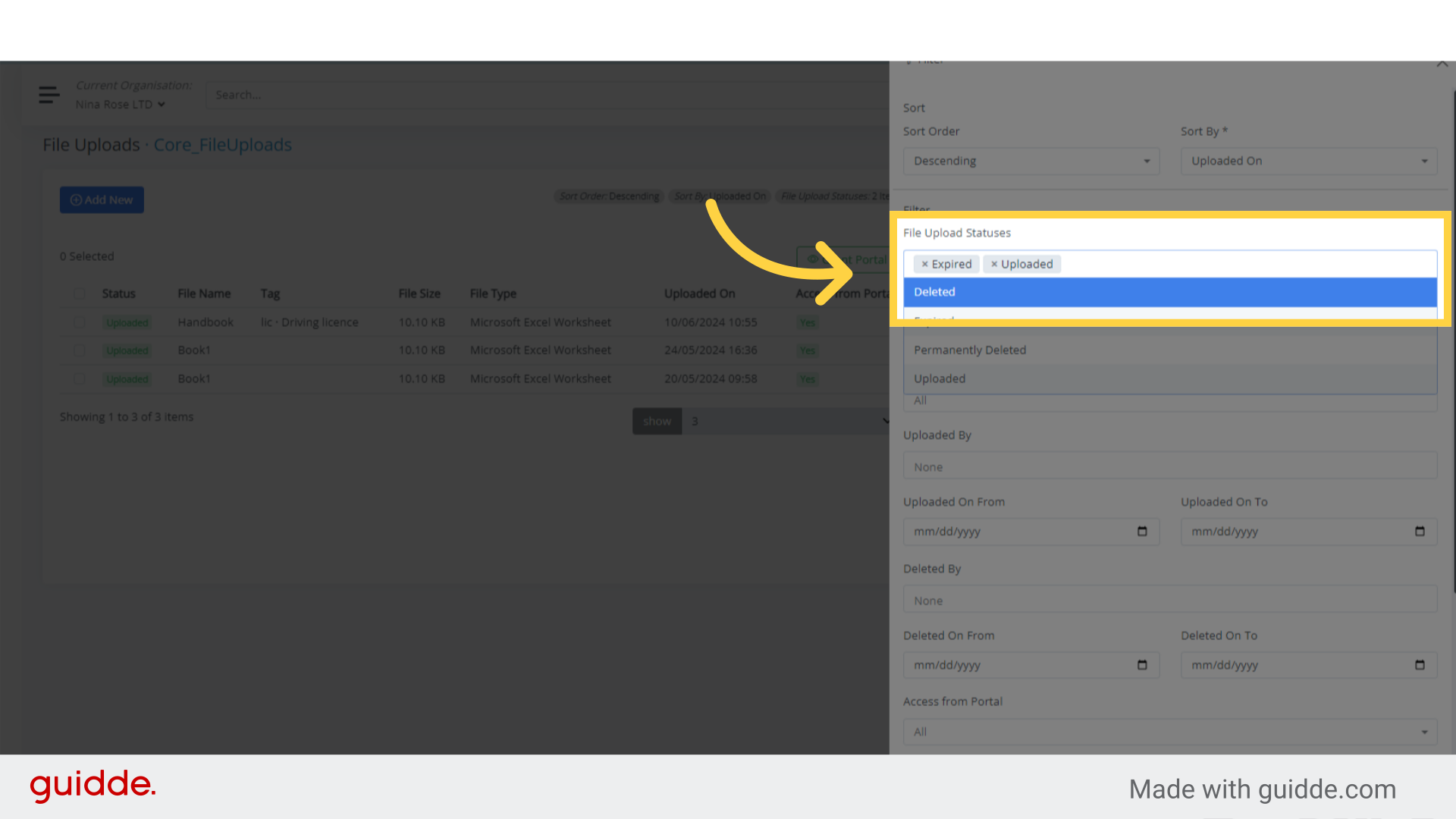
After clicking on Sort and Filter, you’ll be prompted with a page as shown.
Kindly choose the Deleted option from the dropdown menu in the filter section.
By doing so, the deleted file will be visible again in the file uploads list.
Step 6. Click “Sort & Filter” #
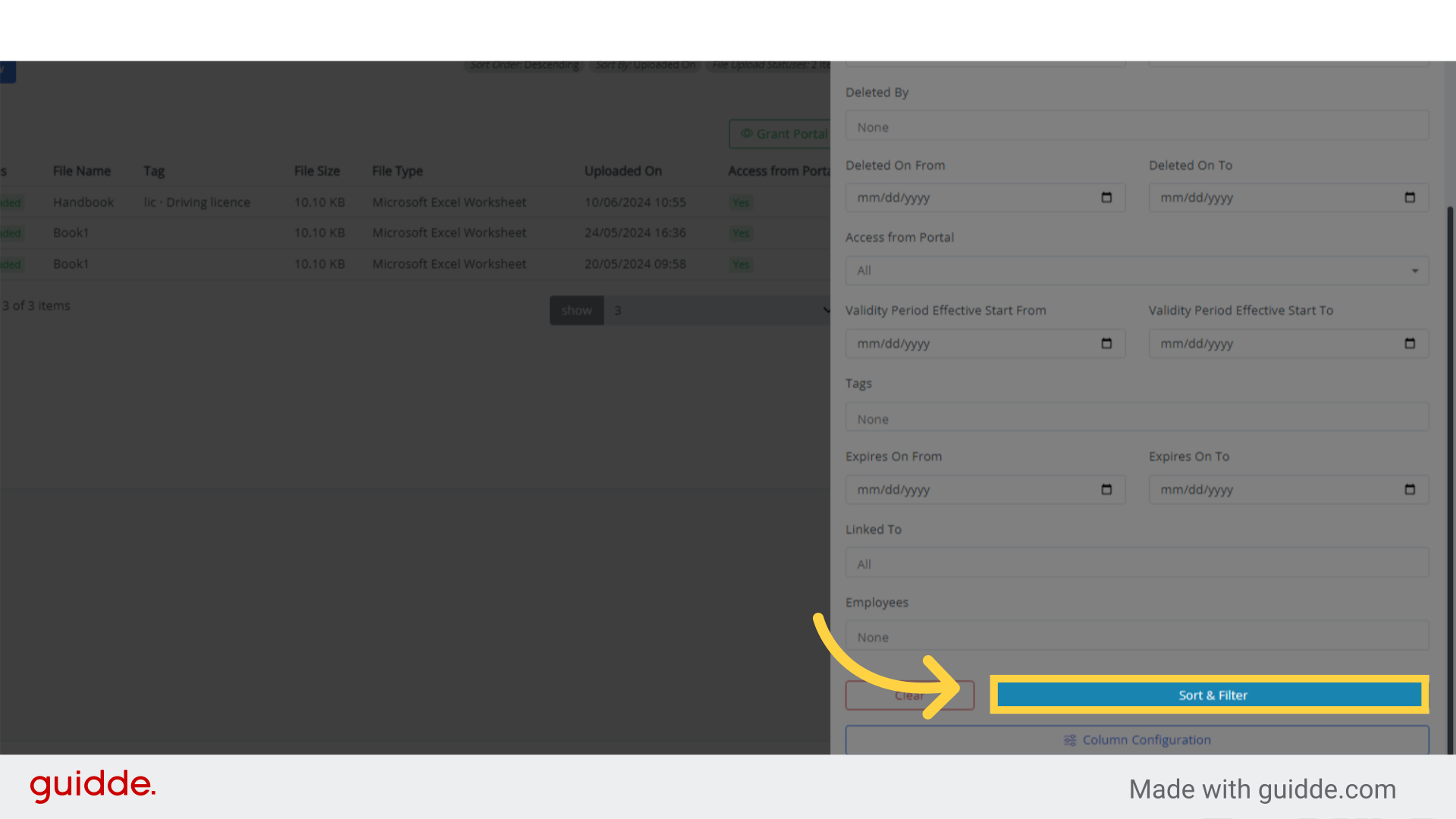
To proceed with the changes, click on Sort and Filter.
Step 7. Click “on” #
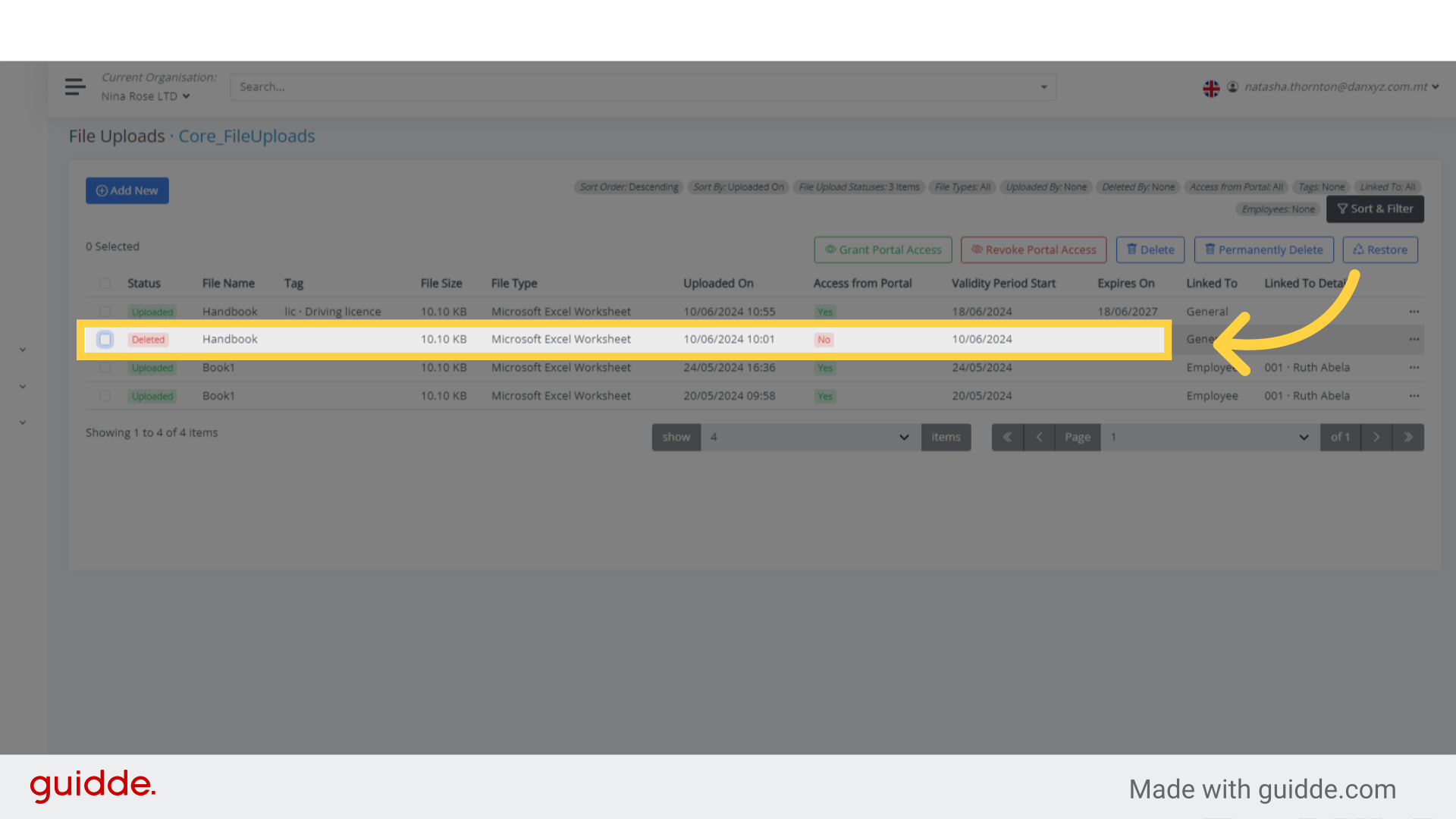
As you can observe, the deleted file has reappeared in the file uploads list.
Step 8. Turn on #
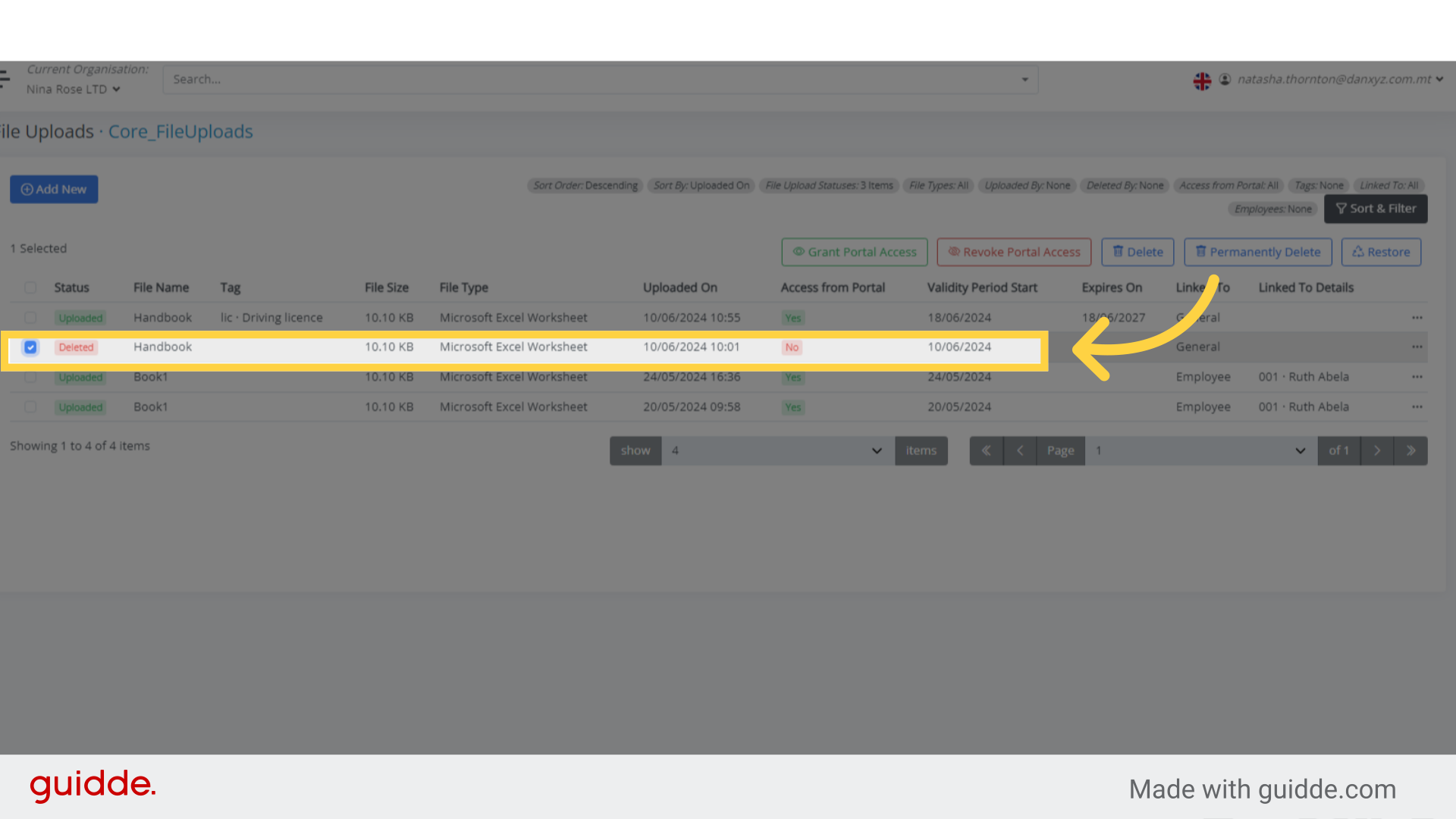
To permanently delete a file, simply select the file you want to delete.
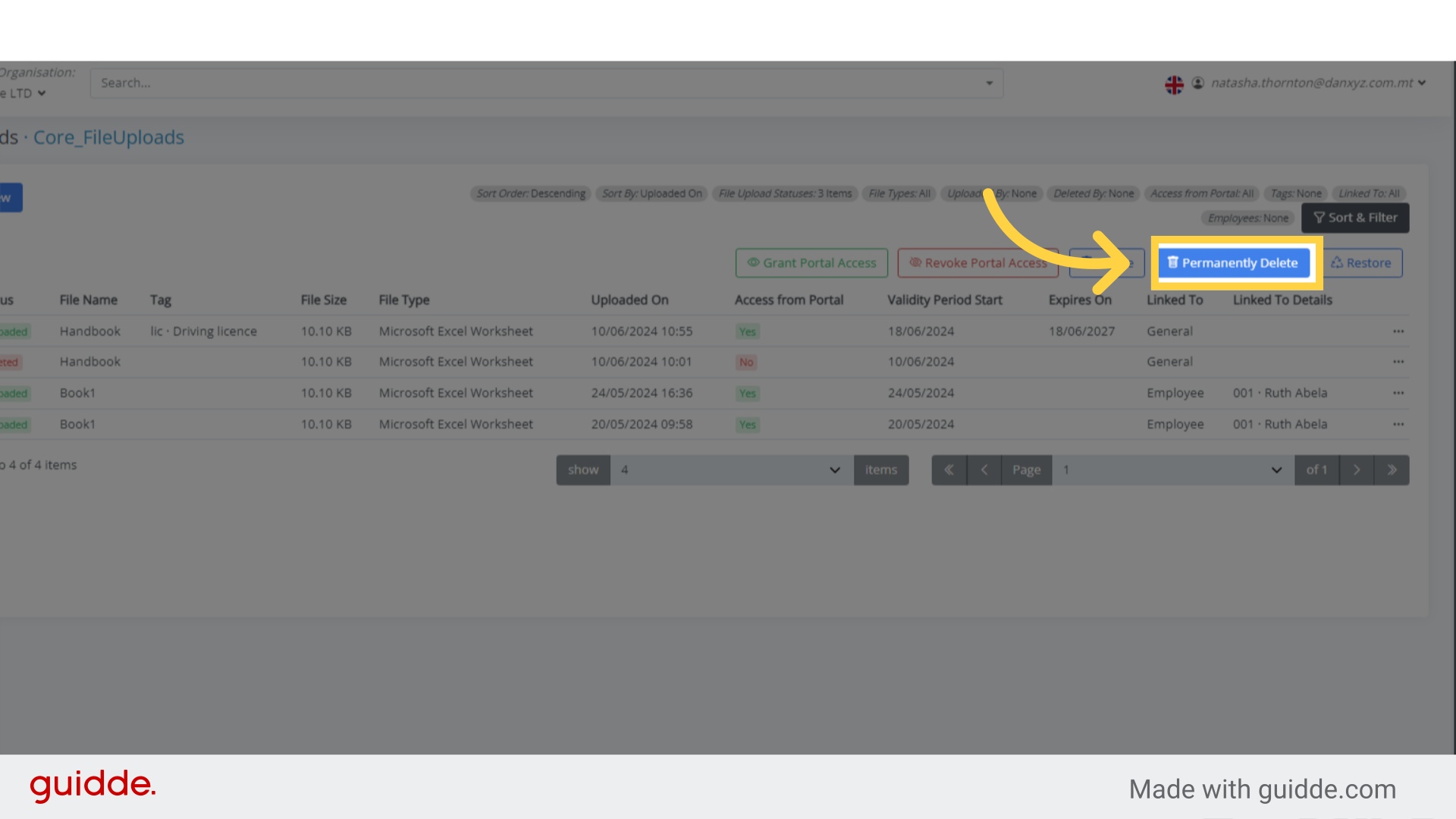
Step 9. Click “Permanently Delete” #
To permanently delete a file, simply click on the Permanently Delete option.
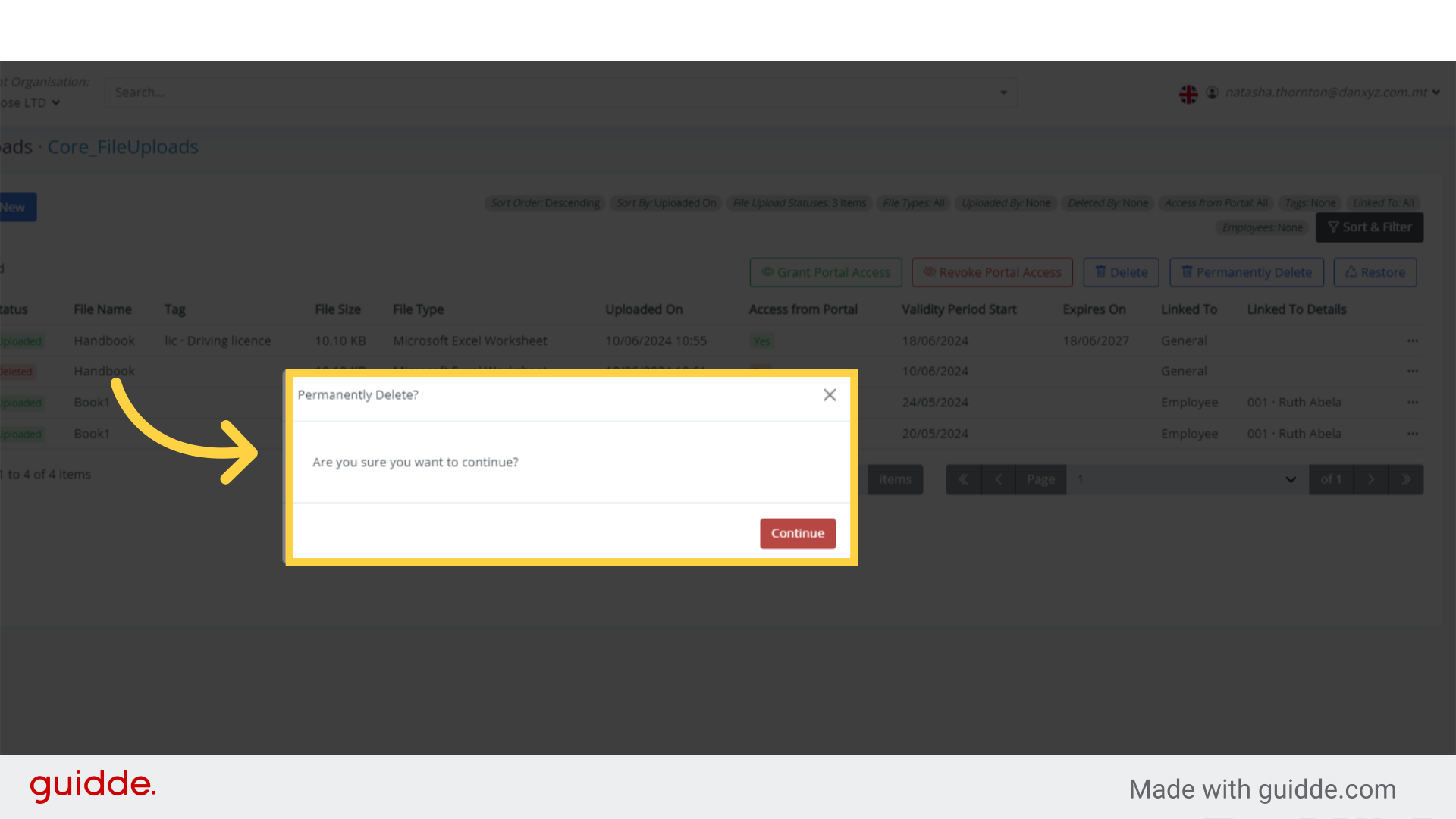
Step 10. Click “Continue” #
Proceed with the deletion process.
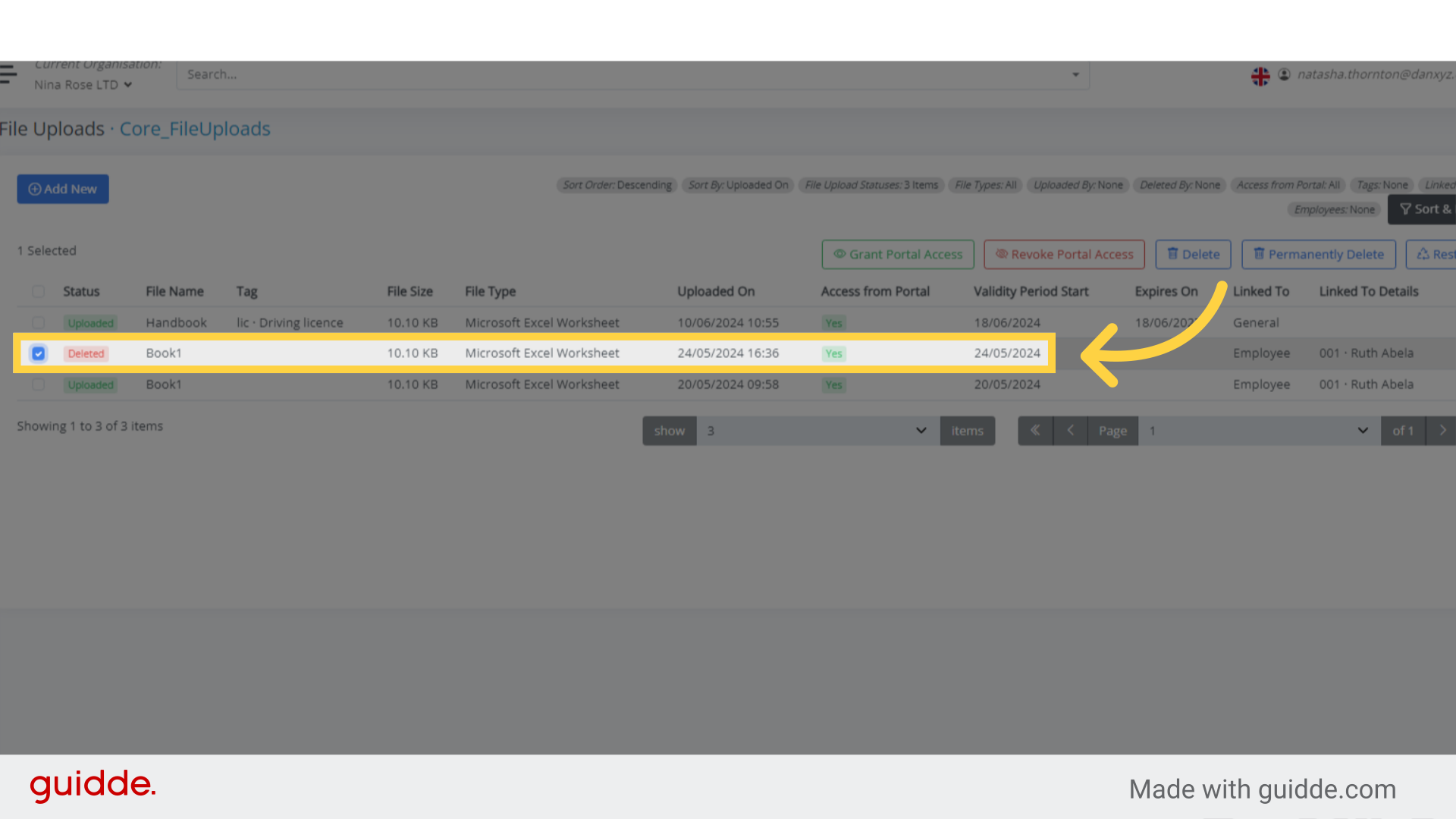
Step 11. Turn on #
To restore a deleted uploaded file, simply select the file from the list.
Remember that only a deleted file can be restored, not a permanently deleted one.
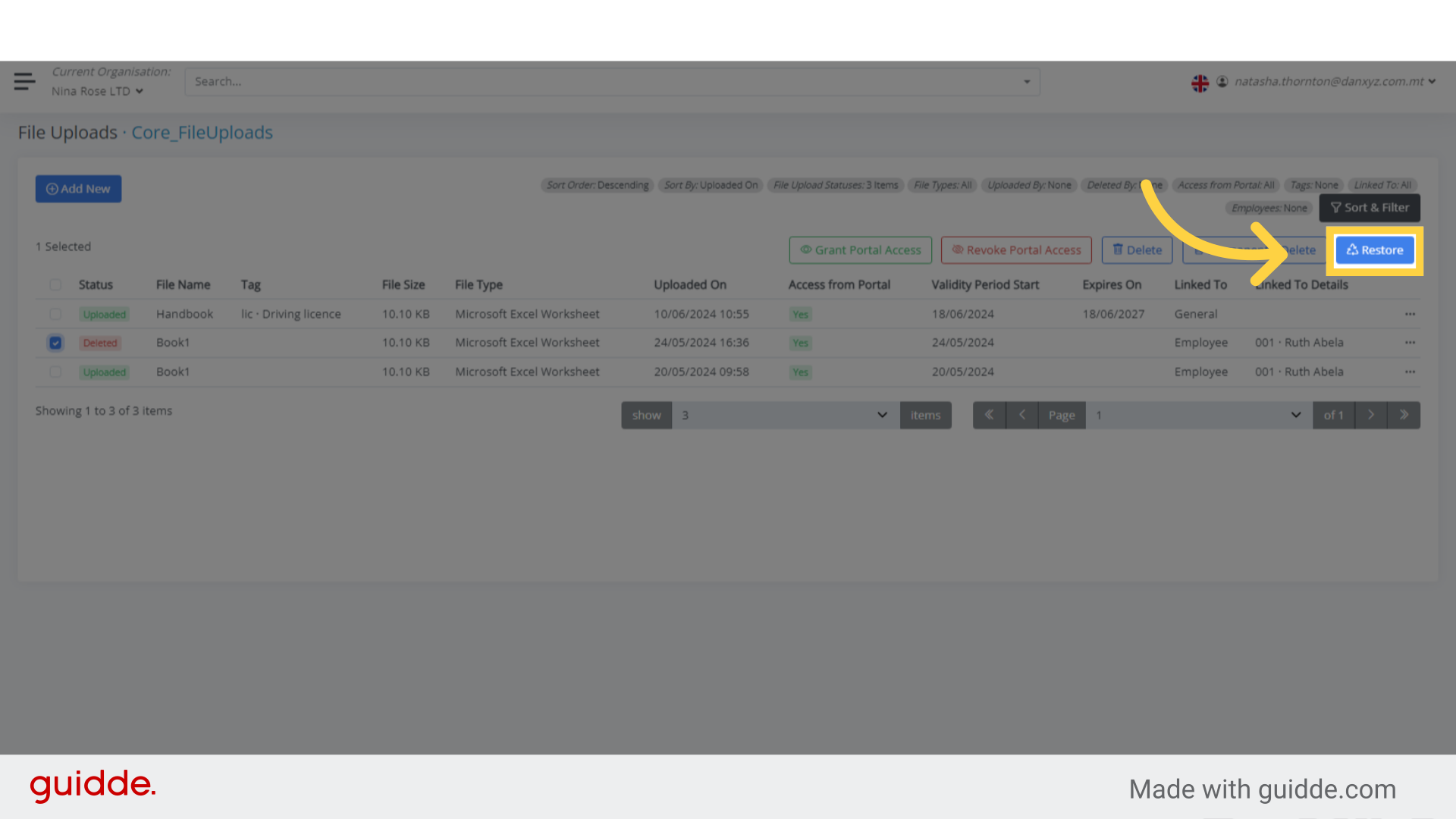
Step 12. Click “Restore” #
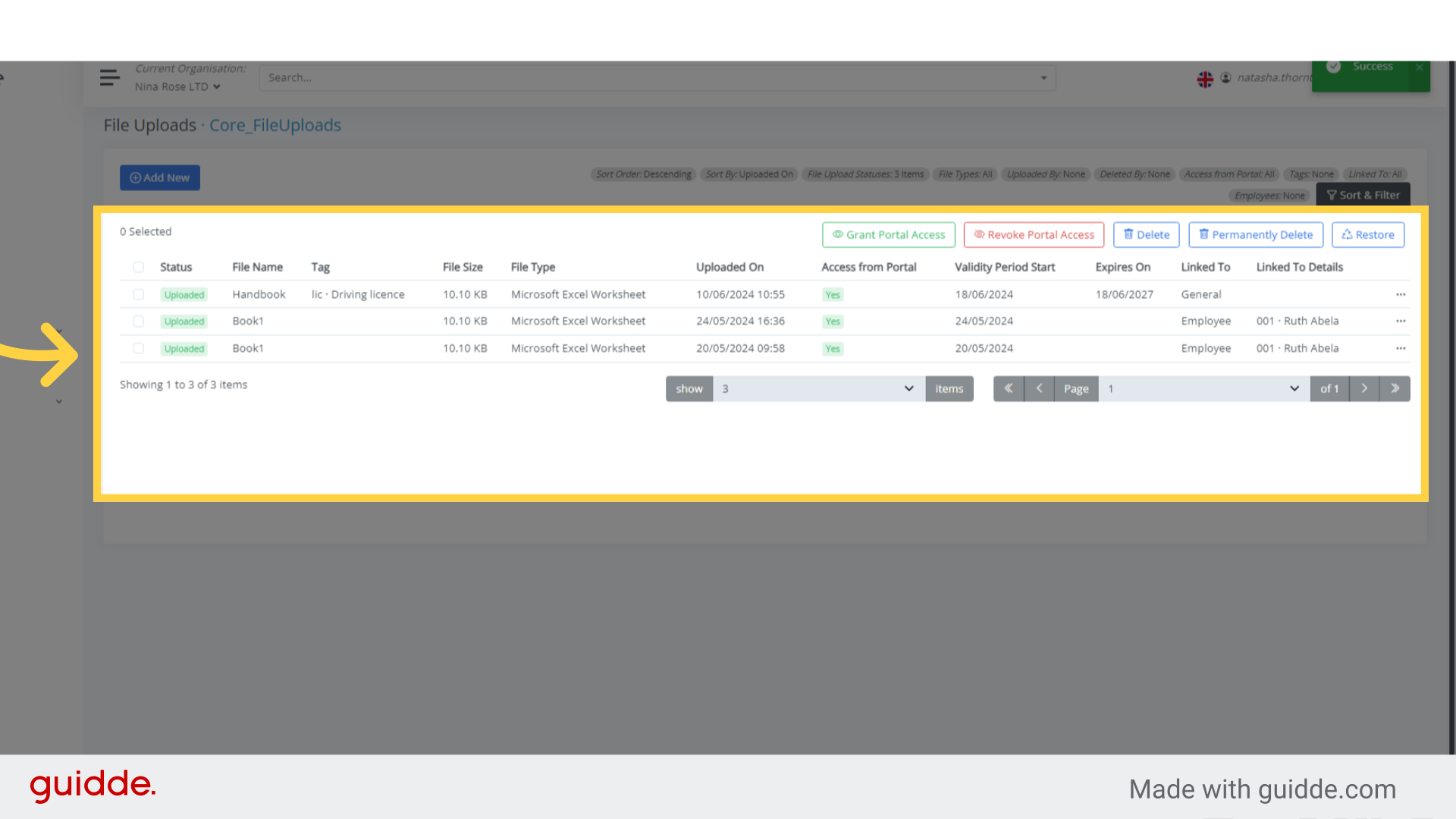
After selecting the deleted upload file from the list, click on the Restore function.
By doing this, the file will be listed in green again alongside the other uploaded files.
Step 13. File restored #
As you can observe, the previously deleted file has been restored once again.
 Thank you.


