Table of Contents
In the process of customizing your experience within Bitkode, learning how to preview a custom tab is essential. #
Each click will lead you through the necessary steps to successfully preview your custom tab.
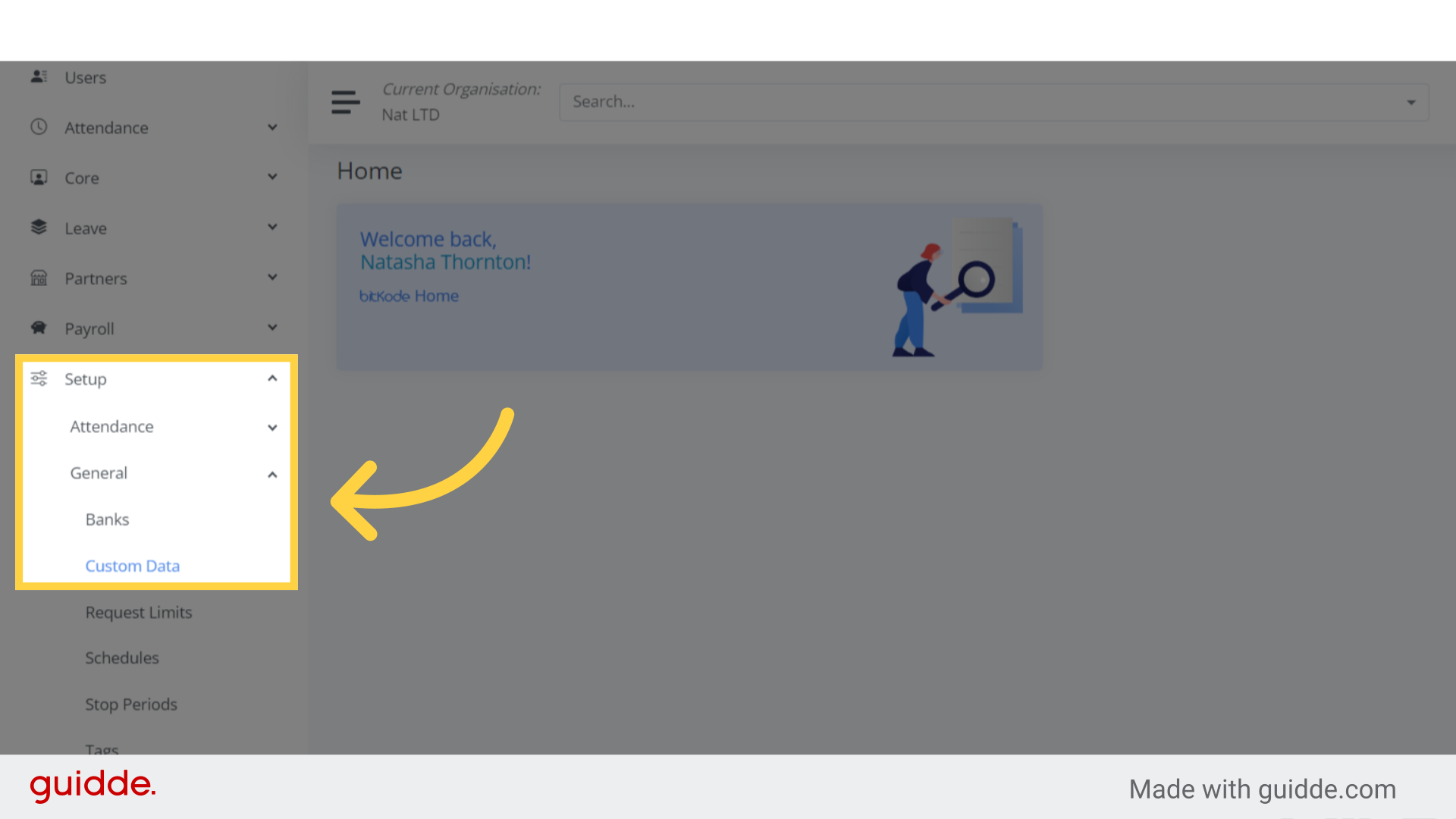
Step 1. Click “Custom Data” #
To preview the custom data that has already been created, you can access it either through an employee linked to HR or via the custom data tab.
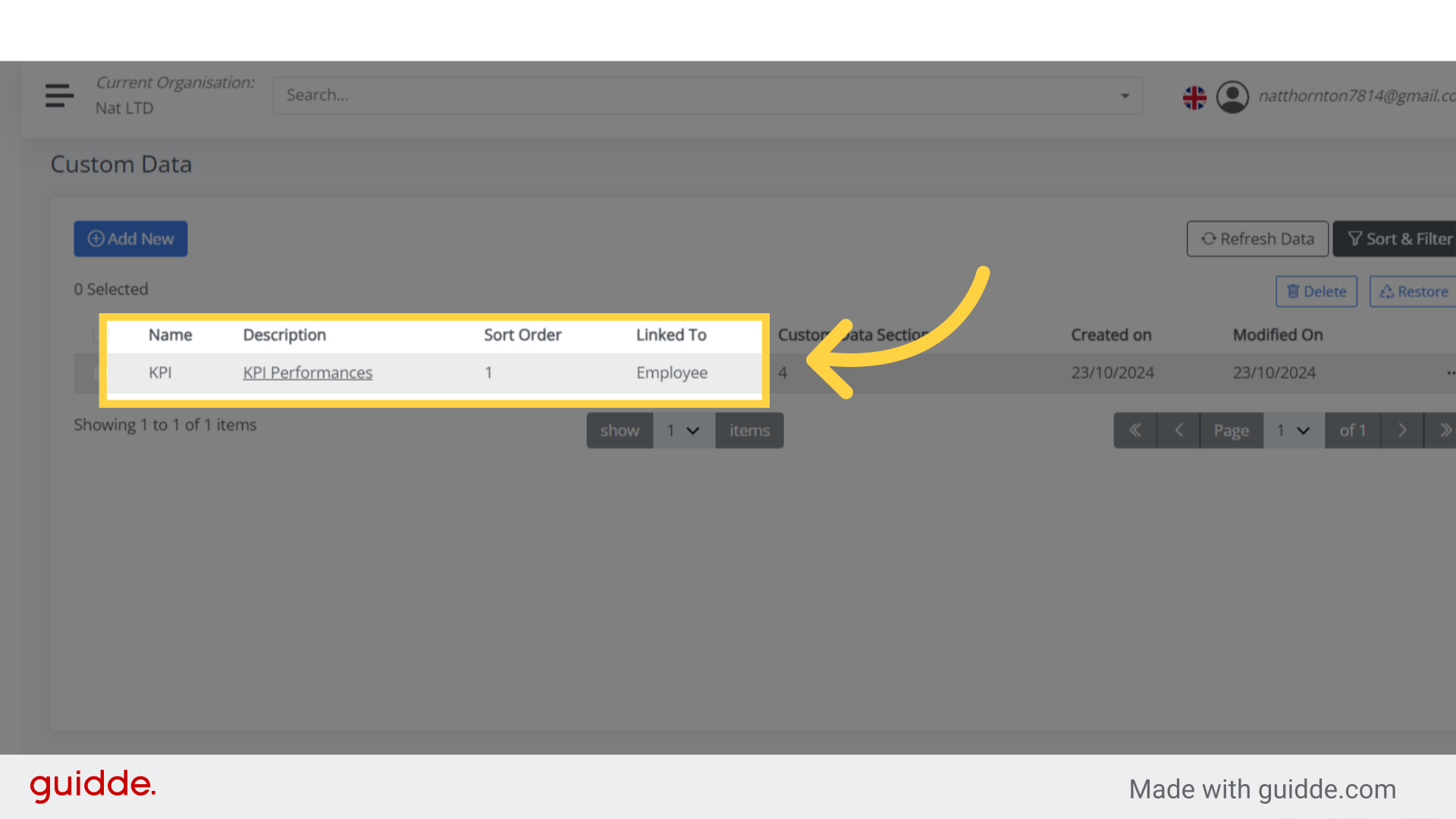
Step 2. Click “KPI Performances” #
For instance, KPI custom data have been created.
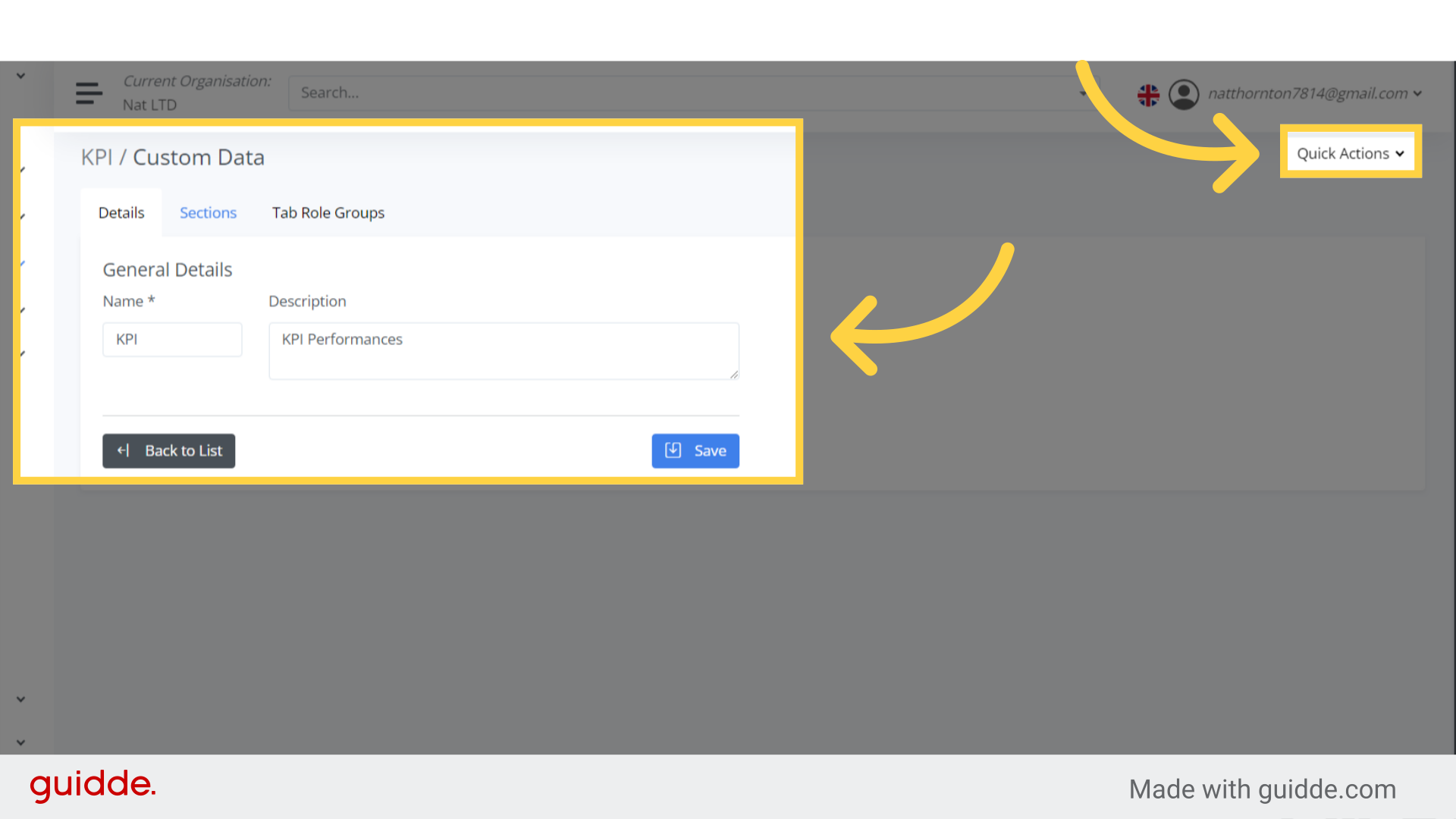
Step 3. Click “Sections” #
In the KPI custom data tab, various fields have been created.
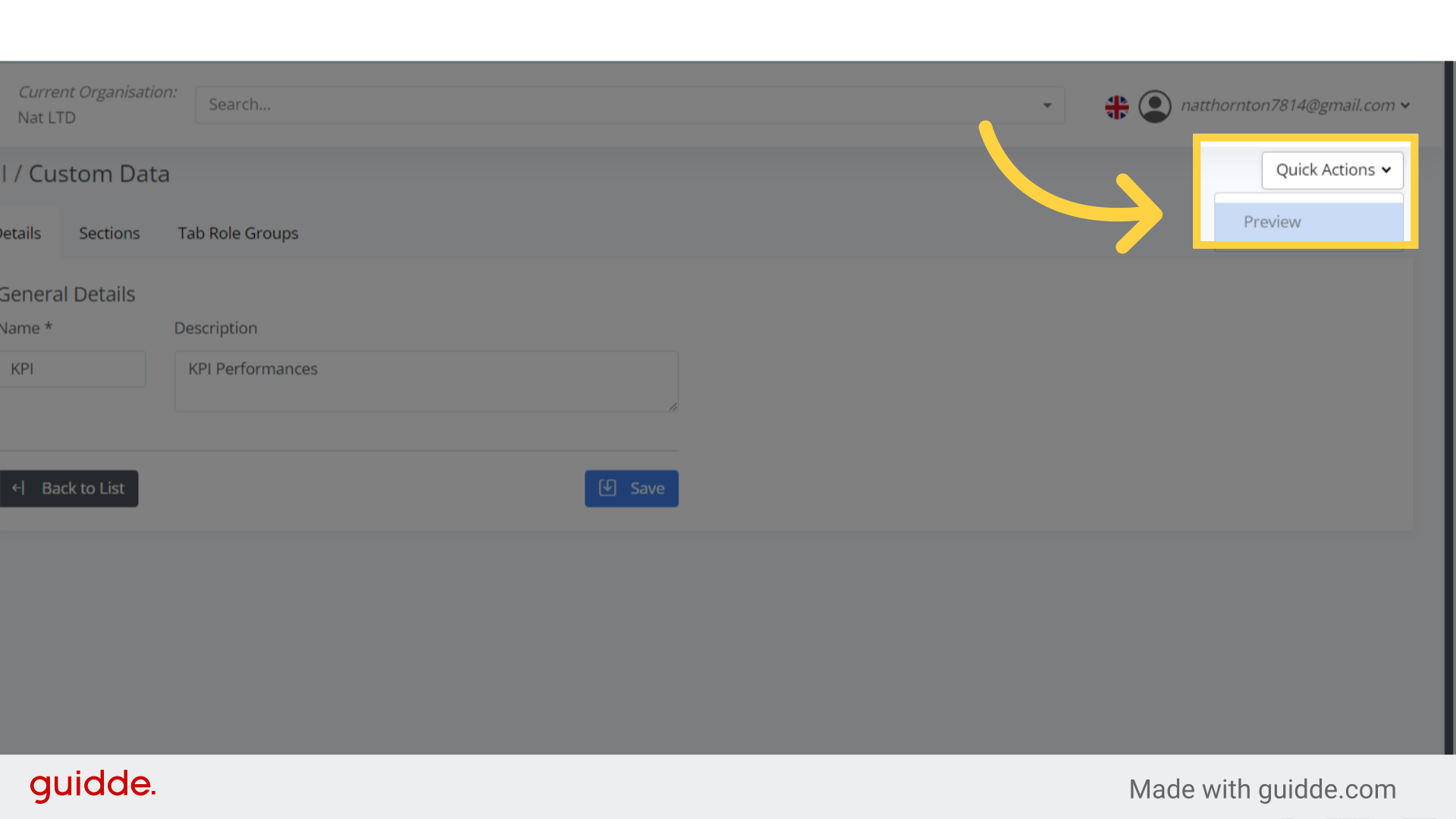
To preview the list of fields, simply click on “Quick Actions.”
Step 4. Click “Preview” #
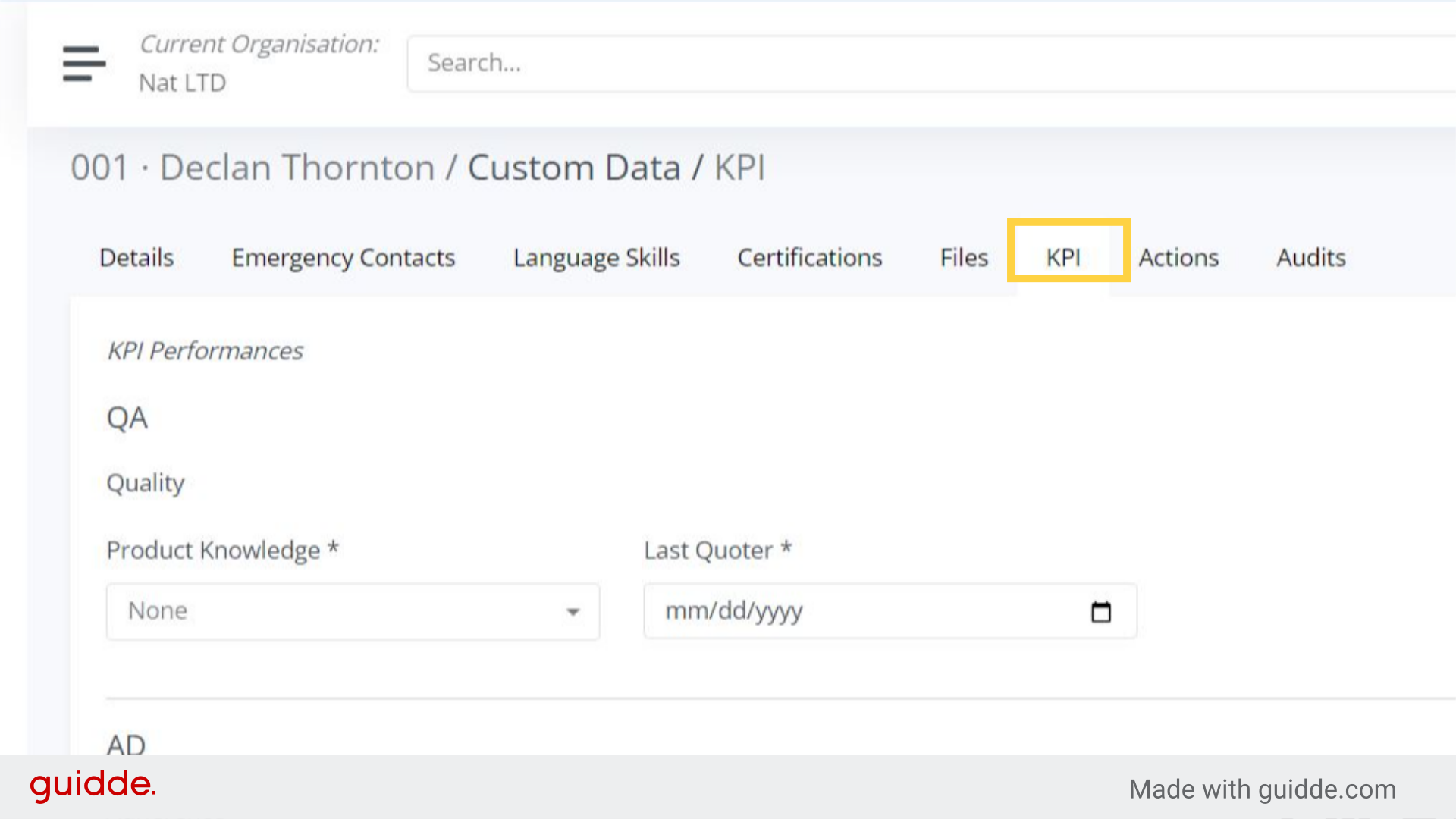
After clicking on Quick Actions, simply select Preview, to view how the custom KPI tab will appear in the employee’s profile.
Step 5. Previewed #
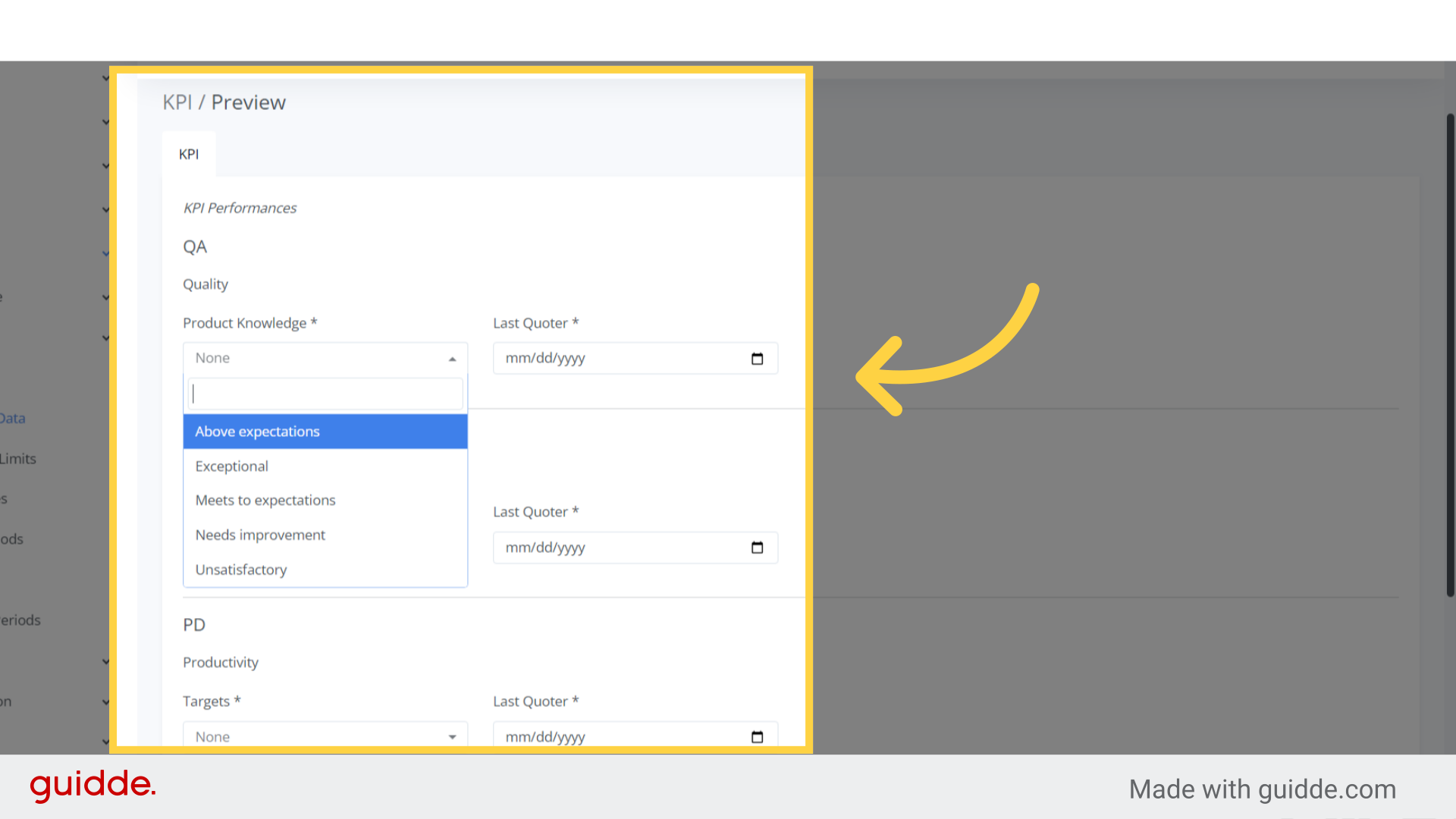
As you can see, the KPI custom tab that was created can be previewed based on the criteria selected during it’s creation.
Step 6. #
Once this has been created and the employee is linked to the HR module, it will be available as a field in the employee’s profile.
It is essential that the employee is linked to the HR module for this field to be visible in their profile.