
Table of Contents
Explore how to view employees’ clockings efficiently with Bitkode. #
All clocking entries–whether recorded via punch clocks, remote clocking, imports, or manual input–are consolidated into a single comprehensive list.
This list can be easily filtered and sorted as needed.
Follow these concise steps to access and navigate through the clocking information easily.
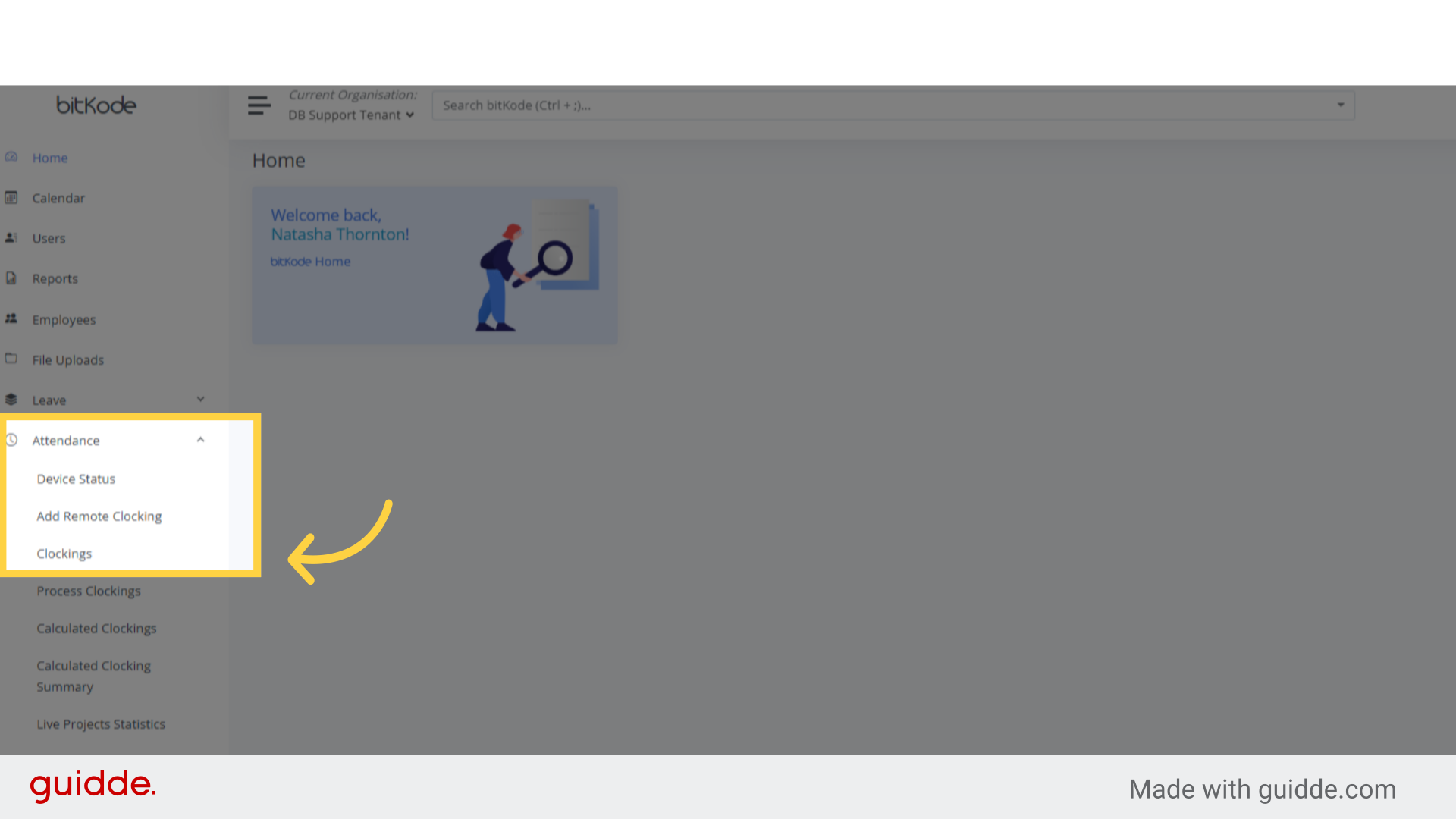
Step 1. Click “Clockings” #
Start by accessing clockings from the Attendance field.
Step 2. Clocked on / Logged on #
At this stage, all clocking punches become visible in a list format.
- Clocked On – refers to the time an employee physically or digitally records their Attendance–such as punching in via a biometric device, or remote system. This is primarily used for Payroll and Attendance tracking.
- Logged On refers to the moment a punch is either created or successfully synced with the system.
Example:
If the punch is at 16:27 using a punch clock that is currently offline, the punch won’t be immediately registered in the system.
Once the punch clock reconnects–say, the following day–the punch will sync, and the system will then record it as “Logged On” at the time it was originally made.
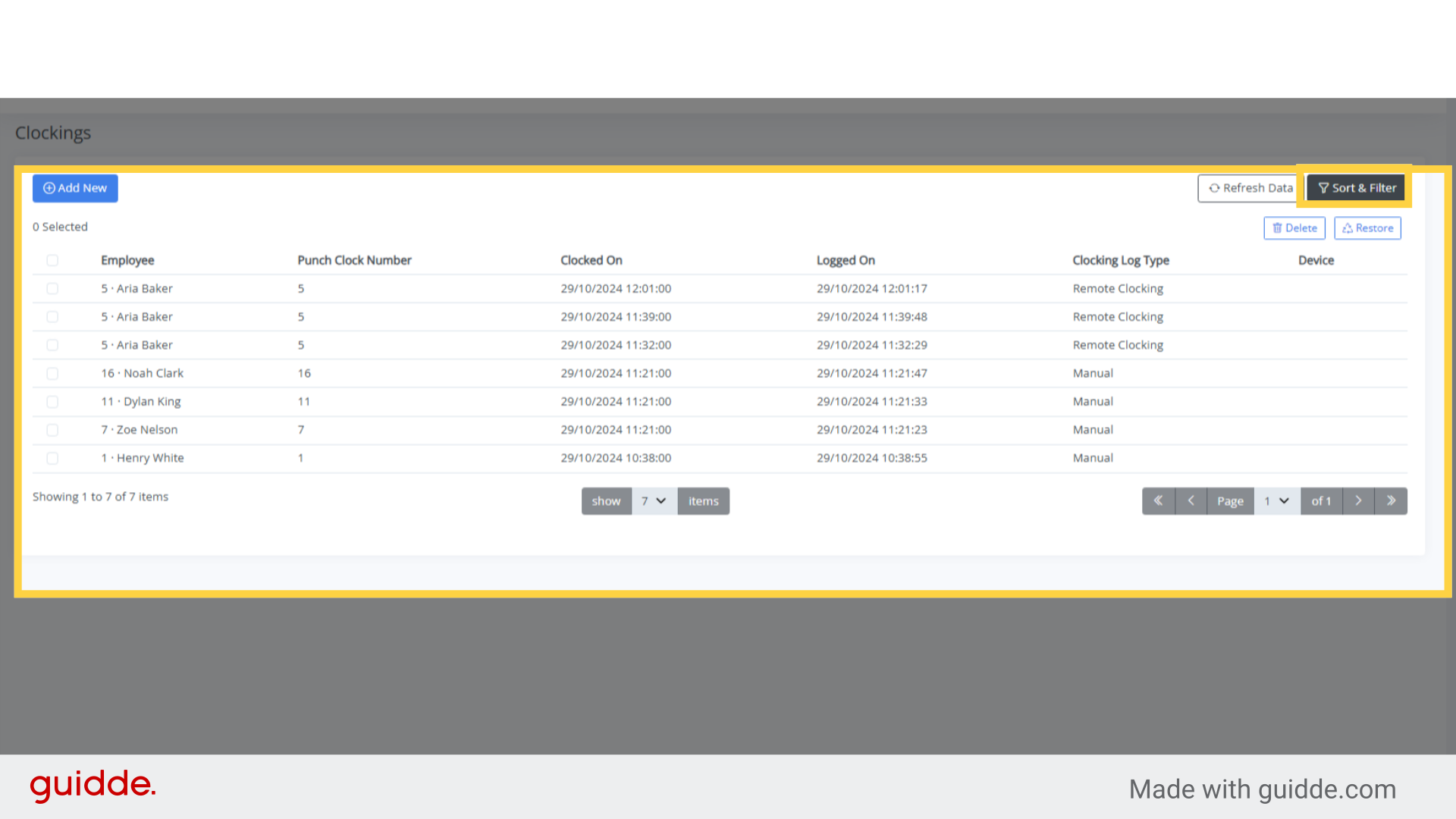
To select specific employees, departments, projects, and clocking types, use the sort and filter field.
Related articles:


