
In some cases, Biometric Punch Clocks may not be able to connect directly to the software due to a lack of internet connection. As a result, Attendance Administrators might need to download clockings onto a USB stick to transfer them to the software.
Attlogs are files generated by the punch clocks that contain clockings along with the employee badge number for each clocking.
If a punch clock cannot automatically submit clockings to the software, Attlogs can be downloaded onto a USB stick through a quick manual intervention.
How do I download the Attendance Log (attlog) via USB from the device? #
Step 1: Insert the USB drive into the punch clock and log in to the device menu.
Step 3: Select the USB Manager menu item by pressing the down key 3 times and the right button one time, and press M/OK.
Step 3: Select the Download and press M/OK
Step 4: Select the Attendance Data and press M/OK. The attlog will start downloading to your USB and you can view its download status on the screen. Once the process is complete, continue pressing ESC to go back to the device’s home screen.
How do I edit an atlog? #
Our first recommendation is for the Administrator to keep an additional copy of the file downloaded directly from the punch clock.
This way, if any edits are made incorrectly, the Administrator can always revert to the original file as it was extracted from the punch clock.
Attlogs can be opened and edited in a text-based editor (like Notepad). However, it is crucial to maintain the original format and structure of the file when making updates.
Any additional spaces or empty lines can cause the file upload to fail.
Additionally, we suggest removing any extra clockings from the file and keeping only the required clockings before uploading. This will help ensure the file is uploaded without any delays.
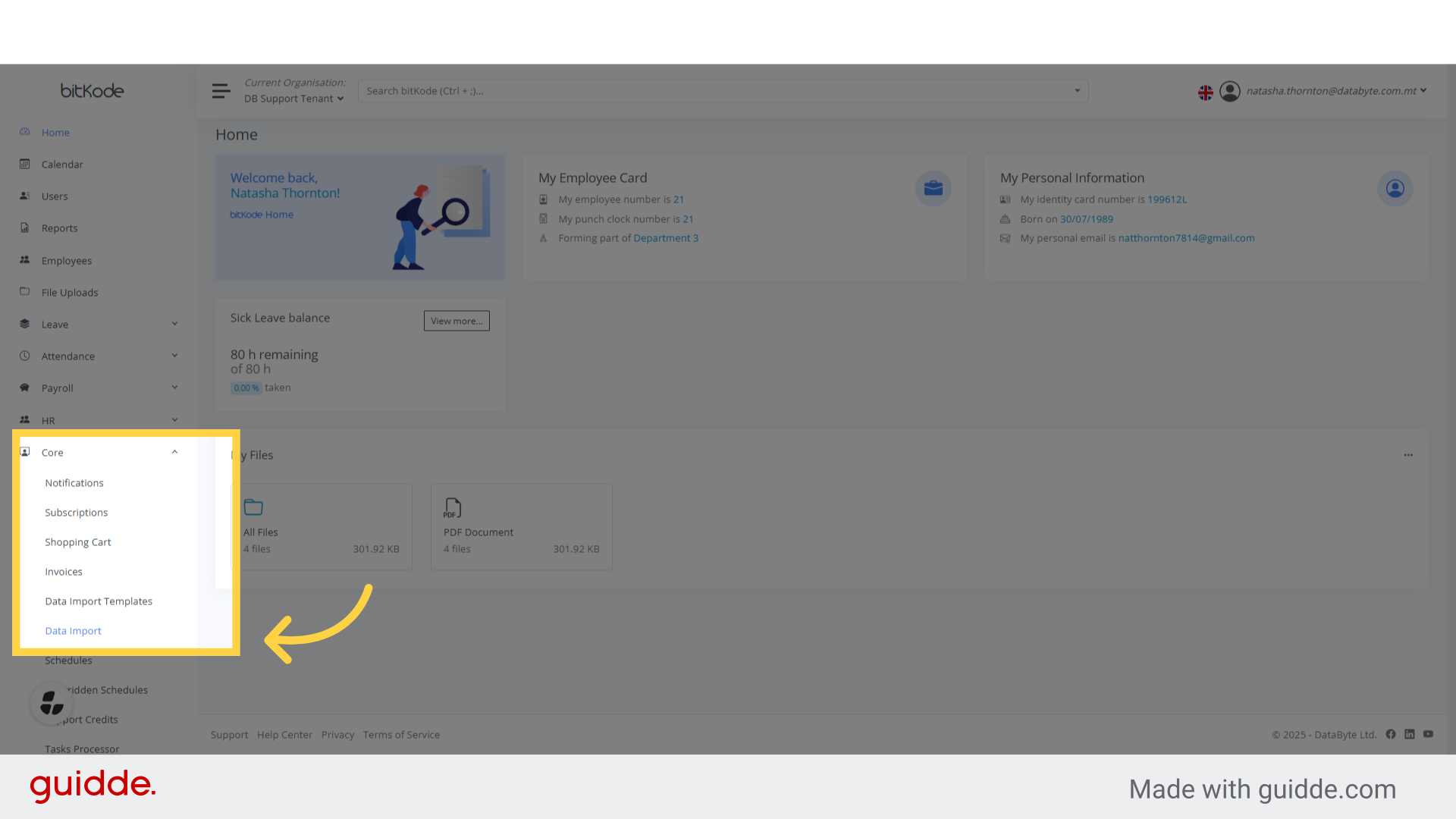
How do I upload the attlog to bitKode? #
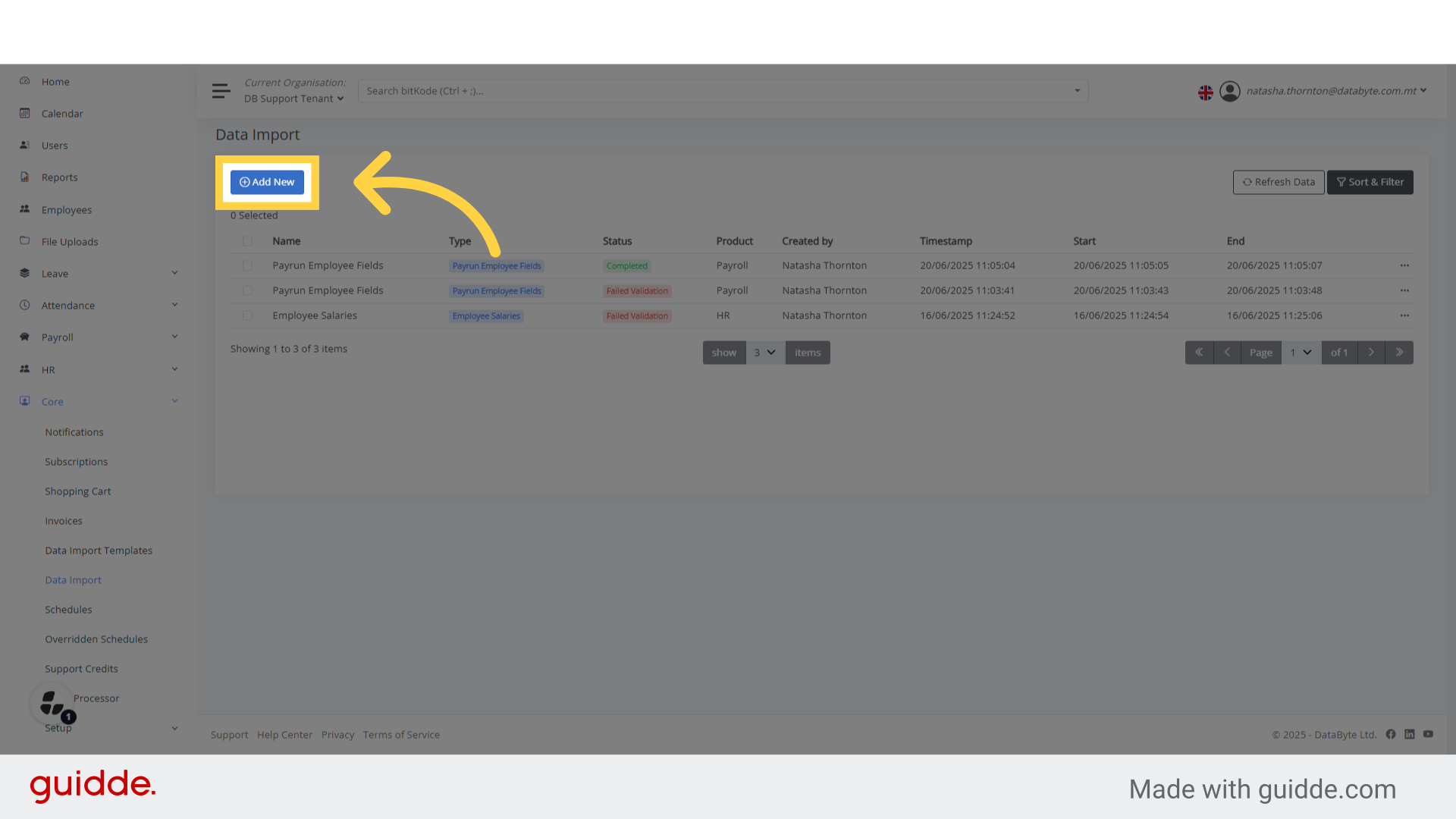
Step 2. Click “Add New” #
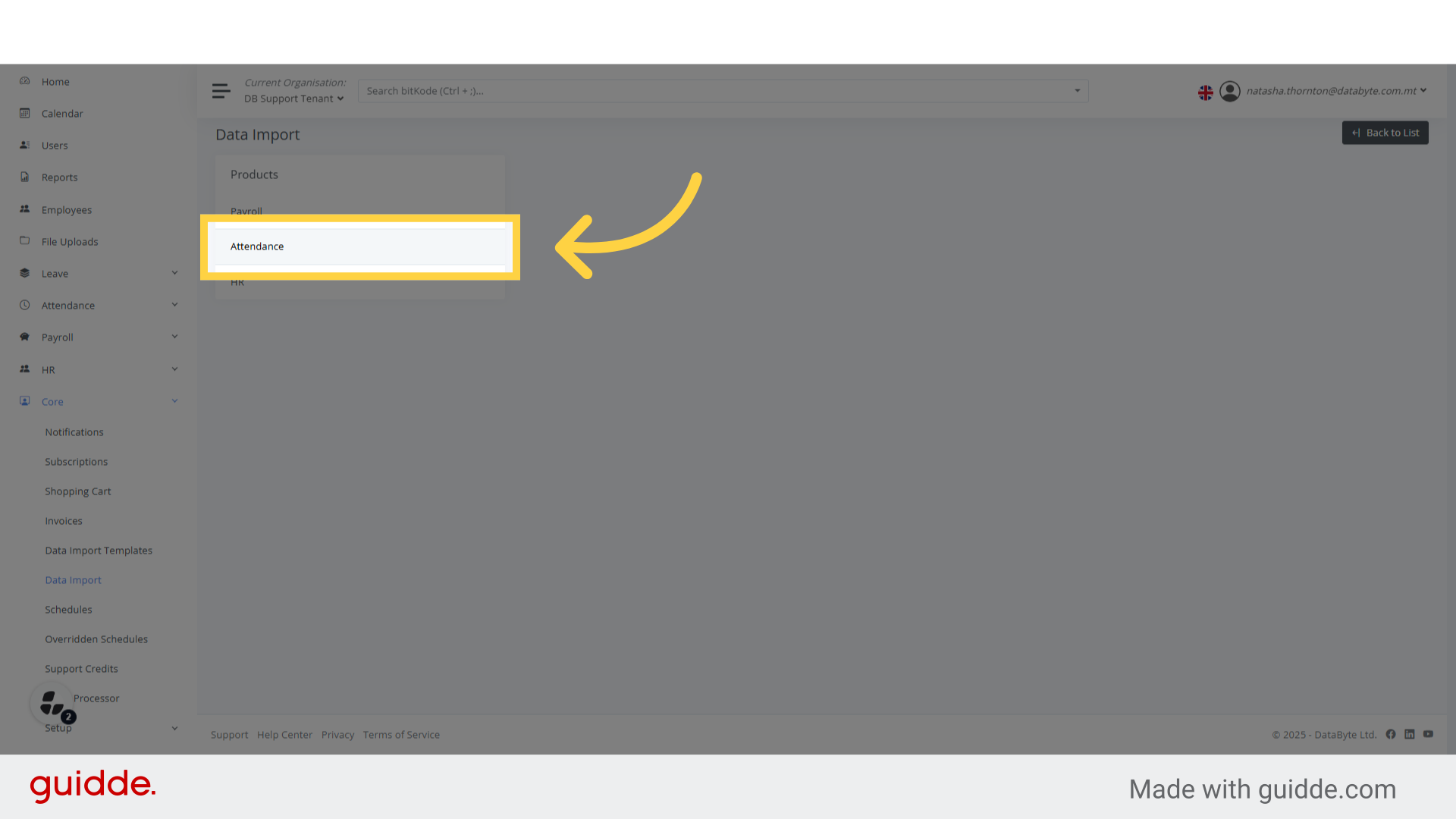
Step 3. Click “Attendance” #
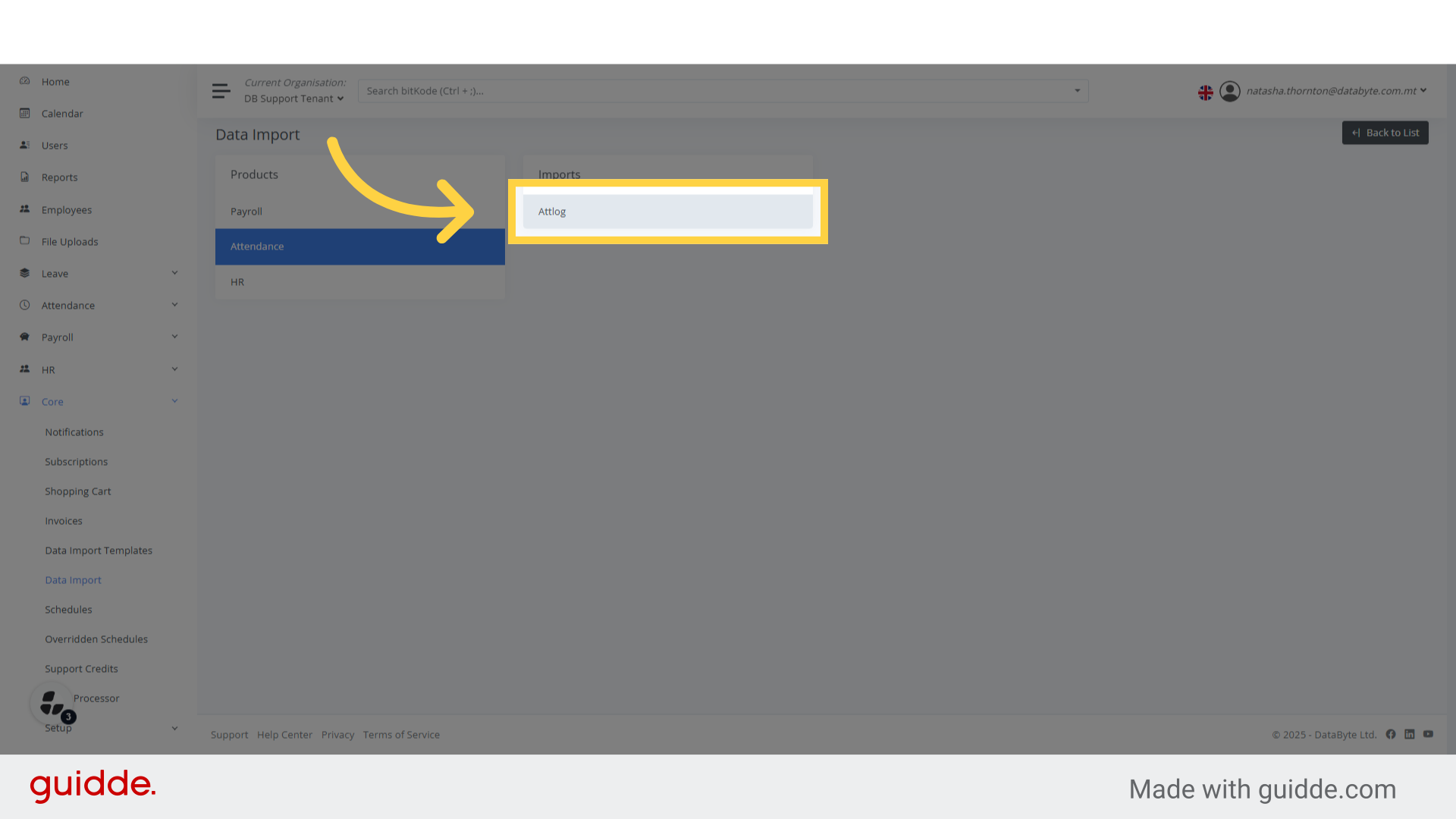
Step 4. Click “Attlog” #
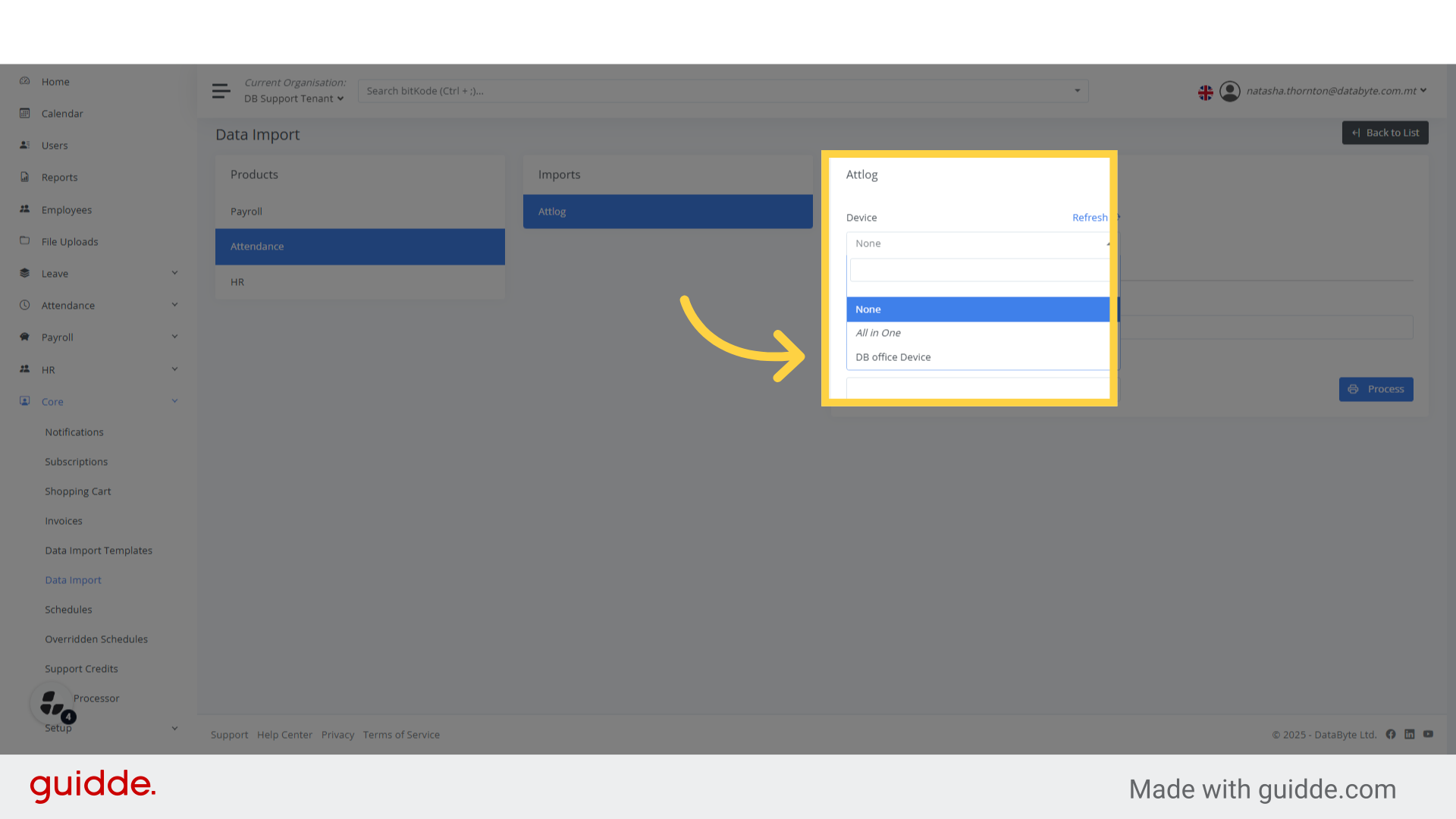
Step 5. Device #
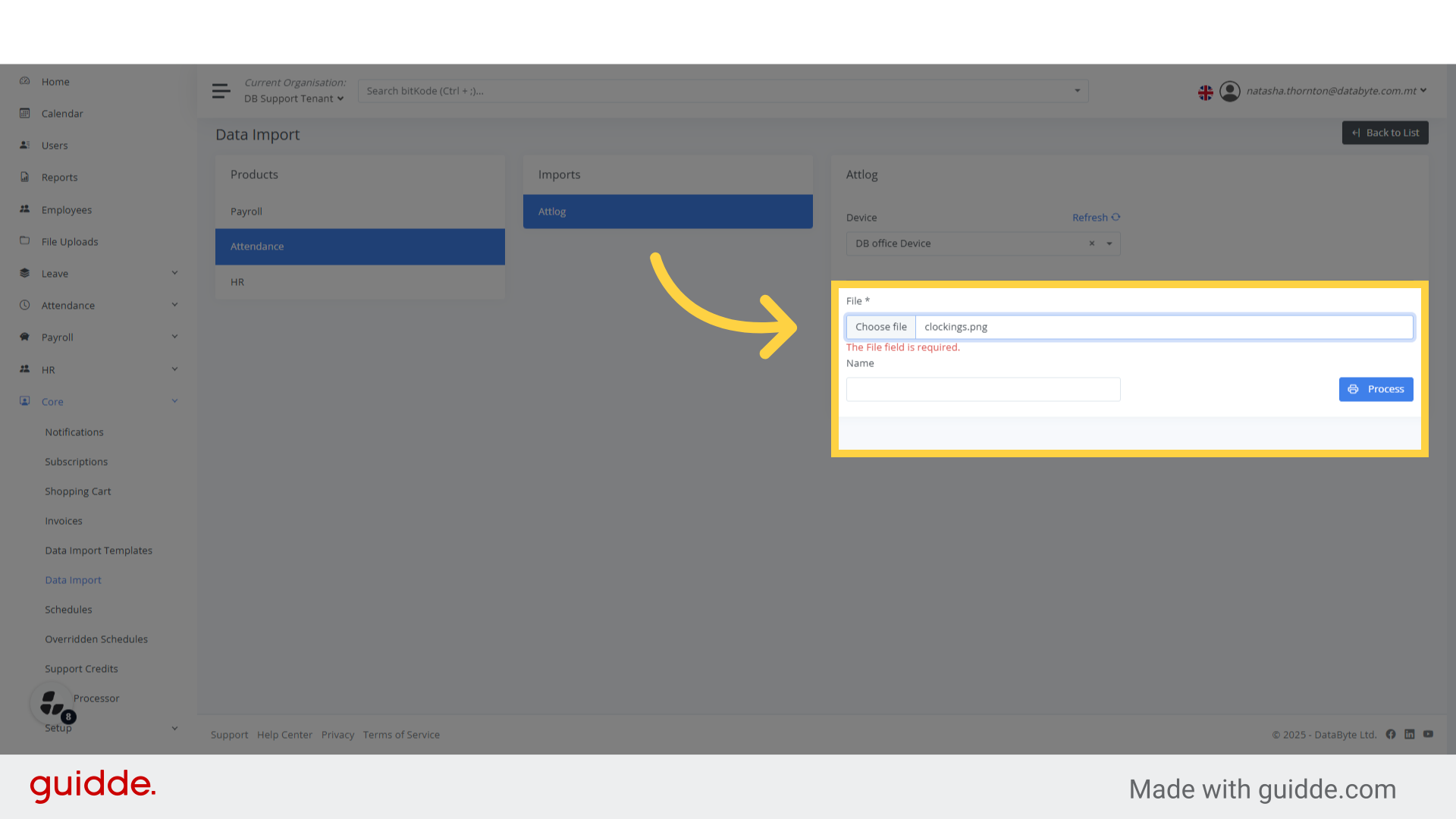
Step 6. Choose the file #
Once the import process is completed, you will be redirected to the Imports page. Any errors encountered during the upload will be listed in the error file. Common examples of errors include:
- Invalid file layout
- Attempting to upload clockings for employees outside their employment period
All successfully uploaded clockings will appear in the Clocking List.
Please note: If you upload clockings for a period that has already been processed, all affected days will be marked as out of date.

Related articles:
How do I process Attendance?
How do I Approve/Reject Attendance transactions?
How do I unapproved employees’ attendance and overtime?
I updated the employee’s working schedule. What should I do to effect the changes in the Approvals sections?


